
React Native鸿蒙跨平台将搜索输入治理、状态机并发、防抖与最后生效、列表虚拟化与对话框服务统一
本文探讨了跨平台搜索功能的架构设计与鸿蒙适配策略。系统采用多状态管理模式,包括搜索词、历史记录、结果数据等独立状态变量,并实现智能历史记录管理。架构支持实时输入监听、多触发方式搜索和条件渲染展示结果,使用虚拟化列表优化性能。针对鸿蒙平台,提出分布式搜索同步、输入法深度集成和搜索性能优化等关键技术方案,包括结果缓存、内存管理和安全加密措施。文章还讨论了智能化搜索增强方向,如AI建议和用户偏好学习,为
复合搜索状态管理系统
搜索页面展现了复杂的多状态管理模式:
const [searchQuery, setSearchQuery] = useState('');
const [searchHistories, setSearchHistories] = useState<string[]>(['手机', '笔记本电脑', '耳机', '书籍']);
const [results, setResults] = useState<any[]>([]);
const [isLoading, setIsLoading] = useState(false);
const [activeTab, setActiveTab] = useState('all');
这种状态拆分策略在跨平台搜索场景中具有重要的技术意义。每个状态变量都有明确的业务语义和生命周期:searchQuery 管理用户输入的搜索词,searchHistories 持久化用户搜索行为,results 存储搜索结果数据,isLoading 控制加载状态,activeTab 管理结果分类。在鸿蒙平台上,这种清晰的状态划分可以更好地支持分布式状态同步和离线搜索能力。
历史记录智能管理
代码实现了智能的搜索历史管理机制:
// 更新搜索历史
if (!searchHistories.includes(query)) {
  setSearchHistories([query, ...searchHistories.slice(0, 9)]);
}
这种设计体现了良好的用户体验考虑:避免重复历史记录、限制历史数量(最多10条)、保持最新记录在前。在跨平台开发中,这种历史管理逻辑需要在不同平台上保持完全一致的行为。在鸿蒙平台上,开发者可以考虑利用鸿蒙的分布式数据管理能力,实现跨设备的搜索历史同步。
实时搜索交互架构
输入监听与即时反馈
搜索输入框实现了丰富的交互特性:
<TextInput
  style={styles.searchInput}
  placeholder="搜索商品..."
  value={searchQuery}
  onChangeText={setSearchQuery}
  onSubmitEditing={handleSearch}
  returnKeyType="search"
/>
这种实时输入监听机制在跨平台开发中需要特别注意性能优化。在鸿蒙平台上,开发者应当:
- 防抖处理:避免过于频繁的搜索请求
- 输入法优化:适配鸿蒙特有的输入法行为
- 内存管理:处理大量输入时的内存使用
多提交方式支持
代码支持多种搜索触发方式:
// 键盘提交
onSubmitEditing={handleSearch}

// 按钮提交
<TouchableOpacity style={styles.searchButton} onPress={handleSearch}>
这种多通道交互设计提升了用户体验。在鸿蒙平台上,还可以集成语音搜索、手势搜索等原生能力。
搜索结果展示架构
条件渲染体系
页面实现了智能的条件渲染逻辑:
{results.length === 0 && searchHistories.length > 0 ? (
  <SearchHistory ... />
) : isLoading ? (
  <View style={styles.loadingContainer}>...</View>
) : (
  // 显示搜索结果
)}
这种条件渲染模式在跨平台开发中需要保持各平台的视觉一致性。在鸿蒙平台上,开发者需要考虑不同设备的屏幕尺寸和交互方式,确保条件切换的动画效果流畅自然。
虚拟化列表优化
使用 FlatList 进行高效的结果展示:
<FlatList
  data={results}
  keyExtractor={(item) => item.id.toString()}
  renderItem={({ item }) => <SearchResultItem ... />}
  showsVerticalScrollIndicator={false}
/>
FlatList 的虚拟化渲染在鸿蒙平台上需要特别优化:
- 内存优化:处理大量搜索结果时的内存管理
- 滚动性能:确保列表滚动的流畅性
- 图片懒加载:优化搜索结果中的图片加载
鸿蒙跨端适配关键技术
分布式搜索能力集成
鸿蒙的分布式特性可以为搜索功能带来创新体验:
// 伪代码:分布式搜索
const DistributedSearch = {
  syncSearchHistory: (histories) => {
    if (Platform.OS === 'harmony') {
      harmonyNative.syncData('search_history', histories);
    }
  },
  crossDeviceSearch: (query) => {
    if (Platform.OS === 'harmony') {
      return harmonyNative.searchAcrossDevices(query);
    }
    return localSearch(query);
  }
};
搜索引擎优化适配
针对鸿蒙平台优化搜索性能:
// 伪代码:搜索性能优化
const SearchPerformance = {
  optimizeForHarmony: () => {
    if (Platform.OS === 'harmony') {
      harmonyNative.enableSearchIndexing();
      harmonyNative.setSearchCacheSize(100);
    }
  },
  preloadSearchData: () => {
    if (Platform.OS === 'harmony') {
      harmonyNative.preloadFrequentSearches();
    }
  }
};
输入法深度集成
鸿蒙输入法的特殊能力集成:
// 伪代码:输入法集成
const KeyboardIntegration = {
  enableSmartSuggestions: () => {
    if (Platform.OS === 'harmony') {
      harmonyNative.enableInputSuggestions('search');
    }
  },
  supportVoiceInput: () => {
    if (Platform.OS === 'harmony') {
      harmonyNative.enableVoiceSearch();
    }
  }
};
性能优化体系
搜索响应优化
// 伪代码:搜索性能优化
const SearchOptimization = {
  debounceSearch: (query, delay) => {
    // 实现防抖搜索
    let timeoutId;
    return () => {
      clearTimeout(timeoutId);
      timeoutId = setTimeout(() => performSearch(query), delay);
    };
  },
  cacheResults: (query, results) => {
    if (Platform.OS === 'harmony') {
      harmonyNative.cacheSearchResults(query, results);
    }
  }
};
内存管理策略
处理大量搜索结果的优化:
- 结果分页:实现分页加载避免内存溢出
- 图片优化:使用合适的图片缓存策略
- 组件回收:优化搜索结果项的组件生命周期
安全与隐私保护
搜索数据加密
// 伪代码:数据安全
const SearchSecurity = {
  encryptSearchData: (data) => {
    if (Platform.OS === 'harmony') {
      return harmonyNative.encryptData(data);
    }
    return standardEncrypt(data);
  },
  clearSensitiveData: () => {
    if (Platform.OS === 'harmony') {
      harmonyNative.clearSearchCache();
    }
  }
};
隐私合规设计
// 伪代码:隐私保护
const PrivacyProtection = {
  anonymizeSearchData: (data) => {
    if (Platform.OS === 'harmony') {
      return harmonyNative.anonymizeData(data);
    }
    return data;
  },
  getUserConsent: () => {
    if (Platform.OS === 'harmony') {
      return harmonyNative.requestSearchConsent();
    }
    return true;
  }
};
测试与质量保障
跨平台搜索测试
- 功能测试:验证搜索流程的完整性
- 性能测试:测量搜索响应时间和内存使用
- 兼容性测试:确保各平台表现一致
鸿蒙专项测试
- 分布式测试:多设备搜索同步测试
- 输入法测试:鸿蒙输入法集成测试
- 性能基准测试:鸿蒙平台性能指标
架构演进方向
智能化搜索增强
// 伪代码:智能搜索
const SmartSearch = {
  enableAISuggestions: () => {
    if (Platform.OS === 'harmony') {
      harmonyNative.enableAISearch();
    }
  },
  learnUserPreferences: (searchBehavior) => {
    if (Platform.OS === 'harmony') {
      harmonyNative.learnSearchPatterns(searchBehavior);
    }
  }
};
微服务架构集成
// 伪代码:微服务集成
const MicroserviceIntegration = {
  connectToSearchService: () => {
    if (Platform.OS === 'harmony') {
      harmonyNative.connectSearchMicroservice();
    }
  }
};
概览
- 页面结构由“搜索栏 + 分类标签 + 历史/结果区 + 底部排序筛选”构成,核心在输入治理、搜索状态机、列表虚拟化与跨端能力桥接
- 结果区当前用 ScrollView 包裹 FlatList,属于嵌套滚动反模式;应以 FlatList 单一滚动容器承载历史或结果,统一头/空/尾组件
搜索输入与 IME
- TextInput 使用 onSubmitEditing 与按钮触发搜索,建议加入防抖(300–500ms)与“最后一次请求生效”策略,避免高频触发导致结果闪烁
- 中文 IME 需处理合成态:在 composition 期间不触发搜索与清空,提交态再读取最终文本;ArkUI TextField 同步 composition 事件,保持两端一致
- 清空按钮建议扩大命中区(hitSlop)并赋予可访问标签,避免在小屏设备上清空难以触达
搜索状态机与并发
- performSearch 先更新历史,再模拟异步请求并设置 isLoading;并发时需“请求令牌”或自增序列保证后到达的旧结果不覆盖新搜索
- hasPending 与 cancel 机制:新搜索发起时取消前一次 setTimeout(或实际网络请求),RN 与 ArkUI 统一错误语义与取消行为
- 双触发治理:onSubmitEditing 与按钮点击应通过单入口 handleSearch;对同一 query 的连续点击短路处理(ignore duplicate)
历史记录管理
- setSearchHistories([query, …searchHistories.slice(0, 9)])依赖闭包旧值;建议函数式更新,保证在快速多次提交下不会丢历史
- 去重与置顶策略:已有词置顶而不是重复新增;长度控制与非法字符过滤(空白/控制字符)在输入层完成
- 清空历史使用“确认对话框服务”,跨端统一 destructive 行为与可访问语义(明确危险操作)
列表与虚拟化
- 结果列表使用 FlatList 是正确方向;为了稳定滚动体感,加入 windowSize、initialNumToRender、removeClippedSubviews,并在高度可预测时提供 getItemLayout
- 用 ListHeaderComponent 展示“结果数”,ListEmptyComponent 承载空态或历史组件;移除 ScrollView 外层,避免双滚动导致性能与手势冲突
- renderItem 用 useCallback 固定,结果项组件用 memo 降重渲染;大列表下明显改善两端性能
结果项交互
- SearchResultItem 的收藏按钮未绑定行为;建议抽象“收藏服务”,页面只发 toggle 语义,桥接层处理持久化与错误重试,避免散落 Alert
- 价格展示用字符串;生产中应统一货币格式器(小数精度、千分位、区域化),RN 与 ArkUI 两端一致,避免“看起来正确细节却不一致”
- 点击项查看详情走“轻路由服务”,保持返回手势与状态保存(滚动位置、当前 tab、query)
结构反模式与改造建议
- ScrollView 包裹 FlatList 是反模式;改为单一 FlatList,历史与结果通过条件渲染不同的 data 与 header/empty/footer
- tabs 与 activeTab 当前未参与过滤逻辑;将分类筛选映射到结果生成或客户端过滤,并保持与搜索 query 的组合依赖
- backButton 未绑定返回行为;统一到路由服务,ArkUI 端映射系统返回与导航栈
ArkUI 映射与能力桥接
- TextInput → ArkUI TextField:键盘类型、composition 事件与 returnKeyType 映射统一;防抖与末次生效策略在服务层
- FlatList → ArkUI List/ForEach:窗口化、回收与 getItemLayout 等效能力;曝光与滚动事件节流,避免事件风暴
- 对话框 Alert → ArkUI Dialog/CustomDialog:清空历史、查看详情、错误提示统一走对话框服务,保证遮罩、焦点与返回手势一致
- Tabs/按钮 → ArkUI 组件:点击反馈用原生水波纹或统一 Press 效果,两端体感一致
可访问性与国际化
- 搜索输入、清空、标签、项卡与底部按钮都需提供 accessibilityLabel/role 与 state(selected/disabled);读屏应读出当前激活的 tab 与结果数
- 文案与货币格式走 i18n 层,避免硬编码中文;类别与排序筛选文案在资源表统一管理
可观测性与测试
- 埋点建议:search_open、search_submit、search_result、search_cancel、history_click、history_clear、tab_switch、item_click;属性含 query、result_count、duration_ms、cancelled
- 契约测试覆盖:防抖与末次生效、历史去重与置顶、清空确认流程、列表虚拟化与滚动体感;ArkUI 桥接一致性(对话框、路由与键盘适配)
关键改造片段(示意)
- 历史更新与请求令牌
const [token, setToken] = useState(0)

const performSearch = (query: string) => {
  const q = query.trim()
  if (!q) return
  setSearchHistories(prev => {
    const next = prev.filter(x => x !== q)
    return [q, ...next].slice(0, 10)
  })
  const t = token + 1
  setToken(t)
  setIsLoading(true)
  setTimeout(() => {
    if (t !== token) return
    const mock = Array.from({ length: 10 }, (_, i) => ({
      id: i + 1,
      title: `${q} 商品 ${i + 1}`,
      description: `这是一个关于${q}的优质商品…`,
      category: ['电子产品', '图书', '服装', '家居'][i % 4],
      price: (Math.random() * 1000 + 50).toFixed(2),
    }))
    setResults(mock)
    setIsLoading(false)
  }, 800)
}
- 单一 FlatList 组织头/空/尾
<FlatList
  data={results}
  keyExtractor={item => String(item.id)}
  ListHeaderComponent={<SearchHeader />}
  ListEmptyComponent={
    searchHistories.length > 0
      ? <SearchHistory histories={searchHistories} onSearch={performSearch} onClear={clearSearchHistory} />
      : <Empty />
  }
  ListFooterComponent={isLoading ? <Loading /> : null}
/>
以上调整将搜索输入治理、状态机并发、防抖与最后生效、列表虚拟化与对话框服务统一到工程化边界,并把平台差异封装在 ArkUI 桥接层,使 React Native 与鸿蒙端在高频搜索与滚动场景下保持一致的行为与性能。
完整代码演示:
// app.tsx
import React, { useState } from 'react';
import { SafeAreaView, View, Text, StyleSheet, TouchableOpacity, ScrollView, TextInput, Dimensions, Alert, FlatList } from 'react-native';

// 图标库
const ICONS = {
  search: '🔍',
  back: '🔙',
  clear: '❌',
  history: '🕒',
  favorite: '⭐',
  filter: '⚙️',
  sort: '📊',
  more: '⋯',
};

const { width } = Dimensions.get('window');

// 搜索历史记录组件
const SearchHistory = ({
  histories,
  onSearch,
  onClear
}: {
  histories: string[];
  onSearch: (query: string) => void;
  onClear: () => void
}) => {
  return (
    <View style={styles.historyContainer}>
      <View style={styles.historyHeader}>
        <Text style={styles.historyTitle}>搜索历史</Text>
        <TouchableOpacity onPress={onClear}>
          <Text style={styles.clearText}>清空</Text>
        </TouchableOpacity>
      </View>
      <View style={styles.historyList}>
        {histories.map((item, index) => (
          <TouchableOpacity
            key={index}
            style={styles.historyItem}
            onPress={() => onSearch(item)}
          >
            <Text style={styles.historyText}>{ICONS.history} {item}</Text>
          </TouchableOpacity>
        ))}
      </View>
    </View>
  );
};

// 搜索结果项组件
const SearchResultItem = ({
  title,
  description,
  category,
  price,
  onPress
}: {
  title: string;
  description: string;
  category: string;
  price: string;
  onPress: () => void
}) => {
  return (
    <TouchableOpacity style={styles.resultItem} onPress={onPress}>
      <View style={styles.resultContent}>
        <Text style={styles.resultTitle}>{title}</Text>
        <Text style={styles.resultDescription} numberOfLines={2}>{description}</Text>
        <View style={styles.resultFooter}>
          <Text style={styles.resultCategory}>{category}</Text>
          <Text style={styles.resultPrice}>¥{price}</Text>
        </View>
      </View>
      <TouchableOpacity style={styles.favoriteButton}>
        <Text style={styles.favoriteIcon}>{ICONS.favorite}</Text>
      </TouchableOpacity>
    </TouchableOpacity>
  );
};

// 搜索结果页面组件
const SearchResults: React.FC = () => {
  const [searchQuery, setSearchQuery] = useState('');
  const [searchHistories, setSearchHistories] = useState<string[]>(['手机', '笔记本电脑', '耳机', '书籍']);
  const [results, setResults] = useState<any[]>([]);
  const [isLoading, setIsLoading] = useState(false);
  const [activeTab, setActiveTab] = useState('all');

  // 模拟搜索功能
  const performSearch = (query: string) => {
    if (!query.trim()) return;

    // 更新搜索历史
    if (!searchHistories.includes(query)) {
      setSearchHistories([query, ...searchHistories.slice(0, 9)]);
    }

    setIsLoading(true);

    // 模拟API调用
    setTimeout(() => {
      const mockResults = Array.from({ length: 10 }, (_, i) => ({
        id: i + 1,
        title: `${query} 商品 ${i + 1}`,
        description: `这是一个关于${query}的优质商品,具有出色的性能和设计,满足您的各种需求。`,
        category: ['电子产品', '图书', '服装', '家居'][i % 4],
        price: (Math.random() * 1000 + 50).toFixed(2),
      }));

      setResults(mockResults);
      setIsLoading(false);
    }, 800);
  };

  const handleSearch = () => {
    performSearch(searchQuery);
  };

  const clearSearchHistory = () => {
    Alert.alert(
      '确认清空',
      '确定要清空所有搜索历史吗?',
      [
        { text: '取消', style: 'cancel' },
        {
          text: '清空',
          onPress: () => setSearchHistories([]),
          style: 'destructive'
        }
      ]
    );
  };

  const handleResultPress = (id: number) => {
    Alert.alert('查看详情', `查看商品ID: ${id}`);
  };

  return (
    <SafeAreaView style={styles.container}>
      {/* 搜索栏 */}
      <View style={styles.searchBar}>
        <TouchableOpacity style={styles.backButton}>
          <Text style={styles.backIcon}>{ICONS.back}</Text>
        </TouchableOpacity>
        <View style={styles.searchInputContainer}>
          <Text style={styles.searchIcon}>{ICONS.search}</Text>
          <TextInput
            style={styles.searchInput}
            placeholder="搜索商品..."
            value={searchQuery}
            onChangeText={setSearchQuery}
            onSubmitEditing={handleSearch}
            returnKeyType="search"
          />
          {searchQuery.length > 0 && (
            <TouchableOpacity
              style={styles.clearButton}
              onPress={() => setSearchQuery('')}
            >
              <Text style={styles.clearIcon}>{ICONS.clear}</Text>
            </TouchableOpacity>
          )}
        </View>
        <TouchableOpacity style={styles.searchButton} onPress={handleSearch}>
          <Text style={styles.searchButtonText}>搜索</Text>
        </TouchableOpacity>
      </View>

      {/* 分类标签 */}
      <View style={styles.tabContainer}>
        {['全部', '热门', '新品', '优惠'].map((tab) => (
          <TouchableOpacity
            key={tab}
            style={[
              styles.tabItem,
              activeTab === tab.toLowerCase() && styles.activeTab
            ]}
            onPress={() => setActiveTab(tab.toLowerCase())}
          >
            <Text style={[
              styles.tabText,
              activeTab === tab.toLowerCase() && styles.activeTabText
            ]}>
              {tab}
            </Text>
          </TouchableOpacity>
        ))}
      </View>

      {/* 主内容 */}
      <ScrollView style={styles.content}>
        {results.length === 0 && searchHistories.length > 0 ? (
          <SearchHistory
            histories={searchHistories}
            onSearch={performSearch}
            onClear={clearSearchHistory}
          />
        ) : isLoading ? (
          <View style={styles.loadingContainer}>
            <Text style={styles.loadingText}>搜索中...</Text>
          </View>
        ) : (
          <>
            <Text style={styles.resultsCount}>找到 {results.length} 个结果</Text>
            <FlatList
              data={results}
              keyExtractor={(item) => item.id.toString()}
              renderItem={({ item }) => (
                <SearchResultItem
                  title={item.title}
                  description={item.description}
                  category={item.category}
                  price={item.price}
                  onPress={() => handleResultPress(item.id)}
                />
              )}
              showsVerticalScrollIndicator={false}
            />
          </>
        )}
      </ScrollView>

      {/* 排序和过滤按钮 */}
      <View style={styles.bottomControls}>
        <TouchableOpacity style={styles.controlButton}>
          <Text style={styles.controlIcon}>{ICONS.sort}</Text>
          <Text style={styles.controlText}>排序</Text>
        </TouchableOpacity>
        <TouchableOpacity style={styles.controlButton}>
          <Text style={styles.controlIcon}>{ICONS.filter}</Text>
          <Text style={styles.controlText}>筛选</Text>
        </TouchableOpacity>
      </View>
    </SafeAreaView>
  );
};

const styles = StyleSheet.create({
  container: {
    flex: 1,
    backgroundColor: '#f8fafc',
  },
  searchBar: {
    flexDirection: 'row',
    alignItems: 'center',
    padding: 12,
    backgroundColor: '#ffffff',
    borderBottomWidth: 1,
    borderBottomColor: '#e2e8f0',
  },
  backButton: {
    padding: 8,
  },
  backIcon: {
    fontSize: 18,
    color: '#64748b',
  },
  searchInputContainer: {
    flex: 1,
    flexDirection: 'row',
    alignItems: 'center',
    backgroundColor: '#f1f5f9',
    borderRadius: 20,
    paddingHorizontal: 12,
    marginLeft: 8,
  },
  searchIcon: {
    fontSize: 18,
    color: '#94a3b8',
    marginRight: 8,
  },
  searchInput: {
    flex: 1,
    paddingVertical: 8,
    fontSize: 16,
    color: '#1e293b',
  },
  clearButton: {
    padding: 4,
  },
  clearIcon: {
    fontSize: 16,
    color: '#94a3b8',
  },
  searchButton: {
    backgroundColor: '#3b82f6',
    paddingHorizontal: 16,
    paddingVertical: 8,
    borderRadius: 6,
    marginLeft: 8,
  },
  searchButtonText: {
    color: '#ffffff',
    fontSize: 16,
    fontWeight: '500',
  },
  tabContainer: {
    flexDirection: 'row',
    backgroundColor: '#ffffff',
    padding: 12,
    borderBottomWidth: 1,
    borderBottomColor: '#e2e8f0',
  },
  tabItem: {
    paddingHorizontal: 16,
    paddingVertical: 8,
    borderRadius: 20,
    backgroundColor: '#f1f5f9',
    marginRight: 8,
  },
  activeTab: {
    backgroundColor: '#3b82f6',
  },
  tabText: {
    fontSize: 14,
    color: '#64748b',
  },
  activeTabText: {
    color: '#ffffff',
  },
  content: {
    flex: 1,
    padding: 16,
  },
  historyContainer: {
    backgroundColor: '#ffffff',
    borderRadius: 8,
    padding: 16,
    elevation: 1,
    shadowColor: '#000',
    shadowOffset: { width: 0, height: 1 },
    shadowOpacity: 0.1,
    shadowRadius: 2,
  },
  historyHeader: {
    flexDirection: 'row',
    justifyContent: 'space-between',
    alignItems: 'center',
    marginBottom: 12,
  },
  historyTitle: {
    fontSize: 16,
    fontWeight: 'bold',
    color: '#1e293b',
  },
  clearText: {
    fontSize: 14,
    color: '#ef4444',
  },
  historyList: {
    flexDirection: 'row',
    flexWrap: 'wrap',
  },
  historyItem: {
    backgroundColor: '#f1f5f9',
    paddingHorizontal: 12,
    paddingVertical: 6,
    borderRadius: 16,
    marginRight: 8,
    marginBottom: 8,
  },
  historyText: {
    fontSize: 14,
    color: '#475569',
  },
  resultsCount: {
    fontSize: 14,
    color: '#64748b',
    marginBottom: 12,
  },
  resultItem: {
    flexDirection: 'row',
    backgroundColor: '#ffffff',
    borderRadius: 8,
    padding: 12,
    marginBottom: 12,
    elevation: 1,
    shadowColor: '#000',
    shadowOffset: { width: 0, height: 1 },
    shadowOpacity: 0.1,
    shadowRadius: 2,
  },
  resultContent: {
    flex: 1,
  },
  resultTitle: {
    fontSize: 16,
    fontWeight: 'bold',
    color: '#1e293b',
    marginBottom: 4,
  },
  resultDescription: {
    fontSize: 14,
    color: '#64748b',
    lineHeight: 20,
    marginBottom: 8,
  },
  resultFooter: {
    flexDirection: 'row',
    justifyContent: 'space-between',
    alignItems: 'center',
  },
  resultCategory: {
    fontSize: 12,
    color: '#94a3b8',
    backgroundColor: '#f1f5f9',
    paddingHorizontal: 8,
    paddingVertical: 4,
    borderRadius: 12,
  },
  resultPrice: {
    fontSize: 16,
    fontWeight: 'bold',
    color: '#ef4444',
  },
  favoriteButton: {
    padding: 8,
    marginLeft: 8,
  },
  favoriteIcon: {
    fontSize: 20,
    color: '#fbbf24',
  },
  loadingContainer: {
    flex: 1,
    justifyContent: 'center',
    alignItems: 'center',
    padding: 40,
  },
  loadingText: {
    fontSize: 16,
    color: '#64748b',
  },
  bottomControls: {
    flexDirection: 'row',
    justifyContent: 'space-around',
    backgroundColor: '#ffffff',
    paddingVertical: 12,
    borderTopWidth: 1,
    borderTopColor: '#e2e8f0',
  },
  controlButton: {
    alignItems: 'center',
  },
  controlIcon: {
    fontSize: 20,
    color: '#64748b',
    marginBottom: 4,
  },
  controlText: {
    fontSize: 12,
    color: '#64748b',
  },
});

export default SearchResults;
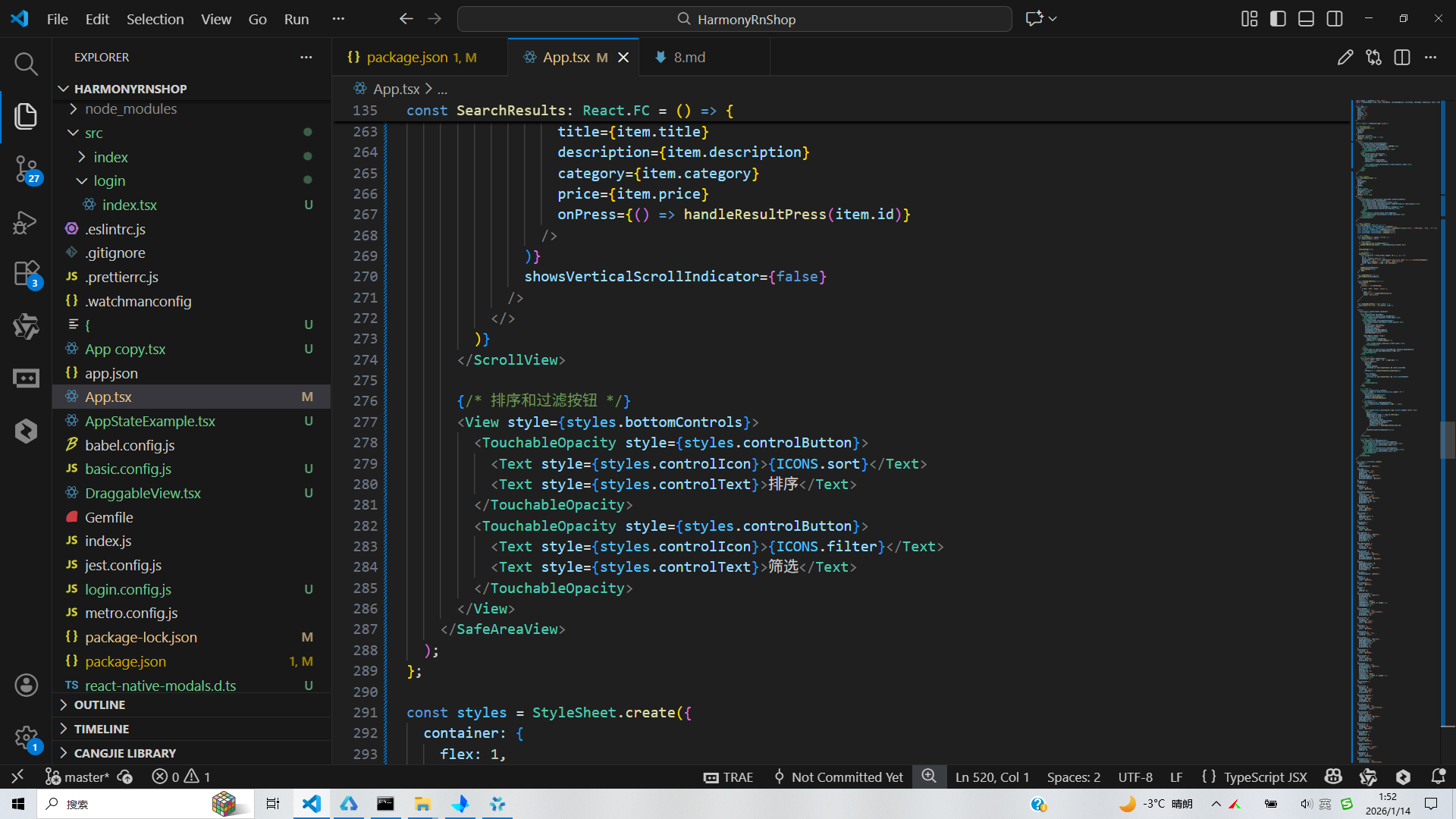
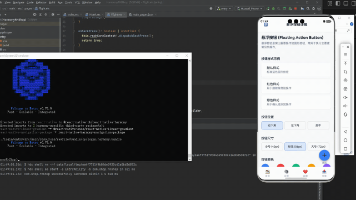
打包
接下来通过打包命令npn run harmony将reactNative的代码打包成为bundle,这样可以进行在开源鸿蒙OpenHarmony中进行使用。

打包之后再将打包后的鸿蒙OpenHarmony文件拷贝到鸿蒙的DevEco-Studio工程目录去:

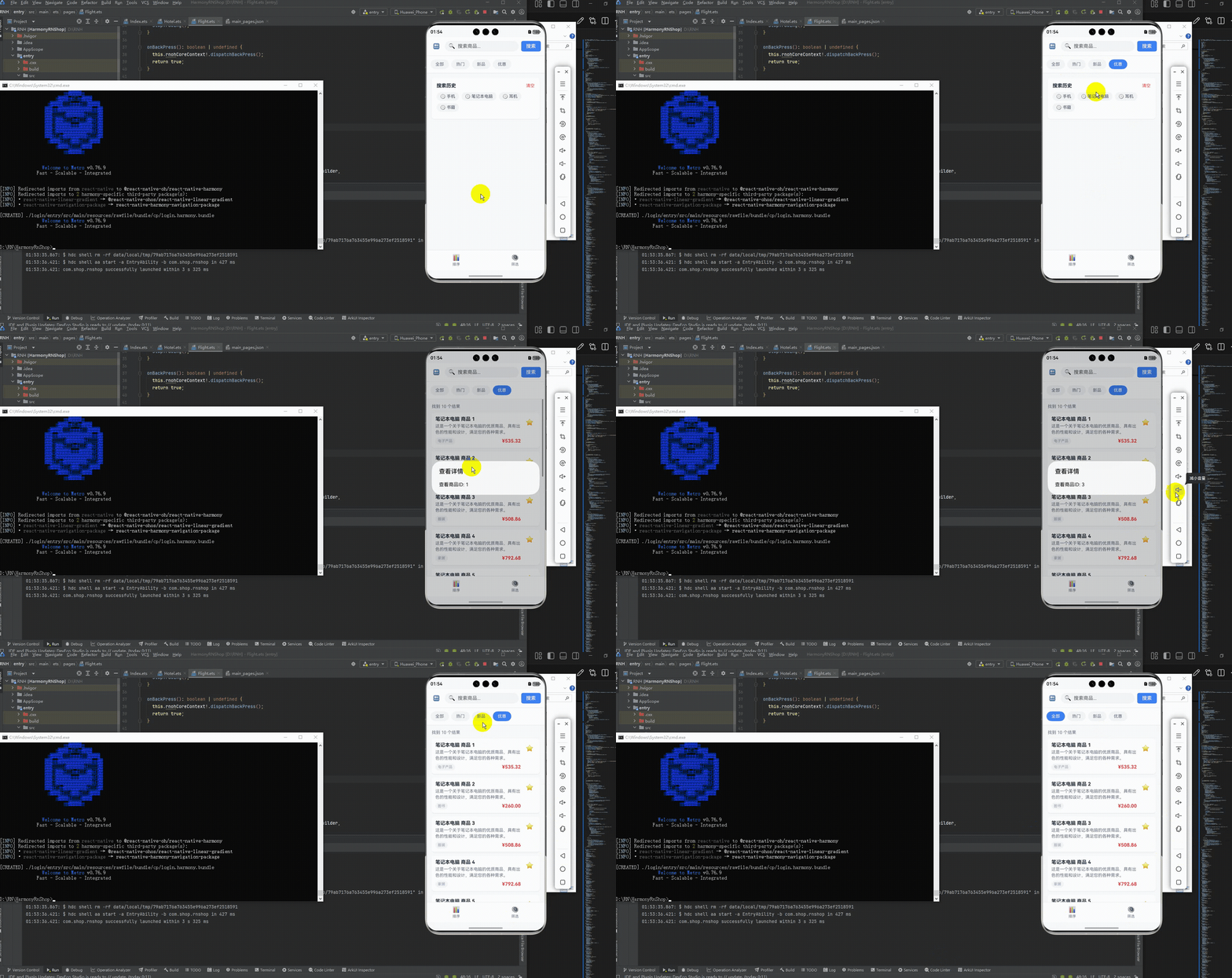
最后运行效果图如下显示:
欢迎大家加入开源鸿蒙跨平台开发者社区,一起共建开源鸿蒙跨平台生态。

作为“人工智能6S店”的官方数字引擎,为AI开发者与企业提供一个覆盖软硬件全栈、一站式门户。
更多推荐
 18
18 0
0- 0


 已为社区贡献6条内容

所有评论(0)