
React Native 鸿蒙跨平台开发:实现一个密码生成器
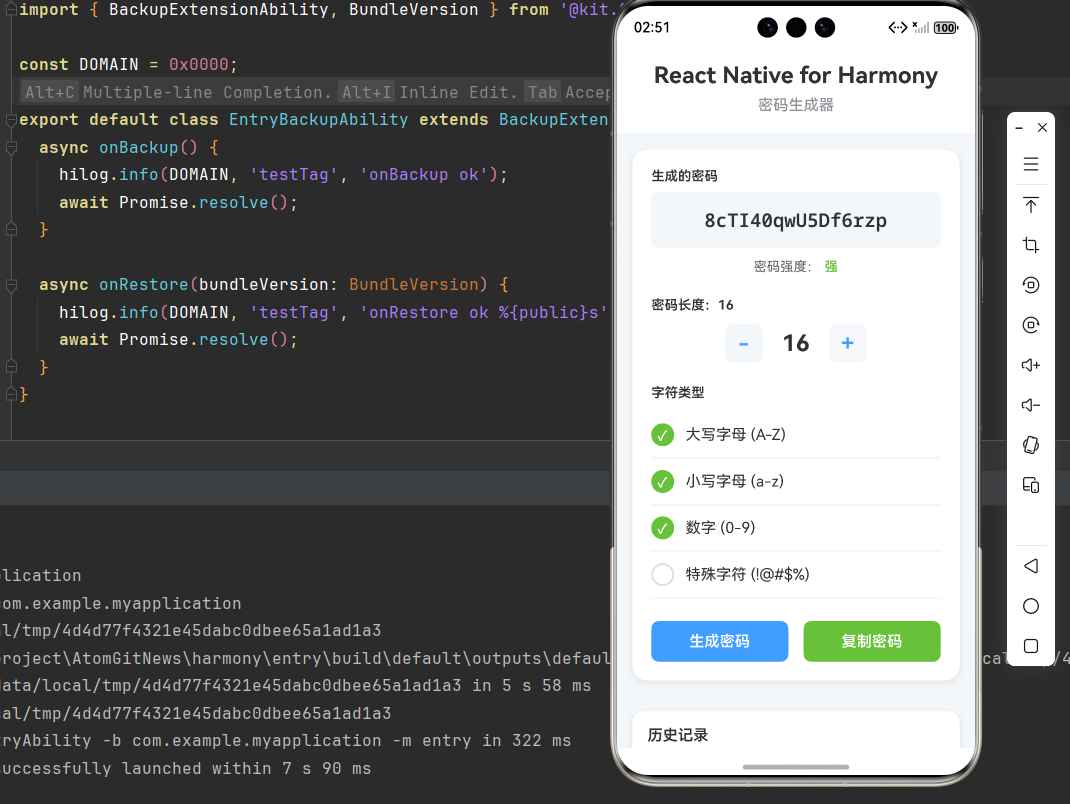
密码生成:使用随机数生成强密码密码配置:支持自定义密码长度和字符类型密码强度:评估密码的安全强度密码显示:使用 Alert 显示密码内容历史记录:保存生成的密码历史性能优化:使用 useCallback、memo 优化性能错误处理:处理用户操作和数据存储错误密码生成器组件在 React Native for Harmony 中表现良好,生成安全,是一个很好的学习案例。@欢迎加入开源鸿蒙跨平台社区:
·
一、核心原理:密码生成器的设计与实现
1.1 密码生成器的设计理念
密码生成器是一个实用的安全工具,主要用于:
- 随机密码:生成强随机密码
- 自定义配置:支持自定义密码长度和字符类型
- 安全强度:生成高强度的安全密码
- 一键复制:快速复制生成的密码
1.2 密码生成器的核心要素
一个完整的密码生成器需要考虑:
- 密码长度:设置密码的长度
- 字符类型:选择包含的字符类型(大写字母、小写字母、数字、特殊字符)
- 密码显示:显示生成的密码
- 密码强度:显示密码的安全强度
- 复制功能:一键复制密码
- 历史记录:保存生成的密码历史
1.3 实现原理
密码生成器的核心实现原理:
- 使用 useState 管理密码配置和生成的密码
- 使用 Math.random 生成随机字符
- 使用 Alert 显示密码内容
- 使用 ScrollView 确保页面可滚动
- 使用 StyleSheet 实现样式定制
二、基础密码生成器实现
2.1 组件结构
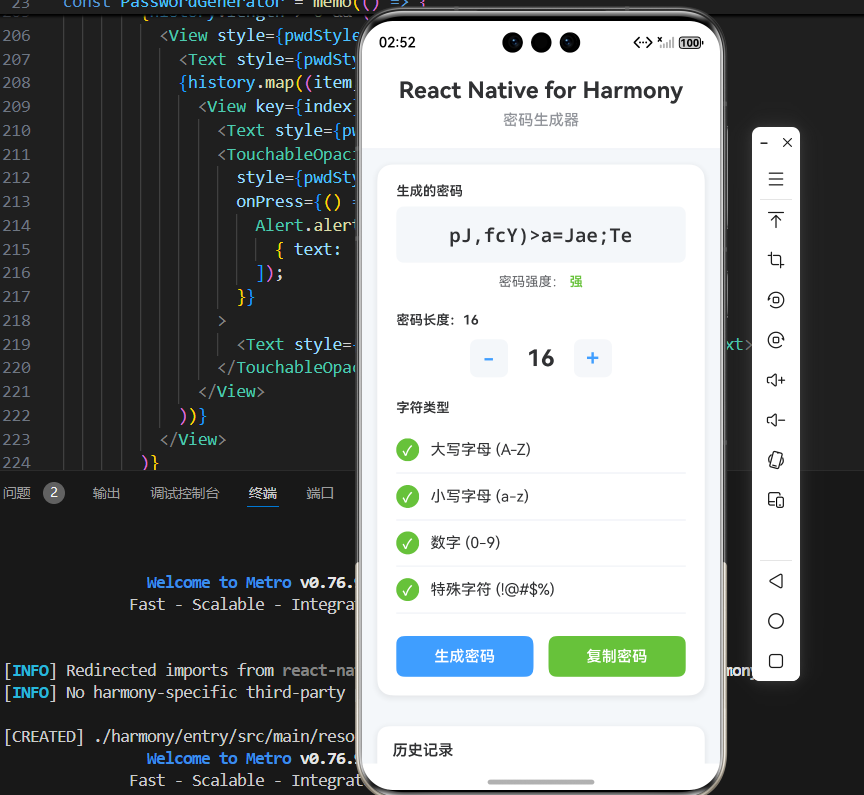
密码生成器组件包含以下部分:
- 密码显示:显示生成的密码
- 长度设置:设置密码长度
- 字符类型选择:选择包含的字符类型
- 生成按钮:生成新密码
- 复制按钮:复制密码
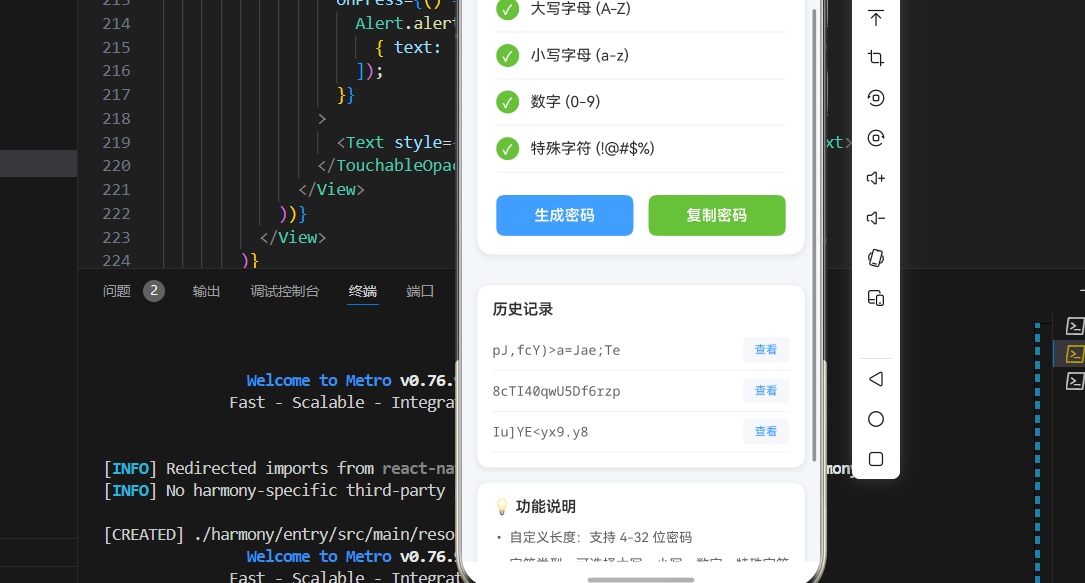
- 历史记录:显示生成的密码历史
2.2 完整代码实现
import React, { useState, useCallback, memo } from 'react';
import {
  View,
  Text,
  StyleSheet,
  TouchableOpacity,
  SafeAreaView,
  ScrollView,
  TextInput,
  Alert,
} from 'react-native';

// 密码配置接口
interface PasswordConfig {
  length: number;
  uppercase: boolean;
  lowercase: boolean;
  numbers: boolean;
  symbols: boolean;
}

// 密码生成器组件
const PasswordGenerator = memo(() => {
  const [password, setPassword] = useState('');
  const [config, setConfig] = useState<PasswordConfig>({
    length: 12,
    uppercase: true,
    lowercase: true,
    numbers: true,
    symbols: true,
  });
  const [history, setHistory] = useState<string[]>([]);

  // 字符集定义
  const charSets = {
    uppercase: 'ABCDEFGHIJKLMNOPQRSTUVWXYZ',
    lowercase: 'abcdefghijklmnopqrstuvwxyz',
    numbers: '0123456789',
    symbols: '!@#$%^&*()_+-=[]{}|;:,.<>?',
  };

  // 生成密码
  const generatePassword = useCallback(() => {
    let chars = '';
    if (config.uppercase) chars += charSets.uppercase;
    if (config.lowercase) chars += charSets.lowercase;
    if (config.numbers) chars += charSets.numbers;
    if (config.symbols) chars += charSets.symbols;

    if (chars === '') {
      Alert.alert('提示', '请至少选择一种字符类型');
      return;
    }

    let result = '';
    for (let i = 0; i < config.length; i++) {
      result += chars.charAt(Math.floor(Math.random() * chars.length));
    }

    setPassword(result);
    setHistory(prev => [result, ...prev].slice(0, 10));
  }, [config]);

  // 复制密码
  const copyPassword = useCallback(() => {
    if (password) {
      Alert.alert('密码已生成', `您的密码是:${password}`, [
        { text: '确定', onPress: () => {} },
      ]);
    }
  }, [password]);

  // 计算密码强度
  const getPasswordStrength = useCallback((pwd: string): { score: number; label: string; color: string } => {
    let score = 0;
    if (pwd.length >= 8) score++;
    if (pwd.length >= 12) score++;
    if (/[a-z]/.test(pwd)) score++;
    if (/[A-Z]/.test(pwd)) score++;
    if (/[0-9]/.test(pwd)) score++;
    if (/[^a-zA-Z0-9]/.test(pwd)) score++;

    if (score <= 2) return { score, label: '弱', color: '#F56C6C' };
    if (score <= 4) return { score, label: '中', color: '#E6A23C' };
    return { score, label: '强', color: '#67C23A' };
  }, []);

  const strength = getPasswordStrength(password);

  return (
    <SafeAreaView style={pwdStyles.container}>
      <ScrollView style={pwdStyles.scrollView}>
        {/* 标题区域 */}
        <View style={pwdStyles.pwdHeader}>
          <Text style={pwdStyles.pwdTitle}>React Native for Harmony</Text>
          <Text style={pwdStyles.pwdSubtitle}>密码生成器</Text>
        </View>

        {/* 密码生成器主体 */}
        <View style={pwdStyles.pwdGeneratorContainer}>
          {/* 密码显示 */}
          <View style={pwdStyles.pwdDisplayContainer}>
            <Text style={pwdStyles.pwdDisplayLabel}>生成的密码</Text>
            <View style={pwdStyles.pwdDisplayBox}>
              <Text style={pwdStyles.pwdDisplayText}>{password || '点击生成按钮'}</Text>
            </View>

            {/* 密码强度 */}
            {password && (
              <View style={pwdStyles.pwdStrengthContainer}>
                <Text style={pwdStyles.pwdStrengthLabel}>密码强度:</Text>
                <Text style={[pwdStyles.pwdStrengthText, { color: strength.color }]}>
                  {strength.label}
                </Text>
              </View>
            )}
          </View>

          {/* 长度设置 */}
          <View style={pwdStyles.pwdLengthContainer}>
            <Text style={pwdStyles.pwdLengthLabel}>密码长度:{config.length}</Text>
            <View style={pwdStyles.pwdLengthSlider}>
              <TouchableOpacity
                style={pwdStyles.pwdLengthButton}
                onPress={() => setConfig(prev => ({ ...prev, length: Math.max(4, prev.length - 1) }))}
              >
                <Text style={pwdStyles.pwdLengthButtonText}>-</Text>
              </TouchableOpacity>
              <View style={pwdStyles.pwdLengthValue}>
                <Text style={pwdStyles.pwdLengthValueText}>{config.length}</Text>
              </View>
              <TouchableOpacity
                style={pwdStyles.pwdLengthButton}
                onPress={() => setConfig(prev => ({ ...prev, length: Math.min(32, prev.length + 1) }))}
              >
                <Text style={pwdStyles.pwdLengthButtonText}>+</Text>
              </TouchableOpacity>
            </View>
          </View>

          {/* 字符类型选择 */}
          <View style={pwdStyles.pwdOptionsContainer}>
            <Text style={pwdStyles.pwdOptionsTitle}>字符类型</Text>

            <TouchableOpacity
              style={pwdStyles.pwdOptionItem}
              onPress={() => setConfig(prev => ({ ...prev, uppercase: !prev.uppercase }))}
            >
              <View style={[pwdStyles.pwdOptionCheckbox, config.uppercase && pwdStyles.pwdOptionCheckboxChecked]}>
                {config.uppercase && <Text style={pwdStyles.pwdOptionCheckmark}>✓</Text>}
              </View>
              <Text style={pwdStyles.pwdOptionText}>大写字母 (A-Z)</Text>
            </TouchableOpacity>

            <TouchableOpacity
              style={pwdStyles.pwdOptionItem}
              onPress={() => setConfig(prev => ({ ...prev, lowercase: !prev.lowercase }))}
            >
              <View style={[pwdStyles.pwdOptionCheckbox, config.lowercase && pwdStyles.pwdOptionCheckboxChecked]}>
                {config.lowercase && <Text style={pwdStyles.pwdOptionCheckmark}>✓</Text>}
              </View>
              <Text style={pwdStyles.pwdOptionText}>小写字母 (a-z)</Text>
            </TouchableOpacity>

            <TouchableOpacity
              style={pwdStyles.pwdOptionItem}
              onPress={() => setConfig(prev => ({ ...prev, numbers: !prev.numbers }))}
            >
              <View style={[pwdStyles.pwdOptionCheckbox, config.numbers && pwdStyles.pwdOptionCheckboxChecked]}>
                {config.numbers && <Text style={pwdStyles.pwdOptionCheckmark}>✓</Text>}
              </View>
              <Text style={pwdStyles.pwdOptionText}>数字 (0-9)</Text>
            </TouchableOpacity>

            <TouchableOpacity
              style={pwdStyles.pwdOptionItem}
              onPress={() => setConfig(prev => ({ ...prev, symbols: !prev.symbols }))}
            >
              <View style={[pwdStyles.pwdOptionCheckbox, config.symbols && pwdStyles.pwdOptionCheckboxChecked]}>
                {config.symbols && <Text style={pwdStyles.pwdOptionCheckmark}>✓</Text>}
              </View>
              <Text style={pwdStyles.pwdOptionText}>特殊字符 (!@#$%)</Text>
            </TouchableOpacity>
          </View>

          {/* 操作按钮 */}
          <View style={pwdStyles.pwdActionButtons}>
            <TouchableOpacity
              style={pwdStyles.pwdGenerateButton}
              onPress={generatePassword}
            >
              <Text style={pwdStyles.pwdGenerateButtonText}>生成密码</Text>
            </TouchableOpacity>
            <TouchableOpacity
              style={pwdStyles.pwdCopyButton}
              onPress={copyPassword}
              disabled={!password}
            >
              <Text style={pwdStyles.pwdCopyButtonText}>复制密码</Text>
            </TouchableOpacity>
          </View>
        </View>

        {/* 历史记录 */}
        {history.length > 0 && (
          <View style={pwdStyles.pwdHistoryContainer}>
            <Text style={pwdStyles.pwdHistoryTitle}>历史记录</Text>
            {history.map((item, index) => (
              <View key={index} style={pwdStyles.pwdHistoryItem}>
                <Text style={pwdStyles.pwdHistoryText}>{item}</Text>
                <TouchableOpacity
                  style={pwdStyles.pwdHistoryCopy}
                  onPress={() => {
                    Alert.alert('密码历史', `密码:${item}`, [
                      { text: '确定', onPress: () => {} },
                    ]);
                  }}
                >
                  <Text style={pwdStyles.pwdHistoryCopyText}>查看</Text>
                </TouchableOpacity>
              </View>
            ))}
          </View>
        )}

        {/* 说明区域 */}
        <View style={pwdStyles.pwdInfoCard}>
          <Text style={pwdStyles.pwdInfoTitle}>💡 功能说明</Text>
          <Text style={pwdStyles.pwdInfoText}>• 自定义长度:支持 4-32 位密码</Text>
          <Text style={pwdStyles.pwdInfoText}>• 字符类型:可选择大写、小写、数字、特殊字符</Text>
          <Text style={pwdStyles.pwdInfoText}>• 密码强度:自动评估密码安全强度</Text>
          <Text style={pwdStyles.pwdInfoText}>• 密码显示:使用 Alert 显示生成的密码</Text>
          <Text style={pwdStyles.pwdInfoText}>• 历史记录:保存最近 10 条生成的密码</Text>
          <Text style={pwdStyles.pwdInfoText}>• 鸿蒙端完美兼容,生成安全</Text>
        </View>
      </ScrollView>
    </SafeAreaView>
  );
});

PasswordGenerator.displayName = 'PasswordGenerator';

const pwdStyles = StyleSheet.create({
  container: {
    flex: 1,
    backgroundColor: '#F5F7FA',
  },
  scrollView: {
    flex: 1,
  },

  // ======== 标题区域 ========
  pwdHeader: {
    padding: 20,
    backgroundColor: '#FFFFFF',
    borderBottomWidth: 1,
    borderBottomColor: '#EBEEF5',
  },
  pwdTitle: {
    fontSize: 24,
    fontWeight: '700',
    color: '#303133',
    textAlign: 'center',
    marginBottom: 8,
  },
  pwdSubtitle: {
    fontSize: 16,
    fontWeight: '500',
    color: '#909399',
    textAlign: 'center',
  },

  // ======== 密码生成器容器 ========
  pwdGeneratorContainer: {
    backgroundColor: '#FFFFFF',
    margin: 16,
    borderRadius: 16,
    padding: 20,
    shadowColor: '#000000',
    shadowOffset: { width: 0, height: 2 },
    shadowOpacity: 0.08,
    shadowRadius: 8,
    elevation: 4,
  },

  // ======== 密码显示 ========
  pwdDisplayContainer: {
    marginBottom: 24,
  },
  pwdDisplayLabel: {
    fontSize: 14,
    fontWeight: '600',
    color: '#303133',
    marginBottom: 8,
  },
  pwdDisplayBox: {
    backgroundColor: '#F5F7FA',
    borderRadius: 8,
    padding: 16,
    alignItems: 'center',
    marginBottom: 12,
  },
  pwdDisplayText: {
    fontSize: 20,
    fontWeight: '600',
    color: '#303133',
    fontFamily: 'monospace',
  },
  pwdStrengthContainer: {
    flexDirection: 'row',
    alignItems: 'center',
    justifyContent: 'center',
  },
  pwdStrengthLabel: {
    fontSize: 14,
    color: '#606266',
  },
  pwdStrengthText: {
    fontSize: 14,
    fontWeight: '600',
    marginLeft: 4,
  },

  // ======== 长度设置 ========
  pwdLengthContainer: {
    marginBottom: 24,
  },
  pwdLengthLabel: {
    fontSize: 14,
    fontWeight: '600',
    color: '#303133',
    marginBottom: 12,
  },
  pwdLengthSlider: {
    flexDirection: 'row',
    alignItems: 'center',
    justifyContent: 'center',
  },
  pwdLengthButton: {
    width: 40,
    height: 40,
    backgroundColor: '#F5F7FA',
    borderRadius: 8,
    justifyContent: 'center',
    alignItems: 'center',
  },
  pwdLengthButtonText: {
    fontSize: 24,
    fontWeight: '600',
    color: '#409EFF',
  },
  pwdLengthValue: {
    marginHorizontal: 20,
  },
  pwdLengthValueText: {
    fontSize: 24,
    fontWeight: '700',
    color: '#303133',
  },

  // ======== 字符类型选择 ========
  pwdOptionsContainer: {
    marginBottom: 24,
  },
  pwdOptionsTitle: {
    fontSize: 14,
    fontWeight: '600',
    color: '#303133',
    marginBottom: 12,
  },
  pwdOptionItem: {
    flexDirection: 'row',
    alignItems: 'center',
    paddingVertical: 12,
    borderBottomWidth: 1,
    borderBottomColor: '#EBEEF5',
  },
  pwdOptionCheckbox: {
    width: 24,
    height: 24,
    borderRadius: 12,
    borderWidth: 2,
    borderColor: '#DCDFE6',
    justifyContent: 'center',
    alignItems: 'center',
    marginRight: 12,
  },
  pwdOptionCheckboxChecked: {
    backgroundColor: '#67C23A',
    borderColor: '#67C23A',
  },
  pwdOptionCheckmark: {
    color: '#FFFFFF',
    fontSize: 14,
    fontWeight: '700',
  },
  pwdOptionText: {
    fontSize: 16,
    color: '#303133',
  },

  // ======== 操作按钮 ========
  pwdActionButtons: {
    flexDirection: 'row',
  },
  pwdGenerateButton: {
    flex: 1,
    backgroundColor: '#409EFF',
    paddingVertical: 12,
    borderRadius: 8,
    alignItems: 'center',
    marginRight: 8,
  },
  pwdGenerateButtonText: {
    fontSize: 16,
    fontWeight: '600',
    color: '#FFFFFF',
  },
  pwdCopyButton: {
    flex: 1,
    backgroundColor: '#67C23A',
    paddingVertical: 12,
    borderRadius: 8,
    alignItems: 'center',
    marginLeft: 8,
  },
  pwdCopyButtonText: {
    fontSize: 16,
    fontWeight: '600',
    color: '#FFFFFF',
  },

  // ======== 历史记录 ========
  pwdHistoryContainer: {
    backgroundColor: '#FFFFFF',
    margin: 16,
    borderRadius: 12,
    padding: 16,
    shadowColor: '#000000',
    shadowOffset: { width: 0, height: 2 },
    shadowOpacity: 0.08,
    shadowRadius: 8,
    elevation: 4,
  },
  pwdHistoryTitle: {
    fontSize: 16,
    fontWeight: '600',
    color: '#303133',
    marginBottom: 12,
  },
  pwdHistoryItem: {
    flexDirection: 'row',
    justifyContent: 'space-between',
    alignItems: 'center',
    paddingVertical: 8,
    borderBottomWidth: 1,
    borderBottomColor: '#EBEEF5',
  },
  pwdHistoryText: {
    fontSize: 14,
    color: '#606266',
    fontFamily: 'monospace',
    flex: 1,
  },
  pwdHistoryCopy: {
    paddingHorizontal: 12,
    paddingVertical: 6,
    backgroundColor: '#F5F7FA',
    borderRadius: 4,
  },
  pwdHistoryCopyText: {
    fontSize: 12,
    color: '#409EFF',
  },

  // ======== 信息卡片 ========
  pwdInfoCard: {
    backgroundColor: '#FFFFFF',
    borderRadius: 12,
    padding: 16,
    margin: 16,
    marginTop: 0,
    shadowColor: '#000000',
    shadowOffset: { width: 0, height: 2 },
    shadowOpacity: 0.08,
    shadowRadius: 8,
    elevation: 4,
  },
  pwdInfoTitle: {
    fontSize: 16,
    fontWeight: '600',
    color: '#303133',
    marginBottom: 12,
  },
  pwdInfoText: {
    fontSize: 14,
    color: '#606266',
    lineHeight: 22,
    marginBottom: 6,
  },
});

export default PasswordGenerator;
三、核心实现要点
3.1 密码生成逻辑
使用随机数生成密码:
const generatePassword = useCallback(() => {
  let chars = '';
  if (config.uppercase) chars += charSets.uppercase;
  if (config.lowercase) chars += charSets.lowercase;
  if (config.numbers) chars += charSets.numbers;
  if (config.symbols) chars += charSets.symbols;

  if (chars === '') {
    Alert.alert('提示', '请至少选择一种字符类型');
    return;
  }

  let result = '';
  for (let i = 0; i < config.length; i++) {
    result += chars.charAt(Math.floor(Math.random() * chars.length));
  }

  setPassword(result);
  setHistory(prev => [result, ...prev].slice(0, 10));
}, [config]);
生成逻辑要点:
- 根据配置构建字符集
- 使用 Math.random 生成随机索引
- 循环生成指定长度的密码
- 保存到历史记录
3.2 密码强度评估
评估密码的安全强度:
const getPasswordStrength = useCallback((pwd: string): { score: number; label: string; color: string } => {
  let score = 0;
  if (pwd.length >= 8) score++;
  if (pwd.length >= 12) score++;
  if (/[a-z]/.test(pwd)) score++;
  if (/[A-Z]/.test(pwd)) score++;
  if (/[0-9]/.test(pwd)) score++;
  if (/[^a-zA-Z0-9]/.test(pwd)) score++;

  if (score <= 2) return { score, label: '弱', color: '#F56C6C' };
  if (score <= 4) return { score, label: '中', color: '#E6A23C' };
  return { score, label: '强', color: '#67C23A' };
}, []);
评估要点:
- 检查密码长度
- 检查是否包含小写字母
- 检查是否包含大写字母
- 检查是否包含数字
- 检查是否包含特殊字符
- 根据评分返回强度等级
3.3 密码显示功能
使用 Alert 显示生成的密码:
const copyPassword = useCallback(() => {
  if (password) {
    Alert.alert('密码已生成', `您的密码是:${password}`, [
      { text: '确定', onPress: () => {} },
    ]);
  }
}, [password]);
显示要点:
- 使用 Alert.alert 显示密码内容
- 提供确定按钮关闭提示
- 确保密码不为空
- 用户可以手动复制密码
四、性能优化
4.1 使用 useCallback 优化
使用 useCallback 缓存回调函数:
const generatePassword = useCallback(() => {
  // 生成逻辑
}, [config]);

const copyPassword = useCallback(() => {
  // 复制逻辑
}, [password]);

const getPasswordStrength = useCallback((pwd: string) => {
  // 强度评估逻辑
}, []);
为什么使用 useCallback?
- 避免每次渲染都创建新函数
- 减少子组件的重新渲染
- 提升整体性能
4.2 使用 memo 优化
使用 memo 包装组件:
const PasswordGenerator = memo(() => {
  // ...
});
为什么使用 memo?
- 避免不必要的重新渲染
- 提升整体性能
4.3 限制历史记录数量
限制历史记录的数量:
setHistory(prev => [result, ...prev].slice(0, 10));
为什么限制数量?
- 避免历史记录过多占用内存
- 提升性能
- 只显示最近的 10 条记录
五、常见问题与解决方案
5.1 密码不够随机
问题现象: 生成的密码看起来不够随机
可能原因:
- 字符集太小
- 密码长度太短
解决方案:
// 确保字符集足够大
const charSets = {
  uppercase: 'ABCDEFGHIJKLMNOPQRSTUVWXYZ',
  lowercase: 'abcdefghijklmnopqrstuvwxyz',
  numbers: '0123456789',
  symbols: '!@#$%^&*()_+-=[]{}|;:,.<>?',
};

// 建议密码长度至少 12 位
if (config.length < 12) {
  Alert.alert('建议', '密码长度建议至少 12 位');
}
5.2 密码显示失败
问题现象: 点击查看按钮没有反应
可能原因:
- 密码为空
- Alert 组件未正确导入
解决方案:
// 检查密码是否为空
const copyPassword = useCallback(() => {
  if (password) {
    Alert.alert('密码已生成', `您的密码是:${password}`, [
      { text: '确定', onPress: () => {} },
    ]);
  } else {
    Alert.alert('提示', '请先生成密码');
  }
}, [password]);
5.3 强度评估不准确
问题现象: 密码强度评估与实际不符
可能原因:
- 评估逻辑不完善
- 评分标准不合理
解决方案:
// 完善评估逻辑
const getPasswordStrength = useCallback((pwd: string) => {
  let score = 0;
  if (pwd.length >= 8) score++;
  if (pwd.length >= 12) score++;
  if (pwd.length >= 16) score++;
  if (/[a-z]/.test(pwd)) score++;
  if (/[A-Z]/.test(pwd)) score++;
  if (/[0-9]/.test(pwd)) score++;
  if (/[^a-zA-Z0-9]/.test(pwd)) score++;
  if (pwd.length >= 12 && /[a-z]/.test(pwd) && /[A-Z]/.test(pwd) && /[0-9]/.test(pwd) && /[^a-zA-Z0-9]/.test(pwd)) {
    score++;
  }

  if (score <= 2) return { score, label: '弱', color: '#F56C6C' };
  if (score <= 4) return { score, label: '中', color: '#E6A23C' };
  return { score, label: '强', color: '#67C23A' };
}, []);
六、扩展用法
6.1 添加密码模板
添加常用的密码模板:
const templates = [
  { name: '简单', length: 8, uppercase: false, lowercase: true, numbers: true, symbols: false },
  { name: '标准', length: 12, uppercase: true, lowercase: true, numbers: true, symbols: false },
  { name: '强密码', length: 16, uppercase: true, lowercase: true, numbers: true, symbols: true },
];

<View style={pwdStyles.pwdTemplateContainer}>
  {templates.map((template, index) => (
    <TouchableOpacity
      key={index}
      style={pwdStyles.pwdTemplateButton}
      onPress={() => setConfig(template)}
    >
      <Text style={pwdStyles.pwdTemplateButtonText}>{template.name}</Text>
    </TouchableOpacity>
  ))}
</View>
6.2 添加密码排除字符
允许用户排除特定字符:
const [excludeChars, setExcludeChars] = useState('');

const generatePassword = useCallback(() => {
  let chars = '';
  if (config.uppercase) chars += charSets.uppercase;
  if (config.lowercase) chars += charSets.lowercase;
  if (config.numbers) chars += charSets.numbers;
  if (config.symbols) chars += charSets.symbols;

  // 排除指定字符
  if (excludeChars) {
    chars = chars.split('').filter(c => !excludeChars.includes(c)).join('');
  }

  // 生成逻辑...
}, [config, excludeChars]);
6.3 添加密码保存功能
添加将密码保存到安全存储的功能:
import AsyncStorage from '@react-native-async-storage/async-storage';

const savePassword = useCallback(async (pwd: string) => {
  try {
    const savedPasswords = await AsyncStorage.getItem('savedPasswords');
    const passwords = savedPasswords ? JSON.parse(savedPasswords) : [];
    passwords.push({ password: pwd, createdAt: Date.now() });
    await AsyncStorage.setItem('savedPasswords', JSON.stringify(passwords));
    Alert.alert('成功', '密码已保存');
  } catch (error) {
    Alert.alert('错误', '保存密码失败');
  }
}, []);
七、总结
密码生成器是一个实用的安全工具,通过本篇文章,我们学习了:
- 密码生成:使用随机数生成强密码
- 密码配置:支持自定义密码长度和字符类型
- 密码强度:评估密码的安全强度
- 密码显示:使用 Alert 显示密码内容
- 历史记录:保存生成的密码历史
- 性能优化:使用 useCallback、memo 优化性能
- 错误处理:处理用户操作和数据存储错误
密码生成器组件在 React Native for Harmony 中表现良好,生成安全,是一个很好的学习案例。
@欢迎加入开源鸿蒙跨平台社区:https://openharmonycrossplatform.csdn.net

作为“人工智能6S店”的官方数字引擎,为AI开发者与企业提供一个覆盖软硬件全栈、一站式门户。
更多推荐
 4
4 0
0- 0


 已为社区贡献8条内容

所有评论(0)