
HarmonyOS ArkUI DatePicker / TimePicker 日期时间选择器完全指南
·
系列:鸿蒙 HarmonyOS 6.1 新特性实战 · 第 37 篇
日期时间选择是几乎所有 App 都需要的功能。ArkUI 提供了内联式(嵌入页面)和弹窗式两种形态,分别对应 DatePicker/TimePicker 组件和 DatePickerDialog/TimePickerDialog API。本篇全面覆盖这两种形态,含农历切换和 24 小时制切换。
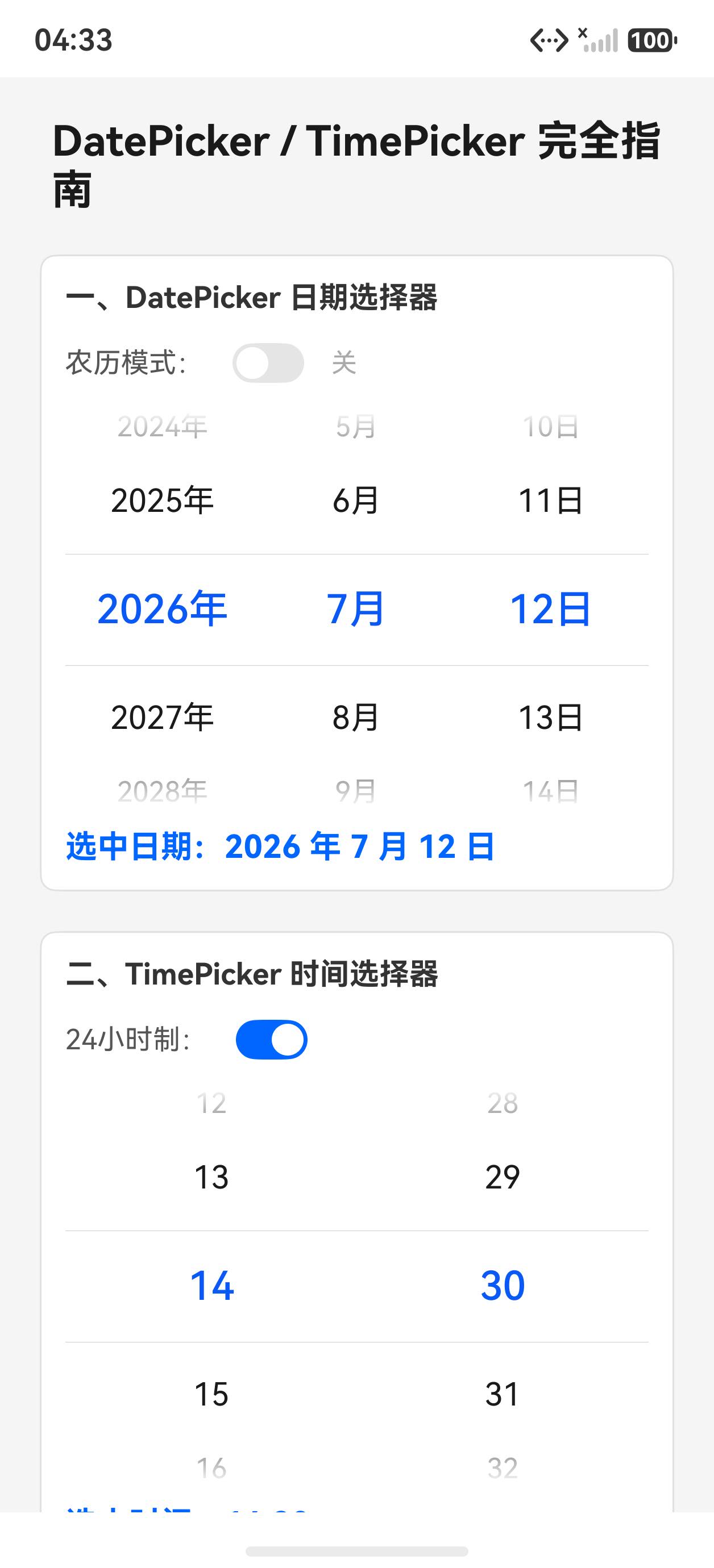
运行效果
初始状态,DatePicker 和 TimePicker 内联展示:
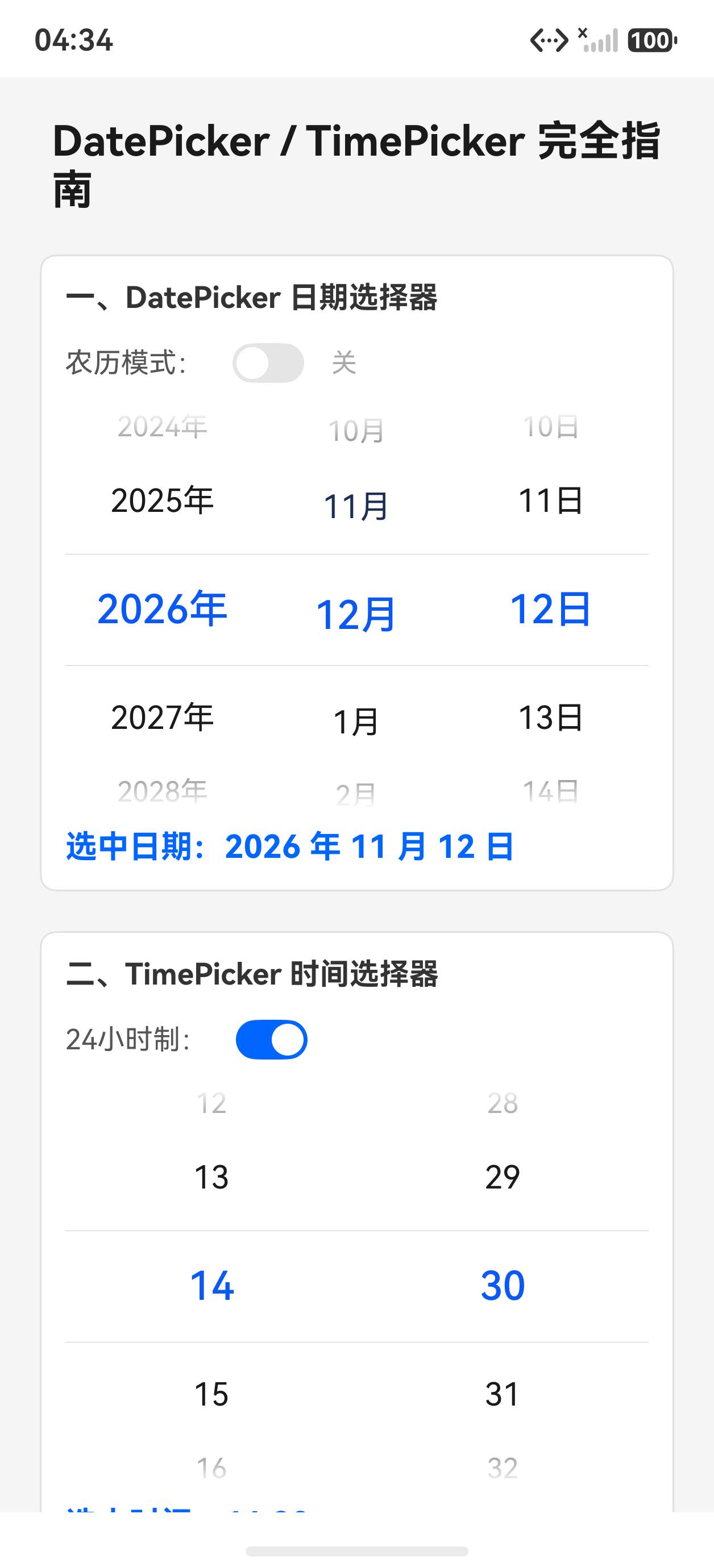
滑动后选择不同日期和时间:
一、DatePicker 内联日期选择
@State selectedDate: Date = new Date()
@State lunar: boolean = false
@State dateStr: string = ''

DatePicker({
  start: new Date('2020-01-01'),
  end: new Date('2030-12-31'),
  selected: this.selectedDate
})
.lunar(this.lunar)           // 切换农历/公历
.onDateChange((val: Date) => {
  this.selectedDate = val
  this.updateDateStr()       // 更新显示字符串
})
格式化显示日期(ArkTS 不能直接用模板字符串链式调用,需要辅助方法):
updateDateStr(): void {
  const y = this.selectedDate.getFullYear()
  const m = this.selectedDate.getMonth() + 1  // 注意:getMonth() 从 0 开始
  const d = this.selectedDate.getDate()
  this.dateStr = `${y} 年 ${m} 月 ${d} 日`
}
农历切换
Toggle({ type: ToggleType.Switch, isOn: this.lunar })
  .selectedColor('#0066ff')
  .onChange((val: boolean) => { this.lunar = val })
lunar 属性为 true 时,DatePicker 切换为农历显示。
二、TimePicker 内联时间选择
@State selectedHour: number = 14
@State selectedMinute: number = 30
@State useTwentyFour: boolean = true

TimePicker({
  selected: new Date(2000, 0, 1, this.selectedHour, this.selectedMinute)
})
.useMilitaryTime(this.useTwentyFour)  // true=24小时制
.onChange((val: TimePickerResult) => {
  this.selectedHour = val.hour
  this.selectedMinute = val.minute
  this.updateTimeStr()
})
回调方法名:TimePicker 使用 .onChange() 而非 .onTimeChange()(一个常见陷阱)。
格式化时间字符串:
updateTimeStr(): void {
  const h = this.selectedHour < 10 ? '0' + this.selectedHour : this.selectedHour.toString()
  const min = this.selectedMinute < 10 ? '0' + this.selectedMinute : this.selectedMinute.toString()
  const period = this.useTwentyFour ? '' : (this.selectedHour < 12 ? '上午 ' : '下午 ')
  this.timeStr = period + h + ':' + min
}
三、弹窗式选择器(实际业务首选)
内联选择器占空间大,业务中更常用弹窗形式:
// 日期弹窗
Button('打开日期弹窗')
  .onClick(() => {
    DatePickerDialog.show({
      start: new Date('2020-01-01'),
      end: new Date('2030-12-31'),
      selected: this.selectedDate,
      lunar: this.lunar,
      onAccept: (val: DatePickerResult) => {
        const y = val.year ?? this.selectedDate.getFullYear()
        const m = (val.month ?? this.selectedDate.getMonth() + 1) - 1
        const d = val.day ?? this.selectedDate.getDate()
        this.selectedDate = new Date(y, m, d)
        this.updateDateStr()
      }
    })
  })

// 时间弹窗
Button('打开时间弹窗')
  .onClick(() => {
    TimePickerDialog.show({
      selected: new Date(2000, 0, 1, this.selectedHour, this.selectedMinute),
      useMilitaryTime: this.useTwentyFour,
      onAccept: (val: TimePickerResult) => {
        this.selectedHour = val.hour
        this.selectedMinute = val.minute
        this.updateTimeStr()
      }
    })
  })
注意 DatePickerResult.month 从 1 开始:DatePickerDialog 的 onAccept 回调中,val.month 是 1-12(与 JavaScript getMonth() 的 0-11 不同),构造 new Date() 时需要减 1。
完整代码
@Entry
@Component
struct Index {
  @State selectedDate: Date = new Date()
  @State selectedHour: number = 14
  @State selectedMinute: number = 30
  @State lunar: boolean = false
  @State useTwentyFour: boolean = true
  @State dateStr: string = ''
  @State timeStr: string = ''

  aboutToAppear(): void {
    this.updateDateStr()
    this.updateTimeStr()
  }

  updateDateStr(): void {
    const y = this.selectedDate.getFullYear()
    const m = this.selectedDate.getMonth() + 1
    const d = this.selectedDate.getDate()
    this.dateStr = `${y} 年 ${m} 月 ${d} 日`
  }

  updateTimeStr(): void {
    const h = this.selectedHour < 10 ? '0' + this.selectedHour : this.selectedHour.toString()
    const min = this.selectedMinute < 10 ? '0' + this.selectedMinute : this.selectedMinute.toString()
    const period = this.useTwentyFour ? '' : (this.selectedHour < 12 ? '上午 ' : '下午 ')
    this.timeStr = period + h + ':' + min
  }

  build() {
    Scroll() {
      Column({ space: 20 }) {
        Text('DatePicker / TimePicker 完全指南')
          .fontSize(21).fontWeight(FontWeight.Bold).fontColor('#1a1a1a')

        // DatePicker
        Column({ space: 10 }) {
          Text('一、DatePicker 日期选择器').fontSize(15).fontWeight(FontWeight.Bold).fontColor('#333')
          Row({ space: 12 }) {
            Text('农历模式:').fontSize(14).fontColor('#555')
            Toggle({ type: ToggleType.Switch, isOn: this.lunar }).selectedColor('#0066ff')
              .onChange((val: boolean) => { this.lunar = val })
            Text(this.lunar ? '开' : '关').fontSize(13).fontColor(this.lunar ? '#0066ff' : '#aaa')
          }
          .alignItems(VerticalAlign.Center)

          DatePicker({ start: new Date('2020-01-01'), end: new Date('2030-12-31'), selected: this.selectedDate })
            .lunar(this.lunar)
            .onDateChange((val: Date) => { this.selectedDate = val; this.updateDateStr() })

          Text('选中日期:' + this.dateStr).fontSize(16).fontColor('#0066ff').fontWeight(FontWeight.Bold)
        }
        .padding(12).backgroundColor('#fff').borderRadius(8).width('100%')
        .border({ width: 1, color: '#e0e0e0' }).alignItems(HorizontalAlign.Start)

        // TimePicker
        Column({ space: 10 }) {
          Text('二、TimePicker 时间选择器').fontSize(15).fontWeight(FontWeight.Bold).fontColor('#333')
          Row({ space: 12 }) {
            Text('24小时制:').fontSize(14).fontColor('#555')
            Toggle({ type: ToggleType.Switch, isOn: this.useTwentyFour }).selectedColor('#0066ff')
              .onChange((val: boolean) => { this.useTwentyFour = val; this.updateTimeStr() })
          }
          .alignItems(VerticalAlign.Center)

          TimePicker({ selected: new Date(2000, 0, 1, this.selectedHour, this.selectedMinute) })
            .useMilitaryTime(this.useTwentyFour)
            .onChange((val: TimePickerResult) => {
              this.selectedHour = val.hour; this.selectedMinute = val.minute; this.updateTimeStr()
            })
          Text('选中时间:' + this.timeStr).fontSize(16).fontColor('#0066ff').fontWeight(FontWeight.Bold)
        }
        .padding(12).backgroundColor('#fff').borderRadius(8).width('100%')
        .border({ width: 1, color: '#e0e0e0' }).alignItems(HorizontalAlign.Start)

        // 弹窗式
        Column({ space: 10 }) {
          Text('三、弹窗式选择器').fontSize(15).fontWeight(FontWeight.Bold).fontColor('#333')
          Button('打开日期弹窗 DatePickerDialog')
            .width('100%').height(44).backgroundColor('#0066ff').fontColor('#fff').borderRadius(8)
            .onClick(() => {
              DatePickerDialog.show({
                start: new Date('2020-01-01'), end: new Date('2030-12-31'),
                selected: this.selectedDate, lunar: this.lunar,
                onAccept: (val: DatePickerResult) => {
                  const y = val.year ?? this.selectedDate.getFullYear()
                  const m = (val.month ?? this.selectedDate.getMonth() + 1) - 1
                  const d = val.day ?? this.selectedDate.getDate()
                  this.selectedDate = new Date(y, m, d)
                  this.updateDateStr()
                }
              })
            })
          Button('打开时间弹窗 TimePickerDialog')
            .width('100%').height(44).backgroundColor('#27ae60').fontColor('#fff').borderRadius(8)
            .onClick(() => {
              TimePickerDialog.show({
                selected: new Date(2000, 0, 1, this.selectedHour, this.selectedMinute),
                useMilitaryTime: this.useTwentyFour,
                onAccept: (val: TimePickerResult) => {
                  this.selectedHour = val.hour; this.selectedMinute = val.minute; this.updateTimeStr()
                }
              })
            })
          Text(`选中:${this.dateStr}  ${this.timeStr}`).fontSize(14).fontColor('#0066ff').fontWeight(FontWeight.Bold)
        }
        .padding(12).backgroundColor('#fff').borderRadius(8).width('100%')
        .border({ width: 1, color: '#e0e0e0' }).alignItems(HorizontalAlign.Start)
      }
      .padding(20).width('100%')
    }
    .width('100%').height('100%').backgroundColor('#f5f5f5')
  }
}
API 速查
| 组件/属性 | 说明 |
|---|---|
DatePicker({ start, end, selected }) |
日期选择器 |
.lunar(bool) |
切换农历 |
.onDateChange((val: Date) => {}) |
日期变化回调 |
TimePicker({ selected: new Date(...) }) |
时间选择器 |
.useMilitaryTime(bool) |
24 小时制 |
.onChange((val: TimePickerResult) => {}) |
时间变化回调(注意不是 onTimeChange) |
DatePickerDialog.show({ ..., onAccept }) |
弹窗式日期选择 |
TimePickerDialog.show({ ..., onAccept }) |
弹窗式时间选择 |
小结
- TimePicker 回调是
.onChange()而非.onTimeChange(),官方文档有时写错,以实际 API 为准 - 弹窗式是业务首选:内联式占大量垂直空间,弹窗式更紧凑
- DatePickerResult.month 从 1 开始:与 JS Date 的
getMonth()0-11 不一致,转换时记得 -1 aboutToAppear初始化显示字符串:不然首次渲染看不到当前日期文字

作为“人工智能6S店”的官方数字引擎,为AI开发者与企业提供一个覆盖软硬件全栈、一站式门户。
更多推荐
 1
1 0
0- 0


 已为社区贡献11条内容

所有评论(0)