
HarmonyOS ArkUI RichEditor 富文本编辑器:内联样式、Span 管理与格式工具栏
·
系列:鸿蒙 HarmonyOS 6.1 新特性实战 · 第 40 篇
RichEditor 是 ArkUI 提供的富文本编辑组件,支持在用户输入的同时对不同文字片段应用独立的颜色、字号、粗体等样式。与 TextInput 不同,RichEditor 的内容由多个“Span“组成,每个 Span 可以有独立样式,适合评论编辑器、邮件客户端、笔记应用等场景。
运行效果
初始状态,RichEditor 加载完成,初始内容已插入:
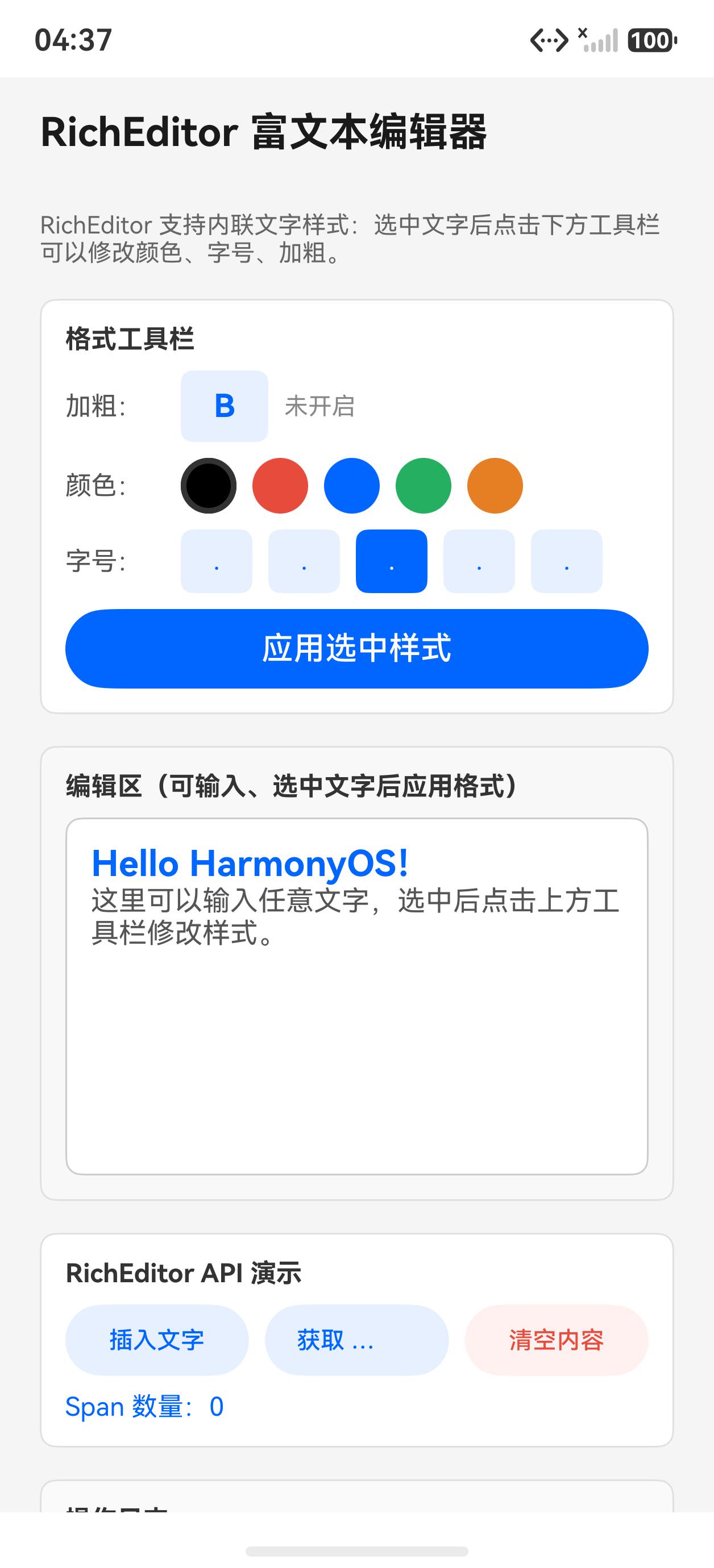
点击粗体、应用样式、插入文字后的富文本效果:
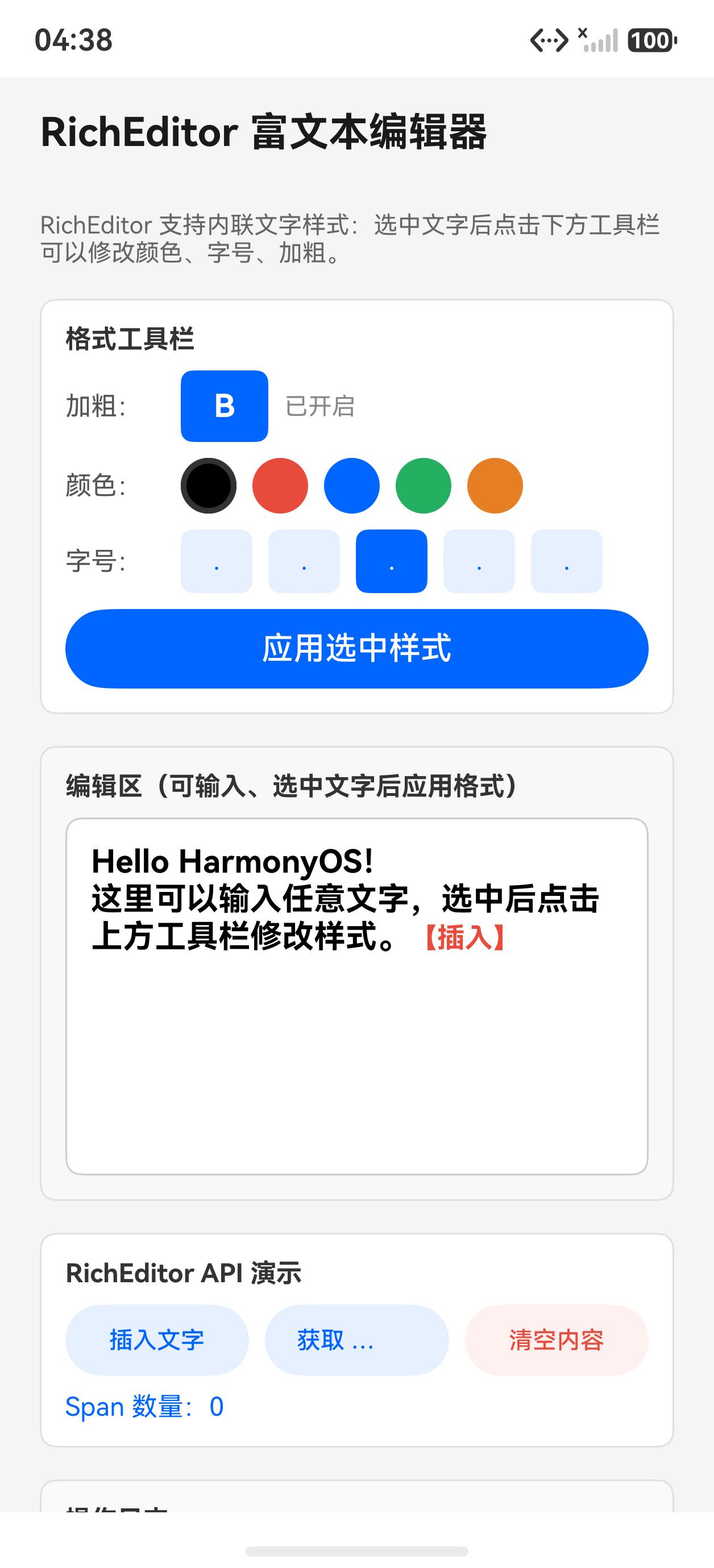
一、创建 RichEditor
private controller: RichEditorController = new RichEditorController()

RichEditor({ controller: this.controller })
  .width('100%')
  .height(200)
  .backgroundColor('#fff')
  .borderRadius(8)
  .border({ width: 1, color: '#ccc' })
  .padding(12)
  .onReady(() => {
    // 编辑器就绪后插入初始内容
    this.controller.addTextSpan('Hello HarmonyOS!', {
      style: { fontColor: '#0066ff', fontSize: 18, fontWeight: FontWeight.Bold }
    })
    this.controller.addTextSpan('\n普通文字内容', {
      style: { fontColor: '#555', fontSize: 14 }
    })
  })
注意:必须等 onReady 回调触发后才能调用 controller 的方法,否则会报错。
二、addTextSpan 插入文字
this.controller.addTextSpan('【插入的文字】', {
  style: {
    fontColor: '#e74c3c',
    fontSize: 14,
    fontWeight: FontWeight.Bold
  }
})
每次调用 addTextSpan 都在光标位置(或末尾)追加一个新 Span。
三、updateSpanStyle 修改已选中文字样式
this.controller.updateSpanStyle({
  textStyle: {
    fontColor: this.selectedColor,
    fontSize: this.selectedSize,
    fontWeight: this.isBold ? FontWeight.Bold : FontWeight.Normal
  }
})
updateSpanStyle 作用于当前选中的文字范围。用户选中文字后点击工具栏按钮即可改变样式,这是实现格式工具栏的核心 API。
四、getSpans / deleteSpans
// 获取所有 Span 信息
const spans = this.controller.getSpans()
this.spanCount = spans.length  // spans 是 RichEditorSpan 数组

// 清空全部内容
this.controller.deleteSpans()

// 删除指定范围(可选参数)
this.controller.deleteSpans({ start: 0, end: 5 })
五、onSelectionChange 监听选中变化
.onSelectionChange((range: RichEditorRange) => {
  const spans = this.controller.getSpans()
  this.spanCount = spans.length
  // range.start / range.end 是选中范围的字符索引
})
陷阱:RichEditor 没有 .onChange() 方法,监听内容变化要用 .onSelectionChange()。
完整代码
@Entry
@Component
struct Index {
  private controller: RichEditorController = new RichEditorController()
  @State spanCount: number = 0
  @State selectedColor: string = '#000000'
  @State selectedSize: number = 16
  @State isBold: boolean = false
  @State logLines: string[] = []

  addLog(msg: string): void {
    const arr = this.logLines.slice(-5)
    arr.push(msg)
    this.logLines = arr
  }

  applyStyle(): void {
    this.controller.updateSpanStyle({
      textStyle: {
        fontColor: this.selectedColor,
        fontSize: this.selectedSize,
        fontWeight: this.isBold ? FontWeight.Bold : FontWeight.Normal
      }
    })
  }

  build() {
    Column({ space: 0 }) {
      Text('RichEditor 富文本编辑器')
        .fontSize(20).fontWeight(FontWeight.Bold).fontColor('#1a1a1a')
        .padding({ left: 20, right: 20, top: 16, bottom: 8 })
        .width('100%').backgroundColor('#f5f5f5')

      Scroll() {
        Column({ space: 16 }) {
          // 格式工具栏
          Column({ space: 8 }) {
            Text('格式工具栏').fontSize(13).fontWeight(FontWeight.Bold).fontColor('#333')

            // 加粗
            Row({ space: 8 }) {
              Text('加粗:').fontSize(13).fontColor('#555').width(50)
              Button('B').fontSize(16).fontWeight(FontWeight.Bold).width(44).height(36)
                .backgroundColor(this.isBold ? '#0066ff' : '#e8f0ff')
                .fontColor(this.isBold ? '#fff' : '#0066ff').borderRadius(6)
                .onClick(() => { this.isBold = !this.isBold })
              Text(this.isBold ? '已开启' : '未开启').fontSize(12).fontColor('#888')
            }
            .alignItems(VerticalAlign.Center)

            // 颜色
            Row({ space: 8 }) {
              Text('颜色:').fontSize(13).fontColor('#555').width(50)
              ForEach(['#000000', '#e74c3c', '#0066ff', '#27ae60', '#e67e22'], (c: string) => {
                Column()
                  .width(28).height(28).borderRadius(14).backgroundColor(c)
                  .border({ width: this.selectedColor === c ? 3 : 0, color: '#333' })
                  .onClick(() => { this.selectedColor = c })
              })
            }
            .alignItems(VerticalAlign.Center)

            // 字号
            Row({ space: 8 }) {
              Text('字号:').fontSize(13).fontColor('#555').width(50)
              ForEach([12, 14, 16, 20, 24], (s: number) => {
                Button(s.toString()).fontSize(12).width(36).height(32).borderRadius(6)
                  .backgroundColor(this.selectedSize === s ? '#0066ff' : '#e8f0ff')
                  .fontColor(this.selectedSize === s ? '#fff' : '#0066ff')
                  .onClick(() => { this.selectedSize = s })
              })
            }
            .alignItems(VerticalAlign.Center)

            Button('应用选中样式').width('100%').height(40).backgroundColor('#0066ff').fontColor('#fff')
              .onClick(() => {
                this.applyStyle()
                this.addLog(`应用:颜色=${this.selectedColor} 字号=${this.selectedSize} 加粗=${this.isBold}`)
              })
          }
          .padding(12).backgroundColor('#fff').borderRadius(8).width('100%')
          .border({ width: 1, color: '#e0e0e0' }).alignItems(HorizontalAlign.Start)

          // 编辑区
          Column({ space: 8 }) {
            Text('编辑区(选中文字后点工具栏应用格式)').fontSize(13).fontWeight(FontWeight.Bold).fontColor('#333')
            RichEditor({ controller: this.controller })
              .width('100%').height(180)
              .backgroundColor('#fff').borderRadius(8)
              .border({ width: 1, color: '#ccc' }).padding(12)
              .onReady(() => {
                this.controller.addTextSpan('Hello HarmonyOS!', {
                  style: { fontColor: '#0066ff', fontSize: 18, fontWeight: FontWeight.Bold }
                })
                this.controller.addTextSpan('\n这里可以输入任意文字,选中后点击上方工具栏修改样式。', {
                  style: { fontColor: '#555', fontSize: 14 }
                })
                this.addLog('编辑器就绪,初始内容已插入')
              })
              .onSelectionChange((_: RichEditorRange) => {
                this.spanCount = this.controller.getSpans().length
              })
          }
          .padding(12).backgroundColor('#f8f8f8').borderRadius(8).width('100%')
          .border({ width: 1, color: '#e0e0e0' }).alignItems(HorizontalAlign.Start)

          // API 演示按钮
          Column({ space: 8 }) {
            Text('RichEditor API 演示').fontSize(13).fontWeight(FontWeight.Bold).fontColor('#333')
            Row({ space: 8 }) {
              Button('插入文字').fontSize(12).height(36).layoutWeight(1)
                .backgroundColor('#e8f0ff').fontColor('#0066ff')
                .onClick(() => {
                  this.controller.addTextSpan('【插入】', {
                    style: { fontColor: '#e74c3c', fontSize: 14, fontWeight: FontWeight.Bold }
                  })
                  this.addLog('addTextSpan 插入红色文字')
                })
              Button('获取 Spans').fontSize(12).height(36).layoutWeight(1)
                .backgroundColor('#e8f0ff').fontColor('#0066ff')
                .onClick(() => {
                  this.spanCount = this.controller.getSpans().length
                  this.addLog(`getSpans() 返回 ${this.spanCount} 个 span`)
                })
              Button('清空内容').fontSize(12).height(36).layoutWeight(1)
                .backgroundColor('#fff0f0').fontColor('#e74c3c')
                .onClick(() => {
                  this.controller.deleteSpans()
                  this.spanCount = 0
                  this.addLog('deleteSpans() 清空全部内容')
                })
            }
            .width('100%')
            Text('Span 数量:' + this.spanCount.toString()).fontSize(13).fontColor('#0066ff')
          }
          .padding(12).backgroundColor('#fff').borderRadius(8).width('100%')
          .border({ width: 1, color: '#e0e0e0' }).alignItems(HorizontalAlign.Start)

          // 操作日志
          if (this.logLines.length > 0) {
            Column({ space: 4 }) {
              Text('操作日志').fontSize(13).fontWeight(FontWeight.Bold).fontColor('#333')
              ForEach(this.logLines, (line: string) => {
                Text('• ' + line).fontSize(11).fontColor('#555').fontFamily('monospace').width('100%')
              })
            }
            .padding(12).backgroundColor('#fafafa').borderRadius(8).width('100%')
            .border({ width: 1, color: '#e0e0e0' }).alignItems(HorizontalAlign.Start)
          }
        }
        .padding(20).width('100%')
      }
      .layoutWeight(1)
    }
    .width('100%').height('100%').backgroundColor('#f5f5f5')
  }
}
API 速查
| 方法 | 说明 |
|---|---|
new RichEditorController() |
创建控制器 |
RichEditor({ controller }) |
绑定控制器 |
.onReady(() => {}) |
编辑器初始化完成回调 |
.onSelectionChange((range) => {}) |
选中范围变化回调 |
controller.addTextSpan(text, { style }) |
插入文字 Span |
controller.updateSpanStyle({ textStyle }) |
修改选中文字样式 |
controller.getSpans() |
获取所有 Span |
controller.deleteSpans() |
清空内容 |
controller.deleteSpans({ start, end }) |
删除指定范围内容 |
小结
- onReady 后才能操作:
addTextSpan等方法必须在onReady后调用 - 没有 onChange:监听内容变化用
.onSelectionChange(),而非.onChange()(这是常见踩坑点) - updateSpanStyle 作用于选中范围:需要用户先选中文字才有效果
- Span 独立样式:每个 Span 可有独立颜色、字号、粗体,适合表单类富文本
上一篇:Badge 徽标与 Chip 标签 | 下一篇:第 41 篇(ArkUI 布局系列)

作为“人工智能6S店”的官方数字引擎,为AI开发者与企业提供一个覆盖软硬件全栈、一站式门户。
更多推荐
 0
0 0
0- 0


 已为社区贡献10条内容

所有评论(0)