
HarmonyOS ArkUI Marquee 跑马灯与 Gauge 仪表盘:公告滚动与数据展示
·
系列:鸿蒙 HarmonyOS 6.1 新特性实战 · 第 43 篇
Marquee 实现水平滚动文字效果,常用于新闻公告条、优惠信息滚动展示;Gauge 是半圆或弓形仪表盘组件,适合可视化速度、电量、得分等数值。本篇将两者结合,搭建一个带播控按钮的公告条与实时数据仪表盘示例页面,覆盖颜色分段、中心文字叠加等进阶用法。
运行效果
初始状态(Marquee 停止 + Gauge 显示默认值): 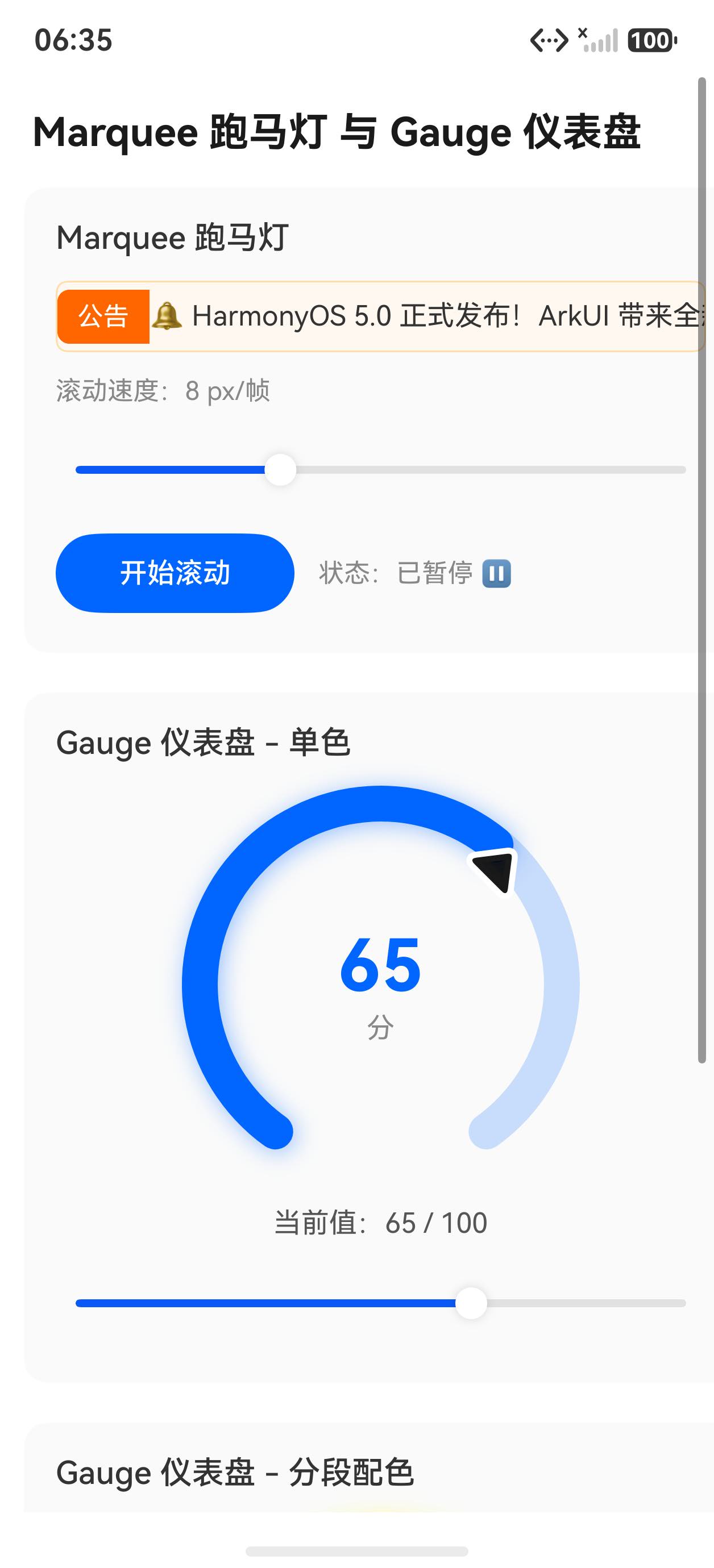
Marquee 滚动中 + 点击按钮更新 Gauge 数值: 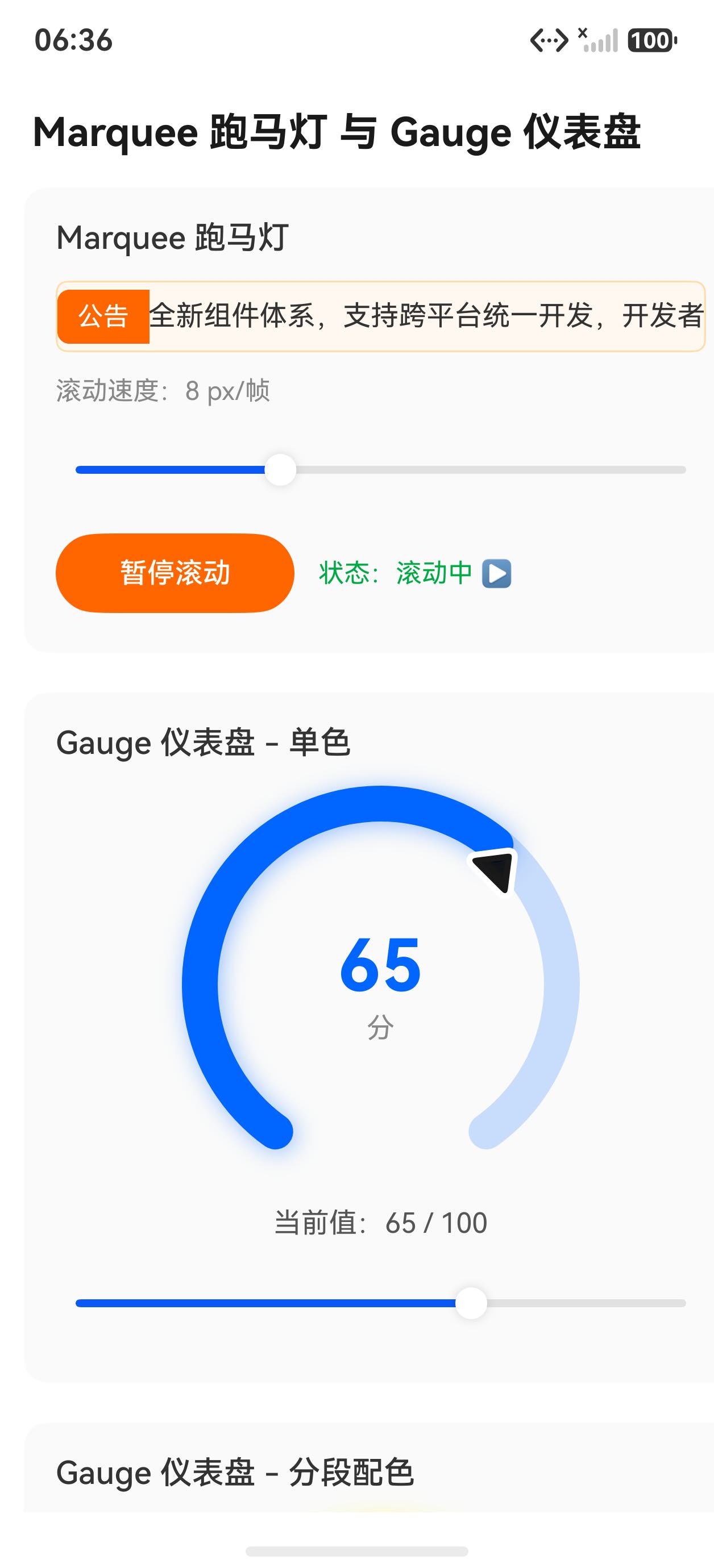
Marquee 跑马灯
Marquee 通过 start 属性控制滚动状态,step 控制每帧移动像素数,loop 控制循环次数。
@State marqueeStart: boolean = false
@State marqueeStep: number = 8

Marquee({
  start: this.marqueeStart,
  step: this.marqueeStep,
  loop: -1,
  fromStart: true,
  src: '🔔 HarmonyOS 6.1 正式发布!新增 Marquee、Gauge、Search 等多个 ArkUI 组件,欢迎体验!'
})
.fontSize(14)
.fontColor('#333333')
.layoutWeight(1)
.height(36)
参数说明:
start: false:初始暂停;start: true:立即开始滚动step:每帧移动像素数,6-10 为舒适速度,超过 15 会感觉很快loop: -1:无限循环;loop: 0:播放一次后停止fromStart: true:每次循环从头开始,false则接续当前位置
将 Marquee 嵌入公告条容器:
Row({ space: 8 }) {
  Text('公告').fontSize(12).fontColor('#ff6600')
    .padding({ left: 6, right: 6, top: 3, bottom: 3 })
    .backgroundColor('#fff3e0')
    .borderRadius(4)

  Marquee({
    start: this.marqueeStart,
    step: this.marqueeStep,
    loop: -1,
    fromStart: true,
    src: this.marqueeText
  })
  .fontSize(14).fontColor('#333333').layoutWeight(1).height(36)

  Image(this.marqueeStart ? $r('app.media.pause') : $r('app.media.play'))
    .width(20).height(20)
    .onClick(() => { this.marqueeStart = !this.marqueeStart })
}
.width('100%')
.padding({ left: 12, right: 12 })
.height(44)
.backgroundColor('#fffbf0')
.borderRadius(8)
Gauge 仪表盘
Gauge 以弓形刻度盘展示数值,startAngle 和 endAngle 以时钟方向定义弧度范围(0 = 12点,90 = 3点,180 = 6点,270 = 9点)。
@State gaugeVal: number = 65

Gauge({ value: this.gaugeVal, min: 0, max: 100 })
  .startAngle(210)
  .endAngle(150)
  .strokeWidth(18)
  .description(null)
  .width(200)
  .height(200)
startAngle(210) 对应左下方(约 7 点位),endAngle(150) 对应右下方(约 5 点位),两者组合形成经典的 270° 弓形仪表盘。
Gauge 颜色分段
通过 .colors() 传入颜色区间数组,实现红/黄/绿三段渐变,直观表达数值健康程度:
Gauge({ value: this.gaugeVal, min: 0, max: 100 })
  .colors([
    [Color.Red, 0.3],
    [Color.Yellow, 0.4],
    [Color.Green, 0.3]
  ])
  .startAngle(210)
  .endAngle(150)
  .strokeWidth(18)
  .description(null)
  .width(200)
  .height(200)
每个元素为 [颜色, 占比],占比之和应为 1.0,对应刻度盘从起点到终点的比例分配。
Stack 叠加中心文字
使用 Stack 将文字叠加在 Gauge 中心,实现数值直读效果:
Stack() {
  Gauge({ value: this.gaugeVal, min: 0, max: 100 })
    .colors([
      [Color.Red, 0.3],
      [Color.Yellow, 0.4],
      [Color.Green, 0.3]
    ])
    .startAngle(210)
    .endAngle(150)
    .strokeWidth(18)
    .description(null)
    .width(200)
    .height(200)

  Column({ space: 2 }) {
    Text(`${this.gaugeVal}`)
      .fontSize(36)
      .fontWeight(FontWeight.Bold)
      .fontColor(this.getValueColor())
    Text('分').fontSize(13).fontColor('#999999')
  }
  .offset({ y: 16 })
}
.width(200)
.height(200)
颜色动态映射:
getValueColor(): string {
  if (this.gaugeVal < 30) return '#e74c3c'
  if (this.gaugeVal < 70) return '#f39c12'
  return '#27ae60'
}
完整代码
@Entry
@Component
struct MarqueeGaugePage {
  @State marqueeStart: boolean = false
  @State marqueeStep: number = 8
  @State marqueeText: string = '🔔 HarmonyOS 6.1 正式发布!新增 Marquee、Gauge、Search 等多个 ArkUI 组件,欢迎体验新特性!'
  @State gaugeVal: number = 65
  @State speedLabel: string = '良好'

  getValueColor(): string {
    if (this.gaugeVal < 30) return '#e74c3c'
    if (this.gaugeVal < 70) return '#f39c12'
    return '#27ae60'
  }

  updateGauge(delta: number): void {
    const next = this.gaugeVal + delta
    this.gaugeVal = Math.max(0, Math.min(100, next))
    if (this.gaugeVal < 30) {
      this.speedLabel = '危险'
    } else if (this.gaugeVal < 70) {
      this.speedLabel = '一般'
    } else {
      this.speedLabel = '良好'
    }
  }

  build() {
    Column({ space: 20 }) {
      Text('公告栏 & 仪表盘').fontSize(18).fontWeight(FontWeight.Bold).fontColor('#333333')
        .width('100%').padding({ left: 16 })

      // 公告条
      Row({ space: 8 }) {
        Text('公告')
          .fontSize(12).fontColor('#ff6600')
          .padding({ left: 6, right: 6, top: 3, bottom: 3 })
          .backgroundColor('#fff3e0').borderRadius(4)

        Marquee({
          start: this.marqueeStart,
          step: this.marqueeStep,
          loop: -1,
          fromStart: true,
          src: this.marqueeText
        })
        .fontSize(14).fontColor('#333333').layoutWeight(1).height(36)

        Text(this.marqueeStart ? '⏸' : '▶')
          .fontSize(18)
          .onClick(() => { this.marqueeStart = !this.marqueeStart })
      }
      .width('100%')
      .padding({ left: 12, right: 12 })
      .height(44)
      .backgroundColor('#fffbf0')
      .borderRadius(8)
      .margin({ left: 16, right: 16 })

      // 速度调节
      Row({ space: 12 }) {
        Text('滚动速度:').fontSize(13).fontColor('#666666')
        ForEach([4, 8, 16], (step: number) => {
          Text(`${step === 4 ? '慢' : step === 8 ? '中' : '快'}`)
            .fontSize(13)
            .fontColor(this.marqueeStep === step ? '#ffffff' : '#0066ff')
            .padding({ left: 14, right: 14, top: 6, bottom: 6 })
            .backgroundColor(this.marqueeStep === step ? '#0066ff' : '#e8f0ff')
            .borderRadius(16)
            .onClick(() => { this.marqueeStep = step })
        })
      }
      .padding({ left: 16, right: 16 })

      Divider().strokeWidth(1).color('#eeeeee').margin({ left: 16, right: 16 })

      // 仪表盘
      Text('实时评分').fontSize(15).fontWeight(FontWeight.Medium).fontColor('#333333')
        .width('100%').padding({ left: 16 })

      Stack() {
        Gauge({ value: this.gaugeVal, min: 0, max: 100 })
          .colors([
            [Color.Red, 0.3],
            [Color.Yellow, 0.4],
            [Color.Green, 0.3]
          ])
          .startAngle(210)
          .endAngle(150)
          .strokeWidth(18)
          .description(null)
          .width(220)
          .height(220)

        Column({ space: 2 }) {
          Text(`${this.gaugeVal}`)
            .fontSize(40)
            .fontWeight(FontWeight.Bold)
            .fontColor(this.getValueColor())
          Text(this.speedLabel)
            .fontSize(14)
            .fontColor(this.getValueColor())
        }
        .offset({ y: 20 })
      }
      .width(220)
      .height(220)

      // 控制按钮
      Row({ space: 16 }) {
        Button('-10').width(72).onClick(() => { this.updateGauge(-10) })
        Button('-1').width(60).onClick(() => { this.updateGauge(-1) })
        Button('+1').width(60).onClick(() => { this.updateGauge(1) })
        Button('+10').width(72).onClick(() => { this.updateGauge(10) })
      }
    }
    .width('100%')
    .height('100%')
    .backgroundColor('#f8f8f8')
    .padding({ top: 20, bottom: 20 })
  }
}
API 速查
| 属性/方法 | 说明 |
|---|---|
Marquee({ start, step, loop, fromStart, src }) |
创建滚动文字,src 为文字内容 |
start |
true = 滚动,false = 暂停 |
step |
每帧移动像素数,推荐 6-10 |
loop |
循环次数,-1 = 无限,0 = 播放一次 |
fromStart |
true = 每次从头播放 |
Gauge({ value, min, max }) |
创建仪表盘,value 为当前值 |
.startAngle(deg) |
弧度起始角(时钟方向,0=12点) |
.endAngle(deg) |
弧度终止角 |
.strokeWidth(px) |
刻度盘弧线粗细 |
.colors([[color, ratio], ...]) |
颜色分段数组,ratio 之和为 1.0 |
.description(null) |
传 null 隐藏默认描述文字 |
小结
- Marquee 的
start属性绑定@State变量,修改即可在运行时控制播放/暂停 step值越大滚动越快;6-10 在大多数屏幕密度下视觉舒适,超过 15 会显得跳跃- Gauge 角度遵循时钟方向:
startAngle(210)+endAngle(150)组合出 270° 弓形 - 颜色分段数组中各
ratio之和必须等于 1.0,否则仪表盘颜色显示异常 - 使用
Stack + Column + offset叠加中心文字,无需绝对定位,适配不同屏幕尺寸 description(null)可隐藏 Gauge 默认描述区域,腾出空间给自定义内容
上一篇:QRCode 与 PatternLock 安全组件 | 下一篇:Menu 与 ContextMenu 长按菜单全配置

作为“人工智能6S店”的官方数字引擎,为AI开发者与企业提供一个覆盖软硬件全栈、一站式门户。
更多推荐
 0
0 0
0- 0


 已为社区贡献10条内容

所有评论(0)