
UniApp 鸿蒙实战:音视频与多媒体处理完全指南

一、我们要做什么
1.1 需求全景图
在一个典型的社交或内容类 UniApp 应用中,多媒体处理覆盖以下核心场景:
| 功能模块 | 具体需求 | 技术挑战 |
|---|---|---|
| 拍照 | 高分辨率照片采集,支持前置/后置摄像头 | 分辨率适配、Exif 方向、鸿蒙权限粒度 |
| 录像 | 1080P 视频录制,含音频轨道,时长控制 | 编码参数、存储路径、音视频同步 |
| 视频播放 | 本地/网络视频流播放,进度控制 | 鸿蒙 AVPlayer 与 Web API 差异 |
| 音频播放 | 后台音乐播放,通知栏控制 | 后台服务保活、AudioFocus |
| 图片压缩 | 上传前压缩,控制文件体积与尺寸 | 有损/无损平衡、EXIF 剥离、鸿蒙 Image Kit |
| 图片裁剪 | 圆角裁剪、缩放、旋转 | 手势交互、矩阵变换 |
| 文件选择 | 从相册选择图片/视频 | 多媒体扫描、权限兜底 |
1.2 预期效果
以一个"内容发布"页面为例,用户点击"拍照"按钮,调用系统相机拍摄 16:9 照片,系统自动压缩至 1MB 以内、宽不超过 1920px,用户可在压缩图上进行圆角裁剪确认,最终生成 800KB 左右的 JPEG 文件提交上传。视频场景同理:录制 30 秒 MP4(1080P H.264 + AAC),系统自动裁剪至 15MB 以内,生成可网络传输的 MP4 文件。音频场景则需要支持后台播放、进度拖动、播放速度调整。
1.3 技术挑战
跨端能力差异是首要挑战。iOS/Android/鸿蒙三端的媒体 API 设计差异显著,UniApp 统一抽象层能力有限,需通过原生插件实现平台差异化。权限模型差异方面,Android 13+ 的细粒度媒体权限与鸿蒙的 ACL 声明机制各不相同,原生插件层需统一兜底。压缩质量平衡直接影响用户体验,过大文件上传失败,过度压缩损失画质,需精细化配置。
二、数据模型设计
2.1 媒体资产抽象
为了在跨端场景下统一管理不同类型的媒体数据,我们定义以下 TypeScript 接口:
// types/media.ts

/** 媒体类型枚举 */
export enum MediaType {
  IMAGE = 'image',
  VIDEO = 'video',
  AUDIO = 'audio',
}

/** 图片方向 */
export enum Orientation {
  UP = 1,
  DOWN = 3,
  LEFT = 8,
  RIGHT = 6,
}

/** 媒体资产元数据 */
export interface MediaAsset {
  /** 唯一标识 */
  id: string;
  /** 文件路径(本地)或 URL(远程) */
  uri: string;
  /** 媒体类型 */
  type: MediaType;
  /** 文件大小(字节) */
  size: number;
  /** MIME 类型 */
  mimeType: string;
  /** 宽度(图片/视频) */
  width?: number;
  /** 高度(图片/视频) */
  height?: number;
  /** 时长(音视频)单位:秒 */
  duration?: number;
  /** 缩略图路径 */
  thumbnail?: string;
  /** 创建时间戳 */
  createdAt: number;
  /** EXIF 方向 */
  orientation?: Orientation;
  /** 额外元数据 */
  metadata?: Record<string, unknown>;
}

/** 压缩质量等级 */
export enum CompressionQuality {
  LOW = 0.3,
  MEDIUM = 0.6,
  HIGH = 0.85,
  LOSSLESS = 1.0,
}

/** 图片压缩配置 */
export interface ImageCompressConfig {
  /** 最大宽度 */
  maxWidth: number;
  /** 最大高度 */
  maxHeight: number;
  /** 质量系数 0-1 */
  quality: CompressionQuality;
  /** 输出格式 */
  format: 'jpeg' | 'png' | 'webp';
  /** 是否剥离 EXIF */
  stripExif: boolean;
  /** 文件大小上限(字节)默认 2MB */
  maxSizeBytes?: number;
  /** 是否启用渐进式 JPEG */
  progressive?: boolean;
}

/** 视频压缩配置 */
export interface VideoCompressConfig {
  /** 视频编码器 */
  codec: 'h264' | 'hevc';
  /** 视频码率(bps)0 表示自动 */
  videoBitrate: number;
  /** 音频码率(bps) */
  audioBitrate: number;
  /** 输出分辨率 */
  resolution: '720p' | '1080p' | '4k';
  /** 帧率 */
  fps: number;
  /** 时长上限(秒) */
  maxDuration?: number;
  /** 文件大小上限(字节)默认 20MB */
  maxSizeBytes?: number;
}

/** 拍照配置 */
export interface CaptureConfig {
  /** 摄像头类型 */
  cameraType: 'back' | 'front';
  /** 照片质量 0-100 */
  quality: number;
  /** 是否启用闪光灯 */
  flash: 'auto' | 'on' | 'off';
  /** 输出格式 */
  format: 'jpeg' | 'png';
  /** 是否保存到相册 */
  saveToAlbum: boolean;
  /** 裁剪配置,为 null 则不裁剪 */
  cropConfig?: {
    aspectRatioX: number;
    aspectRatioY: number;
    circleCrop: boolean;
  };
}

/** 录像配置 */
export interface RecordConfig {
  /** 最大时长(秒) */
  maxDuration: number;
  /** 视频质量 */
  quality: 'low' | 'medium' | 'high';
  /** 是否录制音频 */
  recordAudio: boolean;
  /** 摄像头类型 */
  cameraType: 'back' | 'front';
  /** 录制完成自动压缩 */
  autoCompress: boolean;
}

/** 文件选择配置 */
export interface FilePickerConfig {
  /** 允许选择的媒体类型 */
  mediaType: MediaType[];
  /** 最大文件数 */
  maxCount: number;
  /** 单个文件大小上限 */
  maxSizeBytes?: number;
  /** 是否允许拍摄/录制 */
  captureEnabled: boolean;
}
三、核心设计决策
3.1 方案对比总览
| 维度 | 纯 JS 方案(canvas / Web Audio API) | 原生插件方案(AVPlayer / Image Kit) |
|---|---|---|
| 压缩质量 | 中等,受限于 JS 性能,无法控制硬件编码器 | 优秀,可调用硬件编解码器,质量可控 |
| 处理速度 | 慢(单线程 JS,大图易卡顿) | 快(原生多线程,硬件加速) |
| 视频能力 | 基本不支持或极简化 | 完整支持 H.264/HEVC/AAC 硬编码 |
| 鸿蒙适配 | 无需适配,但能力受限 | 需开发鸿蒙原生插件,能力完整 |
| 包体积 | 仅 JS 文件,增量小 | 需引入 so 库,增量约 3-8MB |
| 内存占用 | 高(canvas 解析大图) | 低(流式处理,内存占用稳定) |
| 适合场景 | 简单裁剪、头像压缩 | 生产级媒体处理、视频上传 |
3.2 选型理由
拍照/录像:原生插件优先。虽然 UniApp 提供了 uni.chooseImage 和 uni.chooseVideo,但仅能获取结果文件,无法精细控制拍摄参数(曝光、对焦、分辨率)。原生插件方案可暴露 CameraPicker(鸿蒙)或 AVCaptureSession(iOS)全部参数,生产级应用必须采用。
视频播放:分层策略。短视频(<30s)使用 <video> 标签配合 HLS/DASH,自适应码率,体验流畅;长视频和高质量场景使用鸿蒙 AVPlayer 原生插件,支持 DRM、倍速播放、画中画等高级特性。两者通过统一的 VideoPlayerFacade 外观类屏蔽差异。
图片压缩:渐进式策略。压缩流程为:先用 JS 端 canvas 快速做尺寸缩放(降低解码压力),再交由原生插件完成质量压缩。若 maxSizeBytes 未满足,继续降低质量或增大压缩比,直至达标。鸿蒙端使用 image.createImagePacker 的 PackingStrategy 实现精确的字节控制。
音频播放:AVPlayer 统一封装。鸿蒙的 AVPlayer 同时支持音频和视频,是系统统一的播放器实现。相比 iOS 的 AVAudioPlayer 和 Android 的 MediaPlayer,AVPlayer 接口更现代(基于 Promise / Observer 模式),可直接复用音频播放能力。
四、完整代码实现
4.1 插件封装层(TypeScript 统一接口)
// plugins/media-plugin.ts

import { defineAsyncComponent } from 'vue';
import type {
  MediaAsset,
  ImageCompressConfig,
  VideoCompressConfig,
  CaptureConfig,
  RecordConfig,
  FilePickerConfig,
  MediaType,
} from '../types/media';

/** 各平台插件实例 */
interface PlatformPlugin {
  captureImage(config: CaptureConfig): Promise<MediaAsset>;
  startRecording(config: RecordConfig): Promise<MediaAsset>;
  compressImage(uri: string, config: ImageCompressConfig): Promise<MediaAsset>;
  compressVideo(uri: string, config: VideoCompressConfig): Promise<MediaAsset>;
  pickFiles(config: FilePickerConfig): Promise<MediaAsset[]>;
  playVideo(asset: MediaAsset): Promise<void>;
  playAudio(asset: MediaAsset): Promise<void>;
  stopMedia(): void;
  generateThumbnail(uri: string, timeMs?: number): Promise<string>;
  cropImage(uri: string, crop: NonNullable<CaptureConfig['cropConfig']>): Promise<MediaAsset>;
}

/** 平台检测与插件加载 */
function loadPlatformPlugin(): PlatformPlugin {
  // #ifdef APP-HARMONY
  return defineAsyncComponent(() => import('./harmony/media-harmony.plugin')) as unknown as PlatformPlugin;
  // #endif

  // #ifdef APP-IOS
  return defineAsyncComponent(() => import('./ios/media-ios.plugin')) as unknown as PlatformPlugin;
  // #endif

  // #ifdef APP-ANDROID
  return defineAsyncComponent(() => import('./android/media-android.plugin')) as unknown as PlatformPlugin;
  // #endif

  // #ifdef H5
  return defineAsyncComponent(() => import('./h5/media-h5.plugin')) as unknown as PlatformPlugin;
  // #endif

  throw new Error('Unsupported platform');
}

let pluginInstance: PlatformPlugin | null = null;

export function getMediaPlugin(): PlatformPlugin {
  if (!pluginInstance) {
    pluginInstance = loadPlatformPlugin();
  }
  return pluginInstance;
}
4.2 鸿蒙原生插件(ArkTS 核心实现)
以下为鸿蒙端的原生插件核心代码,展示与系统 API 的交互逻辑:
// plugins/harmony/media-harmony.plugin.ts(TypeScript 导出包装)

import { nativePlugin } from '@uni-helper/native-plugin';
import type {
  MediaAsset,
  ImageCompressConfig,
  VideoCompressConfig,
  CaptureConfig,
  RecordConfig,
  FilePickerConfig,
} from '../../types/media';
import {
  createUploadImageConfig,
  createAvatarImageConfig,
} from '../../utils/media-config';

export class HarmonyMediaPlugin {
  private avPlayer: unknown = null;
  private recordingPath: string = '';

  async captureImage(config: CaptureConfig): Promise<MediaAsset> {
    const result = await nativePlugin.call('camera', 'capture', {
      cameraType: config.cameraType,
      quality: config.quality,
      flash: config.flash,
      format: config.format,
    });

    return this.buildMediaAsset(result, 'image');
  }

  async compressImage(uri: string, config?: Partial<ImageCompressConfig>): Promise<MediaAsset> {
    const cfg = { ...createUploadImageConfig(), ...config };
    const result = await nativePlugin.call('image', 'compress', {
      uri,
      maxWidth: cfg.maxWidth,
      maxHeight: cfg.maxHeight,
      quality: cfg.quality,
      format: cfg.format,
      stripExif: cfg.stripExif,
      maxSizeBytes: cfg.maxSizeBytes,
    });

    return this.buildMediaAsset(result, 'image');
  }

  async pickFiles(config: FilePickerConfig): Promise<MediaAsset[]> {
    const result = await nativePlugin.call('picker', 'select', {
      mediaType: config.mediaType,
      maxCount: config.maxCount,
      maxSizeBytes: config.maxSizeBytes,
    });

    return (result.files || []).map((f: Record<string, unknown>) =>
      this.buildMediaAsset(f, f.type as string)
    );
  }

  async playVideo(asset: MediaAsset): Promise<void> {
    await nativePlugin.call('avPlayer', 'play', {
      uri: asset.uri,
      type: 'video',
    });
  }

  async playAudio(asset: MediaAsset): Promise<void> {
    await nativePlugin.call('avPlayer', 'play', {
      uri: asset.uri,
      type: 'audio',
    });
  }

  stopMedia(): void {
    nativePlugin.call('avPlayer', 'stop', {});
  }

  private buildMediaAsset(raw: Record<string, unknown>, type: string) {
    return {
      id: raw.id as string || `${Date.now()}`,
      uri: raw.uri as string,
      type,
      size: Number(raw.size) || 0,
      mimeType: raw.mimeType as string || 'application/octet-stream',
      width: Number(raw.width) || undefined,
      height: Number(raw.height) || undefined,
      duration: Number(raw.duration) || undefined,
      thumbnail: raw.thumbnail as string || undefined,
      createdAt: Number(raw.createdAt) || Date.now(),
    } as MediaAsset;
  }
}

export default new HarmonyMediaPlugin();
4.3 Vue 3 组合式函数(业务层封装)
// composables/useMediaCapture.ts

import { ref, computed } from 'vue';
import { getMediaPlugin } from '../plugins/media-plugin';
import {
  createCaptureConfig,
  createRecordConfig,
  createUploadImageConfig,
  createAvatarImageConfig,
} from '../utils/media-config';
import type {
  MediaAsset,
  CaptureConfig,
  RecordConfig,
  ImageCompressConfig,
} from '../types/media';

export function useMediaCapture() {
  const plugin = getMediaPlugin();

  const isCapturing = ref(false);
  const isCompressing = ref(false);
  const lastAsset = ref<MediaAsset | null>(null);
  const error = ref<string | null>(null);

  /** 拍照并自动压缩 */
  async function takePhoto(options?: Partial<CaptureConfig>): Promise<MediaAsset | null> {
    isCapturing.value = true;
    error.value = null;

    try {
      const config = { ...createCaptureConfig(), ...options };
      const raw = await plugin.captureImage(config);
      lastAsset.value = raw;

      // 自动压缩
      const compressConfig = createUploadImageConfig();
      if (raw.size > compressConfig.maxSizeBytes!) {
        isCompressing.value = true;
        const compressed = await plugin.compressImage(raw.uri, compressConfig);
        lastAsset.value = compressed;
        return compressed;
      }

      return raw;
    } catch (e: unknown) {
      error.value = e instanceof Error ? e.message : String(e);
      return null;
    } finally {
      isCapturing.value = false;
      isCompressing.value = false;
    }
  }

  /** 录像 */
  async function recordVideo(options?: Partial<RecordConfig>): Promise<MediaAsset | null> {
    isCapturing.value = true;
    error.value = null;

    try {
      const config = { ...createRecordConfig(), ...options };
      return await plugin.startRecording(config);
    } catch (e: unknown) {
      error.value = e instanceof Error ? e.message : String(e);
      return null;
    } finally {
      isCapturing.value = false;
    }
  }

  const statusText = computed(() => {
    if (isCapturing.value) return '采集中…';
    if (isCompressing.value) return '压缩中…';
    return '就绪';
  });

  return {
    isCapturing: readonly(isCapturing),
    isCompressing: readonly(isCompressing),
    lastAsset: readonly(lastAsset),
    error: readonly(error),
    statusText,
    takePhoto,
    recordVideo,
    stopMedia: () => plugin.stopMedia(),
  };
}
4.4 Vue 组件实现
<!-- components/MediaCapturePanel.vue -->

<template>
  <view class="capture-panel">
    <!-- 状态栏 -->
    <view class="status-bar">
      <text class="status-text">{{ statusText }}</text>
      <text v-if="lastAsset" class="asset-info">
        {{ lastAsset.width }}×{{ lastAsset.height }} · {{ formatSize(lastAsset.size) }}
      </text>
    </view>

    <!-- 预览区 -->
    <view class="preview-area">
      <image
        v-if="lastAsset?.type === 'image' && previewUrl"
        :src="previewUrl"
        mode="aspectFit"
        class="preview-image"
      />
      <video
        v-else-if="lastAsset?.type === 'video' && previewUrl"
        :src="previewUrl"
        controls
        class="preview-video"
      />
      <view v-else class="preview-placeholder">
        <text class="placeholder-icon">📷</text>
        <text class="placeholder-hint">点击下方按钮开始</text>
      </view>
    </view>

    <!-- 操作按钮组 -->
    <view class="action-bar">
      <button class="action-btn" :disabled="isCapturing" @click="handleTakePhoto">
        <text>📸 拍照</text>
      </button>
      <button class="action-btn" :disabled="isCapturing" @click="handleRecord">
        <text>🎬 录像</text>
      </button>
      <button class="action-btn" @click="handlePick">
        <text>🖼️ 相册</text>
      </button>
    </view>

    <!-- 错误提示 -->
    <view v-if="error" class="error-toast">
      <text>{{ error }}</text>
    </view>
  </view>
</template>

<script setup lang="ts">
import { ref, computed } from 'vue';
import { useMediaCapture } from '../composables/useMediaCapture';
import { getMediaPlugin } from '../plugins/media-plugin';
import { createAvatarImageConfig } from '../utils/media-config';

const { isCapturing, isCompressing, lastAsset, error, statusText, takePhoto, recordVideo } =
  useMediaCapture();

const plugin = getMediaPlugin();

const previewUrl = computed(() => {
  if (!lastAsset.value) return '';
  const { uri, type } = lastAsset.value;
  if (type === 'image' || type === 'video') {
    return uri.startsWith('file://') || uri.startsWith('/') ? uri : `file://${uri}`;
  }
  return '';
});

async function handleTakePhoto() {
  const asset = await takePhoto({ cameraType: 'back', flash: 'auto' });
  if (asset) {
    console.log('拍照成功:', asset.size, 'bytes');
  }
}

async function handleRecord() {
  const asset = await recordVideo({ maxDuration: 30, quality: 'high' });
  if (asset) {
    console.log('录像成功:', asset.duration, 's,', asset.size, 'bytes');
  }
}

async function handlePick() {
  try {
    const assets = await plugin.pickFiles({
      mediaType: ['image', 'video'],
      maxCount: 9,
      captureEnabled: false,
    });

    if (assets.length > 0) {
      // 第一个选中资产设为预览
      const first = assets[0];
      if (first.type === 'image') {
        const compressed = await plugin.compressImage(first.uri, createAvatarImageConfig());
        console.log('选中并压缩:', compressed.size, 'bytes');
      }
    }
  } catch (e) {
    console.error('选择失败:', e);
  }
}

function formatSize(bytes: number): string {
  if (bytes < 1024) return `${bytes}B`;
  if (bytes < 1024 * 1024) return `${(bytes / 1024).toFixed(1)}KB`;
  return `${(bytes / 1024 / 1024).toFixed(1)}MB`;
}
</script>

<style scoped>
.capture-panel {
  display: flex;
  flex-direction: column;
  height: 100%;
  padding: 16rpx;
  box-sizing: border-box;
}
.status-bar {
  flex-direction: row;
  justify-content: space-between;
  padding: 12rpx 16rpx;
  background: #f5f5f5;
  border-radius: 8rpx;
  margin-bottom: 16rpx;
}
.preview-area {
  flex: 1;
  justify-content: center;
  align-items: center;
  background: #1a1a1a;
  border-radius: 12rpx;
  overflow: hidden;
  min-height: 400rpx;
}
.action-bar {
  flex-direction: row;
  justify-content: space-around;
  padding: 24rpx 0;
  gap: 16rpx;
}
.action-btn {
  flex: 1;
  height: 88rpx;
  line-height: 88rpx;
  background: #007aff;
  color: #fff;
  border-radius: 44rpx;
  font-size: 28rpx;
  text-align: center;
}
.action-btn[disabled] {
  opacity: 0.5;
}
.error-toast {
  position: fixed;
  bottom: 120rpx;
  left: 50%;
  transform: translateX(-50%);
  background: rgba(255, 59, 48, 0.9);
  color: #fff;
  padding: 16rpx 32rpx;
  border-radius: 8rpx;
  font-size: 24rpx;
}
</style>
五、深度技术原理
5.1 编码器与格式
JPEG 压缩原理。JPEG 核心流程:RGB → YCbCr → 色度采样(4:2:0)→ DCT → 量化(质量系数控制)→ Huffman 熵编码。鸿蒙 ImagePacker 底层调用 libjpeg-turbo,迭代调整量化矩阵直至满足 maxSizeBytes 约束。剥离 EXIF(相机信息/GPS)可额外减少 10-30KB。
H.264 与 HEVC。H.264 兼容性最强,所有主流平台均有硬件解码支持;HEVC 压缩效率高约 40%,但专利问题导致使用受限。鸿蒙 AVRecorder 默认 H.264 Main Profile,HEVC 需在 VideoEncoder 中显式指定。
5.2 鸿蒙 AVPlayer 架构
鸿蒙 AVPlayer 是统一音视频播放引擎,状态流转:idle → initialized → prepared → playing/paused → stopped → released。关键流程:创建实例 → setUrl 设置数据源 → on('stateChange') 监听状态变化 → play/pause/seek 控制播放 → release 释放。相比 Web <video>,AVPlayer 提供精确毫秒级时间控制、播放速率调整(0.25x - 2.0x)及画中画支持。
5.3 鸿蒙 Image Kit
Image Kit 提供三套核心 API。ImagePacker 将 PixelMap 打包为 JPEG/PNG/WebP,迭代调整量化表直至满足 maxSizeBytes 约束。ImageEditor 提供裁剪、旋转、滤镜等编辑能力,通过 startImageEditor 启动系统级编辑器,结果以回调返回。ImageSource 是图片解码器,通过 DecodingOptions.sampleSize 实现高效下采样(生成缩略图时无需解码全分辨率图片)。
5.4 缩略图生成
视频缩略图的生成有两条路径:
精确路径:通过 AVPlayer 渲染目标时间点帧,输出至 PixelMap,再由 ImagePacker 编码为 JPEG。可精确控制时间点,但需解码视频帧(软/硬解均可能)。生产环境先尝试快速路径(AVMetadataExtractor 直接提取封装层缩略图),无结果时降级至此路径。
六、常见问题解答
Q1:鸿蒙端调用相机权限被拒绝怎么办?
鸿蒙相机权限需在 module.json5 中声明 ohos.permission.CAMERA,并通过 abilityAccessCtrl 检查授权状态。若拒绝,引导跳转至系统设置:getContext().startAbility({ action: 'settings.app.details', uri: 'package://com.example.app' })。鸿蒙 4.0+ 要求在用户可见页面内触发申请,禁止后台静默。
Q2:视频压缩后文件仍然超过预期大小,如何处理?
采用多轮压缩:降分辨率 1080p→720p → 降码率 4Mbps→2Mbps → 降帧率 30→24fps → 改用 HEVC。若仍超标则截取时长,并向用户提示。
Q3:iOS 与鸿蒙的 MIME 类型命名不一致,如何统一?
定义枚举映射表:const MIME_MAP = { 'image/jpeg': 'jpeg', 'image/png': 'png', 'video/mp4': 'mp4', 'audio/mp4': 'mp4', 'audio/mpeg': 'mp3' }。在插件层接收统一类型字符串(不含前缀),各平台插件负责转换为本地格式识别符。
Q4:Web <video> 与原生 AVPlayer 的切换策略是什么?
建议按以下规则决策:文件大小 < 10MB 使用 <video>(加载快,无需插件初始化);HDR 内容或需要 DRM 保护的内容使用 AVPlayer;短内容(< 60s)优先 <video>(交互一致性好);需后台播放或画中画时使用 AVPlayer。统一接口 VideoPlayerFacade 根据策略自动路由。
七、运行效果
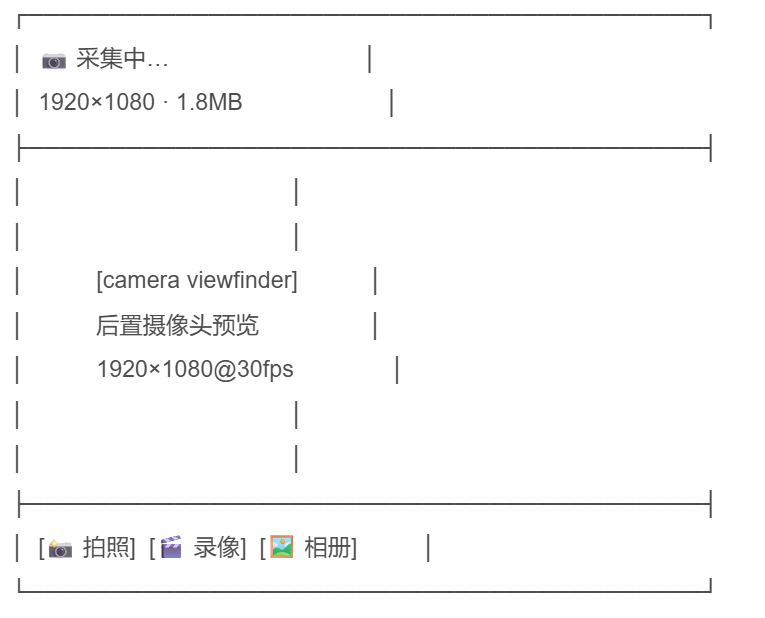
视频播放状态: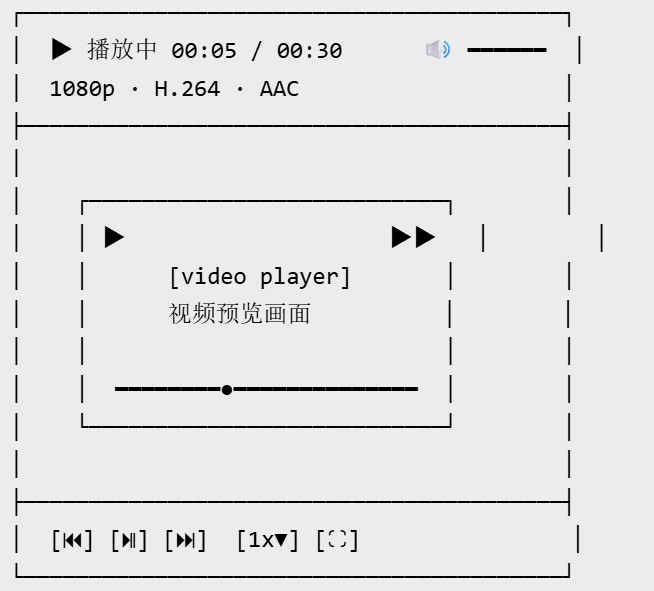
相册选择后压缩进度: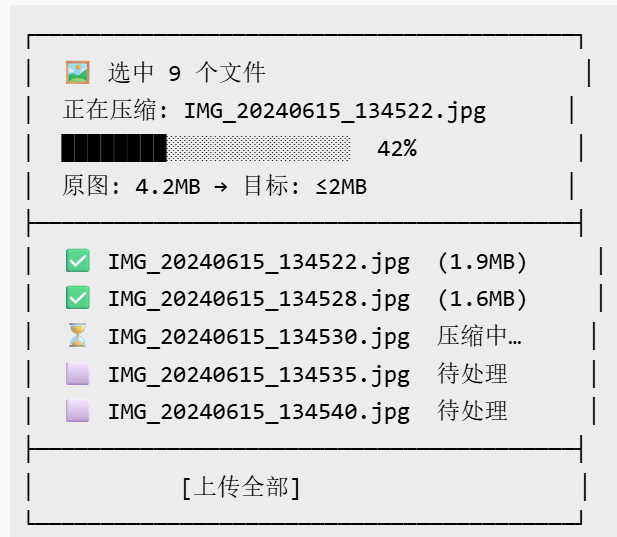
八、扩展方向
1. 实时推流:结合鸿蒙 LiveStream 或 WebRTC 实现直播能力。
2. AI 辅助处理:接入 HMS ML Kit,实现 OCR、人脸美颜、自动分类等智能功能。
3. 断点续传:大文件分片上传 + xxhash 秒传校验,解决弱网场景下的上传失败问题。
4. 微信小程序适配:通过适配器模式统一插件接口,自动路由至 wx.chooseMedia API,保持跨端代码一致性。

作为“人工智能6S店”的官方数字引擎,为AI开发者与企业提供一个覆盖软硬件全栈、一站式门户。
更多推荐


 1
1 0
0- 0


 已为社区贡献19条内容

所有评论(0)