
基于鸿蒙原生开发的个人记账工具实践
·
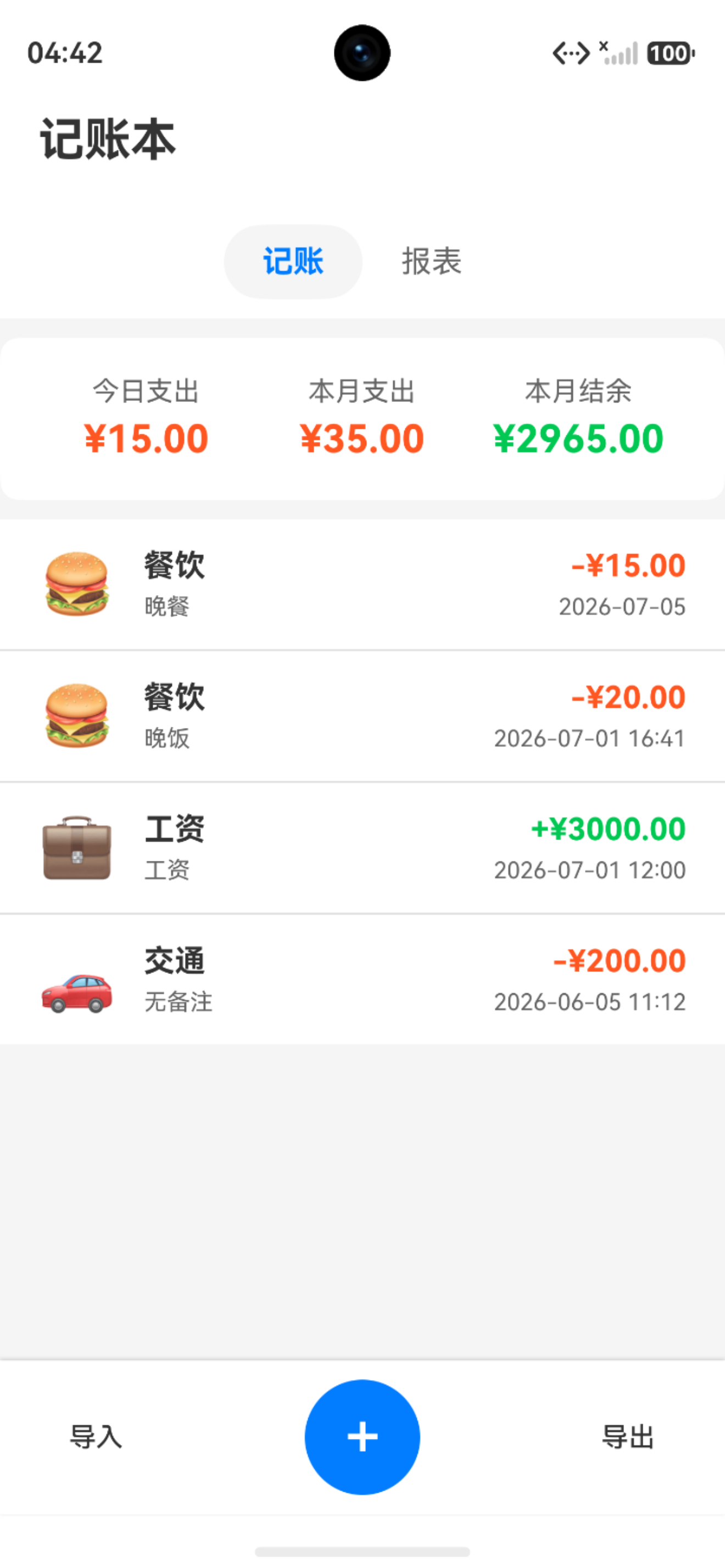
本文将介绍如何使用鸿蒙原生开发技术(ArkTS + ArkUI)从零构建一个功能完整的个人记账应用,涵盖数据持久化、UI组件开发、数据可视化等核心技术点。
一、项目概述
1.1 功能特性
本记账工具实现了以下核心功能:
- ✅ 记账管理:支持收入/支出记录的增删改查
- ✅ 分类管理:内置收入和支出分类,每个分类配有图标
- ✅ 数据统计:今日支出、本月支出、本月结余实时统计
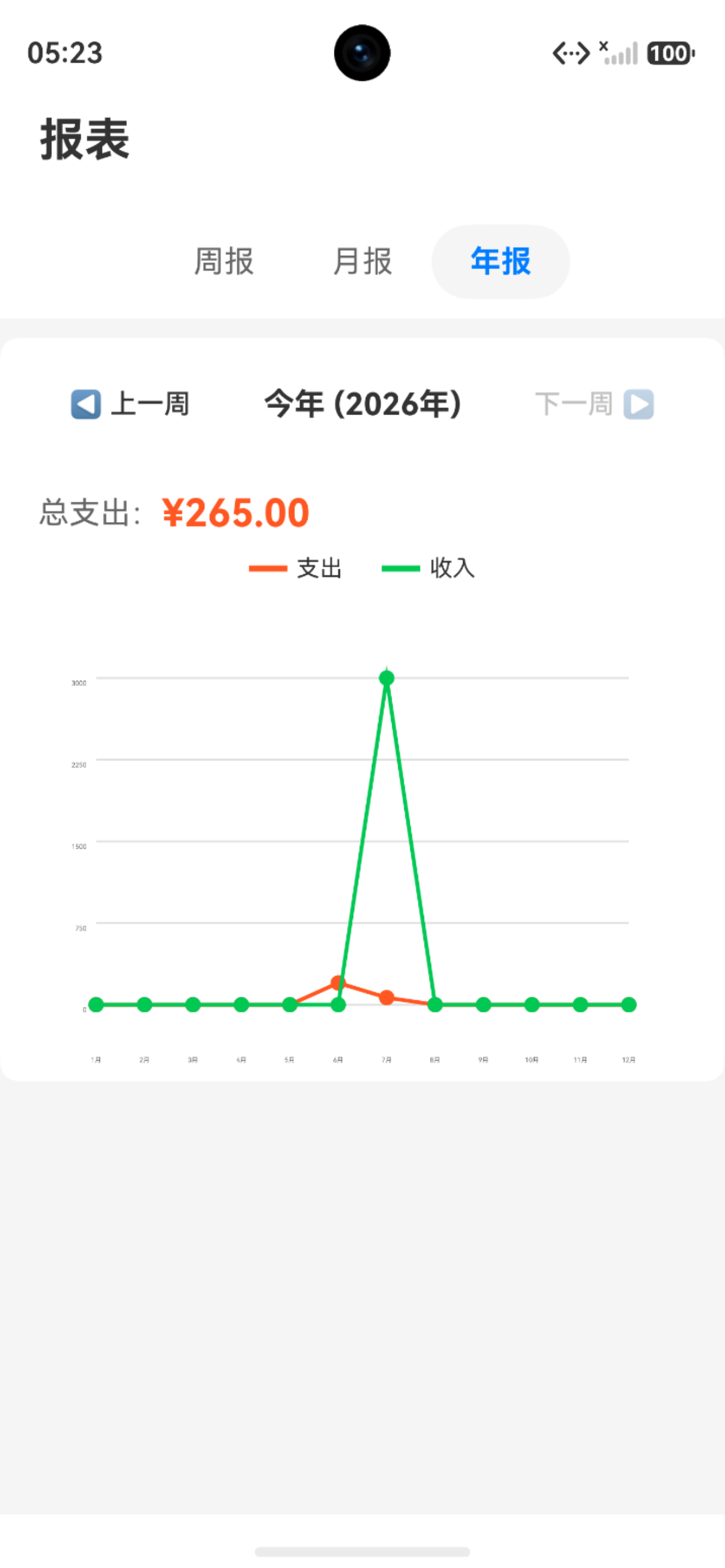
- ✅ 报表分析:周报、月报、年报数据可视化展示
- ✅ 数据导入导出:支持CSV格式数据的导入导出
- ✅ 日期时间记录:精确到分钟的记账时间记录
1.2 技术栈
| 技术项 | 说明 |
|---|---|
| 开发语言 | ArkTS(TypeScript的超集) |
| UI框架 | ArkUI声明式UI |
| 数据存储 | 用户首选项(Preferences) |
| 数据可视化 | Canvas自绘折线图 |
| 文件操作 | FilePicker + FS |
二、项目架构
2.1 目录结构
entry/src/main/ets/
├── model/                    # 数据模型层
│   └── AccountRecord.ets     # 记账记录模型
├── common/                   # 公共资源
│   └── Constants.ets         # 常量、颜色、分类定义
├── service/                  # 业务逻辑层
│   ├── DataService.ets       # 数据存储服务
│   └── CsvService.ets        # CSV导入导出服务
├── components/               # 自定义组件
│   └── LineChart.ets         # 折线图组件
└── pages/                    # 页面
    ├── Index.ets             # 记账主页面
    └── ReportPage.ets        # 报表页面
2.2 架构设计图
┌─────────────────────────────────────────────────────┐
│                    UI Layer                         │
│  ┌──────────────┐      ┌──────────────┐            │
│  │  Index.ets   │      │ ReportPage   │            │
│  │  (记账页面)   │      │  (报表页面)   │            │
│  └──────────────┘      └──────────────┘            │
└─────────────────────────────────────────────────────┘
                         │
                         ▼
┌─────────────────────────────────────────────────────┐
│                 Service Layer                       │
│  ┌──────────────┐      ┌──────────────┐            │
│  │ DataService  │      │ CsvService   │            │
│  │ (数据存储)    │      │ (导入导出)    │            │
│  └──────────────┘      └──────────────┘            │
└─────────────────────────────────────────────────────┘
                         │
                         ▼
┌─────────────────────────────────────────────────────┐
│                  Data Layer                         │
│  ┌──────────────┐      ┌──────────────┐            │
│  │AccountRecord │      │ Preferences  │            │
│  │  (数据模型)   │      │ (持久化存储)  │            │
│  └──────────────┘      └──────────────┘            │
└─────────────────────────────────────────────────────┘
三、核心功能实现
3.1 数据模型设计
记账记录是整个应用的核心数据结构,包含金额、分类、描述、日期时间等字段:
// model/AccountRecord.ets
export class AccountRecord {
  id: string;           // 唯一标识
  amount: number;       // 金额
  category: string;     // 分类
  description: string;  // 描述
  date: string;         // 日期时间 "YYYY-MM-DD HH:mm"
  type: string;         // 类型:income/expense

  constructor(
    id: string,
    amount: number,
    category: string,
    description: string,
    date: string,
    type: string
  ) {
    this.id = id;
    this.amount = amount;
    this.category = category;
    this.description = description;
    this.date = date;
    this.type = type;
  }

  // 生成唯一ID
  static generateId(): string {
    return Date.now().toString(36) + Math.random().toString(36).substr(2);
  }

  // 获取日期部分
  getDateOnly(): string {
    return this.date.split(' ')[0];
  }

  // 获取时间部分
  getTimeOnly(): string {
    return this.date.split(' ')[1];
  }
}
统计信息模型用于展示汇总数据:
// model/AccountRecord.ets
export class Statistics {
  todayExpense: number = 0;      // 今日支出
  monthExpense: number = 0;      // 本月支出
  monthIncome: number = 0;       // 本月收入
  monthBalance: number = 0;      // 本月结余
}
3.2 数据持久化服务
鸿蒙提供了@ohos.data.preferences用于轻量级数据存储,适合存储用户设置和应用数据:
// service/DataService.ets
import preferences from '@ohos.data.preferences';
import common from '@ohos.app.ability.common';

export class DataService {
  private static instance: DataService;
  private preferences: preferences.Preferences | null = null;
  private readonly STORE_NAME = 'account_book';
  private readonly KEY_RECORDS = 'records';

  static getInstance(): DataService {
    if (!DataService.instance) {
      DataService.instance = new DataService();
    }
    return DataService.instance;
  }

  // 初始化Preferences
  async getContext(context: common.UIAbilityContext): Promise<void> {
    try {
      this.preferences = await preferences.getPreferences(context, this.STORE_NAME);
    } catch (error) {
      console.error('Failed to get preferences:', error);
    }
  }

  // 添加记录
  async addRecord(record: AccountRecord): Promise<boolean> {
    const records = await this.getAllRecords();
    records.unshift(record); // 新记录添加到开头
    return await this.saveRecords(records);
  }

  // 获取所有记录
  async getAllRecords(): Promise<AccountRecord[]> {
    if (!this.preferences) return [];

    try {
      const data = await this.preferences.get(this.KEY_RECORDS, '[]') as string;
      const jsonArray = JSON.parse(data) as object[];
      return jsonArray.map(obj => this.jsonToRecord(obj));
    } catch (error) {
      console.error('Failed to get records:', error);
      return [];
    }
  }

  // 保存记录到Preferences
  private async saveRecords(records: AccountRecord[]): Promise<boolean> {
    if (!this.preferences) return false;

    try {
      const jsonArray = records.map(r => this.recordToJson(r));
      await this.preferences.put(this.KEY_RECORDS, JSON.stringify(jsonArray));
      await this.preferences.flush();
      return true;
    } catch (error) {
      console.error('Failed to save records:', error);
      return false;
    }
  }
}
3.3 分类与图标设计
为每个分类设计了直观的图标,提升用户体验:
// common/Constants.ets
export class Constants {
  // 支出分类
  static readonly EXPENSE_CATEGORIES: string[] = [
    '餐饮', '交通', '购物', '娱乐',
    '医疗', '教育', '居住', '通讯', '其他支出'
  ];

  // 收入分类
  static readonly INCOME_CATEGORIES: string[] = [
    '工资', '奖金', '投资收益', '兼职',
    '礼金', '其他收入'
  ];

  // 支出分类图标映射
  static readonly EXPENSE_ICONS: Map<string, string> = new Map([
    ['餐饮', '🍔'], ['交通', '🚗'], ['购物', '🛍️'],
    ['娱乐', '🎮'], ['医疗', '💊'], ['教育', '📚'],
    ['居住', '🏠'], ['通讯', '📱'], ['其他支出', '💸']
  ]);

  // 收入分类图标映射
  static readonly INCOME_ICONS: Map<string, string> = new Map([
    ['工资', '💼'], ['奖金', '🎁'], ['投资收益', '📈'],
    ['兼职', '🔧'], ['礼金', '💰'], ['其他收入', '💵']
  ]);

  // 获取分类图标
  static getCategoryIcon(category: string, type: string): string {
    if (type === 'income') {
      const icon = Constants.INCOME_ICONS.get(category);
      return icon || '💵';
    } else {
      const icon = Constants.EXPENSE_ICONS.get(category);
      return icon || '💸';
    }
  }
}
四、UI界面实现
4.1 主页面设计
主页面采用简洁的卡片式设计,包含统计卡片、记录列表和底部操作栏:
// pages/Index.ets
@Entry
@Component
struct Index {
  @State records: AccountRecord[] = [];
  @State statistics: Statistics = new Statistics();
  @State showAddDialog: boolean = false;
  @State currentTab: number = 0;

  build() {
    Stack() {
      Column() {
        // 标题栏
        this.TitleBar()

        // Tab切换
        this.TabBar()

        // 统计卡片
        this.StatisticsCard()

        // 记录列表
        this.RecordList()

        // 底部操作栏
        this.BottomBar()
      }

      // 添加对话框
      if (this.showAddDialog) {
        this.AddDialog()
      }
    }
  }

  // 统计卡片
  @Builder
  StatisticsCard() {
    Column() {
      Row() {
        // 今日支出
        Column() {
          Text('今日支出')
            .fontSize(14)
            .fontColor(Colors.TEXT_SECONDARY)
          Text(`¥${this.statistics.todayExpense.toFixed(2)}`)
            .fontSize(20)
            .fontWeight(FontWeight.Bold)
            .fontColor(Colors.EXPENSE)
        }
        .layoutWeight(1)

        // 本月支出
        Column() {
          Text('本月支出')
            .fontSize(14)
            .fontColor(Colors.TEXT_SECONDARY)
          Text(`¥${this.statistics.monthExpense.toFixed(2)}`)
            .fontSize(20)
            .fontWeight(FontWeight.Bold)
            .fontColor(Colors.EXPENSE)
        }
        .layoutWeight(1)

        // 本月结余
        Column() {
          Text('本月结余')
            .fontSize(14)
            .fontColor(Colors.TEXT_SECONDARY)
          Text(`¥${this.statistics.monthBalance.toFixed(2)}`)
            .fontSize(20)
            .fontWeight(FontWeight.Bold)
            .fontColor(this.statistics.monthBalance >= 0 ?
              Colors.INCOME : Colors.EXPENSE)
        }
        .layoutWeight(1)
      }
    }
    .padding(20)
    .backgroundColor(Colors.CARD)
    .borderRadius(10)
  }
}
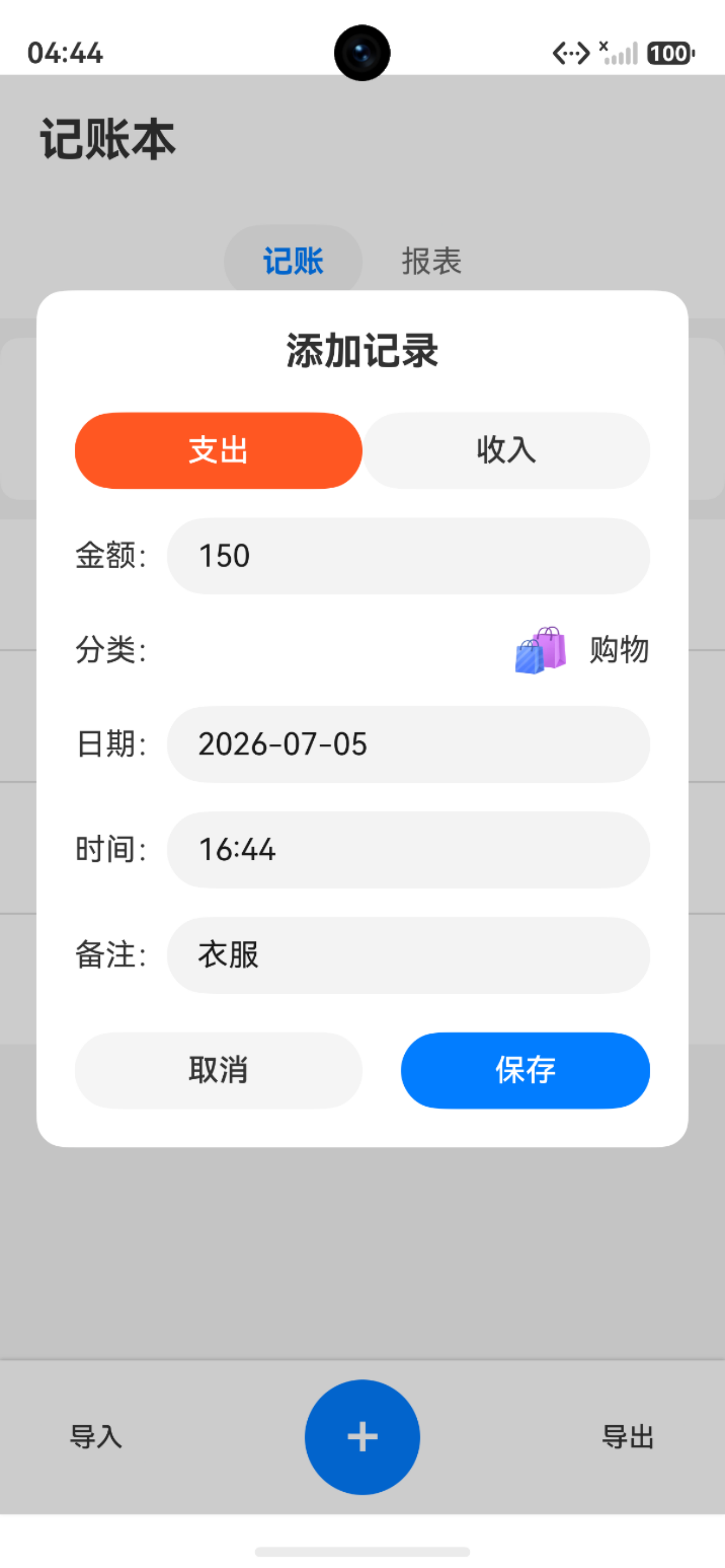
4.2 添加记录对话框
采用弹出式对话框设计,支持类型切换、分类选择、日期时间输入:
@Builder
AddDialog() {
  Column() {
    // 遮罩层
    Column()
      .width('100%')
      .height('100%')
      .backgroundColor('#33000000')
      .onClick(() => { this.showAddDialog = false; })
  }
  .position({ x: 0, y: 0 })

  // 对话框内容
  Column() {
    Text('添加记录')
      .fontSize(20)
      .fontWeight(FontWeight.Bold)

    // 类型选择(支出/收入)
    Row() {
      Button('支出')
        .backgroundColor(this.formType === 'expense' ?
          Colors.EXPENSE : Colors.BACKGROUND)
        .onClick(() => { this.formType = 'expense'; })

      Button('收入')
        .backgroundColor(this.formType === 'income' ?
          Colors.INCOME : Colors.BACKGROUND)
        .onClick(() => { this.formType = 'income'; })
    }

    // 金额输入
    Row() {
      Text('金额:')
      TextInput({ placeholder: '请输入金额' })
        .type(InputType.Number)
        .onChange((value) => { this.formAmount = value; })
    }

    // 分类选择(带图标)
    Row() {
      Text('分类:')
      Row() {
        Text(Constants.getCategoryIcon(this.formCategory, this.formType))
          .fontSize(24)
        Text(this.formCategory || '请选择分类')
      }
      .onClick(() => { /* 显示分类选择器 */ })
    }

    // 日期时间输入
    Row() {
      Text('日期:')
      TextInput({ text: this.formDate })
    }

    Row() {
      Text('时间:')
      TextInput({ text: this.formTime })
    }

    // 操作按钮
    Row() {
      Button('取消').onClick(() => { this.showAddDialog = false; })
      Button('保存').onClick(() => { this.saveRecord(); })
    }
  }
  .width('90%')
  .backgroundColor(Colors.CARD)
  .borderRadius(15)
  .position({ x: '5%', y: '15%' })
}
4.3 记录项组件
每条记录显示分类图标、金额、描述和时间,支持点击编辑和长按删除:
@Builder
RecordItem(record: AccountRecord) {
  Row() {
    // 分类图标
    Text(Constants.getCategoryIcon(record.category, record.type))
      .fontSize(32)
      .margin({ right: 15 })

    // 信息区域
    Column() {
      Row() {
        Text(record.category)
          .fontSize(16)
          .fontWeight(FontWeight.Bold)

        Blank()

        Text(`${record.type === 'income' ? '+' : '-'}¥${record.amount.toFixed(2)}`)
          .fontSize(16)
          .fontColor(record.type === 'income' ? Colors.INCOME : Colors.EXPENSE)
          .fontWeight(FontWeight.Bold)
      }
      .width('100%')

      Row() {
        Text(record.description || '无备注')
          .fontSize(12)
          .fontColor(Colors.TEXT_SECONDARY)

        Blank()

        Text(record.date)
          .fontSize(12)
          .fontColor(Colors.TEXT_SECONDARY)
      }
      .width('100%')
      .margin({ top: 5 })
    }
    .layoutWeight(1)
  }
  .padding(15)
  .backgroundColor(Colors.CARD)
  .onClick(() => { this.editRecord(record); })
  .gesture(
    LongPressGesture()
      .onAction(() => { this.deleteRecord(record.id); })
  )
}
五、数据可视化实现
5.1 折线图组件
使用Canvas自绘折线图,实现数据可视化:
// components/LineChart.ets
@Component
export struct LineChart {
  @Prop data: ChartDataPoint[] = [];
  @Prop chartHeight: number = 200;

  private settings: RenderingContextSettings = new RenderingContextSettings(true);
  private context: CanvasRenderingContext2D = new CanvasRenderingContext2D(this.settings);
  private chartPadding: number = 40;

  build() {
    Column() {
      Canvas(this.context)
        .width('100%')
        .height(this.chartHeight)
        .onReady(() => {
          this.drawChart();
        })
    }
  }

  private drawChart(): void {
    if (this.data.length === 0) return;

    const width = this.context.width;
    const height = this.context.height;
    const maxValue = Math.max(...this.data.map(d => d.value));

    // 绘制网格线
    this.context.strokeStyle = '#E0E0E0';
    this.context.lineWidth = 1;
    for (let i = 0; i <= 4; i++) {
      const y = this.chartPadding + (height - this.chartPadding * 2) / 4 * i;
      this.context.beginPath();
      this.context.moveTo(this.chartPadding, y);
      this.context.lineTo(width - this.chartPadding, y);
      this.context.stroke();
    }

    // 绘制折线
    const stepX = (width - this.chartPadding * 2) / (this.data.length - 1);
    this.context.strokeStyle = '#FF6B6B';
    this.context.lineWidth = 2;
    this.context.beginPath();

    for (let i = 0; i < this.data.length; i++) {
      const x = this.chartPadding + stepX * i;
      const y = this.chartPadding +
        (height - this.chartPadding * 2) * (1 - this.data[i].value / maxValue);

      if (i === 0) {
        this.context.moveTo(x, y);
      } else {
        this.context.lineTo(x, y);
      }
    }
    this.context.stroke();

    // 绘制数据点
    this.context.fillStyle = '#FF6B6B';
    for (let i = 0; i < this.data.length; i++) {
      const x = this.chartPadding + stepX * i;
      const y = this.chartPadding +
        (height - this.chartPadding * 2) * (1 - this.data[i].value / maxValue);

      this.context.beginPath();
      this.context.arc(x, y, 4, 0, 2 * Math.PI);
      this.context.fill();
    }

    // 绘制标签
    this.context.fillStyle = '#666666';
    this.context.font = '12px sans-serif';
    this.context.textAlign = 'center';

    for (let i = 0; i < this.data.length; i++) {
      const x = this.chartPadding + stepX * i;
      this.context.fillText(this.data[i].label, x, height - 10);
    }
  }
}
5.2 报表页面
报表页面支持周报、月报、年报三种视图:
// pages/ReportPage.ets
@Entry
@Component
struct ReportPage {
  @State currentReport: string = 'week'; // week/month/year
  @State currentDate: Date = new Date();
  @State chartData: ChartDataPoint[] = [];

  async aboutToAppear() {
    await this.loadReportData();
  }

  async loadReportData() {
    const dataService = DataService.getInstance();

    if (this.currentReport === 'week') {
      this.chartData = await dataService.getWeekData(this.currentDate);
    } else if (this.currentReport === 'month') {
      this.chartData = await dataService.getMonthData(this.currentDate);
    } else {
      this.chartData = await dataService.getYearData(this.currentDate);
    }
  }

  build() {
    Column() {
      // 标题栏
      Row() {
        Text('报表分析')
          .fontSize(24)
          .fontWeight(FontWeight.Bold)
      }
      .padding(20)

      // 报表类型切换
      Row() {
        ForEach(['周报', '月报', '年报'], (tab: string) => {
          Text(tab)
            .padding(10)
            .backgroundColor(this.currentReport === tab ?
              Colors.PRIMARY : Colors.BACKGROUND)
            .onClick(() => {
              this.currentReport = tab;
              this.loadReportData();
            })
        })
      }

      // 时间导航
      Row() {
        Button('◀ 上一周')
          .onClick(() => { this.navigateDate(-1); })

        Text(this.getDateRangeText())

        Button('下一周 ▶')
          .onClick(() => { this.navigateDate(1); })
      }

      // 折线图
      LineChart({ data: this.chartData, chartHeight: 250 })
    }
  }
}
六、数据导入导出
6.1 CSV导出实现
使用FilePicker选择保存位置,FS写入文件:
// service/CsvService.ets
import picker from '@ohos.file.picker';
import fs from '@ohos.file.fs';
import common from '@ohos.app.ability.common';

export class CsvService {
  private static instance: CsvService;

  static getInstance(): CsvService {
    if (!CsvService.instance) {
      CsvService.instance = new CsvService();
    }
    return CsvService.instance;
  }

  async exportToCsv(context: common.UIAbilityContext): Promise<boolean> {
    try {
      // 配置文件保存对话框
      const documentSaveOptions = new picker.DocumentSaveOptions();
      documentSaveOptions.newFileName = 'account_records.csv';
      documentSaveOptions.fileSuffixChoices = ['.csv'];

      const documentPicker = new picker.DocumentViewPicker();
      const uri = await documentPicker.save(documentSaveOptions);

      if (uri && uri.length > 0) {
        // 获取所有记录
        const dataService = DataService.getInstance();
        const records = await dataService.getAllRecords();

        // 构建CSV内容
        let csvContent = 'ID,金额,分类,描述,日期时间,类型\n';
        records.forEach(record => {
          csvContent += `${record.id},${record.amount},${record.category},` +
            `${record.description},${record.date},${record.type}\n`;
        });

        // 写入文件
        const file = fs.openSync(uri[0], fs.OpenMode.WRITE_ONLY);
        fs.writeSync(file.fd, csvContent);
        fs.closeSync(file);

        return true;
      }
      return false;
    } catch (error) {
      console.error('Export failed:', error);
      return false;
    }
  }
}
6.2 CSV导入实现
async importFromCsv(context: common.UIAbilityContext): Promise<number> {
  try {
    // 配置文件选择对话框
    const documentSelectOptions = new picker.DocumentSelectOptions();
    documentSelectOptions.fileSuffixChoices = ['.csv'];

    const documentPicker = new picker.DocumentViewPicker();
    const uri = await documentPicker.select(documentSelectOptions);

    if (uri && uri.length > 0) {
      // 读取文件内容
      const file = fs.openSync(uri[0], fs.OpenMode.READ_ONLY);
      const stat = fs.statSync(uri[0]);
      const buffer = new ArrayBuffer(stat.size);
      fs.readSync(file.fd, buffer);
      fs.closeSync(file);

      // 解析CSV内容
      const content = String.fromCharCode(...new Uint8Array(buffer));
      const lines = content.split('\n');

      const dataService = DataService.getInstance();
      let count = 0;

      // 跳过标题行,解析数据行
      for (let i = 1; i < lines.length; i++) {
        const line = lines[i].trim();
        if (line) {
          const parts = line.split(',');
          if (parts.length >= 6) {
            const record = new AccountRecord(
              parts[0],
              parseFloat(parts[1]),
              parts[2],
              parts[3],
              parts[4],
              parts[5]
            );

            await dataService.addRecord(record);
            count++;
          }
        }
      }

      return count;
    }
    return 0;
  } catch (error) {
    console.error('Import failed:', error);
    return -1;
  }
}
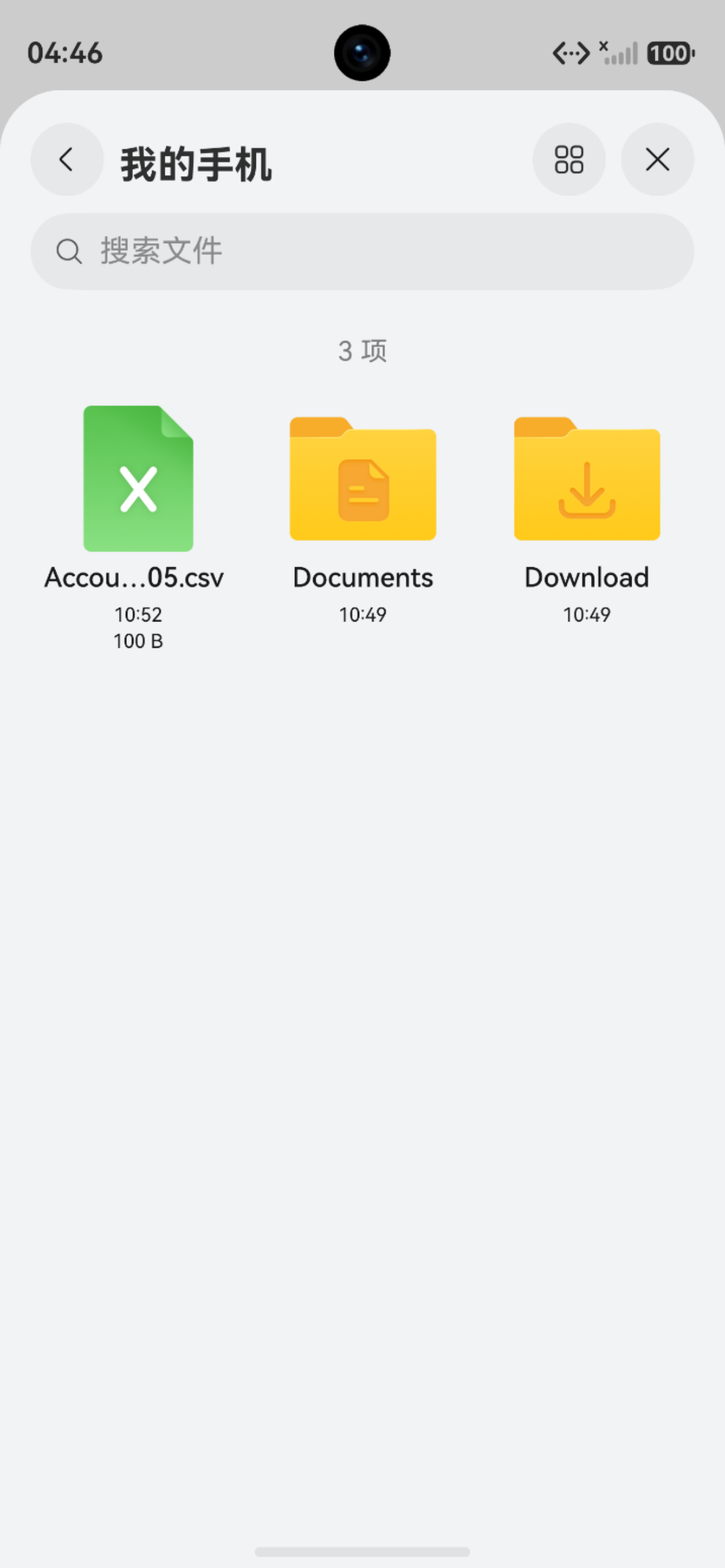
导出页面如下:
导入页面如下:
七、关键技术点总结
7.1 状态管理
鸿蒙ArkUI采用声明式UI,使用装饰器管理状态:
@State:组件内状态,变化时触发UI刷新@Prop:单向数据传递,父组件向子组件传递@Link:双向数据绑定@Builder:自定义组件构建函数
@Component
struct MyComponent {
  @State count: number = 0;        // 可变状态
  @Prop title: string = '';        // 只读属性
  @Link inputValue: string;        // 双向绑定

  @Builder
  buildContent() {                 // 构建函数
    Text(`Count: ${this.count}`)
  }
}
7.2 组件生命周期
@Component
struct MyComponent {
  aboutToAppear() {
    // 组件即将出现,初始化数据
    console.log('Component about to appear');
  }

  aboutToDisappear() {
    // 组件即将消失,清理资源
    console.log('Component about to disappear');
  }

  onPageShow() {
    // 页面显示
    console.log('Page show');
  }

  onPageHide() {
    // 页面隐藏
    console.log('Page hide');
  }
}
7.3 页面路由
import router from '@ohos.router';

// 跳转到新页面
router.pushUrl({
  url: 'pages/ReportPage',
  params: {
    data: '传递的数据'
  }
});

// 返回上一页
router.back();

// 替换当前页面
router.replaceUrl({
  url: 'pages/LoginPage'
});
7.4 Canvas绘图
@Component
struct CanvasExample {
  private settings: RenderingContextSettings = new RenderingContextSettings(true);
  private context: CanvasRenderingContext2D = new CanvasRenderingContext2D(this.settings);

  build() {
    Canvas(this.context)
      .width('100%')
      .height(300)
      .onReady(() => {
        this.draw();
      })
  }

  private draw() {
    // 设置样式
    this.context.strokeStyle = '#FF0000';
    this.context.lineWidth = 2;

    // 绘制线条
    this.context.beginPath();
    this.context.moveTo(50, 50);
    this.context.lineTo(200, 200);
    this.context.stroke();

    // 绘制圆形
    this.context.fillStyle = '#00FF00';
    this.context.beginPath();
    this.context.arc(150, 150, 50, 0, 2 * Math.PI);
    this.context.fill();
  }
}
八、项目亮点
8.1 纯原生开发
- 无需依赖第三方框架,完全使用鸿蒙官方API
- 性能优异,启动速度快
- 包体积小,安装包仅几MB
8.2 数据持久化
- 使用Preferences实现轻量级数据存储
- 支持JSON序列化存储复杂数据结构
- 自动持久化,应用重启数据不丢失
8.3 自定义组件
- 折线图组件完全自绘,无需第三方图表库
- 组件化设计,代码复用性高
- 支持属性配置,灵活性强
8.4 用户体验
- 卡片式设计,视觉层次分明
- 分类图标直观,操作便捷
- 统计数据实时更新,一目了然
九、总结
本项目展示了鸿蒙原生开发的完整流程,从数据模型设计、UI界面开发到数据持久化和可视化,涵盖了移动应用开发的核心技术点。通过这个项目,可以学习到:
- ArkTS语法:TypeScript超集,类型安全
- ArkUI框架:声明式UI,组件化开发
- 数据存储:Preferences轻量级存储
- Canvas绘图:自定义图表组件
- 文件操作:FilePicker + FS文件系统
鸿蒙原生开发具有学习成本低、性能优异、生态完善等优势,是构建HarmonyOS应用的最佳选择。
十、源码获取
完整源码已开源,欢迎Star和Fork!
Gitee地址:https://gitee.com/xzaxs/huawei
作者:<小智>
发布时间:2026年7月5日
技术标签:鸿蒙开发、ArkTS、ArkUI、HarmonyOS

作为“人工智能6S店”的官方数字引擎,为AI开发者与企业提供一个覆盖软硬件全栈、一站式门户。
更多推荐



 5
5 0
0- 0


 已为社区贡献1条内容

所有评论(0)