
Flutter for OpenHarmony 跨平台开发:图片浏览功能实战指南
Flutter 就像是一个神奇的魔法棒,轻轻一挥,你的应用就能在鸿蒙、Android、iOS 上自由奔跑啦!Flutter 是 Google 推出的开源 UI 框架,以其"一次编写,多处运行"的理念深受开发者喜爱。而 Flutter for OpenHarmony 则是为我们打开了一扇通往鸿蒙生态的大门,让 Flutter 开发者能够无缝地将应用部署到鸿蒙设备上~开源鸿蒙(OpenHarmony)
Flutter for OpenHarmony 跨平台开发:图片浏览功能实战指南
欢迎加入开源鸿蒙跨平台社区:https://openharmonycrossplatform.csdn.net
一、引言
嘿,亲爱的开发者们~有没有想过,用一套代码就能让你的图片浏览应用在鸿蒙设备上完美运行呢?今天要和大家分享的,是一个超级实用又好看的功能——图片浏览器!无论是展示相册、浏览商品图片,还是查看头像大图,这个小小的图片浏览器都能成为你应用中最亮眼的功能模块呢~
在这个"颜值即正义"的时代,图片浏览体验的好坏直接影响着用户对应用的印象。一个流畅、美观、交互友好的图片浏览器,能让用户爱不释手!而 Flutter for OpenHarmony 让我们能够用熟悉的 Flutter 技术,轻松实现跨平台的图片浏览功能,是不是很心动呢?
本文将带领大家使用 Flutter for OpenHarmony 跨平台技术,从零开始实现一个功能完善的图片浏览器。支持网格展示、全屏查看、手势缩放、左右滑动切换,还有收藏功能哦~让我们一起开启这段美妙的开发之旅吧!
二、技术背景
2.1 Flutter for OpenHarmony 简介
Flutter 就像是一个神奇的魔法棒,轻轻一挥,你的应用就能在鸿蒙、Android、iOS 上自由奔跑啦!Flutter 是 Google 推出的开源 UI 框架,以其"一次编写,多处运行"的理念深受开发者喜爱。而 Flutter for OpenHarmony 则是为我们打开了一扇通往鸿蒙生态的大门,让 Flutter 开发者能够无缝地将应用部署到鸿蒙设备上~
开源鸿蒙(OpenHarmony)是由开放原子开源基金会孵化的开源项目,致力于构建万物智联的操作系统生态。Flutter for OpenHarmony 的出现,极大地降低了跨平台开发的门槛,让更多开发者能够参与到鸿蒙生态的建设中来!
2.2 图片浏览的技术要点
实现一个完善的图片浏览器,需要掌握以下技术要点:
图片加载:使用 Image.network 组件加载网络图片,支持加载动画和错误处理。
手势交互:使用 GestureDetector 和 InteractiveViewer 实现点击、滑动、缩放等手势操作。
状态管理:管理图片列表、当前索引、收藏状态等数据。
页面切换:在网格视图和全屏视图之间平滑切换。
2.3 Flutter 与原生鸿蒙开发的对比
| 特性 | Flutter for OpenHarmony | 原生鸿蒙开发 |
|---|---|---|
| 学习曲线 | 较平缓,Dart语言简洁 | ArkTS/ArkUI需要学习 |
| 跨平台能力 | 一套代码多端运行 | 仅限鸿蒙平台 |
| 图片组件 | Image组件功能丰富 | Image组件需适配 |
| 手势处理 | GestureDetector便捷 | 需要手动实现 |
| 开发效率 | 热重载,开发快 | 需要重新编译 |
三、功能设计
3.1 功能概述
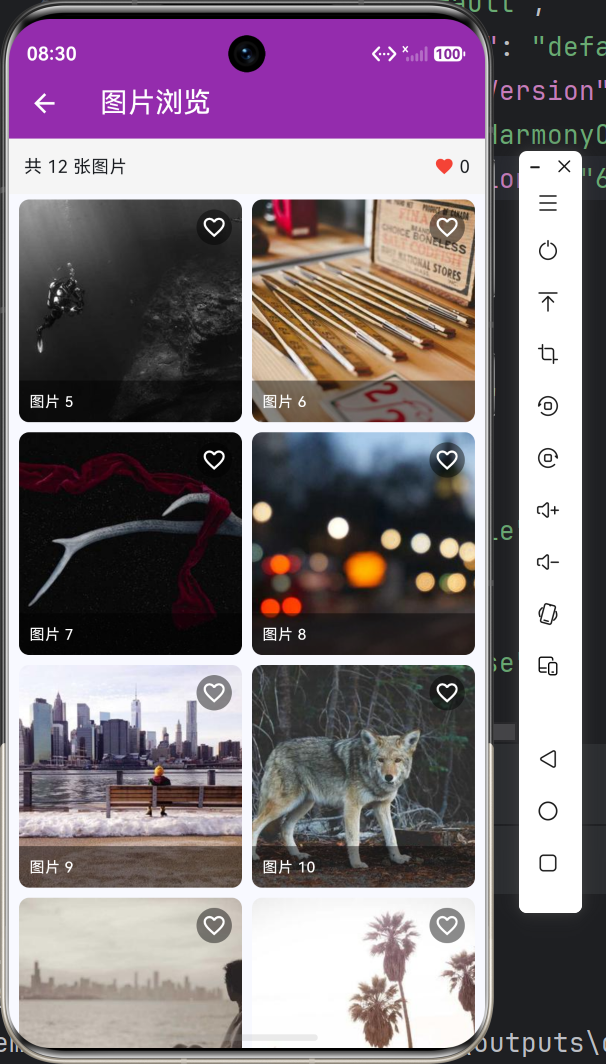
我们要实现的图片浏览器,功能可丰富啦!包括:
网格展示:以2列网格的形式展示图片缩略图,美观又实用~
全屏查看:点击图片进入全屏模式,沉浸式浏览体验!
手势缩放:支持双指缩放,想看细节就放大,太方便了~
滑动切换:左右滑动切换图片,流畅自然!
收藏功能:点击爱心收藏喜欢的图片,打造专属收藏夹~
加载动画:图片加载时显示进度,加载失败显示占位图,用户体验满分!
3.2 界面设计
界面分为两种模式:
网格模式:
- 顶部状态栏:显示图片总数和收藏数量
- 中间网格区:2列网格展示图片卡片
- 每个卡片:图片 + 收藏按钮 + 标签
全屏模式:
- 顶部导航栏:返回按钮 + 页码 + 收藏按钮
- 中间图片区:支持缩放和滑动
- 底部指示器:圆点指示当前位置
四、核心实现
4.1 数据结构设计
首先,我们需要设计数据结构来管理图片和状态:
// 图片URL列表
final List<String> _images = [
  'https://picsum.photos/seed/1/400/300',
  'https://picsum.photos/seed/2/400/300',
  // ... 更多图片
];

// 收藏的图片索引集合
final Set<int> _favorites = {};

// 当前查看的图片索引
int _currentIndex = 0;

// 是否处于全屏模式
bool _isGridView = true;
4.2 网格图片卡片
每个图片卡片的实现:
Widget _buildImageCard(int index) {
  final isFavorite = _favorites.contains(index);
  return GestureDetector(
    onTap: () => _showImageViewer(index),
    child: Stack(
      fit: StackFit.expand,
      children: [
        // 图片
        ClipRRect(
          borderRadius: BorderRadius.circular(8),
          child: Image.network(
            _images[index],
            fit: BoxFit.cover,
            loadingBuilder: (context, child, loadingProgress) {
              if (loadingProgress == null) return child;
              return Container(
                color: Colors.grey.shade200,
                child: const Center(child: CircularProgressIndicator()),
              );
            },
            errorBuilder: (context, error, stackTrace) {
              return Container(
                color: Colors.grey.shade200,
                child: const Icon(Icons.broken_image, size: 48, color: Colors.grey),
              );
            },
          ),
        ),
        // 收藏按钮
        Positioned(
          top: 8,
          right: 8,
          child: GestureDetector(
            onTap: () => _toggleFavorite(index),
            child: Container(
              padding: const EdgeInsets.all(4),
              decoration: const BoxDecoration(
                color: Colors.black45,
                shape: BoxShape.circle,
              ),
              child: Icon(
                isFavorite ? Icons.favorite : Icons.favorite_border,
                color: isFavorite ? Colors.red : Colors.white,
                size: 20,
              ),
            ),
          ),
        ),
      ],
    ),
  );
}
4.3 全屏图片查看器
全屏模式的核心实现:
Widget _buildImageViewer() {
  return Scaffold(
    backgroundColor: Colors.black,
    body: Stack(
      children: [
        // 图片展示区
        GestureDetector(
          onHorizontalDragEnd: (details) {
            if (details.primaryVelocity! > 0) _prevImage();
            if (details.primaryVelocity! < 0) _nextImage();
          },
          child: Center(
            child: InteractiveViewer(
              minScale: 0.5,
              maxScale: 4.0,
              child: Image.network(
                _images[_currentIndex],
                fit: BoxFit.contain,
              ),
            ),
          ),
        ),
        // 顶部导航栏
        Positioned(
          top: 0,
          left: 0,
          right: 0,
          child: SafeArea(
            child: Container(
              padding: const EdgeInsets.symmetric(horizontal: 16, vertical: 12),
              child: Row(
                mainAxisAlignment: MainAxisAlignment.spaceBetween,
                children: [
                  IconButton(
                    icon: const Icon(Icons.arrow_back, color: Colors.white),
                    onPressed: _closeImageViewer,
                  ),
                  Text(
                    '${_currentIndex + 1} / ${_images.length}',
                    style: const TextStyle(color: Colors.white, fontSize: 16),
                  ),
                  IconButton(
                    icon: Icon(
                      _favorites.contains(_currentIndex)
                          ? Icons.favorite
                          : Icons.favorite_border,
                      color: _favorites.contains(_currentIndex)
                          ? Colors.red
                          : Colors.white,
                    ),
                    onPressed: () => _toggleFavorite(_currentIndex),
                  ),
                ],
              ),
            ),
          ),
        ),
        // 底部指示器
        Positioned(
          bottom: 40,
          left: 0,
          right: 0,
          child: Row(
            mainAxisAlignment: MainAxisAlignment.center,
            children: List.generate(
              _images.length > 10 ? 10 : _images.length,
              (index) => Container(
                margin: const EdgeInsets.symmetric(horizontal: 2),
                width: 8,
                height: 8,
                decoration: BoxDecoration(
                  shape: BoxShape.circle,
                  color: index == (_currentIndex % 10)
                      ? Colors.white
                      : Colors.white38,
                ),
              ),
            ),
          ),
        ),
      ],
    ),
  );
}
4.4 手势处理
手势操作的处理逻辑:
// 切换到下一张
void _nextImage() {
  setState(() {
    _currentIndex = (_currentIndex + 1) % _images.length;
  });
}

// 切换到上一张
void _prevImage() {
  setState(() {
    _currentIndex = (_currentIndex - 1 + _images.length) % _images.length;
  });
}

// 切换收藏状态
void _toggleFavorite(int index) {
  setState(() {
    if (_favorites.contains(index)) {
      _favorites.remove(index);
    } else {
      _favorites.add(index);
    }
  });
}
五、完整代码实现
import 'package:flutter/material.dart';
class ImageBrowserFeature extends StatefulWidget {
const ImageBrowserFeature({super.key});
State<ImageBrowserFeature> createState() => _ImageBrowserFeatureState();
}
class _ImageBrowserFeatureState extends State<ImageBrowserFeature> {
final List<String> _images = [
'https://picsum.photos/seed/1/400/300',
'https://picsum.photos/seed/2/400/300',
'https://picsum.photos/seed/3/400/300',
'https://picsum.photos/seed/4/400/300',
'https://picsum.photos/seed/5/400/300',
'https://picsum.photos/seed/6/400/300',
'https://picsum.photos/seed/7/400/300',
'https://picsum.photos/seed/8/400/300',
'https://picsum.photos/seed/9/400/300',
'https://picsum.photos/seed/10/400/300',
'https://picsum.photos/seed/11/400/300',
'https://picsum.photos/seed/12/400/300',
];
final Set<int> _favorites = {};
int _currentIndex = 0;
bool _isGridView = true;
void _toggleFavorite(int index) {
setState(() {
if (_favorites.contains(index)) {
_favorites.remove(index);
} else {
_favorites.add(index);
}
});
}
void _showImageViewer(int index) {
setState(() {
_currentIndex = index;
_isGridView = false;
});
}
void _closeImageViewer() {
setState(() => _isGridView = true);
}
void _nextImage() {
setState(() {
_currentIndex = (_currentIndex + 1) % _images.length;
});
}
void _prevImage() {
setState(() {
_currentIndex = (_currentIndex - 1 + _images.length) % _images.length;
});
}
Widget build(BuildContext context) {
if (!_isGridView) {
return _buildImageViewer();
}
return _buildGridView();
}
Widget _buildGridView() {
return Column(
children: [
Container(
padding: const EdgeInsets.all(12),
color: Colors.grey.shade100,
child: Row(
mainAxisAlignment: MainAxisAlignment.spaceBetween,
children: [
Text('共 ${_images.length} 张图片', style: const TextStyle(fontSize: 14)),
Row(
children: [
const Icon(Icons.favorite, color: Colors.red, size: 16),
Text(' ${_favorites.length}', style: const TextStyle(fontSize: 14)),
],
),
],
),
),
Expanded(
child: GridView.builder(
padding: const EdgeInsets.all(8),
gridDelegate: const SliverGridDelegateWithFixedCrossAxisCount(
crossAxisCount: 2,
crossAxisSpacing: 8,
mainAxisSpacing: 8,
),
itemCount: _images.length,
itemBuilder: (context, index) {
return _buildImageCard(index);
},
),
),
],
);
}
Widget _buildImageCard(int index) {
final isFavorite = _favorites.contains(index);
return GestureDetector(
onTap: () => _showImageViewer(index),
child: Stack(
fit: StackFit.expand,
children: [
ClipRRect(
borderRadius: BorderRadius.circular(8),
child: Image.network(
_images[index],
fit: BoxFit.cover,
loadingBuilder: (context, child, loadingProgress) {
if (loadingProgress == null) return child;
return Container(
color: Colors.grey.shade200,
child: const Center(child: CircularProgressIndicator()),
);
},
errorBuilder: (context, error, stackTrace) {
return Container(
color: Colors.grey.shade200,
child: const Icon(Icons.broken_image, size: 48, color: Colors.grey),
);
},
),
),
Positioned(
top: 8,
right: 8,
child: GestureDetector(
onTap: () => _toggleFavorite(index),
child: Container(
padding: const EdgeInsets.all(4),
decoration: const BoxDecoration(
color: Colors.black45,
shape: BoxShape.circle,
),
child: Icon(
isFavorite ? Icons.favorite : Icons.favorite_border,
color: isFavorite ? Colors.red : Colors.white,
size: 20,
),
),
),
),
Positioned(
bottom: 0,
left: 0,
right: 0,
child: Container(
padding: const EdgeInsets.all(8),
decoration: const BoxDecoration(
color: Colors.black45,
borderRadius: BorderRadius.only(
bottomLeft: Radius.circular(8),
bottomRight: Radius.circular(8),
),
),
child: Text(
'图片 ${index + 1}',
style: const TextStyle(color: Colors.white, fontSize: 12),
),
),
),
],
),
);
}
Widget _buildImageViewer() {
return Scaffold(
backgroundColor: Colors.black,
body: Stack(
children: [
GestureDetector(
onHorizontalDragEnd: (details) {
if (details.primaryVelocity! > 0) _prevImage();
if (details.primaryVelocity! < 0) _nextImage();
},
child: Center(
child: InteractiveViewer(
minScale: 0.5,
maxScale: 4.0,
child: Image.network(
_images[_currentIndex],
fit: BoxFit.contain,
loadingBuilder: (context, child, loadingProgress) {
if (loadingProgress == null) return child;
return const Center(child: CircularProgressIndicator(color: Colors.white));
},
),
),
),
),
Positioned(
top: 0,
left: 0,
right: 0,
child: SafeArea(
child: Container(
padding: const EdgeInsets.symmetric(horizontal: 16, vertical: 12),
decoration: const BoxDecoration(
gradient: LinearGradient(
begin: Alignment.topCenter,
end: Alignment.bottomCenter,
colors: [Colors.black54, Colors.transparent],
),
),
child: Row(
mainAxisAlignment: MainAxisAlignment.spaceBetween,
children: [
IconButton(
icon: const Icon(Icons.arrow_back, color: Colors.white),
onPressed: _closeImageViewer,
),
Text(
'${_currentIndex + 1} / ${_images.length}',
style: const TextStyle(color: Colors.white, fontSize: 16),
),
IconButton(
icon: Icon(
_favorites.contains(_currentIndex) ? Icons.favorite : Icons.favorite_border,
color: _favorites.contains(_currentIndex) ? Colors.red : Colors.white,
),
onPressed: () => _toggleFavorite(_currentIndex),
),
],
),
),
),
),
Positioned(
bottom: 40,
left: 0,
right: 0,
child: Row(
mainAxisAlignment: MainAxisAlignment.center,
children: List.generate(
_images.length > 10 ? 10 : _images.length,
(index) => Container(
margin: const EdgeInsets.symmetric(horizontal: 2),
width: 8,
height: 8,
decoration: BoxDecoration(
shape: BoxShape.circle,
color: index == (_currentIndex % 10) ? Colors.white : Colors.white38,
),
),
),
),
),
],
),
);
}
}
六、运行效果
七、关键技术点解析
7.1 InteractiveViewer 实现图片缩放
InteractiveViewer 是 Flutter 提供的交互式查看器组件,非常适合实现图片缩放功能:
InteractiveViewer(
  minScale: 0.5,  // 最小缩放比例
  maxScale: 4.0,  // 最大缩放比例
  child: Image.network(_images[_currentIndex], fit: BoxFit.contain),
)
通过设置 minScale 和 maxScale,可以限制用户的缩放范围,防止过度缩放导致的显示问题~
7.2 GestureDetector 实现滑动切换
使用 GestureDetector 的 onHorizontalDragEnd 回调检测水平滑动手势:
GestureDetector(
  onHorizontalDragEnd: (details) {
    if (details.primaryVelocity! > 0) _prevImage();  // 向右滑动,上一张
    if (details.primaryVelocity! < 0) _nextImage();  // 向左滑动,下一张
  },
  child: // ...
)
primaryVelocity 的正负值可以判断滑动方向,正值表示向右滑,负值表示向左滑~
7.3 Image.network 的加载处理
Image.network 提供了 loadingBuilder 和 errorBuilder 回调,可以优雅地处理加载状态:
Image.network(
  url,
  loadingBuilder: (context, child, loadingProgress) {
    if (loadingProgress == null) return child;
    return CircularProgressIndicator();  // 加载中显示进度圈
  },
  errorBuilder: (context, error, stackTrace) {
    return Icon(Icons.broken_image);  // 加载失败显示占位图
  },
)
7.4 OpenHarmony 平台适配要点
在 OpenHarmony 设备上运行 Flutter 应用,需要注意:
- 网络权限:需要在
module.json5中声明网络权限 - 签名配置:在 DevEco Studio 中配置应用签名
- HTTPS 支持:确保图片 URL 使用 HTTPS 协议
八、总结与展望
通过本文的学习,我们使用 Flutter for OpenHarmony 成功实现了一个功能完善的图片浏览器!从网格展示到全屏查看,从手势缩放到滑动切换,每一个功能都体现了 Flutter 跨平台开发的便捷与高效~
功能回顾:
- ✅ 网格展示图片
- ✅ 全屏查看模式
- ✅ 双指缩放图片
- ✅ 左右滑动切换
- ✅ 收藏功能
- ✅ 加载动画与错误处理
可扩展方向:
- 本地图片:支持从相册选择图片
- 图片缓存:使用
cached_network_image提升加载速度 - 图片编辑:添加裁剪、滤镜等功能
- 分享功能:分享图片到社交平台
Flutter for OpenHarmony 的生态正在蓬勃发展,越来越多的开发者加入到这个大家庭中。相信在不久的将来,我们会看到更多优秀的跨平台应用诞生!让我们一起为鸿蒙生态贡献自己的力量吧~

作为“人工智能6S店”的官方数字引擎,为AI开发者与企业提供一个覆盖软硬件全栈、一站式门户。
更多推荐
 0
0 0
0- 0


 已为社区贡献36条内容

所有评论(0)