
Flutter for OpenHarmony 跨平台开发:计算器功能实战指南
Flutter是Google于2017年发布的开源UI框架,采用Dart语言进行开发。Flutter通过Skia渲染引擎实现自绘,不依赖平台原生组件,从而保证了不同平台上UI的一致性。OpenHarmony是由开放原子开源基金会孵化的开源操作系统项目,旨在构建万物智联的操作系统生态。Flutter for OpenHarmony是Flutter在OpenHarmony平台上的适配实现,使Flutt
Flutter for OpenHarmony 跨平台开发:计算器功能实战指南
欢迎加入开源鸿蒙跨平台社区:https://openharmonycrossplatform.csdn.net
一、引言
计算器是移动设备中最基础且常用的应用之一,其开发涉及用户交互、状态管理、数学运算等多个技术领域。随着鸿蒙生态的快速发展,如何高效地实现跨平台计算器应用,成为开发者关注的技术要点。
Flutter作为Google推出的开源UI框架,凭借其跨平台能力和丰富的组件生态,为计算器功能的实现提供了便捷的技术方案。Flutter for OpenHarmony的出现,使得Flutter开发者能够将应用部署到鸿蒙设备,进一步拓展了跨平台开发的应用范围。
本文将以计算器功能为例,详细介绍如何使用Flutter for OpenHarmony实现标准计算和科学计算功能,包括状态管理、表达式处理、数学运算等核心技术,为开发者提供完整的技术参考。
二、技术背景
2.1 Flutter for OpenHarmony概述
Flutter是Google于2017年发布的开源UI框架,采用Dart语言进行开发。Flutter通过Skia渲染引擎实现自绘,不依赖平台原生组件,从而保证了不同平台上UI的一致性。
OpenHarmony是由开放原子开源基金会孵化的开源操作系统项目,旨在构建万物智联的操作系统生态。Flutter for OpenHarmony是Flutter在OpenHarmony平台上的适配实现,使Flutter开发者能够将应用无缝部署到鸿蒙设备。
2.2 计算器的技术架构
实现计算器功能涉及以下核心技术:
状态管理:管理显示屏内容、当前操作符、操作数等状态,确保计算逻辑正确执行。
表达式处理:处理用户输入的数字和操作符,构建并解析计算表达式。
数学运算:实现基本四则运算和科学计算函数。
UI布局:使用GridView等组件构建按钮网格布局。
2.3 Flutter与原生鸿蒙开发的对比
| 对比维度 | Flutter for OpenHarmony | 原生鸿蒙开发(ArkTS) |
|---|---|---|
| 编程语言 | Dart | ArkTS |
| 数学库 | dart:math功能完善 | 需要手动实现 |
| UI布局 | GridView组件便捷 | 需要手动布局 |
| 跨平台能力 | 支持多平台 | 仅限鸿蒙平台 |
| 开发效率 | 热重载支持 | 需要重新编译 |
三、功能设计
3.1 需求分析
计算器功能的核心需求包括:
- 标准模式:支持加、减、乘、除四则运算,百分比计算,正负号切换
- 科学模式:支持三角函数、对数、幂运算、阶乘等高级运算
- 历史记录:保存并显示最近的计算记录
- 表达式显示:实时显示当前计算表达式
- 输入控制:支持退格删除、清除重置等操作
3.2 架构设计
本功能采用Flutter的状态管理模式进行架构设计:
- 数据层:使用String存储显示内容,double存储操作数,List存储历史记录
- 逻辑层:实现数字输入、运算符处理、计算执行等业务逻辑
- 视图层:构建显示区域、历史记录、按钮网格等UI组件
3.3 界面设计
界面分为两种展示模式:
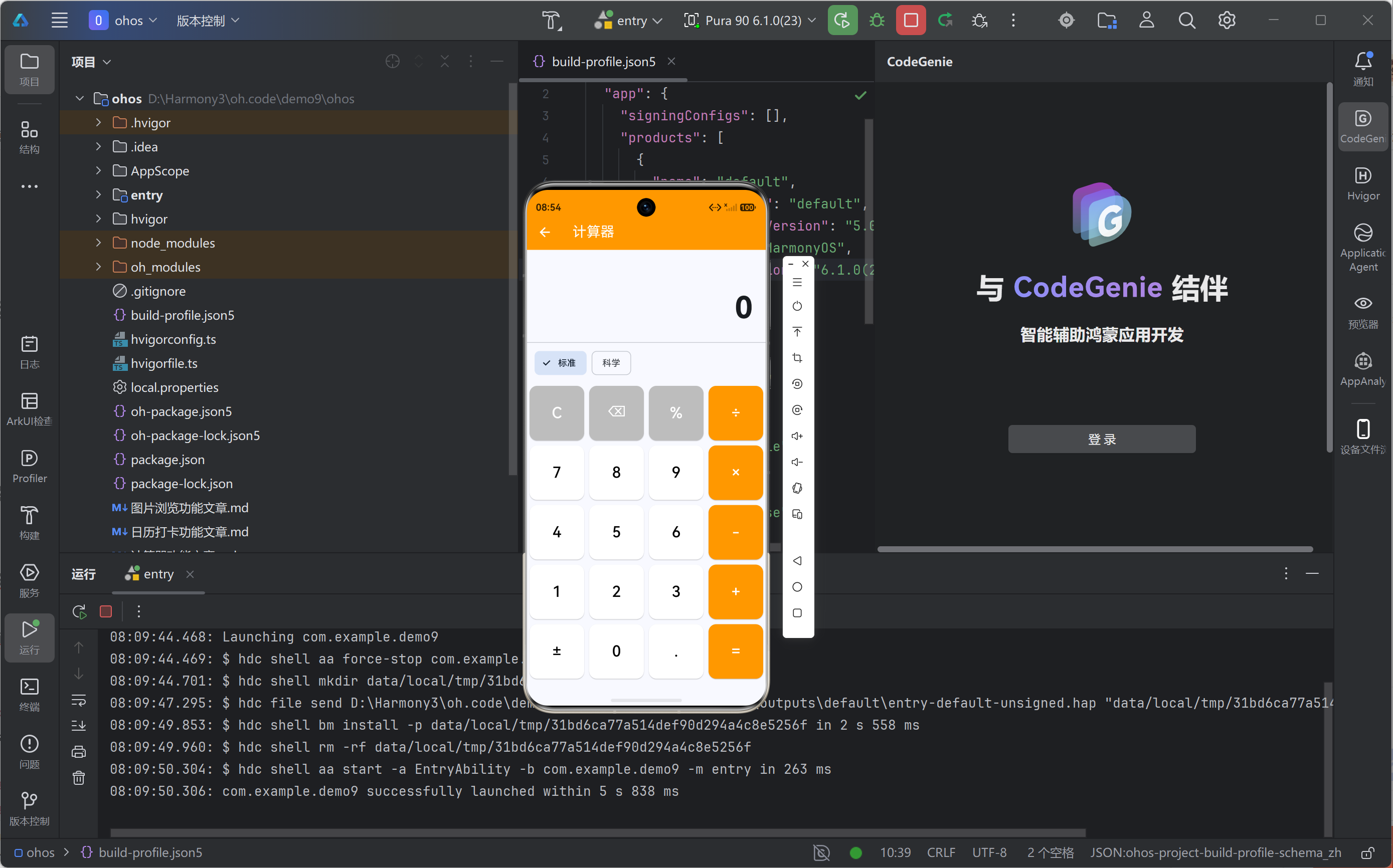
标准模式:
- 显示区域:表达式 + 计算结果
- 历史记录:横向滚动列表
- 模式切换:标准/科学切换按钮
- 按钮区域:4×5网格布局
科学模式:
- 科学按钮区:5×3网格布局
- 标准按钮区:4×5网格布局
- 支持更多数学函数
四、核心实现
4.1 状态变量设计
使用以下状态变量管理计算器状态:
// 显示屏内容
String _display = '0';

// 当前表达式
String _expression = '';

// 第一个操作数
double? _firstOperand;

// 当前操作符
String? _operator;

// 是否等待第二个操作数
bool _waitingForSecondOperand = false;

// 是否科学模式
bool _isScientific = false;

// 计算历史记录
final List<String> _history = [];
4.2 数字输入处理
当用户按下数字按钮时的处理逻辑:
void _onNumberPressed(String number) {
  setState(() {
    if (_waitingForSecondOperand) {
      // 等待第二个操作数时,替换当前显示
      _display = number;
      _waitingForSecondOperand = false;
    } else {
      // 追加数字到当前显示
      _display = _display == '0' ? number : _display + number;
    }
  });
}
4.3 运算符处理
当用户按下运算符时的处理逻辑:
void _onOperatorPressed(String op) {
  setState(() {
    // 如果已有操作符且正在输入第二个操作数,先执行计算
    if (_operator != null && !_waitingForSecondOperand) {
      _calculate();
    }
    // 保存第一个操作数和操作符
    _firstOperand = double.parse(_display);
    _operator = op;
    _expression = '$_display $op';
    _waitingForSecondOperand = true;
  });
}
4.4 计算逻辑实现
核心计算逻辑的实现:
void _calculate() {
  if (_firstOperand == null || _operator == null) return;

  double secondOperand = double.parse(_display);
  double result = 0;

  switch (_operator!) {
    case '+':
      result = _firstOperand! + secondOperand;
      break;
    case '-':
      result = _firstOperand! - secondOperand;
      break;
    case '×':
      result = _firstOperand! * secondOperand;
      break;
    case '÷':
      result = secondOperand != 0
          ? _firstOperand! / secondOperand
          : double.infinity;
      break;
    case '%':
      result = _firstOperand! % secondOperand;
      break;
    case '^':
      result = math.pow(_firstOperand!, secondOperand).toDouble();
      break;
  }

  // 添加到历史记录
  String historyItem = '$_firstOperand $_operator $secondOperand = $result';

  setState(() {
    _display = _formatResult(result);
    _expression = '';
    _operator = null;
    _firstOperand = null;
    _history.insert(0, historyItem);
    if (_history.length > 10) _history.removeLast();
  });
}
4.5 科学计算函数
科学计算功能的实现,使用dart:math库:
void _onScientificOp(String op) {
  double value = double.parse(_display);
  double result = 0;

  switch (op) {
    case 'sin':
      result = math.sin(value * math.pi / 180); // 角度转弧度
      break;
    case 'cos':
      result = math.cos(value * math.pi / 180);
      break;
    case 'tan':
      result = math.tan(value * math.pi / 180);
      break;
    case 'log':
      result = math.log(value); // 自然对数
      break;
    case 'ln':
      result = math.log(value);
      break;
    case '√':
      result = math.sqrt(value);
      break;
    case 'x²':
      result = value * value;
      break;
    case '1/x':
      result = 1 / value;
      break;
    case '!':
      result = _factorial(value.toInt()).toDouble();
      break;
    case 'π':
      result = math.pi;
      break;
    case 'e':
      result = math.e;
      break;
  }

  setState(() {
    _display = _formatResult(result);
  });
}
4.6 结果格式化
计算结果的格式化处理:
String _formatResult(double result) {
  // 如果是整数,显示整数形式
  if (result == result.toInt()) {
    return result.toInt().toString();
  }
  // 否则显示小数,去除尾部多余的0
  return result
      .toStringAsFixed(8)
      .replaceAll(RegExp(r'0+$'), '')
      .replaceAll(RegExp(r'\.$'), '');
}
五、完整代码实现
import 'package:flutter/material.dart';
import 'dart:math' as math;
class CalculatorFeature extends StatefulWidget {
const CalculatorFeature({super.key});
State<CalculatorFeature> createState() => _CalculatorFeatureState();
}
class _CalculatorFeatureState extends State<CalculatorFeature> {
String _display = '0';
String _expression = '';
double? _firstOperand;
String? _operator;
bool _waitingForSecondOperand = false;
bool _isScientific = false;
final List<String> _history = [];
void _onNumberPressed(String number) {
setState(() {
if (_waitingForSecondOperand) {
_display = number;
_waitingForSecondOperand = false;
} else {
_display = _display == '0' ? number : _display + number;
}
});
}
void _onOperatorPressed(String op) {
setState(() {
if (_operator != null && !_waitingForSecondOperand) {
_calculate();
}
_firstOperand = double.parse(_display);
_operator = op;
_expression = '$_display $op';
_waitingForSecondOperand = true;
});
}
void _calculate() {
if (_firstOperand == null || _operator == null) return;
double secondOperand = double.parse(_display);
double result = 0;
String op = _operator!;
switch (op) {
case '+':
result = _firstOperand! + secondOperand;
break;
case '-':
result = _firstOperand! - secondOperand;
break;
case '×':
result = _firstOperand! * secondOperand;
break;
case '÷':
result = secondOperand != 0 ? _firstOperand! / secondOperand : double.infinity;
break;
case '%':
result = _firstOperand! % secondOperand;
break;
case '^':
result = math.pow(_firstOperand!, secondOperand).toDouble();
break;
}
String historyItem = '$_firstOperand $op $secondOperand = $result';
setState(() {
_display = _formatResult(result);
_expression = '';
_operator = null;
_firstOperand = null;
_history.insert(0, historyItem);
if (_history.length > 10) _history.removeLast();
});
}
String _formatResult(double result) {
if (result == result.toInt()) {
return result.toInt().toString();
}
return result.toStringAsFixed(8).replaceAll(RegExp(r'0+$'), '').replaceAll(RegExp(r'\.$'), '');
}
void _onScientificOp(String op) {
double value = double.parse(_display);
double result = 0;
switch (op) {
case 'sin':
result = math.sin(value * math.pi / 180);
break;
case 'cos':
result = math.cos(value * math.pi / 180);
break;
case 'tan':
result = math.tan(value * math.pi / 180);
break;
case 'log':
result = math.log(value);
break;
case 'ln':
result = math.log(value);
break;
case '√':
result = math.sqrt(value);
break;
case 'x²':
result = value * value;
break;
case '1/x':
result = 1 / value;
break;
case '!':
result = _factorial(value.toInt()).toDouble();
break;
case 'π':
result = math.pi;
break;
case 'e':
result = math.e;
break;
}
setState(() {
_display = _formatResult(result);
});
}
int _factorial(int n) {
if (n <= 1) return 1;
return n * _factorial(n - 1);
}
void _onClear() {
setState(() {
_display = '0';
_expression = '';
_firstOperand = null;
_operator = null;
_waitingForSecondOperand = false;
});
}
void _onBackspace() {
setState(() {
if (_display.length > 1) {
_display = _display.substring(0, _display.length - 1);
} else {
_display = '0';
}
});
}
void _onDecimal() {
if (_waitingForSecondOperand) {
setState(() {
_display = '0.';
_waitingForSecondOperand = false;
});
} else if (!_display.contains('.')) {
setState(() => _display += '.');
}
}
void _onPlusMinus() {
setState(() {
if (_display != '0') {
if (_display.startsWith('-')) {
_display = _display.substring(1);
} else {
_display = '-$_display';
}
}
});
}
Widget build(BuildContext context) {
return Column(
children: [
_buildDisplay(),
if (_history.isNotEmpty) _buildHistory(),
const Divider(height: 1),
_buildModeSwitch(),
Expanded(
child: _isScientific ? _buildScientificPad() : _buildBasicPad(),
),
],
);
}
Widget _buildDisplay() {
return Container(
padding: const EdgeInsets.all(20),
alignment: Alignment.centerRight,
child: Column(
crossAxisAlignment: CrossAxisAlignment.end,
children: [
Text(
_expression,
style: const TextStyle(fontSize: 20, color: Colors.grey),
),
const SizedBox(height: 8),
SingleChildScrollView(
scrollDirection: Axis.horizontal,
child: Text(
_display,
style: const TextStyle(fontSize: 48, fontWeight: FontWeight.bold),
),
),
],
),
);
}
Widget _buildHistory() {
return Container(
height: 60,
padding: const EdgeInsets.symmetric(horizontal: 12),
child: ListView.builder(
scrollDirection: Axis.horizontal,
itemCount: _history.length,
itemBuilder: (context, index) {
return Container(
margin: const EdgeInsets.only(right: 8),
padding: const EdgeInsets.symmetric(horizontal: 12, vertical: 8),
decoration: BoxDecoration(
color: Colors.grey.shade100,
borderRadius: BorderRadius.circular(8),
),
child: Center(
child: Text(_history[index], style: const TextStyle(fontSize: 12)),
),
);
},
),
);
}
Widget _buildModeSwitch() {
return Padding(
padding: const EdgeInsets.symmetric(horizontal: 12, vertical: 8),
child: Row(
children: [
ChoiceChip(
label: const Text('标准'),
selected: !_isScientific,
onSelected: (selected) => setState(() => _isScientific = false),
),
const SizedBox(width: 8),
ChoiceChip(
label: const Text('科学'),
selected: _isScientific,
onSelected: (selected) => setState(() => _isScientific = true),
),
],
),
);
}
Widget _buildBasicPad() {
return GridView.count(
crossAxisCount: 4,
children: [
_buildButton('C', Colors.grey.shade400, _onClear),
_buildButton('⌫', Colors.grey.shade400, _onBackspace),
_buildButton('%', Colors.grey.shade400, () => _onOperatorPressed('%')),
_buildButton('÷', Colors.orange, () => _onOperatorPressed('÷')),
_buildButton('7', Colors.white, () => _onNumberPressed('7')),
_buildButton('8', Colors.white, () => _onNumberPressed('8')),
_buildButton('9', Colors.white, () => _onNumberPressed('9')),
_buildButton('×', Colors.orange, () => _onOperatorPressed('×')),
_buildButton('4', Colors.white, () => _onNumberPressed('4')),
_buildButton('5', Colors.white, () => _onNumberPressed('5')),
_buildButton('6', Colors.white, () => _onNumberPressed('6')),
_buildButton('-', Colors.orange, () => _onOperatorPressed('-')),
_buildButton('1', Colors.white, () => _onNumberPressed('1')),
_buildButton('2', Colors.white, () => _onNumberPressed('2')),
_buildButton('3', Colors.white, () => _onNumberPressed('3')),
_buildButton('+', Colors.orange, () => _onOperatorPressed('+')),
_buildButton('±', Colors.white, _onPlusMinus),
_buildButton('0', Colors.white, () => _onNumberPressed('0')),
_buildButton('.', Colors.white, _onDecimal),
_buildButton('=', Colors.orange, _calculate),
],
);
}
Widget _buildScientificPad() {
return Column(
children: [
Expanded(
child: GridView.count(
crossAxisCount: 5,
children: [
_buildSciButton('sin'),
_buildSciButton('cos'),
_buildSciButton('tan'),
_buildSciButton('log'),
_buildSciButton('ln'),
_buildSciButton('√'),
_buildSciButton('x²'),
_buildSciButton('^'),
_buildSciButton('1/x'),
_buildSciButton('!'),
_buildSciButton('π'),
_buildSciButton('e'),
_buildSciButton('('),
_buildSciButton(')'),
_buildSciButton('C', isControl: true),
],
),
),
Container(
height: 200,
child: _buildBasicPad(),
),
],
);
}
Widget _buildSciButton(String text, {bool isControl = false}) {
return Container(
margin: const EdgeInsets.all(2),
child: ElevatedButton(
style: ElevatedButton.styleFrom(
backgroundColor: isControl ? Colors.grey.shade400 : Colors.blue.shade100,
foregroundColor: isControl ? Colors.black : Colors.blue,
shape: RoundedRectangleBorder(borderRadius: BorderRadius.circular(8)),
),
onPressed: () => _onScientificOp(text),
child: Text(text, style: const TextStyle(fontSize: 14)),
),
);
}
Widget _buildButton(String text, Color color, VoidCallback onPressed) {
return Container(
margin: const EdgeInsets.all(4),
child: ElevatedButton(
style: ElevatedButton.styleFrom(
backgroundColor: color,
foregroundColor: color == Colors.white ? Colors.black : Colors.white,
shape: RoundedRectangleBorder(borderRadius: BorderRadius.circular(12)),
),
onPressed: onPressed,
child: Text(text, style: const TextStyle(fontSize: 24)),
),
);
}
}
六、运行效果
七、关键技术点解析
7.1 GridView构建按钮网格
Flutter的GridView组件非常适合构建计算器按钮网格:
GridView.count(
  crossAxisCount: 4,  // 4列布局
  children: [
    _buildButton('C', Colors.grey.shade400, _onClear),
    _buildButton('⌫', Colors.grey.shade400, _onBackspace),
    // ... 更多按钮
  ],
)
使用crossAxisCount参数设置列数,GridView会自动计算行数并进行布局,无需手动计算位置。
7.2 dart:math科学计算
Flutter内置的dart:math库提供了丰富的数学函数:
import 'dart:math' as math;

// 三角函数(注意:参数为弧度,需将角度转换为弧度)
math.sin(value * math.pi / 180)
math.cos(value * math.pi / 180)
math.tan(value * math.pi / 180)

// 其他数学函数
math.sqrt(value)      // 平方根
math.pow(base, exp)   // 幂运算
math.log(value)       // 自然对数

// 数学常量
math.pi  // 圆周率 π
math.e   // 自然对数底 e
需要注意的是,dart:math中的三角函数参数为弧度值,如果用户输入的是角度,需要进行转换。
7.3 ChoiceChip模式切换
ChoiceChip是Material Design的选择芯片组件,适用于单选场景:
ChoiceChip(
  label: const Text('标准'),
  selected: !_isScientific,
  onSelected: (selected) => setState(() => _isScientific = false),
)
通过selected属性控制选中状态,onSelected回调处理选择事件,实现简洁的模式切换功能。
7.4 OpenHarmony平台适配要点
在OpenHarmony设备上运行Flutter应用,需要注意以下配置:
- 签名配置:需要在DevEco Studio中配置应用签名
- 数学运算:dart:math库在鸿蒙平台完全兼容,无需额外适配
- 触摸交互:使用ElevatedButton处理触摸事件,确保交互响应正常
八、总结与展望
本文详细介绍了使用Flutter for OpenHarmony开发计算器功能的完整过程。通过合理的状态管理、清晰的计算逻辑、规范的UI组件构建,实现了一个功能完善、交互友好的计算器模块。
技术要点回顾:
- 使用GridView构建按钮网格布局
- 使用dart:math库实现科学计算功能
- 使用ChoiceChip实现模式切换
- 使用List存储历史记录
- 实现结果格式化处理
扩展方向:
- 表达式解析:支持复杂表达式如
(1+2)*3 - 主题切换:支持明暗主题切换
- 语音播报:计算结果语音播报功能
- 单位换算:集成单位换算功能

作为“人工智能6S店”的官方数字引擎,为AI开发者与企业提供一个覆盖软硬件全栈、一站式门户。
更多推荐



 0
0 0
0- 0


 已为社区贡献44条内容

所有评论(0)