
【flutter for open harmony】第三方库Flutter 鸿蒙版 翻书效果 实战指南(适配 1.0.0)✨
翻书效果是一种常见的页面切换动画,模拟真实书籍翻页的3D效果。这种效果广泛应用于电子书阅读器、教程引导、产品展示等场景,能够提供沉浸式的阅读体验。翻书效果基于Transform和Matrix4实现,通过AnimationController控制翻转角度,实现3D翻页效果。本文详细介绍了Flutter鸿蒙应用中翻书效果的实现方法。通过Matrix4实现了3D页面翻转动画,支持多页面导航和页码显示。该
【flutter for open harmony】第三方库Flutter 鸿蒙版 翻书效果 实战指南(适配 1.0.0)✨
Flutter 三方库 cached_network_image 的鸿蒙化适配与实战指南
欢迎加入开源鸿蒙跨平台社区: https://openharmonycrossplatform.csdn.net
本文详细介绍如何在Flutter鸿蒙应用中实现翻书效果,使用Matrix4实现3D页面翻转动画。
一、前言
翻书效果是一种常见的页面切换动画,模拟真实书籍翻页的3D效果。这种效果广泛应用于电子书阅读器、教程引导、产品展示等场景,能够提供沉浸式的阅读体验。
二、效果展示
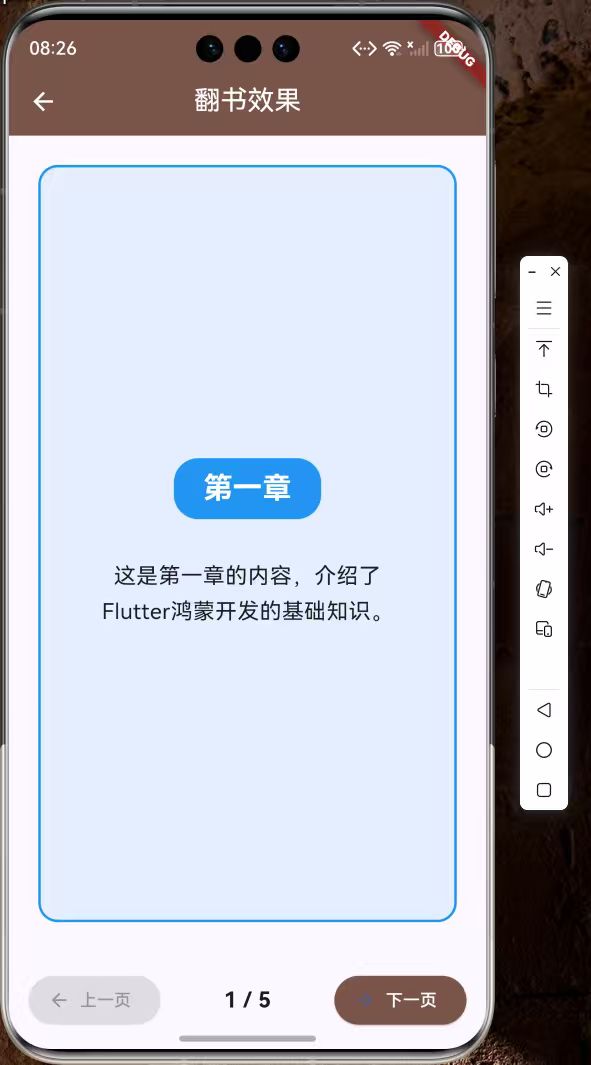
2.1 功能特性
| 功能 | 描述 |
|---|---|
| 3D翻转 | 页面沿Y轴3D翻转 |
| 章节导航 | 支持上一页/下一页导航 |
| 页码显示 | 显示当前页码和总页数 |
| 动画效果 | 平滑的翻页动画 |
三、项目背景与目标
3.1 项目背景
在电子书和阅读类应用中,翻书效果能够模拟真实的阅读体验,让用户感受到翻阅实体书籍的感觉。Flutter的Transform和Matrix4组件可以方便地实现3D变换。
3.2 项目目标
- 实现3D页面翻转动画
- 支持多页面导航
- 提供页码显示
- 实现平滑动画效果
四、技术架构设计
4.1 架构概述
翻书效果基于Transform和Matrix4实现,通过AnimationController控制翻转角度,实现3D翻页效果。
4.2 技术原理
AnimationController -> 角度值 -> Matrix4.rotateY -> 3D翻转效果
核心组件:
- AnimationController:动画控制器
- Matrix4:4x4矩阵变换
- Transform:变换组件
- AnimatedBuilder:动画监听器
五、详细实现
5.1 Flutter端实现
import 'dart:math';
import 'package:flutter/material.dart';
class FlipBookPage extends StatefulWidget {
const FlipBookPage({super.key});
State<FlipBookPage> createState() => _FlipBookPageState();
}
class _FlipBookPageState extends State<FlipBookPage> with SingleTickerProviderStateMixin {
late AnimationController _controller;
int _currentPage = 0;
final int _totalPages = 5;
final List<Map<String, dynamic>> _pages = [
{'title': '第一章', 'content': '这是第一章的内容,介绍了Flutter鸿蒙开发的基础知识。', 'color': Colors.blue},
{'title': '第二章', 'content': '这是第二章的内容,讲解了Flutter组件的使用方法。', 'color': Colors.green},
{'title': '第三章', 'content': '这是第三章的内容,介绍了Flutter动画效果的实现。', 'color': Colors.orange},
{'title': '第四章', 'content': '这是第四章的内容,讲解了Flutter状态管理。', 'color': Colors.purple},
{'title': '第五章', 'content': '这是第五章的内容,介绍了Flutter鸿蒙版的高级特性。', 'color': Colors.pink},
];
void initState() {
super.initState();
_controller = AnimationController(
duration: const Duration(milliseconds: 600),
vsync: this,
);
}
void dispose() {
_controller.dispose();
super.dispose();
}
void _nextPage() {
if (_currentPage < _totalPages - 1) {
_controller.forward(from: 0).then((_) {
setState(() => _currentPage++);
});
}
}
void _prevPage() {
if (_currentPage > 0) {
_controller.forward(from: 0).then((_) {
setState(() => _currentPage--);
});
}
}
Widget build(BuildContext context) {
final page = _pages[_currentPage];
return Scaffold(
appBar: AppBar(
title: const Text('翻书效果'),
centerTitle: true,
backgroundColor: Colors.brown,
foregroundColor: Colors.white,
),
body: Column(
children: [
Expanded(
child: Padding(
padding: const EdgeInsets.all(24),
child: AnimatedBuilder(
animation: _controller,
builder: (context, child) {
final angle = _controller.value * pi;
return Transform(
alignment: Alignment.centerLeft,
transform: Matrix4.identity()
..setEntry(3, 2, 0.001)
..rotateY(angle),
child: child,
);
},
child: Container(
width: double.infinity,
decoration: BoxDecoration(
color: page['color'].withOpacity(0.1),
borderRadius: BorderRadius.circular(16),
border: Border.all(color: page['color'], width: 2),
),
child: Column(
mainAxisAlignment: MainAxisAlignment.center,
children: [
Container(
padding: const EdgeInsets.symmetric(horizontal: 24, vertical: 8),
decoration: BoxDecoration(
color: page['color'],
borderRadius: BorderRadius.circular(20),
),
child: Text(
page['title'],
style: const TextStyle(
fontSize: 24,
fontWeight: FontWeight.bold,
color: Colors.white,
),
),
),
const SizedBox(height: 32),
Padding(
padding: const EdgeInsets.symmetric(horizontal: 32),
child: Text(
page['content'],
style: const TextStyle(fontSize: 18, height: 1.6),
textAlign: TextAlign.center,
),
),
],
),
),
),
),
),
Container(
padding: const EdgeInsets.all(16),
child: Row(
mainAxisAlignment: MainAxisAlignment.spaceBetween,
children: [
ElevatedButton.icon(
onPressed: _currentPage > 0 ? _prevPage : null,
icon: const Icon(Icons.arrow_back),
label: const Text('上一页'),
style: ElevatedButton.styleFrom(
backgroundColor: Colors.brown,
foregroundColor: Colors.white,
),
),
Text(
'${_currentPage + 1} / $_totalPages',
style: const TextStyle(fontSize: 18, fontWeight: FontWeight.bold),
),
ElevatedButton.icon(
onPressed: _currentPage < _totalPages - 1 ? _nextPage : null,
icon: const Icon(Icons.arrow_forward),
label: const Text('下一页'),
style: ElevatedButton.styleFrom(
backgroundColor: Colors.brown,
foregroundColor: Colors.white,
),
),
],
),
),
],
),
);
}
}
5.2 核心功能解析
Matrix4 3D变换
Matrix4.identity()
  ..setEntry(3, 2, 0.001)
  ..rotateY(angle)
setEntry(3, 2, 0.001)设置透视效果,rotateY实现Y轴旋转。
Transform变换
Transform(
  alignment: Alignment.centerLeft,
  transform: Matrix4.identity()..rotateY(angle),
  child: // 页面内容
)
Transform应用矩阵变换,alignment设置旋转轴心。
翻页动画
void _nextPage() {
  if (_currentPage < _totalPages - 1) {
    _controller.forward(from: 0).then((_) {
      setState(() => _currentPage++);
    });
  }
}
动画播放完成后更新页面索引。
AnimatedBuilder动画监听
AnimatedBuilder(
  animation: _controller,
  builder: (context, child) {
    final angle = _controller.value * pi;
    return Transform(
      transform: Matrix4.identity()..rotateY(angle),
      child: child,
    );
  },
  child: // 页面内容
)
AnimatedBuilder监听动画变化,实时更新变换矩阵。
六、实际应用场景
6.1 电子书阅读器
电子书应用中实现翻书效果,模拟真实阅读体验。
6.2 教程引导
应用教程引导页面使用翻书效果,增加趣味性。
6.3 产品展示
产品展示页面使用翻书效果,展示产品详情。
七、优化建议
7.1 性能优化
- 使用RepaintBoundary隔离重绘区域
- 缓存页面内容
- 避免在动画中创建新对象
7.2 功能扩展
- 添加手势滑动翻页
- 支持自定义翻页方向
- 添加翻页音效
- 实现书页阴影效果
八、常见问题与解决方案
8.1 问题1:翻转方向错误
问题: 页面翻转方向与预期不符。
解决方案: 检查alignment设置,确保旋转轴心正确。
Transform(
  alignment: Alignment.centerLeft,  // 左侧为轴心
  transform: Matrix4.identity()..rotateY(angle),
)
8.2 问题2:3D效果不明显
问题: 翻转效果看起来像2D缩放。
解决方案: 添加透视效果。
Matrix4.identity()
  ..setEntry(3, 2, 0.001)  // 添加透视
  ..rotateY(angle)
九、总结
本文详细介绍了Flutter鸿蒙应用中翻书效果的实现方法。通过Matrix4实现了3D页面翻转动画,支持多页面导航和页码显示。该效果可广泛应用于电子书阅读器、教程引导等场景。
十、参考资料
- Flutter官方文档:https://flutter.dev
- HarmonyOS开发者文档:https://developer.harmonyos.com
- Flutter变换指南:https://flutter.dev/docs/development/ui/advanced/transformations

作为“人工智能6S店”的官方数字引擎,为AI开发者与企业提供一个覆盖软硬件全栈、一站式门户。
更多推荐

 0
0 0
0- 0


 已为社区贡献2条内容

所有评论(0)