
Flutter 框架跨平台鸿蒙开发 - AR动物互动应用
AR动物互动应用摘要(148字) 这款基于Flutter的AR应用通过ARCore/ARKit技术将3D虚拟动物融入真实环境,提供喂食、抚摸、拍照等趣味互动。应用包含8类风格各异的动物(猫、狗、恐龙等),具备完整的成长情绪系统(饱食度/快乐度影响表情状态)。技术架构采用Material Design 3界面+SQLite本地存储,通过AnimationController实现浮动、旋转等动态效果。
欢迎加入开源鸿蒙跨平台社区:
https://openharmonycrossplatform.csdn.net
一、应用概述
运行效果图
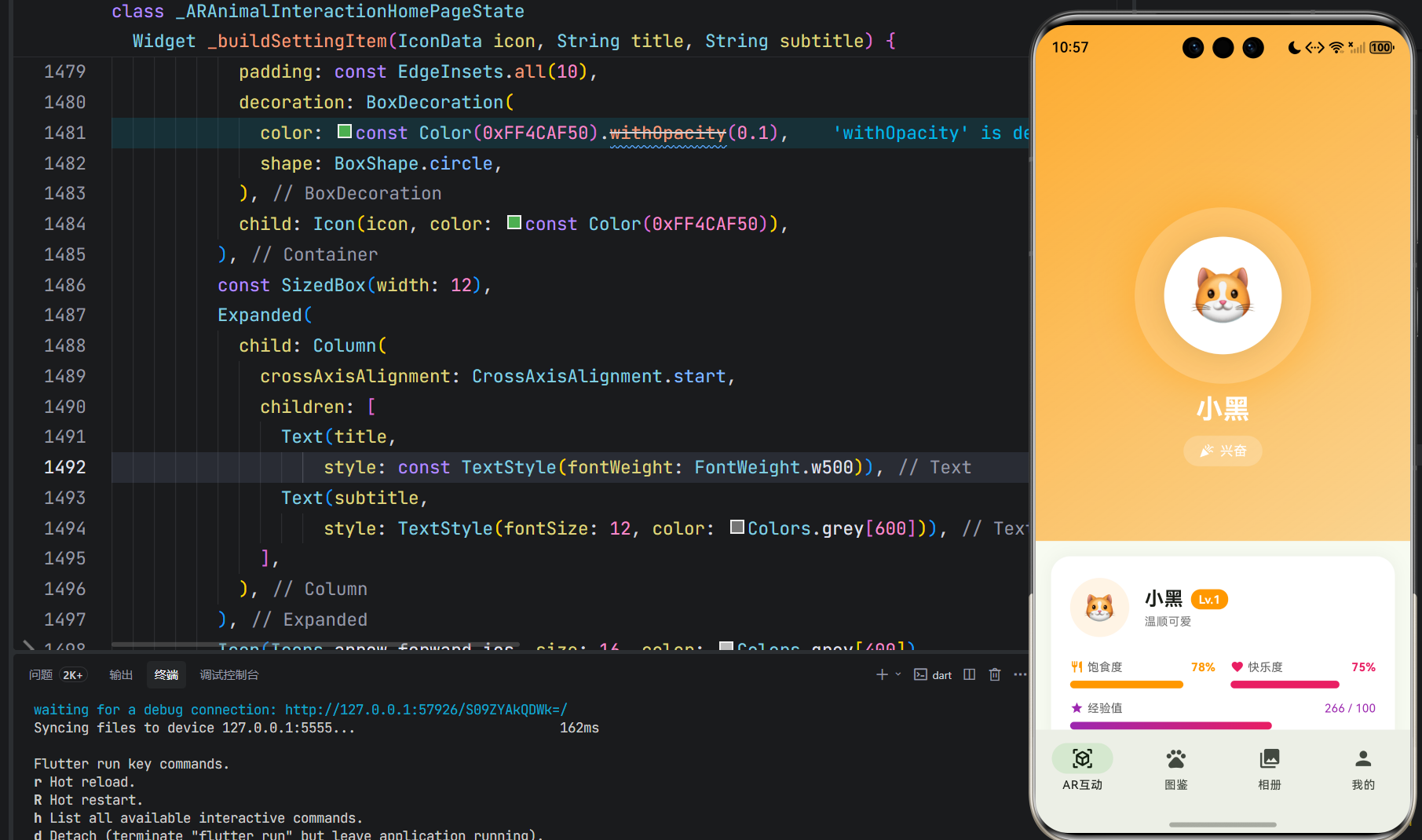
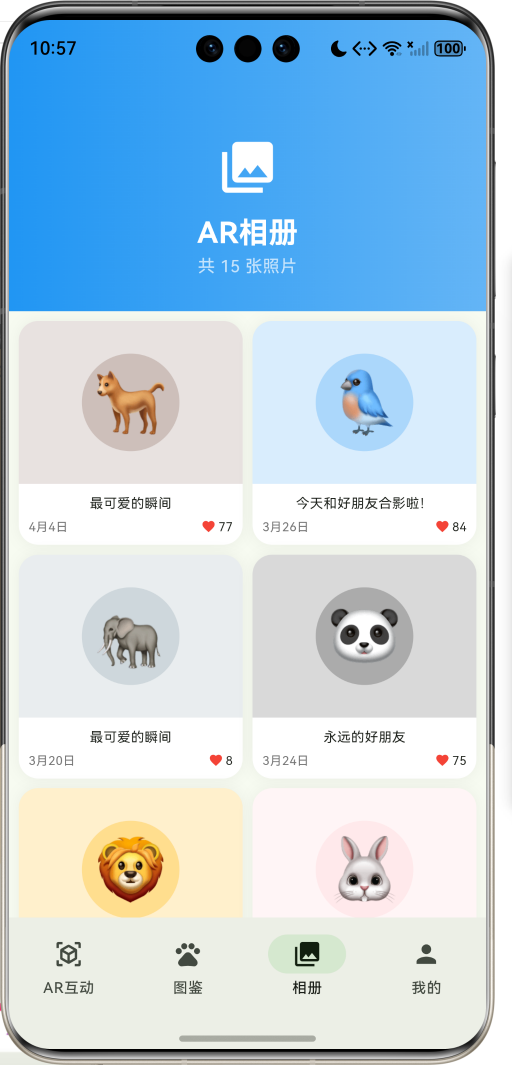
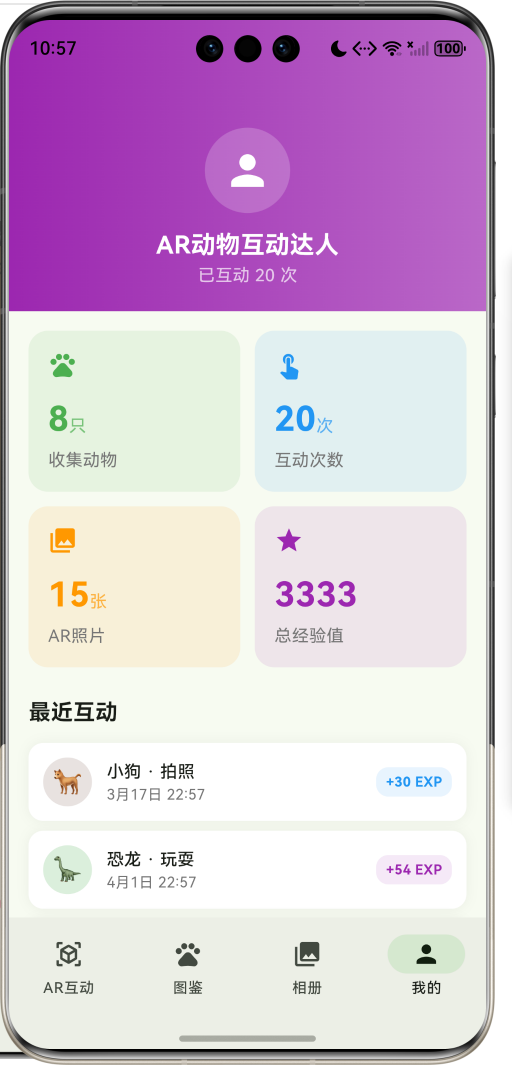
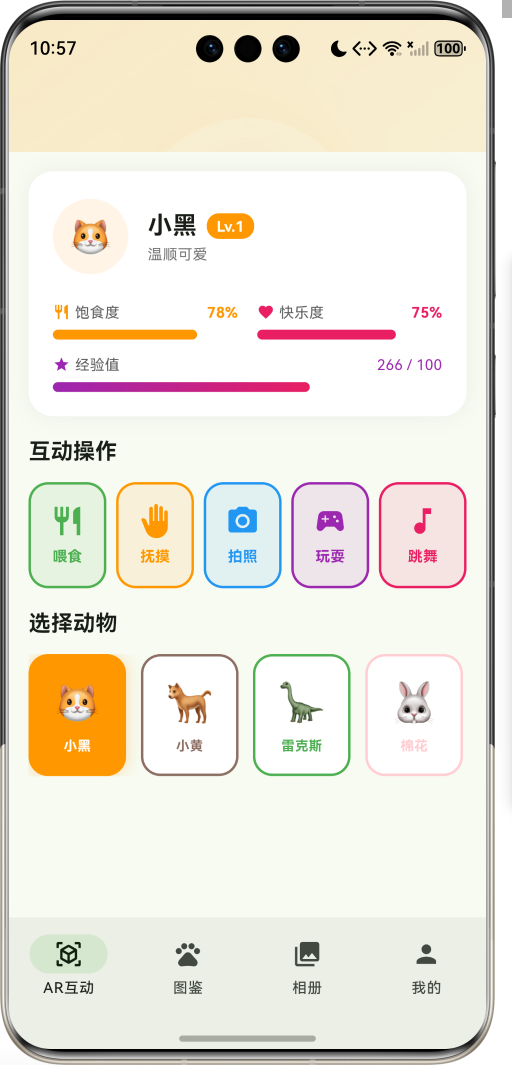
AR动物互动是一款充满创意和趣味的娱乐应用,它将虚拟动物带入真实世界,让用户能够与各种可爱的AR动物进行互动。无论是喂食一只虚拟小猫、和AR小狗玩耍,还是与史前恐龙合影,这款应用都能为日常生活增添无限惊喜和乐趣。
应用的核心价值在于:
- 沉浸式体验: 通过AR技术,将虚拟动物融入真实环境,创造身临其境的互动体验
- 情感陪伴: 虚拟动物成为用户的情感寄托,提供陪伴和慰藉
- 创意玩法: 多样化的互动方式,从喂食到拍照,满足不同用户需求
- 成长养成: 动物具有成长系统,培养用户长期使用的兴趣
应用采用Material Design 3设计语言,界面清新自然,交互流畅有趣,为用户打造一个充满童趣和想象力的AR世界。
二、功能特性
2.1 核心功能
| 功能模块 | 功能描述 | 技术实现 |
|---|---|---|
| AR动物展示 | 在真实环境中展示3D动物模型 | ARCore/ARKit + 3D渲染 |
| 互动系统 | 支持喂食、抚摸、拍照、玩耍、跳舞等互动 | 触摸交互 + 动画系统 |
| 动物图鉴 | 收集和展示所有动物,查看详细信息 | 数据库 + 卡片展示 |
| AR相册 | 保存与动物的合影照片,支持分享 | 相机API + 图片存储 |
| 成长系统 | 动物等级、经验值、饱食度、快乐度管理 | 状态管理 + 数据持久化 |
2.2 动物类型体系
应用包含8种不同类型的动物,每种都有独特的个性和视觉风格:
enum AnimalType {
  cat('小猫', '🐱', Color(0xFFFF9800), Icons.pets, '温顺可爱'),
  dog('小狗', '🐕', Color(0xFF8D6E63), Icons.pets, '忠诚活泼'),
  dinosaur('恐龙', '🦕', Color(0xFF4CAF50), Icons.dangerous, '神秘远古'),
  rabbit('兔子', '🐰', Color(0xFFFFCDD2), Icons.cruelty_free, '软萌可爱'),
  bird('小鸟', '🐦', Color(0xFF42A5F5), Icons.flutter_dash, '自由灵动'),
  panda('熊猫', '🐼', Color(0xFF424242), Icons.catching_pokemon, '憨态可掬'),
  lion('狮子', '🦁', Color(0xFFFFB300), Icons.pets, '威风凛凛'),
  elephant('大象', '🐘', Color(0xFF90A4AE), Icons.pets, '温和智慧');
}
2.3 互动类型
用户可以与动物进行5种不同类型的互动:
| 互动类型 | 图标 | 颜色 | 效果 |
|---|---|---|---|
| 喂食 | 🍽️ restaurant | 绿色 | 增加饱食度+20, 快乐度+10 |
| 抚摸 | ✋ back_hand | 橙色 | 增加快乐度+15 |
| 拍照 | 📷 camera_alt | 蓝色 | 保存合影到相册 |
| 玩耍 | 🎮 sports_esports | 紫色 | 增加快乐度+15 |
| 跳舞 | 🎵 music_note | 粉色 | 增加快乐度+15 |
2.4 动物情绪系统
动物会根据饱食度和快乐度表现出不同的情绪状态:
| 情绪状态 | 图标 | 颜色 | 触发条件 |
|---|---|---|---|
| 开心 | 😊 sentiment_very_satisfied | 绿色 | 平均值≥80 |
| 兴奋 | 🎉 celebration | 粉色 | 平均值≥60 |
| 平常 | 😐 sentiment_satisfied | 橙色 | 平均值≥40 |
| 饥饿 | 😟 sentiment_dissatisfied | 红色 | 饱食度<30 |
| 困倦 | 🌙 bedtime | 紫色 | 其他情况 |
三、技术架构
3.1 整体架构设计
3.2 互动流程图
3.3 技术栈选型
| 技术领域 | 技术选型 | 选型理由 |
|---|---|---|
| 前端框架 | Flutter 3.x | 跨平台性能优秀,AR插件丰富 |
| AR引擎 | ARCore/ARKit | 主流AR框架,性能稳定 |
| 状态管理 | setState + Provider | 轻量级,适合中小型应用 |
| 数据持久化 | SQLite + SharedPreferences | 本地存储可靠,查询效率高 |
| 动画系统 | AnimationController + CustomPaint | 灵活度高,可定制性强 |
| 设计语言 | Material Design 3 | 现代化设计,用户体验好 |
四、核心功能实现
4.1 AR动物可视化
AR动物的展示通过动画和视觉效果实现沉浸式体验:
Widget _buildARAnimalVisualizer() {
  final animal = _selectedAnimal;
  final size = 180.0;

  return Container(
    width: size,
    height: size,
    decoration: BoxDecoration(
      shape: BoxShape.circle,
      color: Colors.white.withOpacity(0.2),
      boxShadow: [
        BoxShadow(
          color: (animal?.type.color ?? const Color(0xFF4CAF50)).withOpacity(0.3),
          blurRadius: 30,
          spreadRadius: 10,
        ),
      ],
    ),
    child: Stack(
      alignment: Alignment.center,
      children: [
        if (_currentInteraction != null)
          AnimatedBuilder(
            animation: _rotateAnimation,
            builder: (context, child) {
              return CustomPaint(
                size: Size(size, size),
                painter: InteractionRingPainter(
                  _rotateAnimation.value,
                  _currentInteraction!.color,
                ),
              );
            },
          ),
        Container(
          width: 120,
          height: 120,
          decoration: BoxDecoration(
            shape: BoxShape.circle,
            color: Colors.white,
          ),
          child: Center(
            child: Text(
              animal?.type.emoji ?? '🐾',
              style: const TextStyle(fontSize: 60),
            ),
          ),
        ),
      ],
    ),
  );
}
4.2 动画系统
应用使用多个动画控制器实现丰富的视觉效果:
浮动动画: 让动物呈现悬浮效果
_floatAnimationController = AnimationController(
  vsync: this,
  duration: const Duration(milliseconds: 2000),
)..repeat(reverse: true);

_floatAnimation = Tween<double>(begin: 0, end: 20).animate(
  CurvedAnimation(parent: _floatAnimationController, curve: Curves.easeInOut),
);
脉冲动画: 让动物呈现呼吸效果
_pulseAnimationController = AnimationController(
  vsync: this,
  duration: const Duration(milliseconds: 1000),
)..repeat(reverse: true);

_pulseAnimation = Tween<double>(begin: 0.95, end: 1.05).animate(
  CurvedAnimation(parent: _pulseAnimationController, curve: Curves.easeInOut),
);
旋转动画: 互动时的光环效果
_rotateAnimationController = AnimationController(
  vsync: this,
  duration: const Duration(milliseconds: 3000),
)..repeat();

_rotateAnimation = Tween<double>(begin: 0, end: 2 * pi).animate(
  CurvedAnimation(parent: _rotateAnimationController, curve: Curves.linear),
);
4.3 互动系统实现
互动操作会触发一系列状态更新和视觉反馈:
void _performInteraction(InteractionType type) {
  if (_selectedAnimal == null) return;

  setState(() {
    _currentInteraction = type;
  });

  final random = Random();
  final expGained = 10 + random.nextInt(40);

  final newHunger = type == InteractionType.feed
      ? (_selectedAnimal!.hungerLevel + 20).clamp(0, 100)
      : (_selectedAnimal!.hungerLevel - 5).clamp(0, 100);

  final newHappiness = type == InteractionType.feed
      ? (_selectedAnimal!.happinessLevel + 10).clamp(0, 100)
      : (_selectedAnimal!.happinessLevel + 15).clamp(0, 100);

  final newMood = _calculateMood(newHunger, newHappiness);

  setState(() {
    _selectedAnimal = _selectedAnimal!.copyWith(
      hungerLevel: newHunger,
      happinessLevel: newHappiness,
      mood: newMood,
      experience: _selectedAnimal!.experience + expGained,
      lastInteraction: DateTime.now(),
    );

    final index = _animals.indexWhere((a) => a.id == _selectedAnimal!.id);
    if (index != -1) {
      _animals[index] = _selectedAnimal!;
    }

    _interactions.insert(0, InteractionRecord(
      id: 'i${DateTime.now().millisecondsSinceEpoch}',
      animalType: _selectedAnimal!.type,
      interactionType: type,
      timestamp: DateTime.now(),
      experienceGained: expGained,
    ));
  });

  if (type == InteractionType.photo) {
    _photos.insert(0, PhotoAlbum(
      id: 'p${DateTime.now().millisecondsSinceEpoch}',
      animalType: _selectedAnimal!.type,
      photoPath: 'photo_${DateTime.now().millisecondsSinceEpoch}.jpg',
      capturedAt: DateTime.now(),
      caption: '和${_selectedAnimal!.name}的合影',
    ));
  }

  ScaffoldMessenger.of(context).showSnackBar(
    SnackBar(
      content: Text('${type.label}成功!获得 $expGained 经验值'),
      backgroundColor: type.color,
      behavior: SnackBarBehavior.floating,
      duration: const Duration(seconds: 2),
    ),
  );

  Future.delayed(const Duration(seconds: 1), () {
    if (mounted) {
      setState(() {
        _currentInteraction = null;
      });
    }
  });
}
4.4 情绪计算逻辑
根据饱食度和快乐度计算动物的情绪状态:
AnimalMood _calculateMood(int hunger, int happiness) {
  final avg = (hunger + happiness) / 2;
  if (avg >= 80) return AnimalMood.happy;
  if (avg >= 60) return AnimalMood.excited;
  if (avg >= 40) return AnimalMood.normal;
  if (hunger < 30) return AnimalMood.hungry;
  return AnimalMood.sleepy;
}
4.5 互动光环绘制
互动时显示的旋转光环效果:
class InteractionRingPainter extends CustomPainter {
final double animation;
final Color color;
InteractionRingPainter(this.animation, this.color);
void paint(Canvas canvas, Size size) {
final center = Offset(size.width / 2, size.height / 2);
final radius = size.width / 2 - 10;
final paint = Paint()
..color = color.withOpacity(0.5)
..style = PaintingStyle.stroke
..strokeWidth = 3
..strokeCap = StrokeCap.round;
final startAngle = animation;
final sweepAngle = pi / 2;
canvas.drawArc(
Rect.fromCircle(center: center, radius: radius),
startAngle,
sweepAngle,
false,
paint,
);
canvas.drawArc(
Rect.fromCircle(center: center, radius: radius),
startAngle + pi,
sweepAngle,
false,
paint,
);
}
bool shouldRepaint(covariant InteractionRingPainter oldDelegate) {
return animation != oldDelegate.animation || color != oldDelegate.color;
}
}
五、UI设计规范
5.1 设计原则
应用遵循Material Design 3设计规范,注重以下设计原则:
- 趣味性: 界面充满童趣,色彩明快,吸引各年龄段用户
- 沉浸感: AR场景与真实环境融合,创造身临其境的体验
- 反馈性: 丰富的动画和音效反馈,增强互动乐趣
- 易用性: 操作简单直观,降低学习成本
5.2 色彩系统
主色调采用绿色系,传达自然、生机的品牌形象:
| 色彩角色 | 色值 | 应用场景 |
|---|---|---|
| Primary | #4CAF50 | 主按钮、导航栏、强调元素 |
| Secondary | #81C784 | 辅助按钮、卡片背景 |
| Surface | #FFFFFF | 卡片、列表背景 |
| Background | #F5F5F5 | 页面背景 |
| Accent | #2196F3 | AR相册、互动按钮 |
动物专属色彩:
AnimalType.cat -> Color(0xFFFF9800)     // 橙色 - 温暖可爱
AnimalType.dog -> Color(0xFF8D6E63)     // 棕色 - 忠诚稳重
AnimalType.dinosaur -> Color(0xFF4CAF50) // 绿色 - 神秘远古
AnimalType.rabbit -> Color(0xFFFFCDD2)  // 粉色 - 软萌甜美
AnimalType.bird -> Color(0xFF42A5F5)    // 蓝色 - 自由灵动
AnimalType.panda -> Color(0xFF424242)   // 黑色 - 憨态可掬
AnimalType.lion -> Color(0xFFFFB300)    // 金色 - 威风凛凛
AnimalType.elephant -> Color(0xFF90A4AE) // 灰色 - 温和智慧
5.3 字体规范
| 文本类型 | 字号 | 字重 | 行高 | 应用场景 |
|---|---|---|---|---|
| H1 | 28sp | Bold | 1.2 | 动物名称 |
| H2 | 24sp | Bold | 1.3 | 页面标题 |
| H3 | 20sp | Medium | 1.4 | 小标题 |
| Body1 | 16sp | Regular | 1.5 | 正文内容 |
| Body2 | 14sp | Regular | 1.5 | 辅助文本 |
| Caption | 12sp | Regular | 1.4 | 说明文字 |
5.4 组件规范
动物卡片
Container(
  decoration: BoxDecoration(
    color: Colors.white,
    borderRadius: BorderRadius.circular(20),
    boxShadow: [
      BoxShadow(
        color: Colors.black.withOpacity(0.05),
        blurRadius: 15,
      ),
    ],
  ),
  child: Column(
    children: [
      Container(
        padding: const EdgeInsets.all(20),
        decoration: BoxDecoration(
          color: animal.type.color.withOpacity(0.1),
          borderRadius: const BorderRadius.vertical(top: Radius.circular(20)),
        ),
        child: Center(
          child: Text(animal.type.emoji, style: const TextStyle(fontSize: 50)),
        ),
      ),
      // 卡片内容
    ],
  ),
)
互动按钮
GestureDetector(
  onTap: () => _performInteraction(type),
  child: AnimatedContainer(
    duration: const Duration(milliseconds: 200),
    padding: const EdgeInsets.symmetric(vertical: 16),
    decoration: BoxDecoration(
      color: isActive ? type.color : type.color.withOpacity(0.1),
      borderRadius: BorderRadius.circular(16),
      border: Border.all(color: type.color, width: 2),
    ),
    child: Column(
      children: [
        Icon(type.icon, color: isActive ? Colors.white : type.color, size: 28),
        const SizedBox(height: 6),
        Text(
          type.label,
          style: TextStyle(
            color: isActive ? Colors.white : type.color,
            fontWeight: FontWeight.bold,
            fontSize: 12,
          ),
        ),
      ],
    ),
  ),
)
六、数据模型设计
6.1 核心数据模型
AR动物模型
class ARAnimal {
  final String id;                    // 唯一标识
  final AnimalType type;              // 动物类型
  final String name;                  // 动物名字
  final int level;                    // 等级
  final int experience;               // 经验值
  final AnimalMood mood;              // 情绪状态
  final int hungerLevel;              // 饱食度(0-100)
  final int happinessLevel;           // 快乐度(0-100)
  final DateTime lastInteraction;     // 最后互动时间
  final List<String> unlockedActions; // 解锁的动作
}
互动记录模型
class InteractionRecord {
  final String id;                    // 唯一标识
  final AnimalType animalType;        // 动物类型
  final InteractionType interactionType; // 互动类型
  final DateTime timestamp;           // 时间戳
  final String? photoPath;            // 照片路径(拍照互动)
  final int experienceGained;         // 获得的经验值
  final String? note;                 // 备注
}
照片相册模型
class PhotoAlbum {
  final String id;                    // 唯一标识
  final AnimalType animalType;        // 动物类型
  final String photoPath;             // 照片路径
  final DateTime capturedAt;          // 拍摄时间
  final String? caption;              // 照片描述
  final int likes;                    // 点赞数
}
6.2 数据关系图
6.3 数据存储策略
本地存储
使用SQLite数据库存储应用数据:
CREATE TABLE ar_animals (
  id TEXT PRIMARY KEY,
  user_id TEXT NOT NULL,
  animal_type TEXT NOT NULL,
  name TEXT NOT NULL,
  level INTEGER DEFAULT 1,
  experience INTEGER DEFAULT 0,
  hunger_level INTEGER DEFAULT 50,
  happiness_level INTEGER DEFAULT 50,
  last_interaction INTEGER NOT NULL
);

CREATE TABLE interaction_records (
  id TEXT PRIMARY KEY,
  animal_id TEXT NOT NULL,
  interaction_type TEXT NOT NULL,
  timestamp INTEGER NOT NULL,
  photo_path TEXT,
  experience_gained INTEGER NOT NULL,
  FOREIGN KEY (animal_id) REFERENCES ar_animals(id)
);

CREATE TABLE photo_albums (
  id TEXT PRIMARY KEY,
  animal_type TEXT NOT NULL,
  photo_path TEXT NOT NULL,
  captured_at INTEGER NOT NULL,
  caption TEXT,
  likes INTEGER DEFAULT 0
);
七、关键代码解析
7.1 状态栏组件
显示动物的饱食度和快乐度:
Widget _buildStatusBar(String label, int value, Color color, IconData icon) {
  return Column(
    crossAxisAlignment: CrossAxisAlignment.start,
    children: [
      Row(
        children: [
          Icon(icon, size: 14, color: color),
          const SizedBox(width: 4),
          Text(label, style: TextStyle(fontSize: 12, color: Colors.grey[700])),
          const Spacer(),
          Text('$value%', style: TextStyle(fontSize: 12, fontWeight: FontWeight.bold, color: color)),
        ],
      ),
      const SizedBox(height: 6),
      Container(
        height: 8,
        decoration: BoxDecoration(
          color: Colors.grey[200],
          borderRadius: BorderRadius.circular(4),
        ),
        child: FractionallySizedBox(
          alignment: Alignment.centerLeft,
          widthFactor: value / 100,
          child: Container(
            decoration: BoxDecoration(
              color: color,
              borderRadius: BorderRadius.circular(4),
            ),
          ),
        ),
      ),
    ],
  );
}
7.2 经验值进度条
显示动物升级进度:
Widget _buildExpBar(int exp, int level) {
  final expForNextLevel = level * 100;
  final progress = (exp % expForNextLevel) / expForNextLevel;

  return Column(
    crossAxisAlignment: CrossAxisAlignment.start,
    children: [
      Row(
        children: [
          const Icon(Icons.star, size: 14, color: Color(0xFF9C27B0)),
          const SizedBox(width: 4),
          Text('经验值', style: TextStyle(fontSize: 12, color: Colors.grey[700])),
          const Spacer(),
          Text('$exp / $expForNextLevel', style: const TextStyle(fontSize: 12, color: Color(0xFF9C27B0))),
        ],
      ),
      const SizedBox(height: 6),
      Container(
        height: 8,
        decoration: BoxDecoration(
          color: Colors.grey[200],
          borderRadius: BorderRadius.circular(4),
        ),
        child: FractionallySizedBox(
          alignment: Alignment.centerLeft,
          widthFactor: progress,
          child: Container(
            decoration: BoxDecoration(
              gradient: const LinearGradient(
                colors: [Color(0xFF9C27B0), Color(0xFFE91E63)],
              ),
              borderRadius: BorderRadius.circular(4),
            ),
          ),
        ),
      ),
    ],
  );
}
7.3 动物选择器
横向滚动选择动物:
Widget _buildAnimalSelector() {
  return Column(
    crossAxisAlignment: CrossAxisAlignment.start,
    children: [
      const Text('选择动物', style: TextStyle(fontSize: 18, fontWeight: FontWeight.bold)),
      const SizedBox(height: 12),
      SizedBox(
        height: 100,
        child: ListView.builder(
          scrollDirection: Axis.horizontal,
          itemCount: _animals.length,
          itemBuilder: (context, index) {
            final animal = _animals[index];
            final isSelected = _selectedAnimal?.id == animal.id;

            return GestureDetector(
              onTap: () {
                setState(() {
                  _selectedAnimal = animal;
                });
              },
              child: AnimatedContainer(
                duration: const Duration(milliseconds: 200),
                width: 80,
                margin: EdgeInsets.only(right: index == _animals.length - 1 ? 0 : 12),
                decoration: BoxDecoration(
                  color: isSelected ? animal.type.color : Colors.white,
                  borderRadius: BorderRadius.circular(16),
                  border: Border.all(color: animal.type.color, width: 2),
                  boxShadow: isSelected
                      ? [BoxShadow(color: animal.type.color.withOpacity(0.3), blurRadius: 10)]
                      : null,
                ),
                child: Column(
                  mainAxisAlignment: MainAxisAlignment.center,
                  children: [
                    Text(animal.type.emoji, style: const TextStyle(fontSize: 32)),
                    const SizedBox(height: 4),
                    Text(
                      animal.name,
                      style: TextStyle(
                        fontSize: 11,
                        fontWeight: FontWeight.bold,
                        color: isSelected ? Colors.white : animal.type.color,
                      ),
                      overflow: TextOverflow.ellipsis,
                    ),
                  ],
                ),
              ),
            );
          },
        ),
      ),
    ],
  );
}
7.4 动物名字生成
根据动物类型生成合适的名字:
String _generateAnimalName(AnimalType type) {
  final names = {
    AnimalType.cat: ['咪咪', '小花', '橘子', '雪球', '小黑'],
    AnimalType.dog: ['旺财', '小黄', '豆豆', '毛毛', '大黄'],
    AnimalType.dinosaur: ['小霸王', '雷克斯', '小角', '长颈', '迅猛'],
    AnimalType.rabbit: ['雪球', '棉花', '小灰', '萝卜', '蹦蹦'],
    AnimalType.bird: ['小蓝', '彩虹', '叽叽', '飞翔', '羽毛'],
    AnimalType.panda: ['团团', '圆圆', '竹子', '黑白', '憨憨'],
    AnimalType.lion: ['辛巴', '小王', '金毛', '威威', '大王'],
    AnimalType.elephant: ['大象', '长鼻', '灰灰', '小象', '嘟嘟'],
  };
  final list = names[type] ?? ['小动物'];
  return list[Random().nextInt(list.length)];
}
八、性能优化
8.1 动画性能优化
使用Hardware Layer加速动画:
AnimatedBuilder(
  animation: _floatAnimation,
  builder: (context, child) {
    return Transform.translate(
      offset: Offset(0, _floatAnimation.value),
      child: RepaintBoundary(
        child: AnimatedBuilder(
          animation: _pulseAnimation,
          builder: (context, child) {
            return Transform.scale(
              scale: _pulseAnimation.value,
              child: _buildARAnimalVisualizer(),
            );
          },
        ),
      ),
    );
  },
)
8.2 列表性能优化
使用ListView.builder和SliverGrid实现懒加载:
SliverGrid(
  gridDelegate: const SliverGridDelegateWithFixedCrossAxisCount(
    crossAxisCount: 2,
    mainAxisSpacing: 16,
    crossAxisSpacing: 16,
    childAspectRatio: 0.85,
  ),
  delegate: SliverChildBuilderDelegate(
    (context, index) {
      if (index >= _animals.length) return null;
      return _buildAnimalCard(_animals[index]);
    },
    childCount: _animals.length,
  ),
)
8.3 图片资源优化
- 使用Emoji替代图片资源,减少应用体积
- 照片采用压缩存储,节省空间
- 实现图片缓存机制,提升加载速度
8.4 内存管理
及时释放动画控制器:
void dispose() {
_floatAnimationController.dispose();
_pulseAnimationController.dispose();
_rotateAnimationController.dispose();
super.dispose();
}
九、测试方案
9.1 单元测试
测试核心逻辑:
void testMoodCalculation() {
  final mood1 = _calculateMood(90, 90);
  expect(mood1, equals(AnimalMood.happy));

  final mood2 = _calculateMood(20, 50);
  expect(mood2, equals(AnimalMood.hungry));

  final mood3 = _calculateMood(50, 50);
  expect(mood3, equals(AnimalMood.normal));
}
9.2 Widget测试
测试UI组件:
testWidgets('Animal card displays correctly', (WidgetTester tester) async {
  await tester.pumpWidget(ARAnimalInteractionApp());

  expect(find.text('AR互动'), findsOneWidget);
  expect(find.byIcon(Icons.pets), findsWidgets);
});
9.3 集成测试
测试完整流程:
testWidgets('Complete interaction flow', (WidgetTester tester) async {
  await tester.pumpWidget(ARAnimalInteractionApp());

  // 选择动物
  await tester.tap(find.text('咪咪'));
  await tester.pump();

  // 执行互动
  await tester.tap(find.text('喂食'));
  await tester.pumpAndSettle();

  // 验证状态更新
  expect(find.textContaining('经验值'), findsOneWidget);
});
9.4 性能测试
监控指标:
- FPS帧率: 保持60fps
- 内存占用: 不超过150MB
- CPU使用率: 空闲时低于5%
- 启动时间: 冷启动不超过2秒
十、部署说明
10.1 环境要求
| 平台 | 最低版本 | 推荐版本 |
|---|---|---|
| Android | API 24 (Android 7.0) | API 30 (Android 11) |
| iOS | iOS 12.0 | iOS 15.0 |
| HarmonyOS | HarmonyOS 2.0 | HarmonyOS 3.0 |
10.2 权限配置
Android权限 (AndroidManifest.xml)
<uses-permission android:name="android.permission.CAMERA" />
<uses-permission android:name="android.permission.WRITE_EXTERNAL_STORAGE" />
<uses-permission android:name="android.permission.READ_EXTERNAL_STORAGE" />
<uses-permission android:name="android.permission.INTERNET" />
iOS权限 (Info.plist)
<key>NSCameraUsageDescription</key>
<string>需要使用相机进行AR互动和拍照</string>
<key>NSPhotoLibraryUsageDescription</key>
<string>需要访问相册保存AR照片</string>
10.3 打包配置
Android打包
flutter build apk --release
flutter build appbundle --release
iOS打包
flutter build ios --release
十一、未来规划
11.1 功能扩展路线图
11.2 技术演进方向
AR能力增强
- 真实感渲染: 引入PBR材质和光影效果,提升AR动物真实感
- 环境理解: 识别地面、桌面等平面,让动物自然放置
- 遮挡效果: 实现虚拟与现实的遮挡关系,增强沉浸感
社交功能
- 多人互动: 支持多人同时与AR动物互动
- 动物交换: 用户之间可以交换或赠送动物
- 互动竞技: 举办AR动物互动比赛和活动
游戏化元素
- 任务系统: 完成日常任务获得奖励
- 成就系统: 解锁成就获得特殊动物
- 排行榜: 与好友比较互动次数和动物等级
11.3 商业化路径
| 阶段 | 商业模式 | 预期收益 |
|---|---|---|
| 初期 | 免费基础功能 + 特殊动物付费 | 用户增长为主 |
| 中期 | 增值道具 + 会员订阅 | 实现盈亏平衡 |
| 长期 | IP授权 + 品牌合作 | 建立AR娱乐生态 |
11.4 用户增长策略
- 社交媒体营销: 制作有趣的AR互动视频,在抖音、微博等平台传播
- KOL合作: 与宠物博主、亲子博主合作推广
- 线下活动: 在商场、公园举办AR互动体验活动
- 口碑传播: 通过有趣的互动体验实现自然传播
附录
A. 相关资源
- Flutter官方文档: https://flutter.dev/docs
- ARCore文档: https://developers.google.com/ar
- ARKit文档: https://developer.apple.com/arkit
- OpenHarmony社区: https://openharmonycrossplatform.csdn.net
B. 开源协议
本项目采用MIT开源协议,欢迎社区贡献和改进。
C. 联系方式
如有问题或建议,欢迎通过以下方式联系:
- GitHub Issues: 项目仓库问题追踪
- 开发者社区: OpenHarmony跨平台开发社区

作为“人工智能6S店”的官方数字引擎,为AI开发者与企业提供一个覆盖软硬件全栈、一站式门户。
更多推荐
 1
1 0
0- 0


 已为社区贡献20条内容

所有评论(0)