
Flutter 框架跨平台鸿蒙开发 - 家庭健康监测云应用
摘要: 家庭健康监测云是一款基于Flutter开发的健康管理应用,支持连接血压计、血糖仪等6类智能设备,实现全家健康数据的统一管理。应用包含设备管理、数据同步、异常预警、历史记录和成员管理等功能模块,采用Material Design 3设计规范,界面以青色为主色调。技术架构分为表现层(四模块导航)、业务层(设备/数据处理)和数据层(设备/数据/成员模型),支持多平台运行。通过枚举定义设备类型、健
欢迎加入开源鸿蒙跨平台社区:
https://openharmonycrossplatform.csdn.net
一、项目概述
运行效果图
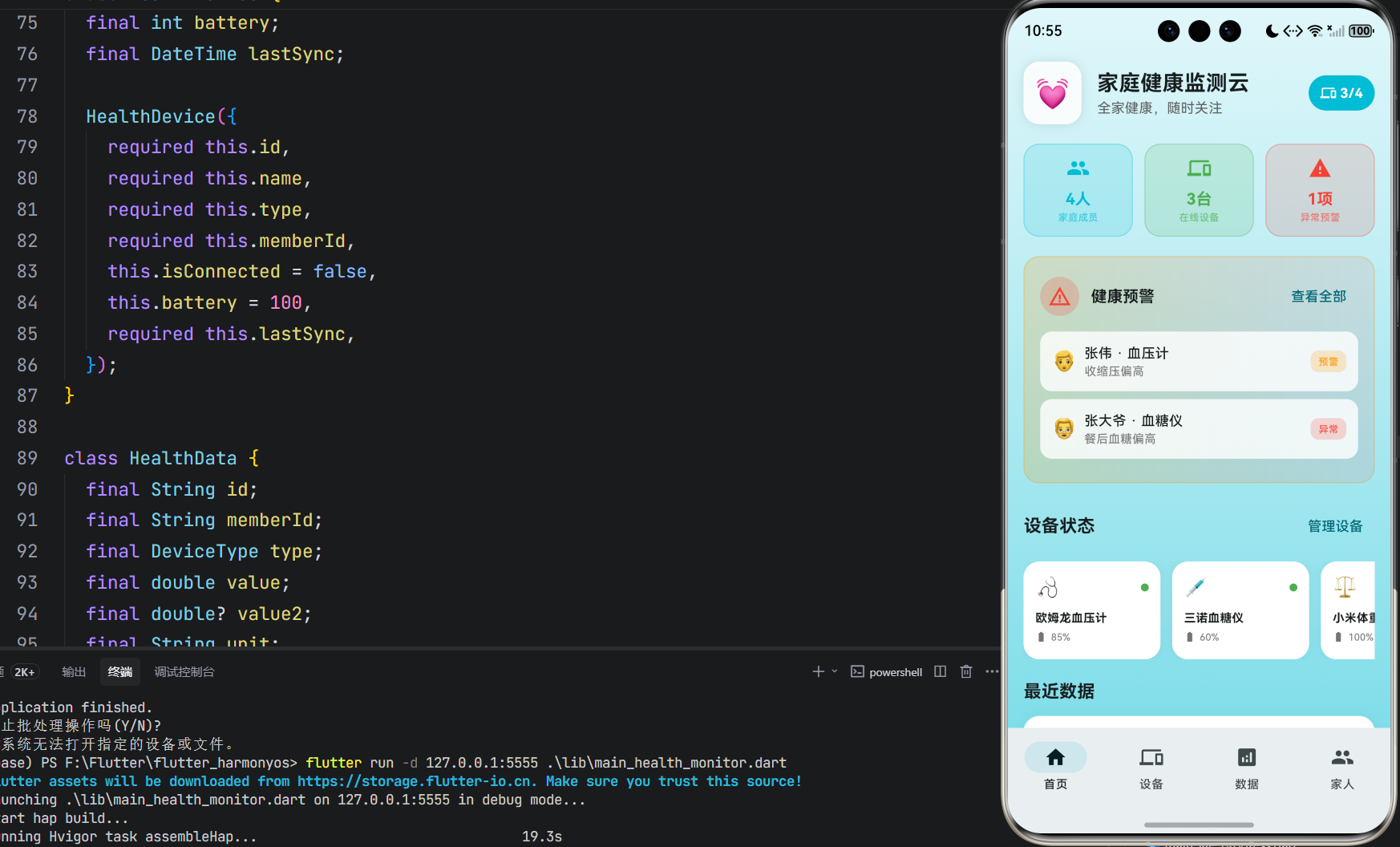
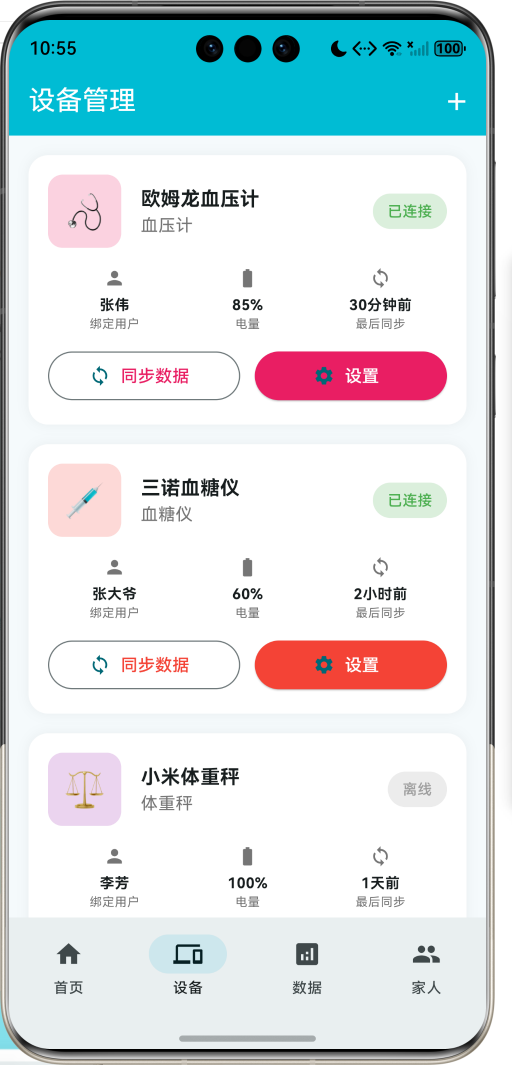
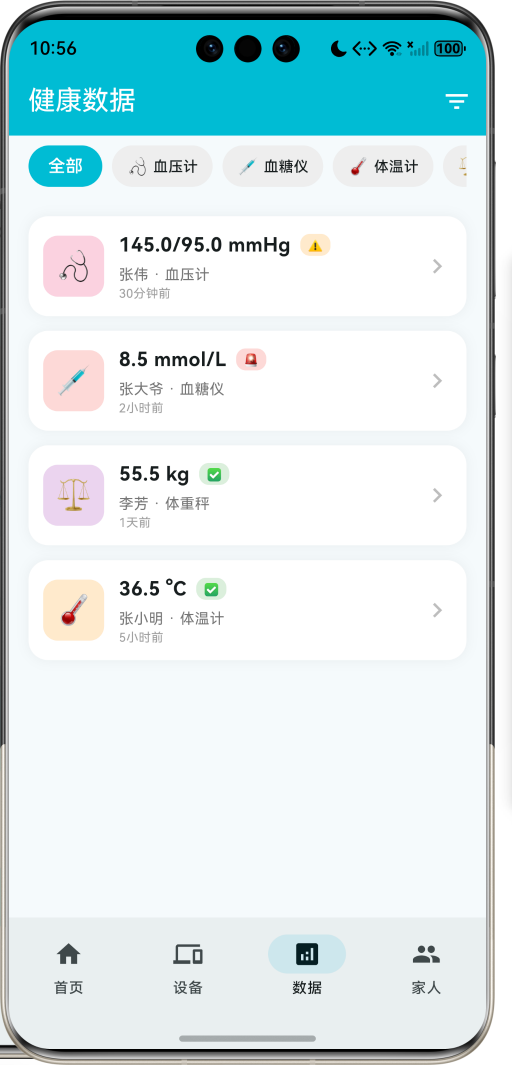
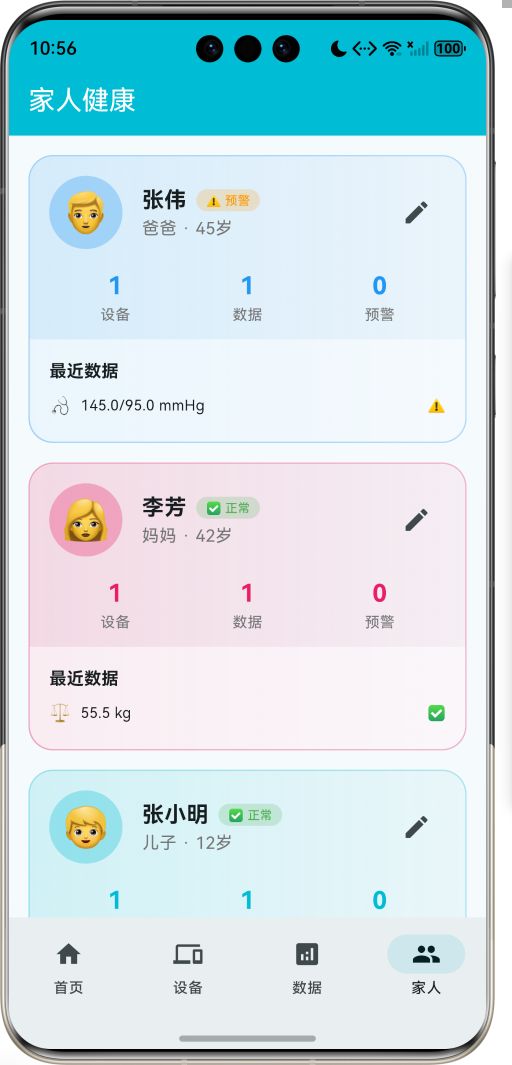
1.1 应用简介
家庭健康监测云是一款健康管理类应用,致力于为家庭提供智能化的健康监测解决方案。通过连接各种智能健康设备(血压计、血糖仪、体温计、体重秤、心率带、血氧仪等),实现全家健康数据的统一管理。支持异常预警、历史数据追踪、多成员管理等功能,让家人健康随时关注,守护全家健康。
应用以清新的青色为主色调,象征健康与活力。涵盖首页导航、设备管理、数据分析、家人管理四大模块。用户可以添加设备、查看数据、设置预警、管理家庭成员,全方位守护家人健康。
1.2 核心功能
| 功能模块 | 功能描述 | 实现方式 |
|---|---|---|
| 设备连接 | 6种智能健康设备 | 枚举定义 |
| 数据同步 | 实时同步健康数据 | 模拟实现 |
| 异常预警 | 健康异常实时提醒 | 状态判断 |
| 历史记录 | 健康数据历史追踪 | 列表展示 |
| 成员管理 | 多家庭成员管理 | 数据模型 |
| 数据筛选 | 按类型/状态筛选 | 过滤功能 |
1.3 设备类型定义
| 序号 | 设备名称 | Emoji | 色值 |
|---|---|---|---|
| 1 | 血压计 | 🩺 | #E91E63 |
| 2 | 血糖仪 | 💉 | #F44336 |
| 3 | 体温计 | 🌡️ | #FF9800 |
| 4 | 体重秤 | ⚖️ | #9C27B0 |
| 5 | 心率带 | ❤️ | #F44336 |
| 6 | 血氧仪 | 🫁 | #2196F3 |
1.4 健康状态定义
| 序号 | 状态名称 | Emoji | 色值 |
|---|---|---|---|
| 1 | 正常 | ✅ | #4CAF50 |
| 2 | 预警 | ⚠️ | #FF9800 |
| 3 | 异常 | 🚨 | #F44336 |
1.5 家庭角色定义
| 序号 | 角色名称 | Emoji | 色值 |
|---|---|---|---|
| 1 | 爸爸 | 👨 | #2196F3 |
| 2 | 妈妈 | 👩 | #E91E63 |
| 3 | 爷爷 | 👴 | #9C27B0 |
| 4 | 奶奶 | 👵 | #FF5722 |
| 5 | 儿子 | 👦 | #00BCD4 |
| 6 | 女儿 | 👧 | #FF9800 |
1.6 技术栈
| 技术领域 | 技术选型 | 版本要求 |
|---|---|---|
| 开发框架 | Flutter | >= 3.0.0 |
| 编程语言 | Dart | >= 2.17.0 |
| 设计规范 | Material Design 3 | - |
| 动画控制 | AnimationController | - |
| 状态管理 | setState | - |
| 目标平台 | 鸿蒙OS / Web | API 21+ |
1.7 项目结构
lib/
└── main_health_monitor.dart
    ├── HealthMonitorApp            # 应用入口
    ├── DeviceType                  # 设备类型枚举
    ├── HealthStatus                # 健康状态枚举
    ├── FamilyRole                  # 家庭角色枚举
    ├── HealthDevice                # 健康设备模型
    ├── HealthData                  # 健康数据模型
    ├── FamilyMember                # 家庭成员模型
    ├── HealthMonitorHomePage       # 主页面(底部导航)
    ├── _buildHomePage              # 首页模块
    ├── _buildDevicesPage           # 设备页模块
    ├── _buildDataPage              # 数据页模块
    ├── _buildMembersPage           # 家人页模块
    └── AddDeviceSheet              # 添加设备弹窗
二、系统架构
2.1 整体架构图
2.2 类图设计
2.3 页面导航流程
2.4 数据同步流程
三、核心模块设计
3.1 数据模型设计
3.1.1 设备类型枚举 (DeviceType)
enum DeviceType {
  bloodPressure('血压计', '🩺', Color(0xFFE91E63)),
  bloodGlucose('血糖仪', '💉', Color(0xFFF44336)),
  thermometer('体温计', '🌡️', Color(0xFFFF9800)),
  scale('体重秤', '⚖️', Color(0xFF9C27B0)),
  heartRate('心率带', '❤️', Color(0xFFF44336)),
  oximeter('血氧仪', '🫁', Color(0xFF2196F3));

  final String label;
  final String emoji;
  final Color color;

  const DeviceType(this.label, this.emoji, this.color);
}
3.1.2 健康状态枚举 (HealthStatus)
enum HealthStatus {
  normal('正常', '✅', Color(0xFF4CAF50)),
  warning('预警', '⚠️', Color(0xFFFF9800)),
  danger('异常', '🚨', Color(0xFFF44336));

  final String label;
  final String emoji;
  final Color color;

  const HealthStatus(this.label, this.emoji, this.color);
}
3.1.3 健康设备模型 (HealthDevice)
class HealthDevice {
  final String id;              // 设备ID
  final String name;            // 设备名称
  final DeviceType type;        // 设备类型
  final String memberId;        // 绑定成员ID
  final bool isConnected;       // 是否已连接
  final int battery;            // 电量百分比
  final DateTime lastSync;      // 最后同步时间
}
3.1.4 健康数据模型 (HealthData)
class HealthData {
  final String id;              // 数据ID
  final String memberId;        // 成员ID
  final DeviceType type;        // 数据类型
  final double value;           // 主数值
  final double? value2;         // 次数值(如舒张压)
  final String unit;            // 单位
  final HealthStatus status;    // 健康状态
  final DateTime timestamp;     // 时间戳
  final String? note;           // 备注
}
3.1.5 家庭成员模型 (FamilyMember)
class FamilyMember {
  final String id;              // 成员ID
  final String name;            // 姓名
  final FamilyRole role;        // 家庭角色
  final int age;                // 年龄
  final List<HealthData> recentData; // 最近数据
  final HealthStatus overallStatus; // 整体健康状态
}
3.1.6 设备类型分布
3.2 页面结构设计
3.2.1 主页面布局
3.2.2 首页结构
3.2.3 设备页结构
3.2.4 家人页结构
3.3 异常预警逻辑
3.4 设备连接逻辑
四、UI设计规范
4.1 配色方案
应用以清新的青色为主色调,象征健康与活力:
| 颜色类型 | 色值 | 用途 |
|---|---|---|
| 主色 | #00BCD4 (Cyan) | 导航、主题元素 |
| 辅助色 | #26C6DA | 次要元素 |
| 强调色 | #80DEEA | 背景渐变 |
| 背景色 | #E0F7FA → #80DEEA | 首页渐变背景 |
| 卡片背景 | #FFFFFF | 内容卡片 |
4.2 设备类型配色
| 设备 | 色值 | 视觉效果 |
|---|---|---|
| 血压计 | #E91E63 | 温馨粉红 |
| 血糖仪 | #F44336 | 警示红色 |
| 体温计 | #FF9800 | 温暖橙色 |
| 体重秤 | #9C27B0 | 优雅紫色 |
| 心率带 | #F44336 | 生命红色 |
| 血氧仪 | #2196F3 | 清新蓝色 |
4.3 字体规范
| 元素 | 字号 | 字重 | 颜色 |
|---|---|---|---|
| 页面标题 | 22px | Bold | #000000 |
| 数据值 | 16px | Bold | 类型色 |
| 设备名称 | 16px | Bold | #000000 |
| 状态标签 | 12px | Medium | 状态色 |
| 统计数字 | 20px | Bold | 主题色 |
4.4 组件规范
4.4.1 快速统计卡片
┌─────────────────────────────────────┐
│  ┌────┐  ┌────┐  ┌────┐           │
│  │ 👥 │  │ 📱 │  │ ⚠️ │           │
│  │ 4人│  │ 3台│  │ 1项│           │
│  │家庭│  │在线│  │预警│           │
│  └────┘  └────┘  └────┘           │
└─────────────────────────────────────┘
4.4.2 健康预警卡片
┌─────────────────────────────────────┐
│  ⚠️ 健康预警              [查看全部]│
│                                     │
│  ┌─────────────────────────────┐   │
│  │ 👨 张伟 · 血压计      [预警] │   │
│  │    收缩压偏高               │   │
│  └─────────────────────────────┘   │
│  ┌─────────────────────────────┐   │
│  │ 👴 张大爷 · 血糖仪    [异常] │   │
│  │    餐后血糖偏高             │   │
│  └─────────────────────────────┘   │
└─────────────────────────────────────┘
4.4.3 设备状态卡片
┌─────────────────────────────────────┐
│  ┌────┐  欧姆龙血压计       ● 在线  │
│  │ 🩺 │  血压计                     │
│  └────┘                             │
│                                     │
│  👤 张伟    🔋 85%    🔄 30分钟前   │
│                                     │
│  [同步数据]          [设置]         │
└─────────────────────────────────────┘
4.4.4 健康数据卡片
┌─────────────────────────────────────┐
│  ┌────┐  145/95 mmHg        ⚠️    >│
│  │ 🩺 │  张伟 · 血压计             │
│  │    │  30分钟前                  │
│  └────┘                             │
└─────────────────────────────────────┘
4.4.5 成员健康卡片
┌─────────────────────────────────────┐
│  ┌────┐  张伟          [⚠️ 预警]   │
│  │ 👨 │  爸爸 · 45岁              │
│  └────┘                         [编辑]│
│                                     │
│  1设备    1数据    0预警            │
│                                     │
│  最近数据                           │
│  🩺 145/95 mmHg ⚠️                 │
└─────────────────────────────────────┘
五、核心功能实现
5.1 健康预警实现
Widget _buildWarnings(List<HealthData> warningData) {
  return Container(
    padding: const EdgeInsets.all(16),
    decoration: BoxDecoration(
      gradient: LinearGradient(
        colors: [Colors.orange.withValues(alpha: 0.2), Colors.red.withValues(alpha: 0.1)],
      ),
      borderRadius: BorderRadius.circular(16),
    ),
    child: Column(
      children: [
        Row(
          children: [
            AnimatedBuilder(
              animation: _pulseController,
              builder: (context, child) {
                return Container(
                  padding: const EdgeInsets.all(8),
                  decoration: BoxDecoration(
                    color: Colors.red.withValues(alpha: 0.2 + _pulseController.value * 0.1),
                    shape: BoxShape.circle,
                  ),
                  child: const Icon(Icons.warning_amber, color: Colors.red),
                );
              },
            ),
            const SizedBox(width: 12),
            const Text('健康预警', style: TextStyle(fontSize: 16, fontWeight: FontWeight.bold)),
          ],
        ),
        ...warningData.take(3).map((data) {
          final member = _members.firstWhere((m) => m.id == data.memberId);
          return Container(
            margin: const EdgeInsets.only(bottom: 8),
            padding: const EdgeInsets.all(12),
            decoration: BoxDecoration(
              color: Colors.white.withValues(alpha: 0.8),
              borderRadius: BorderRadius.circular(12),
            ),
            child: Row(
              children: [
                Text(member.role.emoji, style: const TextStyle(fontSize: 20)),
                const SizedBox(width: 8),
                Expanded(
                  child: Column(
                    crossAxisAlignment: CrossAxisAlignment.start,
                    children: [
                      Text('${member.name} · ${data.type.label}', style: const TextStyle(fontWeight: FontWeight.w500)),
                      Text(data.note ?? '${data.value} ${data.unit}', style: TextStyle(fontSize: 12, color: Colors.grey[600])),
                    ],
                  ),
                ),
                Container(
                  padding: const EdgeInsets.symmetric(horizontal: 8, vertical: 4),
                  decoration: BoxDecoration(
                    color: data.status.color.withValues(alpha: 0.2),
                    borderRadius: BorderRadius.circular(8),
                  ),
                  child: Text(data.status.label, style: TextStyle(fontSize: 10, color: data.status.color)),
                ),
              ],
            ),
          );
        }),
      ],
    ),
  );
}
5.2 设备状态实现
Widget _buildDeviceCard(HealthDevice device) {
  return Container(
    width: 140,
    margin: const EdgeInsets.only(right: 12),
    padding: const EdgeInsets.all(12),
    decoration: BoxDecoration(
      color: Colors.white,
      borderRadius: BorderRadius.circular(16),
    ),
    child: Column(
      crossAxisAlignment: CrossAxisAlignment.start,
      children: [
        Row(
          children: [
            Text(device.type.emoji, style: const TextStyle(fontSize: 20)),
            const Spacer(),
            Container(
              width: 8,
              height: 8,
              decoration: BoxDecoration(
                color: device.isConnected ? Colors.green : Colors.grey,
                shape: BoxShape.circle,
              ),
            ),
          ],
        ),
        const SizedBox(height: 8),
        Text(device.name, style: const TextStyle(fontSize: 12, fontWeight: FontWeight.bold)),
        const SizedBox(height: 4),
        Row(
          children: [
            Icon(Icons.battery_std, size: 12, color: Colors.grey[600]),
            const SizedBox(width: 4),
            Text('${device.battery}%', style: TextStyle(fontSize: 10, color: Colors.grey[600])),
          ],
        ),
      ],
    ),
  );
}
5.3 健康数据展示
Widget _buildDataCard(HealthData data) {
  final member = _members.firstWhere((m) => m.id == data.memberId);
  return Container(
    margin: const EdgeInsets.only(bottom: 12),
    padding: const EdgeInsets.all(12),
    decoration: BoxDecoration(
      color: Colors.white,
      borderRadius: BorderRadius.circular(16),
    ),
    child: Row(
      children: [
        Container(
          width: 50,
          height: 50,
          decoration: BoxDecoration(
            color: data.type.color.withValues(alpha: 0.2),
            borderRadius: BorderRadius.circular(12),
          ),
          child: Center(child: Text(data.type.emoji, style: const TextStyle(fontSize: 24))),
        ),
        const SizedBox(width: 12),
        Expanded(
          child: Column(
            crossAxisAlignment: CrossAxisAlignment.start,
            children: [
              Row(
                children: [
                  Text(
                    '${data.value}${data.value2 != null ? '/${data.value2}' : ''} ${data.unit}',
                    style: const TextStyle(fontSize: 16, fontWeight: FontWeight.bold),
                  ),
                  const SizedBox(width: 8),
                  Container(
                    padding: const EdgeInsets.symmetric(horizontal: 6, vertical: 2),
                    decoration: BoxDecoration(
                      color: data.status.color.withValues(alpha: 0.2),
                      borderRadius: BorderRadius.circular(8),
                    ),
                    child: Text(data.status.emoji, style: const TextStyle(fontSize: 10)),
                  ),
                ],
              ),
              const SizedBox(height: 4),
              Text('${member.name} · ${data.type.label}', style: TextStyle(fontSize: 12, color: Colors.grey[600])),
              Text(_formatTime(data.timestamp), style: TextStyle(fontSize: 10, color: Colors.grey[500])),
            ],
          ),
        ),
      ],
    ),
  );
}
5.4 成员健康卡片
Widget _buildMemberCard(FamilyMember member) {
  final memberDevices = _devices.where((d) => d.memberId == member.id).toList();
  final memberData = _healthData.where((d) => d.memberId == member.id).toList();

  return Container(
    margin: const EdgeInsets.only(bottom: 16),
    decoration: BoxDecoration(
      gradient: LinearGradient(
        colors: [member.role.color.withValues(alpha: 0.15), member.role.color.withValues(alpha: 0.05)],
      ),
      borderRadius: BorderRadius.circular(20),
    ),
    child: Column(
      children: [
        Padding(
          padding: const EdgeInsets.all(16),
          child: Row(
            children: [
              Container(
                width: 60,
                height: 60,
                decoration: BoxDecoration(
                  color: member.role.color.withValues(alpha: 0.3),
                  shape: BoxShape.circle,
                ),
                child: Center(child: Text(member.role.emoji, style: const TextStyle(fontSize: 32))),
              ),
              const SizedBox(width: 16),
              Expanded(
                child: Column(
                  crossAxisAlignment: CrossAxisAlignment.start,
                  children: [
                    Row(
                      children: [
                        Text(member.name, style: const TextStyle(fontSize: 18, fontWeight: FontWeight.bold)),
                        const SizedBox(width: 8),
                        Container(
                          padding: const EdgeInsets.symmetric(horizontal: 8, vertical: 2),
                          decoration: BoxDecoration(
                            color: member.overallStatus.color.withValues(alpha: 0.2),
                            borderRadius: BorderRadius.circular(12),
                          ),
                          child: Text(
                            '${member.overallStatus.emoji} ${member.overallStatus.label}',
                            style: TextStyle(fontSize: 10, color: member.overallStatus.color),
                          ),
                        ),
                      ],
                    ),
                    Text('${member.role.label} · ${member.age}岁', style: TextStyle(color: Colors.grey[600])),
                  ],
                ),
              ),
            ],
          ),
        ),
        Padding(
          padding: const EdgeInsets.symmetric(horizontal: 16),
          child: Row(
            mainAxisAlignment: MainAxisAlignment.spaceAround,
            children: [
              _buildMemberStat('${memberDevices.length}', '设备', member.role.color),
              _buildMemberStat('${memberData.length}', '数据', member.role.color),
              _buildMemberStat('0', '预警', member.role.color),
            ],
          ),
        ),
      ],
    ),
  );
}
5.5 添加设备实现
Widget build(BuildContext context) {
  return DraggableScrollableSheet(
    initialChildSize: 0.7,
    minChildSize: 0.5,
    maxChildSize: 0.95,
    expand: false,
    builder: (context, scrollController) {
      return SingleChildScrollView(
        controller: scrollController,
        padding: const EdgeInsets.all(16),
        child: Column(
          crossAxisAlignment: CrossAxisAlignment.start,
          children: [
            const Text('添加设备', style: TextStyle(fontSize: 20, fontWeight: FontWeight.bold)),
            const SizedBox(height: 20),
            const Text('设备类型', style: TextStyle(fontWeight: FontWeight.bold)),
            const SizedBox(height: 8),
            Wrap(
              spacing: 8,
              children: DeviceType.values.map((type) {
                return ChoiceChip(
                  label: Text('${type.emoji} ${type.label}'),
                  selected: _selectedType == type,
                  selectedColor: type.color.withValues(alpha: 0.3),
                  onSelected: (selected) {
                    setState(() {
                      _selectedType = type;
                    });
                  },
                );
              }).toList(),
            ),
            const SizedBox(height: 16),
            TextField(
              controller: _nameController,
              decoration: const InputDecoration(
                labelText: '设备名称',
                border: OutlineInputBorder(),
              ),
            ),
            const SizedBox(height: 16),
            DropdownButtonFormField<String>(
              decoration: const InputDecoration(
                labelText: '绑定用户',
                border: OutlineInputBorder(),
              ),
              value: _selectedMemberId,
              items: widget.members.map((m) {
                return DropdownMenuItem(
                  value: m.id,
                  child: Text('${m.role.emoji} ${m.name}'),
                );
              }).toList(),
              onChanged: (value) {
                setState(() {
                  _selectedMemberId = value;
                });
              },
            ),
          ],
        ),
      );
    },
  );
}
六、交互设计
6.1 设备连接流程
6.2 数据同步流程
6.3 预警处理流程
七、扩展功能规划
7.1 后续版本规划
7.2 功能扩展建议
7.2.1 真实蓝牙连接
蓝牙功能:
- BLE设备扫描
- 自动配对连接
- 数据实时同步
- 多设备管理
7.2.2 智能预警推送
预警功能:
- 短信/推送通知
- 阈值自定义设置
- 紧急联系人通知
- 预警历史记录
7.2.3 AI健康分析
AI功能:
- 健康趋势分析
- 异常预测
- 个性化建议
- 健康评分
八、注意事项
8.1 开发注意事项
-
蓝牙权限:需要申请蓝牙和位置权限
-
数据安全:健康数据涉及隐私,需加密存储
-
性能优化:大量数据需分页加载
-
动画控制:AnimationController需正确释放
-
状态管理:设备连接状态需及时同步
8.2 常见问题
| 问题 | 原因 | 解决方案 |
|---|---|---|
| 设备无法连接 | 蓝牙权限问题 | 检查权限设置 |
| 数据不同步 | 连接断开 | 重新连接设备 |
| 预警不显示 | 状态判断错误 | 检查阈值设置 |
| 电量显示错误 | 设备未更新 | 手动刷新状态 |
| 数据丢失 | 未保存成功 | 检查存储权限 |
8.3 使用技巧
💓 家庭健康监测技巧 💓
设备管理
- 定期检查设备电量,及时充电
- 保持设备蓝牙开启,确保连接稳定
- 每周同步一次数据,避免数据丢失
数据监测
- 关注预警信息,及时处理异常
- 定期查看历史数据,了解健康趋势
- 设置个性化阈值,精准监测健康
家庭关怀
- 为老人设置简化操作界面
- 开启紧急联系人通知
- 定期分享健康报告给家人
九、运行说明
9.1 环境要求
| 环境 | 版本要求 |
|---|---|
| Flutter SDK | >= 3.0.0 |
| Dart SDK | >= 2.17.0 |
| 鸿蒙OS | API 21+ |
| Web浏览器 | Chrome 90+ |
9.2 运行命令
# 查看可用设备
flutter devices

# 运行到Web服务器
flutter run -d web-server -t lib/main_health_monitor.dart --web-port 8145

# 运行到鸿蒙设备
flutter run -d 127.0.0.1:5555 lib/main_health_monitor.dart

# 代码分析
flutter analyze lib/main_health_monitor.dart
十、总结
家庭健康监测云通过首页导航、设备管理、数据分析、家人管理四大模块,为家庭提供了智能化的健康监测解决方案。应用支持6种智能健康设备、3种健康状态、6种家庭角色,实现全家健康数据的统一管理。
核心功能涵盖设备连接、数据同步、异常预警、历史记录、成员管理五大模块。设备连接支持血压计、血糖仪、体温计、体重秤、心率带、血氧仪等智能设备;数据同步实时获取健康数据;异常预警通过脉冲动画提醒用户关注健康问题;历史记录保存所有健康数据便于追踪;成员管理支持多家庭成员绑定设备。
应用采用 Material Design 3 设计规范,以清新的青色为主色调,象征健康与活力。通过本应用,希望能够帮助家庭更好地管理健康数据,及时发现健康问题,守护全家健康。
家庭健康监测云——全家健康,随时关注

作为“人工智能6S店”的官方数字引擎,为AI开发者与企业提供一个覆盖软硬件全栈、一站式门户。
更多推荐
 4
4 0
0- 0


 已为社区贡献20条内容

所有评论(0)