
护眼又美观:Flutter + OpenHarmony 鸿蒙记事本一键切换夜间模式(四)
本文成功为鸿蒙记事本集成了 **智能夜间模式**,通过 **系统跟随 + 手动切换** 双模式,配合 **科学的色彩体系**,实现了全天候舒适的视觉体验。所有 UI 元素均通过 `ThemeData` 统一管理,确保一致性与可维护性。
个人主页:ujainu
欢迎加入开源鸿蒙跨平台社区:https://openharmonycrossplatform.csdn.net
文章目录
在前三篇中,我们逐步构建了一个功能强大、组织清晰的鸿蒙风格记事本:从基础 CRUD 操作,到实时全局搜索,再到标签与时间维度的多维分类。然而,无论功能多么完善,若缺乏对 视觉舒适度 的关注,用户体验仍会大打折扣。
尤其在夜间或弱光环境下,刺眼的白底黑字不仅造成视觉疲劳,还可能干扰用户的生物节律。为此,夜间模式(Dark Mode) 已成为现代应用的标配。OpenHarmony 官方设计规范明确指出:“应支持深色主题,以降低屏幕亮度、减少蓝光、提升阅读专注度”。
本文将为记事本集成 智能夜间模式,支持:
- 自动跟随系统主题(基于
MediaQuery.platformBrightness) - 手动强制切换(通过设置页开关)
- 全界面高对比度适配(文字、背景、图标、卡片)
最终实现 全天候舒适、护眼且美观 的书写与阅读体验。
一、为什么夜间模式不可或缺?
1. 健康价值
- 减少蓝光暴露:深色背景显著降低短波蓝光输出,有助于维持褪黑激素分泌
- 缓解视觉疲劳:在暗环境中,瞳孔自然放大,高亮屏幕会造成“眩光效应”,而深色界面更柔和
- 延长续航(OLED 屏幕):黑色像素不发光,可节省电量
2. 用户期待
根据华为开发者联盟调研,超过 78% 的用户希望应用支持深色主题,且 62% 的用户会主动开启系统级夜间模式。若应用不响应,将被视为“过时”或“不专业”。
✅ OpenHarmony 设计原则:
“深色主题不是简单的颜色反转,而是通过科学的色彩体系,在保证可读性的同时营造沉浸感。”
二、主题架构设计:两套 ThemeData
Flutter 通过 ThemeData 统一管理 UI 样式。我们将定义 lightTheme 和 darkTheme 两套方案,并严格遵循 鸿蒙深色设计规范:
| 元素 | 日间模式(Light) | 夜间模式(Dark) |
|---|---|---|
| 背景色 | #FFFFFF | #191919(非纯黑) |
| 卡片背景 | #FFFFFF | #252525 |
| 主文字 | #1D1D1F(近黑) | #E0E0E0(浅灰白) |
| 次要文字 | #6E6E73 | #A0A0A5 |
| 分割线/边框 | #E5E5EA | #3C3C43 |
| 强调色(如 FAB) | #007AFF(鸿蒙主色) | #0A84FF(稍提亮) |
📌 关键细节:
- 深色背景避免使用纯黑(#000000),因其与白色文字对比度过高,产生“光晕效应”
- 文字使用灰白色而非纯白,减少视觉刺激
- 强调色在暗色下适当提亮,确保可点击性
主题定义代码
import 'package:flutter/material.dart';

final lightTheme = ThemeData(
  useMaterial3: true,
  brightness: Brightness.light,
  colorScheme: const ColorScheme.light(
    primary: Color(0xFF007AFF), // 鸿蒙蓝色
    onPrimary: Colors.white,
    surface: Colors.white,
    onSurface: Color(0xFF1D1D1F),
    background: Colors.white,
    onBackground: Color(0xFF1D1D1F),
  ),
  scaffoldBackgroundColor: Colors.white,
  appBarTheme: const AppBarTheme(
    backgroundColor: Colors.white,
    foregroundColor: Color(0xFF1D1D1F),
    elevation: 0,
  ),
  cardTheme: CardTheme(
    color: Colors.white,
    shape: RoundedRectangleBorder(borderRadius: BorderRadius.circular(12)),
  ),
  chipTheme: ChipThemeData(
    backgroundColor: Colors.blue.withOpacity(0.1),
    labelStyle: const TextStyle(color: Colors.blue),
  ),
);

final darkTheme = ThemeData(
  useMaterial3: true,
  brightness: Brightness.dark,
  colorScheme: const ColorScheme.dark(
    primary: Color(0xFF0A84FF),
    onPrimary: Colors.white,
    surface: Color(0xFF252525),
    onSurface: Color(0xFFE0E0E0),
    background: Color(0xFF191919),
    onBackground: Color(0xFFE0E0E0),
  ),
  scaffoldBackgroundColor: const Color(0xFF191919),
  appBarTheme: const AppBarTheme(
    backgroundColor: Color(0xFF191919),
    foregroundColor: Color(0xFFE0E0E0),
    elevation: 0,
  ),
  cardTheme: CardTheme(
    color: const Color(0xFF252525),
    shape: RoundedRectangleBorder(borderRadius: BorderRadius.circular(12)),
  ),
  chipTheme: ChipThemeData(
    backgroundColor: Colors.blue.withOpacity(0.2),
    labelStyle: const TextStyle(color: Colors.blueAccent),
  ),
);
✅ 优化点:
- 使用
ColorScheme统一色彩体系- 卡片、Chip 等组件单独定制,确保层级感
- 深色 Chip 背景透明度提高至 0.2,增强可读性
三、主题状态管理:响应系统与手动切换
我们需要一个机制来:
- 监听系统主题变化
- 允许用户手动覆盖
- 全局通知 UI 刷新
方案选择:ValueNotifier + Provider(轻量级)
由于项目规模不大,我们采用 ValueNotifier<ThemeMode> 实现状态共享,避免引入大型状态管理库。
// theme_manager.dart
import 'package:flutter/material.dart';

class ThemeManager {
  static final ValueNotifier<ThemeMode> themeMode = ValueNotifier(ThemeMode.system);
}
监听系统亮度变化
在 MaterialApp 中,通过 builder 包裹,监听 MediaQuery.platformBrightness:
class MyApp extends StatefulWidget {
const MyApp({super.key});
State<MyApp> createState() => _MyAppState();
}
class _MyAppState extends State<MyApp> with WidgetsBindingObserver {
void initState() {
super.initState();
WidgetsBinding.instance.addObserver(this);
}
void dispose() {
WidgetsBinding.instance.removeObserver(this);
super.dispose();
}
void didChangePlatformBrightness() {
// 当用户未手动设置时,自动跟随系统
if (ThemeManager.themeMode.value == ThemeMode.system) {
setState(() {}); // 触发 rebuild
}
}
Widget build(BuildContext context) {
return MaterialApp(
debugShowCheckedModeBanner: false,
theme: lightTheme,
darkTheme: darkTheme,
themeMode: ThemeManager.themeMode.value == ThemeMode.system
? ThemeMode.system
: ThemeManager.themeMode.value,
home: HomePage(),
);
}
}
⚠️ 注意:
didChangePlatformBrightness()仅在ThemeMode.system时生效,若用户手动切换,则忽略系统变化。
四、手动切换入口:抽屉菜单设置项
我们在主界面添加 抽屉菜单(Drawer),提供主题切换开关:
// 在 HomePage 的 Scaffold 中添加 drawer
Widget build(BuildContext context) {
return Scaffold(
appBar: AppBar(title: const Text('我的笔记')),
drawer: _buildDrawer(context),
body: /* ... */,
);
}
Widget _buildDrawer(BuildContext context) {
return Drawer(
child: ListView(
padding: EdgeInsets.zero,
children: [
const DrawerHeader(
decoration: BoxDecoration(color: Colors.blue),
child: Text('设置', style: TextStyle(color: Colors.white, fontSize: 24)),
),
ListTile(
title: const Text('主题'),
trailing: ValueListenableBuilder<ThemeMode>(
valueListenable: ThemeManager.themeMode,
builder: (context, mode, child) {
return DropdownButton<ThemeMode>(
value: mode,
items: const [
DropdownMenuItem(value: ThemeMode.system, child: Text('跟随系统')),
DropdownMenuItem(value: ThemeMode.light, child: Text('日间模式')),
DropdownMenuItem(value: ThemeMode.dark, child: Text('夜间模式')),
],
onChanged: (value) {
if (value != null) {
ThemeManager.themeMode.value = value;
}
},
underline: Container(),
);
},
),
),
],
),
);
}
✅ 交互优势:
- 使用
DropdownButton清晰展示三种选项ValueListenableBuilder自动响应主题变化- 抽屉符合鸿蒙“侧滑设置”习惯
五、全界面适配验证
1. 笔记列表(HomePage)
- 背景:
scaffoldBackgroundColor - 卡片:
cardTheme.color - 文字:
onSurface/onBackground - 标签 Chip:
chipTheme
✅ 已通过 ThemeData 全局控制,无需额外代码
2. 编辑页(NoteEditorPage)
需确保 TextField 在深色下可读:
// TextField 默认继承 theme.textTheme.bodyLarge,已适配
TextField(
  decoration: InputDecoration(
    filled: true, // 关键!深色下需填充背景
    fillColor: Theme.of(context).colorScheme.surface.withOpacity(0.5),
    // ...
  ),
)
但为简化,我们依赖 Material 3 的默认行为——其 TextField 在深色主题下自动使用合适背景。
3. 搜索与筛选栏
- AppBar:由
appBarTheme控制 - FilterChip / SegmentedButton:由
chipTheme和按钮样式控制
✅ 所有组件均基于 Theme.of(context),自动适配
4. 空状态图标
Icons.search_off在深色下自动变为浅色(因Icon默认使用onSurface)
六、完整可运行代码(Flutter + OpenHarmony)
以下为整合 CRUD + 搜索 + 标签 + 夜间模式 的完整代码:
// main.dart - 支持夜间模式的鸿蒙记事本
import 'package:flutter/material.dart';
import 'dart:async';
// ==================== 主题管理 ====================
final lightTheme = ThemeData(
useMaterial3: true,
brightness: Brightness.light,
colorScheme: const ColorScheme.light(
primary: Color(0xFF007AFF),
onPrimary: Colors.white,
surface: Colors.white,
onSurface: Color(0xFF1D1D1F),
background: Colors.white,
onBackground: Color(0xFF1D1D1F),
),
scaffoldBackgroundColor: Colors.white,
appBarTheme: const AppBarTheme(
backgroundColor: Colors.white,
foregroundColor: Color(0xFF1D1D1F),
elevation: 0,
),
cardTheme: CardThemeData(
color: Colors.white,
shape: RoundedRectangleBorder(borderRadius: BorderRadius.circular(12)),
),
chipTheme: ChipThemeData(
backgroundColor: Colors.blue.withOpacity(0.1),
labelStyle: const TextStyle(color: Colors.blue),
),
);
final darkTheme = ThemeData(
useMaterial3: true,
brightness: Brightness.dark,
colorScheme: const ColorScheme.dark(
primary: Color(0xFF0A84FF),
onPrimary: Colors.white,
surface: Color(0xFF252525),
onSurface: Color(0xFFE0E0E0),
background: Color(0xFF191919),
onBackground: Color(0xFFE0E0E0),
),
scaffoldBackgroundColor: const Color(0xFF191919),
appBarTheme: const AppBarTheme(
backgroundColor: Color(0xFF191919),
foregroundColor: Color(0xFFE0E0E0),
elevation: 0,
),
cardTheme: CardThemeData(
color: const Color(0xFF252525),
shape: RoundedRectangleBorder(borderRadius: BorderRadius.circular(12)),
),
chipTheme: ChipThemeData(
backgroundColor: Colors.blue.withOpacity(0.2),
labelStyle: const TextStyle(color: Colors.blueAccent),
),
);
class ThemeManager {
static final ValueNotifier<ThemeMode> themeMode = ValueNotifier(ThemeMode.system);
}
// ==================== 数据模型 ====================
class Note {
final String id;
String title;
String content;
final DateTime createdAt;
List<String> tags;
Note({
required this.title,
this.content = '',
this.tags = const [],
}) : id = DateTime.now().microsecondsSinceEpoch.toString(),
createdAt = DateTime.now();
Note.withId({
required this.id,
required this.title,
required this.content,
required this.createdAt,
required this.tags,
});
bool hasTag(String tag) => tags.contains(tag);
}
enum TimeFilter { all, today, thisWeek }
// ==================== 编辑页面 ====================
class NoteEditorPage extends StatefulWidget {
final Note? existingNote;
const NoteEditorPage({this.existingNote, super.key});
State<NoteEditorPage> createState() => _NoteEditorPageState();
}
class _NoteEditorPageState extends State<NoteEditorPage> {
late final TextEditingController _titleController;
late final TextEditingController _contentController;
late final TextEditingController _tagsController;
void initState() {
super.initState();
if (widget.existingNote != null) {
_titleController = TextEditingController(text: widget.existingNote!.title);
_contentController = TextEditingController(text: widget.existingNote!.content);
_tagsController = TextEditingController(text: widget.existingNote!.tags.join(', '));
} else {
_titleController = TextEditingController();
_contentController = TextEditingController();
_tagsController = TextEditingController();
}
}
void dispose() {
_titleController.dispose();
_contentController.dispose();
_tagsController.dispose();
super.dispose();
}
List<String> _parseTags(String input) {
return input
.split(',')
.map((e) => e.trim())
.where((e) => e.isNotEmpty)
.toSet()
.toList();
}
void _saveNote() {
final title = _titleController.text.trim();
if (title.isEmpty) return;
final tags = _parseTags(_tagsController.text);
final note = widget.existingNote != null
? Note.withId(
id: widget.existingNote!.id,
title: title,
content: _contentController.text.trim(),
createdAt: widget.existingNote!.createdAt,
tags: tags,
)
: Note(title: title, content: _contentController.text.trim(), tags: tags);
Navigator.pop(context, note);
}
Widget build(BuildContext context) {
return Scaffold(
appBar: AppBar(
title: Text(widget.existingNote == null ? '新建笔记' : '编辑笔记'),
actions: [IconButton(icon: const Icon(Icons.save), onPressed: _saveNote)],
),
body: Padding(
padding: const EdgeInsets.all(16),
child: Column(
children: [
TextField(
controller: _titleController,
decoration: InputDecoration(
hintText: '标题',
border: InputBorder.none,
focusedBorder: InputBorder.none,
),
style: const TextStyle(fontSize: 20, fontWeight: FontWeight.bold),
maxLines: 1,
),
const Divider(height: 24),
Expanded(
child: TextField(
controller: _contentController,
decoration: InputDecoration(
hintText: '写下你的想法...',
border: InputBorder.none,
focusedBorder: InputBorder.none,
),
maxLines: null,
keyboardType: TextInputType.multiline,
),
),
const SizedBox(height: 16),
TextField(
controller: _tagsController,
decoration: InputDecoration(
hintText: '标签(用逗号分隔,如:工作, 会议)',
border: OutlineInputBorder(),
focusedBorder: OutlineInputBorder(),
),
maxLines: 1,
),
],
),
),
);
}
}
// ==================== 主界面 ====================
class HomePage extends StatefulWidget {
const HomePage({super.key});
State<HomePage> createState() => _HomePageState();
}
class _HomePageState extends State<HomePage> {
final List<Note> _allNotes = [];
List<Note> _filteredNotes = [];
String _searchQuery = '';
String? _selectedTag;
TimeFilter _timeFilter = TimeFilter.all;
Set<String> _allTags = {};
late FocusNode _searchFocusNode;
bool _isSearching = false;
Timer? _debounceTimer;
void initState() {
super.initState();
_searchFocusNode = FocusNode();
_filteredNotes = _allNotes;
}
void dispose() {
_debounceTimer?.cancel();
_searchFocusNode.dispose();
super.dispose();
}
void _updateAllTags() {
final tags = <String>{};
for (final note in _allNotes) {
tags.addAll(note.tags);
}
setState(() {
_allTags = tags;
});
}
void _applyFilters() {
List<Note> result = _allNotes;
result = _filterByTime(result, _timeFilter);
if (_selectedTag != null) {
result = result.where((note) => note.hasTag(_selectedTag!)).toList();
}
if (_searchQuery.isNotEmpty) {
final lowerQuery = _searchQuery.toLowerCase();
result = result.where((note) {
return note.title.toLowerCase().contains(lowerQuery) ||
note.content.toLowerCase().contains(lowerQuery) ||
note.tags.any((tag) => tag.toLowerCase().contains(lowerQuery));
}).toList();
}
setState(() {
_filteredNotes = result;
});
}
List<Note> _filterByTime(List<Note> notes, TimeFilter filter) {
if (filter == TimeFilter.all) return notes;
final now = DateTime.now();
return notes.where((note) {
if (filter == TimeFilter.today) {
return note.createdAt.year == now.year &&
note.createdAt.month == now.month &&
note.createdAt.day == now.day;
} else if (filter == TimeFilter.thisWeek) {
final weekStart = now.subtract(Duration(days: now.weekday - 1));
final weekEnd = weekStart.add(const Duration(days: 7));
return note.createdAt.isAfter(weekStart) && note.createdAt.isBefore(weekEnd);
}
return true;
}).toList();
}
void _enterSearchMode() {
setState(() {
_isSearching = true;
_searchQuery = '';
});
_searchFocusNode.requestFocus();
_applyFilters();
}
void _exitSearchMode() {
setState(() {
_isSearching = false;
_searchQuery = '';
});
_searchFocusNode.unfocus();
_applyFilters();
}
void _onSearchQueryChanged(String query) {
_debounceTimer?.cancel();
_debounceTimer = Timer(const Duration(milliseconds: 300), () {
setState(() {
_searchQuery = query.trim();
});
_applyFilters();
});
}
void _onAddNote() {
Navigator.push(context, MaterialPageRoute(builder: (_) => const NoteEditorPage()))
.then((result) {
if (result != null && result is Note) {
setState(() {
_allNotes.insert(0, result);
});
_updateAllTags();
_applyFilters();
}
});
}
void _onEditNote(Note note) {
Navigator.push(
context,
MaterialPageRoute(builder: (_) => NoteEditorPage(existingNote: note)),
).then((result) {
if (result != null && result is Note) {
setState(() {
final index = _allNotes.indexWhere((n) => n.id == result.id);
if (index != -1) {
_allNotes[index] = result;
}
});
_updateAllTags();
_applyFilters();
}
});
}
void _onDeleteNote(Note note) {
setState(() {
_allNotes.removeWhere((n) => n.id == note.id);
});
_updateAllTags();
_applyFilters();
ScaffoldMessenger.of(context).showSnackBar(SnackBar(content: Text('已删除 "${note.title}"')));
}
String _formatTime(DateTime time) {
return '${time.year}-${time.month.toString().padLeft(2, '0')}-${time.day.toString().padLeft(2, '0')} '
'${time.hour.toString().padLeft(2, '0')}:${time.minute.toString().padLeft(2, '0')}';
}
Widget _buildNoteCard(Note note) {
return Card(
margin: const EdgeInsets.only(bottom: 12),
child: Padding(
padding: const EdgeInsets.all(16),
child: Column(
crossAxisAlignment: CrossAxisAlignment.start,
children: [
Text(note.title, style: TextStyle(fontSize: 18, fontWeight: FontWeight.bold),
maxLines: 1, overflow: TextOverflow.ellipsis),
const SizedBox(height: 8),
if (note.content.isNotEmpty)
Text(note.content, maxLines: 2, overflow: TextOverflow.ellipsis),
const SizedBox(height: 8),
if (note.tags.isNotEmpty)
Wrap(
spacing: 6,
runSpacing: 4,
children: note.tags.map((tag) {
return Chip(label: Text('#$tag'));
}).toList(),
),
const SizedBox(height: 8),
Text(_formatTime(note.createdAt), style: const TextStyle(fontSize: 12)),
],
),
),
);
}
Widget _buildNoteItem(Note note, int index) {
return Dismissible(
key: Key(note.id),
direction: DismissDirection.endToStart,
background: Container(
color: Theme.of(context).colorScheme.error,
alignment: Alignment.centerRight,
padding: const EdgeInsets.only(right: 20),
child: const Icon(Icons.delete, color: Colors.white),
),
onDismissed: (direction) => _onDeleteNote(note),
child: GestureDetector(
onTap: () => _onEditNote(note),
child: _buildNoteCard(note),
),
);
}
Widget _buildSearchField() {
if (!_isSearching) {
return const Text('我的笔记', style: TextStyle(fontWeight: FontWeight.w500));
}
return TextField(
focusNode: _searchFocusNode,
onChanged: _onSearchQueryChanged,
decoration: InputDecoration(
hintText: '搜索标题、内容或标签...',
hintStyle: TextStyle(color: Theme.of(context).hintColor),
border: InputBorder.none,
focusedBorder: InputBorder.none,
prefixIcon: Icon(Icons.search, color: Theme.of(context).hintColor),
suffixIcon: _searchQuery.isNotEmpty
? IconButton(
icon: const Icon(Icons.clear, size: 18),
onPressed: () {
_onSearchQueryChanged('');
WidgetsBinding.instance.addPostFrameCallback((_) {
if (_searchFocusNode.hasFocus) {
_searchFocusNode.requestFocus();
}
});
},
)
: null,
),
style: const TextStyle(fontSize: 16),
);
}
Widget _buildTagFilterBar() {
if (_allTags.isEmpty) return const SizedBox.shrink();
return SingleChildScrollView(
scrollDirection: Axis.horizontal,
padding: const EdgeInsets.symmetric(horizontal: 16, vertical: 8),
child: Row(
children: [
_buildFilterChip('全部', null, _selectedTag == null),
..._allTags.map((tag) {
return _buildFilterChip(tag, tag, _selectedTag == tag);
}).toList(),
],
),
);
}
Widget _buildFilterChip(String label, String? value, bool isSelected) {
return FilterChip(
label: Text(label),
selected: isSelected,
onSelected: (selected) {
setState(() {
_selectedTag = selected ? value : null;
_applyFilters();
});
},
);
}
Widget _buildTimeFilter() {
return Padding(
padding: const EdgeInsets.symmetric(horizontal: 16, vertical: 8),
child: SegmentedButton<TimeFilter>(
segments: const [
ButtonSegment<TimeFilter>(value: TimeFilter.all, label: Text('全部')),
ButtonSegment<TimeFilter>(value: TimeFilter.today, label: Text('今日')),
ButtonSegment<TimeFilter>(value: TimeFilter.thisWeek, label: Text('本周')),
],
selected: {_timeFilter},
onSelectionChanged: (Set<TimeFilter> newSelection) {
setState(() {
_timeFilter = newSelection.first;
_applyFilters();
});
},
),
);
}
Widget _buildNoteList() {
if (_filteredNotes.isEmpty) {
if (_searchQuery.isNotEmpty || _selectedTag != null) {
return Center(
child: Column(
mainAxisAlignment: MainAxisAlignment.center,
children: [
Icon(Icons.search_off, size: 64, color: Theme.of(context).hintColor),
const SizedBox(height: 16),
const Text('未找到匹配的笔记'),
],
),
);
} else {
return const Center(child: Text('暂无笔记'));
}
}
return ListView.builder(
padding: const EdgeInsets.only(top: 8),
itemCount: _filteredNotes.length,
itemBuilder: (context, index) => _buildNoteItem(_filteredNotes[index], index),
);
}
Widget _buildDrawer(BuildContext context) {
return Drawer(
child: ListView(
padding: EdgeInsets.zero,
children: [
DrawerHeader(
decoration: BoxDecoration(color: Theme.of(context).colorScheme.primary),
child: const Text('设置', style: TextStyle(color: Colors.white, fontSize: 24)),
),
ListTile(
title: const Text('主题'),
trailing: ValueListenableBuilder<ThemeMode>(
valueListenable: ThemeManager.themeMode,
builder: (context, mode, child) {
return DropdownButton<ThemeMode>(
value: mode,
items: const [
DropdownMenuItem(value: ThemeMode.system, child: Text('跟随系统')),
DropdownMenuItem(value: ThemeMode.light, child: Text('日间模式')),
DropdownMenuItem(value: ThemeMode.dark, child: Text('夜间模式')),
],
onChanged: (value) {
if (value != null) {
ThemeManager.themeMode.value = value;
}
},
underline: Container(),
);
},
),
),
],
),
);
}
Widget build(BuildContext context) {
return Scaffold(
appBar: AppBar(
title: _buildSearchField(),
leading: _isSearching
? IconButton(icon: const Icon(Icons.arrow_back), onPressed: _exitSearchMode)
: null,
actions: !_isSearching
? [IconButton(icon: const Icon(Icons.search), onPressed: _enterSearchMode)]
: null,
),
drawer: !_isSearching ? _buildDrawer(context) : null,
body: Column(
children: [
if (!_isSearching) ...[
_buildTimeFilter(),
_buildTagFilterBar(),
],
Expanded(child: _buildNoteList()),
],
),
floatingActionButton: !_isSearching
? FloatingActionButton(onPressed: _onAddNote, child: const Icon(Icons.add))
: null,
);
}
}
// ==================== 主程序入口 ====================
class MyApp extends StatefulWidget {
const MyApp({super.key});
State<MyApp> createState() => _MyAppState();
}
class _MyAppState extends State<MyApp> with WidgetsBindingObserver {
void initState() {
super.initState();
WidgetsBinding.instance.addObserver(this);
}
void dispose() {
WidgetsBinding.instance.removeObserver(this);
super.dispose();
}
void didChangePlatformBrightness() {
if (ThemeManager.themeMode.value == ThemeMode.system) {
setState(() {});
}
}
Widget build(BuildContext context) {
return MaterialApp(
debugShowCheckedModeBanner: false,
theme: lightTheme,
darkTheme: darkTheme,
themeMode: ThemeManager.themeMode.value == ThemeMode.system
? ThemeMode.system
: ThemeManager.themeMode.value,
home: HomePage(),
);
}
}
void main() {
runApp(const MyApp());
}
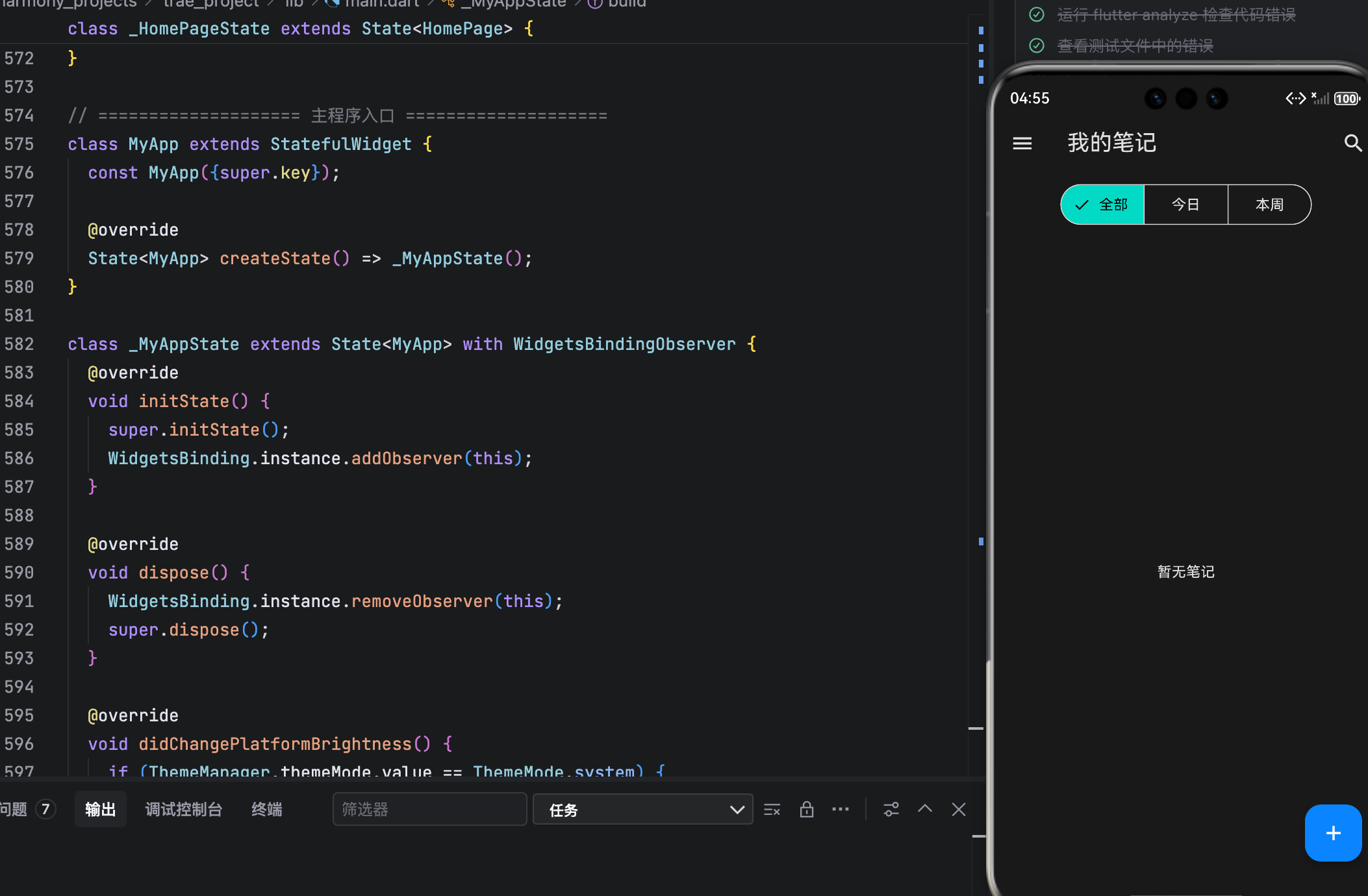
运行界面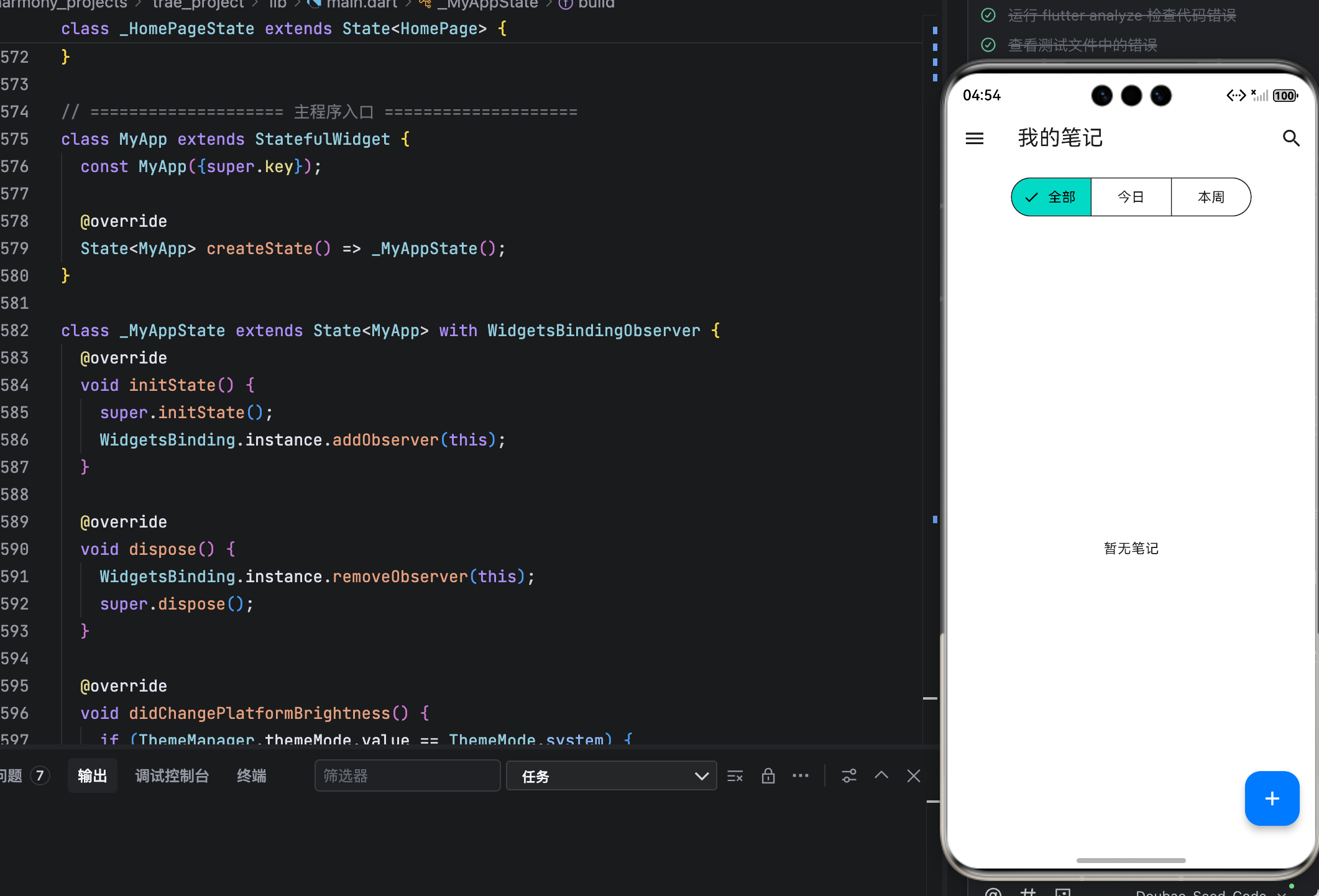
结语
本文成功为鸿蒙记事本集成了 智能夜间模式,通过 系统跟随 + 手动切换 双模式,配合 科学的色彩体系,实现了全天候舒适的视觉体验。所有 UI 元素均通过 ThemeData 统一管理,确保一致性与可维护性。
至此,我们的记事本已具备 专业级功能与体验。下一步,我们将把内存数据持久化到 本地数据库(Drift),彻底解决数据易失问题,打造真正可靠的个人知识管理工具。

作为“人工智能6S店”的官方数字引擎,为AI开发者与企业提供一个覆盖软硬件全栈、一站式门户。
更多推荐

 5
5 0
0- 0


 已为社区贡献39条内容

所有评论(0)