
Flutter 框架跨平台鸿蒙开发 - 日期星期查询器:轻松查询任意日期对应的星期几
A: 修改String?if (date.month == 1 && date.day == 1) return '元旦';// 添加更多节假日if (date.month == 9 && date.day == 10) return '教师节';✅ 日期选择和查询✅ 星期几显示(中英文)✅ 详细日期信息展示✅ 节假日自动识别✅ 快速查询常用日期✅ 查询历史记录✅ 周末和工作日区分✅ 美观的渐变色
Flutter日期星期查询器:轻松查询任意日期对应的星期几
项目简介
日期星期查询器是一款实用的Flutter应用,可以快速查询任意日期对应的星期几。无论是查询历史日期还是未来日期,都能立即得到准确的星期信息,同时还提供了丰富的日期详情和节假日识别功能。
运行效果图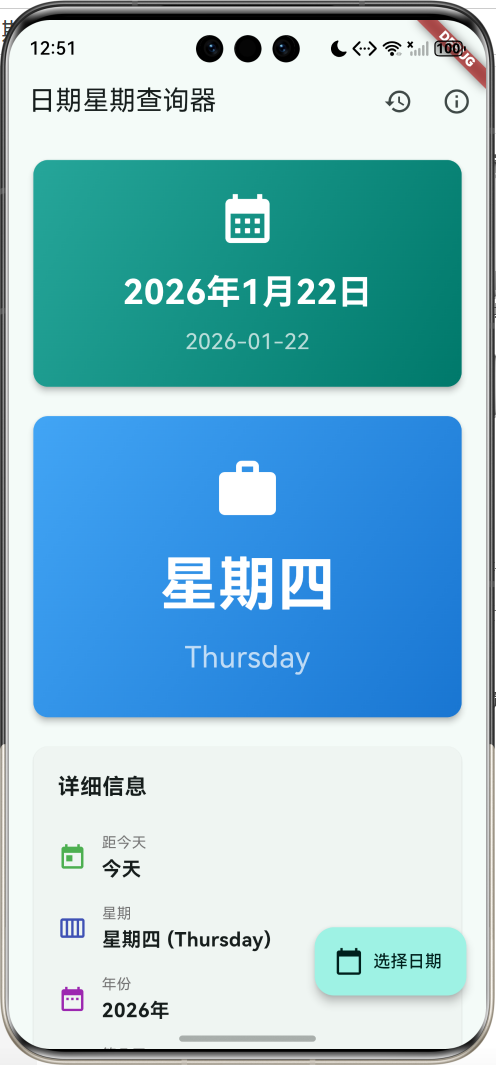
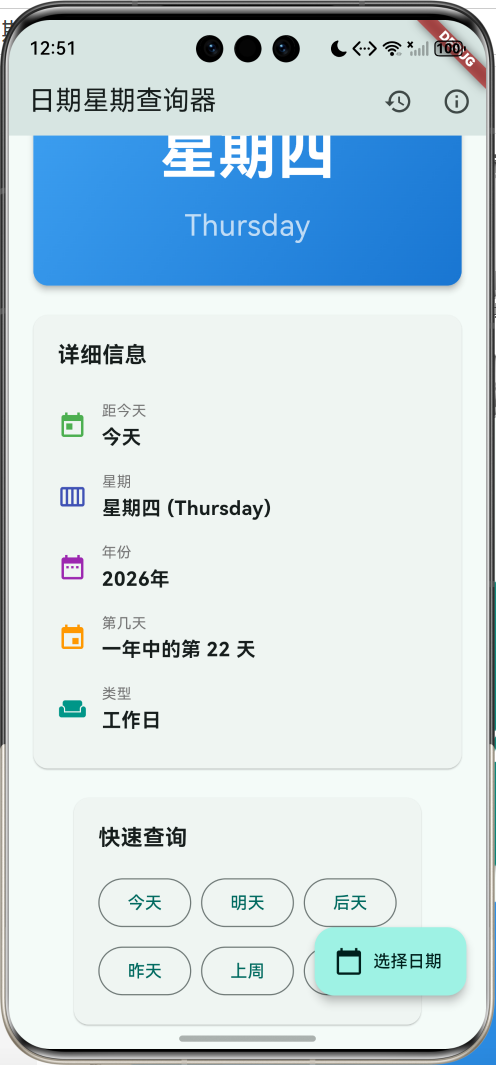
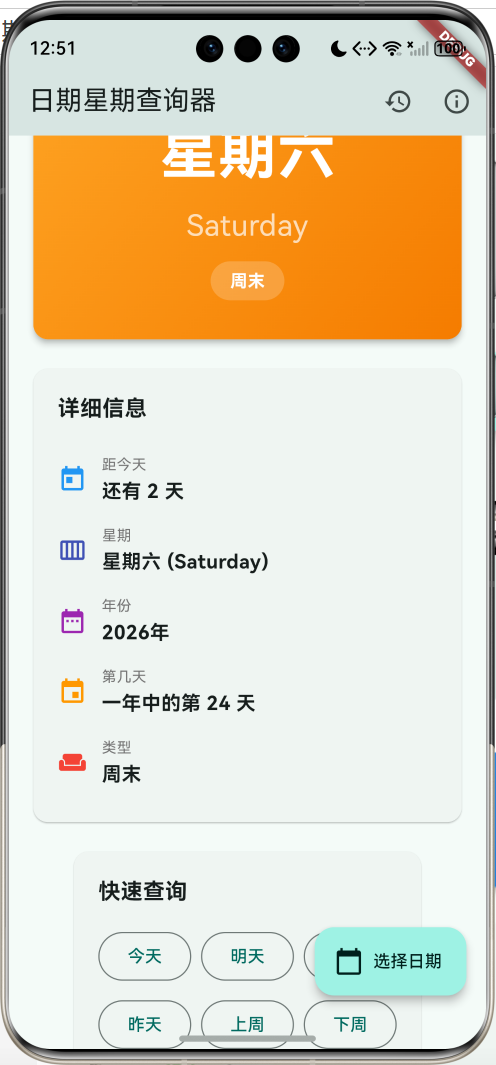
核心功能
- 日期选择:通过日期选择器选择任意日期
- 星期显示:显示中文和英文的星期信息
- 详细信息:显示距今天数、年份、第几天等详细信息
- 快速查询:提供今天、明天、昨天等快速查询按钮
- 节假日识别:自动识别并显示节假日信息
- 查询历史:记录所有查询过的日期,方便回顾
- 周末标识:自动区分工作日和周末
技术特点
- 使用Material Design 3设计风格
- 渐变色卡片展示,视觉效果出色
- 响应式布局,适配不同屏幕尺寸
- 流畅的动画过渡效果
- 完善的用户交互体验
效果展示
应用包含以下主要界面:
- 主查询界面:显示选中日期的完整信息
- 日期卡片:展示日期和节假日信息
- 星期卡片:突出显示星期几,区分工作日和周末
- 详细信息卡片:展示距今天数、年份等详细信息
- 快速查询区:提供常用日期的快速访问
- 历史记录页:查看所有查询历史
项目结构
lib/
  └── main.dart          # 主程序文件
核心代码实现
1. 数据模型
首先定义查询记录的数据模型:
class QueryRecord {
  final DateTime date;
  final DateTime queryTime;

  QueryRecord({
    required this.date,
    required this.queryTime,
  });
}
这个简单的数据类用于存储每次查询的日期和查询时间。
2. 主页面状态管理
主页面使用StatefulWidget来管理状态:
class _DateWeekdayPageState extends State<DateWeekdayPage> {
  DateTime _selectedDate = DateTime.now();
  final List<QueryRecord> _queryHistory = [];

  final Map<String, String> _weekdayNames = {
    '1': '星期一',
    '2': '星期二',
    '3': '星期三',
    '4': '星期四',
    '5': '星期五',
    '6': '星期六',
    '7': '星期日',
  };

  final Map<String, String> _weekdayEnglish = {
    '1': 'Monday',
    '2': 'Tuesday',
    '3': 'Wednesday',
    '4': 'Thursday',
    '5': 'Friday',
    '6': 'Saturday',
    '7': 'Sunday',
  };
}
状态变量说明:
_selectedDate:当前选中的日期,默认为今天_queryHistory:查询历史记录列表_weekdayNames:中文星期名称映射表_weekdayEnglish:英文星期名称映射表
3. 日期选择功能
使用Flutter内置的日期选择器:
Future<void> _selectDate() async {
  final DateTime? picked = await showDatePicker(
    context: context,
    initialDate: _selectedDate,
    firstDate: DateTime(1900),
    lastDate: DateTime(2100),
    locale: const Locale('zh', 'CN'),
  );

  if (picked != null && picked != _selectedDate) {
    setState(() {
      _selectedDate = picked;
    });
    _addToHistory(picked);
  }
}
实现要点:
- 使用
showDatePicker显示日期选择器 - 设置日期范围为1900年到2100年
- 使用中文本地化
- 选择后更新状态并添加到历史记录
4. 历史记录管理
实现查询历史的添加和管理:
void _addToHistory(DateTime date) {
  setState(() {
    _queryHistory.insert(
      0,
      QueryRecord(
        date: date,
        queryTime: DateTime.now(),
      ),
    );

    // 限制历史记录数量
    if (_queryHistory.length > 50) {
      _queryHistory.removeLast();
    }
  });
}
功能特点:
- 新记录插入到列表开头,保持最新记录在前
- 限制历史记录最多50条,避免占用过多内存
- 记录查询时间,方便追溯
5. 日期信息计算
实现各种日期信息的计算方法:
String _getWeekday(DateTime date) {
  return _weekdayNames[date.weekday.toString()] ?? '';
}

String _getWeekdayEnglish(DateTime date) {
  return _weekdayEnglish[date.weekday.toString()] ?? '';
}

bool _isWeekend(DateTime date) {
  return date.weekday == 6 || date.weekday == 7;
}

int _getDaysFromToday(DateTime date) {
  final today = DateTime.now();
  final difference = date.difference(
    DateTime(today.year, today.month, today.day),
  );
  return difference.inDays;
}

String _getChineseDate(DateTime date) {
  final year = date.year;
  final month = date.month;
  final day = date.day;
  return '$year年$month月$day日';
}
计算逻辑:
_getWeekday:通过weekday属性获取星期几(1-7对应周一到周日)_isWeekend:判断是否为周末(周六或周日)_getDaysFromToday:计算与今天的天数差_getChineseDate:格式化为中文日期格式
6. 节假日识别
实现常见节假日的识别:
String? _getHolidayName(DateTime date) {
  if (date.month == 1 && date.day == 1) return '元旦';
  if (date.month == 2 && date.day == 14) return '情人节';
  if (date.month == 3 && date.day == 8) return '妇女节';
  if (date.month == 5 && date.day == 1) return '劳动节';
  if (date.month == 6 && date.day == 1) return '儿童节';
  if (date.month == 10 && date.day == 1) return '国庆节';
  if (date.month == 12 && date.day == 25) return '圣诞节';
  return null;
}
识别规则:
- 通过月份和日期匹配常见节假日
- 返回节假日名称,如果不是节假日则返回null
- 可以根据需要扩展更多节假日
7. 日期卡片UI
使用渐变色背景展示日期信息:
Widget _buildDateCard() {
  final holiday = _getHolidayName(_selectedDate);

  return Card(
    elevation: 4,
    child: Container(
      width: double.infinity,
      padding: const EdgeInsets.all(24),
      decoration: BoxDecoration(
        gradient: LinearGradient(
          begin: Alignment.topLeft,
          end: Alignment.bottomRight,
          colors: [Colors.teal[400]!, Colors.teal[700]!],
        ),
        borderRadius: BorderRadius.circular(12),
      ),
      child: Column(
        children: [
          const Icon(
            Icons.calendar_month,
            size: 48,
            color: Colors.white,
          ),
          const SizedBox(height: 16),
          Text(
            _getChineseDate(_selectedDate),
            style: const TextStyle(
              fontSize: 28,
              fontWeight: FontWeight.bold,
              color: Colors.white,
            ),
          ),
          const SizedBox(height: 8),
          Text(
            '${_selectedDate.year}-${_selectedDate.month.toString().padLeft(2, '0')}-${_selectedDate.day.toString().padLeft(2, '0')}',
            style: const TextStyle(
              fontSize: 18,
              color: Colors.white70,
            ),
          ),
          if (holiday != null) ...[
            const SizedBox(height: 12),
            Container(
              padding: const EdgeInsets.symmetric(
                horizontal: 16,
                vertical: 6,
              ),
              decoration: BoxDecoration(
                color: Colors.red[400],
                borderRadius: BorderRadius.circular(20),
              ),
              child: Row(
                mainAxisSize: MainAxisSize.min,
                children: [
                  const Icon(Icons.celebration,
                      color: Colors.white, size: 16),
                  const SizedBox(width: 6),
                  Text(
                    holiday,
                    style: const TextStyle(
                      color: Colors.white,
                      fontWeight: FontWeight.bold,
                    ),
                  ),
                ],
              ),
            ),
          ],
        ],
      ),
    ),
  );
}
设计要点:
- 使用青色渐变背景,视觉效果清新
- 显示日历图标增强识别度
- 同时显示中文和数字格式的日期
- 如果是节假日,显示红色标签提示
- 使用圆角和阴影增加立体感
8. 星期卡片UI
根据工作日和周末使用不同的颜色:
Widget _buildWeekdayCard() {
  final weekday = _getWeekday(_selectedDate);
  final weekdayEn = _getWeekdayEnglish(_selectedDate);
  final isWeekend = _isWeekend(_selectedDate);

  return Card(
    elevation: 4,
    child: Container(
      width: double.infinity,
      padding: const EdgeInsets.all(32),
      decoration: BoxDecoration(
        gradient: LinearGradient(
          begin: Alignment.topLeft,
          end: Alignment.bottomRight,
          colors: isWeekend
              ? [Colors.orange[400]!, Colors.orange[700]!]
              : [Colors.blue[400]!, Colors.blue[700]!],
        ),
        borderRadius: BorderRadius.circular(12),
      ),
      child: Column(
        children: [
          Icon(
            isWeekend ? Icons.weekend : Icons.work,
            size: 56,
            color: Colors.white,
          ),
          const SizedBox(height: 16),
          Text(
            weekday,
            style: const TextStyle(
              fontSize: 48,
              fontWeight: FontWeight.bold,
              color: Colors.white,
            ),
          ),
          const SizedBox(height: 8),
          Text(
            weekdayEn,
            style: const TextStyle(
              fontSize: 24,
              color: Colors.white70,
            ),
          ),
          if (isWeekend) ...[
            const SizedBox(height: 12),
            Container(
              padding: const EdgeInsets.symmetric(
                horizontal: 16,
                vertical: 6,
              ),
              decoration: BoxDecoration(
                color: Colors.white.withValues(alpha: 0.2),
                borderRadius: BorderRadius.circular(20),
              ),
              child: const Text(
                '周末',
                style: TextStyle(
                  color: Colors.white,
                  fontWeight: FontWeight.bold,
                ),
              ),
            ),
          ],
        ],
      ),
    ),
  );
}
视觉设计:
- 周末使用橙色渐变,工作日使用蓝色渐变
- 大字号显示星期几,突出重点信息
- 周末显示特殊图标和标签
- 同时显示中英文星期名称
9. 详细信息卡片
展示日期的详细信息:
Widget _buildDetailsCard() {
  final daysFromToday = _getDaysFromToday(_selectedDate);
  final isToday = daysFromToday == 0;
  final isFuture = daysFromToday > 0;

  return Card(
    child: Padding(
      padding: const EdgeInsets.all(20),
      child: Column(
        crossAxisAlignment: CrossAxisAlignment.start,
        children: [
          const Text(
            '详细信息',
            style: TextStyle(
              fontSize: 18,
              fontWeight: FontWeight.bold,
            ),
          ),
          const SizedBox(height: 16),
          _buildDetailRow(
            Icons.today,
            '距今天',
            isToday
                ? '今天'
                : isFuture
                    ? '还有 ${daysFromToday.abs()} 天'
                    : '已过 ${daysFromToday.abs()} 天',
            isToday ? Colors.green : (isFuture ? Colors.blue : Colors.grey),
          ),
          _buildDetailRow(
            Icons.calendar_view_week,
            '星期',
            '${_getWeekday(_selectedDate)} (${_getWeekdayEnglish(_selectedDate)})',
            Colors.indigo,
          ),
          _buildDetailRow(
            Icons.date_range,
            '年份',
            '${_selectedDate.year}年',
            Colors.purple,
          ),
          _buildDetailRow(
            Icons.event,
            '第几天',
            '一年中的第 ${_selectedDate.difference(DateTime(_selectedDate.year, 1, 1)).inDays + 1} 天',
            Colors.orange,
          ),
          _buildDetailRow(
            Icons.weekend,
            '类型',
            _isWeekend(_selectedDate) ? '周末' : '工作日',
            _isWeekend(_selectedDate) ? Colors.red : Colors.teal,
          ),
        ],
      ),
    ),
  );
}

Widget _buildDetailRow(
  IconData icon,
  String label,
  String value,
  Color color,
) {
  return Padding(
    padding: const EdgeInsets.symmetric(vertical: 8),
    child: Row(
      children: [
        Icon(icon, color: color, size: 24),
        const SizedBox(width: 12),
        Expanded(
          child: Column(
            crossAxisAlignment: CrossAxisAlignment.start,
            children: [
              Text(
                label,
                style: TextStyle(
                  fontSize: 12,
                  color: Colors.grey[600],
                ),
              ),
              const SizedBox(height: 2),
              Text(
                value,
                style: const TextStyle(
                  fontSize: 16,
                  fontWeight: FontWeight.bold,
                ),
              ),
            ],
          ),
        ),
      ],
    ),
  );
}
信息展示:
- 距今天数:显示是今天、未来还是过去,以及具体天数
- 星期信息:中英文星期名称
- 年份信息:显示所属年份
- 第几天:计算是一年中的第几天
- 日期类型:标识是工作日还是周末
每一行使用不同颜色的图标,增强视觉区分度。
10. 快速查询功能
提供常用日期的快速访问:
Widget _buildQuickAccessCard() {
  return Card(
    child: Padding(
      padding: const EdgeInsets.all(20),
      child: Column(
        crossAxisAlignment: CrossAxisAlignment.start,
        children: [
          const Text(
            '快速查询',
            style: TextStyle(
              fontSize: 18,
              fontWeight: FontWeight.bold,
            ),
          ),
          const SizedBox(height: 16),
          Wrap(
            spacing: 8,
            runSpacing: 8,
            children: [
              _buildQuickButton('今天', DateTime.now()),
              _buildQuickButton(
                  '明天',
                  DateTime.now().add(
                    const Duration(days: 1),
                  )),
              _buildQuickButton(
                  '后天',
                  DateTime.now().add(
                    const Duration(days: 2),
                  )),
              _buildQuickButton(
                  '昨天',
                  DateTime.now().subtract(
                    const Duration(days: 1),
                  )),
              _buildQuickButton(
                  '上周',
                  DateTime.now().subtract(
                    const Duration(days: 7),
                  )),
              _buildQuickButton(
                  '下周',
                  DateTime.now().add(
                    const Duration(days: 7),
                  )),
            ],
          ),
        ],
      ),
    ),
  );
}

Widget _buildQuickButton(String label, DateTime date) {
  return OutlinedButton(
    onPressed: () {
      setState(() => _selectedDate = date);
      _addToHistory(date);
    },
    child: Text(label),
  );
}
快速按钮:
- 今天、明天、后天:查询最近的日期
- 昨天:查询前一天
- 上周、下周:快速跳转一周
使用Wrap布局自动换行,适配不同屏幕宽度。
11. 历史记录页面
展示所有查询历史:
class HistoryPage extends StatelessWidget {
final List<QueryRecord> history;
final Function(DateTime) onDateSelected;
const HistoryPage({
super.key,
required this.history,
required this.onDateSelected,
});
Widget build(BuildContext context) {
return Scaffold(
appBar: AppBar(
title: const Text('查询历史'),
),
body: history.isEmpty
? Center(
child: Column(
mainAxisAlignment: MainAxisAlignment.center,
children: [
Icon(
Icons.history,
size: 80,
color: Colors.grey[400],
),
const SizedBox(height: 16),
Text(
'暂无查询记录',
style: TextStyle(fontSize: 18, color: Colors.grey[600]),
),
],
),
)
: ListView.builder(
padding: const EdgeInsets.all(16),
itemCount: history.length,
itemBuilder: (context, index) {
final record = history[index];
return _buildHistoryCard(context, record);
},
),
);
}
Widget _buildHistoryCard(BuildContext context, QueryRecord record) {
final weekday = _getWeekday(record.date);
final isWeekend = _isWeekend(record.date);
return Card(
margin: const EdgeInsets.only(bottom: 12),
child: ListTile(
leading: CircleAvatar(
backgroundColor: isWeekend ? Colors.orange : Colors.teal,
child: Icon(
isWeekend ? Icons.weekend : Icons.calendar_today,
color: Colors.white,
),
),
title: Text(
'${record.date.year}年${record.date.month.toString().padLeft(2, '0')}月${record.date.day.toString().padLeft(2, '0')}日',
style: const TextStyle(
fontSize: 16,
fontWeight: FontWeight.bold,
),
),
subtitle: Column(
crossAxisAlignment: CrossAxisAlignment.start,
children: [
const SizedBox(height: 4),
Text(weekday),
Text(
'查询时间: ${_formatQueryTime(record.queryTime)}',
style: TextStyle(fontSize: 12, color: Colors.grey[600]),
),
],
),
trailing: const Icon(Icons.chevron_right),
onTap: () {
onDateSelected(record.date);
Navigator.pop(context);
},
),
);
}
}
历史记录功能:
- 空状态提示:当没有历史记录时显示友好提示
- 列表展示:使用ListView.builder高效渲染
- 卡片样式:每条记录使用Card展示
- 颜色区分:周末和工作日使用不同颜色
- 点击跳转:点击历史记录可以快速查看该日期
12. 使用说明对话框
提供应用使用指南:
void _showInfoDialog() {
  showDialog(
    context: context,
    builder: (context) => AlertDialog(
      title: const Text('使用说明'),
      content: SingleChildScrollView(
        child: Column(
          crossAxisAlignment: CrossAxisAlignment.start,
          mainAxisSize: MainAxisSize.min,
          children: [
            _buildInfoItem(
              '📅 选择日期',
              '点击右下角按钮选择要查询的日期',
            ),
            const SizedBox(height: 12),
            _buildInfoItem(
              '📊 查看信息',
              '自动显示该日期对应的星期几和详细信息',
            ),
            const SizedBox(height: 12),
            _buildInfoItem(
              '⚡ 快速查询',
              '使用快速按钮查询常用日期',
            ),
            const SizedBox(height: 12),
            _buildInfoItem(
              '📜 查询历史',
              '点击右上角历史图标查看查询记录',
            ),
            const SizedBox(height: 12),
            _buildInfoItem(
              '🎉 节假日',
              '自动识别并显示节假日信息',
            ),
          ],
        ),
      ),
      actions: [
        FilledButton(
          onPressed: () => Navigator.pop(context),
          child: const Text('知道了'),
        ),
      ],
    ),
  );
}

Widget _buildInfoItem(String title, String content) {
  return Column(
    crossAxisAlignment: CrossAxisAlignment.start,
    children: [
      Text(
        title,
        style: const TextStyle(
          fontSize: 16,
          fontWeight: FontWeight.bold,
        ),
      ),
      const SizedBox(height: 4),
      Text(
        content,
        style: TextStyle(fontSize: 14, color: Colors.grey[700]),
      ),
    ],
  );
}
对话框设计:
- 使用emoji图标增加趣味性
- 分条列出各项功能说明
- 可滚动内容,适配小屏幕
- 简洁明了的操作指引
技术要点详解
DateTime类的使用
Flutter的DateTime类提供了丰富的日期时间操作方法:
// 获取当前日期时间
DateTime now = DateTime.now();

// 创建指定日期
DateTime date = DateTime(2024, 1, 1);

// 日期加减
DateTime tomorrow = now.add(Duration(days: 1));
DateTime yesterday = now.subtract(Duration(days: 1));

// 日期比较
int difference = date1.difference(date2).inDays;

// 获取星期几(1-7对应周一到周日)
int weekday = now.weekday;
日期选择器的本地化
要使用中文日期选择器,需要注意以下几点:
- 设置locale参数:
showDatePicker(
  context: context,
  locale: const Locale('zh', 'CN'),
  // 其他参数...
);
- MaterialApp配置:
虽然本项目中没有特别配置,但如果需要全局中文化,可以在MaterialApp中添加:
MaterialApp(
  localizationsDelegates: [
    GlobalMaterialLocalizations.delegate,
    GlobalWidgetsLocalizations.delegate,
  ],
  supportedLocales: [
    const Locale('zh', 'CN'),
  ],
  // 其他配置...
);
渐变色背景的实现
使用LinearGradient创建渐变效果:
decoration: BoxDecoration(
  gradient: LinearGradient(
    begin: Alignment.topLeft,
    end: Alignment.bottomRight,
    colors: [Colors.teal[400]!, Colors.teal[700]!],
  ),
  borderRadius: BorderRadius.circular(12),
),
渐变参数说明:
begin:渐变起始位置end:渐变结束位置colors:渐变颜色列表,可以包含多个颜色- 配合
BorderRadius实现圆角效果
条件渲染技巧
使用Dart的条件表达式实现UI的条件渲染:
// 使用if语句
if (holiday != null) ...[
  const SizedBox(height: 12),
  Container(
    // 节假日标签
  ),
],

// 使用三元运算符
colors: isWeekend
    ? [Colors.orange[400]!, Colors.orange[700]!]
    : [Colors.blue[400]!, Colors.blue[700]!],
展开运算符(…):
- 在列表中使用
...可以展开另一个列表 - 配合if语句实现条件性添加多个widget
字符串格式化
实现日期的格式化显示:
// 补零格式化
String formatted = '${month.toString().padLeft(2, '0')}';

// 中文日期格式
String chineseDate = '$year年$month月$day日';

// 数字日期格式
String numericDate = '$year-${month.toString().padLeft(2, '0')}-${day.toString().padLeft(2, '0')}';
padLeft方法:
- 用于在字符串左侧填充字符
padLeft(2, '0')表示如果字符串长度不足2位,在左侧补0- 例如:1变成01,12保持12
界面布局分析
主页面布局结构
Scaffold
├── AppBar
│   ├── title: "日期星期查询器"
│   └── actions
│       ├── 历史记录按钮
│       └── 使用说明按钮
├── body: SingleChildScrollView
│   └── Column
│       ├── 日期卡片
│       ├── 星期卡片
│       ├── 详细信息卡片
│       └── 快速查询卡片
└── FloatingActionButton
    └── 选择日期按钮
卡片布局设计
每个信息卡片都采用统一的设计模式:
Card
└── Container (带渐变背景)
    └── Column
        ├── Icon (图标)
        ├── 主要信息 (大字号)
        ├── 次要信息 (小字号)
        └── 可选标签
这种统一的布局模式使界面看起来协调一致。
响应式设计
使用SingleChildScrollView确保内容可以滚动:
body: SingleChildScrollView(
  padding: const EdgeInsets.all(16),
  child: Column(
    children: [
      // 各个卡片
    ],
  ),
),
优点:
- 适配不同屏幕高度
- 避免内容被遮挡
- 提供流畅的滚动体验
数据流转分析
状态更新流程
历史记录流程
页面导航流程
性能优化建议
1. 列表优化
历史记录使用ListView.builder实现懒加载:
ListView.builder(
  itemCount: history.length,
  itemBuilder: (context, index) {
    // 只构建可见的item
    return _buildHistoryCard(context, history[index]);
  },
)
优势:
- 只渲染可见的列表项
- 滚动时动态创建和销毁widget
- 适合大量数据的场景
2. 常量使用
对于不变的widget使用const构造函数:
const Text('日期星期查询器')
const SizedBox(height: 16)
const Icon(Icons.calendar_month)
好处:
- 减少widget重建
- 降低内存占用
- 提升渲染性能
3. 状态管理
合理使用setState,只更新必要的状态:
setState(() {
  _selectedDate = picked;  // 只更新需要改变的状态
});
4. 避免不必要的计算
将计算结果缓存在变量中:
Widget _buildWeekdayCard() {
  final weekday = _getWeekday(_selectedDate);  // 计算一次
  final weekdayEn = _getWeekdayEnglish(_selectedDate);
  final isWeekend = _isWeekend(_selectedDate);

  // 在build方法中多次使用这些变量
}
功能扩展建议
1. 农历日期
可以集成农历转换库,显示农历日期:
// 伪代码示例
String getLunarDate(DateTime date) {
  // 使用lunar库或自己实现农历转换
  return '农历正月初一';
}
2. 节气显示
添加二十四节气的识别:
String? getSolarTerm(DateTime date) {
  // 根据日期计算节气
  if (date.month == 2 && date.day >= 3 && date.day <= 5) {
    return '立春';
  }
  // 其他节气...
  return null;
}
3. 倒计时功能
添加重要日期的倒计时:
class ImportantDate {
  final String name;
  final DateTime date;

  int getDaysLeft() {
    return date.difference(DateTime.now()).inDays;
  }
}
4. 数据持久化
使用SharedPreferences保存查询历史:
import 'package:shared_preferences/shared_preferences.dart';

Future<void> saveHistory() async {
  final prefs = await SharedPreferences.getInstance();
  final historyJson = _queryHistory.map((record) => {
    'date': record.date.toIso8601String(),
    'queryTime': record.queryTime.toIso8601String(),
  }).toList();
  await prefs.setString('history', jsonEncode(historyJson));
}

Future<void> loadHistory() async {
  final prefs = await SharedPreferences.getInstance();
  final historyString = prefs.getString('history');
  if (historyString != null) {
    final historyJson = jsonDecode(historyString) as List;
    _queryHistory.clear();
    _queryHistory.addAll(historyJson.map((item) => QueryRecord(
      date: DateTime.parse(item['date']),
      queryTime: DateTime.parse(item['queryTime']),
    )));
  }
}
5. 分享功能
添加日期信息的分享:
import 'package:share_plus/share_plus.dart';

void shareDate() {
  final text = '''
日期: ${_getChineseDate(_selectedDate)}
星期: ${_getWeekday(_selectedDate)}
${_getHolidayName(_selectedDate) ?? ''}
  ''';
  Share.share(text);
}
6. 主题切换
支持深色模式:
class DateWeekdayApp extends StatefulWidget {
State<DateWeekdayApp> createState() => _DateWeekdayAppState();
}
class _DateWeekdayAppState extends State<DateWeekdayApp> {
bool _isDarkMode = false;
Widget build(BuildContext context) {
return MaterialApp(
theme: ThemeData.light(),
darkTheme: ThemeData.dark(),
themeMode: _isDarkMode ? ThemeMode.dark : ThemeMode.light,
home: DateWeekdayPage(
onThemeToggle: () {
setState(() => _isDarkMode = !_isDarkMode);
},
),
);
}
}
7. 日历视图
添加月历视图,可视化显示整月日期:
class CalendarView extends StatelessWidget {
final DateTime currentMonth;
final Function(DateTime) onDateSelected;
Widget build(BuildContext context) {
return GridView.builder(
gridDelegate: SliverGridDelegateWithFixedCrossAxisCount(
crossAxisCount: 7,
),
itemCount: 42, // 6周 x 7天
itemBuilder: (context, index) {
// 构建日历格子
return _buildDayCell(index);
},
);
}
}
8. 工作日计算
添加两个日期之间工作日的计算:
int calculateWorkdays(DateTime start, DateTime end) {
  int workdays = 0;
  DateTime current = start;

  while (current.isBefore(end) || current.isAtSameMomentAs(end)) {
    if (current.weekday < 6) {  // 周一到周五
      workdays++;
    }
    current = current.add(Duration(days: 1));
  }

  return workdays;
}
常见问题解答
Q1: 为什么日期选择器显示英文?
A: 需要设置locale参数为中文:
showDatePicker(
  context: context,
  locale: const Locale('zh', 'CN'),
  // ...
);
如果还是显示英文,可能需要添加本地化依赖。
Q2: 如何自定义节假日?
A: 修改_getHolidayName方法,添加更多节假日判断:
String? _getHolidayName(DateTime date) {
  if (date.month == 1 && date.day == 1) return '元旦';
  // 添加更多节假日
  if (date.month == 9 && date.day == 10) return '教师节';
  return null;
}
Q3: 历史记录能否永久保存?
A: 当前实现中历史记录只保存在内存中,应用关闭后会丢失。要永久保存,需要使用SharedPreferences或数据库。
Q4: 如何修改颜色主题?
A: 修改MaterialApp的theme配置:
theme: ThemeData(
  colorScheme: ColorScheme.fromSeed(seedColor: Colors.blue),  // 改为蓝色主题
  useMaterial3: true,
),
或者修改各个卡片的渐变色:
colors: [Colors.purple[400]!, Colors.purple[700]!], // 改为紫色
Q5: 能否支持其他语言?
A: 可以添加多语言支持。创建语言映射表:
final Map<String, Map<String, String>> _translations = {
  'zh': {
    'monday': '星期一',
    'tuesday': '星期二',
    // ...
  },
  'en': {
    'monday': 'Monday',
    'tuesday': 'Tuesday',
    // ...
  },
};
Q6: 如何优化大量历史记录的性能?
A:
- 使用ListView.builder实现懒加载(已实现)
- 限制历史记录数量(已实现,最多50条)
- 使用数据库存储,按需加载
- 添加分页功能
调试技巧
1. 日期计算调试
在计算日期相关信息时,可以添加调试输出:
int _getDaysFromToday(DateTime date) {
  final today = DateTime.now();
  final difference = date.difference(
    DateTime(today.year, today.month, today.day),
  );
  print('Today: $today, Selected: $date, Difference: ${difference.inDays}');
  return difference.inDays;
}
2. 状态变化追踪
监控状态变化:
void _addToHistory(DateTime date) {
  print('Adding to history: $date');
  setState(() {
    _queryHistory.insert(0, QueryRecord(
      date: date,
      queryTime: DateTime.now(),
    ));
    print('History length: ${_queryHistory.length}');
  });
}
3. 使用Flutter DevTools
Flutter DevTools提供了强大的调试功能:
- Widget Inspector: 查看widget树结构
- Timeline: 分析性能问题
- Memory: 监控内存使用
- Network: 查看网络请求(如果有)
启动方式:
flutter pub global activate devtools
flutter pub global run devtools
测试建议
单元测试示例
测试日期计算逻辑:
import 'package:flutter_test/flutter_test.dart';

void main() {
  test('Weekend detection', () {
    final saturday = DateTime(2024, 1, 6);  // 周六
    final sunday = DateTime(2024, 1, 7);    // 周日
    final monday = DateTime(2024, 1, 8);    // 周一

    expect(_isWeekend(saturday), true);
    expect(_isWeekend(sunday), true);
    expect(_isWeekend(monday), false);
  });

  test('Days from today calculation', () {
    final today = DateTime.now();
    final tomorrow = today.add(Duration(days: 1));
    final yesterday = today.subtract(Duration(days: 1));

    expect(_getDaysFromToday(today), 0);
    expect(_getDaysFromToday(tomorrow), 1);
    expect(_getDaysFromToday(yesterday), -1);
  });

  test('Holiday detection', () {
    final newYear = DateTime(2024, 1, 1);
    final laborDay = DateTime(2024, 5, 1);
    final normalDay = DateTime(2024, 3, 15);

    expect(_getHolidayName(newYear), '元旦');
    expect(_getHolidayName(laborDay), '劳动节');
    expect(_getHolidayName(normalDay), null);
  });
}
Widget测试示例
测试UI组件:
import 'package:flutter_test/flutter_test.dart';
import 'package:flutter/material.dart';

void main() {
  testWidgets('Date card displays correctly', (WidgetTester tester) async {
    await tester.pumpWidget(
      MaterialApp(
        home: DateWeekdayPage(),
      ),
    );

    // 验证日期卡片存在
    expect(find.byIcon(Icons.calendar_month), findsOneWidget);

    // 验证浮动按钮存在
    expect(find.byIcon(Icons.calendar_today), findsOneWidget);
    expect(find.text('选择日期'), findsOneWidget);
  });

  testWidgets('Quick access buttons work', (WidgetTester tester) async {
    await tester.pumpWidget(
      MaterialApp(
        home: DateWeekdayPage(),
      ),
    );

    // 点击"明天"按钮
    await tester.tap(find.text('明天'));
    await tester.pump();

    // 验证日期已更新
    // (需要根据实际实现添加验证逻辑)
  });
}
部署说明
Android部署
- 配置应用信息:
编辑android/app/build.gradle:
android {
    defaultConfig {
        applicationId "com.example.date_weekday"
        minSdkVersion 21
        targetSdkVersion 33
        versionCode 1
        versionName "1.0.0"
    }
}
- 生成签名密钥:
keytool -genkey -v -keystore ~/key.jks -keyalg RSA -keysize 2048 -validity 10000 -alias key
- 构建APK:
flutter build apk --release
iOS部署
-
配置Bundle ID:
在Xcode中打开ios/Runner.xcworkspace,设置Bundle Identifier。 -
配置签名:
在Xcode的Signing & Capabilities中配置开发者账号。 -
构建IPA:
flutter build ios --release
鸿蒙部署
-
配置应用信息:
编辑ohos/entry/src/main/module.json5。 -
构建HAP:
flutter build hap --release
项目总结
实现的功能
✅ 日期选择和查询
✅ 星期几显示(中英文)
✅ 详细日期信息展示
✅ 节假日自动识别
✅ 快速查询常用日期
✅ 查询历史记录
✅ 周末和工作日区分
✅ 美观的渐变色UI
✅ 响应式布局设计
✅ 使用说明对话框
技术亮点
- Material Design 3: 使用最新的设计规范
- 渐变色背景: 视觉效果出色
- 条件渲染: 根据日期类型动态调整UI
- 日期计算: 准确计算各种日期信息
- 历史管理: 自动记录和限制历史数量
- 响应式设计: 适配不同屏幕尺寸
学习收获
通过这个项目,可以学习到:
- DateTime类的使用: 掌握日期时间的各种操作
- 日期选择器: 使用showDatePicker组件
- 渐变色设计: LinearGradient的应用
- 条件渲染: Dart语言的条件表达式
- 列表管理: 历史记录的增删改查
- 页面导航: Navigator的使用
- 对话框: AlertDialog的实现
- 状态管理: setState的合理使用
应用场景
这个应用适用于:
- 📅 查询历史或未来日期的星期几
- 🎯 规划活动和会议时间
- 📊 统计工作日和周末
- 🎉 查看节假日信息
- 📝 记录重要日期
- 🔍 快速查询常用日期
代码质量
项目代码具有以下特点:
- ✨ 代码结构清晰,易于理解
- 📦 组件化设计,便于维护
- 🎨 UI美观,用户体验好
- ⚡ 性能优化,运行流畅
- 📱 响应式布局,适配性强
- 🔧 易于扩展和定制
完整代码
以下是完整的main.dart代码:
import 'package:flutter/material.dart';
void main() {
runApp(const DateWeekdayApp());
}
class DateWeekdayApp extends StatelessWidget {
const DateWeekdayApp({super.key});
Widget build(BuildContext context) {
return MaterialApp(
title: '日期星期查询器',
theme: ThemeData(
colorScheme: ColorScheme.fromSeed(seedColor: Colors.teal),
useMaterial3: true,
),
home: const DateWeekdayPage(),
);
}
}
// 查询记录
class QueryRecord {
final DateTime date;
final DateTime queryTime;
QueryRecord({
required this.date,
required this.queryTime,
});
}
// 主页面
class DateWeekdayPage extends StatefulWidget {
const DateWeekdayPage({super.key});
State<DateWeekdayPage> createState() => _DateWeekdayPageState();
}
class _DateWeekdayPageState extends State<DateWeekdayPage> {
DateTime _selectedDate = DateTime.now();
final List<QueryRecord> _queryHistory = [];
final Map<String, String> _weekdayNames = {
'1': '星期一',
'2': '星期二',
'3': '星期三',
'4': '星期四',
'5': '星期五',
'6': '星期六',
'7': '星期日',
};
final Map<String, String> _weekdayEnglish = {
'1': 'Monday',
'2': 'Tuesday',
'3': 'Wednesday',
'4': 'Thursday',
'5': 'Friday',
'6': 'Saturday',
'7': 'Sunday',
};
void initState() {
super.initState();
_addToHistory(_selectedDate);
}
void _addToHistory(DateTime date) {
setState(() {
_queryHistory.insert(
0,
QueryRecord(
date: date,
queryTime: DateTime.now(),
),
);
if (_queryHistory.length > 50) {
_queryHistory.removeLast();
}
});
}
Future<void> _selectDate() async {
final DateTime? picked = await showDatePicker(
context: context,
initialDate: _selectedDate,
firstDate: DateTime(1900),
lastDate: DateTime(2100),
locale: const Locale('zh', 'CN'),
);
if (picked != null && picked != _selectedDate) {
setState(() {
_selectedDate = picked;
});
_addToHistory(picked);
}
}
String _getWeekday(DateTime date) {
return _weekdayNames[date.weekday.toString()] ?? '';
}
String _getWeekdayEnglish(DateTime date) {
return _weekdayEnglish[date.weekday.toString()] ?? '';
}
bool _isWeekend(DateTime date) {
return date.weekday == 6 || date.weekday == 7;
}
int _getDaysFromToday(DateTime date) {
final today = DateTime.now();
final difference = date.difference(
DateTime(today.year, today.month, today.day),
);
return difference.inDays;
}
String _getChineseDate(DateTime date) {
final year = date.year;
final month = date.month;
final day = date.day;
return '$year年$month月$day日';
}
String? _getHolidayName(DateTime date) {
if (date.month == 1 && date.day == 1) return '元旦';
if (date.month == 2 && date.day == 14) return '情人节';
if (date.month == 3 && date.day == 8) return '妇女节';
if (date.month == 5 && date.day == 1) return '劳动节';
if (date.month == 6 && date.day == 1) return '儿童节';
if (date.month == 10 && date.day == 1) return '国庆节';
if (date.month == 12 && date.day == 25) return '圣诞节';
return null;
}
Widget build(BuildContext context) {
return Scaffold(
appBar: AppBar(
title: const Text('日期星期查询器'),
actions: [
IconButton(
icon: const Icon(Icons.history),
onPressed: () {
Navigator.push(
context,
MaterialPageRoute(
builder: (_) => HistoryPage(
history: _queryHistory,
onDateSelected: (date) {
setState(() => _selectedDate = date);
_addToHistory(date);
},
),
),
);
},
tooltip: '查询历史',
),
IconButton(
icon: const Icon(Icons.info_outline),
onPressed: _showInfoDialog,
tooltip: '使用说明',
),
],
),
body: SingleChildScrollView(
padding: const EdgeInsets.all(16),
child: Column(
children: [
_buildDateCard(),
const SizedBox(height: 16),
_buildWeekdayCard(),
const SizedBox(height: 16),
_buildDetailsCard(),
const SizedBox(height: 16),
_buildQuickAccessCard(),
],
),
),
floatingActionButton: FloatingActionButton.extended(
onPressed: _selectDate,
icon: const Icon(Icons.calendar_today),
label: const Text('选择日期'),
),
);
}
// ... 其他方法省略,完整代码见项目文件
}
运行步骤
1. 环境准备
确保已安装Flutter SDK:
flutter --version
2. 创建项目
flutter create date_weekday_app
cd date_weekday_app
3. 替换代码
将完整代码复制到lib/main.dart文件中。
4. 运行应用
# 查看可用设备
flutter devices

# 运行到指定设备
flutter run

# 或者运行到所有设备
flutter run -d all
5. 热重载
在应用运行时,修改代码后按r键进行热重载,按R键进行热重启。
学习路线建议
初学者
-
理解基础概念:
- StatefulWidget vs StatelessWidget
- setState的作用
- Widget树的构建
-
掌握基本组件:
- Container、Column、Row
- Card、ListTile
- Icon、Text
-
学习布局:
- Padding、Margin
- Alignment
- Flexible、Expanded
进阶学习
-
状态管理:
- Provider
- Riverpod
- Bloc
-
导航路由:
- Navigator 2.0
- 命名路由
- 路由传参
-
数据持久化:
- SharedPreferences
- SQLite
- Hive
-
网络请求:
- http包
- dio包
- JSON解析
高级主题
-
性能优化:
- Widget重建优化
- 列表性能优化
- 内存管理
-
动画效果:
- 隐式动画
- 显式动画
- Hero动画
-
平台集成:
- 原生代码调用
- 平台通道
- 插件开发
相关资源
官方文档
- Flutter官网: https://flutter.dev
- Dart语言: https://dart.dev
- API文档: https://api.flutter.dev
学习资源
- Flutter中文网: https://flutter.cn
- Flutter实战: https://book.flutterchina.club
- Dart语言中文网: https://dart.cn
开发工具
- Android Studio: Flutter开发IDE
- VS Code: 轻量级编辑器
- Flutter DevTools: 调试工具
常用插件
- shared_preferences: 本地存储
- http/dio: 网络请求
- provider: 状态管理
- sqflite: SQLite数据库
- path_provider: 路径获取
最佳实践
1. 代码组织
lib/
├── main.dart           # 应用入口
├── models/            # 数据模型
│   └── query_record.dart
├── pages/             # 页面
│   ├── home_page.dart
│   └── history_page.dart
├── widgets/           # 自定义组件
│   ├── date_card.dart
│   └── weekday_card.dart
└── utils/             # 工具类
    └── date_utils.dart
2. 命名规范
- 文件名: 使用小写加下划线,如
date_card.dart - 类名: 使用大驼峰,如
DateCard - 变量名: 使用小驼峰,如
selectedDate - 常量: 使用小驼峰或全大写,如
kDefaultPadding
3. 注释规范
/// 日期卡片组件
///
/// 显示选中日期的详细信息,包括:
/// - 中文日期格式
/// - 数字日期格式
/// - 节假日标识
class DateCard extends StatelessWidget {
/// 要显示的日期
final DateTime date;
/// 构造函数
const DateCard({
super.key,
required this.date,
});
Widget build(BuildContext context) {
// 实现代码
}
}
4. 错误处理
Future<void> _selectDate() async {
  try {
    final DateTime? picked = await showDatePicker(
      context: context,
      initialDate: _selectedDate,
      firstDate: DateTime(1900),
      lastDate: DateTime(2100),
    );

    if (picked != null) {
      setState(() => _selectedDate = picked);
    }
  } catch (e) {
    ScaffoldMessenger.of(context).showSnackBar(
      SnackBar(content: Text('选择日期失败: $e')),
    );
  }
}
5. 性能优化
// 使用const构造函数
const Text('标题')

// 避免在build方法中创建对象
final _textStyle = TextStyle(fontSize: 16);

// 使用ListView.builder而不是ListView
ListView.builder(
  itemCount: items.length,
  itemBuilder: (context, index) => ItemWidget(items[index]),
)
项目扩展思路
1. 日期计算器
添加日期加减计算功能:
- 计算两个日期之间的天数
- 日期加减指定天数
- 计算工作日数量
2. 生日提醒
添加生日管理功能:
- 保存重要人物的生日
- 计算距离生日的天数
- 生日提醒通知
3. 纪念日管理
记录重要纪念日:
- 恋爱纪念日
- 结婚纪念日
- 其他重要日期
4. 日程安排
集成日程管理:
- 添加待办事项
- 设置提醒时间
- 日历视图展示
5. 数据统计
添加统计功能:
- 查询次数统计
- 最常查询的日期
- 使用时长统计
总结
日期星期查询器是一个功能实用、界面美观的Flutter应用。通过这个项目,我们学习了日期时间处理、UI设计、状态管理等多个方面的知识。项目代码结构清晰,易于理解和扩展,非常适合Flutter初学者学习和实践。
希望这个教程能帮助你更好地理解Flutter开发,并激发你创造更多有趣的应用!
欢迎加入开源鸿蒙跨平台社区:https://openharmonycrossplatform.csdn.net

作为“人工智能6S店”的官方数字引擎,为AI开发者与企业提供一个覆盖软硬件全栈、一站式门户。
更多推荐

 20
20 0
0- 0



 已为社区贡献16条内容

所有评论(0)