
Flutter 框架跨平台鸿蒙开发 - 虚拟钢琴:打造音乐创作工具
定义钢琴音符和频率。// 音符名称// 是否为黑键// 频率(Hz)});C-B:一个完整的八度C2:高八度的C#表示升半音(黑键)频率基于标准音高A=440Hz。
Flutter虚拟钢琴:打造音乐创作工具
项目简介
虚拟钢琴是一款模拟真实钢琴键盘的音乐应用。支持触摸演奏、音符显示、录制回放等功能,让用户可以随时随地享受弹奏钢琴的乐趣,是音乐学习和创作的好帮手。
运行效果图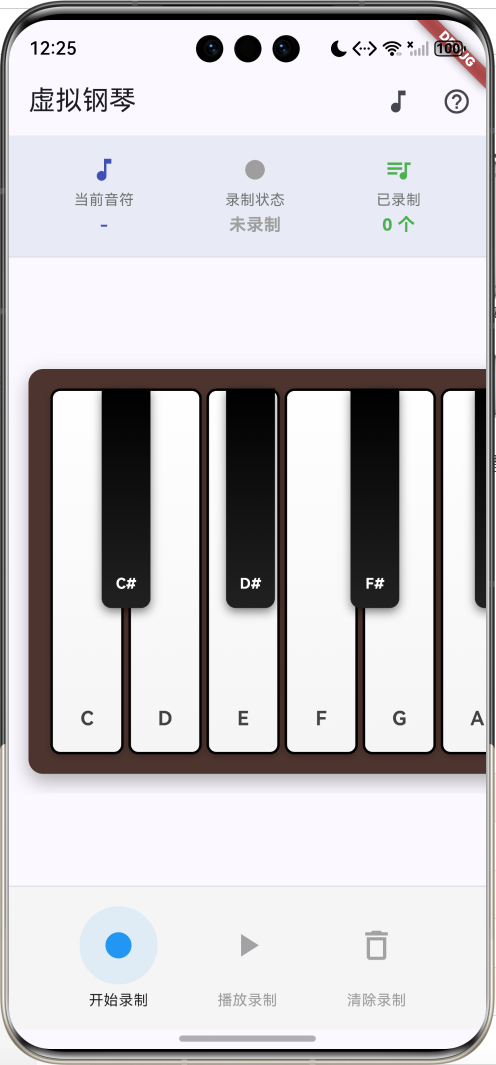
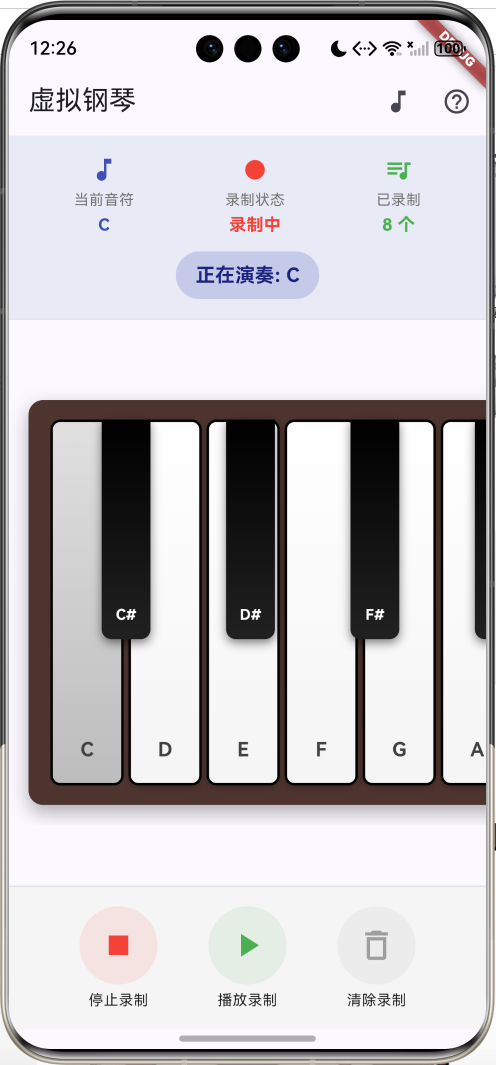
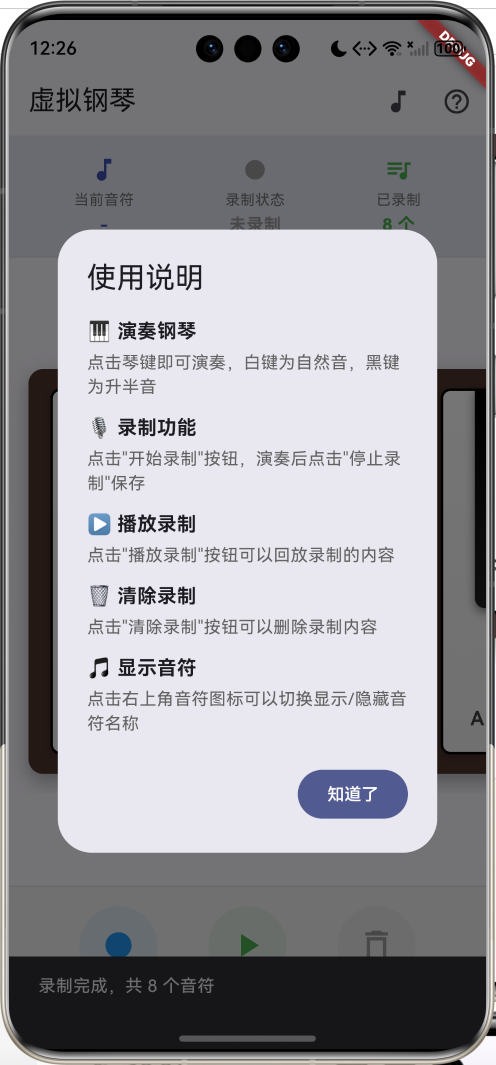
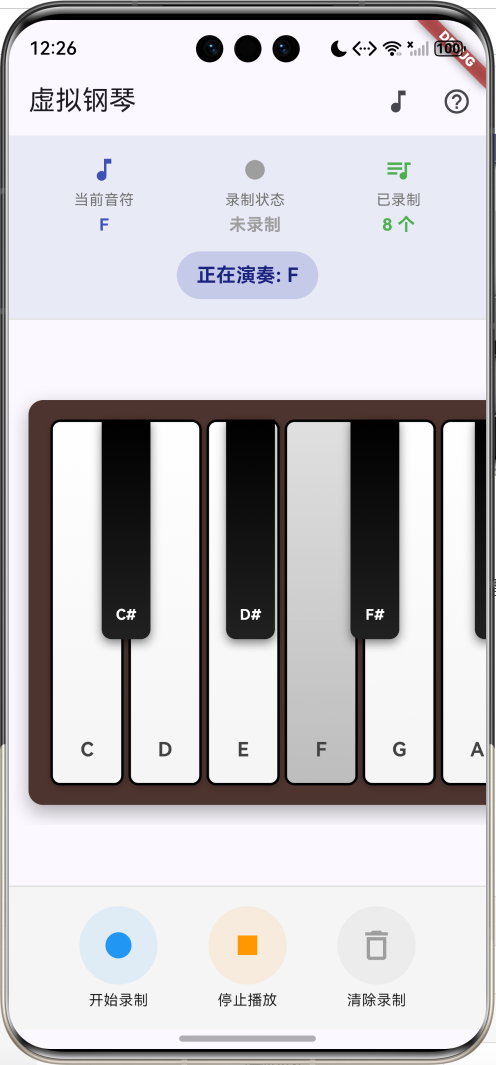
核心功能
- 完整键盘:13个琴键(C-C2),包含白键和黑键
- 触摸演奏:点击琴键即可演奏
- 音符显示:显示每个琴键的音符名称
- 录制功能:录制演奏内容
- 回放功能:播放录制的音乐
- 视觉反馈:按键按下时的视觉效果
应用特色
| 特色 | 说明 |
|---|---|
| 真实模拟 | 仿真钢琴键盘布局 |
| 流畅演奏 | 即时响应触摸 |
| 录制回放 | 保存和播放演奏 |
| 视觉效果 | 渐变色和阴影 |
| 音符标注 | 可切换显示音符 |
功能架构
核心功能详解
1. 音符定义
定义钢琴音符和频率。
音符模型:
class Note {
  final String name;       // 音符名称
  final bool isBlack;      // 是否为黑键
  final int frequency;     // 频率(Hz)

  const Note({
    required this.name,
    required this.isBlack,
    required this.frequency,
  });
}
音符列表:
final List<Note> _notes = [
  const Note(name: 'C', isBlack: false, frequency: 262),
  const Note(name: 'C#', isBlack: true, frequency: 277),
  const Note(name: 'D', isBlack: false, frequency: 294),
  const Note(name: 'D#', isBlack: true, frequency: 311),
  const Note(name: 'E', isBlack: false, frequency: 330),
  const Note(name: 'F', isBlack: false, frequency: 349),
  const Note(name: 'F#', isBlack: true, frequency: 370),
  const Note(name: 'G', isBlack: false, frequency: 392),
  const Note(name: 'G#', isBlack: true, frequency: 415),
  const Note(name: 'A', isBlack: false, frequency: 440),
  const Note(name: 'A#', isBlack: true, frequency: 466),
  const Note(name: 'B', isBlack: false, frequency: 494),
  const Note(name: 'C2', isBlack: false, frequency: 523),
];
音符说明:
- C-B:一个完整的八度
- C2:高八度的C
- #表示升半音(黑键)
- 频率基于标准音高A=440Hz
2. 演奏功能
触摸琴键演奏音符。
演奏实现:
void _playNote(String noteName) {
  setState(() {
    _currentNote = noteName;
    _pressedKeys.add(noteName);
  });

  if (_isRecording && _recordingStartTime != null) {
    _recordedNotes.add(
      RecordedNote(
        name: noteName,
        time: DateTime.now(),
      ),
    );
  }

  // 模拟音符持续时间
  Future.delayed(const Duration(milliseconds: 300), () {
    if (mounted) {
      setState(() {
        _pressedKeys.remove(noteName);
        if (_currentNote == noteName) {
          _currentNote = null;
        }
      });
    }
  });
}
演奏流程:
- 记录当前音符
- 添加到按下的键集合
- 如果正在录制,保存音符
- 300ms后自动释放
3. 白键绘制
绘制7个白色琴键。
白键实现:
Widget _buildWhiteKeys() {
  final whiteNotes = _notes.where(
    (note) => !note.isBlack
  ).toList();

  return Row(
    children: whiteNotes.asMap().entries.map((entry) {
      final note = entry.value;
      final isPressed = _pressedKeys.contains(note.name);

      return GestureDetector(
        onTapDown: (_) => _playNote(note.name),
        child: Container(
          width: 60,
          margin: const EdgeInsets.symmetric(horizontal: 2),
          decoration: BoxDecoration(
            gradient: LinearGradient(
              begin: Alignment.topCenter,
              end: Alignment.bottomCenter,
              colors: isPressed
                  ? [Colors.grey[300]!, Colors.grey[400]!]
                  : [Colors.white, Colors.grey[100]!],
            ),
            borderRadius: BorderRadius.circular(8),
            border: Border.all(color: Colors.black, width: 2),
            boxShadow: isPressed
                ? []
                : [
                    BoxShadow(
                      color: Colors.black.withValues(alpha: 0.2),
                      blurRadius: 4,
                      offset: const Offset(0, 2),
                    ),
                  ],
          ),
          child: Column(
            mainAxisAlignment: MainAxisAlignment.end,
            children: [
              if (_showNoteNames)
                Padding(
                  padding: const EdgeInsets.only(bottom: 16),
                  child: Text(
                    note.name,
                    style: TextStyle(
                      fontSize: 16,
                      fontWeight: FontWeight.bold,
                      color: Colors.grey[800],
                    ),
                  ),
                ),
            ],
          ),
        ),
      );
    }).toList(),
  );
}
白键特点:
- 宽度60px
- 白色渐变背景
- 按下时变灰
- 底部显示音符名称
4. 黑键绘制
绘制5个黑色琴键,叠加在白键上方。
黑键实现:
Widget _buildBlackKeys() {
  final blackNotes = _notes.where(
    (note) => note.isBlack
  ).toList();
  final positions = [0, 1, 3, 4, 5]; // 黑键的相对位置

  return Row(
    children: List.generate(blackNotes.length, (index) {
      final note = blackNotes[index];
      final isPressed = _pressedKeys.contains(note.name);
      final position = positions[index];

      return Container(
        margin: EdgeInsets.only(
          left: position == 0 ? 44 : 62
        ),
        child: GestureDetector(
          onTapDown: (_) => _playNote(note.name),
          child: Container(
            width: 40,
            height: 180,
            decoration: BoxDecoration(
              gradient: LinearGradient(
                begin: Alignment.topCenter,
                end: Alignment.bottomCenter,
                colors: isPressed
                    ? [Colors.grey[700]!, Colors.grey[800]!]
                    : [Colors.black, Colors.grey[900]!],
              ),
              borderRadius: const BorderRadius.only(
                bottomLeft: Radius.circular(8),
                bottomRight: Radius.circular(8),
              ),
              boxShadow: isPressed
                  ? []
                  : [
                      BoxShadow(
                        color: Colors.black.withValues(alpha: 0.5),
                        blurRadius: 6,
                        offset: const Offset(0, 3),
                      ),
                    ],
            ),
            child: Column(
              mainAxisAlignment: MainAxisAlignment.end,
              children: [
                if (_showNoteNames)
                  Padding(
                    padding: const EdgeInsets.only(bottom: 12),
                    child: Text(
                      note.name,
                      style: const TextStyle(
                        fontSize: 12,
                        fontWeight: FontWeight.bold,
                        color: Colors.white,
                      ),
                    ),
                  ),
              ],
            ),
          ),
        ),
      );
    }),
  );
}
黑键特点:
- 宽度40px,高度180px
- 黑色渐变背景
- 使用margin定位到白键之间
- 叠加在白键上方(Stack布局)
黑键位置:
- C#:在C和D之间
- D#:在D和E之间
- F#:在F和G之间
- G#:在G和A之间
- A#:在A和B之间
5. 录制功能
录制演奏的音符和时间。
录制模型:
class RecordedNote {
  final String name;      // 音符名称
  final DateTime time;    // 演奏时间

  RecordedNote({
    required this.name,
    required this.time,
  });
}
开始录制:
void _startRecording() {
  setState(() {
    _isRecording = true;
    _recordingStartTime = DateTime.now();
    _recordedNotes.clear();
  });

  ScaffoldMessenger.of(context).showSnackBar(
    const SnackBar(
      content: Text('开始录制'),
      duration: Duration(seconds: 1),
    ),
  );
}
停止录制:
void _stopRecording() {
  setState(() {
    _isRecording = false;
    _recordingStartTime = null;
  });

  ScaffoldMessenger.of(context).showSnackBar(
    SnackBar(
      content: Text('录制完成,共 ${_recordedNotes.length} 个音符'),
      duration: const Duration(seconds: 2),
    ),
  );
}
6. 回放功能
按照录制的时间间隔播放音符。
回放实现:
Future<void> _playRecording() async {
  if (_recordedNotes.isEmpty) {
    ScaffoldMessenger.of(context).showSnackBar(
      const SnackBar(content: Text('没有录制内容')),
    );
    return;
  }

  setState(() => _isPlaying = true);

  final startTime = _recordedNotes.first.time;

  for (var note in _recordedNotes) {
    final delay = note.time.difference(startTime);
    await Future.delayed(delay);

    if (!_isPlaying) break;

    _playNote(note.name);
  }

  setState(() => _isPlaying = false);
}
回放逻辑:
- 计算每个音符相对于开始时间的延迟
- 按延迟时间依次播放
- 支持中途停止
界面设计要点
1. 键盘布局
使用Stack叠加白键和黑键:
Stack(
  children: [
    _buildWhiteKeys(),  // 底层白键
    _buildBlackKeys(),  // 顶层黑键
  ],
)
2. 渐变效果
白键和黑键都使用渐变:
// 白键渐变
gradient: LinearGradient(
  begin: Alignment.topCenter,
  end: Alignment.bottomCenter,
  colors: isPressed
      ? [Colors.grey[300]!, Colors.grey[400]!]
      : [Colors.white, Colors.grey[100]!],
)

// 黑键渐变
gradient: LinearGradient(
  begin: Alignment.topCenter,
  end: Alignment.bottomCenter,
  colors: isPressed
      ? [Colors.grey[700]!, Colors.grey[800]!]
      : [Colors.black, Colors.grey[900]!],
)
3. 阴影效果
未按下时显示阴影,按下时移除:
boxShadow: isPressed
    ? []
    : [
        BoxShadow(
          color: Colors.black.withValues(alpha: 0.2),
          blurRadius: 4,
          offset: const Offset(0, 2),
        ),
      ],
4. 颜色方案
| 元素 | 颜色 | 说明 |
|---|---|---|
| 白键 | White | 自然音 |
| 黑键 | Black | 升半音 |
| 按下白键 | Grey[300] | 视觉反馈 |
| 按下黑键 | Grey[700] | 视觉反馈 |
| 键盘背景 | Brown[800] | 木质感 |
数据模型设计
音符模型
class Note {
  final String name;       // 音符名称(C, C#, D等)
  final bool isBlack;      // 是否为黑键
  final int frequency;     // 频率(Hz)
}
录制音符模型
class RecordedNote {
  final String name;       // 音符名称
  final DateTime time;     // 演奏时间
}
核心技术要点
1. Stack布局
黑键叠加在白键上方:
Stack(
  children: [
    _buildWhiteKeys(),  // 先绘制白键
    _buildBlackKeys(),  // 再绘制黑键(覆盖在上方)
  ],
)
2. 触摸检测
使用GestureDetector:
GestureDetector(
  onTapDown: (_) => _playNote(note.name),
  child: Container(
    // 琴键样式
  ),
)
3. 状态管理
使用Set管理按下的键:
final Set<String> _pressedKeys = {};

// 按下
_pressedKeys.add(noteName);

// 释放
_pressedKeys.remove(noteName);

// 检查
final isPressed = _pressedKeys.contains(note.name);
4. 异步延迟
模拟音符持续时间:
Future.delayed(const Duration(milliseconds: 300), () {
  if (mounted) {
    setState(() {
      _pressedKeys.remove(noteName);
    });
  }
});
功能扩展建议
1. 真实音频播放
使用audioplayers播放真实钢琴音:
import 'package:audioplayers/audioplayers.dart';

class AudioService {
  final AudioPlayer _player = AudioPlayer();

  Future<void> playNote(String noteName) async {
    await _player.play(
      AssetSource('sounds/$noteName.mp3')
    );
  }

  void dispose() {
    _player.dispose();
  }
}

// 在pubspec.yaml中添加音频文件
flutter:
  assets:
    - assets/sounds/C.mp3
    - assets/sounds/C#.mp3
    - assets/sounds/D.mp3
    // ... 其他音符
2. 多点触控
支持同时按下多个琴键:
class MultiTouchPiano extends StatefulWidget {
Widget build(BuildContext context) {
return Listener(
onPointerDown: (event) {
final position = event.localPosition;
final note = _getNoteAtPosition(position);
if (note != null) {
_playNote(note);
}
},
onPointerMove: (event) {
// 滑动演奏
final position = event.localPosition;
final note = _getNoteAtPosition(position);
if (note != null && !_pressedKeys.contains(note)) {
_playNote(note);
}
},
child: _buildPianoKeyboard(),
);
}
String? _getNoteAtPosition(Offset position) {
// 根据位置计算对应的音符
// 先检查黑键,再检查白键
return null;
}
}
3. 音量控制
添加音量调节功能:
class VolumeControl extends StatefulWidget {
State<VolumeControl> createState() => _VolumeControlState();
}
class _VolumeControlState extends State<VolumeControl> {
double _volume = 0.5;
Widget build(BuildContext context) {
return Row(
children: [
const Icon(Icons.volume_down),
Expanded(
child: Slider(
value: _volume,
onChanged: (value) {
setState(() => _volume = value);
AudioService().setVolume(value);
},
),
),
const Icon(Icons.volume_up),
],
);
}
}
4. 节拍器
添加节拍器功能:
class Metronome {
  Timer? _timer;
  int _bpm = 120;
  bool _isRunning = false;

  void start() {
    _isRunning = true;
    final interval = Duration(milliseconds: (60000 / _bpm).round());

    _timer = Timer.periodic(interval, (timer) {
      _playClick();
    });
  }

  void stop() {
    _isRunning = false;
    _timer?.cancel();
  }

  void setBPM(int bpm) {
    _bpm = bpm;
    if (_isRunning) {
      stop();
      start();
    }
  }

  void _playClick() {
    AudioService().playNote('click');
  }
}
5. 乐谱显示
显示五线谱:
class MusicSheet extends StatelessWidget {
final List<RecordedNote> notes;
Widget build(BuildContext context) {
return CustomPaint(
size: const Size(double.infinity, 200),
painter: MusicSheetPainter(notes),
);
}
}
class MusicSheetPainter extends CustomPainter {
final List<RecordedNote> notes;
MusicSheetPainter(this.notes);
void paint(Canvas canvas, Size size) {
// 绘制五线谱
final paint = Paint()
..color = Colors.black
..strokeWidth = 1;
for (int i = 0; i < 5; i++) {
final y = size.height / 2 - 40 + i * 20;
canvas.drawLine(
Offset(0, y),
Offset(size.width, y),
paint,
);
}
// 绘制音符
for (int i = 0; i < notes.length; i++) {
final note = notes[i];
final x = 50.0 + i * 40;
final y = _getNoteY(note.name, size.height);
// 绘制音符头
canvas.drawCircle(
Offset(x, y),
8,
Paint()..color = Colors.black,
);
// 绘制符干
canvas.drawLine(
Offset(x + 8, y),
Offset(x + 8, y - 40),
paint,
);
}
}
double _getNoteY(String noteName, double height) {
// 根据音符名称计算Y坐标
final notePositions = {
'C': 0, 'D': -10, 'E': -20, 'F': -30,
'G': -40, 'A': -50, 'B': -60,
};
return height / 2 + (notePositions[noteName[0]] ?? 0);
}
bool shouldRepaint(MusicSheetPainter oldDelegate) => true;
}
6. MIDI导出
导出为MIDI文件:
import 'package:dart_midi/dart_midi.dart';

class MidiExporter {
  Future<void> exportToMidi(
    List<RecordedNote> notes,
    String filename,
  ) async {
    final midi = MidiFile();
    final track = MidiTrack();

    int previousTime = 0;
    for (var note in notes) {
      final deltaTime = note.time.millisecondsSinceEpoch -
                       previousTime;

      // Note On
      track.addEvent(MidiEvent(
        deltaTime: deltaTime,
        type: MidiEventType.noteOn,
        channel: 0,
        data1: _getNoteNumber(note.name),
        data2: 64, // velocity
      ));

      // Note Off (300ms later)
      track.addEvent(MidiEvent(
        deltaTime: 300,
        type: MidiEventType.noteOff,
        channel: 0,
        data1: _getNoteNumber(note.name),
        data2: 0,
      ));

      previousTime = note.time.millisecondsSinceEpoch + 300;
    }

    midi.addTrack(track);

    final bytes = midi.toBytes();
    final file = File(filename);
    await file.writeAsBytes(bytes);
  }

  int _getNoteNumber(String noteName) {
    // C4 = 60
    final noteMap = {
      'C': 60, 'C#': 61, 'D': 62, 'D#': 63,
      'E': 64, 'F': 65, 'F#': 66, 'G': 67,
      'G#': 68, 'A': 69, 'A#': 70, 'B': 71,
      'C2': 72,
    };
    return noteMap[noteName] ?? 60;
  }
}
7. 和弦模式
支持和弦演奏:
class ChordMode {
  final Map<String, List<String>> chords = {
    'C': ['C', 'E', 'G'],
    'Dm': ['D', 'F', 'A'],
    'Em': ['E', 'G', 'B'],
    'F': ['F', 'A', 'C2'],
    'G': ['G', 'B', 'D'],
    'Am': ['A', 'C2', 'E'],
  };

  void playChord(String chordName) {
    final notes = chords[chordName];
    if (notes != null) {
      for (var note in notes) {
        AudioService().playNote(note);
      }
    }
  }
}

// 和弦按钮
Widget buildChordButtons() {
  return Wrap(
    spacing: 8,
    children: ['C', 'Dm', 'Em', 'F', 'G', 'Am'].map((chord) {
      return ElevatedButton(
        onPressed: () => ChordMode().playChord(chord),
        child: Text(chord),
      );
    }).toList(),
  );
}
8. 学习模式
显示要按的琴键:
class LearningMode extends StatefulWidget {
final List<String> song;
State<LearningMode> createState() => _LearningModeState();
}
class _LearningModeState extends State<LearningMode> {
int _currentNoteIndex = 0;
void _onKeyPressed(String noteName) {
if (noteName == widget.song[_currentNoteIndex]) {
setState(() {
_currentNoteIndex++;
if (_currentNoteIndex >= widget.song.length) {
_showCompletionDialog();
}
});
}
}
Widget build(BuildContext context) {
return Column(
children: [
Text(
'请按: ${widget.song[_currentNoteIndex]}',
style: const TextStyle(fontSize: 24),
),
_buildPianoKeyboard(
highlightKey: widget.song[_currentNoteIndex],
onKeyPressed: _onKeyPressed,
),
],
);
}
}
项目结构
lib/
├── main.dart                    # 应用入口
├── models/                      # 数据模型
│   ├── note.dart               # 音符模型
│   └── recorded_note.dart      # 录制音符
├── pages/                       # 页面
│   ├── piano_page.dart         # 主钢琴页面
│   └── learning_page.dart      # 学习模式
├── widgets/                     # 组件
│   ├── piano_keyboard.dart     # 钢琴键盘
│   ├── white_key.dart          # 白键
│   ├── black_key.dart          # 黑键
│   ├── music_sheet.dart        # 乐谱
│   └── chord_buttons.dart      # 和弦按钮
├── services/                    # 服务
│   ├── audio_service.dart      # 音频服务
│   ├── recording_service.dart  # 录制服务
│   ├── midi_exporter.dart      # MIDI导出
│   └── metronome.dart          # 节拍器
└── utils/                       # 工具
    └── note_utils.dart         # 音符工具
使用指南
基本操作
-
演奏钢琴
- 点击白键演奏自然音
- 点击黑键演奏升半音
- 可以快速连续点击
-
录制演奏
- 点击"开始录制"按钮
- 演奏你想录制的内容
- 点击"停止录制"保存
-
播放录制
- 点击"播放录制"按钮
- 自动按录制的节奏播放
- 可以中途停止
-
显示音符
- 点击右上角音符图标
- 切换显示/隐藏音符名称
音乐知识
音符对应:
- C, D, E, F, G, A, B:自然音(白键)
- C#, D#, F#, G#, A#:升半音(黑键)
频率关系:
- 每升高一个半音,频率约增加6%
- 标准音A=440Hz
- 八度关系:频率翻倍
常见问题
Q1: 如何添加真实钢琴音?
使用audioplayers插件:
dependencies:
  audioplayers: ^5.0.0

// 准备音频文件
assets/sounds/
  ├── C.mp3
  ├── C#.mp3
  ├── D.mp3
  └── ...

// 播放音频
final player = AudioPlayer();
await player.play(AssetSource('sounds/C.mp3'));
Q2: 如何实现力度感应?
使用Listener检测压力:
Listener(
  onPointerDown: (event) {
    final pressure = event.pressure;
    final velocity = (pressure * 127).clamp(0, 127).toInt();
    _playNoteWithVelocity(note, velocity);
  },
  child: _buildKey(),
)
Q3: 如何支持键盘输入?
使用RawKeyboardListener:
RawKeyboardListener(
  focusNode: FocusNode(),
  onKey: (event) {
    if (event is RawKeyDownEvent) {
      final keyMap = {
        LogicalKeyboardKey.keyA: 'C',
        LogicalKeyboardKey.keyW: 'C#',
        LogicalKeyboardKey.keyS: 'D',
        // ... 更多映射
      };

      final note = keyMap[event.logicalKey];
      if (note != null) {
        _playNote(note);
      }
    }
  },
  child: _buildPianoKeyboard(),
)
Q4: 如何优化性能?
- 使用RepaintBoundary
RepaintBoundary(
  child: _buildPianoKeyboard(),
)
- 避免重复创建Widget
// 缓存不变的Widget
final _whiteKeys = _buildWhiteKeys();
final _blackKeys = _buildBlackKeys();
- 使用const构造函数
const Text('虚拟钢琴')
const Icon(Icons.music_note)
Q5: 如何实现延音踏板?
class SustainPedal {
  bool _isPressed = false;
  final Set<String> _sustainedNotes = {};

  void press() {
    _isPressed = true;
  }

  void release() {
    _isPressed = false;
    _sustainedNotes.clear();
  }

  void onNotePlay(String note) {
    if (_isPressed) {
      _sustainedNotes.add(note);
    }
  }

  void onNoteRelease(String note) {
    if (!_isPressed) {
      // 立即停止音符
      AudioService().stopNote(note);
    }
    // 如果踏板按下,继续延音
  }
}
性能优化
1. 音频预加载
预加载所有音频文件:
class AudioCache {
  final Map<String, AudioPlayer> _players = {};

  Future<void> preloadAll() async {
    for (var note in ['C', 'C#', 'D', 'D#', 'E', 'F',
                      'F#', 'G', 'G#', 'A', 'A#', 'B']) {
      final player = AudioPlayer();
      await player.setSource(AssetSource('sounds/$note.mp3'));
      _players[note] = player;
    }
  }

  void play(String note) {
    _players[note]?.resume();
  }
}
2. 触摸优化
使用GestureDetector的onTapDown而非onTap:
GestureDetector(
  onTapDown: (_) => _playNote(note.name),  // 更快响应
  child: _buildKey(),
)
3. 状态管理优化
使用Provider管理状态:
class PianoProvider extends ChangeNotifier {
  final Set<String> _pressedKeys = {};

  void pressKey(String note) {
    _pressedKeys.add(note);
    notifyListeners();
  }

  void releaseKey(String note) {
    _pressedKeys.remove(note);
    notifyListeners();
  }
}
总结
虚拟钢琴是一款功能完善的音乐应用,具有以下特点:
核心优势
- 真实模拟:仿真钢琴键盘布局
- 流畅演奏:即时响应触摸
- 录制回放:保存和播放演奏
- 视觉效果:渐变色和阴影
技术亮点
- Stack布局:黑键叠加白键
- 触摸检测:GestureDetector
- 异步处理:Future.delayed
- 状态管理:Set管理按键状态
应用价值
- 随时随地练习钢琴
- 音乐创作和编曲
- 音乐教学辅助工具
- 娱乐和放松
通过扩展真实音频、多点触控、MIDI导出、学习模式等功能,这款应用可以成为专业的音乐创作和学习平台,满足音乐爱好者的各种需求。
欢迎加入开源鸿蒙跨平台社区:https://openharmonycrossplatform.csdn.net

作为“人工智能6S店”的官方数字引擎,为AI开发者与企业提供一个覆盖软硬件全栈、一站式门户。
更多推荐

 16
16 0
0- 0



 已为社区贡献14条内容

所有评论(0)