
React Native 鸿蒙跨平台开发:Progress 进度条组件代码指南
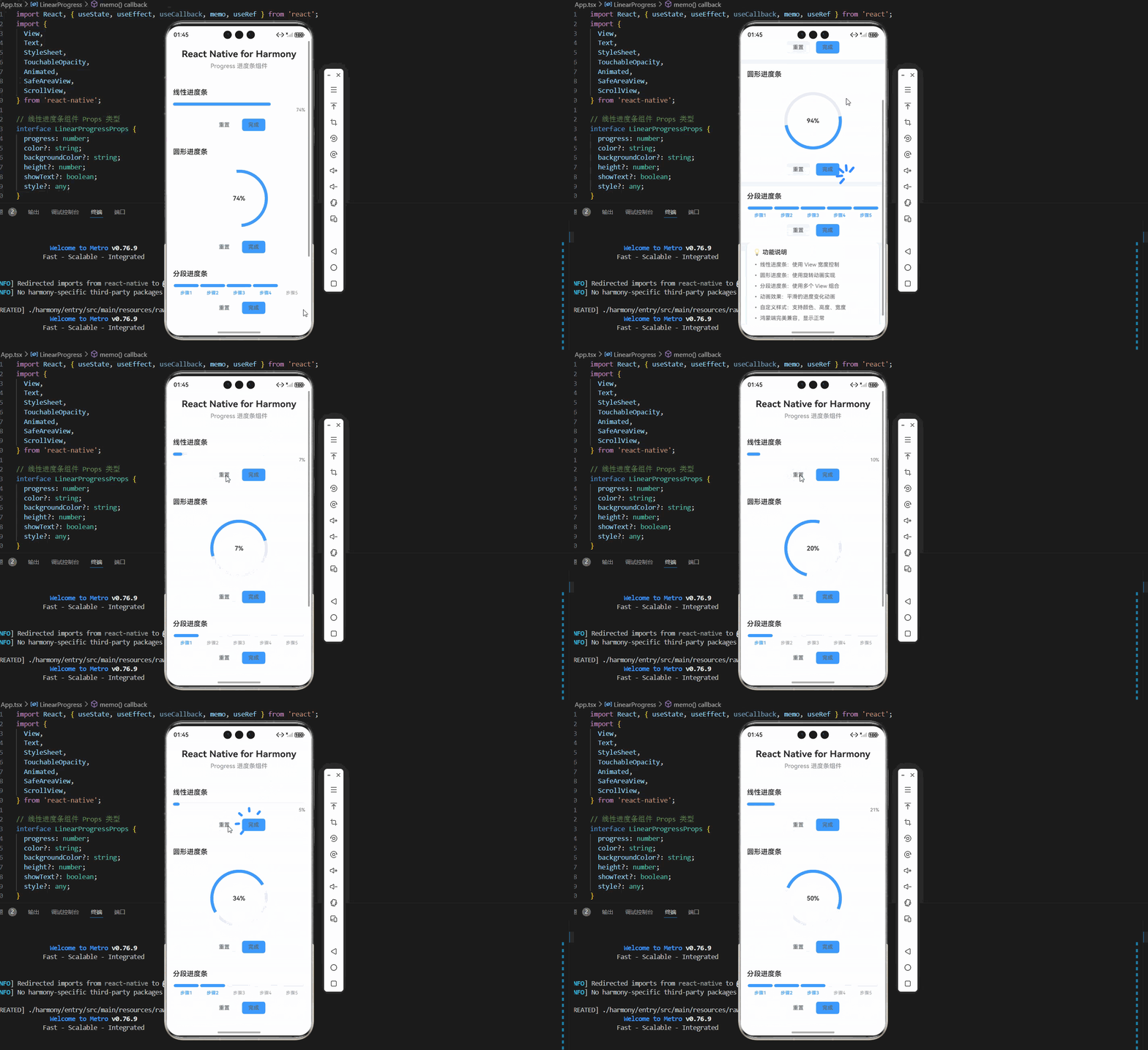
欢迎加入开源鸿蒙跨平台社区:https://openharmonycrossplatform.csdn.net。圆形进度条没有旋转动画。进度条渲染了但看不见。分段数量与进度不匹配。
·
一、核心原理:Progress 的设计与实现
1.1 Progress 的设计理念
Progress 进度条组件用于显示任务进度的可视化反馈,主要用于:
- 加载进度:显示数据加载、文件上传等任务的进度
- 步骤指示:显示多步骤流程的当前步骤
- 性能监控:显示 CPU、内存等资源使用情况
- 倒计时:显示时间倒计时进度
1.2 Progress 的核心要素
一个完整的 Progress 需要考虑:
- 进度值:当前进度,范围 0-100
- 样式类型:线性、圆形、分段等不同样式
- 动画效果:进度变化的平滑动画
- 颜色定制:支持自定义进度条颜色
- 文本显示:显示进度百分比或具体数值
- 状态指示:加载中、成功、失败等状态
1.3 实现原理
Progress 的核心实现原理:
- 线性进度条:使用 View 的宽度百分比控制进度
- 圆形进度条:使用 Animated 和旋转动画实现,通过边框创建半圆弧
- 分段进度条:使用多个 View 组合实现
- 使用 Animated 实现平滑的进度变化动画
- 使用 StyleSheet 实现样式定制
- 为每个组件创建独立的样式对象,避免样式冲突
二、线性进度条实现
2.1 基础实现
最简单的线性进度条实现:
import React, { memo } from 'react';
import {
  View,
  Text,
  StyleSheet,
} from 'react-native';

// 线性进度条组件 Props 类型
interface LinearProgressProps {
  progress: number;
  color?: string;
  backgroundColor?: string;
  height?: number;
  showText?: boolean;
  style?: any;
}

// 线性进度条组件
const LinearProgress = memo<LinearProgressProps>(({
  progress,
  color = '#409EFF',
  backgroundColor = '#EBEEF5',
  height = 8,
  showText = true,
  style,
}) => {
  const clampedProgress = Math.max(0, Math.min(100, progress));

  return (
    <View style={[linearStyles.container, style]}>
      <View style={[linearStyles.track, { backgroundColor, height }]}>
        <View style={[linearStyles.bar, { width: `${clampedProgress}%`, backgroundColor: color, height }]} />
      </View>
      {showText && (
        <Text style={linearStyles.text}>{`${Math.round(clampedProgress)}%`}</Text>
      )}
    </View>
  );
});

LinearProgress.displayName = 'LinearProgress';
设计要点:
- 使用
Math.max(0, Math.min(100, progress))限制进度范围 - 使用百分比宽度控制进度条长度:
width: '${clampedProgress}%' - 支持自定义颜色、高度、背景色
- 可选显示进度文本
- 使用独立的样式对象
linearStyles
2.2 样式实现
const linearStyles = StyleSheet.create({
  container: {
    width: '100%',
  },
  track: {
    borderRadius: 4,
    overflow: 'hidden',
  },
  bar: {
    borderRadius: 4,
  },
  text: {
    fontSize: 12,
    color: '#606266',
    marginTop: 4,
    textAlign: 'right',
  },
});
三、圆形进度条实现
3.1 基础实现
使用 Animated 和旋转动画实现圆形进度条:
import React, { useState, useEffect, useCallback, memo, useRef } from 'react';
import {
  View,
  Text,
  StyleSheet,
  Animated,
} from 'react-native';

// 圆形进度条组件 Props 类型
interface CircularProgressProps {
  progress: number;
  size?: number;
  color?: string;
  backgroundColor?: string;
  strokeWidth?: number;
  showText?: boolean;
  style?: any;
}

// 圆形进度条组件
const CircularProgress = memo<CircularProgressProps>(({
  progress,
  size = 100,
  color = '#409EFF',
  backgroundColor = '#EBEEF5',
  strokeWidth = 8,
  showText = true,
  style,
}) => {
  const rotation = useRef(new Animated.Value(0)).current;
  const clampedProgress = Math.max(0, Math.min(100, progress));

  useEffect(() => {
    Animated.timing(rotation, {
      toValue: clampedProgress * 3.6,
      duration: 300,
      useNativeDriver: true,
    }).start();
  }, [rotation, clampedProgress]);

  return (
    <View style={[circularStyles.container, { width: size, height: size }, style]}>
      {/* 轨道 */}
      <View
        style={[
          circularStyles.track,
          {
            width: size,
            height: size,
            borderRadius: size / 2,
            borderWidth: strokeWidth,
            borderColor: backgroundColor,
          }
        ]}
      />

      {/* 进度条 */}
      <Animated.View
        style={[
          circularStyles.bar,
          {
            width: size,
            height: size,
            borderRadius: size / 2,
            borderWidth: strokeWidth,
            borderColor: color,
            borderRightColor: 'transparent',
            borderBottomColor: 'transparent',
            transform: [{ rotate: rotation.interpolate({
              inputRange: [0, 360],
              outputRange: ['-90deg', '270deg'],
            }) }],
          }
        ]}
      />

      {showText && (
        <View style={circularStyles.textContainer}>
          <Text style={circularStyles.text}>{`${Math.round(clampedProgress)}%`}</Text>
        </View>
      )}
    </View>
  );
});

CircularProgress.displayName = 'CircularProgress';
设计要点:
- 使用
useRef创建 Animated.Value - 使用
borderRightColor: 'transparent'和borderBottomColor: 'transparent'创建半圆弧 - 使用
transform: rotate控制旋转角度 - 使用
interpolate将进度值映射到旋转角度 - 从 -90度(12点钟方向)开始旋转到 270度
- 文本居中显示在进度条内部
- 使用独立的样式对象
circularStyles
3.2 样式实现
const circularStyles = StyleSheet.create({
  container: {
    justifyContent: 'center',
    alignItems: 'center',
  },
  track: {
    position: 'absolute',
    top: 0,
    left: 0,
  },
  bar: {
    position: 'absolute',
    top: 0,
    left: 0,
  },
  textContainer: {
    position: 'absolute',
    justifyContent: 'center',
    alignItems: 'center',
  },
  text: {
    fontSize: 16,
    fontWeight: '600',
    color: '#303133',
  },
});
四、分段进度条实现
4.1 基础实现
使用多个 View 组合实现分段进度条:
import React, { memo } from 'react';
import {
  View,
  Text,
  StyleSheet,
} from 'react-native';

// 分段进度条组件 Props 类型
interface SegmentedProgressProps {
  progress: number;
  segments?: number;
  color?: string;
  inactiveColor?: string;
  height?: number;
  showLabels?: boolean;
  labels?: string[];
  style?: any;
}

// 分段进度条组件
const SegmentedProgress = memo<SegmentedProgressProps>(({
  progress,
  segments = 5,
  color = '#409EFF',
  inactiveColor = '#EBEEF5',
  height = 8,
  showLabels = false,
  labels,
  style,
}) => {
  const clampedProgress = Math.max(0, Math.min(100, progress));
  const activeSegments = Math.ceil((clampedProgress / 100) * segments);

  return (
    <View style={[segmentedStyles.container, style]}>
      <View style={segmentedStyles.segmentsContainer}>
        {Array.from({ length: segments }).map((_, index) => (
          <View
            key={index}
            style={[
              segmentedStyles.segment,
              {
                backgroundColor: index < activeSegments ? color : inactiveColor,
                height,
              },
            ]}
          />
        ))}
      </View>
      {showLabels && labels && (
        <View style={segmentedStyles.labelsContainer}>
          {labels.map((label, index) => (
            <Text
              key={index}
              style={[
                segmentedStyles.label,
                index < activeSegments ? segmentedStyles.activeLabel : segmentedStyles.inactiveLabel,
              ]}
            >
              {label}
            </Text>
          ))}
        </View>
      )}
    </View>
  );
});

SegmentedProgress.displayName = 'SegmentedProgress';
设计要点:
- 计算激活的分段数量:
Math.ceil((clampedProgress / 100) * segments) - 每个分段独立渲染,根据状态设置颜色
- 支持显示自定义标签
- 标签颜色根据激活状态变化
- 使用独立的样式对象
segmentedStyles
4.2 样式实现
const segmentedStyles = StyleSheet.create({
  container: {
    width: '100%',
  },
  segmentsContainer: {
    flexDirection: 'row',
    justifyContent: 'space-between',
    marginBottom: 8,
  },
  segment: {
    flex: 1,
    borderRadius: 4,
    marginHorizontal: 2,
  },
  labelsContainer: {
    flexDirection: 'row',
    justifyContent: 'space-between',
  },
  label: {
    fontSize: 12,
    flex: 1,
    textAlign: 'center',
  },
  activeLabel: {
    color: '#409EFF',
    fontWeight: '600',
  },
  inactiveLabel: {
    color: '#909399',
  },
});
五、核心实现要点
5.1 进度值限制
使用 Math.max 和 Math.min 限制进度范围:
const clampedProgress = Math.max(0, Math.min(100, progress));
5.2 圆形进度条计算
使用边框和旋转实现圆形进度条:
// 创建半圆弧
borderRightColor: 'transparent',
borderBottomColor: 'transparent',

// 旋转动画
transform: [{ rotate: rotation.interpolate({
  inputRange: [0, 360],
  outputRange: ['-90deg', '270deg'],
}) }]
5.3 动画实现
使用 Animated 实现平滑动画:
useEffect(() => {
  Animated.timing(rotation, {
    toValue: clampedProgress * 3.6,
    duration: 300,
    useNativeDriver: true,
  }).start();
}, [rotation, clampedProgress]);
5.4 独立样式对象
为每个进度条组件创建独立的样式对象,避免样式冲突:
const linearStyles = StyleSheet.create({ /* ... */ });
const circularStyles = StyleSheet.create({ /* ... */ });
const segmentedStyles = StyleSheet.create({ /* ... */ });
六、性能优化
6.1 使用 memo 优化
所有组件都使用 memo 包装:
const LinearProgress = memo<LinearProgressProps>(({ progress, color, backgroundColor, height, showText, style }) => {
  // ...
});

const CircularProgress = memo<CircularProgressProps>(({ progress, size, color, backgroundColor, strokeWidth, showText, style }) => {
  // ...
});

const SegmentedProgress = memo<SegmentedProgressProps>(({ progress, segments, color, inactiveColor, height, showLabels, labels, style }) => {
  // ...
});
6.2 使用 useRef 优化
使用 useRef 存储 Animated.Value:
const rotation = useRef(new Animated.Value(0)).current;
6.3 优化动画性能
使用 useNativeDriver: true 提升动画性能:
Animated.timing(rotation, {
  toValue: 360,
  duration: 300,
  useNativeDriver: true,
}).start();
七、常见问题与解决方案
7.1 进度条不显示
问题现象: 进度条渲染了但看不见
可能原因:
- 进度值为 0
- 颜色与背景相同
- 高度或宽度为 0
解决方案:
// 1. 确保进度值正确
const progress = Math.max(0, Math.min(100, progress));

// 2. 使用对比明显的颜色
color = '#409EFF'
backgroundColor = '#EBEEF5'

// 3. 确保尺寸正确
height = 8
7.2 圆形进度条不旋转
问题现象: 圆形进度条没有旋转动画
可能原因:
- Animated.Value 未正确初始化
- transform 未正确应用
- useNativeDriver 设置错误
解决方案:
// 1. 正确初始化 Animated.Value
const rotation = useRef(new Animated.Value(0)).current;

// 2. 正确应用 transform
transform: [{ rotate: rotation }]

// 3. 使用 useNativeDriver
Animated.timing(rotation, {
  toValue: 360,
  duration: 300,
  useNativeDriver: true,
}).start();
7.3 分段进度条不准确
问题现象: 分段数量与进度不匹配
可能原因:
- 计算公式错误
- segments 参数不正确
- 进度值超范围
解决方案:
// 1. 正确计算激活分段
const activeSegments = Math.ceil((clampedProgress / 100) * segments);

// 2. 确保 segments 参数正确
segments = 5

// 3. 限制进度范围
const clampedProgress = Math.max(0, Math.min(100, progress));
八、扩展用法
8.1 添加渐变色
为进度条添加渐变色效果:
import LinearGradient from 'react-native-linear-gradient';

<LinearGradient
  colors={['#409EFF', '#67C23A']}
  style={[styles.bar, { width: progressWidth, height }]}
/>
8.2 添加动画效果
为进度条添加脉冲动画:
const pulse = useRef(new Animated.Value(1)).current;

useEffect(() => {
  Animated.loop(
    Animated.sequence([
      Animated.timing(pulse, {
        toValue: 1.2,
        duration: 1000,
      }),
      Animated.timing(pulse, {
        toValue: 1,
        duration: 1000,
      }),
    ])
  ).start();
}, []);

<Animated.View style={[styles.bar, { transform: [{ scale: pulse }] }]} />
8.3 添加条纹效果
为进度条添加斜纹效果:
<View style={[styles.bar, { width: progressWidth, height }]}>
  <View style={styles.stripe} />
</View>

const styles = StyleSheet.create({
  stripe: {
    width: '100%',
    height: '100%',
    backgroundImage: 'linear-gradient(45deg, transparent 25%, rgba(255,255,255,0.3) 25%, transparent 50%)',
    backgroundSize: '20px 20px',
  },
});
欢迎加入开源鸿蒙跨平台社区:https://openharmonycrossplatform.csdn.net

作为“人工智能6S店”的官方数字引擎,为AI开发者与企业提供一个覆盖软硬件全栈、一站式门户。
更多推荐
 2
2 0
0- 0


 已为社区贡献16条内容

所有评论(0)