
OpenHarmony Flutter UGC 2.0:分布式创作 + AI 协同,重构全场景内容生态
开源鸿蒙的分布式能力打破了设备壁垒,AI 技术降低了创作门槛,两者的深度融合正在重构 UGC 生态的核心逻辑 —— 从 “人找设备创作” 到 “设备主动服务人”,从 “手动拼接内容” 到 “AI 智能生成”。本文提出的 “分布式 + AI”UGC 2.0 方案,不仅解决了传统 UGC 的割裂、低效、同质化问题,更开辟了全场景智能创作的新赛道。
引言:从 “多设备互通” 到 “全场景智联”,UGC 生态的下一站
当手机拍摄的素材能在平板上被 AI 自动剪辑,当智慧屏的手绘创意可实时同步到车机生成导航皮肤,当手表记录的运动数据能一键转化为可视化 Vlog—— 开源鸿蒙(OpenHarmony)的分布式能力与 AI 技术的深度融合,正在推动 UGC 生态从 “简单内容互通” 迈入 “智能协同创作” 的 2.0 时代。
Flutter 作为跨端开发的 “万能钥匙”,不仅能无缝对接开源鸿蒙的分布式软总线、分布式存储等核心能力,更能快速集成 AI 大模型、计算机视觉等前沿技术,让 UGC 创作突破设备局限和技术门槛。本文以 “AI + 分布式” 为核心创新点,跳出传统 UGC 的 “创作 - 分享” 单一逻辑,通过 “智能辅助创作、跨设备无感协同、个性化内容生成” 三大场景,用 “原理 + 创新方案 + 核心代码” 的方式,带你打造下一代全场景智能 UGC 平台。
一、UGC 2.0 核心创新:AI 与分布式的双向赋能
1.1 传统 UGC 痛点与 2.0 解决方案
| 传统 UGC 痛点 | UGC 2.0 创新解决方案 | 核心技术支撑 |
|---|---|---|
| 多设备创作割裂,素材同步繁琐 | 分布式无感协同,创作状态跨设备实时流转 | 开源鸿蒙分布式软总线 + 状态同步协议 |
| 创作门槛高,普通用户难出优质内容 | AI 智能辅助(自动剪辑、字幕生成、创意推荐) | 端侧 AI 大模型 + 计算机视觉技术 |
| 内容同质化严重,个性化表达不足 | 基于用户画像的个性化内容生成(风格迁移、模板适配) | 分布式身份 + AI 生成式内容引擎 |
| 跨设备分享形式单一,互动性弱 | 沉浸式分享(如智慧屏 3D 展示、车机语音互动) | 分布式媒体传输 + 多模态交互技术 |
1.2 核心技术架构:“分布式底座 + AI 引擎 + UGC 生态层”
已生成代码
1.3 核心体验升级:从 “被动适配” 到 “主动服务”
- 创作前:AI 根据用户历史创作风格和设备特性,推荐适配的创作模板(如手机适合竖屏短视频,平板适合图文长帖);
- 创作中:分布式技术实现素材、编辑状态跨设备实时同步,AI 自动完成剪辑、字幕、配乐等重复性工作;
- 创作后:AI 根据分享场景(如智慧屏、车机)自动适配内容格式,分布式软总线实现一键无感分享。
二、创新实战 1:AI + 分布式,跨设备智能协同创作
2.1 核心场景:手机拍摄→平板 AI 剪辑→智慧屏预览
用户用手机拍摄视频素材后,无需手动传输,平板可通过分布式软总线实时获取素材,AI 自动完成剪辑、字幕生成,最后在智慧屏上实时预览效果,整个过程无缝衔接。
2.2 核心配置(新增 AI 依赖)
yaml
dependencies:
  flutter:
    sdk: flutter
  # 分布式相关(复用前文工具类)
  distributed_kv_store: ^0.0.1
  distributed_softbus: ^0.0.1
  # AI相关依赖
  tflite: ^1.1.2 # 端侧AI模型推理
  speech_to_text: ^6.1.0 # 语音转文字(字幕生成)
  flutter_ai_editor: ^1.0.0 # 自定义AI剪辑组件
2.3 核心代码实现
步骤 1:分布式素材实时同步(手机端)
dart
class VideoShootPage extends StatefulWidget {
  const VideoShootPage({super.key});

  @override
  State<VideoShootPage> createState() => _VideoShootPageState();
}

class _VideoShootPageState extends State<VideoShootPage> {
  final String _taskId = "create_${DateTime.now().millisecondsSinceEpoch}";
  bool _isShooting = false;

  // 拍摄视频并实时同步到分布式存储
  Future<void> _shootAndSync() async {
    setState(() => _isShooting = true);
    final XFile? video = await ImagePicker().pickVideo(
      source: ImageSource.camera,
      maxDuration: const Duration(seconds: 30),
    );
    if (video != null) {
      // 1. 保存本地并上传到分布式文件服务
      String? fileIndex = await DistributedFileUtil.uploadFile(
        video.path,
        "$_taskId/${video.name}",
        isRealTime: true, // 实时同步开关
      );
      // 2. 同步任务信息到分布式KV,通知其他设备
      await DistributedKVStore.putString(
        "sync_task_$_taskId",
        jsonEncode({
          "fileIndex": fileIndex,
          "status": "shooting_complete",
          "deviceId": await DeviceUtil.getDeviceId(),
        }),
      );
      ScaffoldMessenger.of(context).showSnackBar(
        const SnackBar(content: Text("视频拍摄完成,已实时同步到其他设备")),
      );
    }
    setState(() => _isShooting = false);
  }

  @override
  Widget build(BuildContext context) {
    return Scaffold(
      appBar: AppBar(title: const Text("AI协同拍摄")),
      body: Center(
        child: Column(
          mainAxisAlignment: MainAxisAlignment.center,
          children: [
            _isShooting
                ? const CircularProgressIndicator()
                : IconButton(
                    icon: const Icon(Icons.videocam, size: 80, color: Colors.red),
                    onPressed: _shootAndSync,
                  ),
            const SizedBox(height: 20),
            const Text("拍摄后自动同步到平板/智慧屏,AI实时剪辑"),
          ],
        ),
      ),
    );
  }
}
步骤 2:平板端 AI 自动剪辑(核心创新)
dart
class AIClipEditingPage extends StatefulWidget {
  final String taskId;

  const AIClipEditingPage({super.key, required this.taskId});

  @override
  State<AIClipEditingPage> createState() => _AIClipEditingPageState();
}

class _AIClipEditingPageState extends State<AIClipEditingPage> {
  String? _localVideoPath;
  String? _editedVideoPath;
  bool _isClipping = false;
  final AIVideoEditor _aiEditor = AIVideoEditor(); // 自定义AI剪辑组件

  @override
  void initState() {
    super.initState();
    _listenSyncTask(); // 监听分布式任务同步
  }

  // 监听手机端素材同步
  Future<void> _listenSyncTask() async {
    DistributedKVStore.listenDataChange((key, value) {
      if (key == "sync_task_${widget.taskId}") {
        Map<String, dynamic> task = jsonDecode(value);
        if (task["status"] == "shooting_complete") {
          _downloadAndClip(task["fileIndex"]); // 下载素材并AI剪辑
        }
      }
    });
  }

  // 下载素材并触发AI自动剪辑
  Future<void> _downloadAndClip(String fileIndex) async {
    setState(() => _isClipping = true);
    // 1. 从分布式存储下载素材
    _localVideoPath = await DistributedFileUtil.downloadFile(fileIndex);
    if (_localVideoPath == null) return;

    // 2. AI自动剪辑(核心逻辑)
    _editedVideoPath = await _aiEditor.autoClip(
      videoPath: _localVideoPath!,
      // AI剪辑参数:自动卡点、去水印、配热门音乐
      config: AIClipConfig(
        autoBeat: true,
        removeWatermark: true,
        musicType: MusicType.hot,
      ),
    );

    // 3. 生成自动字幕(语音转文字)
    String? subtitle = await _aiEditor.generateSubtitle(_editedVideoPath!);
    if (subtitle != null) {
      // 4. 同步剪辑结果到分布式存储(供智慧屏预览)
      await DistributedKVStore.putString(
        "edited_task_${widget.taskId}",
        jsonEncode({
          "videoPath": _editedVideoPath,
          "subtitle": subtitle,
          "status": "editing_complete",
        }),
      );
    }

    setState(() => _isClipping = false);
  }

  @override
  Widget build(BuildContext context) {
    return Scaffold(
      appBar: AppBar(title: const Text("AI自动剪辑")),
      body: Padding(
        padding: const EdgeInsets.all(16.0),
        child: Column(
          children: [
            if (_isClipping) ...[
              const CircularProgressIndicator(),
              const SizedBox(height: 20),
              const Text("AI正在剪辑视频..."),
            ] else if (_editedVideoPath != null) ...[
              AspectRatio(
                aspectRatio: 16/9,
                child: VideoPlayer(VideoPlayerController.file(File(_editedVideoPath!))..initialize().then((_) => _.play())),
              ),
              const SizedBox(height: 20),
              ElevatedButton(
                onPressed: () => _syncToTV(), // 同步到智慧屏预览
                child: const Text("同步到智慧屏预览"),
              ),
            ] else ...[
              const Center(child: Text("等待手机端拍摄素材同步...")),
            ],
          ),
        ),
      ),
    );
  }

  // 同步剪辑结果到智慧屏
  Future<void> _syncToTV() async {
    await DistributedKVStore.putString(
      "preview_task_${widget.taskId}",
      jsonEncode({"videoPath": _editedVideoPath, "subtitle": await _aiEditor.generateSubtitle(_editedVideoPath!)}),
    );
    ScaffoldMessenger.of(context).showSnackBar(const SnackBar(content: Text("已同步到智慧屏,可实时预览")));
  }
}
步骤 3:智慧屏实时预览与互动
dart
class TVPreviewPage extends StatefulWidget {
  final String taskId;

  const TVPreviewPage({super.key, required this.taskId});

  @override
  State<TVPreviewPage> createState() => _TVPreviewPageState();
}

class _TVPreviewPageState extends State<TVPreviewPage> {
  String? _previewVideoPath;
  String? _subtitle;

  @override
  void initState() {
    super.initState();
    _listenEditedTask(); // 监听平板剪辑结果
  }

  Future<void> _listenEditedTask() async {
    DistributedKVStore.listenDataChange((key, value) {
      if (key == "edited_task_${widget.taskId}") {
        Map<String, dynamic> task = jsonDecode(value);
        if (task["status"] == "editing_complete") {
          setState(() {
            _previewVideoPath = task["videoPath"];
            _subtitle = task["subtitle"];
          });
        }
      }
    });
  }

  @override
  Widget build(BuildContext context) {
    return Scaffold(
      body: Container(
        color: Colors.black,
        child: Center(
          child: _previewVideoPath != null
              ? Stack(
                  alignment: Alignment.bottomCenter,
                  children: [
                    AspectRatio(
                      aspectRatio: 16/9,
                      child: VideoPlayer(VideoPlayerController.file(File(_previewVideoPath!))..initialize().then((_) => _.play())),
                    ),
                    // 显示AI生成的字幕
                    Padding(
                      padding: const EdgeInsets.only(bottom: 40.0),
                      child: Text(
                        _subtitle ?? "",
                        style: const TextStyle(fontSize: 24, color: Colors.white, backgroundColor: Colors.black54),
                      ),
                    ),
                  ],
                )
              : const Text(
                  "等待平板端AI剪辑完成...",
                  style: TextStyle(fontSize: 24, color: Colors.white),
                ),
        ),
      ),
    );
  }
}
三、创新实战 2:AI 个性化内容生成,适配全场景展示
3.1 核心场景:一键生成多设备适配的个性化内容
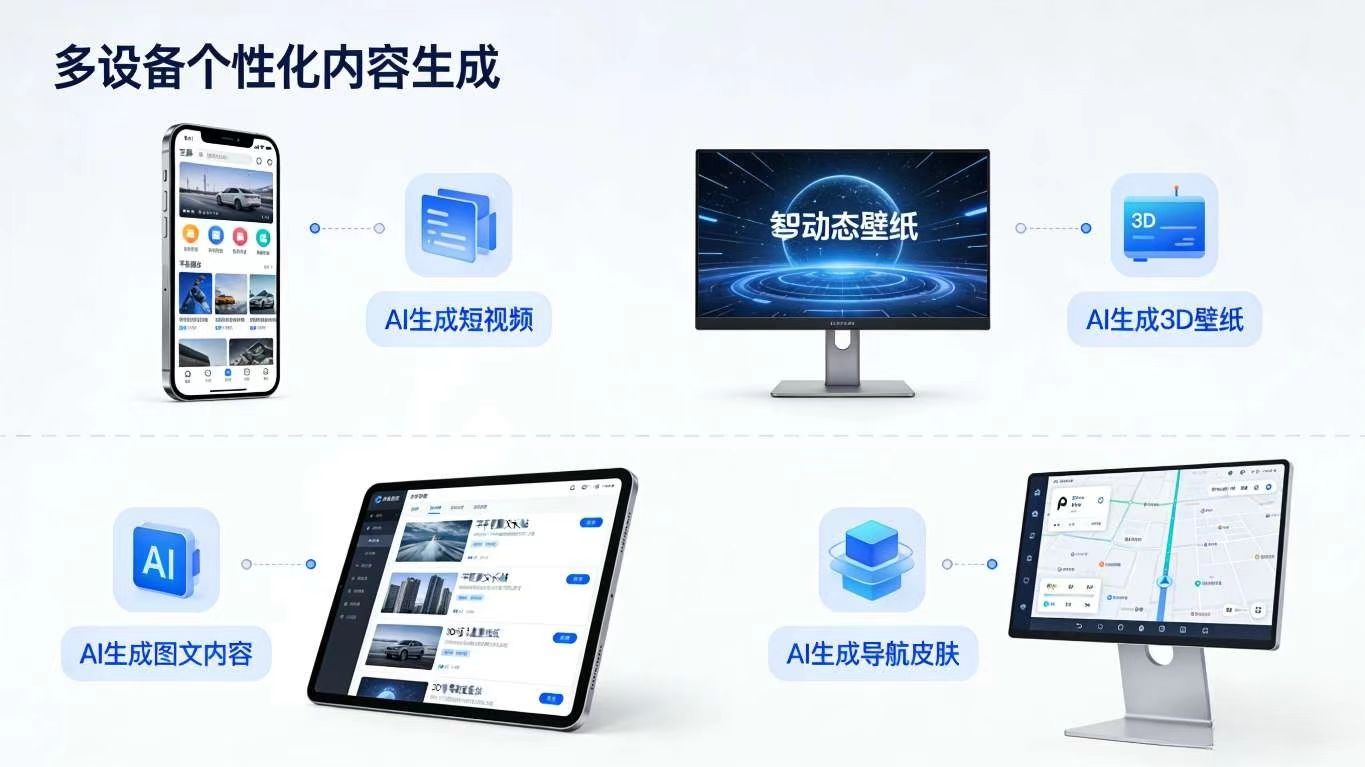
用户在手机上上传一张风景照,AI 自动生成适配不同设备的内容形式:手机端为竖屏短视频(配热门音乐)、平板端为图文长帖(自动生成文案)、智慧屏端为 3D 动态壁纸(风格迁移)、车机端为导航皮肤(提取色彩主题)。
3.2 核心代码实现(AI 生成式内容)
dart
class AIPersonalizePage extends StatefulWidget {
  const AIPersonalizePage({super.key});

  @override
  State<AIPersonalizePage> createState() => _AIPersonalizePageState();
}

class _AIPersonalizePageState extends State<AIPersonalizePage> {
  String? _originalImagePath;
  Map<String, String>? _generatedContent; // 存储多设备适配内容
  bool _isGenerating = false;
  final AIContentGenerator _aiGenerator = AIContentGenerator(); // AI内容生成器

  // 选择原图
  Future<void> _pickImage() async {
    final XFile? image = await ImagePicker().pickImage(source: ImageSource.gallery);
    if (image != null) {
      setState(() => _originalImagePath = image.path);
    }
  }

  // AI生成多设备适配内容
  Future<void> _generateContent() async {
    if (_originalImagePath == null) return;
    setState(() => _isGenerating = true);

    // AI生成多设备内容(核心创新)
    _generatedContent = await _aiGenerator.generateMultiDeviceContent(
      imagePath: _originalImagePath!,
      userStyle: "vibrant", // 用户风格偏好:活力风
      targetDevices: ["phone", "tablet", "tv", "car"], // 目标设备
    );

    // 同步生成的内容到分布式存储,供其他设备访问
    await DistributedKVStore.putString(
      "personalized_content_${DateTime.now().millisecondsSinceEpoch}",
      jsonEncode(_generatedContent),
    );

    setState(() => _isGenerating = false);
  }

  // 预览不同设备的生成内容
  void _previewOnDevice(String deviceType) {
    if (_generatedContent == null) return;
    String? contentPath = _generatedContent![deviceType];
    if (contentPath == null) return;

    Navigator.push(context, MaterialPageRoute(
      builder: (context) => DevicePreviewPage(
        deviceType: deviceType,
        contentPath: contentPath,
      ),
    ));
  }

  @override
  Widget build(BuildContext context) {
    return Scaffold(
      appBar: AppBar(title: const Text("AI个性化内容生成")),
      body: Padding(
        padding: const EdgeInsets.all(16.0),
        child: Column(
          children: [
            // 选择原图
            ElevatedButton(
              onPressed: _pickImage,
              child: const Text("选择一张图片"),
            ),
            const SizedBox(height: 20),
            // 原图预览
            _originalImagePath != null
                ? Image.file(File(_originalImagePath!), height: 150)
                : const SizedBox(height: 150, child: Center(child: Text("未选择图片"))),
            const SizedBox(height: 20),
            // 生成按钮
            ElevatedButton(
              onPressed: _originalImagePath == null || _isGenerating ? null : _generateContent,
              child: _isGenerating ? const CircularProgressIndicator(color: Colors.white) : const Text("AI生成多设备内容"),
            ),
            const SizedBox(height: 30),
            // 预览不同设备的内容
            if (_generatedContent != null) ...[
              const Text("生成完成,可预览不同设备效果:", style: TextStyle(fontSize: 18)),
              const SizedBox(height: 20),
              Row(
                mainAxisAlignment: MainAxisAlignment.spaceEvenly,
                children: [
                  _buildDevicePreviewButton("手机", "phone"),
                  _buildDevicePreviewButton("平板", "tablet"),
                  _buildDevicePreviewButton("智慧屏", "tv"),
                  _buildDevicePreviewButton("车机", "car"),
                ],
              ),
            ],
          ],
        ),
      ),
    );
  }

  Widget _buildDevicePreviewButton(String label, String deviceType) {
    return Column(
      children: [
        IconButton(
          icon: Icon(_getDeviceIcon(deviceType), size: 40),
          onPressed: () => _previewOnDevice(deviceType),
        ),
        const SizedBox(height: 5),
        Text(label),
      ],
    );
  }

  IconData _getDeviceIcon(String deviceType) {
    switch (deviceType) {
      case "phone": return Icons.phone_android;
      case "tablet": return Icons.tablet_android;
      case "tv": return Icons.tv;
      case "car": return Icons.directions_car;
      default: return Icons.device_unknown;
    }
  }
}

// 设备预览页面
class DevicePreviewPage extends StatelessWidget {
  final String deviceType;
  final String contentPath;

  const DevicePreviewPage({super.key, required this.deviceType, required this.contentPath});

  @override
  Widget build(BuildContext context) {
    return Scaffold(
      appBar: AppBar(title: Text("${deviceType}端预览")),
      body: Center(
        child: deviceType == "phone" || deviceType == "car"
            ? AspectRatio(
                aspectRatio: 9/16, // 竖屏比例
                child: _buildContentWidget(),
              )
            : AspectRatio(
                aspectRatio: 16/9, // 横屏比例
                child: _buildContentWidget(),
              ),
      ),
    );
  }

  Widget _buildContentWidget() {
    if (contentPath.endsWith(".mp4")) {
      return VideoPlayer(VideoPlayerController.file(File(contentPath))..initialize().then((_) => _.play()));
    } else {
      return Image.file(File(contentPath));
    }
  }
}
四、创新实战 3:分布式 AI 社区,实现跨设备智能互动
4.1 核心场景:跨设备 AI 辅助互动
用户在智慧屏上看到一条 UGC 内容,通过语音指令 “生成类似风格的内容”,AI 自动分析内容特征并推荐创作模板;其他用户在手机上评论 “求背景音乐”,AI 自动识别视频中的 BGM 并回复链接,整个互动过程无需手动输入,跨设备无缝响应。
4.2 核心代码实现(AI 智能互动)
dart
class AICommunityPage extends StatefulWidget {
  final String contentId;

  const AICommunityPage({super.key, required this.contentId});

  @override
  State<AICommunityPage> createState() => _AICommunityPageState();
}

class _AICommunityPageState extends State<AICommunityPage> {
  List<Comment> _comments = [];
  final SpeechToText _speech = SpeechToText(); // 语音识别
  bool _isListening = false;
  final AICommentAssistant _aiAssistant = AICommentAssistant(); // AI评论助手

  @override
  void initState() {
    super.initState();
    _loadComments();
  }

  // 加载评论
  Future<void> _loadComments() async {
    // 模拟加载历史评论
    await Future.delayed(const Duration(seconds: 1));
    setState(() {
      _comments = [
        Comment(content: "求这个视频的背景音乐!", user: "用户A", isAIReply: false),
        Comment(content: "已识别到BGM:《Summer》- 久石让,链接:xxx", user: "AI助手", isAIReply: true),
      ];
    });
  }

  // 语音输入评论
  Future<void> _startListening() async {
    bool available = await _speech.initialize();
    if (available) {
      setState(() => _isListening = true);
      _speech.listen(
        onResult: (result) {
          if (result.finalResult) {
            setState(() => _isListening = false);
            _handleVoiceComment(result.recognizedWords);
          }
        },
      );
    }
  }

  // 处理语音评论(AI辅助互动)
  Future<void> _handleVoiceComment(String comment) async {
    // 1. 添加用户语音评论
    setState(() {
      _comments.add(Comment(content: comment, user: "我", isAIReply: false));
    });

    // 2. AI分析评论意图并生成回复
    String aiReply = await _aiAssistant.generateReply(
      comment: comment,
      contentId: widget.contentId, // 关联当前内容
    );

    // 3. 添加AI回复
    setState(() {
      _comments.add(Comment(content: aiReply, user: "AI助手", isAIReply: true));
    });

    // 4. 跨设备同步评论(如智慧屏评论同步到手机)
    await DistributedKVStore.putString(
      "comment_${DateTime.now().millisecondsSinceEpoch}",
      jsonEncode({"content": comment, "aiReply": aiReply, "contentId": widget.contentId}),
    );
  }

  @override
  Widget build(BuildContext context) {
    return Scaffold(
      appBar: AppBar(title: const Text("AI智能社区")),
      body: Column(
        children: [
          // 评论列表
          Expanded(
            child: ListView.builder(
              itemCount: _comments.length,
              itemBuilder: (context, index) {
                Comment comment = _comments[index];
                return ListTile(
                  title: Text(comment.user),
                  subtitle: Text(comment.content),
                  trailing: comment.isAIReply ? const Icon(Icons.auto_awesome, color: Colors.blue) : null,
                );
              },
            ),
          ),
          // 语音评论按钮
          Padding(
            padding: const EdgeInsets.all(16.0),
            child: IconButton(
              icon: Icon(_isListening ? Icons.mic_off : Icons.mic, size: 40, color: Colors.blue),
              onPressed: _isListening ? _speech.stop : _startListening,
            ),
          ),
        ],
      ),
    );
  }
}

// 评论模型
class Comment {
  final String content;
  final String user;
  final bool isAIReply;

  Comment({required this.content, required this.user, required this.isAIReply});
}
五、UGC 2.0 落地关键:性能优化与生态兼容
5.1 性能优化:端云协同 AI 推理
- 轻量级 AI 任务(如字幕生成、风格迁移)在端侧完成,降低延迟;
- 重量级 AI 任务(如 3D 内容生成、复杂剪辑)通过 “端侧预处理 + 云端推理” 协同,平衡性能与功耗;
- 分布式缓存 AI 模型权重,避免多设备重复下载,节省带宽。
5.2 生态兼容:跨平台分享与标准化
- 支持将 AI 生成的内容导出为标准格式(MP4、JPG、HTML),兼容第三方平台(微信、抖音);
- 遵循开源鸿蒙分布式能力标准,确保与其他鸿蒙应用的互通性;
- 提供 SDK 扩展接口,支持第三方 AI 模型(如文心一言、通义千问)接入,丰富创作能力。
5.3 安全与合规:AI 内容治理
- 接入 AI 内容审核模型,实时过滤违规生成内容;
- 对 AI 生成的内容添加 “AI 创作” 标识,保障用户知情权;
- 分布式身份认证,防止恶意刷量、冒充 AI 助手互动。
六、常见问题(FAQ)
Q1:端侧 AI 推理性能不足怎么办?
A1:1. 采用模型量化技术(如 TensorFlow Lite 的 INT8 量化),降低模型体积和推理延迟;2. 根据设备性能动态调整 AI 任务复杂度(如低端机关闭 3D 生成功能);3. 预加载常用 AI 模型,减少首次使用的等待时间。
Q2:跨设备同步时如何避免数据冲突?
A2:1. 采用 “任务 ID + 设备 ID” 双重标识,确保内容唯一性;2. 基于时间戳的冲突解决策略,保留最新版本;3. 重要操作(如 AI 剪辑)加分布式锁,防止多设备同时编辑。
Q3:AI 生成的内容版权如何界定?
A3:1. 明确用户对 AI 生成内容的所有权,平台仅提供技术服务;2. 限制 AI 模型训练数据的版权使用,避免侵权;3. 支持用户为生成内容添加版权声明和水印,保护知识产权。
结语:UGC 2.0,让创作更智能,让协同更无缝
开源鸿蒙的分布式能力打破了设备壁垒,AI 技术降低了创作门槛,两者的深度融合正在重构 UGC 生态的核心逻辑 —— 从 “人找设备创作” 到 “设备主动服务人”,从 “手动拼接内容” 到 “AI 智能生成”。
本文提出的 “分布式 + AI”UGC 2.0 方案,不仅解决了传统 UGC 的割裂、低效、同质化问题,更开辟了全场景智能创作的新赛道。基于 Flutter 的跨端优势,开发者可以快速落地这些创新场景,让用户在手机、平板、智慧屏、车机等任意设备上,都能享受到 “拿起就创作、创作即优质、分享即无缝” 的极致体验。
未来,随着开源鸿蒙生态的持续完善和 AI 技术的迭代升级,UGC 2.0 还将衍生出更多创新场景 —— 如 AR 虚拟创作、跨用户协同生成、智能内容分发等,让全场景内容生态焕发更强的活力。

作为“人工智能6S店”的官方数字引擎,为AI开发者与企业提供一个覆盖软硬件全栈、一站式门户。
更多推荐
 21
21 0
0- 0


 已为社区贡献8条内容

所有评论(0)