
鸿蒙ArkTS实战解析:从零构建睡眠监测应用——声明式UI、状态管理与动画特效的完整剖析
一、鸿蒙开发背景与技术生态概述
鸿蒙操作系统(HarmonyOS)是华为面向全场景智慧生活推出的分布式操作系统,其核心设计理念是"一次开发,多端部署"。在鸿蒙的整个技术体系中,应用开发框架经历了从Java-based到ArkUI声明式范式的重大演进。随着HarmonyOS NEXT(纯血鸿蒙)的推进,ArkTS作为主力开发语言,已经成为了鸿蒙原生应用开发的核心技术栈。ArkTS在TypeScript的基础上进行了深度定制,保留了类型安全的同时,针对UI声明式编程做了大量优化和扩展,使得开发者能够以更加简洁、高效的方式构建复杂的用户界面。
声明式UI范式是现代前端开发的趋势,从React的JSX到Flutter的Widget,再到鸿蒙的ArkUI,都在践行"UI是状态的函数映射"这一核心理念。在ArkTS中,开发者通过@Component装饰器声明一个自定义组件,通过@State、@Prop、@Link等装饰器管理状态数据的流动,通过@Builder装饰器抽取可复用的UI片段。这种范式的好处在于:当状态发生变化时,框架会自动触发UI的重新渲染,开发者无需手动操作DOM或调用刷新方法,极大地降低了状态与视图同步的复杂度。
ArkUI组件体系是鸿蒙应用开发的基础设施,它提供了一套丰富的基础组件和容器组件。基础组件包括Text(文本)、Image(图片)、Button(按钮)、TextInput(输入框)、TextArea(多行文本)、Progress(进度条)、Toggle(开关)等,它们负责具体的UI内容呈现。容器组件则负责子组件的排列与布局,包括Column(纵向排列)、Row(横向排列)、Stack(层叠排列)、Flex(弹性布局)、Scroll(滚动容器)、List(列表)等。通过这些容器的嵌套组合,开发者可以构建出任意复杂度的界面层次结构。此外,ArkUI还提供了layoutWeight(权重分配)、position(绝对定位)、zIndex(层级控制)等布局属性,实现了对组件空间分配的精确控制。
在交互体验方面,ArkUI提供了animateTo动画API,支持曲线动画、循环动画、交替播放等能力;ForEach组件用于列表渲染,支持键值生成器来优化diff性能;if/else条件渲染用于动态控制组件的显示与隐藏。这些能力的组合,使得开发者能够在鸿蒙平台上实现流畅的交互动画、数据驱动的列表展示、以及弹框/抽屉等复杂的交互模式。本文将以一个完整的睡眠监测应用为例,逐段剖析ArkTS代码的实现细节,深入讲解每一个装饰器、每一个容器组件、每一个状态变量的设计意图和使用方法。
二、数据模型层:类型定义与静态数据
2.1 接口类型定义
在ArkTS中,interface用于定义对象的类型结构,这一点与TypeScript一脉相承。良好的类型定义不仅能让编译器帮我们捕获类型错误,更是应用架构的"契约"——它明确了数据的形状和边界。
interface StageT {
  name: string
  color: string
  mins: number
  icon: string
}

interface NightT {
  id: number
  date: string
  start: string
  end: string
  hours: number
  deep: number
  score: number
  wakes: number
  quality: string
}

interface WeekNT {
  day: string
  hours: number
}

interface HabitT {
  id: number
  icon: string
  title: string
  desc: string
  freq: string
  done: boolean
}

interface SoundT {
  id: number
  icon: string
  name: string
  cat: string
  mins: number
}

interface DreamT {
  id: number
  date: string
  mood: string
  lucid: boolean
  text: string
  tag: string
}
这里定义了六个接口类型,分别对应睡眠应用中的六个核心数据实体。StageT描述了睡眠阶段(深睡、浅睡、快速眼动、清醒),包含名称、颜色、时长和图标;NightT描述了一晚的睡眠数据记录,包含编号、日期、入睡时间、醒来时间、总时长、深睡占比、评分、起夜次数和睡眠质量;WeekNT描述了周报中的每日时长数据;HabitT描述了一条睡眠习惯记录,包含图标、标题、描述、频率和完成状态;SoundT描述了一个助眠音源;DreamT描述了一条梦境记录,包含心情、是否清明梦、内容文本和标签。
技术要点: ArkTS中的interface是编译期的类型约束,运行时会被擦除。与class不同,interface不产生运行时开销,它是纯粹的类型层概念。在鸿蒙的声明式UI中,interface常用于定义
@State变量的数据结构,使框架能够正确追踪对象属性的变化并触发UI更新。
技术要点: 在ArkTS中,接口属性的类型必须明确指定,不能使用
any类型。这是ArkTS相对TypeScript的一个重要区别——ArkTS禁用了any、unknown等动态类型,强制要求静态类型,这从语言层面保证了类型安全,降低了运行时出错的可能。
2.2 静态数据常量
定义完接口类型后,代码声明了一系列const常量数组,作为应用的初始数据源。这些数据在运行时不会被修改(但通过@State绑定后可以被替换)。
const TABS1: Array<string> = ['今夜', '周报', '习惯', '白噪音', '梦记', '我的']

const STAGES1: Array<StageT> = [
  { name: '深睡', color: '#5E4B9E', mins: 96, icon: '🌑' },
  { name: '浅睡', color: '#8B7CF6', mins: 231, icon: '🌗' },
  { name: '快速眼动', color: '#F4A261', mins: 108, icon: '💫' },
  { name: '清醒', color: '#4A4362', mins: 22, icon: '👁️' }
]

const NIGHTS1: Array<NightT> = [
  { id: 1, date: '昨晚', start: '23:41', end: '07:12', hours: 7.5, deep: 21, score: 88, wakes: 1, quality: '优质睡眠' },
  { id: 2, date: '前天', start: '00:12', end: '07:30', hours: 7.3, deep: 17, score: 76, wakes: 2, quality: '一般' },
  { id: 3, date: '08-26', start: '23:28', end: '06:58', hours: 7.5, deep: 23, score: 91, wakes: 0, quality: '优质睡眠' },
  { id: 4, date: '08-25', start: '01:05', end: '07:40', hours: 6.6, deep: 14, score: 62, wakes: 3, quality: '睡眠不足' },
  { id: 5, date: '08-24', start: '22:50', end: '06:40', hours: 7.8, deep: 24, score: 93, wakes: 1, quality: '优质睡眠' },
  { id: 6, date: '08-23', start: '23:59', end: '07:45', hours: 7.8, deep: 19, score: 84, wakes: 1, quality: '良好' },
  { id: 7, date: '08-22', start: '00:35', end: '07:20', hours: 6.7, deep: 15, score: 66, wakes: 2, quality: '睡眠不足' },
  { id: 8, date: '08-21', start: '23:10', end: '07:05', hours: 7.9, deep: 22, score: 90, wakes: 0, quality: '优质睡眠' },
  { id: 9, date: '08-20', start: '23:36', end: '06:30', hours: 6.9, deep: 18, score: 72, wakes: 2, quality: '一般' },
  { id: 10, date: '08-19', start: '22:40', end: '06:20', hours: 7.7, deep: 25, score: 94, wakes: 1, quality: '优质睡眠' },
  { id: 11, date: '08-18', start: '01:20', end: '07:50', hours: 6.5, deep: 12, score: 58, wakes: 4, quality: '熬夜夜' },
  { id: 12, date: '08-17', start: '23:22', end: '07:10', hours: 7.8, deep: 23, score: 92, wakes: 0, quality: '优质睡眠' }
]
TABS1定义了底部导航栏的六个标签名称。STAGES1定义了四个睡眠阶段数据,每个阶段有独立的颜色和时长,其中浅睡时长最长(231分钟),清醒时长最短(22分钟),这符合真实的人类睡眠结构比例。NIGHTS1定义了12天的睡眠历史记录,可以观察到评分从58到94不等,起夜次数从0到4不等,数据覆盖了优质睡眠、一般睡眠、睡眠不足和熬夜夜等多种情况,为周报统计和列表展示提供了丰富的数据样本。
技术要点: 在ArkTS中,
Array<T>是数组的类型声明方式,等价于T[]。使用const声明的常量数组,其引用地址不可变,但数组内容理论上仍可被push/pop修改。不过在本应用中,这些常量作为初始数据源被赋值给@State变量后,后续的数据变更都通过重新赋值整个数组来实现(immutable模式),而非直接修改原数组,这符合ArkUI响应式状态管理的最佳实践。
接下来还有周报数据、习惯列表、白噪音音源、梦境记录等数据常量:
const WEEKNS1: Array<WeekNT> = [
  { day: '一', hours: 6.6 },
  { day: '二', hours: 7.3 },
  { day: '三', hours: 6.7 },
  { day: '四', hours: 7.8 },
  { day: '五', hours: 6.5 },
  { day: '六', hours: 8.2 },
  { day: '日', hours: 7.5 }
]

const HABITS1: Array<HabitT> = [
  { id: 1, icon: '📵', title: '睡前 1 小时收手机', desc: '蓝光会推迟褪黑素分泌约 40 分钟', freq: '每晚', done: true },
  { id: 2, icon: '☕', title: '14 点后不碰咖啡因', desc: '咖啡因半衰期约 6 小时', freq: '每天', done: true },
  { id: 3, icon: '🛏️', title: '固定起床时间', desc: '比固定入睡时间更重要', freq: '每天', done: true },
  { id: 4, icon: '🧘', title: '睡前 10 分钟冥想', desc: '降低皮质醇,缩短入睡时长', freq: '每晚', done: false },
  { id: 5, icon: '🌡️', title: '卧室保持 20-22℃', desc: '低温环境更容易进入深睡', freq: '每晚', done: true },
  { id: 6, icon: '🍺', title: '睡前不饮酒', desc: '酒精让你睡得浅、醒得多', freq: '每晚', done: false },
  { id: 7, icon: '🍜', title: '睡前 3 小时不进食', desc: '夜食会干扰生长激素分泌', freq: '每天', done: true },
  { id: 8, icon: '🏃', title: '白天运动 30 分钟', desc: '有氧运动提升深睡比例', freq: '每周 5 次', done: false },
  { id: 9, icon: '💡', title: '卧室全遮光', desc: '光线会打断睡眠周期', freq: '每晚', done: true },
  { id: 10, icon: '😴', title: '困了再上床', desc: '不困躺床会加重失眠焦虑', freq: '每晚', done: false }
]
WEEKNS1定义了一周七天的睡眠时长,可以看到周五最短(6.5h),周六最长(8.2h),反映了典型的"工作日缺觉、周末补觉"模式。HABITS1定义了10条睡眠卫生习惯,每条都有图标、标题、科学依据描述、频率和完成状态,内容涵盖了数字戒断、咖啡因管理、作息规律、冥想、温度控制、戒酒、饮食、运动、遮光等睡眠卫生的核心要素。
白噪音音源和梦境记录的数据同样丰富:
const SOUNDS1: Array<SoundT> = [
  { id: 1, icon: '🌧️', name: '细雨敲窗', cat: '自然', mins: 45 },
  { id: 2, icon: '🌊', name: '海浪拍岸', cat: '自然', mins: 60 },
  { id: 3, icon: '🌲', name: '松林风声', cat: '自然', mins: 45 },
  { id: 4, icon: '🔥', name: '炉火噼啪', cat: '氛围', mins: 30 },
  { id: 5, icon: '扇', name: '风扇白噪', cat: '白噪', mins: 120 },
  { id: 6, icon: '📻', name: '老电台底噪', cat: '白噪', mins: 60 },
  { id: 7, icon: '🎹', name: '慢速钢琴', cat: '音乐', mins: 45 },
  { id: 8, icon: '🈳', name: '颂钵共振', cat: '音乐', mins: 30 },
  { id: 9, icon: '🚂', name: '夜行列车', cat: '氛围', mins: 90 },
  { id: 10, icon: '🐈', name: '猫呼噜声', cat: '氛围', mins: 20 }
]

const DREAMS1: Array<DreamT> = [
  { id: 1, date: '今晨', mood: '😄', lucid: true, text: '梦见自己在图书馆里飞,能控制方向,落地时发现每本书都是一种味道。', tag: '清明梦' },
  { id: 2, date: '昨天', mood: '😰', lucid: false, text: '被一只巨大的蓝色鲸鱼追,最后发现它只是想还我一支笔。', tag: '荒诞' },
  { id: 3, date: '08-26', mood: '😌', lucid: false, text: '回到大学宿舍,大家在收拾行李准备去看海,阳光很好。', tag: '怀旧' },
  { id: 4, date: '08-25', mood: '🤯', lucid: false, text: '梦里一直在解一道不会的数学题,醒来头是晕的。', tag: '压力' },
  { id: 5, date: '08-24', mood: '😊', lucid: false, text: '和去世的外婆一起包饺子,她还是说我擀皮擀得薄。', tag: '思念' },
  { id: 6, date: '08-23', mood: '😆', lucid: false, text: '公司团建变成了枕头大战,老板被打得最惨。', tag: '工作' },
  { id: 7, date: '08-22', mood: '😨', lucid: false, text: '梦见考试迟到,教室里坐满了穿雨衣的人。', tag: '焦虑' },
  { id: 8, date: '08-21', mood: '🥰', lucid: true, text: '第二次清明梦,练习了稳定技巧:搓手和原地转圈。', tag: '清明梦' },
  { id: 9, date: '08-20', mood: '😶', lucid: false, text: '一夜无梦,睡得很沉,醒来精神最好的一天。', tag: '无梦' },
  { id: 10, date: '08-19', mood: '😎', lucid: false, text: '梦见自己中了游泳比赛冠军,奖品是一个西瓜。', tag: '荒诞' }
]
SOUNDS1定义了10个助眠音源,按自然、氛围、白噪、音乐四类分组,每个音源有建议使用时长。DREAMS1定义了10条梦境记录,每条都有心情表情、标签分类和梦的描述文本,其中两条标记为"清明梦"——即梦中知道自己在做梦的清醒梦状态。这些数据为应用的梦记功能提供了真实感的内容样本。
最后还有几个简短的选择项常量:
const GOALS1: Array<string> = ['6.5h', '7h', '7.5h', '8h', '8.5h']
const MOODS1: Array<string> = ['😄', '😌', '😶', '😰', '😨', '🤯', '😆', '🥰']
const DTAGS1: Array<string> = ['清明梦', '荒诞', '怀旧', '压力', '思念', '工作', '焦虑', '无梦']
const DURATIONS1: Array<string> = ['15分钟', '30分钟', '45分钟', '60分钟', '通宵']
这四个常量分别用于弹框中的可选项列表:GOALS1是目标睡眠时长的五个选项,MOODS1是记梦时可选的八种心情表情,DTAGS1是梦境标签的八个分类,DURATIONS1是白噪音定时关闭的五个时长选项。使用常量数组而非硬编码在UI中,使得选项内容集中管理、便于修改,也方便后续扩展为从网络接口获取。
2.3 工具函数
function scoreColor1(s: number): string {
  if (s >= 85) {
    return '#8B7CF6'
  }
  if (s >= 70) {
    return '#6FA8FF'
  }
  return '#F4A261'
}
这是一个独立的工具函数,根据睡眠评分返回对应的主题色。评分85分以上返回紫色(优质),70-84分返回蓝色(一般),低于70分返回橙色(不足)。这种"数据→颜色"的映射在UI中大量使用——评分数字的字体颜色、睡眠质量标签的背景色、进度条颜色等都依赖这个函数。
技术要点: 在ArkTS中,组件外部的普通函数使用
function关键字声明,不依赖组件实例的上下文。而组件内部的方法(如本组件中的lastNight()、totalMins()等)则通过this访问组件的状态变量。工具函数应尽量保持纯函数特性——输入决定输出,无副作用,这样便于测试和复用。
三、组件声明与状态管理
3.1 组件入口与装饰器
@Entry
@Component
struct Index {
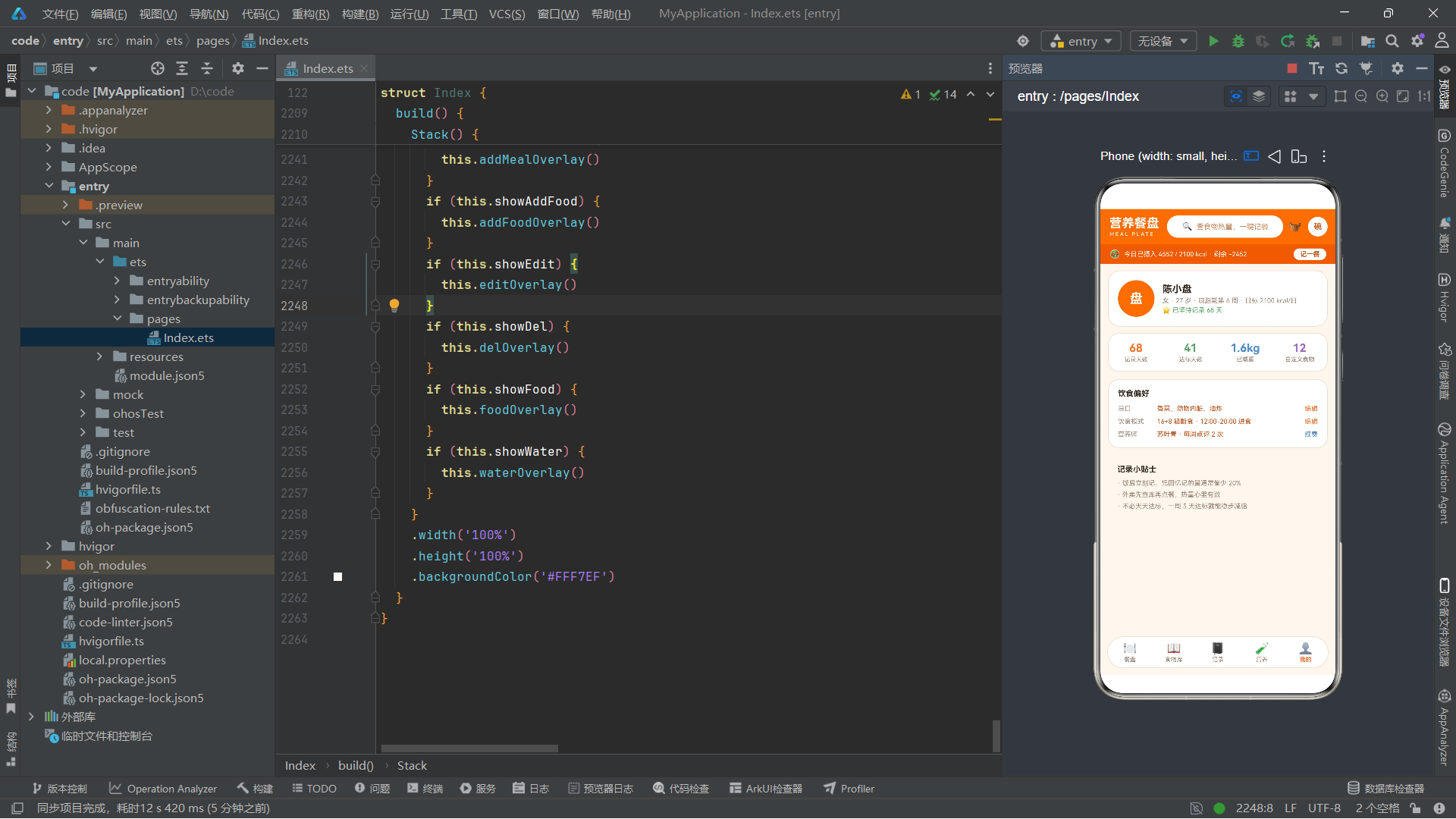
这三行代码是鸿蒙ArkTS应用的入口。@Entry装饰器标记这是一个入口组件——即应用的根组件,整个页面的渲染从这里开始。一个ArkTS页面文件中只能有一个@Entry组件。@Component装饰器标记Index是一个自定义组件,这意味着它是一个可复用的、拥有独立状态和渲染逻辑的UI单元。struct关键字声明了一个结构体——在ArkTS中,自定义组件用struct而非class来声明,这是ArkTS的语言特性之一。
技术要点:
@Entry和@Component是ArkTS中最重要的两个装饰器。@Entry指示该组件是页面入口,编译器和运行时会据此生成页面路由和生命周期管理代码。@Component指示这是一个自定义组件,框架会为其生成状态管理、diff渲染、生命周期回调等基础能力。两者配合使用,构成了一个完整的页面单元。
技术要点: ArkTS使用
struct而非class来定义组件,这是一个有意的设计选择。struct是值类型(语义上),强调数据的组合而非继承,符合声明式UI中"组件是数据的视图映射"这一理念。同时,struct不支持继承,避免了组件层次过深导致的耦合问题,鼓励开发者通过组合而非继承来复用代码。
3.2 状态变量声明
ArkTS的核心能力之一是响应式状态管理。@State装饰器声明的变量,当其值发生变化时,框架会自动重新渲染依赖该变量的UI部分。
@State currentTab: number = 0
@State nights: Array<NightT> = NIGHTS1
@State habits: Array<HabitT> = HABITS1
@State dreams: Array<DreamT> = DREAMS1
@State soundIdx: number = -1
@State habitFilter: number = 0
currentTab记录当前选中的标签页索引,初始为0(今夜页)。当用户点击底部导航栏时,这个值会改变,触发页面内容区域的条件渲染切换。nights、habits、dreams分别绑定了三组可变数据——它们被赋值为前面定义的常量初始值,但后续可以通过重新赋值来增删数据。soundIdx记录当前选中的白噪音音源索引,-1表示未选择。habitFilter是习惯筛选器索引。
技术要点:
@State是ArkTS中最基础的状态装饰器。它使得变量成为"可观察的"——当变量被赋新值时,框架自动找到所有引用该变量的UI节点并重新渲染。对于基本类型(number、string、boolean),值的变化即可触发更新;对于对象和数组,需要整个赋值为新对象/新数组才能触发更新(即immutable更新模式),直接修改对象属性或数组元素不会触发UI刷新。
接下来是一组弹框开关状态变量:
// 弹框开关
@State showGoal: boolean = false
@State showDream: boolean = false
@State showHabit: boolean = false
@State showDel: boolean = false
@State showNight: boolean = false
@State showTimer: boolean = false
这六个布尔变量分别控制六个弹框(overlay)的显示与隐藏。当某个变量为true时,对应的弹框组件会在build()方法的Stack层叠布局中渲染出来;为false时则不渲染。这种"布尔驱动渲染"的模式是ArkUI中实现弹框、抽屉、对话框等覆盖层组件的标准做法。
技术要点: 使用多个独立的布尔状态来控制多个弹框,而非一个"当前弹框类型"的枚举变量,这样做的好处是每个弹框的状态完全独立,可以灵活地组合(如同时显示弹框和另一个弹框——虽然实际交互中不太常见)。但这种模式的代价是状态变量数量多,开发者需要自行确保互斥关系(如打开一个弹框时关闭其他弹框)。
接下来是与具体功能相关的状态变量:
// 就寝目标
@State goalIdx: number = 2
@State bedMin: number = 92
@State goalRemind: boolean = true

// 记梦
@State dreamText: string = ''
@State dreamMood: number = 0
@State dreamTag: number = 0
@State dreamLucid: boolean = false

// 编辑习惯
@State habitIdx: number = 0
@State habitFreq: number = 0
@State habitRemind: boolean = true

// 删除
@State delIdx: number = 0
@State dangerDel: boolean = false

// 夜晚详情
@State nightIdx: number = 0

// 白噪音定时
@State timerIdx: number = 1
@State volume: number = 6
@State fadeout: boolean = true
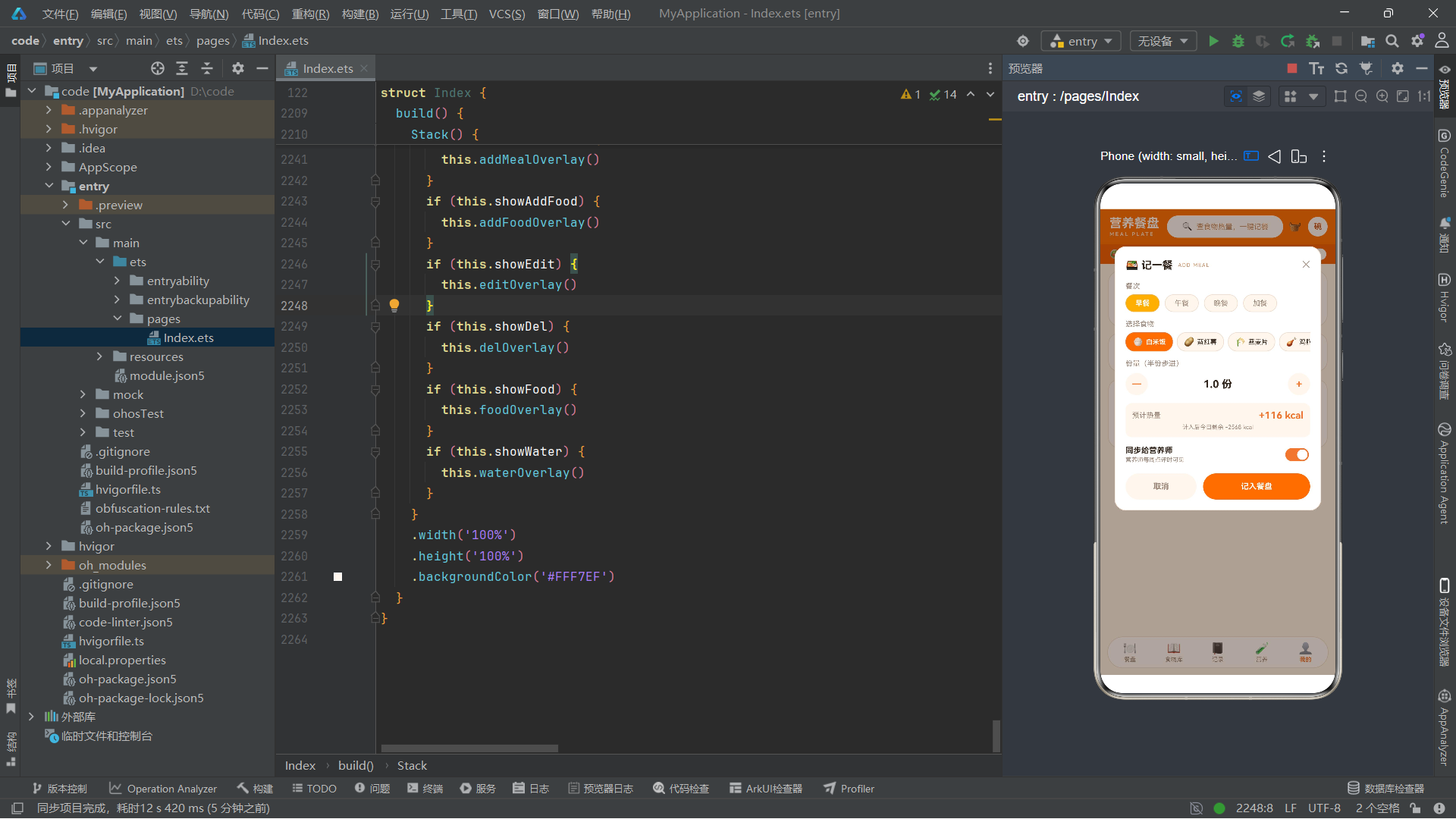
这些状态变量为每个弹框维护了表单状态。例如就寝目标弹框中,goalIdx记录选中的目标时长索引、bedMin记录就寝时间的分钟偏移量(以15分钟为步进)、goalRemind控制是否开启到点提醒。记梦弹框中,dreamText绑定多行文本输入框的内容、dreamMood记录选中的心情索引、dreamTag记录选中的标签索引、dreamLucid标记是否清明梦。这种"一个功能一组状态"的组织方式清晰明了,便于维护。
最后是两个动画相关的状态变量:
// 特效
@State moonOp: number = 0.4
@State moonScale: number = 0.92
@State starOp: number = 0.3
moonOp控制月亮的透明度、moonScale控制月亮的缩放比例、starOp控制星星的透明度。这三个变量的初始值是"暗淡"状态,随后在aboutToAppear生命周期中被animateTo动画API驱动,在初始值和目标值之间反复交替变化,从而实现"月亮呼吸"和"星星闪烁"的视觉效果。
四、生命周期与动画驱动
4.1 aboutToAppear生命周期
aboutToAppear(): void {
  this.getUIContext().animateTo({ duration: 2200, iterations: -1, playMode: PlayMode.Alternate, curve: Curve.EaseInOut }, () => {
    this.moonOp = 1
    this.moonScale = 1.08
  })
  this.getUIContext().animateTo({ duration: 1300, iterations: -1, playMode: PlayMode.Alternate, curve: Curve.EaseInOut }, () => {
    this.starOp = 1
  })
}
aboutToAppear是ArkUI组件生命周期的重要回调之一。它在组件创建后、build方法首次执行前被调用。开发者通常在这里进行数据初始化、网络请求、动画启动等操作。在这个应用中,aboutToAppear启动了两个无限循环的动画。
第一个animateTo调用驱动月亮的"呼吸"动画:duration: 2200表示动画持续2200毫秒,iterations: -1表示无限循环,playMode: PlayMode.Alternate表示交替播放(正向到目标值后反向回到初始值,如此往复),curve: Curve.EaseInOut表示使用先慢后快再慢的缓动曲线。动画闭包中将moonOp从0.4变化到1(透明度从暗到亮),将moonScale从0.92变化到1.08(缩放从略小到略大),两者配合形成了月亮"一呼一吸"的视觉效果。
第二个animateTo调用驱动星星的"闪烁"动画,时长更短(1300毫秒),使星星的透明度在0.3到1之间交替变化,节奏比月亮更快,形成星空闪烁的画面感。
技术要点:
animateTo是ArkUI提供的命令式动画API。其第一个参数是动画选项对象,第二个参数是状态变更闭包。在闭包中对@State变量的赋值不会立即生效,而是被框架捕获为动画的目标值,然后框架会在duration时间内,按照指定的curve曲线,从当前值平滑过渡到目标值。PlayMode.Alternate是交替模式,使得动画在正向和反向之间来回切换,非常适合"呼吸"“闪烁”"脉动"等节奏型动画。
技术要点:
this.getUIContext().animateTo()是ArkTS中推荐的调用方式。通过getUIContext()获取UI上下文,再调用其animateTo方法,确保动画在正确的上下文中执行。在某些旧版本中,animateTo也可以直接全局调用,但通过UIContext调用是更加规范和安全的做法。
4.2 数据计算辅助方法
组件内部定义了几个辅助计算方法,用于从原始数据中派生展示所需的值:
lastNight(): NightT {
  return this.nights[0]
}

totalMins(): number {
  let sum: number = 0
  STAGES1.forEach((s: StageT) => {
    sum += s.mins
  })
  return sum
}

weekAvg(): number {
  let sum: number = 0
  WEEKNS1.forEach((w: WeekNT) => {
    sum += w.hours
  })
  return Math.round(sum / WEEKNS1.length * 10) / 10
}

habitDone(): number {
  return this.habits.filter((h: HabitT) => h.done).length
}
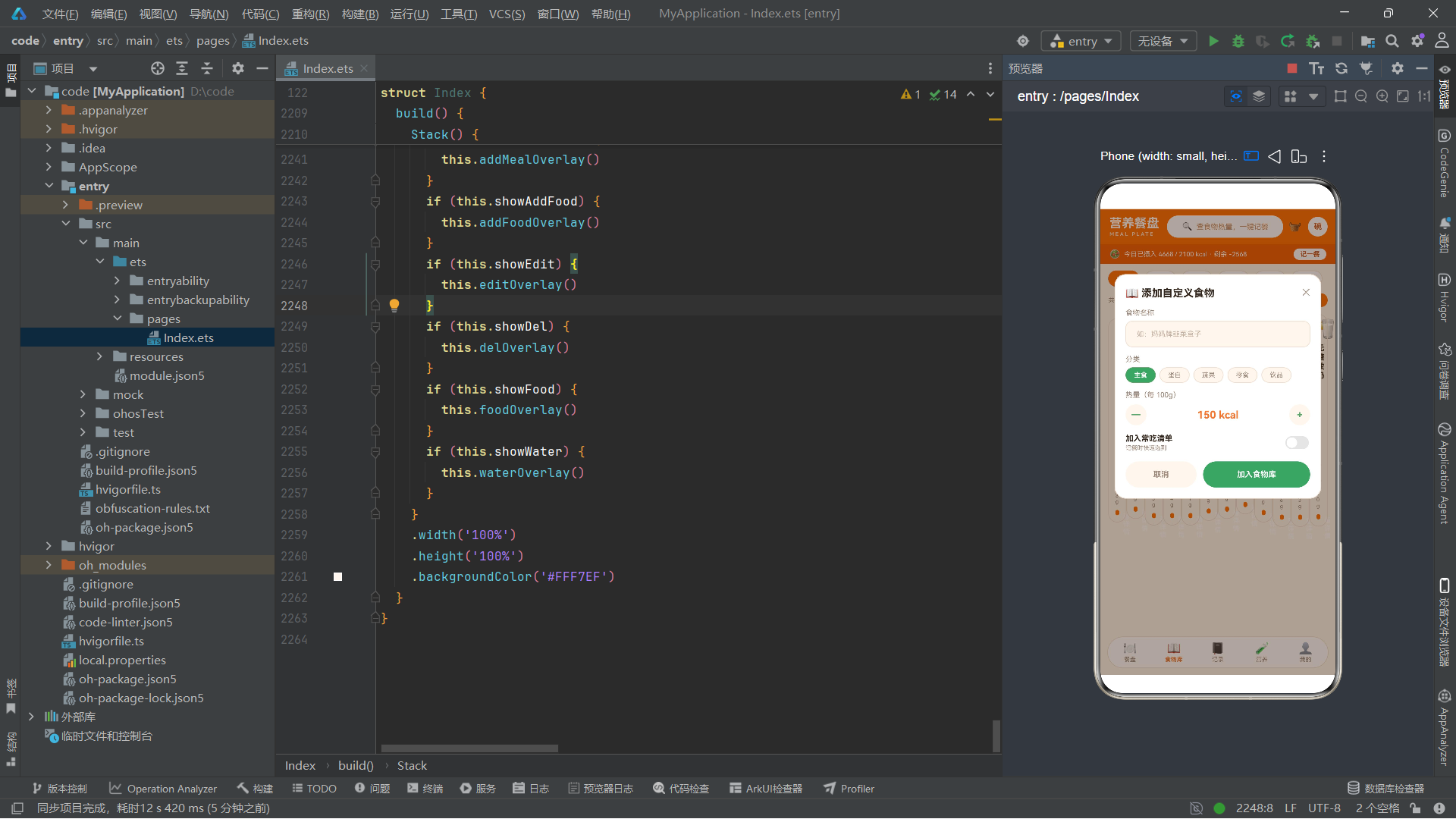
lastNight()返回睡眠记录数组的第一条(最近一晚的数据)。totalMins()使用forEach遍历所有睡眠阶段,累加分钟数得到总睡眠时长(96+231+108+22=457分钟,约7.6小时)。weekAvg()计算一周睡眠时长的平均值,使用Math.round(sum / 7 * 10) / 10将结果四舍五入到一位小数。habitDone()使用filter过滤出已完成的习惯数量。
技术要点: 这些方法虽然是组件内部方法,但它们不修改状态,是"纯读取"的派生计算。在ArkUI中,这类方法可以在
build方法中直接调用,每次UI渲染时都会重新计算。如果计算逻辑复杂且频繁使用,可以考虑使用@Computed装饰器(若版本支持)或缓存计算结果。但在本应用中,数据量很小,实时计算不会有性能问题。
五、业务逻辑方法
5.1 弹框打开与确认逻辑
应用中有六个弹框,每个弹框都有一对"打开"和"确认"方法。先看就寝目标和记梦的逻辑:
openGoal(): void {
  this.goalIdx = 2
  this.bedMin = 92
  this.goalRemind = true
  this.showGoal = true
}

confirmGoal(): void {
  this.showGoal = false
}

openDream(): void {
  this.dreamText = ''
  this.dreamMood = 0
  this.dreamTag = 0
  this.dreamLucid = false
  this.showDream = true
}

confirmDream(): void {
  this.dreams = [{ id: this.dreams.length + 20, date: '今晨', mood: MOODS1[this.dreamMood], lucid: this.dreamLucid, text: this.dreamText.length > 0 ? this.dreamText : '模糊记得一个画面,醒来就忘了大半。', tag: DTAGS1[this.dreamTag] } as DreamT].concat(this.dreams)
  this.showDream = false
}
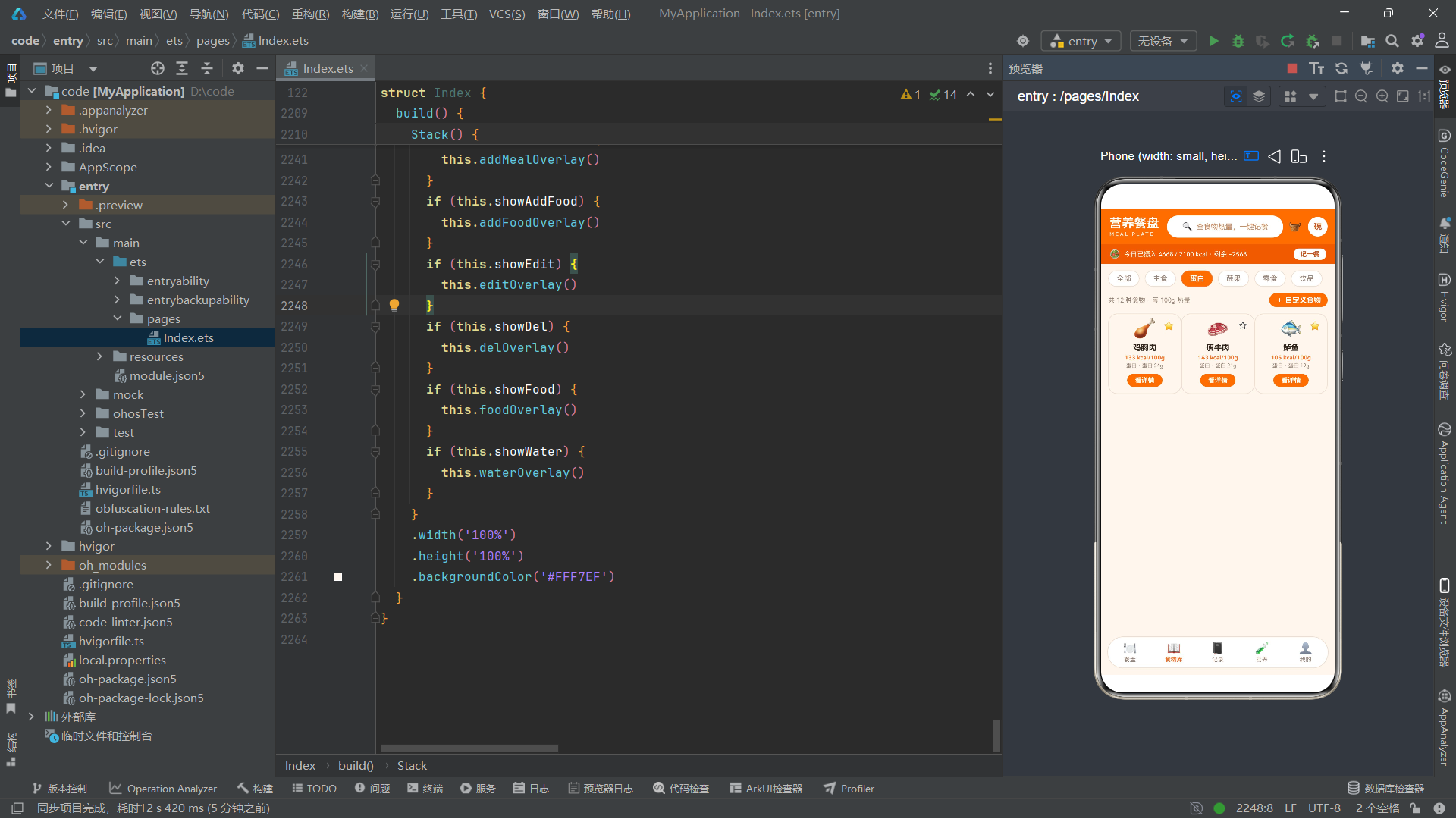
openGoal()在打开就寝目标弹框前,将表单状态重置为默认值(目标时长选7.5h、就寝时间92、提醒开启),然后设置showGoal = true触发弹框渲染。这种"先重置再展示"的模式确保了每次打开弹框时表单都是干净的初始状态。confirmGoal()简单地关闭弹框。
openDream()同样重置记梦表单。confirmDream()则更有意思——它构造了一个新的DreamT对象,其中mood通过索引从MOODS1数组中取出对应的表情,tag通过索引从DTAGS1中取出标签,text使用用户输入的内容(若为空则使用一句默认的"模糊记得"文案),然后使用.concat()方法将新梦境拼接到已有梦境数组的最前面,最后赋值给this.dreams触发UI更新。这里使用concat而非unshift是为了保持immutable更新模式——创建新数组而非修改原数组。
技术要点:
concat方法返回一个新数组,不会修改原数组。将其结果赋值给@State变量,框架会检测到引用变化,触发整个列表的重新渲染。这是ArkUI中处理数组数据变更的推荐方式。如果直接使用this.dreams.unshift(...)修改原数组,框架不会感知到变化(因为引用未变),UI不会更新。
习惯编辑和删除的逻辑如下:
openHabit(h: HabitT): void {
  const idx: number = this.habits.indexOf(h)
  if (idx >= 0) {
    this.habitIdx = idx
  }
  const freqs: Array<string> = ['每晚', '每天', '每周 5 次']
  this.habitFreq = freqs.indexOf(h.freq)
  if (this.habitFreq < 0) {
    this.habitFreq = 0
  }
  this.habitRemind = true
  this.showHabit = true
}

confirmHabit(): void {
  const freqs: Array<string> = ['每晚', '每天', '每周 5 次']
  this.habits = this.habits.map((h: HabitT, i: number) => {
    if (i === this.habitIdx) {
      return { id: h.id, icon: h.icon, title: h.title, desc: h.desc, freq: freqs[this.habitFreq], done: h.done } as HabitT
    }
    return h
  })
  this.showHabit = false
}

toggleHabit(h: HabitT): void {
  this.habits = this.habits.map((x: HabitT) => {
    if (x.id === h.id) {
      return { id: x.id, icon: x.icon, title: x.title, desc: x.desc, freq: x.freq, done: !x.done } as HabitT
    }
    return x
  })
}
openHabit接收一个HabitT参数,使用indexOf找到该习惯在数组中的索引,然后根据该习惯的freq值在频率选项数组中找到对应的索引,用于初始化弹框中的频率选择器。confirmHabit使用map遍历习惯数组,找到匹配索引的习惯并更新其freq字段,其余保持不变,创建新数组赋值给this.habits。toggleHabit类似地使用map,但只切换匹配习惯的done布尔值。
技术要点:
map方法是数组不可变更新的核心工具。它创建一个新数组,每个元素经过回调函数转换。在本应用中,"更新数组中某一条记录的某个字段"的标准模式是:this.arr = this.arr.map((item, i) => i === targetIndex ? { ...item, field: newValue } : item)。在ArkTS中由于不支持对象展开运算符...,需要手动构造完整的对象字面量并使用as断言类型。
删除逻辑包含了"二次确认"的安全设计:
openDel(idx: number): void {
  this.delIdx = idx
  this.dangerDel = false
  this.showDel = true
}

doDel(): void {
  this.nights = this.nights.filter((n: NightT, i: number) => i !== this.delIdx)
  this.showDel = false
}

openNight(idx: number): void {
  this.nightIdx = idx
  this.showNight = true
}

delDream(d: DreamT): void {
  this.dreams = this.dreams.filter((x: DreamT) => x.id !== d.id)
}
openDel记录要删除的夜晚索引并打开确认弹框,dangerDel初始为false(用户未勾选确认)。doDel在用户勾选确认后执行实际删除——使用filter创建一个不包含目标索引的新数组。delDream通过id匹配来删除梦境记录,使用filter过滤掉匹配id的记录。filter是immutable删除的标准方式。
技术要点: 删除操作使用
filter而非splice,因为filter返回新数组、不改原数组,能正确触发ArkUI的响应式更新。splice直接修改原数组,框架无法感知变化。此外,删除弹框中设计了dangerDel二次确认开关——用户必须主动勾选"我已确认"才能启用删除按钮,这种安全设计防止了误删重要数据。
白噪音定时和音源选择的逻辑:
openTimer(): void {
  this.timerIdx = 1
  this.volume = 6
  this.fadeout = true
  this.showTimer = true
}

confirmTimer(): void {
  this.showTimer = false
}

pickSound(i: number): void {
  if (this.soundIdx === i) {
    this.soundIdx = -1
  } else {
    this.soundIdx = i
  }
}
pickSound实现了一个"切换"逻辑:如果点击的音源已被选中,则取消选择(设为-1);否则选中新音源。这种"toggle"模式让用户可以点击同一个卡片来播放和暂停。
就寝时间的显示格式化:
bedText(): string {
  const h: number = Math.floor(this.bedMin / 4)
  const m: number = (this.bedMin % 4) * 15
  const hh: string = h < 10 ? '0' + h.toString() : h.toString()
  const mm: string = m < 10 ? '0' + m.toString() : m.toString()
  return hh + ':' + mm
}
bedText方法将bedMin(一个以15分钟为步进的偏移量,范围80-100)转换为"HH:MM"格式的时间字符串。bedMin / 4得到小时部分(因为每小时有4个15分钟),bedMin % 4 * 15得到分钟部分。例如bedMin = 92时,h = 23、m = 0,显示"23:00";bedMin = 93时,h = 23、m = 15,显示"23:15"。这种"数值编码→可读时间"的转换在表单类应用中很常见。
六、UI构建:头部与标签栏
6.1 头部导航栏
@Builder
headerBar() {
  Column() {
    Row() {
      Column() {
        Text('睡眠实验室')
          .fontSize(19)
          .fontWeight(FontWeight.Bold)
          .fontColor('#EDE9F8')
        Text('SLEEP LAB')
          .fontSize(8)
          .fontColor('#8B7CF6')
          .fontWeight(FontWeight.Bold)
          .letterSpacing(2)
          .margin({ top: 1 })
      }
      .alignItems(HorizontalAlign.Start)
      .margin({ left: 14 })

      Row() {
        Text('🔍')
          .fontSize(13)
        Text('查夜报 / 查白噪音 / 查梦')
          .fontSize(11)
          .fontColor('#8F86A8')
          .margin({ left: 6 })
      }
      .layoutWeight(1)
      .height(34)
      .borderRadius(17)
      .backgroundColor('#1E1830')
      .border({ width: 1, color: '#352C52' })
      .margin({ left: 12, right: 8 })
      .justifyContent(FlexAlign.Center)

      Text('🌙')
        .fontSize(16)
        .margin({ right: 12 })
    }
    .width('100%')
    .height(54)
    .alignItems(VerticalAlign.Center)
@Builder装饰器用于声明一个可复用的UI构建方法。与直接写在build()中的代码不同,@Builder方法可以被多次调用、可以接收参数,是ArkUI中实现UI复用的核心机制。
头部导航栏由一个外层Column和内层两个Row组成。第一个Row包含三部分:左侧是应用名称(中文"睡眠实验室"和英文副标题"SLEEP LAB"),使用Column纵向排列;中间是一个搜索框样式的Row,使用layoutWeight(1)占据剩余宽度;右侧是一个月亮emoji图标。
技术要点:
Column是ArkUI中最基础的容器组件之一,它将其子组件在垂直方向上从上到下排列。通过alignItems属性可以控制子组件在水平方向上的对齐方式:HorizontalAlign.Start(左对齐)、HorizontalAlign.Center(居中对齐)、HorizontalAlign.End(右对齐)。Row容器则是横向排列子组件,通过VerticalAlign控制垂直对齐。
技术要点:
layoutWeight是ArkUI中实现弹性布局的关键属性。当一个容器内有多个子组件时,设置了layoutWeight的组件会占据剩余空间的相应比例。在上面的代码中,搜索框Row设置了layoutWeight(1),它会占据左侧名称Column和右侧月亮Text之外的全部剩余宽度,实现自适应布局。
头部的第二行包含状态摘要和操作按钮:
    Row() {
      Text('😴')
        .fontSize(13)
      Text('连续监测 68 晚 · 平均 ' + this.weekAvg().toString() + ' 小时 · 本周 3 晚优质睡眠')
        .fontSize(10)
        .fontColor('#8B7CF6')
        .margin({ left: 6 })
      Column()
        .layoutWeight(1)
        .height(1)
      Text('设目标')
        .fontSize(10)
        .fontWeight(FontWeight.Bold)
        .fontColor('#14101F')
        .padding({ left: 10, right: 10, top: 3, bottom: 3 })
        .borderRadius(10)
        .backgroundColor('#8B7CF6')
        .onClick(() => {
          this.openGoal()
        })
    }
    .width('100%')
    .height(30)
    .alignItems(VerticalAlign.Center)
    .padding({ left: 14, right: 14 })
    .backgroundColor('#1A1529')
  }
  .width('100%')
  .backgroundColor('#14101F')
}
这一行使用了一个常见的布局技巧:在文字和按钮之间放置一个空Column并设置layoutWeight(1)和height(1),它像一个弹性"弹簧",将两侧的元素推向两端,实现了"左侧内容 + 弹性间隔 + 右侧按钮"的经典布局模式。"设目标"按钮通过onClick绑定了this.openGoal()方法,点击后打开就寝目标弹框。
技术要点:
onClick是ArkUI中为组件绑定点击事件的属性。它接收一个箭头函数作为回调。在ArkTS中,事件回调内通过this访问组件实例,因此this.openGoal()能正确调用组件方法。这种"UI声明中嵌入事件逻辑"的方式是声明式UI的典型特征。
6.2 底部标签栏
标签栏通过一个带参数的@Builder方法来实现每个标签项的复用:
@Builder
tabItem(title: string, icon: string, idx: number) {
  Column() {
    Text(icon)
      .fontSize(16)
    Text(title)
      .fontSize(9)
      .fontWeight(this.currentTab === idx ? FontWeight.Bold : FontWeight.Normal)
      .fontColor(this.currentTab === idx ? '#8B7CF6' : '#8F86A8')
      .margin({ top: 2 })
  }
  .layoutWeight(1)
  .padding({ top: 7, bottom: 7 })
  .justifyContent(FlexAlign.Center)
  .onClick(() => {
    this.currentTab = idx
  })
}
tabItem接收三个参数:title(标签文字)、icon(标签图标emoji)、idx(标签索引)。它使用三元运算符this.currentTab === idx ? ... : ...来动态设置选中态和未选中态的字体粗细和颜色——选中时加粗且为紫色,未选中时正常字重且为灰色。onClick回调将currentTab设为当前标签的索引,触发页面内容区域的条件渲染切换。
技术要点:
@Builder方法可以接收参数,这是ArkUI实现组件复用的核心能力。与@Component自定义组件不同,@Builder方法更轻量——它不创建独立的组件实例,没有独立的状态和生命周期,只是UI片段的"模板"。适合用于在同一组件内复用UI结构。如果需要在多个组件间复用,应该使用@Component。
@Builder
tabBar() {
  Column() {
    Column()
      .width('100%')
      .height(1)
      .backgroundColor('#352C52')
    Row() {
      this.tabItem('今夜', '🌙', 0)
      this.tabItem('周报', '📊', 1)
      this.tabItem('习惯', '✅', 2)
      this.tabItem('白噪音', '🎧', 3)
      this.tabItem('梦记', '💭', 4)
      this.tabItem('我的', '👤', 5)
    }
    .width('100%')
    .backgroundColor('#181330')
  }
  .width('100%')
}
tabBar组装了完整的底部导航栏:顶部一条1像素的分隔线,下面是一个Row包含六个tabItem调用。六个标签项各设置layoutWeight(1),在Row中等分宽度,实现了六等分的底部导航。
七、Tab 1:今夜页面
今夜页面是应用的默认首页,展示昨晚的睡眠评分、关键指标、睡眠结构比例条和最近夜晚列表。
7.1 评分卡片与月亮动画
@Builder
nightTab() {
  Column() {
    Column() {
      Row() {
        Column() {
          Stack() {
            Column()
              .width(74)
              .height(74)
              .borderRadius(37)
              .backgroundColor('#8B7CF6')
              .opacity(this.moonOp)
              .scale({ x: this.moonScale, y: this.moonScale })
            Text('🌙')
              .fontSize(34)
          }
          .width(74)
          .height(74)
        }
        .width(84)
        .height(84)
        .justifyContent(FlexAlign.Center)
这一段构建了月亮呼吸动画的视觉容器。外层Column提供了84x84的布局空间,内部Stack层叠了两个元素:一个74x74的紫色圆形(borderRadius(37)使其变为圆形)和一个月亮emoji文字。紫色圆形的opacity绑定到this.moonOp、scale绑定到this.moonScale,这两个变量在aboutToAppear中被animateTo驱动,使得圆形产生透明度和缩放的周期性变化,配合月亮emoji形成了"月亮呼吸"的动态效果。
技术要点:
Stack是ArkUI的层叠布局容器,它将子组件按照声明顺序从底到上层叠排列,后声明的组件覆盖在先声明的组件之上。在本例中,紫色圆形作为底层"光晕",月亮emoji作为上层"主体",两者通过Stack组合形成了一个完整的视觉元素。borderRadius设为宽高的一半可以创建完美的圆形。
技术要点:
opacity属性控制组件的透明度(0完全透明,1完全不透明),scale属性控制组件的缩放比例(1为原始大小)。这两个属性与animateTo配合,可以实现非常优雅的微交互动画。scale接受一个对象参数{ x, y },分别控制水平和垂直方向的缩放,也可以使用scale(n)简写同时控制两个方向。
7.2 评分数字与星星特效
        Column() {
          Text(this.lastNight().score.toString() + ' 分')
            .fontSize(28)
            .fontWeight(FontWeight.Bold)
            .fontColor(scoreColor1(this.lastNight().score))
          Text(this.lastNight().start + ' 入睡 · ' + this.lastNight().end + ' 醒来')
            .fontSize(10)
            .fontColor('#8F86A8')
            .margin({ top: 4 })
          Row() {
            Text(this.lastNight().quality)
              .fontSize(9)
              .fontColor('#14101F')
              .padding({ left: 8, right: 8, top: 2, bottom: 2 })
              .borderRadius(8)
              .backgroundColor(scoreColor1(this.lastNight().score))
          }
          .margin({ top: 6 })
        }
        .alignItems(HorizontalAlign.Start)
        .layoutWeight(1)
评分区域展示了昨晚的睡眠评分(88分),字体颜色通过scoreColor1函数动态计算——88分大于85,返回紫色#8B7CF6。入睡和醒来时间以"23:41 入睡 · 07:12 醒来"的格式展示。睡眠质量标签"优质睡眠"使用评分对应的颜色作为背景,深色字体,形成醒目的胶囊标签。
        Column() {
          Text('✨')
            .fontSize(12)
            .opacity(this.starOp)
          Text('✦')
            .fontSize(10)
            .fontColor('#6FA8FF')
            .opacity(this.starOp)
            .margin({ top: 6 })
          Text('✧')
            .fontSize(9)
            .fontColor('#F28AB5')
            .opacity(this.starOp)
            .margin({ top: 6 })
        }
        .alignItems(HorizontalAlign.Center)
      }
      .width('100%')
      .alignItems(VerticalAlign.Center)
右侧的星星区域展示了三种不同的星形符号,它们的opacity都绑定到this.starOp,由aboutToAppear中的第二个animateTo驱动,在0.3到1之间快速交替变化,形成了星星闪烁的视觉效果。三种星使用了不同颜色(白色、蓝色、粉色),增加了星空的色彩层次。
7.3 关键指标条
      Row() {
        Column() {
          Text('7.5h')
            .fontSize(16)
            .fontWeight(FontWeight.Bold)
            .fontColor('#EDE9F8')
          Text('总时长')
            .fontSize(8)
            .fontColor('#8F86A8')
            .margin({ top: 2 })
        }
        .layoutWeight(1)
        .alignItems(HorizontalAlign.Center)

        Column() {
          Text('21%')
            .fontSize(16)
            .fontWeight(FontWeight.Bold)
            .fontColor('#8B7CF6')
          Text('深睡占比')
            .fontSize(8)
            .fontColor('#8F86A8')
            .margin({ top: 2 })
        }
        .layoutWeight(1)
        .alignItems(HorizontalAlign.Center)

        Column() {
          Text('1 次')
            .fontSize(16)
            .fontWeight(FontWeight.Bold)
            .fontColor('#F4A261')
          Text('起夜')
            .fontSize(8)
            .fontColor('#8F86A8')
            .margin({ top: 2 })
        }
        .layoutWeight(1)
        .alignItems(HorizontalAlign.Center)

        Column() {
          Text('12 分')
            .fontSize(16)
            .fontWeight(FontWeight.Bold)
            .fontColor('#6FA8FF')
          Text('入睡用时')
            .fontSize(8)
            .fontColor('#8F86A8')
            .margin({ top: 2 })
        }
        .layoutWeight(1)
        .alignItems(HorizontalAlign.Center)
      }
      .width('100%')
      .padding({ top: 12, bottom: 12 })
      .borderRadius(12)
      .backgroundColor('#1A1529')
      .margin({ top: 12 })
这是一个典型的四等分指标条,使用Row作为容器,四个Column各设置layoutWeight(1)等分宽度。每个指标由一个加粗大字号数值和一个小字号灰色标签组成,数值使用不同颜色区分(总时长白色、深睡占比紫色、起夜橙色、入睡用时蓝色),让用户一眼就能识别各项指标的重要性。
技术要点:
layoutWeight(1)在Row中的效果是让多个子组件等分水平方向的剩余空间。如果某个组件需要更大的比例,可以设置更大的权重值(如layoutWeight(2)表示占据两倍的空间)。这种弹性权重分配机制与CSS Flexbox的flex-grow属性原理一致,但在ArkUI中通过更直观的数值来控制。
7.4 睡眠结构比例条
      Text('睡眠结构(比例条)')
        .fontSize(12)
        .fontWeight(FontWeight.Bold)
        .fontColor('#EDE9F8')
        .width('100%')
        .margin({ top: 14 })

      Row() {
        ForEach(STAGES1, (s: StageT) => {
          Column() {
            Column()
              .width('100%')
              .height(16)
              .backgroundColor(s.color)
          }
          .layoutWeight(s.mins)
          .height(16)
        }, (s: StageT) => s.name)
      }
      .width('100%')
      .borderRadius(8)
      .clip(true)
      .margin({ top: 8 })
这是一个精彩的"数据可视化"实现——使用ForEach遍历四个睡眠阶段数据,每个阶段渲染为一个Column,其layoutWeight设置为该阶段的mins(分钟数)。由于layoutWeight按权重比例分配空间,深睡96分钟、浅睡231分钟、快速眼动108分钟、清醒22分钟,四者比例约为21%:50%:24%:5%,恰好反映了各阶段在总睡眠中的占比。外层Row设置clip(true)和borderRadius(8),使得两端被裁剪为圆角,形成了一个完整的"睡眠结构比例条"。
技术要点:
ForEach是ArkUI中列表渲染的核心组件。它接收三个参数:数据源数组、子组件生成函数(itemGenerator)、键值生成函数(keyGenerator)。keyGenerator为每个数据项生成唯一标识,框架使用这个标识进行diff优化——当数据变化时,只有key变化或消失的项才会被重新渲染或移除,未变化的项保持不变,大幅提升了列表更新性能。
技术要点:
clip(true)属性使组件裁剪超出其边界的内容。在上面的比例条中,子Column的backgroundColor填充了整个宽度,但外层Row有borderRadius(8)圆角,如果不设置clip(true),子组件的直角会"溢出"圆角区域。clip(true)确保了圆角效果的正确显示。
7.5 睡眠阶段图例与详情列表
      ForEach(STAGES1, (s: StageT) => {
        Row() {
          Text(s.icon)
            .fontSize(13)
            .width(24)
          Column()
            .width(10)
            .height(10)
            .borderRadius(3)
            .backgroundColor(s.color)
          Text(s.name)
            .fontSize(11)
            .fontColor('#EDE9F8')
            .margin({ left: 6 })
          Column()
            .layoutWeight(1)
            .height(1)
          Text(Math.round(s.mins / this.totalMins() * 100).toString() + '% · ' + s.mins.toString() + ' 分钟')
            .fontSize(10)
            .fontColor('#8F86A8')
        }
        .width('100%')
        .margin({ top: 10 })
      }, (s: StageT) => s.name)
这里再次使用ForEach渲染每个睡眠阶段的图例行:emoji图标、颜色色块、阶段名称、弹性间隔、百分比和分钟数。百分比通过Math.round(s.mins / this.totalMins() * 100)实时计算,例如深睡96分钟占总时长457分钟的21%。这种"实时计算"方式确保了即使数据变化,百分比也会自动更新。
7.6 最近夜晚列表
      Row() {
        Text('最近夜晚')
          .fontSize(13)
          .fontWeight(FontWeight.Bold)
          .fontColor('#EDE9F8')
        Text('RECENT NIGHTS')
          .fontSize(8)
          .fontColor('#8B7CF6')
          .letterSpacing(1)
          .margin({ left: 6 })
        Column()
          .layoutWeight(1)
          .height(1)
        Text('共 ' + this.nights.length.toString() + ' 晚')
          .fontSize(10)
          .fontColor('#8F86A8')
      }
      .width('100%')
      .margin({ top: 16, bottom: 8 })

      ForEach(this.nights, (n: NightT, i: number) => {
        Row() {
          Column() {
            Text(n.score.toString())
              .fontSize(17)
              .fontWeight(FontWeight.Bold)
              .fontColor(scoreColor1(n.score))
            Text('评分')
              .fontSize(8)
              .fontColor('#8F86A8')
              .margin({ top: 1 })
          }
          .width(48)
          .alignItems(HorizontalAlign.Center)

          Column() {
            Text(n.date + ' · ' + n.start + '-' + n.end)
              .fontSize(11)
              .fontWeight(FontWeight.Bold)
              .fontColor('#EDE9F8')
            Text(n.hours.toFixed(1) + ' 小时 · 深睡 ' + n.deep.toString() + '% · 起夜 ' + n.wakes.toString() + ' 次')
              .fontSize(9)
              .fontColor('#8F86A8')
              .margin({ top: 3 })
          }
          .alignItems(HorizontalAlign.Start)
          .layoutWeight(1)
          .margin({ left: 10 })

          Column() {
            Text(n.quality)
              .fontSize(8)
              .fontColor(scoreColor1(n.score))
              .padding({ left: 6, right: 6, top: 2, bottom: 2 })
              .borderRadius(6)
              .backgroundColor('#251D3D')
            Text('详情')
              .fontSize(10)
              .fontWeight(FontWeight.Bold)
              .fontColor('#8B7CF6')
              .margin({ top: 6 })
              .onClick(() => {
                this.openNight(i)
              })
            Text('🗑')
              .fontSize(12)
              .fontColor('#F28AB5')
              .margin({ top: 6 })
              .onClick(() => {
                this.openDel(i)
              })
          }
          .alignItems(HorizontalAlign.End)
        }
        .width('100%')
        .padding(12)
        .borderRadius(14)
        .backgroundColor('#1E1830')
        .border({ width: 1, color: '#352C52' })
        .margin({ bottom: 8 })
        .alignItems(VerticalAlign.Center)
      }, (n: NightT) => n.id.toString())
最近夜晚列表使用ForEach遍历this.nights数组(注意这里使用的是@State变量而非静态常量,因为用户可以删除记录)。每条记录是一个Row卡片,左侧是评分数字(颜色由scoreColor1函数动态计算),中间是日期、时间范围、时长和深睡占比等信息,右侧是质量标签、"详情"按钮和删除按钮。"详情"按钮绑定this.openNight(i)打开夜晚详情弹框,删除按钮绑定this.openDel(i)打开删除确认弹框。
技术要点:
ForEach的第二个参数(子组件生成函数)可以接收两个参数:当前数据项item和当前索引index。在本例中,索引i被传递给openNight和openDel方法,用于定位要操作的具体记录。这种"索引传递"模式在需要操作具体数组项的场景中非常实用。但要注意,当数组被增删后索引会变化,因此删除操作使用索引可能导致索引错位——本应用中删除后立即关闭弹框,不会继续使用旧索引,所以不存在此问题。
技术要点:
ForEach的第三个参数(键值生成器)使用了n.id.toString(),以每条记录的id属性作为唯一标识。当用户删除某条记录时,框架会比较新旧数组的key集合,发现被移除的key对应的UI节点会被删除,其余节点保持不变。如果使用索引作为key,删除中间一条记录会导致后面所有记录的key变化,框架会错误地重新渲染大量节点。
八、Tab 2:周报页面
周报页面展示了本周睡眠时长的柱状图、深睡占比环形图、就寝时间分布和周报结论。
8.1 周睡眠时长柱状图
@Builder
reportTab() {
  Column() {
    Column() {
      Text('本周睡眠时长')
        .fontSize(13)
        .fontWeight(FontWeight.Bold)
        .fontColor('#EDE9F8')
      Text('SLEEP DURATION · 目标 7.5h')
        .fontSize(8)
        .fontColor('#8B7CF6')
        .letterSpacing(1)
        .margin({ top: 2 })

      Row() {
        ForEach(WEEKNS1, (w: WeekNT) => {
          Column() {
            Text(w.hours.toFixed(1))
              .fontSize(8)
              .fontColor('#8F86A8')
              .margin({ bottom: 3 })
            Column() {
              Column()
                .width('60%')
                .height(w.hours * 16)
                .borderRadius({ topLeft: 4, topRight: 4 })
                .backgroundColor(w.hours >= 7.5 ? '#8B7CF6' : (w.hours >= 7 ? '#6FA8FF' : '#F4A261'))
            }
            .layoutWeight(1)
            .height('100%')
            .justifyContent(FlexAlign.End)
            .alignItems(HorizontalAlign.Center)

            Text(w.day)
              .fontSize(9)
              .fontColor('#8F86A8')
              .margin({ top: 5 })
          }
          .layoutWeight(1)
          .height(150)
          .justifyContent(FlexAlign.End)
          .alignItems(HorizontalAlign.Center)
        }, (w: WeekNT) => w.day)
      }
      .width('100%')
      .margin({ top: 12 })
这是一个手绘柱状图的精彩实现。使用ForEach遍历一周七天数据,每天渲染为一个Column:顶部是时长数值,中间是柱子(Column设置height(w.hours * 16),高度由数据驱动——6.5小时对应104px,8.2小时对应131px),底部是星期标签。每个柱子项设置layoutWeight(1)等分宽度,height(150)固定总高度,justifyContent(FlexAlign.End)使内容从底部对齐,模拟了柱状图"从底向上生长"的效果。柱子颜色通过嵌套三元运算符动态决定:达到7.5小时为紫色,达到7小时为蓝色,不足7小时为橙色。
技术要点:
justifyContent属性控制容器内子组件的主轴排列方式。对于Column(主轴为垂直方向),FlexAlign.End表示子组件从底部开始排列。这在柱状图场景中非常关键——它确保了所有柱子都"站在"同一条基准线上,高度不同但底部对齐。FlexAlign还有Start(顶部对齐)、Center(居中)、SpaceBetween(两端对齐)、SpaceAround(等间距)等选项。
技术要点:
borderRadius属性可以接受一个对象参数来分别设置四个角的圆角半径:{ topLeft, topRight, bottomLeft, bottomRight }。在上面的柱状图代码中,只设置了topLeft和topRight,使柱子顶部呈圆角、底部呈直角,更符合柱状图的视觉惯例。
8.2 深睡占比环形图
      Row() {
        Column() {
          Stack() {
            Progress({ value: 21, total: 100 })
              .width(100)
              .height(100)
              .style({ strokeWidth: 10 })
            Column() {
              Text('21%')
                .fontSize(18)
                .fontWeight(FontWeight.Bold)
                .fontColor('#8B7CF6')
              Text('深睡占比')
                .fontSize(8)
                .fontColor('#8F86A8')
                .margin({ top: 1 })
            }
            .justifyContent(FlexAlign.Center)
          }
          .width(100)
          .height(100)
        }
        .justifyContent(FlexAlign.Center)
这里使用了Progress组件渲染环形进度图。Progress通过value和total参数设置进度值(21/100=21%),style({ strokeWidth: 10 })设置环线宽度为10像素。在Stack层叠布局中,Progress作为底层环形进度,上层叠加了一个Column显示百分比文字和标签,形成了"环形图+中心文字"的经典数据展示样式。
技术要点:
Progress是ArkUI内置的进度组件,支持线性(Linear)和环形(Ring/Eclipse)两种样式。通过style属性可以设置环形进度条的线宽、颜色等。Progress组件非常适合用于展示百分比数据——评分占比、完成率、进度等。配合Stack叠加文字,可以创建信息丰富的数据可视化卡片。
8.3 就寝时间分布横条
      Column() {
        Text('就寝时间分布')
          .fontSize(13)
          .fontWeight(FontWeight.Bold)
          .fontColor('#EDE9F8')
          .width('100%')
        Text('越短越好 · 23:00 前入睡奖励深睡')
          .fontSize(9)
          .fontColor('#8F86A8')
          .margin({ top: 2 })
          .width('100%')

        ForEach(WEEKNS1, (w: WeekNT, i: number) => {
          Row() {
            Text('周' + w.day)
              .fontSize(10)
              .fontColor('#EDE9F8')
              .width(34)
            Column() {
              Column()
                .width(Math.min(Math.round(w.hours * 12), 100) + '%')
                .height(11)
                .borderRadius(6)
                .backgroundColor(i === 4 ? '#F4A261' : '#6FA8FF')
            }
            .layoutWeight(1)
            .height(11)
            .borderRadius(6)
            .backgroundColor('#1A1529')
            Text(i === 4 ? '00:35' : (i === 1 ? '00:12' : '23:' + (20 + i).toString()))
              .fontSize(9)
              .fontColor(i === 4 ? '#F4A261' : '#6FA8FF')
              .width(40)
              .textAlign(TextAlign.End)
          }
          .width('100%')
          .margin({ top: 9 })
        }, (w: WeekNT) => w.day)
      }
就寝时间分布使用横向条形图展示每天的就寝时间。每行是一个Row:左侧星期标签、中间进度横条、右侧具体时间。横条的宽度由Math.min(Math.round(w.hours * 12), 100) + '%'计算,将睡眠时长映射为百分比宽度(时长越长条越宽)。横条使用嵌套Column实现"外层容器+内层填充"的进度条效果——外层Column有深色背景,内层Column有彩色背景,内层宽度由数据决定。周五(i===4)使用橙色标记,表示就寝最晚。
技术要点:
textAlign属性控制文本的对齐方式:TextAlign.Start(左对齐)、TextAlign.Center(居中)、TextAlign.End(右对齐)。在表格类布局中,标签通常左对齐,数值右对齐,这是数据展示的基本排版规范。在横条图右侧的时间标签使用TextAlign.End右对齐,使时间值在视觉上整齐排列。
8.4 周报结论
      Column() {
        Text('🌙 睡眠周报结论')
          .fontSize(12)
          .fontWeight(FontWeight.Bold)
          .fontColor('#8B7CF6')
        Text('· 周均 ' + this.weekAvg().toString() + ' 小时,比上周多 18 分钟')
          .fontSize(10)
          .fontColor('#8F86A8')
          .margin({ top: 8 })
        Text('· 周五熬夜是本周评分最低的一晚,尽量避免')
          .fontSize(10)
          .fontColor('#8F86A8')
          .margin({ top: 6 })
        Text('· 深睡占比稳步提升,运动与冥想习惯有效')
          .fontSize(10)
          .fontColor('#8F86A8')
          .margin({ top: 6 })
      }
      .width('100%')
      .padding(14)
      .borderRadius(16)
      .backgroundColor('#251D3D')
      .margin({ top: 12 })
      .alignItems(HorizontalAlign.Start)
周报结论使用三行文字摘要,以项目符号"·"开头,分别总结周均时长、最低评分原因和改善趋势。结论中引用了this.weekAvg()的实时计算结果,确保数据的一致性。
九、Tab 3:习惯页面
习惯页面展示睡眠习惯清单,包含完成度环形进度图和可点击切换的习惯卡片列表。
@Builder
habitTab() {
  Column() {
    Row() {
      Column() {
        Stack() {
          Progress({ value: this.habitDone(), total: this.habits.length })
            .width(96)
            .height(96)
            .style({ strokeWidth: 9 })
          Column() {
            Text(this.habitDone().toString() + '/' + this.habits.length.toString())
              .fontSize(16)
              .fontWeight(FontWeight.Bold)
              .fontColor('#8B7CF6')
            Text('今晚已完成')
              .fontSize(8)
              .fontColor('#8F86A8')
              .margin({ top: 1 })
          }
          .justifyContent(FlexAlign.Center)
        }
        .width(96)
        .height(96)
      }
      .justifyContent(FlexAlign.Center)

      Column() {
        Text('睡眠习惯清单')
          .fontSize(14)
          .fontWeight(FontWeight.Bold)
          .fontColor('#EDE9F8')
        Text('完成度越高,深睡占比越高')
          .fontSize(9)
          .fontColor('#8F86A8')
          .margin({ top: 4 })
        Text('今晚完成 ' + this.habitDone().toString() + ' 项,加油')
          .fontSize(10)
          .fontColor('#F4A261')
          .margin({ top: 6 })
      }
      .alignItems(HorizontalAlign.Start)
      .layoutWeight(1)
      .margin({ left: 16 })
    }
习惯页面的头部是一个完成度环形图和说明文字的组合。Progress的value绑定了this.habitDone()(已完成习惯数量),total绑定了this.habits.length(总习惯数量),形成了动态的完成度展示。当用户切换习惯的完成状态时,环形进度会实时更新。
习惯列表卡片:
      ForEach(this.habits, (h: HabitT) => {
        Row() {
          Column() {
            Text(h.icon)
              .fontSize(17)
          }
          .width(42)
          .height(42)
          .borderRadius(12)
          .backgroundColor(h.done ? '#31295A' : '#1A1529')
          .border({ width: 1, color: h.done ? '#8B7CF6' : '#352C52' })
          .justifyContent(FlexAlign.Center)
          .alignItems(HorizontalAlign.Center)
          .margin({ right: 12 })

          Column() {
            Row() {
              Text(h.title)
                .fontSize(12)
                .fontWeight(FontWeight.Bold)
                .fontColor(h.done ? '#8B7CF6' : '#EDE9F8')
              Text(h.freq)
                .fontSize(8)
                .fontColor('#8F86A8')
                .padding({ left: 6, right: 6, top: 1, bottom: 1 })
                .borderRadius(6)
                .backgroundColor('#251D3D')
                .margin({ left: 6 })
            }
            Text(h.desc)
              .fontSize(9)
              .fontColor('#8F86A8')
              .margin({ top: 3 })
          }
          .alignItems(HorizontalAlign.Start)
          .layoutWeight(1)

          Column() {
            Text(h.done ? '✓' : '○')
              .fontSize(16)
              .fontWeight(FontWeight.Bold)
              .fontColor(h.done ? '#8B7CF6' : '#5E5680')
            Text('编辑')
              .fontSize(9)
              .fontColor('#6FA8FF')
              .margin({ top: 4 })
              .onClick(() => {
                this.openHabit(h)
              })
          }
          .alignItems(HorizontalAlign.Center)
        }
        .width('100%')
        .padding(12)
        .borderRadius(14)
        .backgroundColor('#1E1830')
        .border({ width: 1, color: h.done ? '#31295A' : '#352C52' })
        .margin({ top: 8 })
        .alignItems(VerticalAlign.Center)
        .onClick(() => {
          this.toggleHabit(h)
        })
      }, (h: HabitT) => h.id.toString() + (h.done ? 'd' : 'n'))
每条习惯卡片包含:左侧图标方块(完成时紫色背景+紫色边框,未完成时暗色背景+灰色边框)、中间标题+频率标签+描述文字、右侧完成状态图标和"编辑"按钮。整个卡片的onClick绑定了this.toggleHabit(h),点击卡片任意位置即可切换完成状态。而"编辑"按钮的onClick绑定了this.openHabit(h),打开编辑弹框。
技术要点:
ForEach的key生成器在这里使用h.id.toString() + (h.done ? 'd' : 'n'),将完成状态也编码进key中。这是一个关键设计:当用户切换某条习惯的完成状态时,该条记录的key从"3n"变为"3d",框架检测到key变化,会重新渲染这条记录的UI(更新颜色、边框等),而其他记录的key未变,保持不动。如果不将done编入key,直接修改对象属性后,框架可能无法正确识别UI需要更新。
十、Tab 4:白噪音页面
白噪音页面展示当前播放的音源信息和音源卡片列表。
@Builder
soundTab() {
  Column() {
    Column() {
      Row() {
        Column() {
          Text(this.soundIdx >= 0 ? SOUNDS1[this.soundIdx].icon : '🎧')
            .fontSize(28)
        }
        .width(56)
        .height(56)
        .borderRadius(16)
        .backgroundColor('#251D3D')
        .justifyContent(FlexAlign.Center)
        .alignItems(HorizontalAlign.Center)

        Column() {
          Text(this.soundIdx >= 0 ? SOUNDS1[this.soundIdx].name : '未选择音源')
            .fontSize(14)
            .fontWeight(FontWeight.Bold)
            .fontColor('#EDE9F8')
          Text(this.soundIdx >= 0 ? '正在播放 · 建议定时关闭' : '点下方卡片选择助眠音源')
            .fontSize(9)
            .fontColor('#8F86A8')
            .margin({ top: 4 })
        }
        .alignItems(HorizontalAlign.Start)
        .layoutWeight(1)
        .margin({ left: 12 })

        Column() {
          Text('定时')
            .fontSize(11)
            .fontWeight(FontWeight.Bold)
            .fontColor('#14101F')
            .padding({ left: 14, right: 14, top: 6, bottom: 6 })
            .borderRadius(14)
            .backgroundColor('#8B7CF6')
            .onClick(() => {
              this.openTimer()
            })
        }
      }
播放器头部使用三元运算符this.soundIdx >= 0 ? SOUNDS1[this.soundIdx].icon : '🎧'来动态展示当前选中音源的图标或默认耳机图标。当用户选择了音源后,名称区域显示音源名称和"正在播放"状态;未选择时显示"未选择音源"和"点下方卡片选择助眠音源"。"定时"按钮绑定this.openTimer()打开定时设置弹框。
音源卡片列表:
      Row() {
        ForEach(SOUNDS1, (s: SoundT, i: number) => {
          Column() {
            Column() {
              Text(s.icon)
                .fontSize(26)
              Text(s.name)
                .fontSize(11)
                .fontWeight(FontWeight.Bold)
                .fontColor(this.soundIdx === i ? '#8B7CF6' : '#EDE9F8')
                .margin({ top: 6 })
              Text(s.cat + ' · 常用 ' + s.mins.toString() + ' 分钟')
                .fontSize(8)
                .fontColor('#8F86A8')
                .margin({ top: 3 })
              Text(this.soundIdx === i ? '⏸ 暂停' : '▶ 播放')
                .fontSize(10)
                .fontWeight(FontWeight.Bold)
                .fontColor(this.soundIdx === i ? '#14101F' : '#8B7CF6')
                .padding({ left: 12, right: 12, top: 4, bottom: 4 })
                .borderRadius(10)
                .backgroundColor(this.soundIdx === i ? '#8B7CF6' : '#251D3D')
                .margin({ top: 8 })
            }
            .width('100%')
            .padding(10)
            .borderRadius(14)
            .backgroundColor(this.soundIdx === i ? '#2A2150' : '#1E1830')
            .border({ width: 1, color: this.soundIdx === i ? '#8B7CF6' : '#352C52' })
            .alignItems(HorizontalAlign.Center)
          }
          .layoutWeight(1)
          .margin({ bottom: 10 })
          .onClick(() => {
            this.pickSound(i)
          })
        }, (s: SoundT) => s.id.toString() + ('s'))
      }
      .width('100%')
十个音源卡片使用ForEach渲染在一个Row中,每个卡片设置layoutWeight(1)等分宽度。每个卡片内含图标、名称、分类+时长信息、播放/暂停按钮。选中态(this.soundIdx === i)通过多种视觉变化来表现:名称变紫色、背景变深紫色、边框变紫色、播放按钮变为"暂停"文字并反色填充。整个卡片绑定this.pickSound(i),点击切换选中状态。
技术要点: 选中态的视觉设计是一个值得深入研究的课题。在本卡片中,选中与未选中之间有五处差异:文字颜色、背景颜色、边框颜色、按钮文字、按钮背景颜色。这种"多维度视觉变化"能让用户非常明确地感知到当前选中项。在ArkUI中,由于没有CSS的class切换机制,选中态通过三元运算符动态设置各属性值来实现,虽然代码略显冗长,但灵活性极高。
十一、Tab 5:梦记页面
梦记页面展示梦境记录列表,包含统计概览和每条梦的详细记录卡片。
@Builder
dreamTab() {
  Column() {
    Row() {
      Text('梦境手账')
        .fontSize(13)
        .fontWeight(FontWeight.Bold)
        .fontColor('#EDE9F8')
      Text('DREAM LOG')
        .fontSize(8)
        .fontColor('#8B7CF6')
        .letterSpacing(1)
        .margin({ left: 6 })
      Column()
        .layoutWeight(1)
        .height(1)
      Text('+ 记一个梦')
        .fontSize(11)
        .fontWeight(FontWeight.Bold)
        .fontColor('#14101F')
        .padding({ left: 10, right: 10, top: 4, bottom: 4 })
        .borderRadius(10)
        .backgroundColor('#F4A261')
        .onClick(() => {
          this.openDream()
        })
    }
梦记页面顶部是标题行,右侧的"+ 记一个梦"按钮使用橙色背景,绑定this.openDream()打开记梦弹框。橙色与紫色的主色调形成对比,暗示"创建新内容"这一动作的特殊性。
统计概览条:
    Row() {
      Column() {
        Text(this.dreams.filter((d: DreamT) => d.lucid).length.toString())
          .fontSize(15)
          .fontWeight(FontWeight.Bold)
          .fontColor('#F28AB5')
        Text('清明梦')
          .fontSize(8)
          .fontColor('#8F86A8')
          .margin({ top: 2 })
      }
      .layoutWeight(1)
      .alignItems(HorizontalAlign.Center)

      Column() {
        Text(this.dreams.length.toString())
          .fontSize(15)
          .fontWeight(FontWeight.Bold)
          .fontColor('#8B7CF6')
        Text('记录梦数')
          .fontSize(8)
          .fontColor('#8F86A8')
          .margin({ top: 2 })
      }
      .layoutWeight(1)
      .alignItems(HorizontalAlign.Center)

      Column() {
        Text('68%')
          .fontSize(15)
          .fontWeight(FontWeight.Bold)
          .fontColor('#6FA8FF')
        Text('梦回忆率')
          .fontSize(8)
          .fontColor('#8F86A8')
          .margin({ top: 2 })
      }
      .layoutWeight(1)
      .alignItems(HorizontalAlign.Center)
    }
三等分统计条展示清明梦数量(使用filter筛选lucid === true的记录)、总记录数和梦回忆率。当用户添加或删除梦境记录时,前两个数值会实时更新,体现了@State响应式状态管理的效果。
梦境卡片列表:
    ForEach(this.dreams, (d: DreamT) => {
      Column() {
        Row() {
          Column() {
            Text(d.mood)
              .fontSize(22)
          }
          .width(44)
          .height(44)
          .borderRadius(14)
          .backgroundColor('#251D3D')
          .justifyContent(FlexAlign.Center)
          .alignItems(HorizontalAlign.Center)
          .margin({ right: 12 })

          Column() {
            Row() {
              Text(d.date)
                .fontSize(11)
                .fontWeight(FontWeight.Bold)
                .fontColor('#EDE9F8')
              Text(d.tag)
                .fontSize(8)
                .fontColor('#F4A261')
                .padding({ left: 6, right: 6, top: 1, bottom: 1 })
                .borderRadius(6)
                .backgroundColor('#33254A')
                .margin({ left: 6 })
              if (d.lucid) {
                Text('清明梦')
                  .fontSize(8)
                  .fontColor('#F28AB5')
                  .padding({ left: 6, right: 6, top: 1, bottom: 1 })
                  .borderRadius(6)
                  .backgroundColor('#3A2140')
                  .margin({ left: 4 })
              }
            }
            Text(d.text)
              .fontSize(10)
              .fontColor('#A99FC4')
              .margin({ top: 5 })
              .padding({ right: 8 })
          }
          .alignItems(HorizontalAlign.Start)
          .layoutWeight(1)

          Column() {
            Text('🗑')
              .fontSize(13)
              .fontColor('#8F86A8')
              .onClick(() => {
                this.delDream(d)
              })
          }
          .alignItems(HorizontalAlign.End)
        }
        .width('100%')
        .alignItems(VerticalAlign.Top)
      }
      .width('100%')
      .padding(12)
      .borderRadius(14)
      .backgroundColor('#1E1830')
      .border({ width: 1, color: '#352C52' })
      .margin({ bottom: 8 })
    }, (d: DreamT) => d.id.toString())
每条梦境卡片包含:左侧心情emoji方块、中间日期+标签+(如果lucid为true则显示"清明梦"标签)+梦的描述文本、右侧删除按钮。这里使用了if (d.lucid)条件渲染——只有在梦境标记为清明梦时,才渲染粉色的"清明梦"标签。删除按钮绑定this.delDream(d),通过传入整个梦境对象来定位要删除的记录。
技术要点:
if/else条件渲染是ArkUI中控制组件显示隐藏的另一种方式。与通过布尔变量控制@Builder是否调用不同,if是在渲染时直接决定某个组件是否出现在组件树中。if为false时,对应的组件不会被创建、不会被渲染、不占布局空间。这与设置visibility(Visibility.Hidden)不同——后者组件仍然存在只是不可见,但仍占据空间。
十二、Tab 6:我的页面
我的页面展示用户档案、统计概览、监测设备列表和睡眠小知识。
@Builder
mineTab() {
  Column() {
    Row() {
      Column() {
        Text('眠')
          .fontSize(20)
          .fontWeight(FontWeight.Bold)
          .fontColor('#14101F')
      }
      .width(56)
      .height(56)
      .borderRadius(28)
      .backgroundColor('#8B7CF6')
      .justifyContent(FlexAlign.Center)
      .alignItems(HorizontalAlign.Center)
      .margin({ right: 12 })

      Column() {
        Text('苏小眠')
          .fontSize(15)
          .fontWeight(FontWeight.Bold)
          .fontColor('#EDE9F8')
        Text('睡眠档案 SL-2026-0412 · 监测 68 晚')
          .fontSize(10)
          .fontColor('#8F86A8')
          .margin({ top: 3 })
        Text('🏷️ 轻度入睡困难 + 周末补觉型')
          .fontSize(10)
          .fontColor('#F4A261')
          .margin({ top: 3 })
      }
      .alignItems(HorizontalAlign.Start)
      .layoutWeight(1)
    }
    .width('100%')
    .padding(14)
    .borderRadius(18)
    .backgroundColor('#1E1830')
    .border({ width: 1, color: '#352C52' })
用户档案卡片包含一个紫色圆形头像(内嵌"眠"字)和用户信息(姓名、档案编号、睡眠类型标签)。头像使用borderRadius(28)将56x56的方块变为圆形。
统计概览四等分:
    Row() {
      Column() {
        Text('68')
          .fontSize(17)
          .fontWeight(FontWeight.Bold)
          .fontColor('#8B7CF6')
        Text('监测夜数')
          .fontSize(9)
          .fontColor('#8F86A8')
          .margin({ top: 2 })
      }
      .layoutWeight(1)
      .alignItems(HorizontalAlign.Center)

      Column() {
        Text('31')
          .fontSize(17)
          .fontWeight(FontWeight.Bold)
          .fontColor('#6FA8FF')
        Text('优质睡眠')
          .fontSize(9)
          .fontColor('#8F86A8')
          .margin({ top: 2 })
      }
      .layoutWeight(1)
      .alignItems(HorizontalAlign.Center)

      Column() {
        Text(this.dreams.length.toString())
          .fontSize(17)
          .fontWeight(FontWeight.Bold)
          .fontColor('#F28AB5')
        Text('梦境记录')
          .fontSize(9)
          .fontColor('#8F86A8')
          .margin({ top: 2 })
      }
      .layoutWeight(1)
      .alignItems(HorizontalAlign.Center)

      Column() {
        Text('5')
          .fontSize(17)
          .fontWeight(FontWeight.Bold)
          .fontColor('#F4A261')
        Text('清明梦')
          .fontSize(9)
          .fontColor('#8F86A8')
          .margin({ top: 2 })
      }
      .layoutWeight(1)
      .alignItems(HorizontalAlign.Center)
    }
四等分统计条展示监测夜数、优质睡眠天数、梦境记录数(使用this.dreams.length实时计算)和清明梦次数。四个数据使用四种不同颜色(紫、蓝、粉、橙),视觉上形成彩虹般的数据展示效果。
监测设备列表和睡眠小知识:
    Column() {
      Text('监测设备')
        .fontSize(12)
        .fontWeight(FontWeight.Bold)
        .fontColor('#EDE9F8')
        .width('100%')
      Row() {
        Text('⌚')
          .fontSize(14)
          .width(30)
        Text('智能手环 · 心率体动监测')
          .fontSize(10)
          .fontColor('#EDE9F8')
          .layoutWeight(1)
        Text('已连接')
          .fontSize(9)
          .fontColor('#8B7CF6')
      }
      .width('100%')
      .margin({ top: 10 })
      Row() {
        Text('📱')
          .fontSize(14)
          .width(30)
        Text('手机麦克风 · 鼾声记录')
          .fontSize(10)
          .fontColor('#EDE9F8')
          .layoutWeight(1)
        Text('开启')
          .fontSize(9)
          .fontColor('#6FA8FF')
      }
      .width('100%')
      .margin({ top: 8 })
      Row() {
        Text('🌡️')
          .fontSize(14)
          .width(30)
        Text('卧室温湿度传感器')
          .fontSize(10)
          .fontColor('#EDE9F8')
          .layoutWeight(1)
        Text('未连接')
          .fontSize(9)
          .fontColor('#8F86A8')
      }
      .width('100%')
      .margin({ top: 8 })
    }
    .width('100%')
    .padding(14)
    .borderRadius(14)
    .backgroundColor('#1E1830')
    .border({ width: 1, color: '#352C52' })
    .margin({ top: 12 })
    .alignItems(HorizontalAlign.Start)
监测设备列表使用三行Row展示手环、手机麦克风和温湿度传感器的连接状态。每行结构相同:emoji图标(固定宽度30)、设备名称(layoutWeight(1)占满中间)、状态文字(已连接/开启/未连接)。不同状态使用不同颜色——已连接为紫色、开启为蓝色、未连接为灰色,让用户一目了然。
十三、弹框系统(Overlay)
应用设计了六个弹框,每个弹框都使用"遮罩层+内容层"的双层结构,通过position绝对定位和zIndex层级控制实现覆盖效果。
13.1 弹框基础结构模式
所有弹框遵循相同的基础结构模式,先看就寝目标弹框:
@Builder
goalOverlay() {
  Column() {
  }
  .width('100%')
  .height('100%')
  .backgroundColor('#99100A1E')
  .position({ x: 0, y: 0 })
  .zIndex(999)
  .onClick(() => {
    this.showGoal = false
  })

  Column() {
    // ...弹框内容...
  }
  .width('88%')
  .padding(16)
  .borderRadius(18)
  .backgroundColor('#1E1830')
  .border({ width: 1, color: '#352C52' })
  .position({ x: '6%', y: '10%' })
  .zIndex(1000)
}
每个弹框由两个Column组成。第一个是全屏遮罩层:width('100%')、height('100%')、backgroundColor('#99100A1E')(半透明深色背景)、position({ x: 0, y: 0 })定位到左上角、zIndex(999)设置在内容层之下。遮罩层的onClick绑定关闭弹框的逻辑,实现了"点击遮罩区域关闭弹框"的交互体验。第二个是内容层:设置具体宽度和样式、position定位到屏幕中心区域、zIndex(1000)高于遮罩层,确保内容显示在遮罩之上。
技术要点:
position属性使组件脱离正常的文档流布局,使用绝对定位放置在指定坐标位置。{ x: '6%', y: '10%' }表示距左边6%、距顶部10%。position非常适合实现弹框、悬浮按钮、提示气泡等需要覆盖在正常布局之上的组件。
技术要点:
zIndex属性控制组件的渲染层级。数值越大,组件越在上层。在同一个Stack容器中,zIndex大的组件覆盖zIndex小的组件。在本应用中,遮罩层zIndex(999)、内容层zIndex(1000)、正常布局的zIndex默认为0,确保了弹框始终在最上层。
13.2 就寝目标弹框内容
  Column() {
    Row() {
      Text('🎯 设定就寝目标')
        .fontSize(16)
        .fontWeight(FontWeight.Bold)
        .fontColor('#EDE9F8')
      Text('BEDTIME GOAL')
        .fontSize(8)
        .fontColor('#8B7CF6')
        .letterSpacing(1)
        .margin({ left: 8 })
      Column()
        .layoutWeight(1)
        .height(1)
      Text('✕')
        .fontSize(14)
        .fontColor('#8F86A8')
        .onClick(() => {
          this.showGoal = false
        })
    }
    .width('100%')
    .alignItems(VerticalAlign.Center)

    Text('目标睡眠时长')
      .fontSize(11)
      .fontColor('#A99FC4')
      .width('100%')
      .margin({ top: 14 })
    Row() {
      ForEach(GOALS1, (g: string, i: number) => {
        Text(g)
          .fontSize(11)
          .fontWeight(this.goalIdx === i ? FontWeight.Bold : FontWeight.Normal)
          .fontColor(this.goalIdx === i ? '#14101F' : '#A99FC4')
          .padding({ left: 14, right: 14, top: 6, bottom: 6 })
          .borderRadius(14)
          .backgroundColor(this.goalIdx === i ? '#8B7CF6' : '#251D3D')
          .margin({ right: 8 })
          .onClick(() => {
            this.goalIdx = i
          })
      }, (g: string) => g)
    }
    .width('100%')
    .margin({ top: 6 })
目标弹框的内容包含:标题行(标题+关闭按钮)、目标睡眠时长选择器(使用ForEach渲染五个时长选项,选中态紫色背景)、就寝时间步进器、到点提醒开关和底部按钮组。时长选择器中每个选项绑定this.goalIdx = i的onClick,点击切换选中目标。
就寝时间步进器:
    Text('目标就寝时间(15 分钟步进)')
      .fontSize(11)
      .fontColor('#A99FC4')
      .width('100%')
      .margin({ top: 14 })
    Row() {
      Text('-')
        .fontSize(16)
        .fontWeight(FontWeight.Bold)
        .fontColor('#8B7CF6')
        .width(34)
        .height(34)
        .textAlign(TextAlign.Center)
        .borderRadius(17)
        .backgroundColor('#251D3D')
        .onClick(() => {
          if (this.bedMin > 80) {
            this.bedMin -= 1
          }
        })
      Text(this.bedText())
        .fontSize(20)
        .fontWeight(FontWeight.Bold)
        .fontColor('#EDE9F8')
        .layoutWeight(1)
        .textAlign(TextAlign.Center)
      Text('+')
        .fontSize(16)
        .fontWeight(FontWeight.Bold)
        .fontColor('#8B7CF6')
        .width(34)
        .height(34)
        .textAlign(TextAlign.Center)
        .borderRadius(17)
        .backgroundColor('#251D3D')
        .onClick(() => {
          if (this.bedMin < 100) {
            this.bedMin += 1
          }
        })
    }
    .width('100%')
    .margin({ top: 8 })

    Text('按目标:' + this.bedText() + ' 入睡,7:15 起床可睡满 ' + GOALS1[this.goalIdx])
      .fontSize(9)
      .fontColor('#6FA8FF')
      .width('100%')
      .margin({ top: 8 })
步进器由"-"按钮、时间显示、"+"按钮三部分组成。bedText()方法将bedMin数值转换为"HH:MM"格式时间。减号按钮在bedMin > 80时递减,加号按钮在bedMin < 100时递增,限制了就寝时间在20:00到01:00的合理范围内。下方实时显示推算结果:“按目标 23:00 入睡,7:15 起床可睡满 7.5h”。
技术要点: 步进器(Stepper)是表单交互中的常见模式。在ArkUI中没有内置的Stepper组件,开发者通过
Row+Text+onClick的组合自行实现。这种"按钮+显示+按钮"的三段式结构简洁直观,加减按钮使用圆形(borderRadius(17)为34x34方块的一半)设计,视觉上易于点击。
到点提醒开关和底部按钮:
    Row() {
      Column() {
        Text('到点提醒')
          .fontSize(12)
          .fontWeight(FontWeight.Bold)
          .fontColor('#EDE9F8')
        Text('提前 30 分钟推送收手机提醒')
          .fontSize(9)
          .fontColor('#8F86A8')
          .margin({ top: 2 })
      }
      .alignItems(HorizontalAlign.Start)
      .layoutWeight(1)

      Toggle({ type: ToggleType.Switch, isOn: this.goalRemind })
        .selectedColor('#8B7CF6')
        .onChange((on: boolean) => {
          this.goalRemind = on
        })
    }
    .width('100%')
    .margin({ top: 14 })

    Row() {
      Text('取消')
        .fontSize(12)
        .fontWeight(FontWeight.Bold)
        .fontColor('#A99FC4')
        .layoutWeight(1)
        .height(40)
        .textAlign(TextAlign.Center)
        .borderRadius(20)
        .backgroundColor('#251D3D')
        .onClick(() => {
          this.showGoal = false
        })
      Text('保存目标')
        .fontSize(12)
        .fontWeight(FontWeight.Bold)
        .fontColor('#14101F')
        .layoutWeight(1.6)
        .height(40)
        .textAlign(TextAlign.Center)
        .borderRadius(20)
        .backgroundColor('#8B7CF6')
        .margin({ left: 10 })
        .onClick(() => {
          this.confirmGoal()
        })
    }
    .width('100%')
    .margin({ top: 16 })
  }
到点提醒使用Toggle开关组件,type: ToggleType.Switch指定为开关样式,isOn绑定this.goalRemind状态,onChange回调接收新的开关状态并更新状态变量。selectedColor设置开关开启时的主题色为紫色。底部按钮组使用不等权重的layoutWeight——取消按钮layoutWeight(1),保存按钮layoutWeight(1.6),使保存按钮更宽,引导用户优先选择保存操作。
技术要点:
Toggle是ArkUI内置的开关组件,支持Switch(滑动开关)、Checkbox(复选框)、Button(按钮)三种类型。isOn属性绑定布尔状态变量,onChange回调在用户切换开关时触发,参数on为新的布尔值。selectedColor控制开关选中时的滑块颜色。Toggle是表单中收集布尔值输入的标准组件。
13.3 记梦弹框(底部抽屉式)
记梦弹框采用了与目标弹框不同的定位方式——从屏幕40%位置开始,呈现为底部抽屉的样式:
@Builder
dreamOverlay() {
  Column() {
  }
  .width('100%')
  .height('100%')
  .backgroundColor('#99100A1E')
  .position({ x: 0, y: 0 })
  .zIndex(999)
  .onClick(() => {
    this.showDream = false
  })

  Column() {
    Column()
      .width(40)
      .height(4)
      .borderRadius(2)
      .backgroundColor('#352C52')
      .margin({ top: 10 })
内容层顶部有一个40x4的拖拽指示条(小灰色横条),这是iOS和鸿蒙底部抽屉的标准设计语言,提示用户可以从底部拖拽关闭。内容层的定位是position({ x: 0, y: '40%' }),即从屏幕高度40%处开始向下展开,底部圆角borderRadius({ topLeft: 24, topRight: 24 })只设置了上方两个角。
记梦表单包含多行文本输入、心情选择、标签选择和清明梦开关:
    Row() {
      Text('💭 记一个梦')
        .fontSize(16)
        .fontWeight(FontWeight.Bold)
        .fontColor('#EDE9F8')
      Column()
        .layoutWeight(1)
        .height(1)
      Text('✕')
        .fontSize(14)
        .fontColor('#8F86A8')
        .onClick(() => {
          this.showDream = false
        })
    }
    .width('100%')
    .alignItems(VerticalAlign.Center)
    .padding({ left: 16, right: 16, top: 12 })

    Text('趁还记得,把梦写下来')
      .fontSize(10)
      .fontColor('#8F86A8')
      .width('100%')
      .padding({ left: 16, right: 16 })
      .margin({ top: 6 })

    TextArea({ text: this.dreamText, placeholder: '梦见了什么?越细节越好…' })
      .fontSize(12)
      .fontColor('#EDE9F8')
      .placeholderColor('#5E5680')
      .placeholderFont({ size: 11 })
      .height(90)
      .borderRadius(12)
      .backgroundColor('#251D3D')
      .border({ width: 1, color: '#352C52' })
      .width('100%')
      .padding({ left: 16, right: 16 })
      .margin({ top: 10 })
      .onChange((v: string) => {
        this.dreamText = v
      })
TextArea是ArkUI的多行文本输入组件,通过text参数绑定状态变量this.dreamText,placeholder设置占位提示文字,placeholderColor和placeholderFont分别设置占位文字的颜色和字号。onChange回调接收用户输入的文本并更新状态变量。height(90)设置了输入区域的高度为90像素,足够输入2-3行文字。
技术要点:
TextArea与TextInput的区别在于前者支持多行文本输入。两者都通过onChange回调来获取用户输入的内容。在ArkUI中,文本输入组件不是"双向绑定"的(不像Vue的v-model),而是"单向数据流+事件回调"模式:组件的初始值通过参数传入,用户输入通过onChange回调获取并更新状态变量,状态变量的变化再触发UI的更新。这种模式虽然比双向绑定略显繁琐,但数据流向更加清晰可控。
心情选择和标签选择:
    Text('醒来时的心情')
      .fontSize(11)
      .fontColor('#A99FC4')
      .width('100%')
      .padding({ left: 16, right: 16 })
      .margin({ top: 12 })
    Row() {
      ForEach(MOODS1, (m: string, i: number) => {
        Text(m)
          .fontSize(18)
          .padding(6)
          .borderRadius(12)
          .backgroundColor(this.dreamMood === i ? '#8B7CF6' : '#251D3D')
          .margin({ right: 8 })
          .onClick(() => {
            this.dreamMood = i
          })
      }, (m: string) => m)
    }
    .width('100%')
    .padding({ left: 16, right: 16 })
    .margin({ top: 6 })

    Text('梦境标签')
      .fontSize(11)
      .fontColor('#A99FC4')
      .width('100%')
      .padding({ left: 16, right: 16 })
      .margin({ top: 12 })
    Scroll() {
      Row() {
        ForEach(DTAGS1, (t: string, i: number) => {
          Text(t)
            .fontSize(10)
            .fontWeight(this.dreamTag === i ? FontWeight.Bold : FontWeight.Normal)
            .fontColor(this.dreamTag === i ? '#14101F' : '#A99FC4')
            .padding({ left: 12, right: 12, top: 5, bottom: 5 })
            .borderRadius(12)
            .backgroundColor(this.dreamTag === i ? '#F4A261' : '#251D3D')
            .margin({ right: 6 })
            .onClick(() => {
              this.dreamTag = i
            })
        }, (t: string) => t)
      }
    }
    .scrollable(ScrollDirection.Horizontal)
    .scrollBar(BarState.Off)
    .width('100%')
    .padding({ left: 16, right: 16 })
    .margin({ top: 6 })
心情选择器使用ForEach渲染八个表情emoji,选中态为紫色背景。标签选择器使用Scroll容器包裹Row,设置scrollable(ScrollDirection.Horizontal)实现水平滚动,scrollBar(BarState.Off)隐藏滚动条。当标签数量超出屏幕宽度时,用户可以左右滑动查看更多标签。
技术要点:
Scroll是ArkUI的滚动容器组件,可以包裹任意内容实现滚动效果。scrollable属性设置滚动方向:ScrollDirection.Horizontal(水平滚动)、ScrollDirection.Vertical(垂直滚动)。scrollBar属性控制滚动条的显示:BarState.On(显示)、BarState.Off(隐藏)、BarState.Auto(自动)。在水平标签列表中隐藏滚动条,使界面更加干净整洁。
技术要点: 在ArkUI中实现"选择列表"的标准模式是:使用
ForEach渲染所有选项,通过索引比较(this.selectedIdx === i)来控制选中态的视觉表现,onClick中设置this.selectedIdx = i来切换选中项。这种模式适用于选项数量有限的场景。如果选项非常多或需要动态加载,应该使用List组件配合懒加载。
13.4 习惯编辑弹框
习惯编辑弹框同样采用底部抽屉式布局,从屏幕52%位置展开:
@Builder
habitOverlay() {
  Column() {
  }
  .width('100%')
  .height('100%')
  .backgroundColor('#99100A1E')
  .position({ x: 0, y: 0 })
  .zIndex(999)
  .onClick(() => {
    this.showHabit = false
  })

  Column() {
    Column()
      .width(40)
      .height(4)
      .borderRadius(2)
      .backgroundColor('#352C52')
      .margin({ top: 10 })

    Row() {
      Text('✎ 调整习惯')
        .fontSize(16)
        .fontWeight(FontWeight.Bold)
        .fontColor('#EDE9F8')
      Column()
        .layoutWeight(1)
        .height(1)
      Text('✕')
        .fontSize(14)
        .fontColor('#8F86A8')
        .onClick(() => {
          this.showHabit = false
        })
    }
    .width('100%')
    .alignItems(VerticalAlign.Center)
    .padding({ left: 16, right: 16, top: 12 })

    Row() {
      Column() {
        Text(this.habits.length > this.habitIdx ? this.habits[this.habitIdx].icon : '📵')
          .fontSize(24)
      }
      .width(48)
      .height(48)
      .borderRadius(14)
      .backgroundColor('#251D3D')
      .justifyContent(FlexAlign.Center)
      .alignItems(HorizontalAlign.Center)
      .margin({ right: 12 })

      Column() {
        Text(this.habits.length > this.habitIdx ? this.habits[this.habitIdx].title : '')
          .fontSize(13)
          .fontWeight(FontWeight.Bold)
          .fontColor('#EDE9F8')
        Text(this.habits.length > this.habitIdx ? this.habits[this.habitIdx].desc : '')
          .fontSize(9)
          .fontColor('#8F86A8')
          .margin({ top: 3 })
      }
      .alignItems(HorizontalAlign.Start)
      .layoutWeight(1)
    }
    .width('100%')
    .padding({ left: 16, right: 16 })
    .margin({ top: 10 })
习惯编辑弹框的头部展示了当前编辑的习惯的图标、标题和描述。这里使用了this.habits.length > this.habitIdx的前置条件检查,防止索引越界导致运行时错误。这是一种防御性编程的实践——即使habitIdx在某种异常情况下指向了不存在的索引,UI也不会崩溃,而是显示默认值。
频率选择和打卡提醒开关:
    Text('提醒频次')
      .fontSize(11)
      .fontColor('#A99FC4')
      .width('100%')
      .padding({ left: 16, right: 16 })
      .margin({ top: 14 })
    Row() {
      ForEach(['每晚', '每天', '每周 5 次'], (f: string, i: number) => {
        Text(f)
          .fontSize(11)
          .fontWeight(this.habitFreq === i ? FontWeight.Bold : FontWeight.Normal)
          .fontColor(this.habitFreq === i ? '#14101F' : '#A99FC4')
          .padding({ left: 14, right: 14, top: 6, bottom: 6 })
          .borderRadius(14)
          .backgroundColor(this.habitFreq === i ? '#6FA8FF' : '#251D3D')
          .margin({ right: 8 })
          .onClick(() => {
            this.habitFreq = i
          })
      }, (f: string) => f)
    }
    .width('100%')
    .padding({ left: 16, right: 16 })
    .margin({ top: 6 })

    Row() {
      Column() {
        Text('开启打卡提醒')
          .fontSize(12)
          .fontWeight(FontWeight.Bold)
          .fontColor('#EDE9F8')
        Text('到点推送,漏打隔天补')
          .fontSize(9)
          .fontColor('#8F86A8')
          .margin({ top: 2 })
      }
      .alignItems(HorizontalAlign.Start)
      .layoutWeight(1)

      Toggle({ type: ToggleType.Switch, isOn: this.habitRemind })
        .selectedColor('#8B7CF6')
        .onChange((on: boolean) => {
          this.habitRemind = on
        })
    }
    .width('100%')
    .padding({ left: 16, right: 16 })
    .margin({ top: 14 })
频率选择器直接在ForEach中使用了内联数组['每晚', '每天', '每周 5 次'],这是ArkTS支持的简洁写法——对于不需要复用的小型选项列表,可以直接在ForEach中声明数组字面量。选中态使用蓝色背景,与记梦弹框中标签的橙色选中态形成功能区分——不同弹框使用不同的选中色,帮助用户在视觉上区分当前所在的功能区域。
13.5 删除确认弹框(窄危险卡)
删除弹框采用了居中窄卡片的定位方式,配合危险色主题:
@Builder
delOverlay() {
  Column() {
  }
  .width('100%')
  .height('100%')
  .backgroundColor('#99100A1E')
  .position({ x: 0, y: 0 })
  .zIndex(999)
  .onClick(() => {
    this.showDel = false
  })

  Column() {
    Text('🗑️')
      .fontSize(30)

    Text('删除这晚的数据?')
      .fontSize(15)
      .fontWeight(FontWeight.Bold)
      .fontColor('#EDE9F8')
      .margin({ top: 8 })

    Text(this.nights.length > this.delIdx ? this.nights[this.delIdx].date + ' · ' + this.nights[this.delIdx].hours.toFixed(1) + ' 小时 · 评分 ' + this.nights[this.delIdx].score.toString() : '')
      .fontSize(10)
      .fontColor('#8F86A8')
      .margin({ top: 4 })

    Text('删除后周报的均值与深睡统计将重新计算,且无法恢复。')
      .fontSize(10)
      .fontColor('#F28AB5')
      .textAlign(TextAlign.Center)
      .margin({ top: 8 })

    Row() {
      Text('我已确认')
        .fontSize(10)
        .fontColor('#8F86A8')
      Toggle({ type: ToggleType.Switch, isOn: this.dangerDel })
        .selectedColor('#F28AB5')
        .margin({ left: 8 })
        .onChange((on: boolean) => {
          this.dangerDel = on
        })
    }
    .margin({ top: 12 })

    Row() {
      Text('保留')
        .fontSize(12)
        .fontWeight(FontWeight.Bold)
        .fontColor('#A99FC4')
        .layoutWeight(1)
        .height(38)
        .textAlign(TextAlign.Center)
        .borderRadius(19)
        .backgroundColor('#251D3D')
        .onClick(() => {
          this.showDel = false
        })
      Text(this.dangerDel ? '确认删除' : '先勾选')
        .fontSize(12)
        .fontWeight(FontWeight.Bold)
        .fontColor('#14101F')
        .layoutWeight(1.4)
        .height(38)
        .textAlign(TextAlign.Center)
        .borderRadius(19)
        .backgroundColor(this.dangerDel ? '#F28AB5' : '#4A4362')
        .margin({ left: 10 })
        .onClick(() => {
          if (this.dangerDel) {
            this.doDel()
          }
        })
    }
    .width('100%')
    .margin({ top: 14 })
  }
  .width('74%')
  .padding(18)
  .borderRadius(16)
  .backgroundColor('#1E1830')
  .border({ width: 1, color: '#54304A' })
  .alignItems(HorizontalAlign.Center)
  .position({ x: '13%', y: '28%' })
  .zIndex(1000)
}
删除弹框的设计体现了对"危险操作"的谨慎态度。弹框宽度只有74%(position({ x: '13%', y: '28%' })使其水平居中),是一个紧凑的确认对话框。内容展示了要删除的具体记录信息(日期、时长、评分),并用粉色文字警告删除后不可恢复。下方有一个"我已确认"的Toggle开关——必须先开启此开关,"确认删除"按钮才会变为可用的粉色状态;未开启时按钮显示"先勾选"且背景为灰色不可用。这种"二次确认+条件启用"的双重安全机制,有效防止了误删数据。
技术要点: 在交互设计中,“危险操作”(如删除、重置、支付等不可逆操作)需要特别的安全设计。本弹框采用了三层保护:第一层是弹框本身(需要用户主动触发删除才会出现);第二层是"我已确认"开关(要求用户明确表示知情);第三层是按钮的条件启用(未确认时按钮不可用)。此外,按钮文字也会根据确认状态动态变化——“先勾选"和"确认删除”——在文字层面也传递了操作的前提条件。
13.6 夜晚详情弹框(居中大卡+滚动内容)
夜晚详情弹框是六个弹框中内容最丰富的,使用了Scroll容器实现内容滚动,并设置了constraintSize限制最大高度:
@Builder
nightOverlay() {
  Column() {
  }
  .width('100%')
  .height('100%')
  .backgroundColor('#99100A1E')
  .position({ x: 0, y: 0 })
  .zIndex(999)
  .onClick(() => {
    this.showNight = false
  })

  Column() {
    Row() {
      Text('🌙 夜晚详情')
        .fontSize(16)
        .fontWeight(FontWeight.Bold)
        .fontColor('#EDE9F8')
      Text('NIGHT REPORT')
        .fontSize(8)
        .fontColor('#8B7CF6')
        .letterSpacing(1)
        .margin({ left: 8 })
      Column()
        .layoutWeight(1)
        .height(1)
      Text('✕')
        .fontSize(14)
        .fontColor('#8F86A8')
        .onClick(() => {
          this.showNight = false
        })
    }
    .width('100%')
    .alignItems(VerticalAlign.Center)
弹框宽度为88%,position({ x: '6%', y: '8%' })使其水平居中并距顶部8%。头部标题行包含中文标题、英文副标题、弹性间隔和关闭按钮。
评分环形图和基本信息:
    Scroll() {
      Column() {
        Row() {
          Stack() {
            Progress({ value: this.nights.length > this.nightIdx ? this.nights[this.nightIdx].score : 0, total: 100 })
              .width(96)
              .height(96)
            Column() {
              Text(this.nights.length > this.nightIdx ? this.nights[this.nightIdx].score.toString() : '0')
                .fontSize(22)
                .fontWeight(FontWeight.Bold)
                .fontColor(scoreColor1(this.nights.length > this.nightIdx ? this.nights[this.nightIdx].score : 0))
              Text('睡眠评分')
                .fontSize(8)
                .fontColor('#8F86A8')
            }
            .justifyContent(FlexAlign.Center)
          }
          .width(96)
          .height(96)
          .margin({ right: 14 })

          Column() {
            Text(this.nights.length > this.nightIdx ? this.nights[this.nightIdx].date : '')
              .fontSize(14)
              .fontWeight(FontWeight.Bold)
              .fontColor('#EDE9F8')
            Text(this.nights.length > this.nightIdx ? this.nights[this.nightIdx].start + ' - ' + this.nights[this.nightIdx].end : '')
              .fontSize(10)
              .fontColor('#8F86A8')
              .margin({ top: 3 })
            Text(this.nights.length > this.nightIdx ? this.nights[this.nightIdx].quality : '')
              .fontSize(9)
              .fontColor('#14101F')
              .padding({ left: 8, right: 8, top: 2, bottom: 2 })
              .borderRadius(8)
              .backgroundColor(scoreColor1(this.nights.length > this.nightIdx ? this.nights[this.nightIdx].score : 0))
              .margin({ top: 6 })
          }
          .alignItems(HorizontalAlign.Start)
          .layoutWeight(1)
        }
        .width('100%')
Scroll容器包裹了详情弹框的可滚动内容区域。所有引用this.nights[this.nightIdx]的地方都使用了this.nights.length > this.nightIdx的前置条件检查,确保索引安全。评分环形图使用Progress组件,value绑定了选中夜晚的评分,中心文字的字体颜色通过scoreColor1函数动态计算。
四等分指标和睡眠阶段时间轴:
        Row() {
          Column() {
            Text(this.nights.length > this.nightIdx ? this.nights[this.nightIdx].hours.toFixed(1) + 'h' : '')
              .fontSize(15)
              .fontWeight(FontWeight.Bold)
              .fontColor('#EDE9F8')
            Text('总时长')
              .fontSize(8)
              .fontColor('#8F86A8')
              .margin({ top: 2 })
          }
          .layoutWeight(1)
          .alignItems(HorizontalAlign.Center)

          Column() {
            Text(this.nights.length > this.nightIdx ? this.nights[this.nightIdx].deep.toString() + '%' : '')
              .fontSize(15)
              .fontWeight(FontWeight.Bold)
              .fontColor('#8B7CF6')
            Text('深睡占比')
              .fontSize(8)
              .fontColor('#8F86A8')
              .margin({ top: 2 })
          }
          .layoutWeight(1)
          .alignItems(HorizontalAlign.Center)

          Column() {
            Text(this.nights.length > this.nightIdx ? this.nights[this.nightIdx].wakes.toString() + ' 次' : '')
              .fontSize(15)
              .fontWeight(FontWeight.Bold)
              .fontColor('#F4A261')
            Text('起夜')
              .fontSize(8)
              .fontColor('#8F86A8')
              .margin({ top: 2 })
          }
          .layoutWeight(1)
          .alignItems(HorizontalAlign.Center)

          Column() {
            Text('18%')
              .fontSize(15)
              .fontWeight(FontWeight.Bold)
              .fontColor('#6FA8FF')
            Text('REM')
              .fontSize(8)
              .fontColor('#8F86A8')
              .margin({ top: 2 })
          }
          .layoutWeight(1)
          .alignItems(HorizontalAlign.Center)
        }
        .width('100%')
        .padding({ top: 12, bottom: 12 })
        .borderRadius(12)
        .backgroundColor('#251D3D')
        .margin({ top: 14 })
四等分指标条展示了总时长、深睡占比、起夜次数和REM(快速眼动)占比。前三个值从this.nights[this.nightIdx]中读取,REM为固定值18%。
睡眠阶段时间轴使用了横条进度条的形式:
        Text('睡眠阶段时间轴')
          .fontSize(12)
          .fontWeight(FontWeight.Bold)
          .fontColor('#EDE9F8')
          .width('100%')
          .margin({ top: 14 })

        ForEach(STAGES1, (s: StageT) => {
          Row() {
            Column() {
              Text(s.icon)
                .fontSize(14)
              Column()
                .width(2)
                .layoutWeight(1)
                .backgroundColor('#352C52')
                .margin({ top: 4 })
            }
            .width(32)
            .alignItems(HorizontalAlign.Center)

            Column() {
              Row() {
                Text(s.name)
                  .fontSize(11)
                  .fontWeight(FontWeight.Bold)
                  .fontColor('#EDE9F8')
                Column()
                  .width(8)
                  .height(8)
                  .borderRadius(2)
                  .backgroundColor(s.color)
                  .margin({ left: 6 })
                Text(s.mins.toString() + ' 分钟')
                  .fontSize(9)
                  .fontColor('#8F86A8')
                  .margin({ left: 6 })
              }
              Row() {
                Column() {
                  Column()
                    .width(Math.round(s.mins / 240 * 100) + '%')
                    .height(8)
                    .borderRadius(4)
                    .backgroundColor(s.color)
                }
                .layoutWeight(1)
                .height(8)
                .borderRadius(4)
                .backgroundColor('#1A1529')
              }
              .width('100%')
              .margin({ top: 6 })
            }
            .alignItems(HorizontalAlign.Start)
            .layoutWeight(1)
            .padding({ bottom: 14 })
          }
          .width('100%')
          .alignItems(VerticalAlign.Top)
        }, (s: StageT) => s.name)
睡眠阶段时间轴是一个精心设计的可视化组件。每个阶段渲染为一个Row:左侧是一个32px宽的Column,包含阶段图标和一条垂直连接线(width(2)、layoutWeight(1)使其垂直方向充满,backgroundColor为深灰色),形成了时间轴的纵线效果。右侧是阶段名称、色块、分钟数和横条进度条。进度条宽度通过Math.round(s.mins / 240 * 100)计算——以240分钟(4小时)为满刻度,深睡96分钟对应40%宽度,浅睡231分钟对应96%宽度。
技术要点:
constraintSize属性用于设置组件的尺寸约束,包括maxWidth、maxHeight、minWidth、minHeight。在弹框场景中,constraintSize({ maxHeight: '78%' })限制了弹框的最大高度不超过屏幕高度的78%,防止内容过多时弹框超出屏幕边界。配合内部的Scroll容器,实现了"内容多则滚动、内容少则自适应"的效果。
弹框底部的操作按钮:
    Row() {
      Text('看周报')
        .fontSize(11)
        .fontWeight(FontWeight.Bold)
        .fontColor('#6FA8FF')
        .layoutWeight(1)
        .height(38)
        .textAlign(TextAlign.Center)
        .borderRadius(19)
        .backgroundColor('#251D3D')
        .onClick(() => {
          this.showNight = false
          this.currentTab = 1
        })
      Text('设就寝目标')
        .fontSize(11)
        .fontWeight(FontWeight.Bold)
        .fontColor('#14101F')
        .layoutWeight(1.3)
        .height(38)
        .textAlign(TextAlign.Center)
        .borderRadius(19)
        .backgroundColor('#8B7CF6')
        .margin({ left: 8 })
        .onClick(() => {
          this.showNight = false
          this.openGoal()
        })
    }
    .width('100%')
    .margin({ top: 12 })
  }
  .width('88%')
  .padding(16)
  .borderRadius(18)
  .backgroundColor('#1E1830')
  .border({ width: 1, color: '#352C52' })
  .constraintSize({ maxHeight: '78%' })
  .position({ x: '6%', y: '8%' })
  .zIndex(1000)
}
底部按钮组展示了跨页面导航的能力。"看周报"按钮的onClick先关闭详情弹框(this.showNight = false),再切换到周报标签页(this.currentTab = 1)。"设就寝目标"按钮先关闭详情弹框,再打开就寝目标弹框(this.openGoal())。这种"先关后开"的顺序确保了不会同时显示两个弹框。
13.7 白噪音定时弹框
定时弹框也是底部抽屉式,包含播放时长选择、音量调节和渐弱开关:
@Builder
timerOverlay() {
  Column() {
  }
  .width('100%')
  .height('100%')
  .backgroundColor('#99100A1E')
  .position({ x: 0, y: 0 })
  .zIndex(999)
  .onClick(() => {
    this.showTimer = false
  })

  Column() {
    Column()
      .width(40)
      .height(4)
      .borderRadius(2)
      .backgroundColor('#352C52')
      .margin({ top: 10 })

    Row() {
      Text('⏱️ 白噪音定时')
        .fontSize(16)
        .fontWeight(FontWeight.Bold)
        .fontColor('#EDE9F8')
      Column()
        .layoutWeight(1)
        .height(1)
      Text('✕')
        .fontSize(14)
        .fontColor('#8F86A8')
        .onClick(() => {
          this.showTimer = false
        })
    }
    .width('100%')
    .alignItems(VerticalAlign.Center)
    .padding({ left: 16, right: 16, top: 12 })

    Text('当前音源:' + (this.soundIdx >= 0 ? SOUNDS1[this.soundIdx].name : '未选择'))
      .fontSize(10)
      .fontColor('#8F86A8')
      .width('100%')
      .padding({ left: 16, right: 16 })
      .margin({ top: 6 })
弹框顶部显示当前音源信息,使用三元运算符根据soundIdx是否有效来显示音源名称或"未选择"。
播放时长选择器使用水平滚动的Scroll容器:
    Text('播放时长')
      .fontSize(11)
      .fontColor('#A99FC4')
      .width('100%')
      .padding({ left: 16, right: 16 })
      .margin({ top: 14 })
    Scroll() {
      Row() {
        ForEach(DURATIONS1, (d: string, i: number) => {
          Text(d)
            .fontSize(11)
            .fontWeight(this.timerIdx === i ? FontWeight.Bold : FontWeight.Normal)
            .fontColor(this.timerIdx === i ? '#14101F' : '#A99FC4')
            .padding({ left: 14, right: 14, top: 6, bottom: 6 })
            .borderRadius(14)
            .backgroundColor(this.timerIdx === i ? '#6FA8FF' : '#251D3D')
            .margin({ right: 8 })
            .onClick(() => {
              this.timerIdx = i
            })
        }, (d: string) => d)
      }
    }
    .scrollable(ScrollDirection.Horizontal)
    .scrollBar(BarState.Off)
    .width('100%')
    .padding({ left: 16, right: 16 })
    .margin({ top: 6 })
音量调节器使用加减按钮的设计:
    Text('音量(' + this.volume.toString() + '/10 · 建议不超过 4)')
      .fontSize(11)
      .fontColor('#A99FC4')
      .width('100%')
      .padding({ left: 16, right: 16 })
      .margin({ top: 14 })
    Row() {
      Text('-')
        .fontSize(15)
        .fontWeight(FontWeight.Bold)
        .fontColor('#8B7CF6')
        .width(32)
        .height(32)
        .textAlign(TextAlign.Center)
        .borderRadius(16)
        .backgroundColor('#251D3D')
        .onClick(() => {
          if (this.volume > 1) {
            this.volume -= 1
          }
        })
      Text('🔊 ' + this.volume.toString())
        .fontSize(16)
        .fontWeight(FontWeight.Bold)
        .fontColor('#EDE9F8')
        .layoutWeight(1)
        .textAlign(TextAlign.Center)
      Text('+')
        .fontSize(15)
        .fontWeight(FontWeight.Bold)
        .fontColor('#8B7CF6')
        .width(32)
        .height(32)
        .textAlign(TextAlign.Center)
        .borderRadius(16)
        .backgroundColor('#251D3D')
        .onClick(() => {
          if (this.volume < 10) {
            this.volume += 1
          }
        })
    }
    .width('70%')
    .alignSelf(ItemAlign.Center)
    .margin({ top: 8 })
音量调节器的Row容器设置了width('70%')和alignSelf(ItemAlign.Center),使其在父容器中居中显示,宽度只占70%。alignSelf属性覆盖了父容器的alignItems设置,使特定子组件可以单独控制对齐方式。音量值限制在1-10之间,加减按钮在边界值时不再递增/递减。标签文字中实时显示当前音量值和建议值"建议不超过 4"。
技术要点:
alignSelf属性允许单个子组件覆盖父容器的alignItems对齐设置。在本例中,父容器(外层Column)的alignItems默认为Start,但音量调节器Row通过alignSelf(ItemAlign.Center)使自己居中显示,而不影响其他兄弟组件的对齐。这是Flex布局中"个体覆盖群体"的灵活控制机制。
渐弱关闭开关和底部按钮:
    Row() {
      Column() {
        Text('结束时渐弱关闭')
          .fontSize(12)
          .fontWeight(FontWeight.Bold)
          .fontColor('#EDE9F8')
        Text('最后 2 分钟缓慢淡出,防止惊醒')
          .fontSize(9)
          .fontColor('#8F86A8')
          .margin({ top: 2 })
      }
      .alignItems(HorizontalAlign.Start)
      .layoutWeight(1)

      Toggle({ type: ToggleType.Switch, isOn: this.fadeout })
        .selectedColor('#8B7CF6')
        .onChange((on: boolean) => {
          this.fadeout = on
        })
    }
    .width('100%')
    .padding({ left: 16, right: 16 })
    .margin({ top: 14 })

    Row() {
      Text('取消')
        .fontSize(12)
        .fontWeight(FontWeight.Bold)
        .fontColor('#A99FC4')
        .layoutWeight(1)
        .height(40)
        .textAlign(TextAlign.Center)
        .borderRadius(20)
        .backgroundColor('#251D3D')
        .onClick(() => {
          this.showTimer = false
        })
      Text('开始播放')
        .fontSize(12)
        .fontWeight(FontWeight.Bold)
        .fontColor('#14101F')
        .layoutWeight(1.6)
        .height(40)
        .textAlign(TextAlign.Center)
        .borderRadius(20)
        .backgroundColor('#6FA8FF')
        .margin({ left: 10 })
        .onClick(() => {
          this.confirmTimer()
        })
    }
    .width('100%')
    .padding({ left: 16, right: 16 })
    .margin({ top: 16, bottom: 18 })
  }
  .width('100%')
  .borderRadius({ topLeft: 24, topRight: 24 })
  .backgroundColor('#1E1830')
  .position({ x: 0, y: '46%' })
  .zIndex(1000)
}
渐弱开关使用紫色主题色,底部"开始播放"按钮使用蓝色背景——与定时弹框的整体蓝色调(时长选择器的蓝色选中态)保持一致,形成统一的色彩语言。
十四、build方法与整体布局架构
build() {
  Stack() {
    Column() {
      this.headerBar()
      Scroll() {
        Column() {
          if (this.currentTab === 0) {
            this.nightTab()
          } else if (this.currentTab === 1) {
            this.reportTab()
          } else if (this.currentTab === 2) {
            this.habitTab()
          } else if (this.currentTab === 3) {
            this.soundTab()
          } else if (this.currentTab === 4) {
            this.dreamTab()
          } else {
            this.mineTab()
          }
        }
        .width('100%')
        .padding({ left: 12, right: 12, top: 10, bottom: 16 })
      }
      .layoutWeight(1)
      .width('100%')
      .scrollBar(BarState.Off)
      .align(Alignment.Top)

      this.tabBar()
    }
    .width('100%')
    .height('100%')

    if (this.showGoal) {
      this.goalOverlay()
    }
    if (this.showDream) {
      this.dreamOverlay()
    }
    if (this.showHabit) {
      this.habitOverlay()
    }
    if (this.showDel) {
      this.delOverlay()
    }
    if (this.showNight) {
      this.nightOverlay()
    }
    if (this.showTimer) {
      this.timerOverlay()
    }
  }
  .width('100%')
  .height('100%')
  .backgroundColor('#14101F')
}
安装DevEco Studio程序
选择目标安装目录:
设置环境变量,但是需要重启一下:
新建一个空白模板:
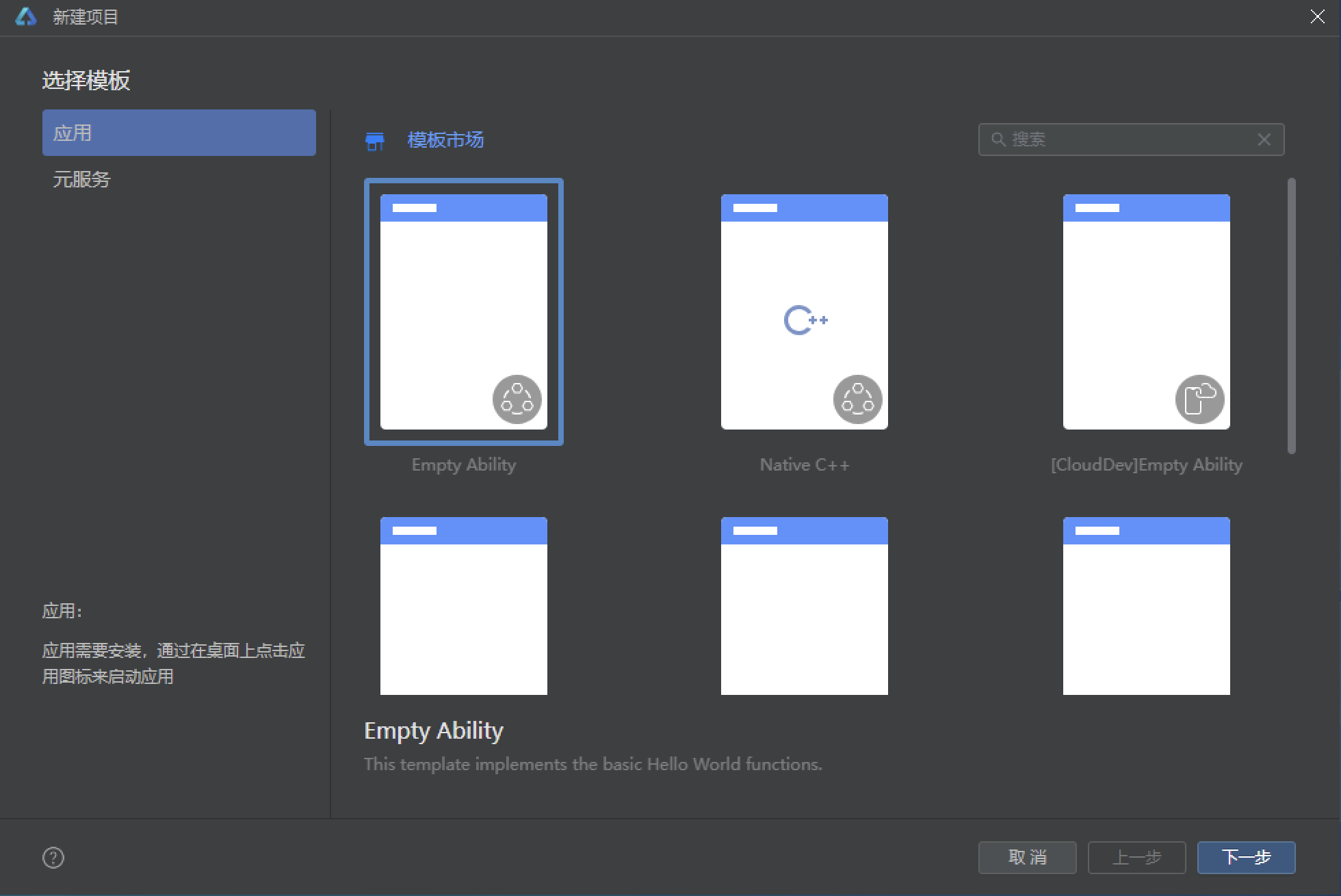
设置API为24的模板项目:
初始化项目,自动下载相关依赖:
完整代码:
// 场景:爱康体检风睡眠健康实验室 · 6 tab · 6 弹框 · 睡眠评分环形 / 时长柱状 / 深睡横条 / 阶段时间轴 · 月亮呼吸 / 星星闪烁特效
interface StageT {
name: string
color: string
mins: number
icon: string
}
interface NightT {
id: number
date: string
start: string
end: string
hours: number
deep: number
score: number
wakes: number
quality: string
}
interface WeekNT {
day: string
hours: number
}
interface HabitT {
id: number
icon: string
title: string
desc: string
freq: string
done: boolean
}
interface SoundT {
id: number
icon: string
name: string
cat: string
mins: number
}
interface DreamT {
id: number
date: string
mood: string
lucid: boolean
text: string
tag: string
}
const TABS1: Array<string> = ['今夜', '周报', '习惯', '白噪音', '梦记', '我的']
const STAGES1: Array<StageT> = [
{ name: '深睡', color: '#5E4B9E', mins: 96, icon: '🌑' },
{ name: '浅睡', color: '#8B7CF6', mins: 231, icon: '🌗' },
{ name: '快速眼动', color: '#F4A261', mins: 108, icon: '💫' },
{ name: '清醒', color: '#4A4362', mins: 22, icon: '👁️' }
]
const NIGHTS1: Array<NightT> = [
{ id: 1, date: '昨晚', start: '23:41', end: '07:12', hours: 7.5, deep: 21, score: 88, wakes: 1, quality: '优质睡眠' },
{ id: 2, date: '前天', start: '00:12', end: '07:30', hours: 7.3, deep: 17, score: 76, wakes: 2, quality: '一般' },
{ id: 3, date: '08-26', start: '23:28', end: '06:58', hours: 7.5, deep: 23, score: 91, wakes: 0, quality: '优质睡眠' },
{ id: 4, date: '08-25', start: '01:05', end: '07:40', hours: 6.6, deep: 14, score: 62, wakes: 3, quality: '睡眠不足' },
{ id: 5, date: '08-24', start: '22:50', end: '06:40', hours: 7.8, deep: 24, score: 93, wakes: 1, quality: '优质睡眠' },
{ id: 6, date: '08-23', start: '23:59', end: '07:45', hours: 7.8, deep: 19, score: 84, wakes: 1, quality: '良好' },
{ id: 7, date: '08-22', start: '00:35', end: '07:20', hours: 6.7, deep: 15, score: 66, wakes: 2, quality: '睡眠不足' },
{ id: 8, date: '08-21', start: '23:10', end: '07:05', hours: 7.9, deep: 22, score: 90, wakes: 0, quality: '优质睡眠' },
{ id: 9, date: '08-20', start: '23:36', end: '06:30', hours: 6.9, deep: 18, score: 72, wakes: 2, quality: '一般' },
{ id: 10, date: '08-19', start: '22:40', end: '06:20', hours: 7.7, deep: 25, score: 94, wakes: 1, quality: '优质睡眠' },
{ id: 11, date: '08-18', start: '01:20', end: '07:50', hours: 6.5, deep: 12, score: 58, wakes: 4, quality: '熬夜夜' },
{ id: 12, date: '08-17', start: '23:22', end: '07:10', hours: 7.8, deep: 23, score: 92, wakes: 0, quality: '优质睡眠' }
]
const WEEKNS1: Array<WeekNT> = [
{ day: '一', hours: 6.6 },
{ day: '二', hours: 7.3 },
{ day: '三', hours: 6.7 },
{ day: '四', hours: 7.8 },
{ day: '五', hours: 6.5 },
{ day: '六', hours: 8.2 },
{ day: '日', hours: 7.5 }
]
const HABITS1: Array<HabitT> = [
{ id: 1, icon: '📵', title: '睡前 1 小时收手机', desc: '蓝光会推迟褪黑素分泌约 40 分钟', freq: '每晚', done: true },
{ id: 2, icon: '☕', title: '14 点后不碰咖啡因', desc: '咖啡因半衰期约 6 小时', freq: '每天', done: true },
{ id: 3, icon: '🛏️', title: '固定起床时间', desc: '比固定入睡时间更重要', freq: '每天', done: true },
{ id: 4, icon: '🧘', title: '睡前 10 分钟冥想', desc: '降低皮质醇,缩短入睡时长', freq: '每晚', done: false },
{ id: 5, icon: '🌡️', title: '卧室保持 20-22℃', desc: '低温环境更容易进入深睡', freq: '每晚', done: true },
{ id: 6, icon: '🍺', title: '睡前不饮酒', desc: '酒精让你睡得浅、醒得多', freq: '每晚', done: false },
{ id: 7, icon: '🍜', title: '睡前 3 小时不进食', desc: '夜食会干扰生长激素分泌', freq: '每天', done: true },
{ id: 8, icon: '🏃', title: '白天运动 30 分钟', desc: '有氧运动提升深睡比例', freq: '每周 5 次', done: false },
{ id: 9, icon: '💡', title: '卧室全遮光', desc: '光线会打断睡眠周期', freq: '每晚', done: true },
{ id: 10, icon: '😴', title: '困了再上床', desc: '不困躺床会加重失眠焦虑', freq: '每晚', done: false }
]
const SOUNDS1: Array<SoundT> = [
{ id: 1, icon: '🌧️', name: '细雨敲窗', cat: '自然', mins: 45 },
{ id: 2, icon: '🌊', name: '海浪拍岸', cat: '自然', mins: 60 },
{ id: 3, icon: '🌲', name: '松林风声', cat: '自然', mins: 45 },
{ id: 4, icon: '🔥', name: '炉火噼啪', cat: '氛围', mins: 30 },
{ id: 5, icon: '扇', name: '风扇白噪', cat: '白噪', mins: 120 },
{ id: 6, icon: '📻', name: '老电台底噪', cat: '白噪', mins: 60 },
{ id: 7, icon: '🎹', name: '慢速钢琴', cat: '音乐', mins: 45 },
{ id: 8, icon: '🈳', name: '颂钵共振', cat: '音乐', mins: 30 },
{ id: 9, icon: '🚂', name: '夜行列车', cat: '氛围', mins: 90 },
{ id: 10, icon: '🐈', name: '猫呼噜声', cat: '氛围', mins: 20 }
]
const DREAMS1: Array<DreamT> = [
{ id: 1, date: '今晨', mood: '😄', lucid: true, text: '梦见自己在图书馆里飞,能控制方向,落地时发现每本书都是一种味道。', tag: '清明梦' },
{ id: 2, date: '昨天', mood: '😰', lucid: false, text: '被一只巨大的蓝色鲸鱼追,最后发现它只是想还我一支笔。', tag: '荒诞' },
{ id: 3, date: '08-26', mood: '😌', lucid: false, text: '回到大学宿舍,大家在收拾行李准备去看海,阳光很好。', tag: '怀旧' },
{ id: 4, date: '08-25', mood: '🤯', lucid: false, text: '梦里一直在解一道不会的数学题,醒来头是晕的。', tag: '压力' },
{ id: 5, date: '08-24', mood: '😊', lucid: false, text: '和去世的外婆一起包饺子,她还是说我擀皮擀得薄。', tag: '思念' },
{ id: 6, date: '08-23', mood: '😆', lucid: false, text: '公司团建变成了枕头大战,老板被打得最惨。', tag: '工作' },
{ id: 7, date: '08-22', mood: '😨', lucid: false, text: '梦见考试迟到,教室里坐满了穿雨衣的人。', tag: '焦虑' },
{ id: 8, date: '08-21', mood: '🥰', lucid: true, text: '第二次清明梦,练习了稳定技巧:搓手和原地转圈。', tag: '清明梦' },
{ id: 9, date: '08-20', mood: '😶', lucid: false, text: '一夜无梦,睡得很沉,醒来精神最好的一天。', tag: '无梦' },
{ id: 10, date: '08-19', mood: '😎', lucid: false, text: '梦见自己中了游泳比赛冠军,奖品是一个西瓜。', tag: '荒诞' }
]
const GOALS1: Array<string> = ['6.5h', '7h', '7.5h', '8h', '8.5h']
const MOODS1: Array<string> = ['😄', '😌', '😶', '😰', '😨', '🤯', '😆', '🥰']
const DTAGS1: Array<string> = ['清明梦', '荒诞', '怀旧', '压力', '思念', '工作', '焦虑', '无梦']
const DURATIONS1: Array<string> = ['15分钟', '30分钟', '45分钟', '60分钟', '通宵']
function scoreColor1(s: number): string {
if (s >= 85) {
return '#8B7CF6'
}
if (s >= 70) {
return '#6FA8FF'
}
return '#F4A261'
}
@Entry
@Component
struct Index {
@State currentTab: number = 0
@State nights: Array<NightT> = NIGHTS1
@State habits: Array<HabitT> = HABITS1
@State dreams: Array<DreamT> = DREAMS1
@State soundIdx: number = -1
@State habitFilter: number = 0
// 弹框开关
@State showGoal: boolean = false
@State showDream: boolean = false
@State showHabit: boolean = false
@State showDel: boolean = false
@State showNight: boolean = false
@State showTimer: boolean = false
// 就寝目标
@State goalIdx: number = 2
@State bedMin: number = 92
@State goalRemind: boolean = true
// 记梦
@State dreamText: string = ''
@State dreamMood: number = 0
@State dreamTag: number = 0
@State dreamLucid: boolean = false
// 编辑习惯
@State habitIdx: number = 0
@State habitFreq: number = 0
@State habitRemind: boolean = true
// 删除
@State delIdx: number = 0
@State dangerDel: boolean = false
// 夜晚详情
@State nightIdx: number = 0
// 白噪音定时
@State timerIdx: number = 1
@State volume: number = 6
@State fadeout: boolean = true
// 特效
@State moonOp: number = 0.4
@State moonScale: number = 0.92
@State starOp: number = 0.3
aboutToAppear(): void {
this.getUIContext().animateTo({ duration: 2200, iterations: -1, playMode: PlayMode.Alternate, curve: Curve.EaseInOut }, () => {
this.moonOp = 1
this.moonScale = 1.08
})
this.getUIContext().animateTo({ duration: 1300, iterations: -1, playMode: PlayMode.Alternate, curve: Curve.EaseInOut }, () => {
this.starOp = 1
})
}
lastNight(): NightT {
return this.nights[0]
}
totalMins(): number {
let sum: number = 0
STAGES1.forEach((s: StageT) => {
sum += s.mins
})
return sum
}
weekAvg(): number {
let sum: number = 0
WEEKNS1.forEach((w: WeekNT) => {
sum += w.hours
})
return Math.round(sum / WEEKNS1.length * 10) / 10
}
habitDone(): number {
return this.habits.filter((h: HabitT) => h.done).length
}
// ================= 数据变更逻辑 =================
openGoal(): void {
this.goalIdx = 2
this.bedMin = 92
this.goalRemind = true
this.showGoal = true
}
confirmGoal(): void {
this.showGoal = false
}
openDream(): void {
this.dreamText = ''
this.dreamMood = 0
this.dreamTag = 0
this.dreamLucid = false
this.showDream = true
}
confirmDream(): void {
this.dreams = [{ id: this.dreams.length + 20, date: '今晨', mood: MOODS1[this.dreamMood], lucid: this.dreamLucid, text: this.dreamText.length > 0 ? this.dreamText : '模糊记得一个画面,醒来就忘了大半。', tag: DTAGS1[this.dreamTag] } as DreamT].concat(this.dreams)
this.showDream = false
}
openHabit(h: HabitT): void {
const idx: number = this.habits.indexOf(h)
if (idx >= 0) {
this.habitIdx = idx
}
const freqs: Array<string> = ['每晚', '每天', '每周 5 次']
this.habitFreq = freqs.indexOf(h.freq)
if (this.habitFreq < 0) {
this.habitFreq = 0
}
this.habitRemind = true
this.showHabit = true
}
confirmHabit(): void {
const freqs: Array<string> = ['每晚', '每天', '每周 5 次']
this.habits = this.habits.map((h: HabitT, i: number) => {
if (i === this.habitIdx) {
return { id: h.id, icon: h.icon, title: h.title, desc: h.desc, freq: freqs[this.habitFreq], done: h.done } as HabitT
}
return h
})
this.showHabit = false
}
toggleHabit(h: HabitT): void {
this.habits = this.habits.map((x: HabitT) => {
if (x.id === h.id) {
return { id: x.id, icon: x.icon, title: x.title, desc: x.desc, freq: x.freq, done: !x.done } as HabitT
}
return x
})
}
openDel(idx: number): void {
this.delIdx = idx
this.dangerDel = false
this.showDel = true
}
doDel(): void {
this.nights = this.nights.filter((n: NightT, i: number) => i !== this.delIdx)
this.showDel = false
}
openNight(idx: number): void {
this.nightIdx = idx
this.showNight = true
}
delDream(d: DreamT): void {
this.dreams = this.dreams.filter((x: DreamT) => x.id !== d.id)
}
openTimer(): void {
this.timerIdx = 1
this.volume = 6
this.fadeout = true
this.showTimer = true
}
confirmTimer(): void {
this.showTimer = false
}
pickSound(i: number): void {
if (this.soundIdx === i) {
this.soundIdx = -1
} else {
this.soundIdx = i
}
}
bedText(): string {
const h: number = Math.floor(this.bedMin / 4)
const m: number = (this.bedMin % 4) * 15
const hh: string = h < 10 ? '0' + h.toString() : h.toString()
const mm: string = m < 10 ? '0' + m.toString() : m.toString()
return hh + ':' + mm
}
// ================= 头部(无动画,深夜风) =================
@Builder
headerBar() {
Column() {
Row() {
Column() {
Text('睡眠实验室')
.fontSize(19)
.fontWeight(FontWeight.Bold)
.fontColor('#EDE9F8')
Text('SLEEP LAB')
.fontSize(8)
.fontColor('#8B7CF6')
.fontWeight(FontWeight.Bold)
.letterSpacing(2)
.margin({ top: 1 })
}
.alignItems(HorizontalAlign.Start)
.margin({ left: 14 })
Row() {
Text('🔍')
.fontSize(13)
Text('查夜报 / 查白噪音 / 查梦')
.fontSize(11)
.fontColor('#8F86A8')
.margin({ left: 6 })
}
.layoutWeight(1)
.height(34)
.borderRadius(17)
.backgroundColor('#1E1830')
.border({ width: 1, color: '#352C52' })
.margin({ left: 12, right: 8 })
.justifyContent(FlexAlign.Center)
Text('🌙')
.fontSize(16)
.margin({ right: 12 })
}
.width('100%')
.height(54)
.alignItems(VerticalAlign.Center)
Row() {
Text('😴')
.fontSize(13)
Text('连续监测 68 晚 · 平均 ' + this.weekAvg().toString() + ' 小时 · 本周 3 晚优质睡眠')
.fontSize(10)
.fontColor('#8B7CF6')
.margin({ left: 6 })
Column()
.layoutWeight(1)
.height(1)
Text('设目标')
.fontSize(10)
.fontWeight(FontWeight.Bold)
.fontColor('#14101F')
.padding({ left: 10, right: 10, top: 3, bottom: 3 })
.borderRadius(10)
.backgroundColor('#8B7CF6')
.onClick(() => {
this.openGoal()
})
}
.width('100%')
.height(30)
.alignItems(VerticalAlign.Center)
.padding({ left: 14, right: 14 })
.backgroundColor('#1A1529')
}
.width('100%')
.backgroundColor('#14101F')
}
@Builder
tabItem(title: string, icon: string, idx: number) {
Column() {
Text(icon)
.fontSize(16)
Text(title)
.fontSize(9)
.fontWeight(this.currentTab === idx ? FontWeight.Bold : FontWeight.Normal)
.fontColor(this.currentTab === idx ? '#8B7CF6' : '#8F86A8')
.margin({ top: 2 })
}
.layoutWeight(1)
.padding({ top: 7, bottom: 7 })
.justifyContent(FlexAlign.Center)
.onClick(() => {
this.currentTab = idx
})
}
@Builder
tabBar() {
Column() {
Column()
.width('100%')
.height(1)
.backgroundColor('#352C52')
Row() {
this.tabItem('今夜', '🌙', 0)
this.tabItem('周报', '📊', 1)
this.tabItem('习惯', '✅', 2)
this.tabItem('白噪音', '🎧', 3)
this.tabItem('梦记', '💭', 4)
this.tabItem('我的', '👤', 5)
}
.width('100%')
.backgroundColor('#181330')
}
.width('100%')
}
// ================= tab 1:今夜 =================
@Builder
nightTab() {
Column() {
Column() {
Row() {
Column() {
Stack() {
Column()
.width(74)
.height(74)
.borderRadius(37)
.backgroundColor('#8B7CF6')
.opacity(this.moonOp)
.scale({ x: this.moonScale, y: this.moonScale })
Text('🌙')
.fontSize(34)
}
.width(74)
.height(74)
}
.width(84)
.height(84)
.justifyContent(FlexAlign.Center)
Column() {
Text(this.lastNight().score.toString() + ' 分')
.fontSize(28)
.fontWeight(FontWeight.Bold)
.fontColor(scoreColor1(this.lastNight().score))
Text(this.lastNight().start + ' 入睡 · ' + this.lastNight().end + ' 醒来')
.fontSize(10)
.fontColor('#8F86A8')
.margin({ top: 4 })
Row() {
Text(this.lastNight().quality)
.fontSize(9)
.fontColor('#14101F')
.padding({ left: 8, right: 8, top: 2, bottom: 2 })
.borderRadius(8)
.backgroundColor(scoreColor1(this.lastNight().score))
}
.margin({ top: 6 })
}
.alignItems(HorizontalAlign.Start)
.layoutWeight(1)
Column() {
Text('✨')
.fontSize(12)
.opacity(this.starOp)
Text('✦')
.fontSize(10)
.fontColor('#6FA8FF')
.opacity(this.starOp)
.margin({ top: 6 })
Text('✧')
.fontSize(9)
.fontColor('#F28AB5')
.opacity(this.starOp)
.margin({ top: 6 })
}
.alignItems(HorizontalAlign.Center)
}
.width('100%')
.alignItems(VerticalAlign.Center)
Row() {
Column() {
Text('7.5h')
.fontSize(16)
.fontWeight(FontWeight.Bold)
.fontColor('#EDE9F8')
Text('总时长')
.fontSize(8)
.fontColor('#8F86A8')
.margin({ top: 2 })
}
.layoutWeight(1)
.alignItems(HorizontalAlign.Center)
Column() {
Text('21%')
.fontSize(16)
.fontWeight(FontWeight.Bold)
.fontColor('#8B7CF6')
Text('深睡占比')
.fontSize(8)
.fontColor('#8F86A8')
.margin({ top: 2 })
}
.layoutWeight(1)
.alignItems(HorizontalAlign.Center)
Column() {
Text('1 次')
.fontSize(16)
.fontWeight(FontWeight.Bold)
.fontColor('#F4A261')
Text('起夜')
.fontSize(8)
.fontColor('#8F86A8')
.margin({ top: 2 })
}
.layoutWeight(1)
.alignItems(HorizontalAlign.Center)
Column() {
Text('12 分')
.fontSize(16)
.fontWeight(FontWeight.Bold)
.fontColor('#6FA8FF')
Text('入睡用时')
.fontSize(8)
.fontColor('#8F86A8')
.margin({ top: 2 })
}
.layoutWeight(1)
.alignItems(HorizontalAlign.Center)
}
.width('100%')
.padding({ top: 12, bottom: 12 })
.borderRadius(12)
.backgroundColor('#1A1529')
.margin({ top: 12 })
Text('睡眠结构(比例条)')
.fontSize(12)
.fontWeight(FontWeight.Bold)
.fontColor('#EDE9F8')
.width('100%')
.margin({ top: 14 })
Row() {
ForEach(STAGES1, (s: StageT) => {
Column() {
Column()
.width('100%')
.height(16)
.backgroundColor(s.color)
}
.layoutWeight(s.mins)
.height(16)
}, (s: StageT) => s.name)
}
.width('100%')
.borderRadius(8)
.clip(true)
.margin({ top: 8 })
ForEach(STAGES1, (s: StageT) => {
Row() {
Text(s.icon)
.fontSize(13)
.width(24)
Column()
.width(10)
.height(10)
.borderRadius(3)
.backgroundColor(s.color)
Text(s.name)
.fontSize(11)
.fontColor('#EDE9F8')
.margin({ left: 6 })
Column()
.layoutWeight(1)
.height(1)
Text(Math.round(s.mins / this.totalMins() * 100).toString() + '% · ' + s.mins.toString() + ' 分钟')
.fontSize(10)
.fontColor('#8F86A8')
}
.width('100%')
.margin({ top: 10 })
}, (s: StageT) => s.name)
}
.width('100%')
.padding(14)
.borderRadius(18)
.backgroundColor('#1E1830')
.border({ width: 1, color: '#352C52' })
Row() {
Text('最近夜晚')
.fontSize(13)
.fontWeight(FontWeight.Bold)
.fontColor('#EDE9F8')
Text('RECENT NIGHTS')
.fontSize(8)
.fontColor('#8B7CF6')
.letterSpacing(1)
.margin({ left: 6 })
Column()
.layoutWeight(1)
.height(1)
Text('共 ' + this.nights.length.toString() + ' 晚')
.fontSize(10)
.fontColor('#8F86A8')
}
.width('100%')
.margin({ top: 16, bottom: 8 })
ForEach(this.nights, (n: NightT, i: number) => {
Row() {
Column() {
Text(n.score.toString())
.fontSize(17)
.fontWeight(FontWeight.Bold)
.fontColor(scoreColor1(n.score))
Text('评分')
.fontSize(8)
.fontColor('#8F86A8')
.margin({ top: 1 })
}
.width(48)
.alignItems(HorizontalAlign.Center)
Column() {
Text(n.date + ' · ' + n.start + '-' + n.end)
.fontSize(11)
.fontWeight(FontWeight.Bold)
.fontColor('#EDE9F8')
Text(n.hours.toFixed(1) + ' 小时 · 深睡 ' + n.deep.toString() + '% · 起夜 ' + n.wakes.toString() + ' 次')
.fontSize(9)
.fontColor('#8F86A8')
.margin({ top: 3 })
}
.alignItems(HorizontalAlign.Start)
.layoutWeight(1)
.margin({ left: 10 })
Column() {
Text(n.quality)
.fontSize(8)
.fontColor(scoreColor1(n.score))
.padding({ left: 6, right: 6, top: 2, bottom: 2 })
.borderRadius(6)
.backgroundColor('#251D3D')
Text('详情')
.fontSize(10)
.fontWeight(FontWeight.Bold)
.fontColor('#8B7CF6')
.margin({ top: 6 })
.onClick(() => {
this.openNight(i)
})
Text('🗑')
.fontSize(12)
.fontColor('#F28AB5')
.margin({ top: 6 })
.onClick(() => {
this.openDel(i)
})
}
.alignItems(HorizontalAlign.End)
}
.width('100%')
.padding(12)
.borderRadius(14)
.backgroundColor('#1E1830')
.border({ width: 1, color: '#352C52' })
.margin({ bottom: 8 })
.alignItems(VerticalAlign.Center)
}, (n: NightT) => n.id.toString())
}
.width('100%')
}
// ================= tab 2:周报 =================
@Builder
reportTab() {
Column() {
Column() {
Text('本周睡眠时长')
.fontSize(13)
.fontWeight(FontWeight.Bold)
.fontColor('#EDE9F8')
Text('SLEEP DURATION · 目标 7.5h')
.fontSize(8)
.fontColor('#8B7CF6')
.letterSpacing(1)
.margin({ top: 2 })
Row() {
ForEach(WEEKNS1, (w: WeekNT) => {
Column() {
Text(w.hours.toFixed(1))
.fontSize(8)
.fontColor('#8F86A8')
.margin({ bottom: 3 })
Column() {
Column()
.width('60%')
.height(w.hours * 16)
.borderRadius({ topLeft: 4, topRight: 4 })
.backgroundColor(w.hours >= 7.5 ? '#8B7CF6' : (w.hours >= 7 ? '#6FA8FF' : '#F4A261'))
}
.layoutWeight(1)
.height('100%')
.justifyContent(FlexAlign.End)
.alignItems(HorizontalAlign.Center)
Text(w.day)
.fontSize(9)
.fontColor('#8F86A8')
.margin({ top: 5 })
}
.layoutWeight(1)
.height(150)
.justifyContent(FlexAlign.End)
.alignItems(HorizontalAlign.Center)
}, (w: WeekNT) => w.day)
}
.width('100%')
.margin({ top: 12 })
Row() {
Text('周均 ' + this.weekAvg().toString() + 'h')
.fontSize(10)
.fontColor('#8B7CF6')
.fontWeight(FontWeight.Bold)
Column()
.layoutWeight(1)
.height(1)
Text('5/7 天达标')
.fontSize(10)
.fontColor('#6FA8FF')
}
.width('100%')
.margin({ top: 10 })
}
.width('100%')
.padding(14)
.borderRadius(16)
.backgroundColor('#1E1830')
.border({ width: 1, color: '#352C52' })
Row() {
Column() {
Stack() {
Progress({ value: 21, total: 100 })
.width(100)
.height(100)
.style({ strokeWidth: 10 })
Column() {
Text('21%')
.fontSize(18)
.fontWeight(FontWeight.Bold)
.fontColor('#8B7CF6')
Text('深睡占比')
.fontSize(8)
.fontColor('#8F86A8')
.margin({ top: 1 })
}
.justifyContent(FlexAlign.Center)
}
.width(100)
.height(100)
}
.justifyContent(FlexAlign.Center)
Column() {
Text('深睡质量')
.fontSize(13)
.fontWeight(FontWeight.Bold)
.fontColor('#EDE9F8')
Text('成年人深睡占整夜 15-25% 为佳')
.fontSize(9)
.fontColor('#8F86A8')
.margin({ top: 4 })
Text('· 本周平均 19%,昨晚 21% 表现最佳')
.fontSize(9)
.fontColor('#8F86A8')
.margin({ top: 6 })
Text('· 周五熬夜导致深睡骤降至 14%')
.fontSize(9)
.fontColor('#8F86A8')
.margin({ top: 4 })
Text('· 白天有氧运动显著提升深睡比例')
.fontSize(9)
.fontColor('#8F86A8')
.margin({ top: 4 })
}
.alignItems(HorizontalAlign.Start)
.layoutWeight(1)
.margin({ left: 16 })
}
.width('100%')
.padding(14)
.borderRadius(16)
.backgroundColor('#1E1830')
.border({ width: 1, color: '#352C52' })
.margin({ top: 12 })
.alignItems(VerticalAlign.Center)
Column() {
Text('就寝时间分布')
.fontSize(13)
.fontWeight(FontWeight.Bold)
.fontColor('#EDE9F8')
.width('100%')
Text('越短越好 · 23:00 前入睡奖励深睡')
.fontSize(9)
.fontColor('#8F86A8')
.margin({ top: 2 })
.width('100%')
ForEach(WEEKNS1, (w: WeekNT, i: number) => {
Row() {
Text('周' + w.day)
.fontSize(10)
.fontColor('#EDE9F8')
.width(34)
Column() {
Column()
.width(Math.min(Math.round(w.hours * 12), 100) + '%')
.height(11)
.borderRadius(6)
.backgroundColor(i === 4 ? '#F4A261' : '#6FA8FF')
}
.layoutWeight(1)
.height(11)
.borderRadius(6)
.backgroundColor('#1A1529')
Text(i === 4 ? '00:35' : (i === 1 ? '00:12' : '23:' + (20 + i).toString()))
.fontSize(9)
.fontColor(i === 4 ? '#F4A261' : '#6FA8FF')
.width(40)
.textAlign(TextAlign.End)
}
.width('100%')
.margin({ top: 9 })
}, (w: WeekNT) => w.day)
}
.width('100%')
.padding(14)
.borderRadius(16)
.backgroundColor('#1E1830')
.border({ width: 1, color: '#352C52' })
.margin({ top: 12 })
.alignItems(HorizontalAlign.Start)
Column() {
Text('🌙 睡眠周报结论')
.fontSize(12)
.fontWeight(FontWeight.Bold)
.fontColor('#8B7CF6')
Text('· 周均 ' + this.weekAvg().toString() + ' 小时,比上周多 18 分钟')
.fontSize(10)
.fontColor('#8F86A8')
.margin({ top: 8 })
Text('· 周五熬夜是本周评分最低的一晚,尽量避免')
.fontSize(10)
.fontColor('#8F86A8')
.margin({ top: 6 })
Text('· 深睡占比稳步提升,运动与冥想习惯有效')
.fontSize(10)
.fontColor('#8F86A8')
.margin({ top: 6 })
}
.width('100%')
.padding(14)
.borderRadius(16)
.backgroundColor('#251D3D')
.margin({ top: 12 })
.alignItems(HorizontalAlign.Start)
}
.width('100%')
}
// ================= tab 3:习惯 =================
@Builder
this.habitOverlay()
}
if (this.showDel) {
this.delOverlay()
}
if (this.showNight) {
this.nightOverlay()
}
if (this.showTimer) {
this.timerOverlay()
}
}
.width('100%')
.height('100%')
.backgroundColor('#14101F')
}
}
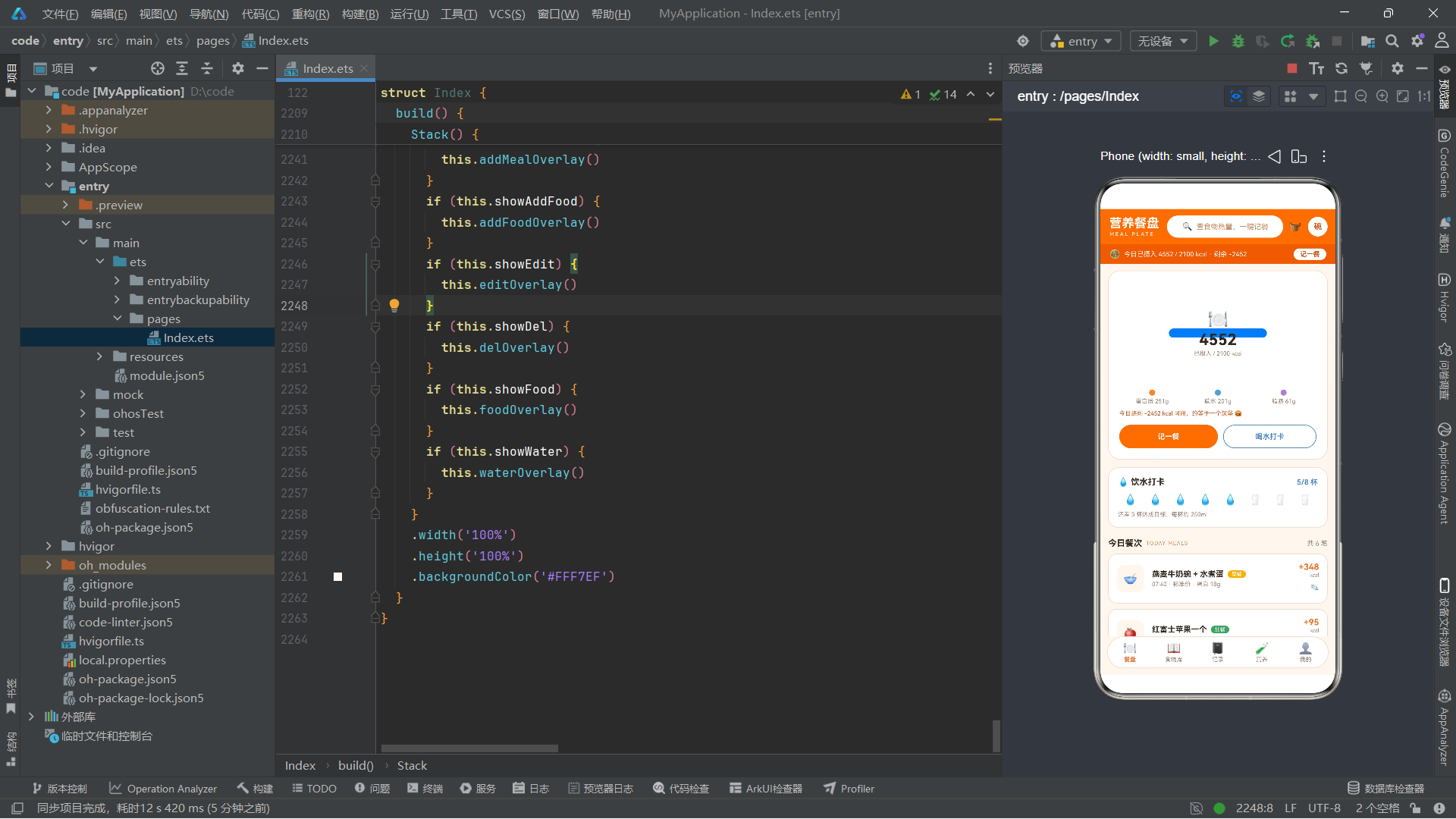
build方法是每个@Component组件必须实现的方法,它返回组件的UI结构。本应用的build方法使用Stack作为根容器,包含两大层次:
第一层是主界面Column,从上到下依次是:headerBar()(头部导航栏)、Scroll(可滚动内容区域)、tabBar()(底部标签栏)。Scroll容器设置了layoutWeight(1)占据头部和底部栏之间的全部剩余空间,内部是一个Column包裹着根据currentTab条件渲染的六个页面@Builder方法之一。scrollBar(BarState.Off)隐藏了滚动条,align(Alignment.Top)使内容从顶部开始排列。
第二层是六个弹框的条件渲染。每个弹框通过一个布尔@State变量控制是否渲染——当showGoal为true时调用this.goalOverlay(),为false时不渲染。由于这些弹框在Stack中声明在主界面之后,它们会层叠在主界面之上,加上各自内部的zIndex设置,确保了正确的覆盖层级。
技术要点:
Stack容器在本应用中发挥了关键作用。它的层叠特性使得弹框可以自然地覆盖在主界面之上,无需额外的DOM操作或层级管理。在Stack中,子组件的声明顺序决定了层叠顺序——后声明的在上层。主界面Column先声明,弹框后声明,因此弹框自然在上层。弹框内部的遮罩层和内容层也利用了这一特性。
技术要点:
if/else条件渲染在build方法中有两种用途:一是根据currentTab切换页面内容(每次只渲染一个页面的@Builder),二是根据布尔状态控制弹框的显示。这两种用法的本质相同——条件为true时创建并渲染对应组件,条件为false时组件不存在于组件树中。当条件从false变为true时,组件被创建并插入;从true变为false时,组件被销毁移除。这种"按需渲染"避免了不可见组件的资源占用。
十五、应用整体架构流程图

作为“人工智能6S店”的官方数字引擎,为AI开发者与企业提供一个覆盖软硬件全栈、一站式门户。
更多推荐



 0
0 0
0- 0


 已为社区贡献44条内容

所有评论(0)