
鸿蒙 ArkTS 声明式 UI 深度剖析:从数据建模到多模态交互的验光配镜中心全流程实现
一、鸿蒙开发背景与技术生态概述
HarmonyOS(鸿蒙操作系统)是华为推出的面向万物互联时代的分布式操作系统,其设计理念在于打破设备之间的壁垒,实现跨设备、跨场景的无缝协同体验。在 HarmonyOS 的应用开发体系中,ArkUI 框架承担了构建用户界面的核心职责,它采用了一套全新的声明式 UI 编程范式,将开发者从传统的命令式 UI 编程中解放出来。声明式 UI 的核心思想是:开发者只需描述界面"是什么",而无需关心"怎么构建"——框架会根据状态的变化自动完成界体的重新渲染与更新。这种编程范式极大降低了复杂界面的开发门槛,同时保证了 UI 与数据状态的一致性,避免了命令式编程中手动操作 DOM 节点带来的性能开销和维护成本。
ArkTS 是鸿蒙生态中专门为应用开发设计的编程语言,它在 TypeScript 的基础上进行了扩展和约束,引入了诸如 @Component、@Entry、@State、@Builder、@Prop、@Link 等一系列装饰器,这些装饰器构成了 ArkUI 声明式编程模型的基础设施。ArkTS 保留了 TypeScript 的静态类型检查能力,同时通过编译期优化和运行时引擎的深度定制,实现了接近原生应用的性能表现。在 ArkTS 中,一切 UI 组件都是通过结构化声明的方式来构建的,每个组件都拥有属性配置方法和事件回调方法,开发者通过链式调用的方式来完成组件的样式设置、布局调整和事件绑定。
ArkUI 组件体系提供了丰富的基础组件和容器组件。基础组件包括 Text(文本)、Image(图片)、Button(按钮)、TextInput(输入框)、Progress(进度条)、Toggle(开关)等,它们负责呈现具体的内容和接收用户交互。容器组件则包括 Column(纵向布局容器)、Row(横向布局容器)、Stack(层叠布局容器)、Flex(弹性布局容器)、Scroll(滚动容器)等,它们负责组织和管理子组件的排列方式。通过基础组件和容器组件的嵌套组合,开发者可以构建出任意复杂度的界面结构。此外,ArkUI 还提供了 ForEach 列表渲染组件、if/else 条件渲染语法、以及 animateTo 动画 API 等高级能力,使得动态界面和交互动画的实现变得简洁而高效。
在状态管理层面,ArkUI 采用了"状态驱动视图"的核心设计哲学。当被 @State 装饰的状态变量发生变化时,框架会自动追踪依赖该变量的所有 UI 组件,并触发它们的重新渲染。这种单向数据流的设计模式确保了数据与界面的一致性,开发者无需手动调用刷新方法。对于跨组件的状态共享,ArkUI 提供了 @Prop(父到子单向同步)、@Link(父子双向同步)、@Provide/@Consume(跨层级传递)等装饰器,形成了完整的层级化状态管理体系。本文将通过对一个验光配镜中心应用的全流程代码剖析,深入讲解这些技术在实际项目中的运用方式和最佳实践。
二、项目概览:验光配镜中心的业务架构
本应用是一个面向视光行业的鸿蒙原生应用,涵盖了医学验光、精准配镜、近视防控三大核心业务场景。整个应用采用底部六 Tab 导航架构,分别对应"视力追踪"、“镜架商城”、“护眼任务”、“视觉训练”、“复查预约”、"个人中心"六大功能模块。同时,应用实现了六种弹窗交互模态,包括视力自测、镜架详情、训练加入、预约改约、取消收藏、配镜下单,每一种交互都有完整的业务逻辑闭环。
上图展示了整个应用从入口到各功能页面再到弹窗模态的完整路由结构。应用采用 Stack 层叠布局作为根容器,将主页面内容层与弹窗层进行堆叠管理,通过布尔状态变量控制弹窗的显示与隐藏,实现了轻量级的状态驱动路由体系。
三、数据模型定义:接口与静态数据
3.1 六大业务接口定义
应用首先定义了六个 TypeScript 接口,用于规范各业务实体的数据结构。这些接口是整个应用数据层的基石。
interface VisT {
  date: string
  l: number
  r: number
  corr: string
}
interface FrameT {
  name: string
  brand: string
  mat: string
  price: number
  emoji: string
  fit: string
  fav: boolean
}
interface TaskT {
  title: string
  desc: string
  min: number
  done: boolean
  icon: string
}
interface CourseT {
  name: string
  day: string
  min: number
  joined: boolean
  level: string
}
interface RevisitT {
  doc: string
  date: string
  slot: string
  item: string
  status: string
}
interface OptoT {
  name: string
  title: string
  good: string
  stars: number
  emoji: string
}
VisT 接口定义了视力检查记录的数据结构,包含日期、左眼裸眼视力值、右眼裸眼视力值和矫正视力描述。在视光学中,裸眼视力是衡量眼睛在未戴任何矫正镜片时分辨物体能力的指标,通常以小数记录法表示(如 0.5、1.0 等)。FrameT 接口描述了镜架产品实体,涵盖名称、品牌、材质、价格、表情图标、适配脸型和收藏状态七个维度。TaskT 定义了每日护眼任务的结构,包含标题、描述、建议时长、完成状态和图标。CourseT 规范了视觉训练课程的数据格式,包含课程名称、频次、时长、加入状态和难度等级。RevisitT 描述了复查预约记录,包含验光师姓名、日期、时段、检查项目和状态。OptoT 则定义了验光师的信息结构,包含姓名、职称、擅长领域、星级和图标。
技术要点: ArkTS 中的接口(interface)与 TypeScript 中的接口用法基本一致,用于定义对象的类型契约。但 ArkTS 在编译期会进行更严格的类型检查,不允许使用联合类型或 any 类型,这是为了保证运行时类型安全和性能优化。在 ArkUI 声明式编程模型中,接口定义的对象常被用作
@State状态变量的类型参数,当对象内部属性发生变化时,需要通过创建新对象的方式来触发 UI 更新。
3.2 静态数据源初始化
应用通过 const 常量定义了六组静态数据数组,这些数组将作为应用的初始数据源被各状态变量引用。
const VIS4: Array<VisT> = [
  { date: '08-26', l: 0.4, r: 0.5, corr: '1.0 / 1.0' },
  { date: '08-12', l: 0.4, r: 0.5, corr: '1.0 / 1.0' },
  { date: '07-29', l: 0.4, r: 0.5, corr: '1.0 / 0.9' },
  { date: '07-15', l: 0.5, r: 0.5, corr: '1.0 / 1.0' },
  { date: '06-30', l: 0.5, r: 0.6, corr: '1.0 / 1.0' },
  { date: '06-16', l: 0.5, r: 0.6, corr: '0.9 / 1.0' },
  { date: '05-28', l: 0.6, r: 0.6, corr: '1.0 / 1.0' },
  { date: '05-12', l: 0.6, r: 0.6, corr: '1.0 / 1.0' },
  { date: '04-23', l: 0.6, r: 0.7, corr: '1.0 / 1.0' },
  { date: '04-08', l: 0.7, r: 0.7, corr: '1.0 / 1.0' },
  { date: '03-19', l: 0.7, r: 0.8, corr: '1.0 / 1.0' },
  { date: '03-04', l: 0.8, r: 0.8, corr: '1.0 / 1.0' }
]
这里展示了视力追踪数据数组 VIS4,它按时间倒序排列了最近 12 次的视力检查记录。从数据中可以观察到,左眼视力从 0.8 逐渐下降到 0.4,右眼从 0.8 下降到 0.5,反映出近视进展的趋势。矫正视力基本维持在 1.0 水平,说明佩戴合适度数的眼镜可以有效矫正视力。Array<VisT> 是 ArkTS 的泛型数组类型声明方式,明确指定数组中每个元素都必须符合 VisT 接口的类型约束。
const FRAMES4: Array<FrameT> = [
  { name: '钛架极简 T90', brand: 'ZEISS 风', mat: 'β 钛 · 12g', price: 899, emoji: '👓', fit: '椭圆脸', fav: true },
  { name: '板材复古 F20', brand: '木九十', mat: '醋酸板材', price: 459, emoji: '🕶️', fit: '方脸', fav: false },
  { name: '无框悬浮 R3', brand: '夏蒙', mat: '钛 + 树脂', price: 1299, emoji: '🤓', fit: '任意脸型', fav: true },
  { name: '运动包裹 S7', brand: '欧克利', mat: 'TR90', price: 799, emoji: '🥽', fit: '运动场景', fav: false },
  { name: '金属细边 A5', brand: '派丽蒙', mat: '不锈钢', price: 329, emoji: '👓', fit: '心形脸', fav: false },
  { name: '半框轻翼 H8', brand: '精工', mat: '钛合金', price: 659, emoji: '🤓', fit: '长脸', fav: false },
  { name: '儿童硅胶 K12', brand: '可乐视', mat: '食品级硅胶', price: 299, emoji: '🥽', fit: '6-12 岁', fav: false },
  { name: '圆框文艺 C3', brand: '雷朋', mat: '合金 + 板材', price: 729, emoji: '🕶️', fit: '鹅蛋脸', fav: true },
  { name: '方框商务 B6', brand: '暴龙', mat: '钛 + TR90', price: 519, emoji: '👓', fit: '国字脸', fav: false },
  { name: '近视太阳镜 D1', brand: '陌森', mat: '偏光树脂', price: 649, emoji: '😎', fit: '驾驶', fav: false },
  { name: '无度数平光 E2', brand: 'aojo', mat: '合金', price: 199, emoji: '🤓', fit: '防蓝光', fav: false },
  { name: '混合材质 M9', brand: '万年龟', mat: '赛钢 + 钛', price: 1580, emoji: '👓', fit: '高端定制', fav: false }
]
镜架数据数组 FRAMES4 包含了 12 款镜架产品,覆盖了钛架、板材、无框、运动、金属、半框、儿童、圆框、方框、近视太阳镜、平光和混合材质等主流品类。每款镜架都标注了适配的脸型或使用场景,如椭圆脸、方脸、心形脸、鹅蛋脸、国字脸等,这是基于面型美学匹配原则进行的分类——不同的脸型适合不同形状的镜框,以达到视觉上的平衡与协调。fav 布尔字段标记了用户是否已收藏该款镜架,其中有 3 款被标记为收藏状态。
技术要点: 在 ArkTS 中,
const声明的数组虽然引用不可变,但数组内容本身是可以被修改的。然而,在本应用中这些常量数组仅作为初始数据源使用,组件中通过.slice()方法创建副本赋值给@State变量,避免了直接引用常量数组。这种设计确保了状态变量的独立性,当状态变量发生变化时不会影响到原始常量数据。
类似地,TASKS4 定义了 10 项护眼任务,包括 20-20-20 远眺法则、眼保健操、热敷放松、眨眼训练、户外光照等,每项任务都配有建议时长和完成状态。COURSES4 定义了 10 门视觉训练课程,从入门级的睫状肌活力操到医疗级的弱视遮盖方案和融像功能训练。REVISITS4 记录了 10 条复查预约,包含待诊、已完成、已取消三种状态。OPTOS4 列出了 8 位验光师信息,涵盖近视防控、视功能分析、OK 镜验配等专业领域。此外还有两个辅助常量:
const EDIR4: Array<string> = ['⬆️', '⬇️', '⬅️', '➡️']
const USAGETIMES4: Array<number> = [3.2, 4.1, 5.6, 6.8, 7.2, 6.4, 5.1]
EDIR4 是视力自测中使用的 E 字视标四个方向选项,USAGETIMES4 是近 7 天每日用眼时长数据(单位:小时),从周一到周日依次排列。这些常量数据将在后续的 UI 构建中被各 Builder 方法引用。
四、主组件架构:状态管理与生命周期
4.1 组件入口与状态声明
应用的主入口组件通过 @Entry 和 @Component 装饰器标记,这是鸿蒙 ArkUI 应用中最顶层的组件声明方式。
@Entry
@Component
struct Index {
  @State selTab: number = 0
  @State visits: Array<VisT> = VIS4.slice()
  @State frames: Array<FrameT> = FRAMES4.slice()
  @State tasks: Array<TaskT> = TASKS4.slice()
  @State courses: Array<CourseT> = COURSES4.slice()
  @State revisits: Array<RevisitT> = REVISITS4.slice()
  // 自测
  @State showTest: boolean = false
  @State testEye: string = '右眼'
  @State testVal: number = 5
  @State testRecord: boolean = true
  // 镜架详情
  @State showFrame: boolean = false
  @State selFrame: FrameT = FRAMES4[0]
  // 训练加入
  @State showJoin: boolean = false
  @State joinCourse: CourseT = COURSES4[0]
  @State joinMin: string = '8 分钟'
  @State joinSlot: string = '晚间 20:00'
  @State joinRemind: boolean = true
  // 改约
  @State showEdit: boolean = false
  @State editVisit: RevisitT = REVISITS4[0]
  @State editDay: string = '09-10'
  @State editSlot: string = '10:00'
  @State editNote: string = ''
  // 删除收藏
  @State showDel: boolean = false
  @State delFrame: FrameT = FRAMES4[0]
  @State delArmed: boolean = false
  // 配镜下单
  @State showBuy: boolean = false
  @State lensType: string = '防蓝光 1.60'
  @State lensIndex: string = '1.60 薄'
  @State dioL: number = 375
  @State dioR: number = 350
  @State buyFrame: FrameT = FRAMES4[0]
  // 特效
  @State scanY: number = 0
  @State blinkOp: number = 0.35
这段代码是整个应用状态管理的核心。@Entry 装饰器标识该组件为应用的入口组件,鸿蒙运行时会在应用启动时自动创建并加载该组件。@Component 装饰器声明这是一个自定义组件,它必须包含 build() 方法来描述 UI 结构。struct 关键字定义了组件的结构体,ArkTS 使用结构体而非类来组织组件,这是为了更好地配合声明式 UI 的编译优化策略。
技术要点:
@Entry和@Component是 ArkUI 组件体系的基石。@Entry标记的组件在整个应用中只能有一个,它是组件树的根节点,鸿蒙运行时会为其创建独立的渲染上下文。@Component装饰的组件可以被多次复用,每次使用都会创建独立的状态实例。组件内部不允许定义构造函数,状态初始化通过声明式赋值完成。
@State 装饰器是 ArkUI 状态管理体系中最核心的装饰器。被 @State 修饰的变量成为"状态变量",当其值发生变化时,框架会自动检测哪些 UI 组件依赖了该变量,并触发这些组件的重新渲染。这里声明了大量的状态变量,按功能可以分为以下几组:
第一组是基础数据状态,包括 selTab(当前选中的 Tab 索引,控制页面切换)、visits(视力记录数组)、frames(镜架列表)、tasks(护眼任务列表)、courses(训练课程列表)和 revisits(复查预约列表)。这些数据状态通过 VIS4.slice() 等方式从常量数组创建副本,确保组件内部状态的修改不会影响原始数据。
技术要点:
Array.prototype.slice()方法在不传参数时会创建数组的浅拷贝。在 ArkUI 中,将常量数据通过.slice()赋值给@State变量是一种常见的初始化模式。需要注意的是,由于是浅拷贝,数组内部的元素仍然是引用共享的。当需要修改某个元素的属性时,ArkTS 推荐的做法是创建新对象并替换数组中的元素,而非直接修改原对象的属性,这涉及到 ArkUI 的可观察性机制。
第二组是弹窗显示状态,包括 showTest、showFrame、showJoin、showEdit、showDel、showBuy 六个布尔变量,每个变量控制一个弹窗模态层的显示与隐藏。这种"一变量控一弹窗"的设计简洁直观,多个弹窗可以同时显示(虽然实际使用中通常只展示一个)。
第三组是弹窗交互状态,如自测弹窗中的 testEye(当前测试的眼别)、testVal(视力值刻度)、testRecord(是否写入档案),镜架详情中的 selFrame(当前选中的镜架),训练加入中的 joinCourse、joinMin、joinSlot、joinRemind 等,改约弹窗中的 editVisit、editDay、editSlot、editNote 等,删除收藏中的 delFrame、delArmed,配镜下单中的 lensType、lensIndex、dioL、dioR、buyFrame 等。
第四组是动画特效状态,包括 scanY(扫描动画的 Y 轴偏移量)和 blinkOp(眨眼动画的透明度值),这两个变量通过 animateTo 动画 API 驱动,实现持续循环的视觉效果。
4.2 生命周期与动画初始化
aboutToAppear(): void {
  this.getUIContext().animateTo({ duration: 2000, iterations: -1, playMode: PlayMode.Alternate, curve: Curve.EaseInOut }, () => {
    this.scanY = 26
  })
  this.getUIContext().animateTo({ duration: 1500, iterations: -1, playMode: PlayMode.Alternate, curve: Curve.EaseInOut }, () => {
    this.blinkOp = 1
  })
}
aboutToAppear() 是 ArkUI 组件的生命周期回调方法,它在组件创建后、build() 方法执行前被调用。这个时机适合进行状态初始化、数据预加载和动画启动等操作。在本应用中,aboutToAppear 启动了两个无限循环动画。
animateTo 是 ArkUI 提供的显式动画 API,它接收两个参数:动画配置对象和动画回调闭包。动画配置对象的 duration 属性指定单次动画持续时间(毫秒),iterations 设置为 -1 表示无限循环,playMode 设置为 PlayMode.Alternate 表示交替播放模式——即动画正向播放完毕后反向播放,形成往返效果。curve 属性指定动画的插值曲线,Curve.EaseInOut 表示先加速后减速的缓动曲线,使动画过渡更加自然。
技术要点:
animateTo的工作原理是:在闭包内修改状态变量的值,框架会自动将这个值的变化过程以动画形式呈现。第一个动画将scanY从初始值 0 动画到 26,在交替模式下再从 26 动画回 0,循环往复。这个动画被用于视力自测弹窗中 E 字视标的上下浮动效果和眼轴扫描文字的偏移动画。第二个动画将blinkOp从 0.35 动画到 1,控制"在线"指示灯和眨眼图标的透明度变化,模拟眨眼效果。需要注意的是,this.getUIContext().animateTo()是获取 UI 上下文后的调用方式,确保动画在正确的渲染上下文中执行。
五、业务逻辑方法:数据操作与状态更新
5.1 统计计算方法
应用中定义了多个计算方法,用于从状态数组中派生统计信息。
taskRate4(): number {
  let n: number = 0
  this.tasks.forEach((t: TaskT) => {
    if (t.done) {
      n += 1
    }
  })
  return Math.round(n * 100 / this.tasks.length)
}
courseCount4(): number {
  let n: number = 0
  this.courses.forEach((c: CourseT) => {
    if (c.joined) {
      n += 1
    }
  })
  return n
}
lastVis4(): VisT {
  return this.visits[0]
}
dioText4(v: number): string {
  return (v / 100).toFixed(2)
}
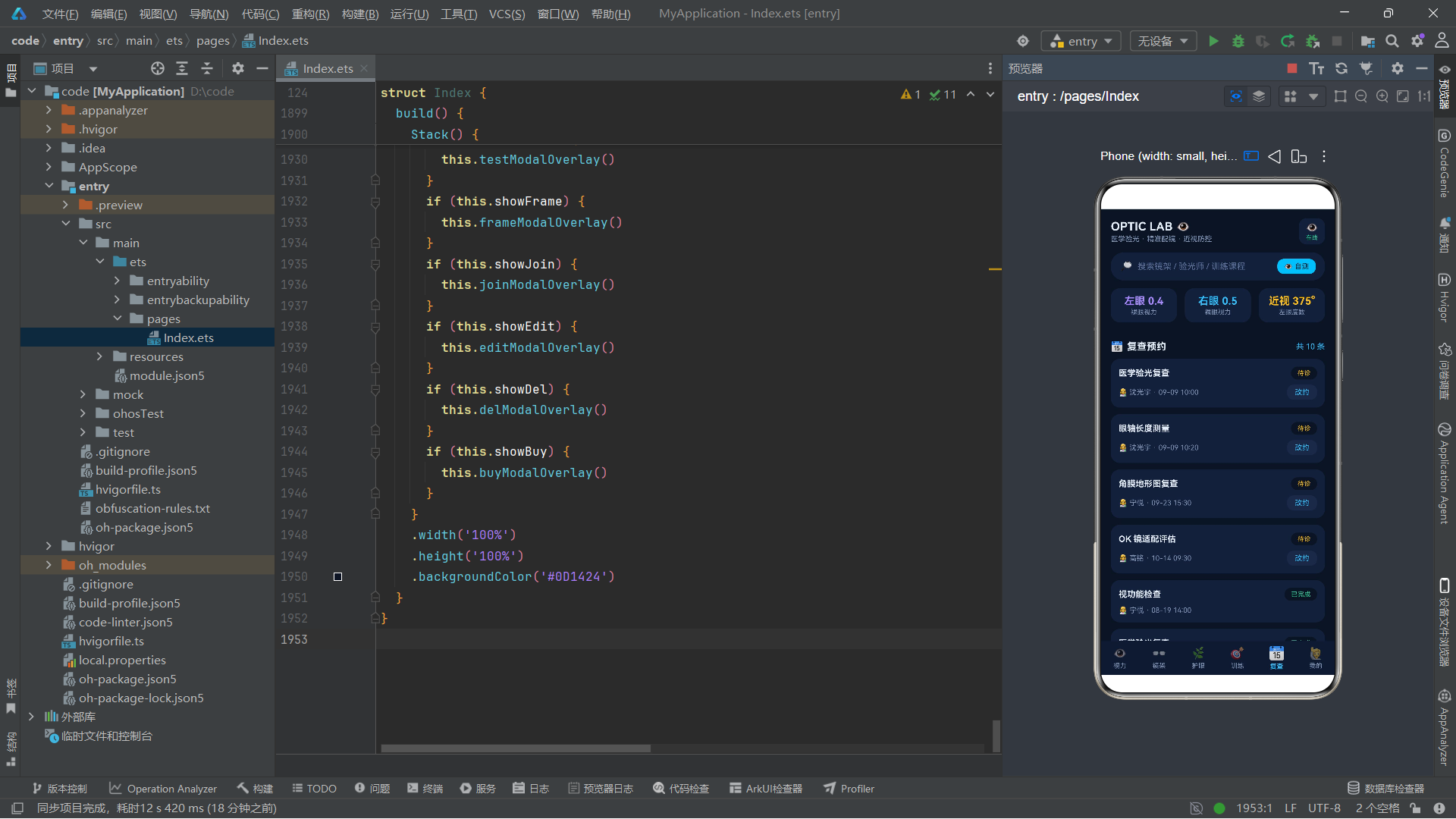
taskRate4() 方法遍历护眼任务数组,统计已完成的任务数量,计算完成百分比并四舍五入取整。这个方法在护眼任务页面的环形进度组件中被多次调用,每次调用都会重新计算,因此当任务状态发生变化时,进度条会自动更新。courseCount4() 统计已加入的训练课程数量。lastVis4() 返回最新一条视力记录(数组第一个元素),用于在头部状态栏展示当前视力值。dioText4() 是一个度数格式化方法,将度数刻度值除以 100 并保留两位小数,用于配镜下单弹窗中的度数显示。
5.2 视力自测确认逻辑
confirmTest(): void {
  const nv: VisT = {
    date: '08-28',
    l: this.testEye === '左眼' ? Math.round(this.testVal) / 10 : this.lastVis4().l,
    r: this.testEye === '右眼' ? Math.round(this.testVal) / 10 : this.lastVis4().r,
    corr: this.lastVis4().corr
  }
  if (this.testRecord) {
    this.visits = [nv].concat(this.visits)
  }
  this.showTest = false
}
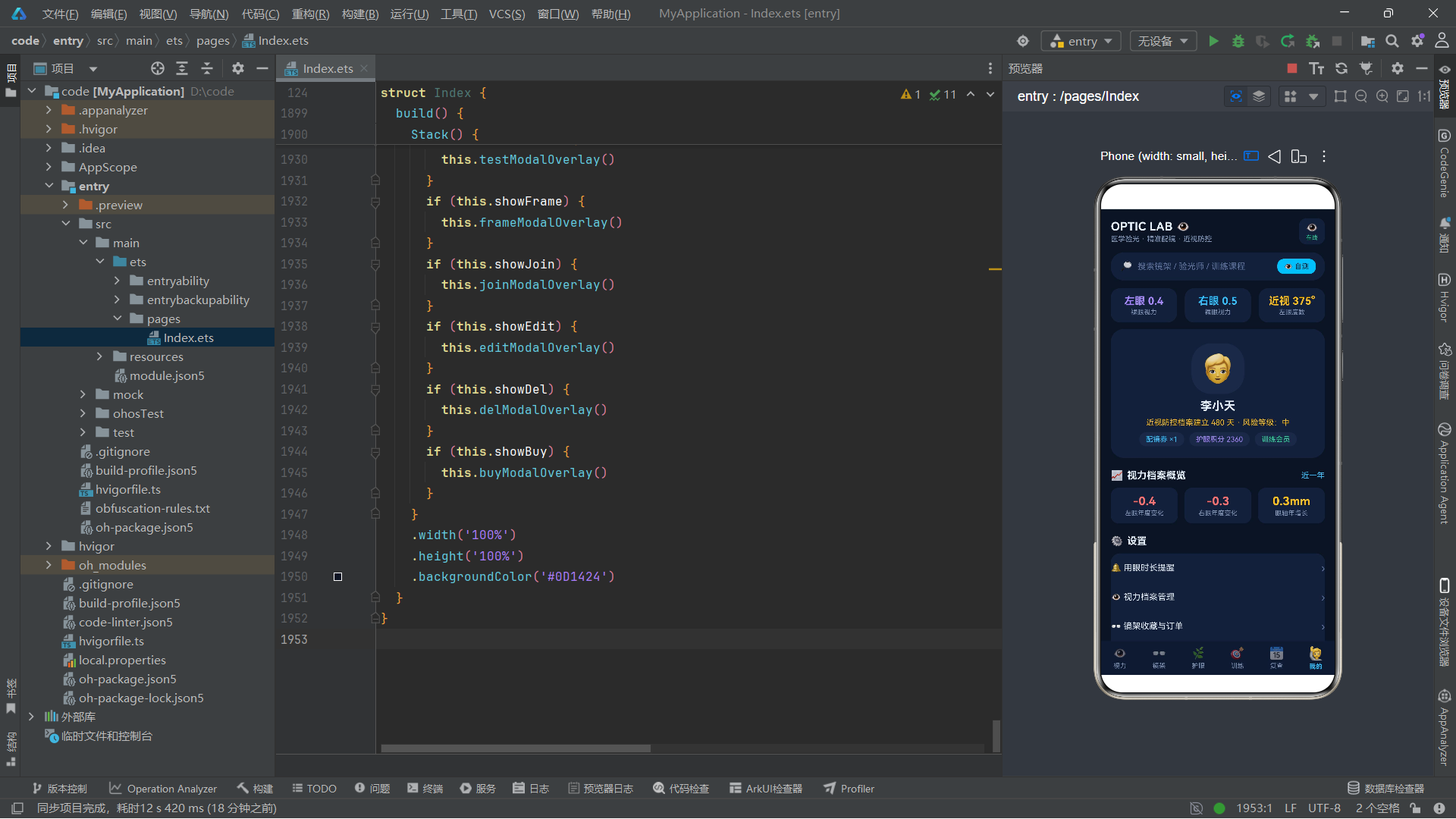
confirmTest() 方法处理视力自测弹窗的保存逻辑。它首先构造一条新的视力记录 nv,其中日期固定为当天(这里硬编码为 08-28),根据用户选择的眼别(左眼或右眼),将自测视力值(testVal 经过四舍五入后除以 10 转换为标准视力值)写入对应的 l 或 r 字段,另一只眼则保持上次记录的值不变。矫正视力 corr 继承上一条记录。
技术要点:
[nv].concat(this.visits)是一种在 ArkUI 中更新数组状态的标准模式。直接使用this.visits.unshift(nv)虽然能修改原数组,但 ArkUI 的状态观测系统可能无法检测到这种"原地修改"。而通过concat方法创建新数组并重新赋值给@State变量,可以确保框架检测到引用变化,从而触发依赖该变量的 UI 组件重新渲染。这是 ArkUI 声明式状态管理的重要原则——状态更新必须通过引用替换而非原地修改。
testRecord 布尔状态控制是否将自测结果写入视力档案。如果用户关闭了"写入视力档案"开关,则只关闭弹窗而不更新数据。最后将 showTest 设为 false 关闭弹窗。
5.3 镜架收藏切换逻辑
toggleFav4(f: FrameT): void {
  this.frames = this.frames.map((x: FrameT) => {
    if (x === f) {
      const nf: FrameT = { name: x.name, brand: x.brand, mat: x.mat, price: x.price, emoji: x.emoji, fit: x.fit, fav: !x.fav }
      return nf
    }
    return x
  })
  this.selFrame = this.selFrame === f ? this.selFrame : this.selFrame
}
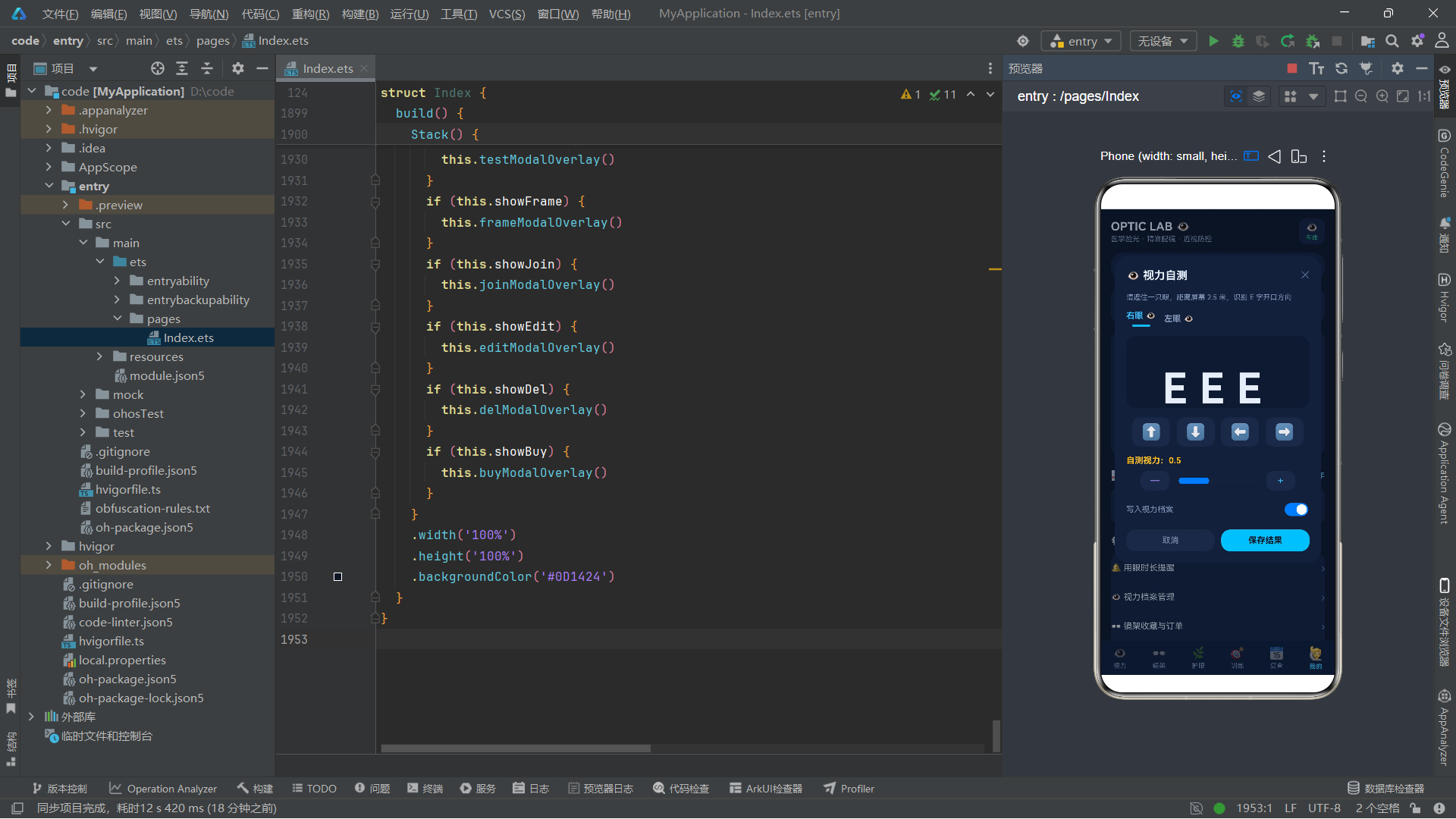
toggleFav4() 方法处理镜架收藏状态的切换。它使用 Array.map() 方法遍历整个镜架数组,通过引用比较(x === f)找到目标镜架,然后创建一个新的 FrameT 对象,将 fav 字段取反后返回。其他镜架对象原样返回。最终将新数组赋值给 this.frames 触发状态更新。
技术要点: 这里使用了
x === f进行引用比较来判断哪个镜架需要更新。在 ArkUI 中,@State数组中的对象是按引用存储的,当用户点击某个镜架的收藏按钮时,传入的f参数就是该镜架对象的引用。通过map方法重建数组时,匹配到的元素被替换为新对象(fav取反),未匹配的元素保持原引用不变。这种方式保证了只触发被修改元素关联 UI 的重新渲染,而不是整个列表的重新渲染,实现了精确的局部更新。
5.4 训练加入与任务打卡逻辑
joinCourse4(c: CourseT): void {
  this.courses = this.courses.map((x: CourseT) => {
    if (x === c) {
      const nc: CourseT = { name: x.name, day: x.day, min: x.min, joined: true, level: x.level }
      return nc
    }
    return x
  })
  this.showJoin = false
}
doTask4(t: TaskT): void {
  this.tasks = this.tasks.map((x: TaskT) => {
    if (x === t) {
      const nt: TaskT = { title: x.title, desc: x.desc, min: x.min, done: !x.done, icon: x.icon }
      return nt
    }
    return x
  })
}
joinCourse4() 方法将指定训练课程的 joined 状态设为 true,逻辑与收藏切换类似,通过 map 重建数组并替换目标元素。doTask4() 方法切换护眼任务的完成状态,将 done 字段取反。这两个方法都遵循了"map 重建 + 对象替换"的状态更新模式。
5.5 改约与取消收藏逻辑
confirmEditVisit(): void {
  this.revisits = this.revisits.map((x: RevisitT) => {
    if (x === this.editVisit) {
      const nx: RevisitT = { doc: x.doc, date: this.editDay, slot: this.editSlot, item: x.item, status: '待诊' }
      return nx
    }
    return x
  })
  this.showEdit = false
}
doDelFav(): void {
  this.frames = this.frames.map((x: FrameT) => {
    if (x === this.delFrame) {
      const nf: FrameT = { name: x.name, brand: x.brand, mat: x.mat, price: x.price, emoji: x.emoji, fit: x.fit, fav: false }
      return nf
    }
    return x
  })
  this.showDel = false
}
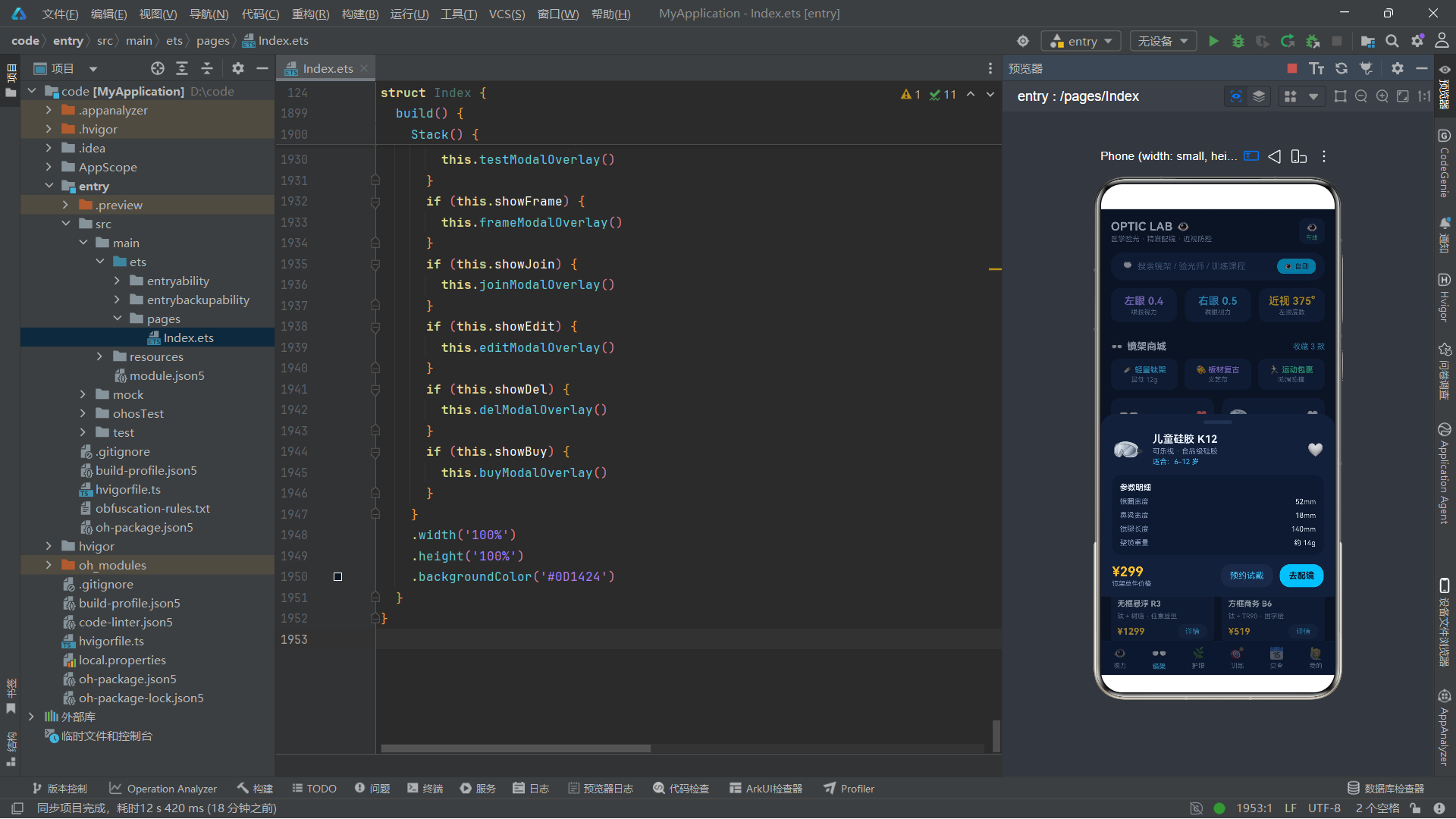
confirmEditVisit() 处理复查预约的改约操作,将目标预约的日期和时段更新为用户在弹窗中选择的新值,状态保持为"待诊"。doDelFav() 处理取消收藏操作,将目标镜架的 fav 字段设为 false。两个方法都遵循相同的状态更新模式,通过 map 遍历并替换匹配元素。
上图清晰展示了应用中所有核心业务方法的数据流路径。无论哪种操作,最终都归结为"创建新对象 → 重建数组 → 赋值给 @State → 触发渲染"这一统一模式。
六、公共构建器:导航栏、头部与标题
6.1 底部导航按钮构建器
@Builder
tabBtn4(icon: string, label: string, idx: number) {
  Column({ space: 3 }) {
    Text(icon)
      .fontSize(idx === this.selTab ? 20 : 18)
      .opacity(idx === this.selTab ? 1 : 0.55)
    Text(label)
      .fontSize(10)
      .fontColor(idx === this.selTab ? '#38BDF8' : '#8296B8')
      .fontWeight(idx === this.selTab ? FontWeight.Bold : FontWeight.Normal)
  }
  .layoutWeight(1)
  .padding({ top: 7, bottom: 7 })
  .onClick(() => {
    this.selTab = idx
  })
}
@Builder 装饰器用于声明一个可复用的 UI 构建方法。与直接在 build() 中编写 UI 不同,@Builder 方法可以接受参数,使得相同的 UI 结构能够根据不同的参数值生成不同的视觉呈现。这里定义的 tabBtn4 方法用于构建底部导航栏的单个按钮,接受三个参数:图标表情、文字标签和 Tab 索引。
技术要点:
@Builder装饰器是 ArkUI 中实现 UI 复用的重要机制。与@Component定义的独立组件不同,@Builder方法不会创建独立的组件实例,它更类似于一个 UI 片段的模板函数。@Builder方法可以直接访问所属组件的this上下文,包括状态变量和其他方法,这使得它在构建需要频繁引用组件内部状态的 UI 片段时非常方便。
Column 是 ArkUI 中的纵向布局容器组件,它将子组件按垂直方向从上到下排列。{ space: 3 } 参数设置子组件之间的间距为 3vp(虚拟像素)。每个按钮由图标和文字两部分组成,通过条件表达式 idx === this.selTab 判断当前按钮是否被选中,选中时图标更大(20 vs 18)、不透明度更高(1 vs 0.55)、文字颜色为主色调(#38BDF8 蓝色)、字体加粗。layoutWeight(1) 方法为按钮分配弹性权重,确保六个按钮在导航栏中均分宽度。
6.2 底部导航栏与头部构建器
@Builder
tabBar4() {
  Row() {
    this.tabBtn4('👁️', '视力', 0)
    this.tabBtn4('👓', '镜架', 1)
    this.tabBtn4('🌿', '护眼', 2)
    this.tabBtn4('🎯', '训练', 3)
    this.tabBtn4('📅', '复查', 4)
    this.tabBtn4('🙋', '我的', 5)
  }
  .width('100%')
  .backgroundColor('#111A30')
  .border({ width: { top: 0.5 }, color: '#233150' })
}
tabBar4() 构建器组装了完整的底部导航栏。Row 是横向布局容器组件,将六个导航按钮水平排列。背景色设置为深蓝 #111A30,顶部有一条 0.5vp 宽的边框线,颜色为 #233150,这条细线起到了视觉分割导航栏与内容区的作用。border 方法的 width 参数使用对象形式 { top: 0.5 },可以单独设置某一侧的边框宽度。
@Builder
headerBar4() {
  Column({ space: 12 }) {
    Row() {
      Column({ space: 2 }) {
        Text('OPTIC LAB 👁️')
          .fontSize(18)
          .fontWeight(FontWeight.Bold)
          .fontColor('#E6EEF9')
        Text('医学验光 · 精准配镜 · 近视防控')
          .fontSize(11)
          .fontColor('#8296B8')
      }
      .alignItems(HorizontalAlign.Start)
      .layoutWeight(1)
      Column({ space: 1 }) {
        Text('👁️')
          .fontSize(16)
          .opacity(this.blinkOp)
        Text('在线')
          .fontSize(9)
          .fontColor('#34D399')
      }
      .padding({ left: 10, right: 10, top: 5, bottom: 5 })
      .backgroundColor('#16203A')
      .borderRadius(12)
      .margin({ left: 8 })
    }
    .width('100%')
headerBar4() 构建了页面头部区域,这是一个结构复杂的嵌套布局。最外层是 Column 纵向容器,间距 12vp。第一行是品牌标识区,左侧是应用名称和标语(Column 配合 alignItems(HorizontalAlign.Start) 实现左对齐),右侧是在线状态指示器。在线指示器中的眨眼图标通过 .opacity(this.blinkOp) 绑定了动画状态变量,实现持续闪烁效果。borderRadius(12) 设置圆角,margin({ left: 8 }) 在左侧添加间距。
技术要点:
alignItems(HorizontalAlign.Start)控制子组件在交叉轴(水平方向)上的对齐方式为起始端对齐。在Column容器中,主轴是垂直方向,交叉轴是水平方向。HorizontalAlign.Start表示子组件左对齐,HorizontalAlign.Center表示居中对齐,HorizontalAlign.End表示右对齐。合理设置对齐方式是实现精确布局的关键。
头部的第二行是搜索栏,包含搜索图标、占位文字和"自测"按钮。点击自测按钮会设置 showTest = true 打开视力自测弹窗。第三行是三个状态卡片,分别显示左眼裸眼视力、右眼裸眼视力和左眼度数,通过 layoutWeight(1) 三等分宽度。
Row({ space: 12 }) {
  Column({ space: 2 }) {
    Text('左眼 ' + this.lastVis4().l.toFixed(1))
      .fontSize(16)
      .fontWeight(FontWeight.Bold)
      .fontColor('#A78BFA')
    Text('裸眼视力')
      .fontSize(10)
      .fontColor('#8296B8')
  }
  .layoutWeight(1)
  .padding({ top: 10, bottom: 10 })
  .backgroundColor('#16203A')
  .borderRadius(14)
  // ... 右眼和度数卡片结构类似
}
这三个状态卡片展示了如何将数据方法的返回值直接渲染到 UI 中。this.lastVis4().l.toFixed(1) 调用 lastVis4() 获取最新视力记录,再通过 toFixed(1) 将数值格式化为一位小数的字符串。左眼用紫色 #A78BFA,右眼用蓝色 #38BDF8,度数用黄色 #FBBF24,通过颜色编码帮助用户快速区分不同指标。
6.3 章节标题构建器
@Builder
secTitle4(icon: string, title: string, extra: string) {
  Row() {
    Text(icon)
      .fontSize(15)
      .margin({ right: 6 })
    Text(title)
      .fontSize(15)
      .fontWeight(FontWeight.Bold)
      .fontColor('#E6EEF9')
      .layoutWeight(1)
    Text(extra)
      .fontSize(12)
      .fontColor('#38BDF8')
  }
  .width('100%')
  .margin({ top: 18, bottom: 10 })
}
secTitle4() 是一个在各个 Tab 页面中频繁使用的章节标题构建器,接受图标、标题和附加文字三个参数。标题文字通过 layoutWeight(1) 占据剩余空间,附加文字右对齐显示,通常用于展示统计数字或操作提示。这个构建器在六个 Tab 页面中一共被调用了十多次,充分体现了 @Builder 的复用价值。
七、Tab 0 视力追踪页面:数据可视化
7.1 视力变化双柱状图
@Builder
visTab() {
  Column({ space: 0 }) {
    this.secTitle4('📉', '近 12 次视力变化', '左紫 右蓝')
    Column({ space: 10 }) {
      Row() {
        ForEach(this.visits.slice(0, 8), (v: VisT) => {
          Column({ space: 4 }) {
            Text(v.date.substring(5))
              .fontSize(8)
              .fontColor('#8296B8')
            Row({ space: 2 }) {
              Column() {
                Row()
                  .width('100%')
                  .height((v.l * 66).toFixed(0) + '%')
                  .backgroundColor('#A78BFA')
                  .borderRadius({ topLeft: 3, topRight: 3 })
              }
              .width(9)
              .height(64)
              .backgroundColor('#1D2946')
              .borderRadius(3)
              .justifyContent(FlexAlign.End)
              Column() {
                Row()
                  .width('100%')
                  .height((v.r * 66).toFixed(0) + '%')
                  .backgroundColor('#38BDF8')
                  .borderRadius({ topLeft: 3, topRight: 3 })
              }
              .width(9)
              .height(64)
              .backgroundColor('#1D2946')
              .borderRadius(3)
              .justifyContent(FlexAlign.End)
            }
            Text(v.l.toFixed(1) + '/' + v.r.toFixed(1))
              .fontSize(8)
              .fontColor('#8296B8')
          }
          .layoutWeight(1)
        }, (v: VisT) => v.date)
      }
      .width('100%')
      .alignItems(VerticalAlign.Bottom)
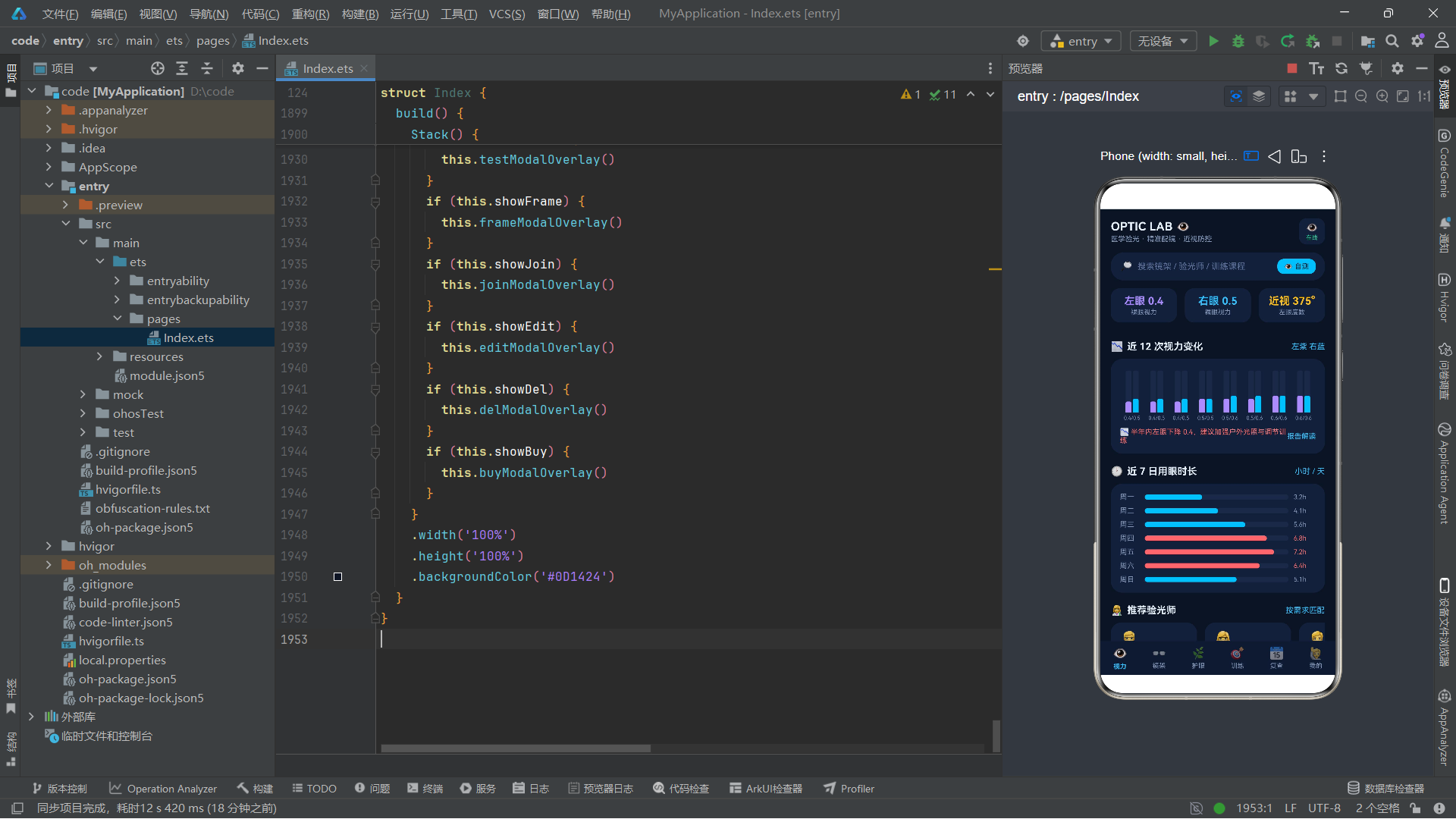
这是整个应用中最复杂的数据可视化组件之一——视力变化双柱状图。它使用 ForEach 组件渲染最近 8 次视力记录(this.visits.slice(0, 8)),每次记录渲染为一组双柱(左眼紫色 + 右眼蓝色)。
技术要点:
ForEach是 ArkUI 中用于列表渲染的核心组件。它接受三个参数:数据源数组、子项生成函数和键值生成函数。键值生成函数(v: VisT) => v.date为每个数据项生成唯一标识,框架通过比较键值来判断数据项是否新增、删除或位置变化,从而实现高效的增量更新。如果两个数据项生成了相同的键值,框架会发出警告,因此确保键值的唯一性非常重要。
柱状图的实现原理非常巧妙。每根柱子由一个固定高度的 Column 容器(64vp 高,深色背景)和一个内部的 Row 填充条组成。填充条的高度通过 (v.l * 66).toFixed(0) + '%' 计算——将视力值乘以 66 得到百分比,例如视力 0.5 对应 33% 的高度。Column 容器使用 justifyContent(FlexAlign.End) 将填充条推到底部,实现从底部向上生长的柱状图效果。borderRadius({ topLeft: 3, topRight: 3 }) 只设置顶部两个圆角,让柱子顶部呈现圆弧效果。
外层 Row 设置 .alignItems(VerticalAlign.Bottom) 使所有柱组底部对齐,这是柱状图的标准视觉规范。每组柱子下方显示日期(v.date.substring(5) 截取月日部分)和视力值文本。
技术要点:
alignItems(VerticalAlign.Bottom)在Row容器中控制子组件在交叉轴(垂直方向)上的对齐方式为底部对齐。这与Column中的alignItems作用于不同轴向——Row的交叉轴是垂直方向,Column的交叉轴是水平方向。开发者需要根据容器的排列方向正确理解alignItems的作用轴向。
7.2 用眼时长横条图与验光师推荐
this.secTitle4('🕐', '近 7 日用眼时长', '小时 / 天')
Column({ space: 8 }) {
  ForEach(USAGETIMES4, (u: number, i: number) => {
    Row({ space: 8 }) {
      Text('周' + '一二三四五六日'.charAt(i))
        .fontSize(11)
        .fontColor('#8296B8')
        .width(30)
      Row() {
        Row()
          .width((u * 100 / 8).toFixed(0) + '%')
          .height(8)
          .backgroundColor(u > 6 ? '#F87171' : '#38BDF8')
          .borderRadius(4)
      }
      .layoutWeight(1)
      .height(8)
      .backgroundColor('#1D2946')
      .borderRadius(4)
      Text(u.toFixed(1) + 'h')
        .fontSize(10)
        .fontColor(u > 6 ? '#F87171' : '#8296B8')
        .width(34)
    }
    .width('100%')
  }, (u: number, i: number) => i.toString())
}
用眼时长横条图使用了与柱状图类似的实现思路,但方向从垂直变为水平。每行由日期标签、进度条和数值三部分组成。进度条宽度通过 (u * 100 / 8).toFixed(0) + '%' 计算——以 8 小时为满分基准,将用眼时长转换为百分比。当用眼时长超过 6 小时时,进度条和数值文字变为红色 #F87171,提示用眼过度。
ForEach 在这里的键值生成函数使用了索引 i.toString(),因为数据源是简单的数字数组,没有天然的唯一标识。'一二三四五六日'.charAt(i) 是一种简洁的中文星期几获取方式,通过字符串索引取字符。
技术要点:
layoutWeight(1)在Row容器中的作用是将剩余空间分配给该组件。在这个横条图中,日期标签固定 30vp 宽,数值固定 34vp 宽,进度条容器通过layoutWeight(1)占据中间的全部剩余空间。进度条内部的填充条使用百分比宽度,相对于父容器的实际宽度进行计算,实现了弹性布局与百分比尺寸的组合。
验光师推荐部分使用了 Scroll 水平滚动容器:
Scroll() {
  Row({ space: 12 }) {
    ForEach(OPTOS4, (o: OptoT) => {
      Column({ space: 5 }) {
        Text(o.emoji)
          .fontSize(26)
        Text(o.name)
          .fontSize(13)
          .fontWeight(FontWeight.Bold)
          .fontColor('#E6EEF9')
        Text(o.title)
          .fontSize(10)
          .fontColor('#38BDF8')
        Text(o.stars >= 5 ? '⭐⭐⭐⭐⭐' : '⭐⭐⭐⭐')
          .fontSize(10)
        Text(o.good)
          .fontSize(9)
          .fontColor('#8296B8')
          .maxLines(1)
          .textOverflow({ overflow: TextOverflow.Ellipsis })
          .constraintSize({ maxWidth: 110 })
      }
      .width(132)
      .padding(12)
      .backgroundColor('#16203A')
      .borderRadius(16)
      .alignItems(HorizontalAlign.Start)
      .onClick(() => {
        this.editVisit = this.revisits[0]
        this.showEdit = true
      })
    }, (o: OptoT) => o.name)
  }
}
.scrollable(ScrollDirection.Horizontal)
.scrollBar(BarState.Off)
.width('100%')
技术要点:
Scroll是 ArkUI 的滚动容器组件,它可以包含超出自身尺寸的子内容,并允许用户通过手势滚动查看。scrollable(ScrollDirection.Horizontal)设置为水平滚动方向,scrollBar(BarState.Off)隐藏滚动条。Scroll组件默认是垂直滚动的,通过scrollable方法可以切换为水平滚动,这在实现横向卡片列表时非常实用。
每个验光师卡片宽度固定为 132vp,使用 alignItems(HorizontalAlign.Start) 实现内容左对齐。maxLines(1) 和 textOverflow({ overflow: TextOverflow.Ellipsis }) 配合使用实现单行文本溢出省略,constraintSize({ maxWidth: 110 }) 限制最大宽度防止文字过长撑破卡片。点击卡片会打开改约弹窗,预设为第一条复查预约的数据。
页面底部还有一条通过 offset({ y: this.scanY }) 绑定动画偏移的提示文字,展示眼轴长度数据,形成了持续的上下浮动动画效果。
八、Tab 1 镜架商城页面:瀑布流列表
@Builder
frameTab() {
  Column({ space: 0 }) {
    this.secTitle4('👓', '镜架商城', '收藏 ' + this.favCount4().toString() + ' 款')
    Row({ space: 10 }) {
      Column({ space: 2 }) {
        Text('🪶 轻量钛架')
          .fontSize(12)
          .fontWeight(FontWeight.Bold)
          .fontColor('#38BDF8')
        Text('最低 12g')
          .fontSize(10)
          .fontColor('#8296B8')
      }
      .layoutWeight(1)
      .padding({ top: 10, bottom: 10 })
      .backgroundColor('#16203A')
      .borderRadius(12)
      // ... 板材复古、运动包裹两个分类卡片结构类似
    }
    .width('100%')
    Row({ space: 12 }) {
      Column({ space: 10 }) {
        ForEach(this.frames.slice(0, 6), (f: FrameT) => {
          this.frameCell4(f)
        }, (f: FrameT) => f.name + f.fav.toString())
      }
      .layoutWeight(1)
      Column({ space: 10 }) {
        ForEach(this.frames.slice(6), (f: FrameT) => {
          this.frameCell4(f)
        }, (f: FrameT) => f.name + f.fav.toString())
      }
      .layoutWeight(1)
    }
    .width('100%')
    .margin({ top: 12 })
    .alignItems(VerticalAlign.Top)
  }
  .width('100%')
  .padding({ left: 16, right: 16, bottom: 16 })
}
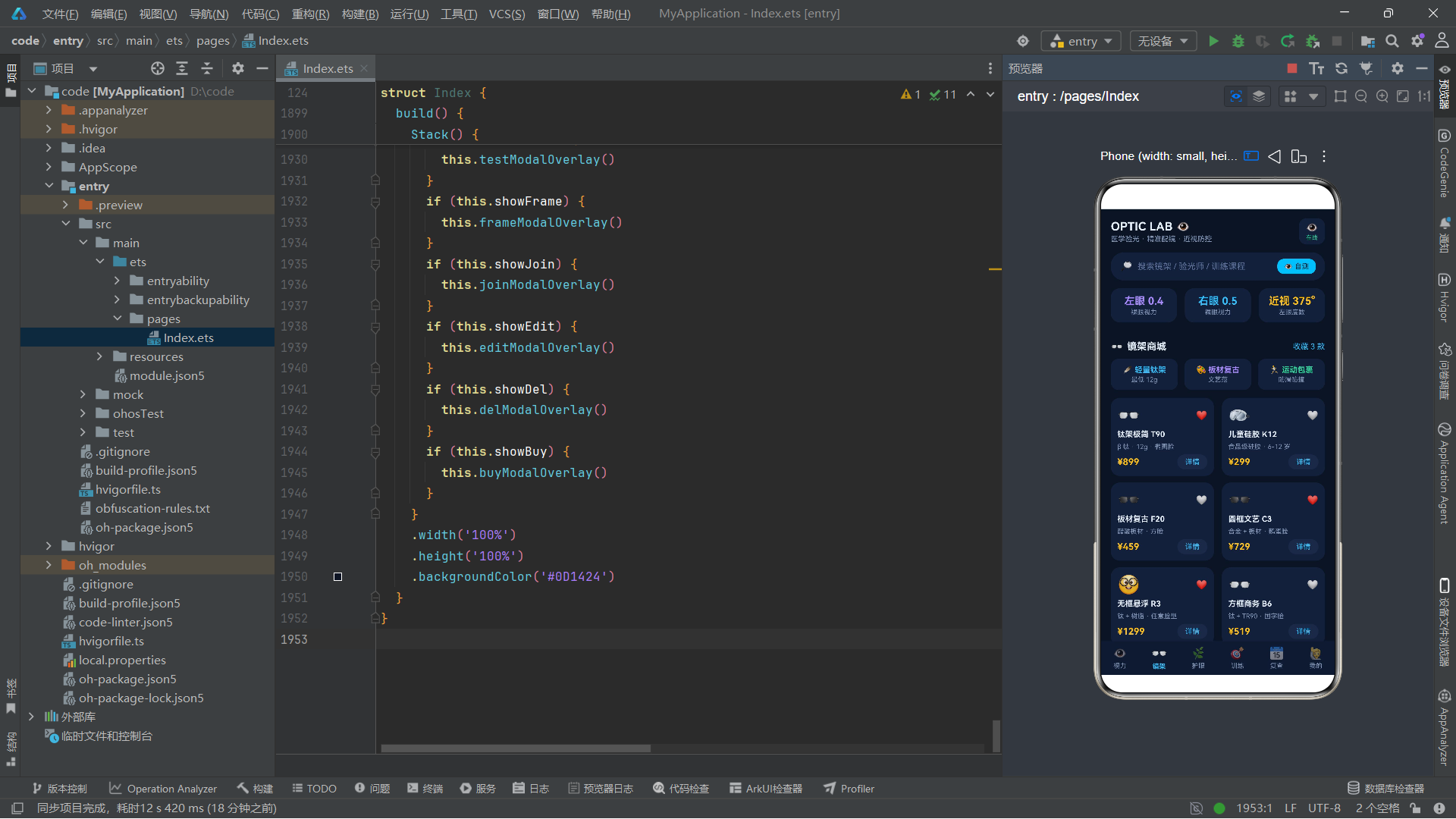
镜架商城页面采用双列瀑布流布局展示镜架产品。顶部是三个分类入口卡片(轻量钛架、板材复古、运动包裹),通过 layoutWeight(1) 三等分宽度。下方将 12 款镜架分为前 6 款和后 6 款两列,分别用 ForEach 渲染到两个 Column 中。两列均使用 layoutWeight(1) 等分宽度,外层 Row 设置 alignItems(VerticalAlign.Top) 使两列顶部对齐。
技术要点: 这里的双列布局是一种简化版的瀑布流实现。真正的瀑布流需要考虑各列内容高度的差异进行动态分配,而这里采用固定前半和后半的简单分割方式。
ForEach的键值生成函数使用了f.name + f.fav.toString(),将镜架名称和收藏状态拼接作为唯一标识。当收藏状态变化时,键值也会变化,触发对应卡片的重新渲染。
8.1 镜架卡片构建器
@Builder
frameCell4(f: FrameT) {
  Column({ space: 6 }) {
    Row() {
      Text(f.emoji)
        .fontSize(28)
        .layoutWeight(1)
      Text(f.fav ? '❤️' : '🤍')
        .fontSize(14)
        .onClick(() => {
          if (f.fav) {
            this.delFrame = f
            this.delArmed = false
            this.showDel = true
          } else {
            this.toggleFav4(f)
          }
        })
    }
    .width('100%')
    Text(f.name)
      .fontSize(12)
      .fontWeight(FontWeight.Bold)
      .fontColor('#E6EEF9')
      .maxLines(1)
      .textOverflow({ overflow: TextOverflow.Ellipsis })
    Text(f.mat + ' · ' + f.fit)
      .fontSize(10)
      .fontColor('#8296B8')
    Row({ space: 6 }) {
      Text('¥' + f.price.toString())
        .fontSize(14)
        .fontWeight(FontWeight.Bold)
        .fontColor('#FBBF24')
        .layoutWeight(1)
      Text('详情')
        .fontSize(11)
        .fontColor('#38BDF8')
        .padding({ left: 12, right: 12, top: 5, bottom: 5 })
        .backgroundColor('#1D2946')
        .borderRadius(12)
        .onClick(() => {
          this.selFrame = f
          this.showFrame = true
        })
    }
    .width('100%')
  }
  .padding(10)
  .backgroundColor('#16203A')
  .borderRadius(14)
  .alignItems(HorizontalAlign.Start)
}
frameCell4 构建器定义了单个镜架卡片的完整结构。卡片顶部是图标和收藏按钮的横向排列,收藏按钮的点击逻辑区分了两种情况:如果镜架已被收藏(f.fav 为 true),则打开取消收藏确认弹窗(设置 delFrame、delArmed 为 false、showDel 为 true);如果未收藏,则直接调用 toggleFav4(f) 添加收藏。这种设计在取消收藏时增加了确认步骤,防止误操作。
卡片中部显示镜架名称(单行溢出省略)和材质+适配脸型信息。底部是价格(黄色 #FBBF24)和详情按钮的横向布局。点击详情按钮会设置 selFrame 为当前镜架并打开镜架详情弹窗。
九、Tab 2 护眼任务页面:进度与清单
@Builder
eyeTab() {
  Column({ space: 0 }) {
    this.secTitle4('🌿', '今日护眼任务', this.taskRate4().toString() + '% 完成')
    Column({ space: 12 }) {
      Row({ space: 14 }) {
        Stack() {
          Progress({ value: this.taskRate4(), total: 100 })
            .width(84)
            .height(84)
            .style({ strokeWidth: 9 })
          Column({ space: 1 }) {
            Text('👁️')
              .fontSize(14)
              .opacity(this.blinkOp)
            Text(this.taskRate4().toString() + '%')
              .fontSize(16)
              .fontWeight(FontWeight.Bold)
              .fontColor('#E6EEF9')
          }
        }
        Column({ space: 5 }) {
          Text('完成 ' + this.doneCount4().toString() + '/' + this.tasks.length.toString() + ' 项任务')
            .fontSize(13)
            .fontWeight(FontWeight.Bold)
            .fontColor('#E6EEF9')
          Text('坚持护眼任务,近视进展可减缓约 30%')
            .fontSize(11)
            .fontColor('#8296B8')
          Text('今日户外光照已达标 🌳')
            .fontSize(11)
            .fontColor('#34D399')
        }
        .alignItems(HorizontalAlign.Start)
        .layoutWeight(1)
      }
      .width('100%')
    }
    .width('100%')
    .padding(14)
    .backgroundColor('#16203A')
    .borderRadius(18)
技术要点:
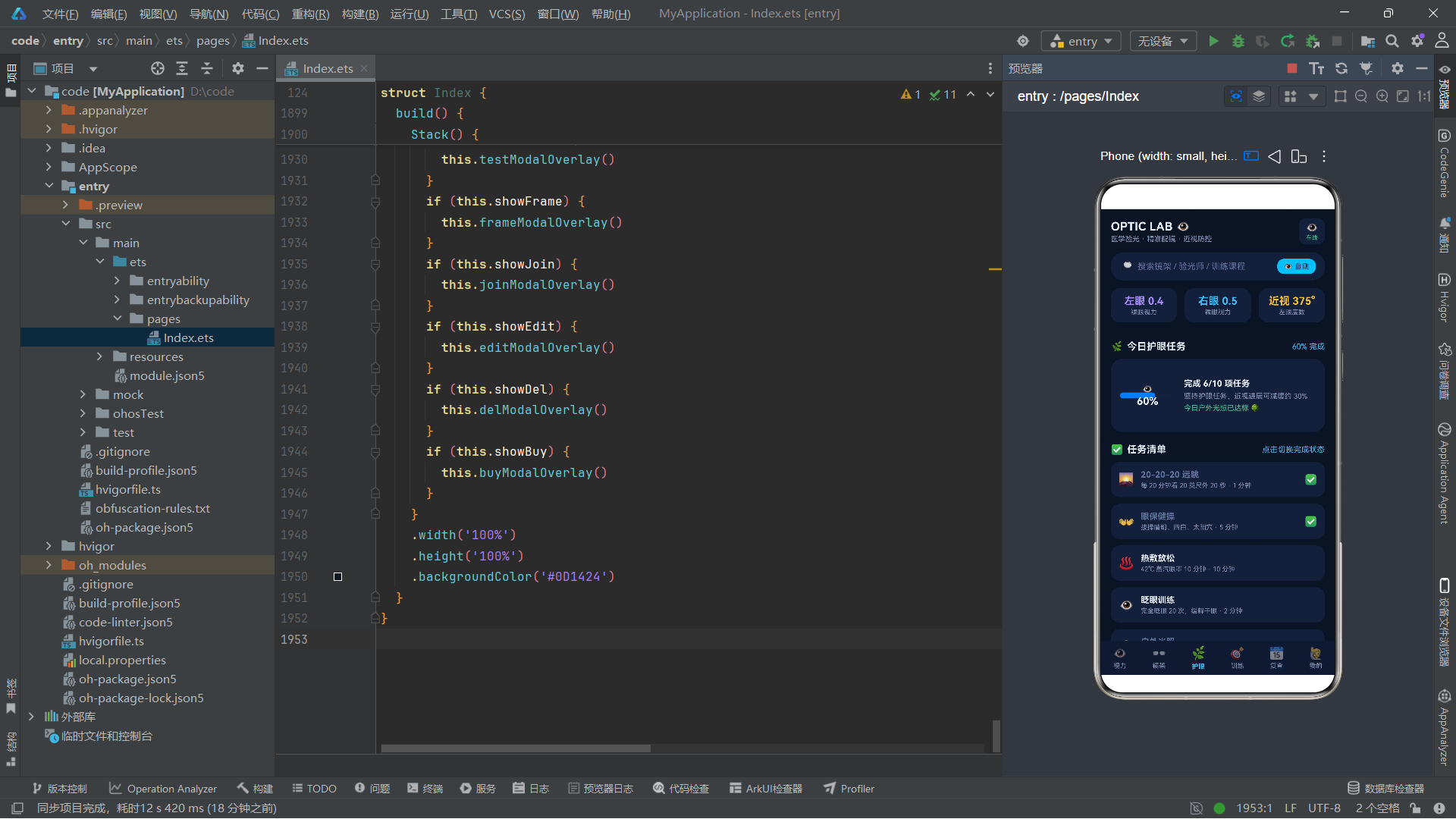
Stack是 ArkUI 的层叠布局容器组件,它将子组件按添加顺序堆叠在一起,后添加的子组件覆盖在先添加的子组件之上。Stack默认将子组件居中对齐。在这里,Progress环形进度组件作为底层,Column(包含百分比文字)叠加在其上方,形成了进度环中心显示文字的经典 UI 模式。
Progress 组件是 ArkUI 内置的进度展示组件。Progress({ value: this.taskRate4(), total: 100 }) 创建一个进度值为完成率、总值为 100 的进度组件。默认类型为环形进度条(ProgressType.Ring),通过 style({ strokeWidth: 9 }) 设置环的宽度为 9vp。中心的眨眼图标通过 opacity(this.blinkOp) 绑定动画,与头部在线指示器共享同一动画状态变量。
任务清单部分使用 ForEach 渲染所有护眼任务,每个任务行包含图标、标题描述和完成状态切换按钮:
ForEach(this.tasks, (t: TaskT) => {
  Row({ space: 10 }) {
    Text(t.icon)
      .fontSize(19)
    Column({ space: 3 }) {
      Text(t.title)
        .fontSize(13)
        .fontWeight(FontWeight.Bold)
        .fontColor(t.done ? '#5D739C' : '#E6EEF9')
      Text(t.desc + (t.min > 0 ? ' · ' + t.min.toString() + ' 分钟' : ''))
        .fontSize(10)
        .fontColor('#8296B8')
    }
    .alignItems(HorizontalAlign.Start)
    .layoutWeight(1)
    Text(t.done ? '✅' : '○')
      .fontSize(15)
      .onClick(() => {
        this.doTask4(t)
      })
  }
  .width('100%')
  .padding(12)
  .backgroundColor('#16203A')
  .borderRadius(14)
}, (t: TaskT) => t.title + t.done.toString())
任务卡片的视觉设计体现了状态反馈的细节考量。已完成的任务标题颜色变为暗灰 #5D739C(视觉上的"淡化"效果),未完成的任务标题为亮色 #E6EEF9。完成状态按钮在已完成时显示绿色对勾 ✅,未完成时显示空心圆 ○。点击按钮调用 doTask4(t) 切换完成状态。ForEach 的键值使用了 t.title + t.done.toString(),当任务完成状态变化时键值也随之变化,触发该任务卡片的重新渲染。
十、Tab 3 视觉训练页面:统计与课程列表
@Builder
trainTab() {
  Column({ space: 0 }) {
    this.secTitle4('🎯', '视觉训练课程', '已加入 ' + this.courseCount4().toString() + ' 门')
    Column({ space: 10 }) {
      Row({ space: 10 }) {
        Column({ space: 2 }) {
          Text('3')
            .fontSize(20)
            .fontWeight(FontWeight.Bold)
            .fontColor('#A78BFA')
          Text('进行中')
            .fontSize(10)
            .fontColor('#8296B8')
        }
        .layoutWeight(1)
        .padding({ top: 10, bottom: 10 })
        .backgroundColor('#1D2946')
        .borderRadius(12)
        // ... 累计打卡 26 次、调节灵活度提升 62% 两个统计卡片
      }
      .width('100%')
    }
    .width('100%')
    .padding(14)
    .backgroundColor('#16203A')
    .borderRadius(18)
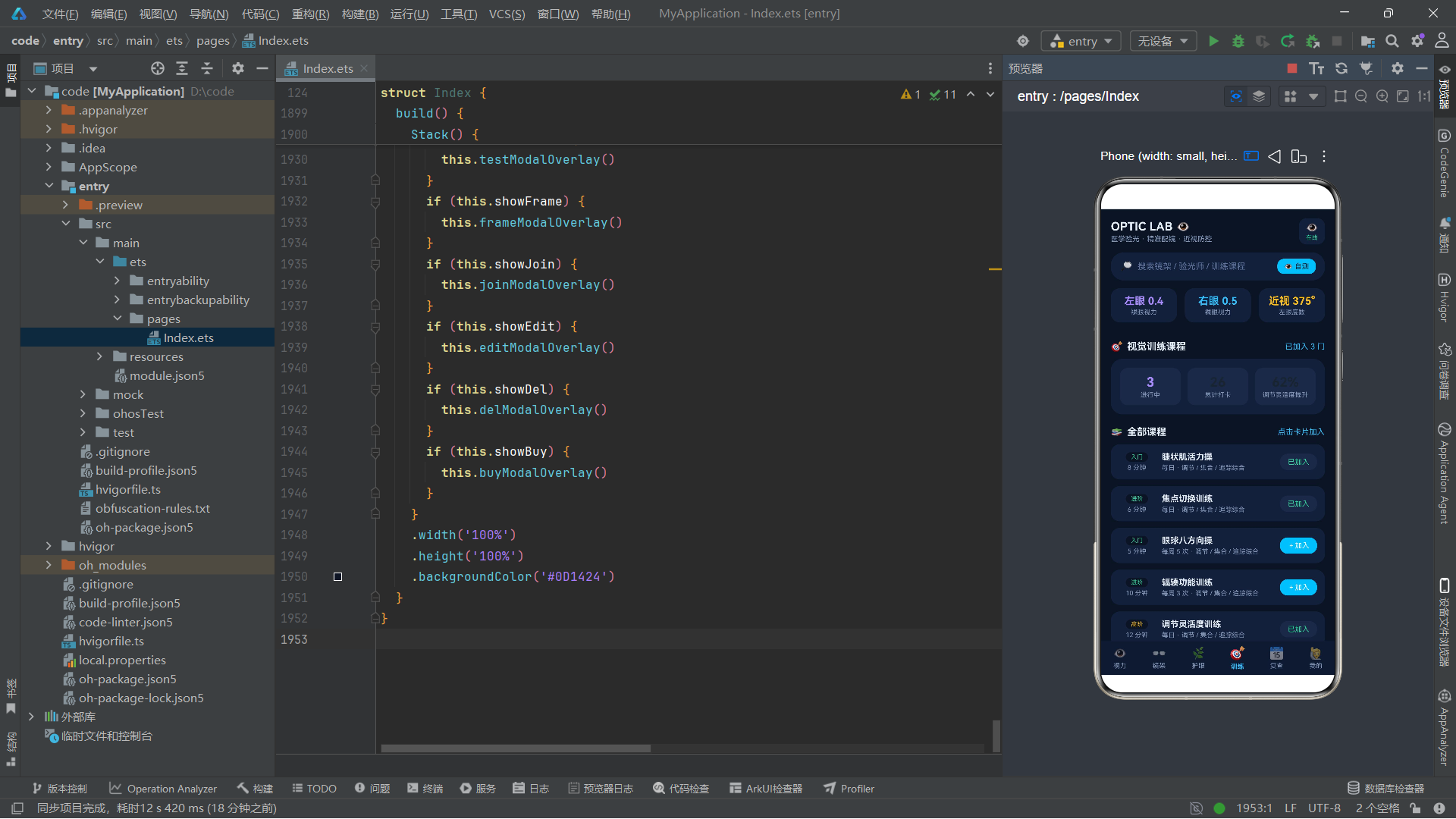
训练页面顶部是三个统计卡片(进行中课程数、累计打卡天数、调节灵活度提升率),三等分排列。下方是全部课程列表,每门课程显示难度等级标签、时长、课程名称、频次描述和加入按钮:
ForEach(this.courses, (c: CourseT) => {
  Row({ space: 10 }) {
    Column({ space: 3 }) {
      Text(c.level)
        .fontSize(9)
        .fontColor(c.level === '医疗' ? '#F87171' : (c.level === '高阶' ? '#FBBF24' : '#34D399'))
        .padding({ left: 8, right: 8, top: 2, bottom: 2 })
        .backgroundColor('#0D1424')
        .borderRadius(8)
      Text(c.min.toString() + ' 分钟')
        .fontSize(10)
        .fontColor('#8296B8')
    }
    .width(56)
    Column({ space: 3 }) {
      Text(c.name)
        .fontSize(13)
        .fontWeight(FontWeight.Bold)
        .fontColor('#E6EEF9')
      Text(c.day + ' · 调节 / 集合 / 追踪综合')
        .fontSize(10)
        .fontColor('#8296B8')
    }
    .alignItems(HorizontalAlign.Start)
    .layoutWeight(1)
    Text(c.joined ? '已加入' : '+加入')
      .fontSize(11)
      .fontColor(c.joined ? '#34D399' : '#FFFFFF')
      .padding({ left: 12, right: 12, top: 6, bottom: 6 })
      .backgroundColor(c.joined ? '#1D2946' : '#38BDF8')
      .borderRadius(12)
      .onClick(() => {
        if (!c.joined) {
          this.joinCourse = c
          this.joinMin = c.min.toString() + ' 分钟'
          this.showJoin = true
        }
      })
  }
  .width('100%')
  .padding(12)
  .backgroundColor('#16203A')
  .borderRadius(14)
}, (c: CourseT) => c.name + c.joined.toString())
难度等级标签通过条件表达式实现颜色分级:医疗级为红色 #F87171,高阶为黄色 #FBBF24,入门和进阶为绿色 #34D399。加入按钮的点击逻辑仅在未加入时触发,将课程信息预设到加入训练弹窗的状态变量中并打开弹窗。已加入的按钮显示为暗色"已加入",不可再次点击。
十一、Tab 4 复查预约页面
@Builder
revisitTab() {
Column({ space: 0 }) {
this.secTitle4('📅', '复查预约', '共 ' + this.revisits.length.toString() + ' 条')
Column({ space: 10 }) {
ForEach(this.revisits, (r: RevisitT) => {
Column({ space: 8 }) {
Row({ space: 8 }) {
Text(r.item)
.fontSize(13)
.fontWeight(FontWeight.Bold)
.fontColor('#E6EEF9')
.layoutWeight(1)
Text(r.status)
.fontSize(10)
.fontColor(r.status === '已完成' ? '#34D399' : (r.status === '已取消' ? '#5D739C' : '#FBBF24'))
.padding({ left: 10, right: 10, top: 4, bottom: 4 })
.backgroundColor('#0D1424')
.borderRadius(10)
}
.width('100%')
Row({ space: 8 }) {
Text('👩🔬 ' + r.doc + ' · ' + r.date + ' ' + r.slot)
.fontSize(11)
.fontColor('#8296B8')
.layoutWeight(1)
if (r.status === '待诊') {
Text('改约')
.fontSize(11)
.fontColor('#38BDF8')
.padding({ left: 12, right: 12, top: 5, bottom: 5 })
.backgroundColor('#1D2946')
.borderRadius(10)
.onClick(() => {
this.editVisit = r
this.editDay = r.date
this.editSlot = r.slot
this.showEdit = true
})
}
}
.width('100%')
}
.width('100%')
.padding(12)
.backgroundColor('#16203A')
.borderRadius(14)
}, (r: RevisitT) => r.item + r.date + r.status)
}
.width('100%')
Text('🔬 建议每 3 个月复查一次眼轴与屈光度,青少年建议每半年散瞳验光')
.fontSize(11)
.fontColor('#8296B8')
.margin({ top: 12 })
.offset({ y: this.scanY })
}
.width('100%')
.padding({ left: 16, right: 16, bottom: 16 })
}
技术要点:
if (r.status === '待诊')是 ArkUI 声明式 UI 中的条件渲染语法。与ForEach类似,条件渲染语句可以出现在build()方法或@Builder方法中,框架会根据条件表达式的真假来动态创建或销毁对应的 UI 组件。当状态从"待诊"变为"已完成"时,改约按钮会被自动移除,无需手动管理 DOM。
复查预约卡片的状态标签同样使用颜色编码:已完成为绿色、已取消为暗灰、待诊为黄色。改约按钮仅在"待诊"状态下显示,点击后预设当前预约信息到改约弹窗并打开。页面底部的复查建议提示文字绑定了 scanY 动画偏移,实现持续浮动的视觉效果。
十二、Tab 5 个人中心页面
@Builder
mineTab() {
  Column({ space: 0 }) {
    Column({ space: 8 }) {
      Text('🧑')
        .fontSize(42)
        .padding(14)
        .backgroundColor('#1D2946')
        .borderRadius(30)
      Text('李小天')
        .fontSize(18)
        .fontWeight(FontWeight.Bold)
        .fontColor('#E6EEF9')
      Text('近视防控档案建立 480 天 · 风险等级:中')
        .fontSize(12)
        .fontColor('#FBBF24')
      Row({ space: 8 }) {
        Text('配镜券 ×1')
          .fontSize(11)
          .fontColor('#38BDF8')
          .padding({ left: 10, right: 10, top: 4, bottom: 4 })
          .backgroundColor('#1D2946')
          .borderRadius(10)
        Text('护眼积分 2360')
          .fontSize(11)
          .fontColor('#A78BFA')
          .padding({ left: 10, right: 10, top: 4, bottom: 4 })
          .backgroundColor('#1D2946')
          .borderRadius(10)
        Text('训练会员')
          .fontSize(11)
          .fontColor('#34D399')
          .padding({ left: 10, right: 10, top: 4, bottom: 4 })
          .backgroundColor('#1D2946')
          .borderRadius(10)
      }
    }
    .width('100%')
    .padding({ top: 22, bottom: 18 })
    .backgroundColor('#16203A')
    .borderRadius(20)
个人中心页面顶部是用户信息卡片,包含头像、姓名、近视防控档案信息和三个标签徽章(配镜券、护眼积分、训练会员)。下方是视力档案年度概览(左眼变化 -0.4、右眼变化 -0.3、眼轴年增长 0.3mm)和设置列表。
Column({ space: 0 }) {
ForEach(['🔔 用眼时长提醒', '👁️ 视力档案管理', '👓 镜架收藏与订单', '👨👩👧 家庭视力档案', '🎁 卡券与积分', '📞 联系视光顾问'], (s: string) => {
Row({ space: 8 }) {
Text(s)
.fontSize(13)
.fontColor('#E6EEF9')
.layoutWeight(1)
Text('›')
.fontSize(16)
.fontColor('#5D739C')
}
.width('100%')
.padding({ top: 13, bottom: 13 })
.backgroundColor('#16203A')
}, (s: string) => s)
}
.width('100%')
.borderRadius(14)
.clip(true)
技术要点:
.clip(true)方法对容器组件设置裁剪属性,使其子组件超出边界的内容被裁剪。这里对设置列表容器设置borderRadius(14)圆角和clip(true)裁剪,使得列表第一项的顶部和最后一项的底部都呈现圆角效果。如果不设置clip,子组件的直角会"溢出"父容器的圆角边界,导致视觉不协调。这是 ArkUI 中实现"圆角列表组"的常用技巧。
设置列表使用 ForEach 渲染六行设置项,每行包含设置名称和右箭头 ›。列表容器通过 borderRadius(14) 和 clip(true) 实现整体圆角效果。底部还有应用版本号文字 OPTIC LAB · 验光配镜中心 v4.1.0。
十三、弹窗模态层:六种交互模态
13.1 弹窗架构设计模式
应用中的六个弹窗都采用了相同的架构设计模式:一个全屏遮罩层(zIndex 999)+ 一个内容卡片层(zIndex 1000),通过 position 绝对定位和 zIndex 层级控制实现堆叠。
技术要点:
position方法为组件设置绝对定位,使组件脱离正常文档流,相对于父容器进行精确定位。position({ x: 0, y: 0 })将遮罩层定位到父容器的左上角,覆盖整个区域。zIndex控制组件在 Stack 中的堆叠顺序,数值越大越靠上。遮罩层设为 999,内容层设为 1000,确保内容层始终在遮罩层之上。这种"遮罩 + 内容"的双层弹窗模式是 ArkUI 中实现自定义弹窗的标准方案。
13.2 视力自测弹窗
@Builder
testModalOverlay() {
  Column() {
    Column()
      .width('100%')
      .height('100%')
      .backgroundColor('#660D1424')
      .onClick(() => {
        this.showTest = false
      })
  }
  .width('100%')
  .height('100%')
  .position({ x: 0, y: 0 })
  .zIndex(999)
  Column({ space: 14 }) {
    Row({ space: 10 }) {
      Text('👁️ 视力自测')
        .fontSize(17)
        .fontWeight(FontWeight.Bold)
        .fontColor('#E6EEF9')
        .layoutWeight(1)
      Text('✕')
        .fontSize(15)
        .fontColor('#5D739C')
        .onClick(() => {
          this.showTest = false
        })
    }
    .width('100%')
视力自测弹窗是六个弹窗中内容最丰富的一个。遮罩层使用半透明背景 #660D1424(前两位 66 为透明度约 40%),点击遮罩层关闭弹窗。内容卡片宽度 88%,通过 position({ x: '6%', y: '10%' }) 居中偏上定位,constraintSize({ maxHeight: '78%' }) 限制最大高度防止内容过多超出屏幕。
弹窗内容包括:标题栏(含关闭按钮)、测试说明、左右眼选择切换、E 字视标展示区、方向选择按钮、视力值调节滑块、写入档案开关和取消/保存按钮。
技术要点:
#660D1424是 ArkUI 中的 8 位十六进制颜色值,前两位66表示 Alpha 透明度通道(十六进制 66 = 十进制 102,约 40% 不透明度),后六位0D1424是 RGB 颜色值。ArkUI 支持这种 ARGB 格式的颜色表示法,通过调整前两位的值可以实现不同级别的半透明效果,这在弹窗遮罩层的实现中非常常见。
左右眼选择切换的实现方式值得注意:
Row({ space: 12 }) {
  Column({ space: 6 }) {
    Text('右眼 👁️')
      .fontSize(13)
      .fontColor(this.testEye === '右眼' ? '#38BDF8' : '#8296B8')
      .fontWeight(FontWeight.Bold)
    if (this.testEye === '右眼') {
      Row()
        .width(28)
        .height(3)
        .backgroundColor('#38BDF8')
        .borderRadius(2)
    }
  }
  .onClick(() => {
    this.testEye = '右眼'
  })
  // ... 左眼选项结构类似,颜色为紫色
}
选中眼别时,文字变为主色调并加粗,下方出现一条 3vp 高的彩色指示条。指示条通过 if (this.testEye === '右眼') 条件渲染控制显示与隐藏,这是 ArkUI 条件渲染的典型应用场景。
E 字视标区域使用了 letterSpacing(18) 设置字符间距,使三个 E 字之间有足够的间隔,模拟视力表的效果。同时通过 offset({ y: this.scanY }) 绑定动画偏移,实现 E 字上下浮动的动态效果。视力值调节使用 Progress 线性进度条(ProgressType.Linear)配合加减按钮:
Progress({ value: this.testVal, total: 15, type: ProgressType.Linear })
  .width(120)
  .style({ strokeWidth: 10 })
技术要点:
Progress组件支持三种类型:ProgressType.Linear(线性进度条)、ProgressType.Ring(环形进度条)和ProgressType.Eclipse(月蚀形进度条)。通过type参数指定类型,style方法设置样式属性如strokeWidth(线条宽度)。线性进度条适合表达连续数值的调节范围,环形进度条适合表达完成率,开发者应根据场景选择合适的类型。
13.3 镜架详情弹窗(底部抽屉)
@Builder
frameModalOverlay() {
  Column() {
    Column()
      .width('100%')
      .height('100%')
      .backgroundColor('#660D1424')
      .onClick(() => {
        this.showFrame = false
      })
  }
  .width('100%')
  .height('100%')
  .position({ x: 0, y: 0 })
  .zIndex(999)
  Column({ space: 14 }) {
    Row()
      .width(44)
      .height(5)
      .backgroundColor('#233150')
      .borderRadius(3)
      .margin({ top: 10 })
    Row({ space: 12 }) {
      Text(this.selFrame.emoji)
        .fontSize(40)
      Column({ space: 3 }) {
        Text(this.selFrame.name)
          .fontSize(16)
          .fontWeight(FontWeight.Bold)
          .fontColor('#E6EEF9')
        Text(this.selFrame.brand + ' · ' + this.selFrame.mat)
          .fontSize(11)
          .fontColor('#8296B8')
        Text('适合:' + this.selFrame.fit)
          .fontSize(11)
          .fontColor('#38BDF8')
      }
      .alignItems(HorizontalAlign.Start)
      .layoutWeight(1)
      Text(this.selFrame.fav ? '❤️' : '🤍')
        .fontSize(20)
        .onClick(() => {
          this.toggleFav4(this.selFrame)
        })
    }
    .width('100%')
镜架详情弹窗采用底部抽屉样式,与视力自测弹窗的居中大卡样式不同。内容卡片通过 position({ x: 0, y: '44%' }) 定位到屏幕底部 44% 处,borderRadius({ topLeft: 24, topRight: 24 }) 只设置上方两个大圆角,模拟从底部滑出的抽屉效果。卡片顶部有一个 44x5vp 的拖拽指示条(小横条),这是移动端底部弹窗的标准视觉元素。
详情弹窗展示了选中镜架的完整信息:大图标、名称、品牌+材质、适配脸型和收藏按钮。下方是参数明细区域,以键值对形式展示镜圈宽度、鼻梁宽度、镜腿长度和整镜重量。底部是价格、预约试戴和去配镜按钮——预约试戴会关闭详情弹窗并切换到复查 Tab,去配镜会打开配镜下单弹窗。
13.4 加入训练弹窗
Column({ space: 8 }) {
  Text('单次时长')
    .fontSize(12)
    .fontColor('#8296B8')
    .width('100%')
  Row({ space: 8 }) {
    ForEach(['5 分钟', '8 分钟', '12 分钟'], (m: string) => {
      Text(m)
        .fontSize(12)
        .fontColor(this.joinMin === m ? '#0D1424' : '#8296B8')
        .padding({ left: 14, right: 14, top: 8, bottom: 8 })
        .backgroundColor(this.joinMin === m ? '#34D399' : '#1D2946')
        .borderRadius(12)
        .onClick(() => {
          this.joinMin = m
        })
    }, (m: string) => m)
  }
  .width('100%')
}
加入训练弹窗同样采用底部抽屉样式。它提供了单次时长选择(5/8/12 分钟)、训练时段选择(晨间/午间/晚间)、每日训练提醒开关和确认/取消按钮。时长和时段的选择使用了 ForEach 渲染的选项标签组,选中项变为高亮背景+深色文字,未选中项为暗色背景+灰色文字。这种选择标签组是 ArkUI 中实现单选功能的常见模式。
技术要点: 弹窗中的选项标签组通过条件表达式
this.joinMin === m判断是否选中,动态切换fontColor和backgroundColor。这是一种纯状态驱动的单选实现方式——无需维护 selectedIndex,直接比较选项值本身即可判断选中状态。当用户点击某个选项时,将对应值赋给状态变量,框架自动重新渲染所有选项的样式。
弹窗中的每日训练提醒使用了 Toggle 开关组件:
Toggle({ type: ToggleType.Switch, isOn: this.joinRemind })
  .onChange((v: boolean) => {
    this.joinRemind = v
  })
技术要点:
Toggle是 ArkUI 内置的开关组件,支持两种类型:ToggleType.Switch(滑动开关,类似 iOS 的 UISwitch)和ToggleType.Checkbox(复选框)。isOn参数绑定状态变量控制开关状态,onChange回调在用户切换时触发,将新的布尔值同步到状态变量。Toggle组件简化了布尔值的切换交互,是设置页和弹窗中常见的表单控件。
13.5 改约弹窗
@Builder
editModalOverlay() {
  // ... 遮罩层
  Column({ space: 13 }) {
    Text('✏️ 修改「' + this.editVisit.item + '」')
      .fontSize(15)
      .fontWeight(FontWeight.Bold)
      .fontColor('#E6EEF9')
    Text('当前:' + this.editVisit.doc + ' · ' + this.editVisit.date + ' ' + this.editVisit.slot)
      .fontSize(11)
      .fontColor('#8296B8')
    Column({ space: 8 }) {
      Text('新日期')
        .fontSize(12)
        .fontColor('#8296B8')
        .width('100%')
      Row({ space: 8 }) {
        ForEach(['09-10', '09-11', '09-16', '09-17'], (d: string) => {
          Text(d)
            .fontSize(12)
            .fontColor(this.editDay === d ? '#0D1424' : '#8296B8')
            .padding({ left: 12, right: 12, top: 7, bottom: 7 })
            .backgroundColor(this.editDay === d ? '#38BDF8' : '#1D2946')
            .borderRadius(10)
            .onClick(() => {
              this.editDay = d
            })
        }, (d: string) => d)
      }
      .width('100%')
    }
    .width('100%')
改约弹窗采用居中卡片样式(position({ x: '8%', y: '16%' })),宽度 84%。内容包括当前预约信息展示、新日期选择(4 个选项)、新时段选择(4 个选项)、备注输入框和确认/取消按钮。
技术要点:
TextInput是 ArkUI 的文本输入组件,用于接收用户的键盘输入。TextInput({ placeholder: '选填,如希望加测眼轴', text: this.editNote })创建一个带占位提示文字和绑定值的输入框。placeholder在输入框为空时显示灰色提示文字,text参数绑定状态变量实现受控输入。onChange回调在文本变化时触发,将新值同步到状态变量。height(40)设置固定高度,backgroundColor和borderRadius定制外观。
TextInput({ placeholder: '选填,如希望加测眼轴', text: this.editNote })
  .fontSize(13)
  .height(40)
  .backgroundColor('#111A30')
  .borderRadius(12)
  .onChange((v: string) => {
    this.editNote = v
  })
13.6 取消收藏弹窗(危险操作确认)
@Builder
delModalOverlay() {
  // ... 遮罩层
  Column({ space: 12 }) {
    Text('💔')
      .fontSize(28)
    Text('取消收藏镜架')
      .fontSize(16)
      .fontWeight(FontWeight.Bold)
      .fontColor('#F87171')
    Text('「' + this.delFrame.name + '」将从收藏夹移除,订单与试戴记录不受影响。')
      .fontSize(12)
      .fontColor('#8296B8')
      .textAlign(TextAlign.Center)
      .lineHeight(18)
    Row({ space: 8 }) {
      Text('我已确认')
        .fontSize(12)
        .fontColor('#8296B8')
        .layoutWeight(1)
      Toggle({ type: ToggleType.Switch, isOn: this.delArmed })
        .onChange((v: boolean) => {
          this.delArmed = v
        })
    }
    .width('100%')
    .padding({ left: 10, right: 10, top: 8, bottom: 8 })
    .backgroundColor('#2A1520')
    .borderRadius(12)
    Row({ space: 10 }) {
      Text('再想想')
        .fontSize(13)
        .fontColor('#8296B8')
        .padding({ left: 16, right: 16, top: 9, bottom: 9 })
        .backgroundColor('#1D2946')
        .borderRadius(14)
        .layoutWeight(1)
        .textAlign(TextAlign.Center)
        .onClick(() => {
          this.showDel = false
        })
      Text('确认取消')
        .fontSize(13)
        .fontWeight(FontWeight.Bold)
        .fontColor('#FFFFFF')
        .padding({ left: 16, right: 16, top: 9, bottom: 9 })
        .backgroundColor(this.delArmed ? '#F87171' : '#5A3A44')
        .borderRadius(14)
        .layoutWeight(1)
        .textAlign(TextAlign.Center)
        .onClick(() => {
          if (this.delArmed) {
            this.doDelFav()
          }
        })
    }
    .width('100%')
  }
  .width('74%')
  .padding(18)
  .backgroundColor('#16203A')
  .borderRadius(20)
  .position({ x: '13%', y: '27%' })
  .zIndex(1000)
}
取消收藏弹窗是一个窄型危险操作确认卡片(宽度仅 74%),设计上采用了"二次确认"安全机制。除了常规的取消/确认按钮外,还增加了一个 Toggle 开关 delArmed(武装开关),用户必须先打开"我已确认"开关,确认按钮才会从暗色 #5A3A44 变为红色 #F87171 并可点击执行。这种设计有效防止了误操作导致的收藏丢失。
技术要点:
textAlign(TextAlign.Center)设置文本的对齐方式为居中。TextAlign枚举提供三种对齐方式:Left(左对齐)、Center(居中对齐)和Right(右对齐)。在按钮文字的布局中,textAlign配合layoutWeight(1)使文字在按钮的可用空间内居中显示。lineHeight(18)设置行高,控制多行文本的行间距。
确认按钮的 backgroundColor 使用条件表达式 this.delArmed ? '#F87171' : '#5A3A44',当 delArmed 为 true 时显示醒目的红色表示可执行,为 false 时显示暗红色表示不可执行。点击处理中也加入了 if (this.delArmed) 守卫条件,双重保障操作安全。
13.7 配镜下单弹窗
配镜下单弹窗是六个弹窗中业务逻辑最复杂的一个,涵盖了镜片类型选择、折射率选择、左右眼度数调节和价格计算等功能。
Column({ space: 8 }) {
  Text('镜片类型')
    .fontSize(12)
    .fontColor('#8296B8')
    .width('100%')
  Row({ space: 8 }) {
    ForEach(['防蓝光 1.60', '变色 1.60', '普通 1.56', '渐进 1.67'], (t: string) => {
      Text(t)
        .fontSize(11)
        .fontColor(this.lensType === t ? '#0D1424' : '#8296B8')
        .padding({ left: 10, right: 10, top: 7, bottom: 7 })
        .backgroundColor(this.lensType === t ? '#38BDF8' : '#1D2946')
        .borderRadius(10)
        .onClick(() => {
          this.lensType = t
        })
    }, (t: string) => t)
  }
  .width('100%')
}
镜片类型提供四种选择:防蓝光、变色、普通和渐进多焦点。折射率提供 1.56 标准、1.60 薄、1.67 超薄和 1.74 极薄四档。折射率越高镜片越薄但价格越高,适合高度数用户减轻镜片重量和厚度。
度数调节区域使用加减按钮配合数字显示:
Column({ space: 3 }) {
  Text('左眼 ' + (this.dioL * 25).toString() + '°')
    .fontSize(13)
    .fontWeight(FontWeight.Bold)
    .fontColor('#A78BFA')
  Row({ space: 10 }) {
    Text('-')
      .fontSize(13)
      .fontColor('#A78BFA')
      .padding({ left: 10, right: 10, top: 4, bottom: 4 })
      .backgroundColor('#1D2946')
      .borderRadius(8)
      .onClick(() => {
        if (this.dioL > 1) {
          this.dioL -= 1
        }
      })
    Text('+')
      .fontSize(13)
      .fontColor('#A78BFA')
      .padding({ left: 10, right: 10, top: 4, bottom: 4 })
      .backgroundColor('#1D2946')
      .borderRadius(8)
      .onClick(() => {
        if (this.dioL < 40) {
          this.dioL += 1
        }
      })
  }
}
.layoutWeight(1)
.alignItems(HorizontalAlign.Start)
度数以 25 度为一档(this.dioL * 25),dioL 初始值为 15(对应 375 度),范围限制在 1~40(即 25~1000 度)。加减按钮分别进行减增操作,并加入边界检查防止越界。
价格计算使用了嵌套三元表达式:
Text('¥' + (this.lensIndex === '1.74 极薄' ? 1580 : (this.lensIndex === '1.67 超薄' ? 980 : (this.lensIndex === '1.60 薄' ? 680 : 420))).toString())
根据选择的折射率返回对应的镜片价格:1.74 极薄为 1580 元,1.67 超薄为 980 元,1.60 薄为 680 元,1.56 标准为 420 元。合计金额为镜架价格加上镜片价格。Divider 组件在合计行上方绘制一条分隔线:
技术要点:
Divider是 ArkUI 的分隔线组件,用于在内容之间添加视觉分隔。它可以设置color(颜色)、strokeWidth(线宽)和vertical(是否垂直方向)等属性。在订单明细中,Divider将费用明细与合计金额分隔开,提高信息的层次感和可读性。
十四、根构建方法:Stack 层叠与条件渲染
build() {
  Stack() {
    Column() {
      this.headerBar4()
      Scroll() {
        Column() {
          if (this.selTab === 0) {
            this.visTab()
          } else if (this.selTab === 1) {
            this.frameTab()
          } else if (this.selTab === 2) {
            this.eyeTab()
          } else if (this.selTab === 3) {
            this.trainTab()
          } else if (this.selTab === 4) {
            this.revisitTab()
          } else {
            this.mineTab()
          }
        }
        .width('100%')
      }
      .layoutWeight(1)
      .scrollBar(BarState.Off)
      .width('100%')
      .backgroundColor('#0D1424')
      this.tabBar4()
    }
    .width('100%')
    .height('100%')
    if (this.showTest) {
      this.testModalOverlay()
    }
    if (this.showFrame) {
      this.frameModalOverlay()
    }
    if (this.showJoin) {
      this.joinModalOverlay()
    }
    if (this.showEdit) {
      this.editModalOverlay()
    }
    if (this.showDel) {
      this.delModalOverlay()
    }
    if (this.showBuy) {
      this.buyModalOverlay()
    }
  }
  .width('100%')
  .height('100%')
  .backgroundColor('#0D1424')
}
build() 方法是每个 ArkUI 组件必须实现的方法,它返回组件的 UI 结构描述。这里是整个应用的根构建方法,使用 Stack 作为根容器。
技术要点:
Stack层叠布局容器在build()方法中作为根容器,其子组件按添加顺序从下到上堆叠。第一个子组件是主页面内容层(Column包含头部、滚动内容区和底部导航栏),后续的六个条件渲染的弹窗组件叠加在其上方。当弹窗显示状态变量为true时,对应的弹窗组件被创建并渲染到栈顶;为false时被销毁。这种设计实现了弹窗的动态显示与隐藏,同时保证了同一时刻可以有多个弹窗叠加。
主页面内容层的 Column 包含三部分:头部 headerBar4()、滚动内容区 Scroll 和底部导航 tabBar4()。Scroll 组件通过 layoutWeight(1) 占据头部和导航栏之间的全部剩余空间,内部包裹一个 Column 容器,根据 selTab 状态值条件渲染对应的 Tab 页面内容。scrollBar(BarState.Off) 隐藏滚动条,使界面更简洁。
Tab 页面切换通过 if/else if/else 条件渲染链实现。当 selTab 变化时,当前页面组件被销毁,新页面组件被创建。这种切换方式简单直接,适合页面数量较少的场景。如果页面数量较多或需要保持页面状态,可以考虑使用 TabContent 组件配合 Tabs 容器实现懒加载。
技术要点:
if/else条件渲染在 ArkUI 中不仅控制组件的显示与隐藏,还涉及组件的创建与销毁。当条件从true变为false时,对应的组件及其子组件会被完全销毁,包括其内部的状态变量。这意味着如果用户在"护眼"页面切换了某些任务状态后切换到其他 Tab 再切回来,页面会重新创建,但@State变量中保存的任务状态仍然存在(因为状态变量定义在组件级别而非页面级别的 Builder 中),所以 UI 会正确反映最新状态。
十五、技术对比总表
| 序号 | 技术要素 | 类别 | 用途说明 | 代码示例/位置 |
|---|---|---|---|---|
| 1 | @Entry |
装饰器 | 标记应用入口组件,全局唯一 | @Entry struct Index |
| 2 | @Component |
装饰器 | 声明自定义组件,必须含 build() | @Component struct Index |
| 3 | @State |
装饰器 | 声明组件内部可观察状态变量 | @State selTab: number = 0 |
| 4 | @Builder |
装饰器 | 声明可复用 UI 构建方法 | @Builder tabBtn4(...) |
| 5 | Column |
容器组件 | 纵向布局,子组件垂直排列 | Tab 页面根容器 |
| 6 | Row |
容器组件 | 横向布局,子组件水平排列 | 导航栏、卡片内行 |
| 7 | Stack |
容器组件 | 层叠布局,子组件堆叠覆盖 | 根容器、进度环+文字 |
| 8 | Scroll |
容器组件 | 滚动容器,支持垂直/水平滚动 | 内容区、验光师列表 |
| 9 | Text |
基础组件 | 文本显示 | 全局大量使用 |
| 10 | Progress |
基础组件 | 进度展示,支持环形/线性/月蚀 | 任务完成率、视力调节 |
| 11 | Toggle |
基础组件 | 开关/复选框 | 写入档案、训练提醒 |
| 12 | TextInput |
基础组件 | 文本输入框 | 改约备注 |
| 13 | Divider |
基础组件 | 分隔线 | 订单明细 |
| 14 | ForEach |
渲染控制 | 列表渲染,支持增量更新 | 柱状图、任务列表等 |
| 15 | if/else |
渲染控制 | 条件渲染,动态创建/销毁 | Tab 切换、弹窗显示 |
| 16 | layoutWeight |
布局方法 | 弹性权重分配,分配剩余空间 | 导航按钮、状态卡片 |
| 17 | position |
布局方法 | 绝对定位,脱离文档流 | 弹窗定位 |
| 18 | zIndex |
布局方法 | 层级控制,数值大者在上 | 遮罩层999/内容层1000 |
| 19 | animateTo |
动画API | 显式动画,驱动状态值变化 | 扫描动画、眨眼动画 |
| 20 | PlayMode.Alternate |
枚举 | 动画交替播放模式 | 动画配置 |
| 21 | Curve.EaseInOut |
枚举 | 先加速后减速缓动曲线 | 动画配置 |
| 22 | aboutToAppear |
生命周期 | 组件创建后、build前回调 | 初始化动画 |
| 23 | borderRadius |
样式方法 | 设置圆角 | 卡片、按钮 |
| 24 | clip |
样式方法 | 裁剪超出边界内容 | 设置列表圆角 |
| 25 | offset |
布局方法 | 相对偏移定位 | 扫描文字浮动 |
| 26 | constraintSize |
布局方法 | 约束尺寸限制 | 弹窗最大高度、文本宽度 |
| 27 | opacity |
样式方法 | 设置透明度 | 选中态、眨眼动画 |
| 28 | maxLines |
文本方法 | 最大行数限制 | 单行省略 |
| 29 | textOverflow |
文本方法 | 溢出处理方式 | 省略号截断 |
| 30 | VisT |
接口 | 视力记录数据模型 | 视力追踪数据 |
| 31 | FrameT |
接口 | 镜架产品数据模型 | 镜架商城数据 |
| 32 | TaskT |
接口 | 护眼任务数据模型 | 护眼任务数据 |
| 33 | CourseT |
接口 | 训练课程数据模型 | 训练课程数据 |
| 34 | RevisitT |
接口 | 复查预约数据模型 | 复查预约数据 |
| 35 | OptoT |
接口 | 验光师信息数据模型 | 验光师列表 |
安装DevEco Studio程序
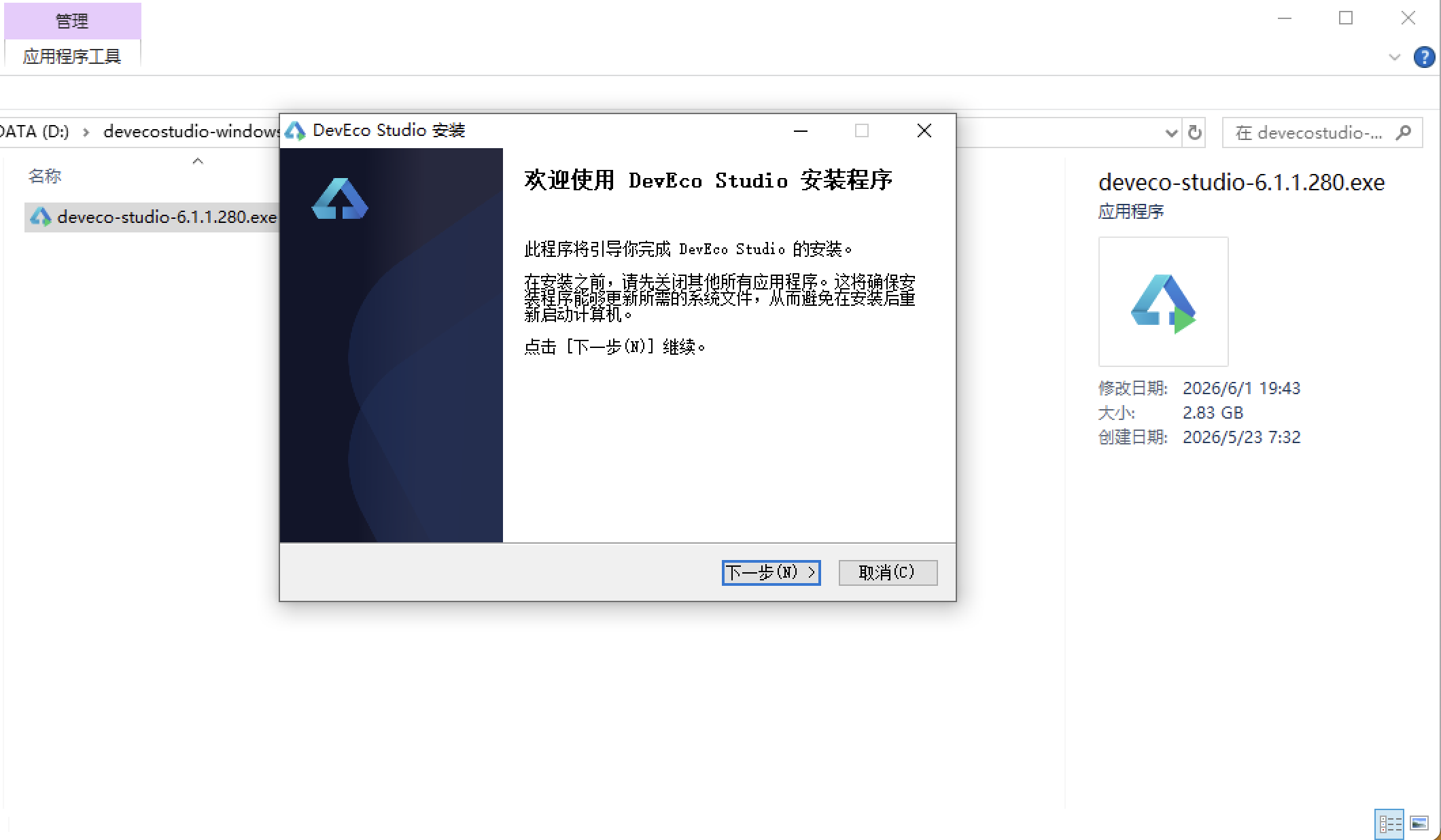
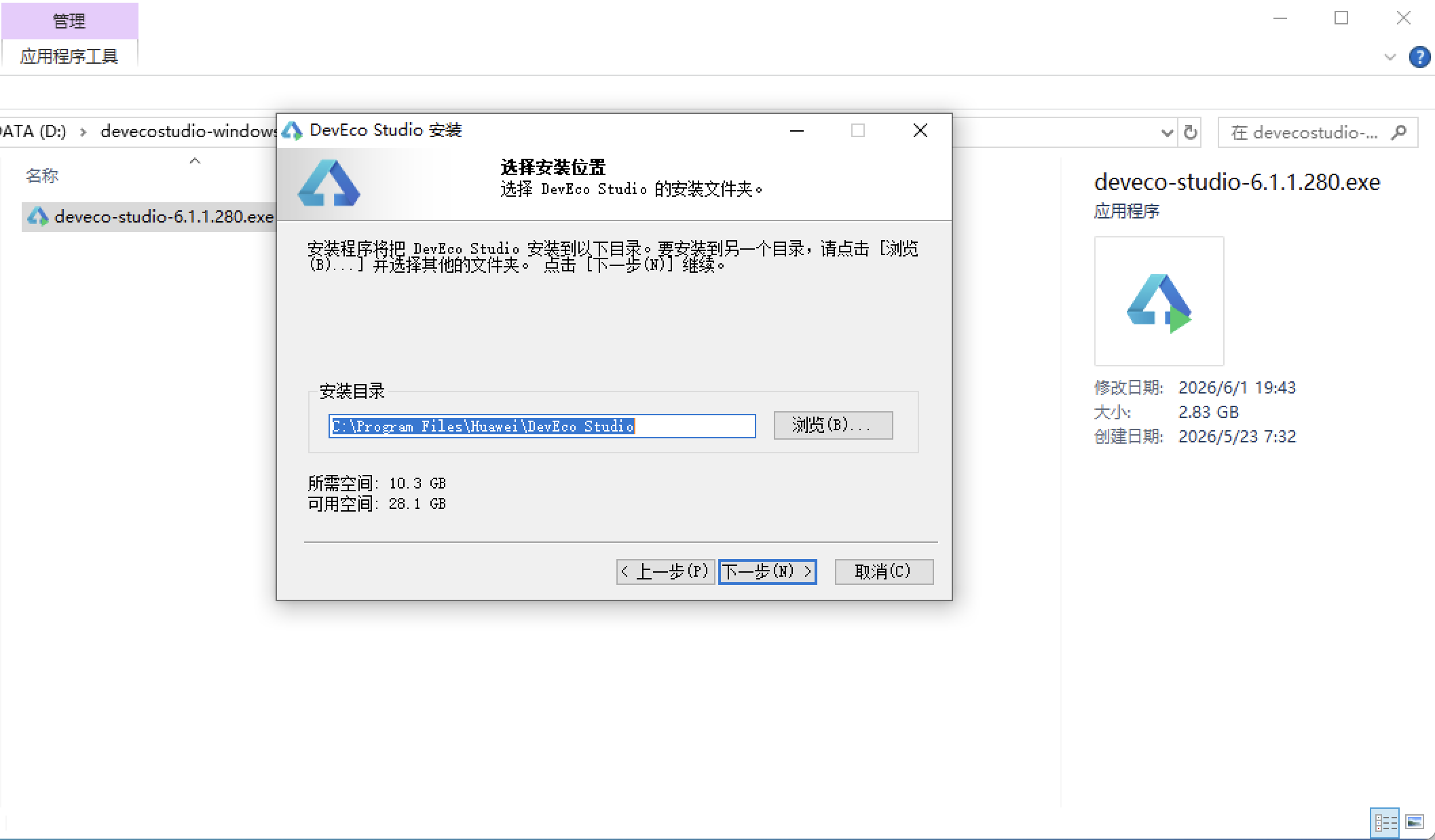
选择目标安装目录:
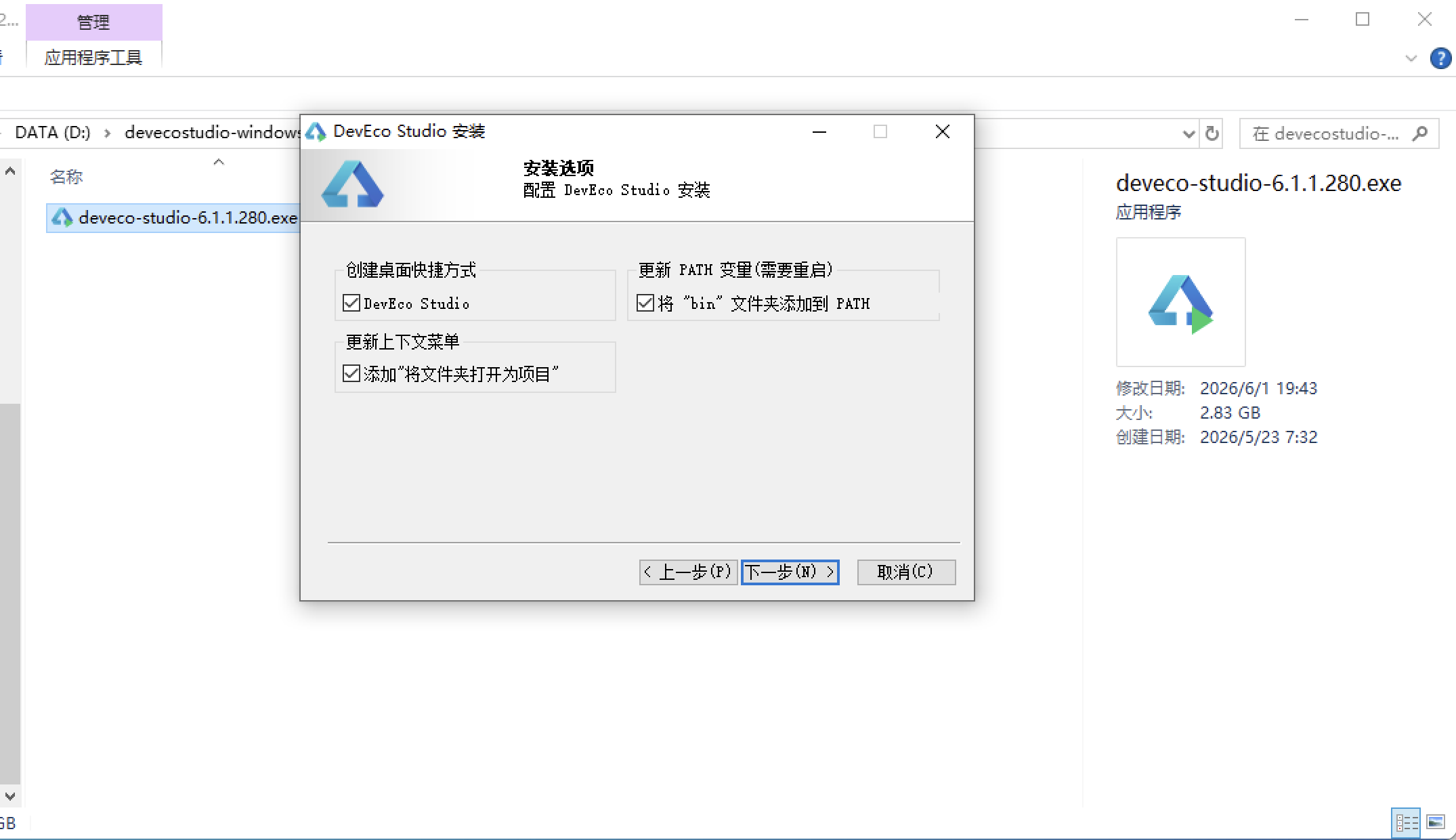
设置环境变量,但是需要重启一下:
新建一个空白模板:
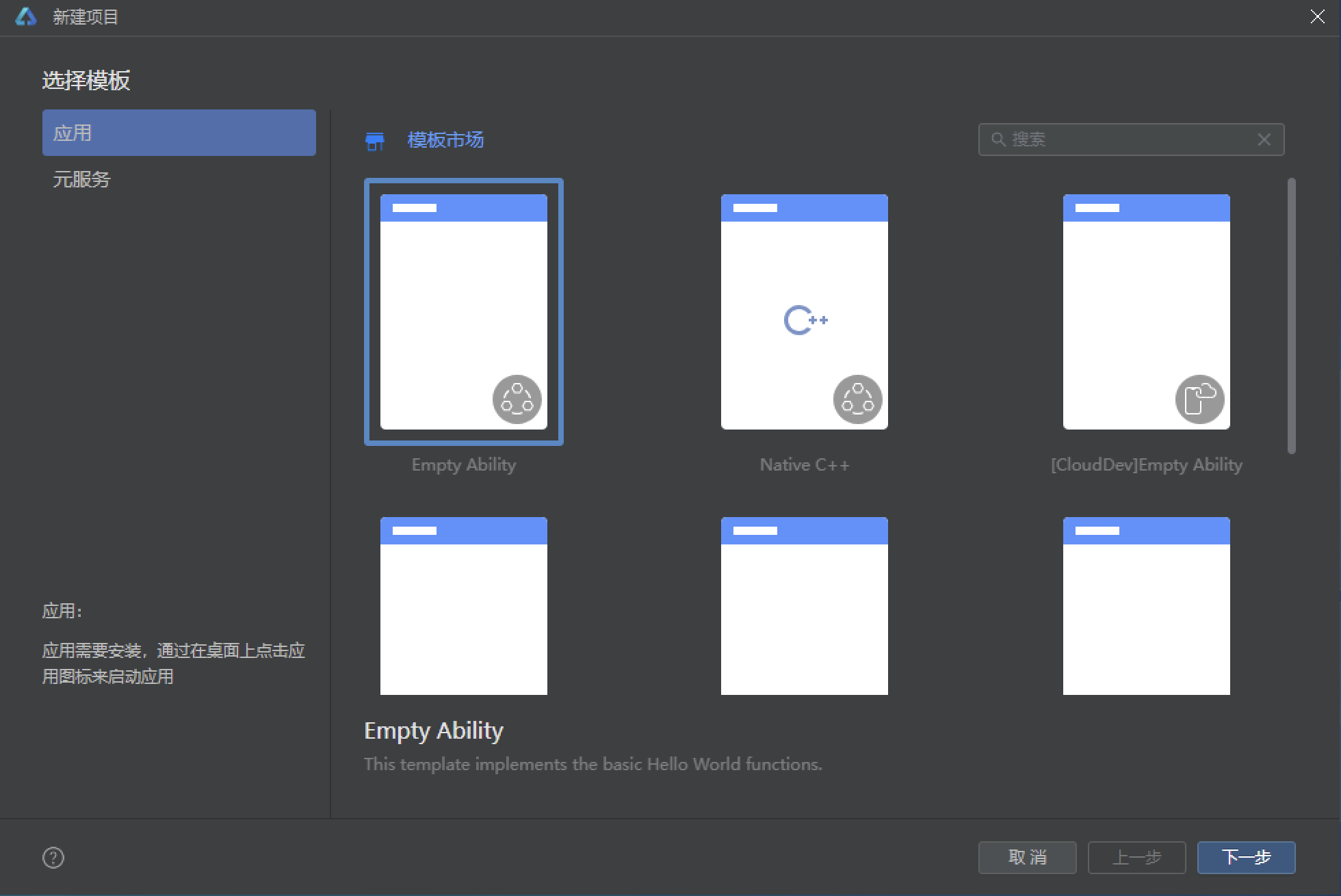
设置API为24的模板项目: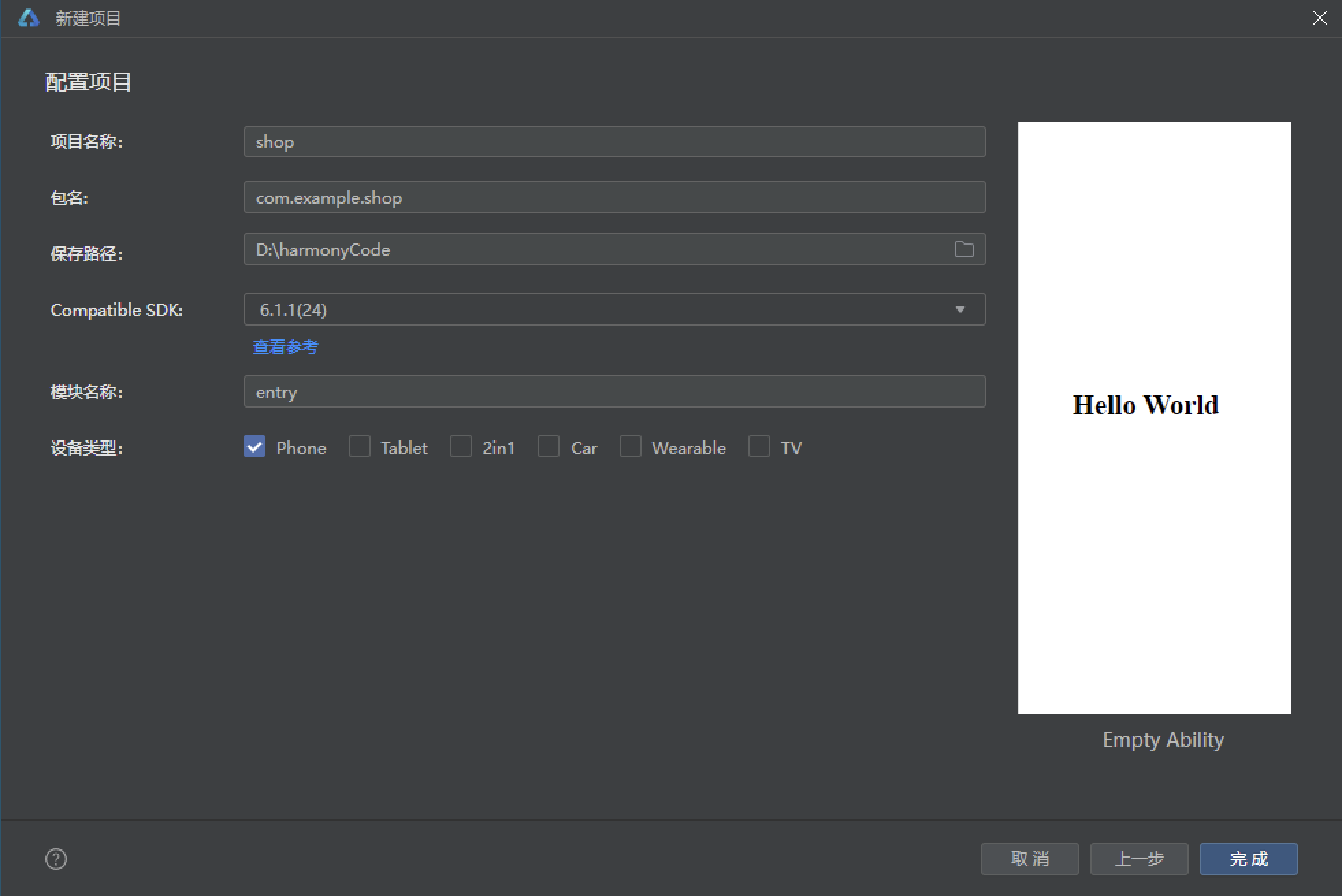
初始化项目,自动下载相关依赖:
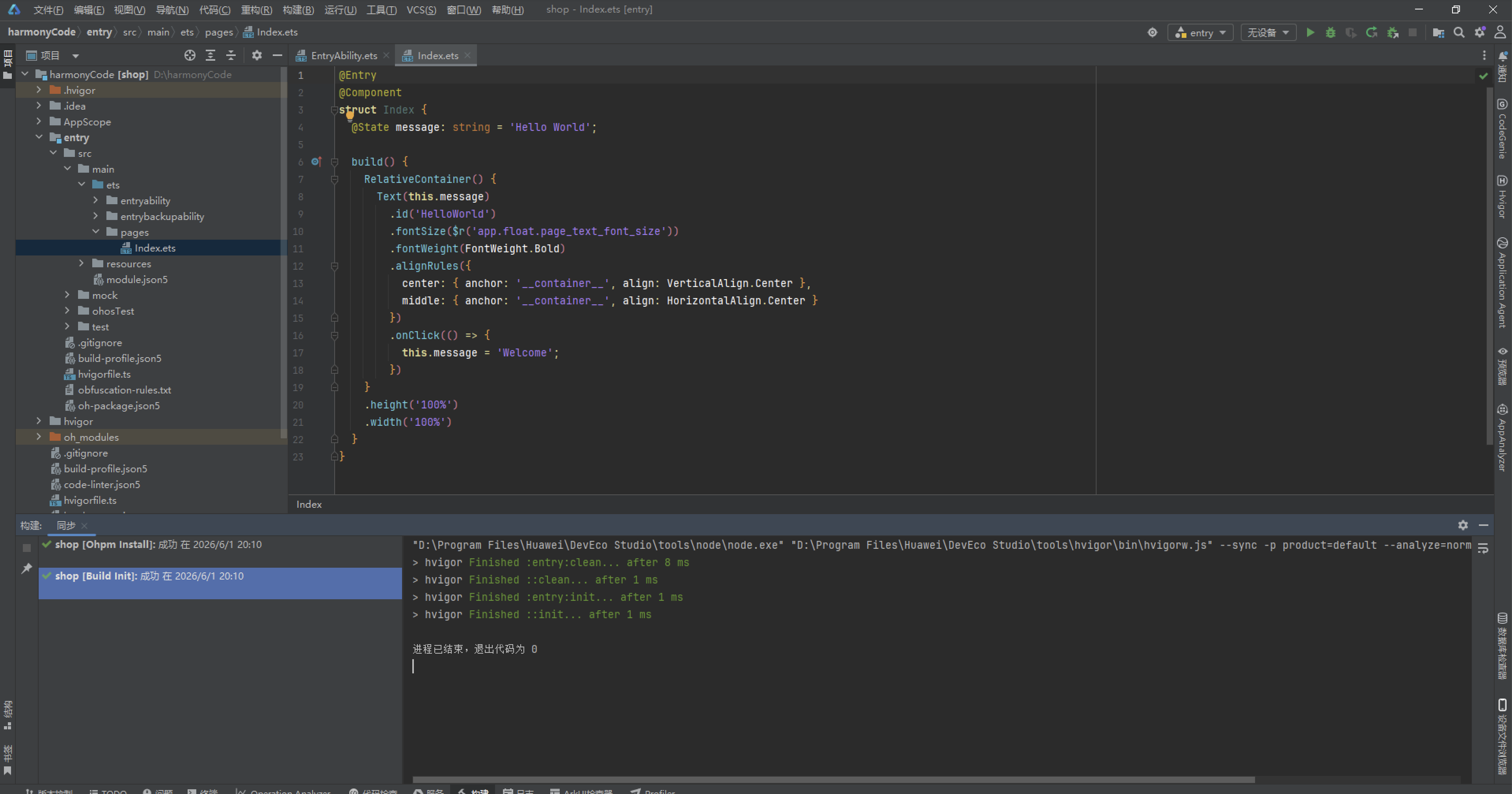
完整代码:
// 科技蓝深色 · 6 tab 底部导航 · 6 弹框 · 视力变化双柱 / 用眼时长横条 / 训练完成环形 / 视力自测 E 字
// 交互全部真实生效:tab 切换 / 视力自测记录 / 镜架详情试戴 / 训练打卡 / 改约 / 删除收藏 / 配镜下单
interface VisT {
date: string
l: number
r: number
corr: string
}
interface FrameT {
name: string
brand: string
mat: string
price: number
emoji: string
fit: string
fav: boolean
}
interface TaskT {
title: string
desc: string
min: number
done: boolean
icon: string
}
interface CourseT {
name: string
day: string
min: number
joined: boolean
level: string
}
interface RevisitT {
doc: string
date: string
slot: string
item: string
status: string
}
interface OptoT {
name: string
title: string
good: string
stars: number
emoji: string
}
const VIS4: Array<VisT> = [
{ date: '08-26', l: 0.4, r: 0.5, corr: '1.0 / 1.0' },
{ date: '08-12', l: 0.4, r: 0.5, corr: '1.0 / 1.0' },
{ date: '07-29', l: 0.4, r: 0.5, corr: '1.0 / 0.9' },
{ date: '07-15', l: 0.5, r: 0.5, corr: '1.0 / 1.0' },
{ date: '06-30', l: 0.5, r: 0.6, corr: '1.0 / 1.0' },
{ date: '06-16', l: 0.5, r: 0.6, corr: '0.9 / 1.0' },
{ date: '05-28', l: 0.6, r: 0.6, corr: '1.0 / 1.0' },
{ date: '05-12', l: 0.6, r: 0.6, corr: '1.0 / 1.0' },
{ date: '04-23', l: 0.6, r: 0.7, corr: '1.0 / 1.0' },
{ date: '04-08', l: 0.7, r: 0.7, corr: '1.0 / 1.0' },
{ date: '03-19', l: 0.7, r: 0.8, corr: '1.0 / 1.0' },
{ date: '03-04', l: 0.8, r: 0.8, corr: '1.0 / 1.0' }
]
const FRAMES4: Array<FrameT> = [
{ name: '钛架极简 T90', brand: 'ZEISS 风', mat: 'β 钛 · 12g', price: 899, emoji: '👓', fit: '椭圆脸', fav: true },
{ name: '板材复古 F20', brand: '木九十', mat: '醋酸板材', price: 459, emoji: '🕶️', fit: '方脸', fav: false },
{ name: '无框悬浮 R3', brand: '夏蒙', mat: '钛 + 树脂', price: 1299, emoji: '🤓', fit: '任意脸型', fav: true },
{ name: '运动包裹 S7', brand: '欧克利', mat: 'TR90', price: 799, emoji: '🥽', fit: '运动场景', fav: false },
{ name: '金属细边 A5', brand: '派丽蒙', mat: '不锈钢', price: 329, emoji: '👓', fit: '心形脸', fav: false },
{ name: '半框轻翼 H8', brand: '精工', mat: '钛合金', price: 659, emoji: '🤓', fit: '长脸', fav: false },
{ name: '儿童硅胶 K12', brand: '可乐视', mat: '食品级硅胶', price: 299, emoji: '🥽', fit: '6-12 岁', fav: false },
{ name: '圆框文艺 C3', brand: '雷朋', mat: '合金 + 板材', price: 729, emoji: '🕶️', fit: '鹅蛋脸', fav: true },
{ name: '方框商务 B6', brand: '暴龙', mat: '钛 + TR90', price: 519, emoji: '👓', fit: '国字脸', fav: false },
{ name: '近视太阳镜 D1', brand: '陌森', mat: '偏光树脂', price: 649, emoji: '😎', fit: '驾驶', fav: false },
{ name: '无度数平光 E2', brand: 'aojo', mat: '合金', price: 199, emoji: '🤓', fit: '防蓝光', fav: false },
{ name: '混合材质 M9', brand: '万年龟', mat: '赛钢 + 钛', price: 1580, emoji: '👓', fit: '高端定制', fav: false }
]
const TASKS4: Array<TaskT> = [
{ title: '20-20-20 远眺', desc: '每 20 分钟看 20 英尺外 20 秒', min: 1, done: true, icon: '🌄' },
{ title: '眼保健操', desc: '按揉睛明、四白、太阳穴', min: 5, done: true, icon: '👐' },
{ title: '热敷放松', desc: '42℃ 蒸汽眼罩 10 分钟', min: 10, done: false, icon: '♨️' },
{ title: '眨眼训练', desc: '完全眨眼 20 次,缓解干眼', min: 2, done: false, icon: '👁️' },
{ title: '户外光照', desc: '户外自然光下活动 40 分钟', min: 40, done: true, icon: '🌳' },
{ title: '睫状肌拉伸', desc: '远近焦点切换 3 组', min: 6, done: false, icon: '🔭' },
{ title: '屏幕距离自查', desc: '保持 50cm 以上用眼距离', min: 1, done: true, icon: '📏' },
{ title: '夜间暗光禁刷', desc: '睡前 30 分钟停用手机', min: 0, done: false, icon: '🌙' },
{ title: '叶黄素补充', desc: '每日 10mg 叶黄素酯', min: 0, done: true, icon: '💊' },
{ title: '握姿与坐姿', desc: '一拳一尺一寸自查', min: 1, done: true, icon: '🪑' }
]
const COURSES4: Array<CourseT> = [
{ name: '睫状肌活力操', day: '每日', min: 8, joined: true, level: '入门' },
{ name: '焦点切换训练', day: '每日', min: 6, joined: true, level: '进阶' },
{ name: '眼球八方向操', day: '每周 5 次', min: 5, joined: false, level: '入门' },
{ name: '辐辏功能训练', day: '每周 3 次', min: 10, joined: false, level: '进阶' },
{ name: '调节灵活度训练', day: '每日', min: 12, joined: true, level: '高阶' },
{ name: '视觉追踪训练', day: '每周 3 次', min: 9, joined: false, level: '进阶' },
{ name: '色觉敏感度训练', day: '每周 2 次', min: 7, joined: false, level: '高阶' },
{ name: '周边视野扩展', day: '每周 2 次', min: 8, joined: false, level: '高阶' },
{ name: '儿童弱视遮盖方案', day: '遵医嘱', min: 120, joined: false, level: '医疗' },
{ name: '融像功能训练', day: '每周 3 次', min: 11, joined: false, level: '医疗' }
]
const REVISITS4: Array<RevisitT> = [
{ doc: '沈光宇', date: '09-09', slot: '10:00', item: '医学验光复查', status: '待诊' },
{ doc: '沈光宇', date: '09-09', slot: '10:20', item: '眼轴长度测量', status: '待诊' },
{ doc: '宁悦', date: '09-23', slot: '15:30', item: '角膜地形图复查', status: '待诊' },
{ doc: '高铭', date: '10-14', slot: '09:30', item: 'OK 镜适配评估', status: '待诊' },
{ doc: '宁悦', date: '08-19', slot: '14:00', item: '视功能检查', status: '已完成' },
{ doc: '沈光宇', date: '08-05', slot: '10:00', item: '医学验光复查', status: '已完成' },
{ doc: '高铭', date: '07-22', slot: '16:00', item: '干眼 SPA 体验', status: '已完成' },
{ doc: '宁悦', date: '07-08', slot: '11:00', item: '眼底照相见习', status: '已取消' },
{ doc: '沈光宇', date: '06-24', slot: '10:00', item: '快速散瞳验光', status: '已完成' },
{ doc: '高铭', date: '06-10', slot: '15:00', item: '视疲劳问卷评估', status: '已完成' }
]
const OPTOS4: Array<OptoT> = [
{ name: '沈光宇', title: '首席验光师', good: '青少年近视防控', stars: 5, emoji: '👨🔬' },
{ name: '宁悦', title: '高级验光师', good: '视功能分析 / 斜弱视', stars: 5, emoji: '👩🔬' },
{ name: '高铭', title: '视光医师', good: 'OK 镜 / RGP 验配', stars: 4, emoji: '🧑⚕️' },
{ name: '柳静文', title: '高级验光师', good: '渐进多焦点验配', stars: 5, emoji: '👩⚕️' },
{ name: '桑迟', title: '验光师', good: '隐形眼镜适配', stars: 4, emoji: '🧑🔬' },
{ name: '阮心蕊', title: '视光医师', good: '儿童视觉发育', stars: 5, emoji: '👩⚕️' },
{ name: '蒋拓', title: '验光师', good: '运动视觉训练', stars: 4, emoji: '👨⚕️' },
{ name: '管熙', title: '高级验光师', good: '低视力助视', stars: 4, emoji: '🧑⚕️' }
]
const EDIR4: Array<string> = ['⬆️', '⬇️', '⬅️', '➡️']
const USAGETIMES4: Array<number> = [3.2, 4.1, 5.6, 6.8, 7.2, 6.4, 5.1]
@Entry
@Component
struct Index {
@State selTab: number = 0
@State visits: Array<VisT> = VIS4.slice()
@State frames: Array<FrameT> = FRAMES4.slice()
@State tasks: Array<TaskT> = TASKS4.slice()
@State courses: Array<CourseT> = COURSES4.slice()
@State revisits: Array<RevisitT> = REVISITS4.slice()
// 自测
@State showTest: boolean = false
@State testEye: string = '右眼'
@State testVal: number = 5
@State testRecord: boolean = true
// 镜架详情
@State showFrame: boolean = false
@State selFrame: FrameT = FRAMES4[0]
// 训练加入
@State showJoin: boolean = false
@State joinCourse: CourseT = COURSES4[0]
@State joinMin: string = '8 分钟'
@State joinSlot: string = '晚间 20:00'
@State joinRemind: boolean = true
// 改约
@State showEdit: boolean = false
@State editVisit: RevisitT = REVISITS4[0]
@State editDay: string = '09-10'
@State editSlot: string = '10:00'
@State editNote: string = ''
// 删除收藏
@State showDel: boolean = false
@State delFrame: FrameT = FRAMES4[0]
@State delArmed: boolean = false
// 配镜下单
@State showBuy: boolean = false
@State lensType: string = '防蓝光 1.60'
@State lensIndex: string = '1.60 薄'
@State dioL: number = 375
@State dioR: number = 350
@State buyFrame: FrameT = FRAMES4[0]
// 特效
@State scanY: number = 0
@State blinkOp: number = 0.35
aboutToAppear(): void {
this.getUIContext().animateTo({ duration: 2000, iterations: -1, playMode: PlayMode.Alternate, curve: Curve.EaseInOut }, () => {
this.scanY = 26
})
this.getUIContext().animateTo({ duration: 1500, iterations: -1, playMode: PlayMode.Alternate, curve: Curve.EaseInOut }, () => {
this.blinkOp = 1
})
}
taskRate4(): number {
let n: number = 0
this.tasks.forEach((t: TaskT) => {
if (t.done) {
n += 1
}
})
return Math.round(n * 100 / this.tasks.length)
}
courseCount4(): number {
let n: number = 0
this.courses.forEach((c: CourseT) => {
if (c.joined) {
n += 1
}
})
return n
}
lastVis4(): VisT {
return this.visits[0]
}
dioText4(v: number): string {
return (v / 100).toFixed(2)
}
confirmTest(): void {
const nv: VisT = {
date: '08-28',
l: this.testEye === '左眼' ? Math.round(this.testVal) / 10 : this.lastVis4().l,
r: this.testEye === '右眼' ? Math.round(this.testVal) / 10 : this.lastVis4().r,
corr: this.lastVis4().corr
}
if (this.testRecord) {
this.visits = [nv].concat(this.visits)
}
this.showTest = false
}
toggleFav4(f: FrameT): void {
this.frames = this.frames.map((x: FrameT) => {
if (x === f) {
const nf: FrameT = { name: x.name, brand: x.brand, mat: x.mat, price: x.price, emoji: x.emoji, fit: x.fit, fav: !x.fav }
return nf
}
return x
})
this.selFrame = this.selFrame === f ? this.selFrame : this.selFrame
}
joinCourse4(c: CourseT): void {
this.courses = this.courses.map((x: CourseT) => {
if (x === c) {
const nc: CourseT = { name: x.name, day: x.day, min: x.min, joined: true, level: x.level }
return nc
}
return x
})
this.showJoin = false
}
doTask4(t: TaskT): void {
this.tasks = this.tasks.map((x: TaskT) => {
if (x === t) {
const nt: TaskT = { title: x.title, desc: x.desc, min: x.min, done: !x.done, icon: x.icon }
return nt
}
return x
})
}
confirmEditVisit(): void {
this.revisits = this.revisits.map((x: RevisitT) => {
if (x === this.editVisit) {
const nx: RevisitT = { doc: x.doc, date: this.editDay, slot: this.editSlot, item: x.item, status: '待诊' }
return nx
}
return x
})
this.showEdit = false
}
doDelFav(): void {
this.frames = this.frames.map((x: FrameT) => {
if (x === this.delFrame) {
const nf: FrameT = { name: x.name, brand: x.brand, mat: x.mat, price: x.price, emoji: x.emoji, fit: x.fit, fav: false }
return nf
}
return x
})
this.showDel = false
}
@Builder
tabBtn4(icon: string, label: string, idx: number) {
Column({ space: 3 }) {
Text(icon)
.fontSize(idx === this.selTab ? 20 : 18)
.opacity(idx === this.selTab ? 1 : 0.55)
Text(label)
.fontSize(10)
.fontColor(idx === this.selTab ? '#38BDF8' : '#8296B8')
.fontWeight(idx === this.selTab ? FontWeight.Bold : FontWeight.Normal)
}
.layoutWeight(1)
.padding({ top: 7, bottom: 7 })
.onClick(() => {
this.selTab = idx
})
}
@Builder
tabBar4() {
Row() {
this.tabBtn4('👁️', '视力', 0)
this.tabBtn4('👓', '镜架', 1)
this.tabBtn4('🌿', '护眼', 2)
this.tabBtn4('🎯', '训练', 3)
this.tabBtn4('📅', '复查', 4)
this.tabBtn4('🙋', '我的', 5)
}
.width('100%')
.backgroundColor('#111A30')
.border({ width: { top: 0.5 }, color: '#233150' })
}
@Builder
headerBar4() {
Column({ space: 12 }) {
Row() {
Column({ space: 2 }) {
Text('OPTIC LAB 👁️')
.fontSize(18)
.fontWeight(FontWeight.Bold)
.fontColor('#E6EEF9')
Text('医学验光 · 精准配镜 · 近视防控')
.fontSize(11)
.fontColor('#8296B8')
}
.alignItems(HorizontalAlign.Start)
.layoutWeight(1)
Column({ space: 1 }) {
Text('👁️')
.fontSize(16)
.opacity(this.blinkOp)
Text('在线')
.fontSize(9)
.fontColor('#34D399')
}
.padding({ left: 10, right: 10, top: 5, bottom: 5 })
.backgroundColor('#16203A')
.borderRadius(12)
.margin({ left: 8 })
}
.width('100%')
Row({ space: 8 }) {
Text('🔎')
.fontSize(15)
Text('搜索镜架 / 验光师 / 训练课程')
.fontSize(13)
.fontColor('#5D739C')
.layoutWeight(1)
Text('👁️ 自测')
.fontSize(11)
.fontColor('#0D1424')
.padding({ left: 10, right: 10, top: 5, bottom: 5 })
.backgroundColor('#38BDF8')
.borderRadius(10)
.onClick(() => {
this.showTest = true
})
}
.width('100%')
.padding({ left: 14, right: 14, top: 10, bottom: 10 })
.backgroundColor('#16203A')
.borderRadius(20)
Row({ space: 12 }) {
Column({ space: 2 }) {
Text('左眼 ' + this.lastVis4().l.toFixed(1))
.fontSize(16)
.fontWeight(FontWeight.Bold)
.fontColor('#A78BFA')
Text('裸眼视力')
.fontSize(10)
.fontColor('#8296B8')
}
.layoutWeight(1)
.padding({ top: 10, bottom: 10 })
.backgroundColor('#16203A')
.borderRadius(14)
Column({ space: 2 }) {
Text('右眼 ' + this.lastVis4().r.toFixed(1))
.fontSize(16)
.fontWeight(FontWeight.Bold)
.fontColor('#38BDF8')
Text('裸眼视力')
.fontSize(10)
.fontColor('#8296B8')
}
.layoutWeight(1)
.padding({ top: 10, bottom: 10 })
.backgroundColor('#16203A')
.borderRadius(14)
Column({ space: 2 }) {
Text('近视 375°')
.fontSize(16)
.fontWeight(FontWeight.Bold)
.fontColor('#FBBF24')
Text('左眼度数')
.fontSize(10)
.fontColor('#8296B8')
}
.layoutWeight(1)
.padding({ top: 10, bottom: 10 })
.backgroundColor('#16203A')
.borderRadius(14)
}
.width('100%')
}
.width('100%')
.padding({ left: 16, right: 16, top: 14, bottom: 10 })
.backgroundColor('#0D1424')
}
@Builder
secTitle4(icon: string, title: string, extra: string) {
Row() {
Text(icon)
.fontSize(15)
.margin({ right: 6 })
Text(title)
.fontSize(15)
.fontWeight(FontWeight.Bold)
.fontColor('#E6EEF9')
.layoutWeight(1)
Text(extra)
.fontSize(12)
.fontColor('#38BDF8')
}
.width('100%')
.margin({ top: 18, bottom: 10 })
}
// ==================== TAB 0 视力 ====================
@Builder
visTab() {
Column({ space: 0 }) {
this.secTitle4('📉', '近 12 次视力变化', '左紫 右蓝')
Column({ space: 10 }) {
Row() {
ForEach(this.visits.slice(0, 8), (v: VisT) => {
Column({ space: 4 }) {
Text(v.date.substring(5))
.fontSize(8)
.fontColor('#8296B8')
Row({ space: 2 }) {
Column() {
Row()
.width('100%')
.height((v.l * 66).toFixed(0) + '%')
.backgroundColor('#A78BFA')
.borderRadius({ topLeft: 3, topRight: 3 })
}
.width(9)
.height(64)
.backgroundColor('#1D2946')
.borderRadius(3)
.justifyContent(FlexAlign.End)
Column() {
Row()
.width('100%')
.height((v.r * 66).toFixed(0) + '%')
.backgroundColor('#38BDF8')
.borderRadius({ topLeft: 3, topRight: 3 })
}
.width(9)
.height(64)
.backgroundColor('#1D2946')
.borderRadius(3)
.justifyContent(FlexAlign.End)
}
Text(v.l.toFixed(1) + '/' + v.r.toFixed(1))
.fontSize(8)
.fontColor('#8296B8')
}
.layoutWeight(1)
}, (v: VisT) => v.date)
}
.width('100%')
.alignItems(VerticalAlign.Bottom)
Row() {
Text('📉 半年内左眼下降 0.4,建议加强户外光照与调节训练')
.fontSize(11)
.fontColor('#F87171')
.layoutWeight(1)
Text('报告解读')
.fontSize(11)
.fontColor('#38BDF8')
.onClick(() => {
this.selTab = 4
})
}
.width('100%')
}
.width('100%')
.padding(14)
.backgroundColor('#16203A')
.borderRadius(18)
this.secTitle4('🕐', '近 7 日用眼时长', '小时 / 天')
Column({ space: 8 }) {
ForEach(USAGETIMES4, (u: number, i: number) => {
Row({ space: 8 }) {
Text('周' + '一二三四五六日'.charAt(i))
.fontSize(11)
.fontColor('#8296B8')
.width(30)
Row() {
Row()
.width((u * 100 / 8).toFixed(0) + '%')
.height(8)
.backgroundColor(u > 6 ? '#F87171' : '#38BDF8')
.borderRadius(4)
}
.layoutWeight(1)
.height(8)
.backgroundColor('#1D2946')
.borderRadius(4)
Text(u.toFixed(1) + 'h')
.fontSize(10)
.fontColor(u > 6 ? '#F87171' : '#8296B8')
.width(34)
}
.width('100%')
}, (u: number, i: number) => i.toString())
}
.width('100%')
.padding(14)
.backgroundColor('#16203A')
.borderRadius(18)
this.secTitle4('👩🔬', '推荐验光师', '按需求匹配')
Scroll() {
Row({ space: 12 }) {
ForEach(OPTOS4, (o: OptoT) => {
Column({ space: 5 }) {
Text(o.emoji)
.fontSize(26)
Text(o.name)
.fontSize(13)
.fontWeight(FontWeight.Bold)
.fontColor('#E6EEF9')
Text(o.title)
.fontSize(10)
.fontColor('#38BDF8')
Text(o.stars >= 5 ? '⭐⭐⭐⭐⭐' : '⭐⭐⭐⭐')
.fontSize(10)
Text(o.good)
.fontSize(9)
.fontColor('#8296B8')
.maxLines(1)
.textOverflow({ overflow: TextOverflow.Ellipsis })
.constraintSize({ maxWidth: 110 })
}
.width(132)
.padding(12)
.backgroundColor('#16203A')
.borderRadius(16)
.alignItems(HorizontalAlign.Start)
.onClick(() => {
this.editVisit = this.revisits[0]
this.showEdit = true
})
}, (o: OptoT) => o.name)
}
}
.scrollable(ScrollDirection.Horizontal)
.scrollBar(BarState.Off)
.width('100%')
Text('🔭 眼轴长度 24.6mm(年增长 0.3mm),处于同龄偏快区间')
.fontSize(11)
.fontColor('#8296B8')
.margin({ top: 12 })
.offset({ y: this.scanY })
}
.width('100%')
.padding({ left: 16, right: 16, bottom: 16 })
}
// ==================== TAB 1 镜架 ====================
@Builder
frameTab() {
Column({ space: 0 }) {
this.secTitle4('👓', '镜架商城', '收藏 ' + this.favCount4().toString() + ' 款')
Row({ space: 10 }) {
Column({ space: 2 }) {
Text('🪶 轻量钛架')
.fontSize(12)
.fontWeight(FontWeight.Bold)
.fontColor('#38BDF8')
Text('最低 12g')
.fontSize(10)
.fontColor('#8296B8')
}
.layoutWeight(1)
.padding({ top: 10, bottom: 10 })
.backgroundColor('#16203A')
.borderRadius(12)
Column({ space: 2 }) {
Text('🎨 板材复古')
.fontSize(12)
.fontWeight(FontWeight.Bold)
.fontColor('#A78BFA')
Text('文艺范')
.fontSize(10)
.fontColor('#8296B8')
}
.layoutWeight(1)
.padding({ top: 10, bottom: 10 })
.backgroundColor('#16203A')
.borderRadius(12)
Column({ space: 2 }) {
Text('🏃 运动包裹')
.fontSize(12)
.fontWeight(FontWeight.Bold)
.fontColor('#34D399')
Text('防滑防撞')
.fontSize(10)
.fontColor('#8296B8')
}
.layoutWeight(1)
.padding({ top: 10, bottom: 10 })
.backgroundColor('#16203A')
.borderRadius(12)
}
.width('100%')
Row({ space: 12 }) {
Column({ space: 10 }) {
ForEach(this.frames.slice(0, 6), (f: FrameT) => {
this.frameCell4(f)
}, (f: FrameT) => f.name + f.fav.toString())
}
.layoutWeight(1)
Column({ space: 10 }) {
ForEach(this.frames.slice(6), (f: FrameT) => {
this.frameCell4(f)
}, (f: FrameT) => f.name + f.fav.toString())
}
.layoutWeight(1)
}
.width('100%')
.margin({ top: 12 })
.alignItems(VerticalAlign.Top)
}
.width('100%')
.padding({ left: 16, right: 16, bottom: 16 })
}
favCount4(): number {
let n: number = 0
this.frames.forEach((f: FrameT) => {
if (f.fav) {
n += 1
}
})
return n
}
@Builder
frameCell4(f: FrameT) {
Column({ space: 6 }) {
Row() {
Text(f.emoji)
.fontSize(28)
.layoutWeight(1)
Text(f.fav ? '❤️' : '🤍')
.fontSize(14)
.onClick(() => {
if (f.fav) {
this.delFrame = f
this.delArmed = false
this.showDel = true
} else {
this.toggleFav4(f)
}
})
}
.width('100%')
Text(f.name)
.fontSize(12)
.fontWeight(FontWeight.Bold)
.fontColor('#E6EEF9')
.maxLines(1)
.textOverflow({ overflow: TextOverflow.Ellipsis })
Text(f.mat + ' · ' + f.fit)
.fontSize(10)
.fontColor('#8296B8')
Row({ space: 6 }) {
Text('¥' + f.price.toString())
.fontSize(14)
.fontWeight(FontWeight.Bold)
.fontColor('#FBBF24')
.layoutWeight(1)
Text('详情')
.fontSize(11)
.fontColor('#38BDF8')
.padding({ left: 12, right: 12, top: 5, bottom: 5 })
.backgroundColor('#1D2946')
.borderRadius(12)
.onClick(() => {
this.selFrame = f
this.showFrame = true
})
}
.width('100%')
}
.padding(10)
.backgroundColor('#16203A')
.borderRadius(14)
.alignItems(HorizontalAlign.Start)
}
// ==================== TAB 2 护眼 ====================
@Builder
eyeTab() {
Column({ space: 0 }) {
this.secTitle4('🌿', '今日护眼任务', this.taskRate4().toString() + '% 完成')
Column({ space: 12 }) {
Row({ space: 14 }) {
Stack() {
Progress({ value: this.taskRate4(), total: 100 })
.width(84)
.height(84)
.style({ strokeWidth: 9 })
Column({ space: 1 }) {
Text('👁️')
.fontSize(14)
.opacity(this.blinkOp)
Text(this.taskRate4().toString() + '%')
.fontSize(16)
.fontWeight(FontWeight.Bold)
.fontColor('#E6EEF9')
}
}
Column({ space: 5 }) {
Text('完成 ' + this.doneCount4().toString() + '/' + this.tasks.length.toString() + ' 项任务')
.fontSize(13)
.fontWeight(FontWeight.Bold)
.fontColor('#E6EEF9')
Text('坚持护眼任务,近视进展可减缓约 30%')
.fontSize(11)
.fontColor('#8296B8')
Text('今日户外光照已达标 🌳')
.fontSize(11)
.fontColor('#34D399')
}
.alignItems(HorizontalAlign.Start)
.layoutWeight(1)
}
.width('100%')
}
.width('100%')
.padding(14)
.backgroundColor('#16203A')
.borderRadius(18)
this.secTitle4('✅', '任务清单', '点击切换完成状态')
Column({ space: 10 }) {
ForEach(this.tasks, (t: TaskT) => {
Row({ space: 10 }) {
Text(t.icon)
.fontSize(19)
Column({ space: 3 }) {
Text(t.title)
.fontSize(13)
.fontWeight(FontWeight.Bold)
.fontColor(t.done ? '#5D739C' : '#E6EEF9')
Text(t.desc + (t.min > 0 ? ' · ' + t.min.toString() + ' 分钟' : ''))
.fontSize(10)
.fontColor('#8296B8')
}
.alignItems(HorizontalAlign.Start)
.layoutWeight(1)
Text(t.done ? '✅' : '○')
.fontSize(15)
.onClick(() => {
this.doTask4(t)
})
}
.width('100%')
.padding(12)
.backgroundColor('#16203A')
.borderRadius(14)
}, (t: TaskT) => t.title + t.done.toString())
}
.width('100%')
}
.width('100%')
.padding({ left: 16, right: 16, bottom: 16 })
}
doneCount4(): number {
let n: number = 0
this.tasks.forEach((t: TaskT) => {
if (t.done) {
n += 1
}
})
return n
}
// ==================== TAB 3 训练 ====================
@Builder
trainTab() {
Column({ space: 0 }) {
this.secTitle4('🎯', '视觉训练课程', '已加入 ' + this.courseCount4().toString() + ' 门')
Column({ space: 10 }) {
Row({ space: 10 }) {
Column({ space: 2 }) {
Text('3')
.fontSize(20)
.fontWeight(FontWeight.Bold)
.fontColor('#A78BFA')
Text('进行中')
.fontSize(10)
.fontColor('#8296B8')
}
.layoutWeight(1)
.padding({ top: 10, bottom: 10 })
.backgroundColor('#1D2946')
.borderRadius(12)
Column({ space: 2 }) {
Text('26')
.fontSize(20)
.fontWeight(FontWeight.Bold)
Text('累计打卡')
.fontSize(10)
.fontColor('#8296B8')
}
.layoutWeight(1)
.padding({ top: 10, bottom: 10 })
.backgroundColor('#1D2946')
.borderRadius(12)
Column({ space: 2 }) {
Text('62%')
.fontSize(20)
.fontWeight(FontWeight.Bold)
Text('调节灵活度提升')
.fontSize(10)
.fontColor('#8296B8')
}
.layoutWeight(1)
.padding({ top: 10, bottom: 10 })
.backgroundColor('#1D2946')
.borderRadius(12)
}
.width('100%')
}
.width('100%')
.padding(14)
.backgroundColor('#16203A')
.borderRadius(18)
this.secTitle4('📚', '全部课程', '点击卡片加入')
Column({ space: 10 }) {
ForEach(this.courses, (c: CourseT) => {
Row({ space: 10 }) {
Column({ space: 3 }) {
Text(c.level)
.fontSize(9)
.fontColor(c.level === '医疗' ? '#F87171' : (c.level === '高阶' ? '#FBBF24' : '#34D399'))
.padding({ left: 8, right: 8, top: 2, bottom: 2 })
.backgroundColor('#0D1424')
.borderRadius(8)
Text(c.min.toString() + ' 分钟')
.fontSize(10)
.fontColor('#8296B8')
}
.width(56)
Column({ space: 3 }) {
Text(c.name)
.fontSize(13)
.fontWeight(FontWeight.Bold)
.fontColor('#E6EEF9')
Text(c.day + ' · 调节 / 集合 / 追踪综合')
.fontSize(10)
.fontColor('#8296B8')
}
.alignItems(HorizontalAlign.Start)
.layoutWeight(1)
Text(c.joined ? '已加入' : '+加入')
.fontSize(11)
.fontColor(c.joined ? '#34D399' : '#FFFFFF')
.padding({ left: 12, right: 12, top: 6, bottom: 6 })
.backgroundColor(c.joined ? '#1D2946' : '#38BDF8')
.borderRadius(12)
.onClick(() => {
if (!c.joined) {
this.joinCourse = c
this.joinMin = c.min.toString() + ' 分钟'
this.showJoin = true
}
})
}
.width('100%')
.padding(12)
.backgroundColor('#16203A')
.borderRadius(14)
}, (c: CourseT) => c.name + c.joined.toString())
}
.width('100%')
}
.width('100%')
.padding({ left: 16, right: 16, bottom: 16 })
}
// ==================== TAB 4 复查 ====================
@Builder
revisitTab() {
Column({ space: 0 }) {
this.secTitle4('📅', '复查预约', '共 ' + this.revisits.length.toString() + ' 条')
Column({ space: 10 }) {
ForEach(this.revisits, (r: RevisitT) => {
Column({ space: 8 }) {
Row({ space: 8 }) {
Text(r.item)
.fontSize(13)
.fontWeight(FontWeight.Bold)
.fontColor('#E6EEF9')
.layoutWeight(1)
Text(r.status)
.fontSize(10)
.fontColor(r.status === '已完成' ? '#34D399' : (r.status === '已取消' ? '#5D739C' : '#FBBF24'))
.padding({ left: 10, right: 10, top: 4, bottom: 4 })
.backgroundColor('#0D1424')
.borderRadius(10)
}
.width('100%')
Row({ space: 8 }) {
Text('👩🔬 ' + r.doc + ' · ' + r.date + ' ' + r.slot)
.fontSize(11)
.fontColor('#8296B8')
.layoutWeight(1)
if (r.status === '待诊') {
Text('改约')
.fontSize(11)
.fontColor('#38BDF8')
.padding({ left: 12, right: 12, top: 5, bottom: 5 })
.backgroundColor('#1D2946')
.borderRadius(10)
.onClick(() => {
this.editVisit = r
this.editDay = r.date
this.editSlot = r.slot
this.showEdit = true
})
}
}
.width('100%')
}
.width('100%')
.padding(12)
.backgroundColor('#16203A')
.borderRadius(14)
}, (r: RevisitT) => r.item + r.date + r.status)
}
.width('100%')
Text('🔬 建议每 3 个月复查一次眼轴与屈光度,青少年建议每半年散瞳验光')
.fontSize(11)
.fontColor('#8296B8')
.margin({ top: 12 })
.offset({ y: this.scanY })
}
.width('100%')
.padding({ left: 16, right: 16, bottom: 16 })
}
// ==================== TAB 5 我的 ====================
@Builder
mineTab() {
Column({ space: 0 }) {
Column({ space: 8 }) {
Text('🧑')
.fontSize(42)
.padding(14)
.backgroundColor('#1D2946')
.borderRadius(30)
Text('李小天')
.fontSize(18)
.fontWeight(FontWeight.Bold)
.fontColor('#E6EEF9')
Text('近视防控档案建立 480 天 · 风险等级:中')
.fontSize(12)
.fontColor('#FBBF24')
Row({ space: 8 }) {
Text('配镜券 ×1')
.fontSize(11)
.fontColor('#38BDF8')
.padding({ left: 10, right: 10, top: 4, bottom: 4 })
.backgroundColor('#1D2946')
.borderRadius(10)
Text('护眼积分 2360')
.fontSize(11)
.fontColor('#A78BFA')
.padding({ left: 10, right: 10, top: 4, bottom: 4 })
.backgroundColor('#1D2946')
.borderRadius(10)
Text('训练会员')
.fontSize(11)
.fontColor('#34D399')
.padding({ left: 10, right: 10, top: 4, bottom: 4 })
.backgroundColor('#1D2946')
.borderRadius(10)
}
}
.width('100%')
.padding({ top: 22, bottom: 18 })
.backgroundColor('#16203A')
.borderRadius(20)
this.secTitle4('📈', '视力档案概览', '近一年')
Row({ space: 10 }) {
Column({ space: 2 }) {
Text('-0.4')
.fontSize(18)
.fontWeight(FontWeight.Bold)
.fontColor('#F87171')
Text('左眼年度变化')
.fontSize(10)
.fontColor('#8296B8')
}
.layoutWeight(1)
.padding({ top: 10, bottom: 10 })
.backgroundColor('#16203A')
.borderRadius(12)
Column({ space: 2 }) {
Text('-0.3')
.fontSize(18)
.fontWeight(FontWeight.Bold)
.fontColor('#F87171')
Text('右眼年度变化')
.fontSize(10)
.fontColor('#8296B8')
}
.layoutWeight(1)
.padding({ top: 10, bottom: 10 })
.backgroundColor('#16203A')
.borderRadius(12)
Column({ space: 2 }) {
Text('0.3mm')
.fontSize(18)
.fontWeight(FontWeight.Bold)
.fontColor('#FBBF24')
Text('眼轴年增长')
.fontSize(10)
.fontColor('#8296B8')
}
.layoutWeight(1)
.padding({ top: 10, bottom: 10 })
.backgroundColor('#16203A')
.borderRadius(12)
}
.width('100%')
this.secTitle4('⚙️', '设置', '')
Column({ space: 0 }) {
ForEach(['🔔 用眼时长提醒', '👁️ 视力档案管理', '👓 镜架收藏与订单', '👨👩👧 家庭视力档案', '🎁 卡券与积分', '📞 联系视光顾问'], (s: string) => {
Row({ space: 8 }) {
Text(s)
.fontSize(13)
.fontColor('#E6EEF9')
.layoutWeight(1)
Text('›')
.fontSize(16)
.fontColor('#5D739C')
}
.width('100%')
.padding({ top: 13, bottom: 13 })
.backgroundColor('#16203A')
}, (s: string) => s)
}
.width('100%')
.borderRadius(14)
.clip(true)
Text('OPTIC LAB · 验光配镜中心 v4.1.0')
.fontSize(10)
.fontColor('#5D739C')
.margin({ top: 18, bottom: 6 })
}
.width('100%')
.padding({ left: 16, right: 16, bottom: 16 })
}
// ==================== 弹框1:视力自测(居中大卡) ====================
@Builder
testModalOverlay() {
Column() {
Column()
.width('100%')
.height('100%')
.backgroundColor('#660D1424')
.onClick(() => {
this.showTest = false
})
}
.width('100%')
.height('100%')
.position({ x: 0, y: 0 })
.zIndex(999)
Column({ space: 14 }) {
Row({ space: 10 }) {
Text('👁️ 视力自测')
.fontSize(17)
.fontWeight(FontWeight.Bold)
.fontColor('#E6EEF9')
.layoutWeight(1)
Text('✕')
.fontSize(15)
.fontColor('#5D739C')
.onClick(() => {
this.showTest = false
})
}
.width('100%')
Text('请遮住一只眼,距离屏幕 2.5 米,识别 E 字开口方向')
.fontSize(11)
.fontColor('#8296B8')
.width('100%')
Row({ space: 12 }) {
Column({ space: 6 }) {
Text('右眼 👁️')
.fontSize(13)
.fontColor(this.testEye === '右眼' ? '#38BDF8' : '#8296B8')
.fontWeight(FontWeight.Bold)
if (this.testEye === '右眼') {
Row()
.width(28)
.height(3)
.backgroundColor('#38BDF8')
.borderRadius(2)
}
}
.onClick(() => {
this.testEye = '右眼'
})
Column({ space: 6 }) {
Text('左眼 👁️')
.fontSize(13)
.fontColor(this.testEye === '左眼' ? '#A78BFA' : '#8296B8')
.fontWeight(FontWeight.Bold)
if (this.testEye === '左眼') {
Row()
.width(28)
.height(3)
.backgroundColor('#A78BFA')
.borderRadius(2)
}
}
.onClick(() => {
this.testEye = '左眼'
})
}
.width('100%')
Column() {
Text('EEE')
.fontSize(64)
.fontWeight(FontWeight.Bold)
.fontColor('#E6EEF9')
.letterSpacing(18)
.offset({ y: this.scanY })
}
.width('100%')
.padding({ top: 18, bottom: 18 })
.backgroundColor('#111A30')
.borderRadius(16)
Row({ space: 10 }) {
ForEach(EDIR4, (d: string) => {
Text(d)
.fontSize(24)
.padding({ left: 14, right: 14, top: 8, bottom: 8 })
.backgroundColor('#1D2946')
.borderRadius(12)
}, (d: string) => d)
}
.width('100%')
.justifyContent(FlexAlign.Center)
Column({ space: 8 }) {
Text('自测视力:' + (Math.round(this.testVal) / 10).toFixed(1))
.fontSize(13)
.fontWeight(FontWeight.Bold)
.fontColor('#FBBF24')
.width('100%')
Row({ space: 14 }) {
Text('-')
.fontSize(16)
.fontColor('#A78BFA')
.padding({ left: 14, right: 14, top: 6, bottom: 6 })
.backgroundColor('#1D2946')
.borderRadius(12)
.onClick(() => {
if (this.testVal > 1) {
this.testVal -= 1
}
})
Progress({ value: this.testVal, total: 15, type: ProgressType.Linear })
.width(120)
.style({ strokeWidth: 10 })
Text('+')
.fontSize(16)
.fontColor('#38BDF8')
.padding({ left: 14, right: 14, top: 6, bottom: 6 })
.backgroundColor('#1D2946')
.borderRadius(12)
.onClick(() => {
if (this.testVal < 15) {
this.testVal += 1
}
})
}
.width('100%')
.justifyContent(FlexAlign.Center)
}
.width('100%')
Row({ space: 8 }) {
Text('写入视力档案')
.fontSize(12)
.fontColor('#8296B8')
.layoutWeight(1)
Toggle({ type: ToggleType.Switch, isOn: this.testRecord })
.onChange((v: boolean) => {
this.testRecord = v
})
}
.width('100%')
Row({ space: 10 }) {
Text('取消')
.fontSize(13)
.fontColor('#8296B8')
.padding({ left: 14, right: 14, top: 9, bottom: 9 })
.backgroundColor('#1D2946')
.borderRadius(14)
.layoutWeight(1)
.textAlign(TextAlign.Center)
.onClick(() => {
this.showTest = false
})
Text('保存结果')
.fontSize(13)
.fontWeight(FontWeight.Bold)
.fontColor('#0D1424')
.padding({ left: 14, right: 14, top: 9, bottom: 9 })
.backgroundColor('#38BDF8')
.borderRadius(14)
.layoutWeight(1)
.textAlign(TextAlign.Center)
.onClick(() => {
this.confirmTest()
})
}
.width('100%')
.margin({ top: 2 })
}
.width('88%')
.padding(18)
.backgroundColor('#16203A')
.borderRadius(22)
.constraintSize({ maxHeight: '78%' })
.position({ x: '6%', y: '10%' })
.zIndex(1000)
}
// ==================== 弹框2:镜架详情(底部抽屉) ====================
@Builder
frameModalOverlay() {
Column() {
Column()
.width('100%')
.height('100%')
.backgroundColor('#660D1424')
.onClick(() => {
this.showFrame = false
})
}
.width('100%')
.height('100%')
.position({ x: 0, y: 0 })
.zIndex(999)
Column({ space: 14 }) {
Row()
.width(44)
.height(5)
.backgroundColor('#233150')
.borderRadius(3)
.margin({ top: 10 })
Row({ space: 12 }) {
Text(this.selFrame.emoji)
.fontSize(40)
Column({ space: 3 }) {
Text(this.selFrame.name)
.fontSize(16)
.fontWeight(FontWeight.Bold)
.fontColor('#E6EEF9')
Text(this.selFrame.brand + ' · ' + this.selFrame.mat)
.fontSize(11)
.fontColor('#8296B8')
Text('适合:' + this.selFrame.fit)
.fontSize(11)
.fontColor('#38BDF8')
}
.alignItems(HorizontalAlign.Start)
.layoutWeight(1)
Text(this.selFrame.fav ? '❤️' : '🤍')
.fontSize(20)
.onClick(() => {
this.toggleFav4(this.selFrame)
})
}
.width('100%')
Column({ space: 8 }) {
Text('参数明细')
.fontSize(12)
.fontWeight(FontWeight.Bold)
.fontColor('#E6EEF9')
.width('100%')
Row() {
Text('镜圈宽度')
.fontSize(11)
.fontColor('#8296B8')
.layoutWeight(1)
Text('52mm')
.fontSize(11)
.fontColor('#E6EEF9')
}
.width('100%')
Row() {
Text('鼻梁宽度')
.fontSize(11)
.fontColor('#8296B8')
.layoutWeight(1)
Text('18mm')
.fontSize(11)
.fontColor('#E6EEF9')
}
.width('100%')
Row() {
Text('镜腿长度')
.fontSize(11)
.fontColor('#8296B8')
.layoutWeight(1)
Text('140mm')
.fontSize(11)
.fontColor('#E6EEF9')
}
.width('100%')
Row() {
Text('整镜重量')
.fontSize(11)
.fontColor('#8296B8')
.layoutWeight(1)
Text('约 14g')
.fontSize(11)
.fontColor('#E6EEF9')
}
.width('100%')
}
.width('100%')
.padding(12)
.backgroundColor('#111A30')
.borderRadius(14)
Row({ space: 10 }) {
Column({ space: 1 }) {
Text('¥' + this.selFrame.price.toString())
.fontSize(20)
.fontWeight(FontWeight.Bold)
.fontColor('#FBBF24')
Text('镜架单件价格')
.fontSize(10)
.fontColor('#8296B8')
}
.alignItems(HorizontalAlign.Start)
.layoutWeight(1)
Text('预约试戴')
.fontSize(13)
.fontColor('#38BDF8')
.padding({ left: 14, right: 14, top: 10, bottom: 10 })
.backgroundColor('#1D2946')
.borderRadius(16)
.onClick(() => {
this.showFrame = false
this.selTab = 4
})
Text('去配镜')
.fontSize(13)
.fontWeight(FontWeight.Bold)
.fontColor('#0D1424')
.padding({ left: 14, right: 14, top: 10, bottom: 10 })
.backgroundColor('#38BDF8')
.borderRadius(16)
.onClick(() => {
this.buyFrame = this.selFrame
this.showBuy = true
})
}
.width('100%')
.margin({ bottom: 14 })
}
.width('100%')
.padding({ left: 18, right: 18 })
.backgroundColor('#16203A')
.borderRadius({ topLeft: 24, topRight: 24 })
.position({ x: 0, y: '44%' })
.zIndex(1000)
}
// ==================== 弹框3:加入训练(底部抽屉) ====================
@Builder
joinModalOverlay() {
Column() {
Column()
.width('100%')
.height('100%')
.backgroundColor('#660D1424')
.onClick(() => {
this.showJoin = false
})
}
.width('100%')
.height('100%')
.position({ x: 0, y: 0 })
.zIndex(999)
Column({ space: 14 }) {
Row()
.width(44)
.height(5)
.backgroundColor('#233150')
.borderRadius(3)
.margin({ top: 10 })
Text('🎯 加入「' + this.joinCourse.name + '」')
.fontSize(16)
.fontWeight(FontWeight.Bold)
.fontColor('#E6EEF9')
Column({ space: 8 }) {
Text('单次时长')
.fontSize(12)
.fontColor('#8296B8')
.width('100%')
Row({ space: 8 }) {
ForEach(['5 分钟', '8 分钟', '12 分钟'], (m: string) => {
Text(m)
.fontSize(12)
.fontColor(this.joinMin === m ? '#0D1424' : '#8296B8')
.padding({ left: 14, right: 14, top: 8, bottom: 8 })
.backgroundColor(this.joinMin === m ? '#34D399' : '#1D2946')
.borderRadius(12)
.onClick(() => {
this.joinMin = m
})
}, (m: string) => m)
}
.width('100%')
}
.width('100%')
Column({ space: 8 }) {
Text('训练时段')
.fontSize(12)
.fontColor('#8296B8')
.width('100%')
Row({ space: 8 }) {
ForEach(['晨间 07:30', '午间 12:30', '晚间 20:00', '晚间 21:30'], (s: string) => {
Text(s)
.fontSize(11)
.fontColor(this.joinSlot === s ? '#0D1424' : '#8296B8')
.padding({ left: 12, right: 12, top: 8, bottom: 8 })
.backgroundColor(this.joinSlot === s ? '#A78BFA' : '#1D2946')
.borderRadius(12)
.onClick(() => {
this.joinSlot = s
})
}, (s: string) => s)
}
.width('100%')
}
.width('100%')
Row({ space: 8 }) {
Text('每日训练提醒')
.fontSize(13)
.fontColor('#E6EEF9')
.layoutWeight(1)
Toggle({ type: ToggleType.Switch, isOn: this.joinRemind })
.onChange((v: boolean) => {
this.joinRemind = v
})
}
.width('100%')
Row({ space: 10 }) {
Text('取消')
.fontSize(14)
.fontColor('#8296B8')
.padding({ left: 16, right: 16, top: 10, bottom: 10 })
.backgroundColor('#1D2946')
.borderRadius(16)
.layoutWeight(1)
.textAlign(TextAlign.Center)
.onClick(() => {
this.showJoin = false
})
Text('确认加入')
.fontSize(14)
.fontWeight(FontWeight.Bold)
.fontColor('#0D1424')
.padding({ left: 16, right: 16, top: 10, bottom: 10 })
.backgroundColor('#34D399')
.borderRadius(16)
.layoutWeight(1)
.textAlign(TextAlign.Center)
.onClick(() => {
this.joinCourse4(this.joinCourse)
})
}
.width('100%')
.margin({ top: 2, bottom: 14 })
}
.width('100%')
.padding({ left: 18, right: 18 })
.backgroundColor('#16203A')
.borderRadius({ topLeft: 24, topRight: 24 })
.position({ x: 0, y: '46%' })
.zIndex(1000)
}
// ==================== 弹框4:改约(居中卡) ====================
@Builder
editModalOverlay() {
Column() {
Column()
.width('100%')
.height('100%')
.backgroundColor('#660D1424')
.onClick(() => {
this.showEdit = false
})
}
.width('100%')
.height('100%')
.position({ x: 0, y: 0 })
.zIndex(999)
Column({ space: 13 }) {
Text('✏️ 修改「' + this.editVisit.item + '」')
.fontSize(15)
.fontWeight(FontWeight.Bold)
.fontColor('#E6EEF9')
Text('当前:' + this.editVisit.doc + ' · ' + this.editVisit.date + ' ' + this.editVisit.slot)
.fontSize(11)
.fontColor('#8296B8')
Column({ space: 8 }) {
Text('新日期')
.fontSize(12)
.fontColor('#8296B8')
.width('100%')
Row({ space: 8 }) {
ForEach(['09-10', '09-11', '09-16', '09-17'], (d: string) => {
Text(d)
.fontSize(12)
.fontColor(this.editDay === d ? '#0D1424' : '#8296B8')
.padding({ left: 12, right: 12, top: 7, bottom: 7 })
.backgroundColor(this.editDay === d ? '#38BDF8' : '#1D2946')
.borderRadius(10)
.onClick(() => {
this.editDay = d
})
}, (d: string) => d)
}
.width('100%')
}
.width('100%')
Column({ space: 8 }) {
Text('新时段')
.fontSize(12)
.fontColor('#8296B8')
.width('100%')
Row({ space: 8 }) {
ForEach(['09:30', '10:00', '14:00', '15:30'], (s: string) => {
Text(s)
.fontSize(12)
.fontColor(this.editSlot === s ? '#0D1424' : '#8296B8')
.padding({ left: 12, right: 12, top: 7, bottom: 7 })
.backgroundColor(this.editSlot === s ? '#FBBF24' : '#1D2946')
.borderRadius(10)
.onClick(() => {
this.editSlot = s
})
}, (s: string) => s)
}
.width('100%')
}
.width('100%')
Column({ space: 8 }) {
Text('备注')
.fontSize(12)
.fontColor('#8296B8')
.width('100%')
TextInput({ placeholder: '选填,如希望加测眼轴', text: this.editNote })
.fontSize(13)
.height(40)
.backgroundColor('#111A30')
.borderRadius(12)
.onChange((v: string) => {
this.editNote = v
})
}
.width('100%')
Row({ space: 10 }) {
Text('取消')
.fontSize(13)
.fontColor('#8296B8')
.padding({ left: 14, right: 14, top: 9, bottom: 9 })
.backgroundColor('#1D2946')
.borderRadius(14)
.layoutWeight(1)
.textAlign(TextAlign.Center)
.onClick(() => {
this.showEdit = false
})
Text('确认改约')
.fontSize(13)
.fontWeight(FontWeight.Bold)
.fontColor('#0D1424')
.padding({ left: 14, right: 14, top: 9, bottom: 9 })
.backgroundColor('#38BDF8')
.borderRadius(14)
.layoutWeight(1)
.textAlign(TextAlign.Center)
.onClick(() => {
this.confirmEditVisit()
})
}
.width('100%')
.margin({ top: 2 })
}
.width('84%')
.padding(18)
.backgroundColor('#16203A')
.borderRadius(22)
.position({ x: '8%', y: '16%' })
.zIndex(1000)
}
// ==================== 弹框5:取消收藏(窄危险卡) ====================
@Builder
delModalOverlay() {
Column() {
Column()
.width('100%')
.height('100%')
.backgroundColor('#660D1424')
.onClick(() => {
this.showDel = false
})
}
.width('100%')
.height('100%')
.position({ x: 0, y: 0 })
.zIndex(999)
Column({ space: 12 }) {
Text('💔')
.fontSize(28)
Text('取消收藏镜架')
.fontSize(16)
.fontWeight(FontWeight.Bold)
.fontColor('#F87171')
Text('「' + this.delFrame.name + '」将从收藏夹移除,订单与试戴记录不受影响。')
.fontSize(12)
.fontColor('#8296B8')
.textAlign(TextAlign.Center)
.lineHeight(18)
Row({ space: 8 }) {
Text('我已确认')
.fontSize(12)
.fontColor('#8296B8')
.layoutWeight(1)
Toggle({ type: ToggleType.Switch, isOn: this.delArmed })
.onChange((v: boolean) => {
this.delArmed = v
})
}
.width('100%')
.padding({ left: 10, right: 10, top: 8, bottom: 8 })
.backgroundColor('#2A1520')
.borderRadius(12)
Row({ space: 10 }) {
Text('再想想')
.fontSize(13)
.fontColor('#8296B8')
.padding({ left: 16, right: 16, top: 9, bottom: 9 })
.backgroundColor('#1D2946')
.borderRadius(14)
.layoutWeight(1)
.textAlign(TextAlign.Center)
.onClick(() => {
this.showDel = false
})
Text('确认取消')
.fontSize(13)
.fontWeight(FontWeight.Bold)
.fontColor('#FFFFFF')
.padding({ left: 16, right: 16, top: 9, bottom: 9 })
.backgroundColor(this.delArmed ? '#F87171' : '#5A3A44')
.borderRadius(14)
.layoutWeight(1)
.textAlign(TextAlign.Center)
.onClick(() => {
if (this.delArmed) {
this.doDelFav()
}
})
}
.width('100%')
}
.width('74%')
.padding(18)
.backgroundColor('#16203A')
.borderRadius(20)
.position({ x: '13%', y: '27%' })
.zIndex(1000)
}
// ==================== 弹框6:配镜下单(居中大卡) ====================
@Builder
buyModalOverlay() {
Column() {
Column()
.width('100%')
.height('100%')
.backgroundColor('#660D1424')
.onClick(() => {
this.showBuy = false
})
}
.width('100%')
.height('100%')
.position({ x: 0, y: 0 })
.zIndex(999)
Column({ space: 13 }) {
Text('🛠️ 在线配镜')
.fontSize(17)
.fontWeight(FontWeight.Bold)
.fontColor('#E6EEF9')
Row({ space: 10 }) {
Text(this.buyFrame.emoji)
.fontSize(30)
.padding(8)
.backgroundColor('#1D2946')
.borderRadius(12)
Column({ space: 2 }) {
Text(this.buyFrame.name)
.fontSize(13)
.fontWeight(FontWeight.Bold)
.fontColor('#E6EEF9')
Text('¥' + this.buyFrame.price.toString() + ' · ' + this.buyFrame.mat)
.fontSize(10)
.fontColor('#8296B8')
}
.alignItems(HorizontalAlign.Start)
.layoutWeight(1)
}
.width('100%')
Column({ space: 8 }) {
Text('镜片类型')
.fontSize(12)
.fontColor('#8296B8')
.width('100%')
Row({ space: 8 }) {
ForEach(['防蓝光 1.60', '变色 1.60', '普通 1.56', '渐进 1.67'], (t: string) => {
Text(t)
.fontSize(11)
.fontColor(this.lensType === t ? '#0D1424' : '#8296B8')
.padding({ left: 10, right: 10, top: 7, bottom: 7 })
.backgroundColor(this.lensType === t ? '#38BDF8' : '#1D2946')
.borderRadius(10)
.onClick(() => {
this.lensType = t
})
}, (t: string) => t)
}
.width('100%')
}
.width('100%')
Column({ space: 8 }) {
Text('折射率(度数越高建议越薄)')
.fontSize(12)
.fontColor('#8296B8')
.width('100%')
Row({ space: 8 }) {
ForEach(['1.56 标准', '1.60 薄', '1.67 超薄', '1.74 极薄'], (t: string) => {
Text(t)
.fontSize(11)
.fontColor(this.lensIndex === t ? '#0D1424' : '#8296B8')
.padding({ left: 10, right: 10, top: 7, bottom: 7 })
.backgroundColor(this.lensIndex === t ? '#A78BFA' : '#1D2946')
.borderRadius(10)
.onClick(() => {
this.lensIndex = t
})
}, (t: string) => t)
}
.width('100%')
}
.width('100%')
Column({ space: 8 }) {
Text('度数(25 度一档)')
.fontSize(12)
.fontColor('#8296B8')
.width('100%')
Row({ space: 10 }) {
Column({ space: 3 }) {
Text('左眼 ' + (this.dioL * 25).toString() + '°')
.fontSize(13)
.fontWeight(FontWeight.Bold)
.fontColor('#A78BFA')
Row({ space: 10 }) {
Text('-')
.fontSize(13)
.fontColor('#A78BFA')
.padding({ left: 10, right: 10, top: 4, bottom: 4 })
.backgroundColor('#1D2946')
.borderRadius(8)
.onClick(() => {
if (this.dioL > 1) {
this.dioL -= 1
}
})
Text('+')
.fontSize(13)
.fontColor('#A78BFA')
.padding({ left: 10, right: 10, top: 4, bottom: 4 })
.backgroundColor('#1D2946')
.borderRadius(8)
.onClick(() => {
if (this.dioL < 40) {
this.dioL += 1
}
})
}
}
.layoutWeight(1)
.alignItems(HorizontalAlign.Start)
Column({ space: 3 }) {
Text('右眼 ' + (this.dioR * 25).toString() + '°')
.fontSize(13)
.fontWeight(FontWeight.Bold)
.fontColor('#38BDF8')
Row({ space: 10 }) {
Text('-')
.fontSize(13)
.fontColor('#38BDF8')
.padding({ left: 10, right: 10, top: 4, bottom: 4 })
.backgroundColor('#1D2946')
.borderRadius(8)
.onClick(() => {
if (this.dioR > 1) {
this.dioR -= 1
}
})
Text('+')
.fontSize(13)
.fontColor('#38BDF8')
.padding({ left: 10, right: 10, top: 4, bottom: 4 })
.backgroundColor('#1D2946')
.borderRadius(8)
.onClick(() => {
if (this.dioR < 40) {
this.dioR += 1
}
})
}
}
.layoutWeight(1)
.alignItems(HorizontalAlign.Start)
}
.width('100%')
}
.width('100%')
Column({ space: 4 }) {
Row() {
Text('镜架')
.fontSize(11)
.fontColor('#8296B8')
.layoutWeight(1)
Text('¥' + this.buyFrame.price.toString())
.fontSize(11)
.fontColor('#E6EEF9')
}
.width('100%')
Row() {
Text('镜片(' + this.lensType + ' · ' + this.lensIndex + ')')
.fontSize(11)
.fontColor('#8296B8')
.layoutWeight(1)
Text('¥' + (this.lensIndex === '1.74 极薄' ? 1580 : (this.lensIndex === '1.67 超薄' ? 980 : (this.lensIndex === '1.60 薄' ? 680 : 420))).toString())
.fontSize(11)
.fontColor('#E6EEF9')
}
.width('100%')
Divider()
.color('#233150')
Row() {
Text('合计')
.fontSize(13)
.fontWeight(FontWeight.Bold)
.fontColor('#E6EEF9')
.layoutWeight(1)
Text('¥' + (this.buyFrame.price + (this.lensIndex === '1.74 极薄' ? 1580 : (this.lensIndex === '1.67 超薄' ? 980 : (this.lensIndex === '1.60 薄' ? 680 : 420)))).toString())
.fontSize(16)
.fontWeight(FontWeight.Bold)
.fontColor('#FBBF24')
}
.width('100%')
}
.width('100%')
.padding(12)
.backgroundColor('#111A30')
.borderRadius(14)
Row({ space: 10 }) {
Text('取消')
.fontSize(13)
.fontColor('#8296B8')
.padding({ left: 14, right: 14, top: 9, bottom: 9 })
.backgroundColor('#1D2946')
.borderRadius(14)
.layoutWeight(1)
.textAlign(TextAlign.Center)
.onClick(() => {
this.showBuy = false
})
Text('提交订单')
.fontSize(13)
.fontWeight(FontWeight.Bold)
.fontColor('#0D1424')
.padding({ left: 14, right: 14, top: 9, bottom: 9 })
.backgroundColor('#FBBF24')
.borderRadius(14)
.layoutWeight(1)
.textAlign(TextAlign.Center)
.onClick(() => {
this.showBuy = false
})
}
.width('100%')
.margin({ top: 2 })
}
.width('88%')
.padding(18)
.backgroundColor('#16203A')
.borderRadius(22)
.constraintSize({ maxHeight: '78%' })
.position({ x: '6%', y: '9%' })
.zIndex(1000)
}
build() {
Stack() {
Column() {
this.headerBar4()
Scroll() {
Column() {
if (this.selTab === 0) {
this.visTab()
} else if (this.selTab === 1) {
this.frameTab()
} else if (this.selTab === 2) {
this.eyeTab()
} else if (this.selTab === 3) {
this.trainTab()
} else if (this.selTab === 4) {
this.revisitTab()
} else {
this.mineTab()
}
}
.width('100%')
}
.layoutWeight(1)
.scrollBar(BarState.Off)
.width('100%')
.backgroundColor('#0D1424')
this.tabBar4()
}
.width('100%')
.height('100%')
if (this.showTest) {
this.testModalOverlay()
}
if (this.showFrame) {
this.frameModalOverlay()
}
if (this.showJoin) {
this.joinModalOverlay()
}
if (this.showEdit) {
this.editModalOverlay()
}
if (this.showDel) {
this.delModalOverlay()
}
if (this.showBuy) {
this.buyModalOverlay()
}
}
.width('100%')
.height('100%')
.backgroundColor('#0D1424')
}
}
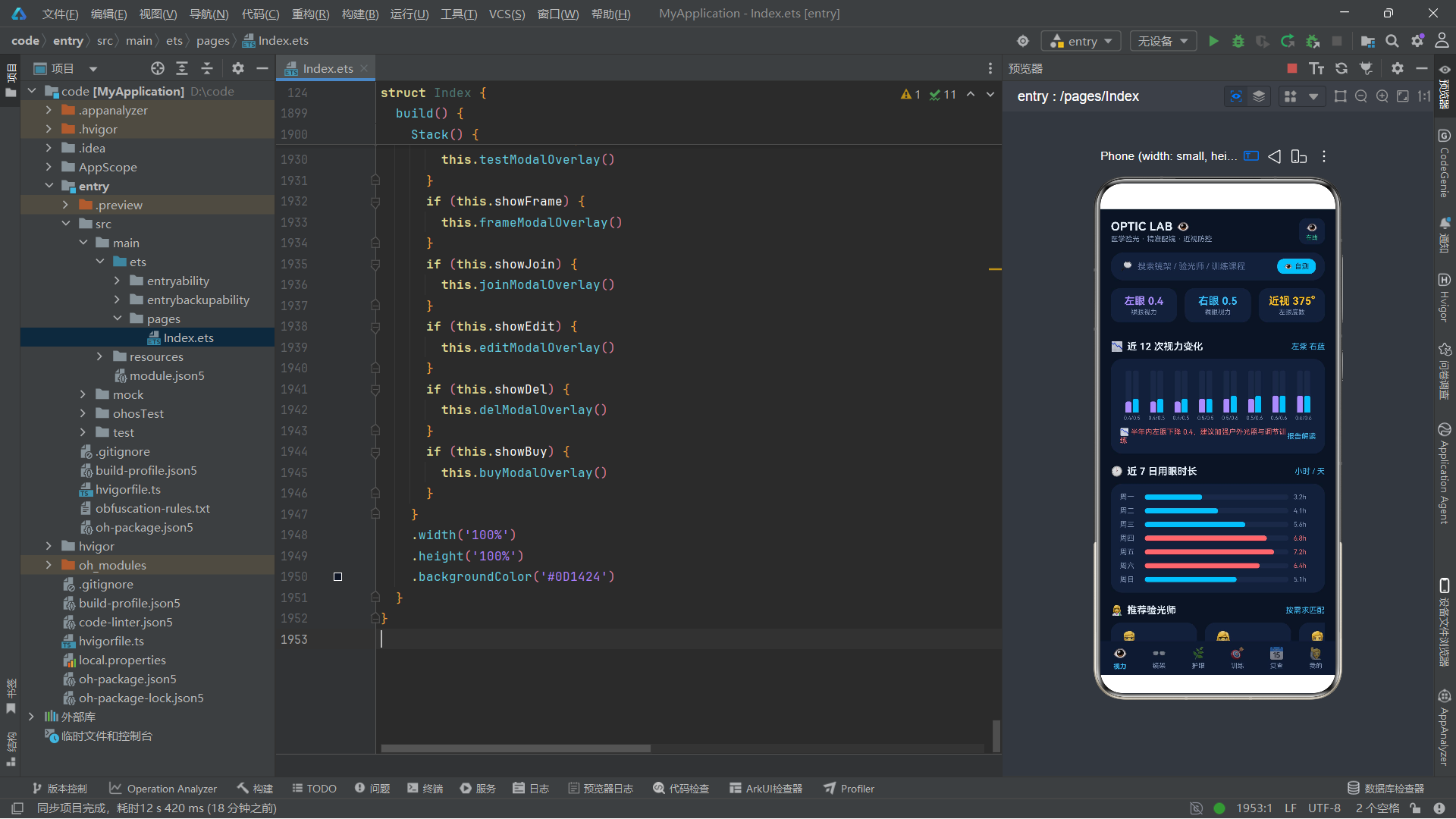
十六、总结
通过对这款验光配镜中心应用的逐段代码剖析,我们可以清晰地看到鸿蒙 ArkUI 声明式编程范式的完整技术面貌。整个应用以一个 @Entry @Component 入口组件为核心,通过 @State 状态变量驱动所有 UI 的动态变化,从 Tab 切换到弹窗显示,从数据更新到动画播放,一切交互都建立在状态驱动视图这一核心机制之上。这种设计哲学使得应用的逻辑结构清晰可循——开发者只需关注状态变量的定义和修改,UI 的渲染和更新由框架自动完成,大大降低了状态管理的复杂度。
应用中大量使用了 @Builder 装饰器来提取可复用的 UI 片段。从底部导航按钮到章节标题,从镜架卡片到各 Tab 页面,每一个 @Builder 方法都是一个独立的 UI 构建单元,接受参数定制输出。这种模式虽然不同于独立组件的封装方式,但在同一组件内部实现了良好的代码组织和复用效果。六个弹窗模态层全部以 @Builder 方法实现,通过布尔状态变量控制条件渲染,形成了统一的弹窗管理架构。这种"状态变量 + 条件渲染 + @Builder"的弹窗实现方案,不依赖系统弹窗组件,提供了最大的视觉定制自由度。
在数据管理层面,应用展现了一套成熟的状态更新模式。无论是收藏切换、任务打卡、训练加入还是改约操作,都遵循"map 遍历 → 创建新对象替换匹配元素 → 赋值给 @State 变量"的统一模式。这种模式确保了 ArkUI 框架能够检测到数组引用的变化,从而触发精确的局部重新渲染。同时,通过引用比较(x === f)定位目标元素,未匹配的元素保持原引用不变,最大程度减少了不必要的重新渲染。这种对 ArkUI 可观察性机制的深入理解,是构建高性能鸿蒙应用的关键。
ArkUI 组件体系在本应用中得到了全面运用。Column 和 Row 构成了所有布局的基础骨架,Stack 实现了弹窗层叠和进度环中心文字的堆叠效果,Scroll 提供了内容滚动和水平卡片列表的滚动能力,ForEach 承担了所有列表数据的渲染任务。Progress 组件以环形和线性两种形态分别用于任务完成率展示和视力值调节,Toggle 以开关形态用于多种确认场景,TextInput 用于改约备注的文本输入。position、zIndex、layoutWeight、clip、constraintSize 等布局和样式方法的运用,体现了对 ArkUI 精细布局控制的掌握。
动画方面,应用通过 animateTo API 在 aboutToAppear 生命周期中启动了两个无限循环动画——扫描偏移和眨眼透明度。PlayMode.Alternate 交替播放模式配合 Curve.EaseInOut 缓动曲线,实现了自然流畅的往返动画效果。这些动画状态变量被多个 UI 组件共享引用,包括头部在线指示器、自测弹窗的 E 字视标、眼轴扫描文字等,通过一处状态驱动多处动画,展现了 ArkUI 状态驱动动画体系的高效性。

作为“人工智能6S店”的官方数字引擎,为AI开发者与企业提供一个覆盖软硬件全栈、一站式门户。
更多推荐



 0
0 0
0- 0


 已为社区贡献44条内容

所有评论(0)