
鸿蒙 旅行翻译助手 - 翻译界面与收藏交互详解
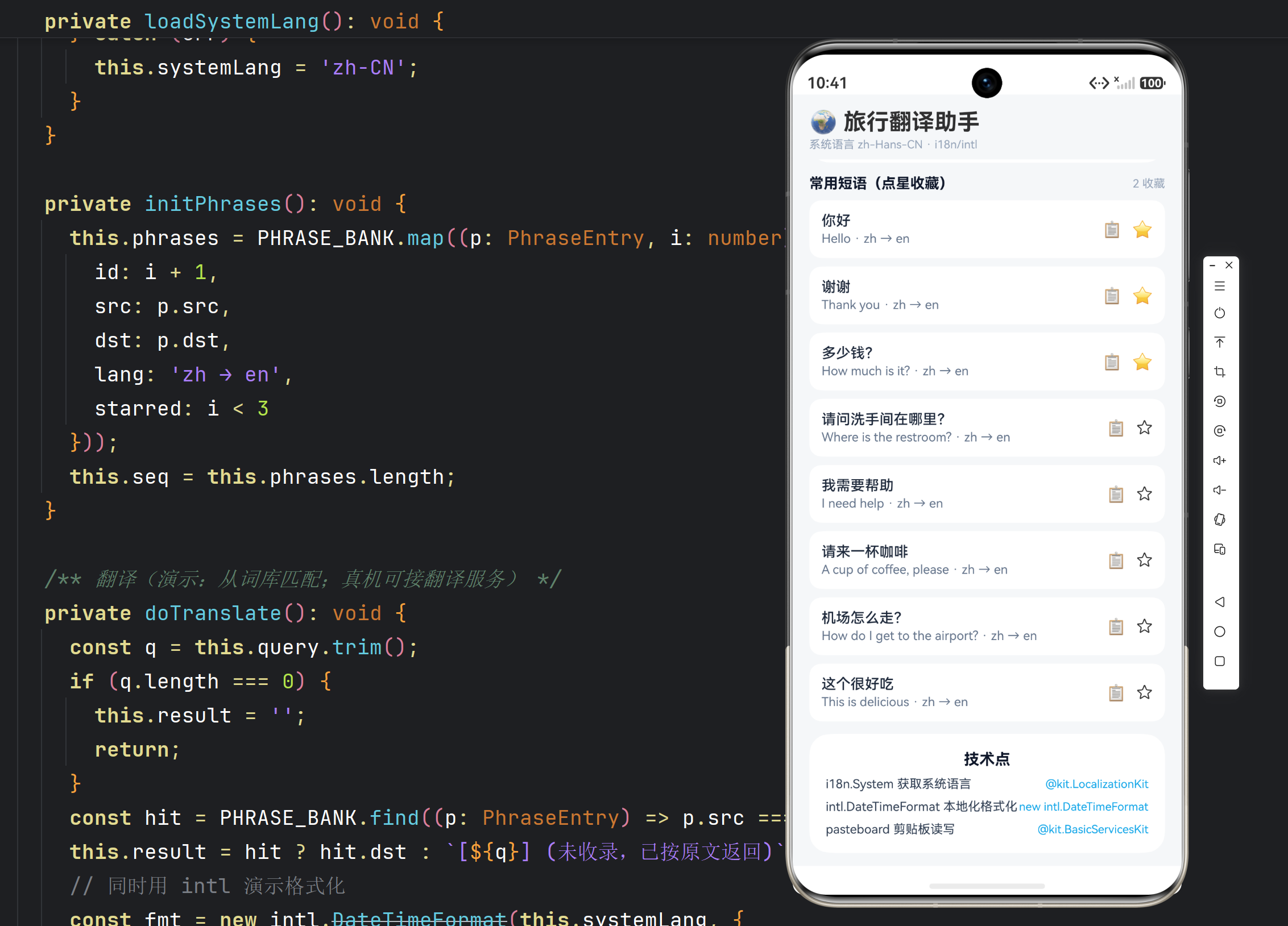
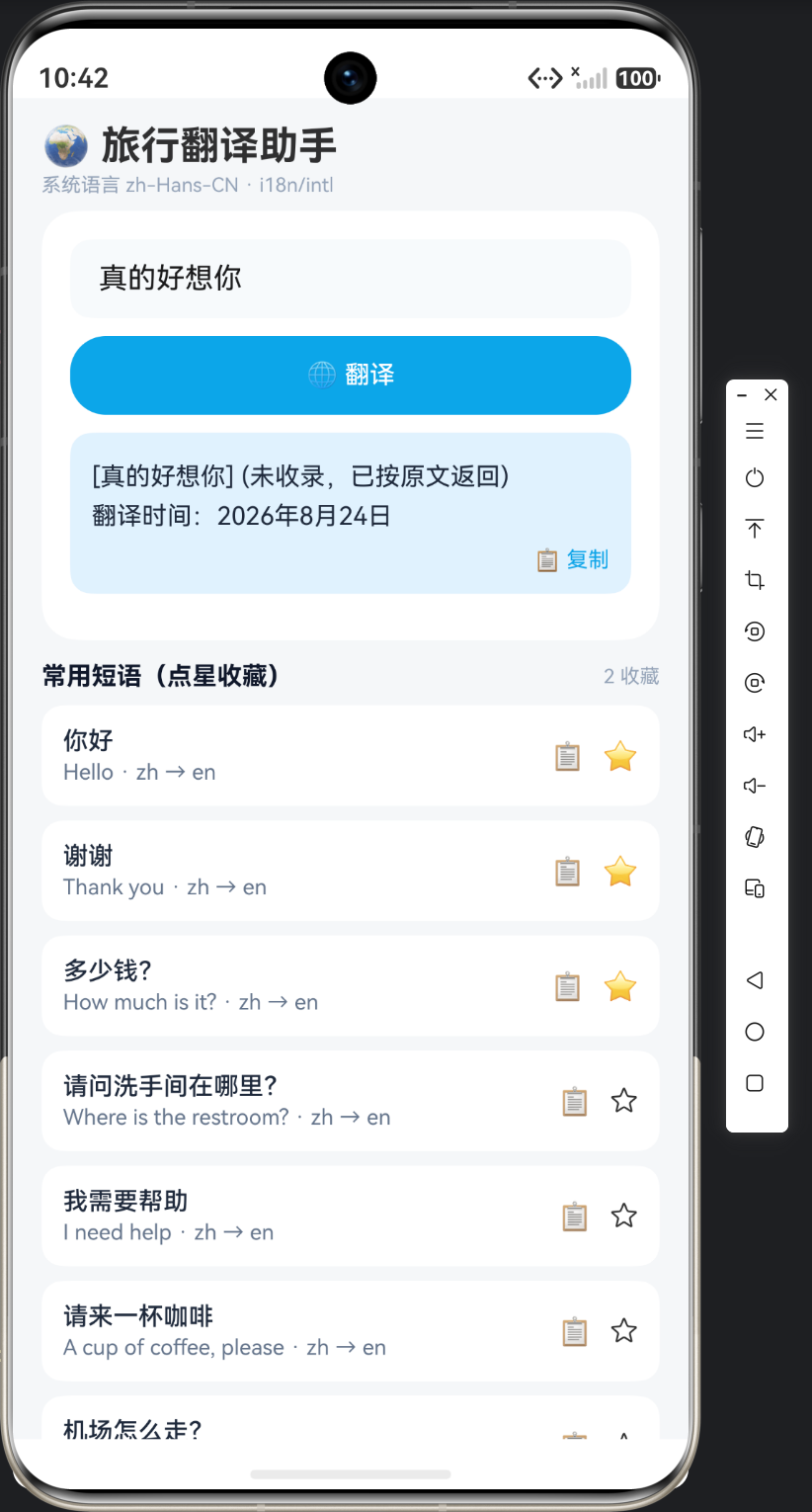
实例:旅行翻译助手|技术:Tabs 分类导航、搜索过滤、卡片收藏交互、语言切换弹窗、剪贴板复制、@ohos.pasteboard
一、本篇范围
第一篇完成了国际化服务层,本篇做 UI 层。页面形态:顶部搜索框 + 语言切换按钮,中部 Tabs 四类短语(问候/点餐/问路/购物),每类下是短语卡片列表;点卡片展开译文(当前目标语言),点星标收藏,点复制按钮把译文写入剪贴板;底部一个「收藏」Tab 聚合所有收藏条目。
核心问题:
- Tabs 怎么布局?
Tabs + TabContent的懒加载与保持状态; - 搜索过滤怎么做?输入即搜、结果实时更新的防抖处理;
- 语言切换怎么交互?
CustomDialog弹窗选目标语言,切换后所有卡片译文刷新; - 剪贴板怎么用?
@ohos.pasteboard写文本与系统 toast 反馈。
二、页面骨架与状态
import { PhraseDictionary, PhraseEntry, Category, FavoriteStore, LocaleService } from './PhraseDictionary';
import { common } from '@kit.AbilityKit';
import { pasteboard } from '@kit.BasicServicesKit';

@Entry
@ComponentV2
struct TravelTranslatorPage {
  @Local targetLocale: string = 'en-US';   // 目标语言(译文语言)
  @Local keyword: string = '';
  @Local favorites: Set<string> = new Set();
  @Local currentTab: number = 0;

  private context: common.UIAbilityContext | null = null;
  private searchTimer: number = -1; // 防抖句柄

  aboutToAppear(): void {
    this.context = this.getUIContext().getHostContext() as common.UIAbilityContext;
    this.initFavorites();
    // 默认目标语言策略:中文环境默认翻英文,英文环境默认翻中文
    this.targetLocale = LocaleService.isChineseEnv() ? 'en-US' : 'zh-CN';
  }

  aboutToDisappear(): void {
    if (this.searchTimer !== -1) {
      clearTimeout(this.searchTimer);
    }
  }

  private async initFavorites(): Promise<void> {
    this.favorites = await FavoriteStore.load(this.context!);
  }

  /** 过滤后的当前分类短语 */
  private filteredByCategory(cat: Category): PhraseEntry[] {
    const list = PhraseDictionary.byCategory(cat);
    return this.applySearch(list);
  }

  private filteredFavorites(): PhraseEntry[] {
    const all = PhraseDictionary.all();
    return this.applySearch(all.filter((p) => this.favorites.has(p.id)));
  }

  private applySearch(list: PhraseEntry[]): PhraseEntry[] {
    const kw = this.keyword.trim().toLowerCase();
    if (kw.length === 0) return list;
    return list.filter((p) =>
      Object.values(p.translations).some((t) => t.toLowerCase().includes(kw)) ||
      p.id.includes(kw));
  }
  ...
}
三、搜索防抖:输入即搜不卡顿
@Builder
searchBar() {
  Row({ space: 10 }) {
    Text('🔍').fontSize(16)
    TextInput({ text: this.keyword, placeholder: $r('app.string.search_hint') })
      .layoutWeight(1)
      .backgroundColor('#F1F5F9')
      .borderRadius(10)
      .onChange((v: string) => this.onKeywordChange(v))
    // 语言切换按钮
    Stack() {
      Circle().width(36).height(36).fill('#E0F2FE')
      Text(this.targetLocale.split('-')[0].toUpperCase()).fontSize(12).fontWeight(FontWeight.Bold)
        .fontColor('#0284C7')
    }
    .onClick(() => this.openLocaleDialog())
  }
  .width('100%')
  .padding(12)
  .backgroundColor('#FFFFFF')
  .borderRadius(16)
}

private onKeywordChange(value: string): void {
  // 防抖:300ms 内连续输入只触发一次搜索
  if (this.searchTimer !== -1) {
    clearTimeout(this.searchTimer);
  }
  this.searchTimer = setTimeout(() => {
    this.keyword = value;
    this.searchTimer = -1;
  }, 300);
}
为什么防抖:TextInput.onChange 每个字符输入都触发,直接在回调里改 keyword 会让每个 Tab 的过滤函数立即执行。短语量小(8 条)时无感,但搜索是「可扩展」的能力——词典将来 1000 条时,每字符全量过滤就会卡。防抖把连续输入合并成一次搜索:clearTimeout + setTimeout(300ms),300ms 内没新输入才真正搜索。
placeholder 用 $r() 引用:搜索框提示文案跟随系统语言,这就是资源限定符在 UI 的直接体现。
四、Tabs 分类导航
@Builder
mainTabs() {
  Tabs({ barPosition: BarPosition.Start, index: this.currentTab }) {
    TabContent() {
      this.categoryList(Category.GREETING)
    }.tabBar(this.tabItem('🙋', $r('app.string.greeting_title')))

    TabContent() {
      this.categoryList(Category.DINING)
    }.tabBar(this.tabItem('🍜', $r('app.string.dining_title')))

    TabContent() {
      this.categoryList(Category.ASKING)
    }.tabBar(this.tabItem('🧭', $r('app.string.asking_title')))

    TabContent() {
      this.categoryList(Category.SHOPPING)
    }.tabBar(this.tabItem('🛍️', $r('app.string.shopping_title')))

    TabContent() {
      this.favoritesList()
    }.tabBar(this.tabItem('⭐', $r('app.string.tab_favorites')))
  }
  .layoutWeight(1)
  .barMode(BarMode.Fixed)
  .scrollable(true)
  .onChange((index: number) => this.currentTab = index)
}

@Builder
tabItem(icon: string, label: ResourceStr) {
  Column({ space: 2 }) {
    Text(icon).fontSize(18)
    Text(label).fontSize(11)
  }
  .width('100%')
}
4.1 Tabs 的工程要点
TabContent 懒加载:Tabs 默认按需加载 TabContent,切到哪个 Tab 才渲染哪个。这里每个 TabContent 里是独立的 categoryList,切换不共享滚动位置——符合分类浏览的预期。
barMode(BarMode.Fixed):5 个 Tab 固定均分宽度,不滚动。Tab 多了才用 BarMode.Scrollable。
tabBar 用 Builder 自定义:默认 tabBar 只有文字,自定义 Builder 可以放图标 + 文字,视觉更接近真实翻译应用。
4.2 分类列表
@Builder
categoryList(cat: Category) {
  List({ space: 10 }) {
    ForEach(this.filteredByCategory(cat), (entry: PhraseEntry) => {
      ListItem() {
        this.phraseCard(entry)
      }
    }, (entry: PhraseEntry) => entry.id)
  }
  .width('100%')
  .height('100%')
  .padding({ left: 12, right: 12, top: 8, bottom: 12 })
  .scrollBar(BarState.Off)
  .if(this.keyword.trim().length > 0 && this.filteredByCategory(cat).length === 0) {
    // 空结果提示
    Text('无匹配短语').fontSize(13).fontColor('#94A3B8').margin({ top: 40 })
  }
}
ForEach 的第三个参数 (entry) => entry.id 是 key 生成器:词典条目 id 稳定唯一,搜索过滤时列表精准增删,不会误重绘。分类内短语少(每类 2 条),用 ForEach 即可,不必上 LazyForEach。
五、短语卡片:展开译文 + 收藏 + 复制
@Builder
phraseCard(entry: PhraseEntry) {
  Column({ space: 8 }) {
    Row({ space: 8 }) {
      Text(entry.translations['zh-CN'] ?? entry.translations['en-US'])
        .fontSize(15).fontWeight(FontWeight.Medium).fontColor('#1E293B')
      Blank()
      // 收藏星标
      Text(this.favorites.has(entry.id) ? '⭐' : '☆')
        .fontSize(18)
        .onClick(() => this.toggleFavorite(entry))
    }.width('100%')

    // 译文区(固定显示目标语言)
    Row({ space: 8 }) {
      Text(this.targetLocale.split('-')[0].toUpperCase())
        .fontSize(9).fontColor('#0284C7')
        .padding({ left: 5, right: 5, top: 2, bottom: 2 })
        .backgroundColor('#E0F2FE').borderRadius(6)
      Text(PhraseDictionary.translate(entry, this.targetLocale))
        .fontSize(14).fontColor('#334155').layoutWeight(1)
      // 复制按钮
      Text('📋').fontSize(16)
        .onClick(() => this.copyText(PhraseDictionary.translate(entry, this.targetLocale)))
    }.width('100%')
  }
  .width('100%')
  .padding(12)
  .backgroundColor('#FFFFFF')
  .borderRadius(14)
  .onClick(() => this.speak(entry))  // 朗读(演示用 Toast 代替)
}
5.1 收藏交互
private async toggleFavorite(entry: PhraseEntry): Promise<void> {
  const next = new Set(this.favorites);
  const isAdd = !next.has(entry.id);
  if (isAdd) {
    next.add(entry.id);
  } else {
    next.delete(entry.id);
  }
  this.favorites = next;   // 新 Set 引用触发刷新
  await FavoriteStore.save(this.context!, next);
  const msg = isAdd
    ? await I18nUtil.getString(this.context!, 'add_favorite')
    : await I18nUtil.getString(this.context!, 'removed_favorite');
  this.getUIContext().getPromptAction().showToast({ message: msg });
}
Set 的不可变更新:@Local favorites 是 Set,直接 this.favorites.add() 改的是内部状态,@Local 可能检测不到。正确姿势是「拷贝 → 修改 → 替换引用」:new Set(old) 后增删,再整体赋值 this.favorites = next,引用变化触发重绘。这是引用类型状态更新的通用铁律。
Toast 文案用 I18nUtil.getString 动态取——收藏提示属于动态场景(在非 UI 构建函数里),用 resourceManager 而非 $r()。
5.2 剪贴板复制
private async copyText(text: string): Promise<void> {
  try {
    const data = pasteboard.createData(pasteboard.MIMETYPE_TEXT_PLAIN, text);
    const systemPasteboard = pasteboard.getSystemPasteboard();
    await systemPasteboard.setData(data);
    this.getUIContext().getPromptAction().showToast({ message: '已复制:' + text.slice(0, 20) + (text.length > 20 ? '…' : '') });
  } catch (err) {
    console.error(`复制失败: ${(err as Error).message}`);
    this.getUIContext().getPromptAction().showToast({ message: '复制失败' });
  }
}
pasteboard 的 API 结构:createData(mimeType, content) 构造数据对象 → getSystemPasteboard() 取系统剪贴板 → setData 写入。文本 mimeType 用常量 MIMETYPE_TEXT_PLAIN。复制成功 Toast 里回显前 20 字,用户确认复制的内容正确。
六、语言切换弹窗:CustomDialog
@CustomDialog
export struct LocaleDialog {
  @Prop currentLocale: string = 'en-US';
  controller: CustomDialogController | null = null;
  onSelect: (locale: string) => void = () => {};

  private locales: string[] = ['zh-CN', 'en-US', 'ja-JP', 'ko-KR'];
  private names: Record<string, string> = {
    'zh-CN': '简体中文', 'en-US': 'English', 'ja-JP': '日本語', 'ko-KR': '한국어'
  };

  build() {
    Column({ space: 12 }) {
      Text('选择译文语言').fontSize(16).fontWeight(FontWeight.Bold)
      ForEach(this.locales, (loc: string) => {
        Row({ space: 10 }) {
          Text(this.names[loc]).fontSize(14).layoutWeight(1)
          if (this.currentLocale === loc) {
            Text('✓').fontSize(16).fontColor('#0284C7')
          }
        }
        .width('100%')
        .padding(12)
        .backgroundColor(this.currentLocale === loc ? '#E0F2FE' : '#F8FAFC')
        .borderRadius(10)
        .onClick(() => {
          this.onSelect(loc);
          this.controller?.close();
        })
      }, (loc: string) => loc)
    }
    .width('100%')
    .padding(20)
  }
}
页面侧打开弹窗:
private openLocaleDialog(): void {
  const dialogController = new CustomDialogController({
    builder: new LocaleDialog({
      currentLocale: this.targetLocale,
      onSelect: (loc: string) => {
        this.targetLocale = loc;
        // 切换后译文区自动刷新(@Local 驱动)
      }
    }),
    alignment: DialogAlignment.Bottom,
    customStyle: true
  });
  dialogController.open();
}
6.1 CustomDialog 的两个要点
数据回传用回调而非直接改父状态:弹窗是独立组件,不该直接改父页面状态。通过 onSelect 回调把选择结果传回页面,由页面决定如何响应——职责分离,弹窗可复用。
当前选中项高亮:currentLocale === loc 控制背景色和 ✓ 图标,用户一眼看到当前语言。语言名用本地化的 names 映射(中文用户看到「日本語」而非 ja-JP,更友好)。
七、朗读演示:TTS 简介
卡片点击「朗读」在实际工程中用 @kit.CoreSpeechKit 的 textToSpeech 引擎(TTS)。为了不重复 65 号应用的语音主题,这里用 Toast 占位并给一段 TTS 接入骨架:
private speak(entry: PhraseEntry): void {
  const text = PhraseDictionary.translate(entry, this.targetLocale);
  // 骨架:@kit.CoreSpeechKit 的 TextToSpeechEngine
  // const tts = await textToSpeech.createEngine();
  // tts.speak(text, { language: this.targetLocale });
  this.getUIContext().getPromptAction().showToast({ message: `朗读:${text.slice(0, 15)}…` });
}
TTS 与 ASR(65 号)是语音双翼:ASR 收语音转文字、TTS 文字转语音。旅行翻译的完整形态是「摄像头取词 + TTS 朗读」,本篇聚焦交互,语音细节留给读者扩展。
八、收藏页聚合
@Builder
favoritesList() {
  List({ space: 10 }) {
    ForEach(this.filteredFavorites(), (entry: PhraseEntry) => {
      ListItem() {
        this.phraseCard(entry)
      }
    }, (entry: PhraseEntry) => entry.id)
  }
  .width('100%').height('100%')
  .padding({ left: 12, right: 12, top: 8, bottom: 12 })
  .scrollBar(BarState.Off)
  .if(this.filteredFavorites().length === 0) {
    Column({ space: 10 }) {
      Text('⭐').fontSize(40)
      Text('还没有收藏,点卡片上的星标收藏常用语').fontSize(13).fontColor('#94A3B8')
    }
    .width('100%').padding({ top: 60 }).justifyContent(FlexAlign.Center)
  }
}
收藏 Tab 复用同一张 phraseCard,只在数据源上不同(filteredFavorites 过滤收藏集合)。组件复用让「分类浏览」和「收藏聚合」两种视图零成本共享卡片逻辑——这是 Builder + 数据源解耦的价值。
九、状态联动全景
一次完整的用户操作链:
- 系统是中文 → 资源限定符命中 zh_CN,Tab 标题显示「问候/点餐/问路/购物」;
- 打开应用 →
isChineseEnv()为 true → 目标语言默认 en-US,卡片译文显示英文; - 点 🌍 按钮 → LocaleDialog 弹窗 → 选日本語 →
onSelect('ja-JP')→targetLocale更新 → 所有卡片译文区自动重渲染为日文; - 点 ⭐ → favorites Set 更新 → 收藏 Tab 即时出现该条(若当前在收藏 Tab);
- 点 📋 → 剪贴板写入 → Toast 回显;
- 搜索「how」→ 300ms 防抖后 keyword 更新 → 各 Tab 列表过滤出英文含 how 的条目。
全程数据流:用户输入 → @Local 状态 → 过滤函数(纯函数)→ 列表重渲染。没有网络、没有异步竞态,状态管理简单而可靠——这是「本地词典」模式相对在线翻译的核心优势。
十、运行效果与验证
- 系统切中文:所有文案变中文(验证资源限定符);
- 系统切英文:文案变英文,Tab 显示 Phrases/Favorites;
- 点语言按钮选日文:卡片译文变日语,语言徽标变 JA;
- 点星标再切收藏 Tab:条目出现;重启应用仍保留(preferences 持久化);
- 点复制:系统剪贴板有新内容,粘贴验证;
- 搜索「menu」:点餐类显示「Menu, please」,其他类隐藏(跨分类全文搜索)。
十一、本篇小结
页面层完成了一个「全国际化」的翻译工具:UI 文案走资源限定符、数据内容走词典模型、格式细节走 Intl API。交互层面,搜索防抖、Set 不可变更新、CustomDialog 回调回传、剪贴板写入这四件事是通用技能,任何应用都能复用。

作为“人工智能6S店”的官方数字引擎,为AI开发者与企业提供一个覆盖软硬件全栈、一站式门户。
更多推荐



 15
15 0
0- 0


 已为社区贡献42条内容

所有评论(0)