
东信智能身份证阅读器、读卡器使用ArkTS 语言开发基于鸿蒙HarmonyOS 6.1版本的读取测试软件
前言
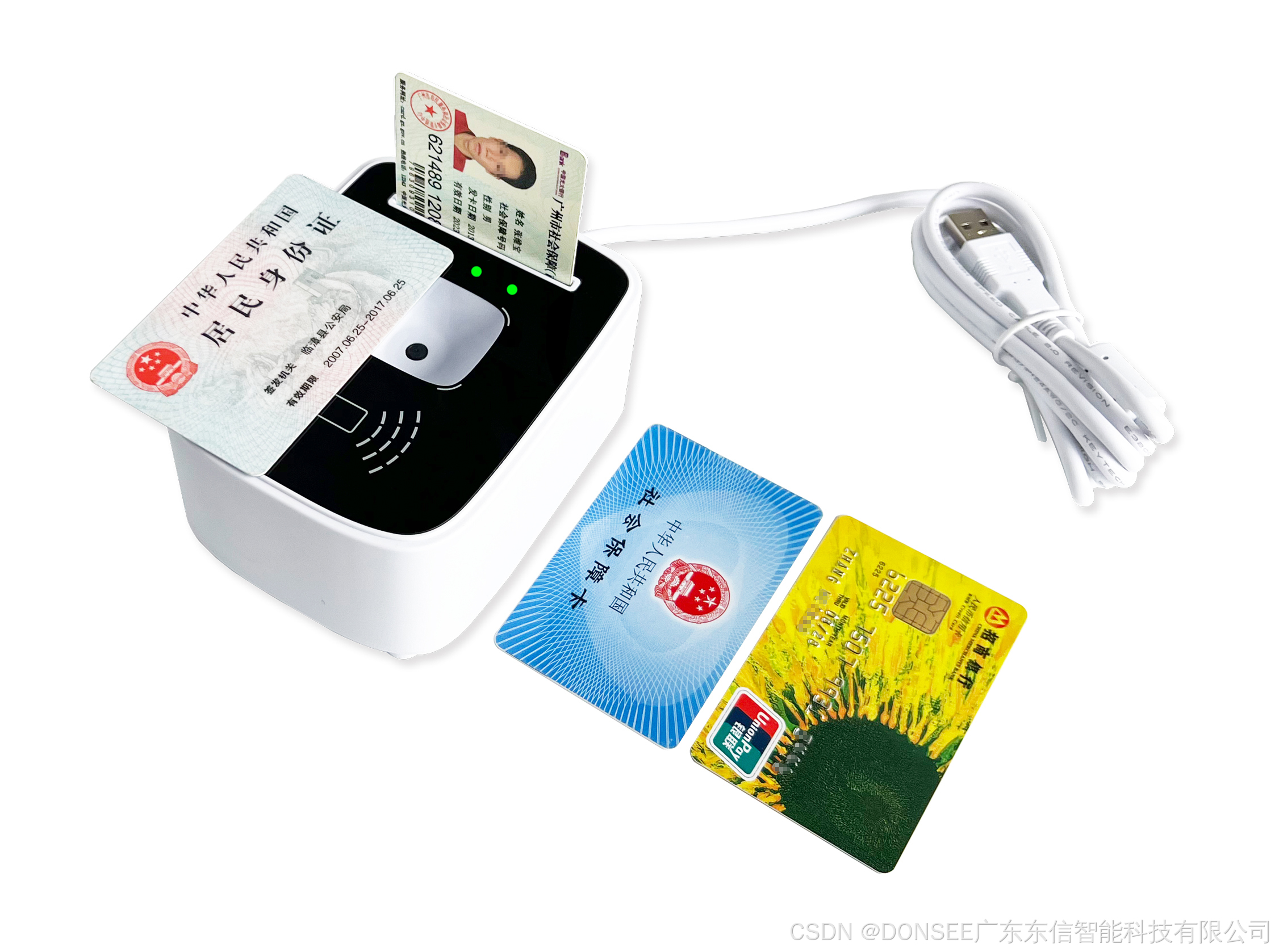
在 HarmonyOS 应用开发中,集成硬件设备 SDK 是连接物理世界与数字世界的关键一步。广东东信智能科技有限公司推出的 DONSEE 系列多功能读写器,支持身份证、社保卡、银行卡、M1卡、CPU卡等多种卡片及二维码的识读,为政务、金融、医疗、门禁等场景提供了成熟的硬件解决方案。本文将详细介绍如何在 HarmonyOS ArkTS 应用中集成并使用其官方 SDK(donseedevice.har),实现设备的打开、关闭、读卡、获取版本信息等核心功能。
一、SDK 简介与获取
DONSEE 系列读写器 SDK 封装了与东信智能 USB/串口免驱型多合一读写器通信的底层接口,开发者通过调用简单的异步函数即可完成复杂的读卡操作。其支持的功能包括:
- 证件读取:大陆居民身份证、港澳台居民居住证、外国人永久居留身份证。
- 卡片读取:社保卡、医保卡、银行卡、M1卡、非接触式CPU卡、15693卡、接触式CPU卡、PSAM卡、4442卡、4428卡、磁条卡。
- 其他功能:二维码扫码、密码键盘、北京通卡等。
注意:本文档适用于 USB 和串口免驱型多合一读写器,单身份证有驱版本不适用。不同产品型号功能可能不同,请以购买的产品为准。
官方 SDK 下载地址:广东东信智能SDK二次开发包下载_软件下载_产品驱动下载 - 广东东信智能科技有限公司
二、环境配置与工程集成
1. 将 HAR 包放入工程
将下载的 donseedevice.har 文件复制到您的 HarmonyOS 工程目录下:
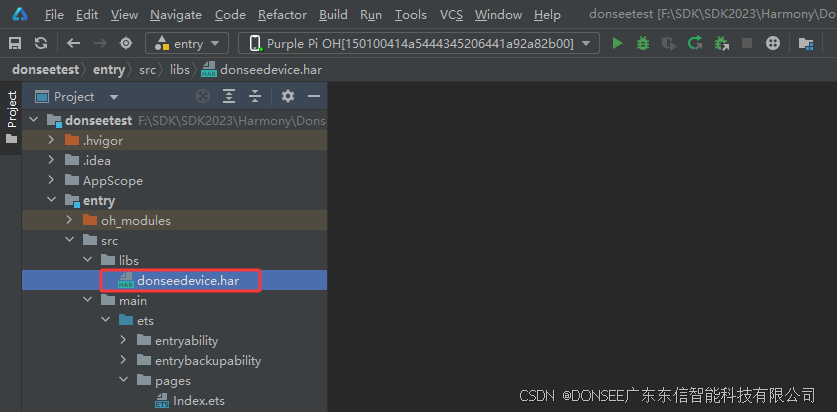
entry/src/libs/donseedevice.har2. 添加依赖
在 entry/oh-package.json5 文件中添加对本地 HAR 包的依赖:
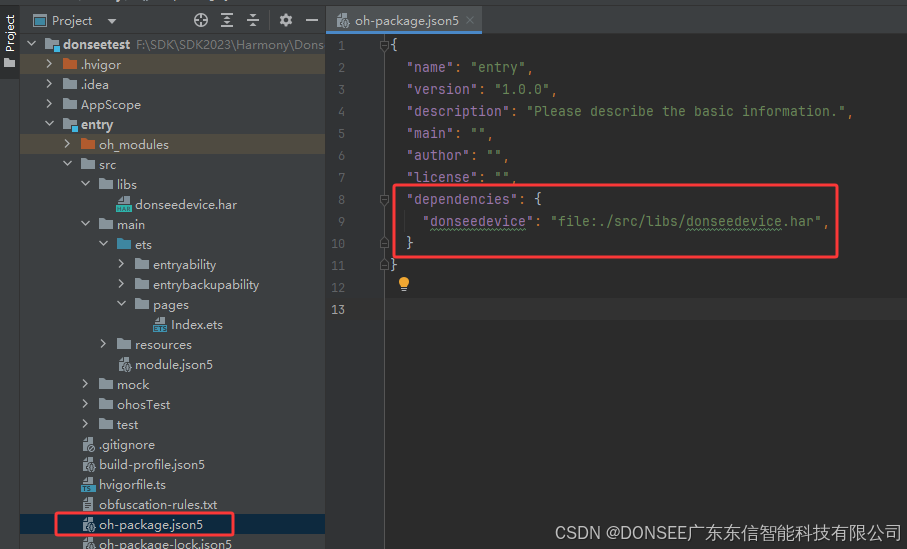
{
  "dependencies": {
    "donseedevice": "file:./src/libs/donseedevice.har"
  }
}
3. 导入模块
在需要使用的 ArkTS 页面中,导入读卡器类及数据类型:
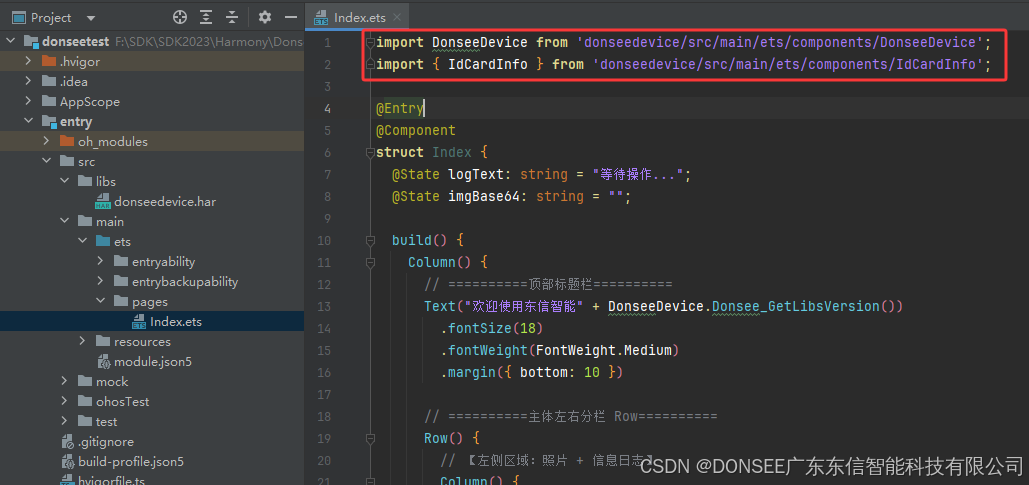
import DonseeDevice from 'donseedevice/src/main/ets/components/DonseeDevice';
import { IdCardInfo } from 'donseedevice/src/main/ets/components/IdCardInfo';
4. 最终demo读取效果如图
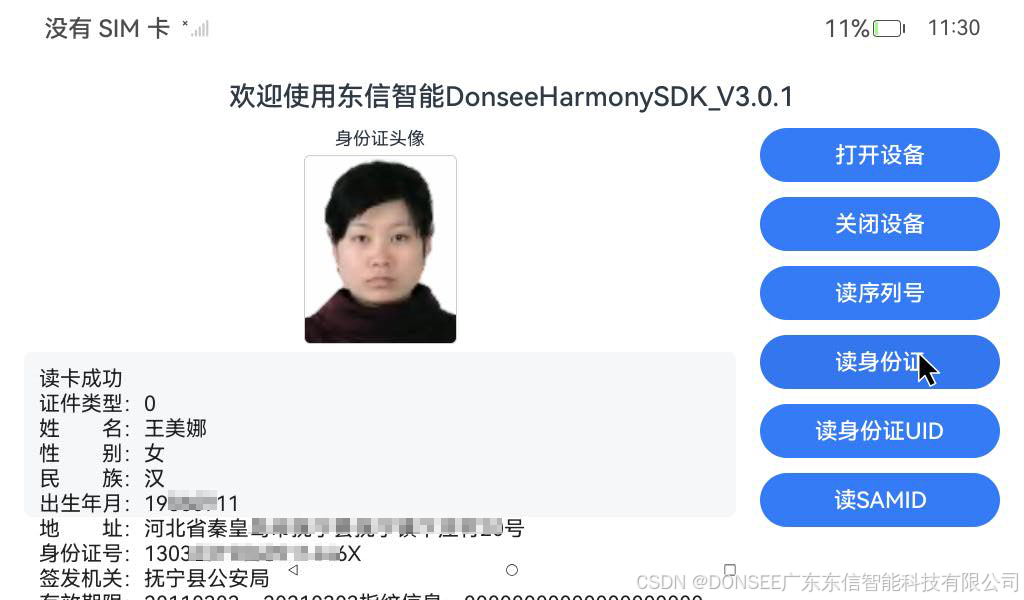
三、核心 API 详解
1. 数据结构定义
读卡结果类:ReadResult
class ReadResult {
    code: number;  // 返回值,0:成功,其他:失败
    data: string;  // 读取成功后的数据
}
身份证信息类:IdCardInfo
class IdCardInfo {
  certType: string;         // 卡片类型,"0"大陆身份证,"I"外国人,"Y"新版外国人,"J"港澳台
  name: string;            // 中文姓名
  ENfullname: string;      // 英文姓名
  ENfullnameOther: string; // 英文姓名备用
  sex: string;             // 性别
  people: string;          // 民族
  address: string;         // 住址
  birthday: string;        // 出生日期(YYYYMMDD)
  signdate: string;        // 发证日期(YYYYMMDD)
  validate: string;        // 有效日期(YYYYMMDD)
  number: string;          // 证件号码
  organs: string;          // 发证机关
  nation: string;          // 国籍
  passNu: string;          // 通行证号
  signCount: string;       // 签发数次
  certVersion: string;     // 证件版本
  changCount: string;      // 换证次数
  oldNumber: string;       // 既往版本永居证号码
  photo: string;           // 身份证base64照片,PNG格式
  figData: string;         // 指纹信息
  other: string;           // 其他
}
2. 设备管理 API
获取 SDK 版本
Donsee_GetLibsVersion(): string;返回 SDK 版本字符串,例如:DonseeHarmonySDK_V3.0.1。
打开设备
async Donsee_Open(port: string): Promise<number>;参数:port - 设备端口标识,当前仅支持传入 "USB"。
返回值:错误码,0 表示成功,其他值表示失败。
关闭设备
async Donsee_Close(): Promise<number>;返回值:错误码,0 表示成功。
设备蜂鸣
async Donsee_Beep(): Promise<number>;用于操作成功提示音。
3. 信息读取 API
读取设备版本号
async Donsee_Version(): Promise<ReadResult>;返回读卡器固件版本字符串。
读取设备序列号
async Donsee_ReadSN(): Promise<ReadResult>;读取身份证 UID
async Donsee_ReadIDCardUid(): Promise<ReadResult>;返回身份证 UID 的十六进制字符串。
读取身份证信息
async Donsee_ReadIDCard(nType: number, outCardInfo: IdCardInfo): Promise<number>;参数:
nType:读卡类型。0-仅文字信息;1-文字+照片;2-文字+照片+指纹。outCardInfo:出参,用于接收读取到的身份证信息。
返回值:错误码,0 表示成功。
读取 SAM ID
async Donsee_ReadSAMID(): Promise<ReadResult>;4. 错误码定义
export class Errcode {
  readonly Success               = 0;      // 成功
  readonly NoDevices             = -1;     // 设备列表为空
  readonly FindCardFaild         = -2;     // 寻卡失败
  readonly CheckDataError        = -3;     // 数据校验错误
  readonly ReadCardFailed        = -4;     // 读卡失败
  readonly UsbSendFailed         = -5;     // USB 发送数据失败
  readonly UsbReadFailed         = -6;     // USB 读取数据失败
  readonly ReadDataLengthError   = -7;     // 读取数据长度错误
  readonly RequestRightFailed    = -8;     // 请求权限失败
  readonly SelectCardFailed      = -9;     // 选卡失败
  readonly CheckRightFailed      = -10;    // 校验权限失败
  readonly ConnectDeviceFailed   = -11;    // 连接设备失败
  readonly UnConnectedDevice     = -12;    // 设备未连接
  readonly UnSupportCommand      = -13;    // 库不支持此命令
  readonly ConvertDataFailed     = -14;    // 数据转换失败
  readonly ExceptionError        = -99;    // 捕获到异常错误
}
四、实战:一个完整的读卡器 Demo
以下是一个完整的 HarmonyOS ArkTS 页面示例,实现了设备打开、关闭、读取版本号、序列号、身份证信息及照片显示等功能。
import DonseeDevice from 'donseedevice/src/main/ets/components/DonseeDevice';
import { IdCardInfo } from 'donseedevice/src/main/ets/components/IdCardInfo';

@Entry
@Component
struct Index {
  @State logText: string = "等待操作...";
  @State imgBase64: string = "";

  build() {
    Column() {
      // ==========顶部标题栏==========
      Text("欢迎使用东信智能" + DonseeDevice.Donsee_GetLibsVersion())
        .fontSize(18)
        .fontWeight(FontWeight.Medium)
        .margin({ bottom: 10 })

      // ==========主体左右分栏 Row==========
      Row() {
        // 【左侧区域:照片 + 信息日志】
        Column() {
          Text("身份证头像")
            .fontSize(12)
            .margin({ bottom: 4 })

          if (this.imgBase64.length > 0) {
            Image(this.imgBase64)
              .width(102)
              .height(126)
              .borderRadius(4)
              .border({ width: 1, color: "#cccccc" })
              .objectFit(ImageFit.Contain)
          } else {
            Text("暂无照片")
              .width(102)
              .height(126)
              .textAlign(TextAlign.Center)
              .fontColor("#999999")
              .borderRadius(4)
              .border({ width: 1, color: "#cccccc" })
          }

          Blank().height(5)

          Text(this.logText)
            .width("100%")
            .layoutWeight(1)
            .fontSize(14)
            .padding(10)
            .backgroundColor("#f6f7f8")
            .borderRadius(6)
            .fontColor("#222222")
            .textAlign(TextAlign.Start)
        }
        .layoutWeight(1)
        .width("100%")
        .height("100%")
        .padding({ right: 16 })


        // 【右侧区域:功能按钮列表,垂直排布】
        Column() {
          Button("打开设备")
            .width(160)
            .height(36)
            .fontSize(15)
            .margin({ bottom: 10 })
            .onClick(async () => {
              let Ret = await DonseeDevice.Donsee_Open("USB");
              if (Ret == 0) {
                let Res = await DonseeDevice.Donsee_Version();
                if (Res.code == 0) {
                  await DonseeDevice.Donsee_Beep();
                  this.logText = '打开成功,设备版本:' + Res.data;
                }
              }
              else {
                this.logText = '东信读卡器打开失败,返回值:' + Ret;
              }
            })

          Button("关闭设备")
            .width(160)
            .height(36)
            .fontSize(15)
            .margin({ bottom: 10 })
            .onClick(async () => {
              let Ret = await DonseeDevice.Donsee_Close();
              if (Ret == 0) {
                this.logText = '关闭成功';
              }
              else{
                this.logText = '关闭失败,返回值:' + Ret;
              }
              this.imgBase64 = "";
            })


          Button("读序列号")
            .width(160)
            .height(36)
            .fontSize(15)
            .margin({ bottom: 10 })
            .onClick(async () => {
              let res = await DonseeDevice.Donsee_ReadSN();
              if (res.code == 0) {
                this.logText = '读取序列号成功:\n' + res.data;
              } else {
                this.logText = '读取序列号失败,错误码:' + res.code;
              }
            })

          Button("读身份证")
            .width(160)
            .height(36)
            .fontSize(15)
            .margin({ bottom: 10 })
            .onClick(async () => {
              let cardInfo: IdCardInfo = new IdCardInfo();
              let nType = 2; //0仅文本;1文本+照片;2文本+照片+指纹
              let res = await DonseeDevice.Donsee_ReadIDCard(nType, cardInfo);
              if (res == 0) {

                //照片和指纹数据比较大,一次性打印不完整,如果需要自己修改调整
                console.info("【身份证完整信息】\n" + JSON.stringify(cardInfo, null, 2));


                DonseeDevice.Donsee_Beep();
                if (cardInfo.photo.length > 0) {
                  this.imgBase64 = 'data:image/png;base64,' + cardInfo.photo;
                } else {
                  this.imgBase64 = "";
                }
                this.logText = "读卡成功\n"
                  + "证件类型:" + cardInfo.certType + "\n"
                  + "姓  名:" + cardInfo.name + "\n"
                  + "性  别:" + cardInfo.sex + "\n"
                  + "民  族:" + cardInfo.people + "\n"
                  + "出生年月:" + cardInfo.birthday + "\n"
                  + "地  址:" + cardInfo.address + "\n"
                  + "身份证号:" + cardInfo.number + "\n"
                  + "签发机关:" + cardInfo.organs + "\n"
                  + "有效期限:" + cardInfo.signdate + " ~ " + cardInfo.validate;

                if (nType == 2) {
                  this.logText += "指纹信息:" + cardInfo.figData.substring(0, 20) + "...";
                  console.info("fingerData:", cardInfo.figData);
                }
              } else {
                this.imgBase64 = "";
                this.logText = "读卡失败,错误码:" + res;
              }
            })

          Button("读身份证UID")
            .width(160)
            .height(36)
            .fontSize(15)
            .margin({ bottom: 10 })
            .onClick(async () => {
              let res = await DonseeDevice.Donsee_ReadIDCardUid();
              if (res.code == 0) {
                this.logText = "UID读取成功:\n" + res.data;
              } else {
                this.logText = "UID读取失败,错误码:" + res.code;
              }
            })

          Button("读SAMID")
            .width(160)
            .height(36)
            .fontSize(15)
            .onClick(async () => {
              let res = await DonseeDevice.Donsee_ReadSAMID();
              if (res.code == 0) {
                this.logText = '读SAMID成功:\n' + res.data;
              } else {
                this.logText = '读SAMID失败,错误码:' + res.code;
              }
            })

        }


        .layoutWeight(0)
        .width("auto")
        .alignItems(HorizontalAlign.Center)
      }
      .width("100%")
      .layoutWeight(1)
      .alignItems(VerticalAlign.Top)

    }
    .width("100%")
    .height("100%")
    .padding(16)
    .backgroundColor("#ffffff")
  }
}
五、编译与运行
- 确保已将
donseedevice.har放入entry/src/libs目录,并在oh-package.json5中添加依赖。 - 将东信智能读写器通过 USB 线连接到开发机。
- 在 DevEco Studio 中编译并运行该 HarmonyOS 应用。
- 点击“打开设备”按钮,若成功会显示设备版本号并发出蜂鸣声。
- 放置身份证到读卡区,点击“读身份证”按钮,左侧将显示身份证头像及详细信息。
常见问题:
- 打开设备失败:检查 USB 连接、设备驱动是否正常,确认设备型号是否支持。
- 读卡失败:确认卡片类型是否支持,卡片是否放置正确。
- 照片不显示:检查
nType参数是否设置为 1 或 2,并确认身份证芯片内含有照片信息。
六、总结
通过集成东信智能 DONSEE 系列读写器 SDK,开发者可以快速在 HarmonyOS 应用中实现多类型卡证的读取功能。本文提供了从环境配置、API 详解到完整 Demo 的一站式指南,涵盖了设备管理、信息读取、错误处理等关键环节。在实际开发中,请结合

作为“人工智能6S店”的官方数字引擎,为AI开发者与企业提供一个覆盖软硬件全栈、一站式门户。
更多推荐

 1
1 0
0- 0



 已为社区贡献2条内容

所有评论(0)