
鸿蒙 ArkUI 数据可视化图例对照表:组件化设计与实现

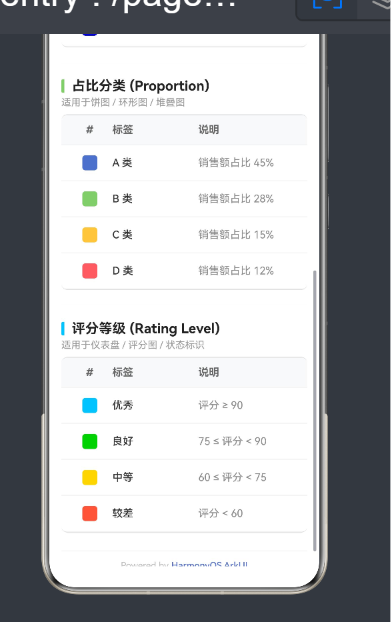
鸿蒙 ArkUI 数据可视化图例对照表:组件化设计与实现
一、引言
图例(Legend)是数据可视化中连接数据与视觉编码的桥梁。用户通过颜色与标签的对照关系快速理解图表含义。随着 HarmonyOS NEXT 普及,ArkTS 声明式 UI 成为主流,但新版 ArkUI 移除了 Table 等旧组件,使许多开发者对表格布局感到困惑。
本文以完整图例对照表为案例,讲解如何用 Row + Column 弹性布局、颜色矩形、文字标签和线性渐变 API 构建可复用的图例组件库。
二、需求分析与总体设计
2.1 功能需求
- 颜色标识:每个条目包含带圆角的颜色矩形。
- 标签文字:说明颜色对应的分类名称。
- 附加描述:辅助文字(温度范围、占比等)。
- 连续型图例:渐变色彩条配合刻度标签。
- 离散型图例:表格形式的多行分类。
- 多组并存:分割线区隔,可滚动浏览。
2.2 技术选型
| 需求 | 方案 | 理由 |
|---|---|---|
| UI 框架 | ArkTS + ArkUI | 鸿蒙原生声明式框架 |
| 表格布局 | Row + Column + layoutWeight | API 11+ 已移除 Table |
| 颜色矩形 | Row + backgroundColor + borderRadius | 轻量高效 |
| 渐变条 | Row + linearGradient() | 原生 API |
| 列表渲染 | ForEach + 数组 | 内置能力 |
2.3 架构概览
Index(@Entry 根组件)
 └─ Scroll → Column
     ├─ 页面标题
     ├─ GradientBar(连续型渐变图例)
     ├─ LegendTableGroup × 3
     │    ├─ SectionTitle + 副标题
     │    └─ 表格 Column → LegendTableRow 列表
     │         ├─ ColorSwatch(色块)
     │         └─ LegendCell × 2
     └─ 底部版权
三、核心组件实现
3.1 数据模型
interface LegendItem {
  color: ResourceColor;
  label: string;
  description: string;
}
预置三种数据源(温度 / 占比 / 评分):
const TEMPERATURE_LEGENDS: LegendItem[] = [
  { color: '#FF4444', label: '高温',   description: '≥ 35°C' },
  { color: '#FF8C00', label: '炎热',   description: '30°C – 34°C' },
  { color: '#FFD700', label: '温暖',   description: '20°C – 29°C' },
  { color: '#87CEEB', label: '凉爽',   description: '10°C – 19°C' },
  { color: '#1E90FF', label: '寒冷',   description: '0°C – 9°C' },
  { color: '#0000CD', label: '严寒',   description: '< 0°C' },
];
const PROPORTION_LEGENDS: LegendItem[] = [
  { color: '#5470C6', label: 'A 类',   description: '销售额占比 45%' },
  { color: '#91CC75', label: 'B 类',   description: '销售额占比 28%' },
  { color: '#FAC858', label: 'C 类',   description: '销售额占比 15%' },
  { color: '#EE6666', label: 'D 类',   description: '销售额占比 12%' },
];
const LEVEL_LEGENDS: LegendItem[] = [
  { color: '#00BFFF', label: '优秀',   description: '评分 ≥ 90' },
  { color: '#32CD32', label: '良好',   description: '75 ≤ 评分 < 90' },
  { color: '#FFD700', label: '中等',   description: '60 ≤ 评分 < 75' },
  { color: '#FF6347', label: '较差',   description: '评分 < 60' },
];
3.2 ColorSwatch(颜色矩形)
使用空 Row + backgroundColor,比 Shape + Rect 更轻量:
@Component
struct ColorSwatch {
  swatchColor: ResourceColor = '#5470C6';
  swatchSize: number = 20;

  build() {
    Row()
      .width(this.swatchSize)
      .height(this.swatchSize)
      .backgroundColor(this.swatchColor)
      .borderRadius(4)
  }
}
Shape + Rect 渲染有额外开销,空 Row 本质就是矩形区域,加 backgroundColor 即可。4px 圆角让色块不显生硬。
3.3 LegendCell(表格单元格)
封装 Text 通用样式:
@Component
struct LegendCell {
  content: string = '';
  fontWeight: FontWeight = FontWeight.Normal;
  fontColor: ResourceColor = '#333333';

  build() {
    Text(this.content)
      .fontSize(14).fontWeight(this.fontWeight)
      .fontColor(this.fontColor).textAlign(TextAlign.Start)
      .maxLines(1)
      .textOverflow({ overflow: TextOverflow.Ellipsis })
  }
}
注意:API 11+ 中文字溢出省略语法已从 .overflow(TextOverflow.Ellipsis) 变为 .textOverflow({ overflow: TextOverflow.Ellipsis }),这是迁移时最常见的坑。
3.4 LegendTableRow(表格行)
三列布局,支持表头/数据行双模式:
@Component
struct LegendTableRow {
  color: ResourceColor = '#5470C6';
  label: string = '';
  desc: string = '';
  isHeader: boolean = false;

  build() {
    Row() {
      Row() {
        if (this.isHeader) {
          Text('#').fontSize(14).fontWeight(FontWeight.Bold).fontColor('#666666')
        } else {
          ColorSwatch({ swatchColor: this.color, swatchSize: 20 })
        }
      }.width(60).justifyContent(FlexAlign.Center)

      LegendCell({
        content: this.label,
        fontWeight: this.isHeader ? FontWeight.Bold : FontWeight.Medium,
        fontColor: this.isHeader ? '#666666' : '#333333'
      }).layoutWeight(1)

      LegendCell({
        content: this.desc,
        fontWeight: this.isHeader ? FontWeight.Bold : FontWeight.Normal,
        fontColor: this.isHeader ? '#666666' : '#888888'
      }).layoutWeight(1.2)
    }
    .width('100%')
    .height(this.isHeader ? 40 : 48)
    .padding({ left: 8, right: 8 })
    .backgroundColor(this.isHeader ? '#f8f9fa' : Color.White)
    .borderWidth({ bottom: 1 }).borderColor({ bottom: '#f0f0f0' })
  }
}
三列弹性布局:首列固定 60px 居中;次列 layoutWeight(1);第三列 layoutWeight(1.2) 略宽。isHeader 控制表头/数据行的颜色、字号、背景差异。逐行底部分隔线避免整表双倍边框。
3.5 SectionTitle(区块标题)
左侧色条 + 粗体标题,色条颜色与图例主题一致:
@Component
struct SectionTitle {
  title: string = '';
  iconColor: ResourceColor = '#5470C6';

  build() {
    Row() {
      Column().width(4).height(18)
        .backgroundColor(this.iconColor)
        .borderRadius({ topLeft: 2, bottomLeft: 2 })
      Text(this.title).fontSize(18).fontWeight(FontWeight.Bold)
        .fontColor('#222222').margin({ left: 10 })
    }.width('100%').alignItems(VerticalAlign.Center)
    .margin({ top: 16, bottom: 4 })
  }
}
3.6 GradientBar(连续型渐变条)
使用原生 linearGradient() API,深蓝 → 红色六段渐变:
@Component
struct GradientBar {
  build() {
    Column() {
      Row().width('100%').height(28).borderRadius(6)
        .linearGradient({
          direction: GradientDirection.Right,
          colors: [
            ['#0000CD', 0.0], ['#1E90FF', 0.2], ['#87CEEB', 0.35],
            ['#FFD700', 0.5], ['#FF8C00', 0.7], ['#FF4444', 1.0],
          ]
        })
      Row() {
        Text('低').fontSize(13).fontColor('#999999')
        Blank()
        Text('中').fontSize(13).fontColor('#999999')
        Blank()
        Text('高').fontSize(13).fontColor('#999999')
      }.width('100%').margin({ top: 4 })
    }.width('100%')
  }
}
色标偏移量非均匀分布(蓝色区宽、红色区紧),模拟"低温区间大"的感知。刻度通过 Blank() 自然三等分。注意 linearGradient 不可用于 Shape.fill()——后者仅接受纯色 ResourceColor。
3.7 LegendTableGroup(表格组)
组装标题、副标题和表格行为完整区块:
@Component
struct LegendTableGroup {
  title: string = '';
  subtitle: string = '';
  iconColor: ResourceColor = '#5470C6';
  legends: LegendItem[] = [];

  build() {
    Column() {
      SectionTitle({ title: this.title, iconColor: this.iconColor })
      Text(this.subtitle).fontSize(13).fontColor('#999999')
        .width('100%').margin({ bottom: 8 })
      Column() {
        LegendTableRow({ color: '#555555', label: '标签', desc: '说明', isHeader: true })
        ForEach(this.legends, (item: LegendItem) => {
          LegendTableRow({ color: item.color, label: item.label, desc: item.description })
        })
      }
      .width('100%')
      .border({ width: { top: 1, bottom: 1 }, color: '#e0e0e0' })
      .borderRadius(8).clip(true)
    }.width('100%')
  }
}
外层 border({ top:1, bottom:1 }) 加上下边框,borderRadius(8) + clip(true) 形成圆角卡片。
3.8 模拟 Table 的原理
Row + Column 替代原生 Table:首列固定宽,后续 layoutWeight 按比例分配;每行底部 borderWidth({ bottom: 1 }) 分隔;isHeader 切换表头/数据行样式。对固定结构的图例展示完全够用。
四、页面组装
4.1 主页面 Index
@Entry @Component
struct Index {
  build() {
    Scroll() {
      Column() {
        Text('数据可视化图例对照表').fontSize(26)
          .fontWeight(FontWeight.Bold).fontColor('#1a1a2e')
          .width('100%').margin({ top: 28, bottom: 4 })
        Text('Data Visualization Legend').fontSize(13)
          .fontColor('#aaaaaa').width('100%').margin({ bottom: 20 })

        SectionTitle({ title: '连续型渐变图例 (Sequential)', iconColor: '#FF8C00' })
        Text('适用于热力图 / 气象图表').fontSize(13).fontColor('#999999')
          .width('100%').margin({ bottom: 8 })
        GradientBar()
        Divider().height(1).color('#eeeeee').margin({ top: 20, bottom: 4 })

        LegendTableGroup({ title: '温度等级 (Temperature)', iconColor: '#FF4444',
          subtitle: '适用于热力图 / 气象图表', legends: TEMPERATURE_LEGENDS })
        LegendTableGroup({ title: '占比分类 (Proportion)', iconColor: '#91CC75',
          subtitle: '适用于饼图 / 环形图 / 堆叠图', legends: PROPORTION_LEGENDS })
        LegendTableGroup({ title: '评分等级 (Rating Level)', iconColor: '#00BFFF',
          subtitle: '适用于仪表盘 / 评分图 / 状态标识', legends: LEVEL_LEGENDS })

        Divider().height(1).color('#eeeeee').margin({ top: 24, bottom: 12 })
        Row() {
          Text('Powered by ').fontSize(12).fontColor('#bbbbbb')
          Text('HarmonyOS ArkUI').fontSize(12)
            .fontColor('#5470C6').fontWeight(FontWeight.Medium)
        }.width('100%').justifyContent(FlexAlign.Center).margin({ bottom: 32 })
      }.width('100%').padding({ left: 16, right: 16 })
    }.backgroundColor('#ffffff').height('100%')
  }
}
主标题 #1a1a2e,区块标题 #222222,标签 #333333,描述 #888888。
五、常见问题与优化
私有属性限制:ArkTS 的 private 禁止构造传参,移除即可。TextOverflow 变更:API 11+ 改用 .textOverflow({ overflow: TextOverflow.Ellipsis })。LinearGradient:不可用于 Shape.fill(),需用容器组件 .linearGradient() 方法。Table 缺失:用 Row + Column + layoutWeight 替代。性能:ForEach 用 key 加速差异化更新;大数据量用 LazyForEach 虚拟列表。
六、扩展建议
主题系统:颜色值抽取为资源引用,支持深色模式。交互:点击筛选、折叠展开、长按提示。图例类型:形状/线型/大小/复合图例。国际化:用 $r('app.string.xxx') 实现多语言。动画:用 animateTo 和 animation 添加入场效果。
七、总结
本文讲解了在鸿蒙 ArkUI 中用 Row + Column 弹性布局、颜色矩形、文字标签和线性渐变 API 构建图例组件库的方法。六个独立组件实现了高内聚低耦合。
关键语法:组件属性默认访问级别才能构造传参;textOverflow({ overflow: TextOverflow.Ellipsis }) 是 API 11+ 正确用法;linearGradient 不可用于 Shape.fill;用 Row + Column 替代已移除的 Table 组件。
本案例已在 HarmonyOS NEXT(API 6.1.1/24)编译通过,源码位于 entry/src/main/ets/pages/Index.ets。

作为“人工智能6S店”的官方数字引擎,为AI开发者与企业提供一个覆盖软硬件全栈、一站式门户。
更多推荐


 5
5 0
0- 0


 已为社区贡献30条内容

所有评论(0)