
深入鸿蒙 Next:RelativeContainer 的 Z 轴层级管理实战解析
深入鸿蒙 Next:RelativeContainer 的 Z 轴层级管理实战解析
一、引言
移动端 UI 开发中,布局管理不仅需要解决 X、Y 轴的排布,还要处理 Z 轴(垂直于屏幕方向)的层叠关系。HarmonyOS NEXT 的 ArkTS 框架提供了 RelativeContainer 配合 .zIndex() 属性,为开发者带来灵活的 Z 轴层级控制能力。本文将从一个实战示例出发,讲解这一核心技术。
二、RelativeContainer 概述
2.1 什么是 RelativeContainer
RelativeContainer 是鸿蒙原生相对布局容器。与 Column / Row 线性布局不同,它允许子组件相对于容器或相对于兄弟组件定位,减少嵌套层级,提升布局性能。
2.2 核心定位:alignRules
通过 .alignRules() 定义锚点规则:
.alignRules({
  center: { anchor: '__container__', align: VerticalAlign.Center },
  middle: { anchor: '__container__', align: HorizontalAlign.Center },
  top:    { anchor: '__container__', align: VerticalAlign.Top },
  bottom: { anchor: '__container__', align: VerticalAlign.Bottom },
  left:   { anchor: '__container__', align: HorizontalAlign.Start },
  right:  { anchor: '__container__', align: HorizontalAlign.End }
})
关键约定:
| 键名 | 对齐类型 | 目的 |
|---|---|---|
center |
VerticalAlign |
垂直居中 |
middle |
HorizontalAlign |
水平居中 |
top/bottom |
VerticalAlign |
垂直方向 |
left/right |
HorizontalAlign |
水平方向 |
记忆法:center 用 VerticalAlign,middle 用 HorizontalAlign,写反即报编译错误。
三、zIndex 深度剖析
3.1 Z 轴概念
Z 轴垂直于屏幕方向,决定组件前后遮挡关系。
3.2 zIndex 规则
- 值越大越靠上,显示在最前
- 默认 0,同一层级按声明顺序绘制
- 先声明先绘制(底层),后声明后绘制(上层)
- 显式设置 zIndex 后,声明顺序不再起作用
四、实战示例详解
4.1 布局结构
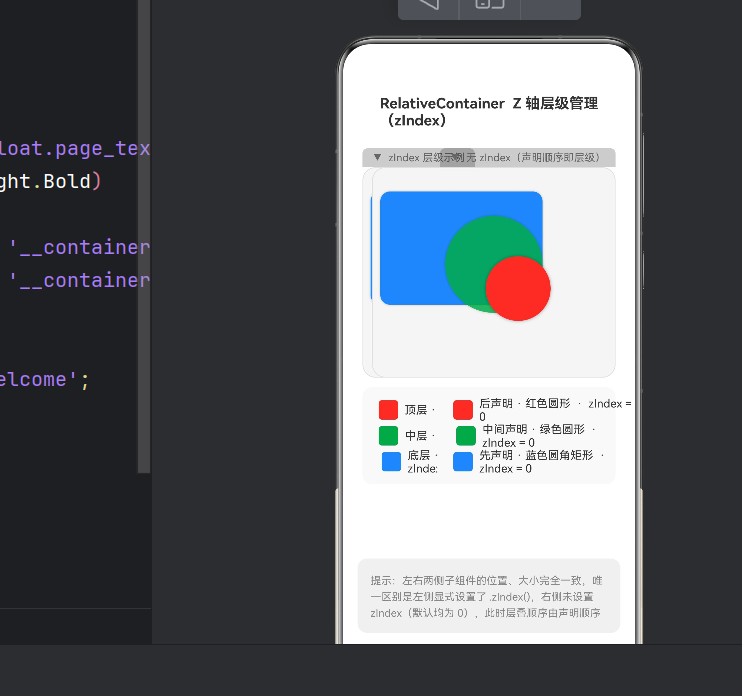
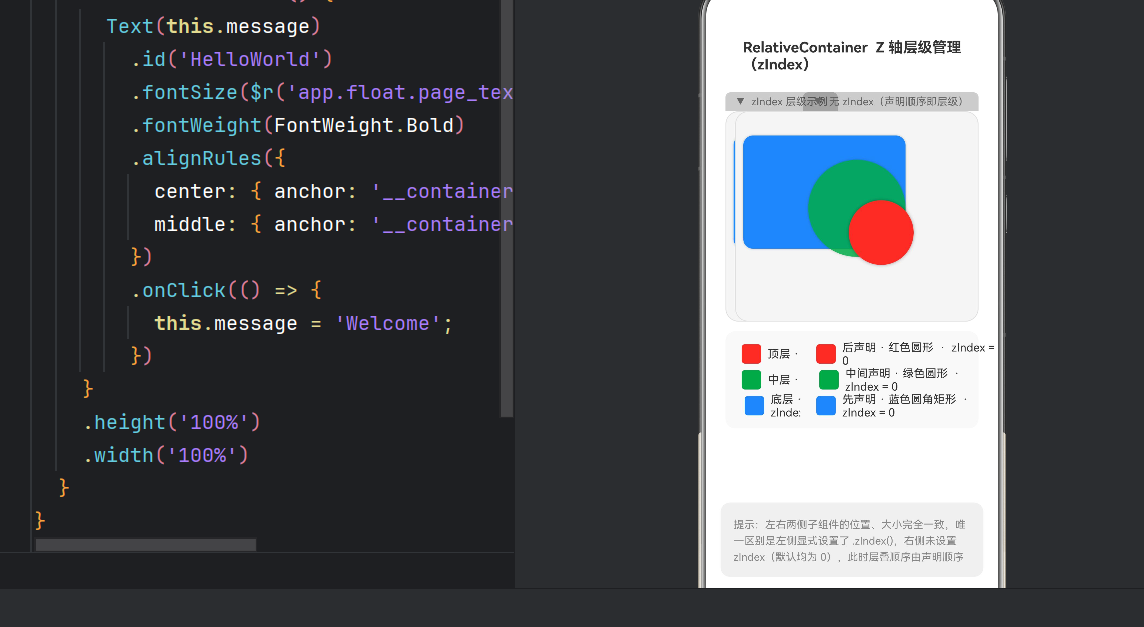
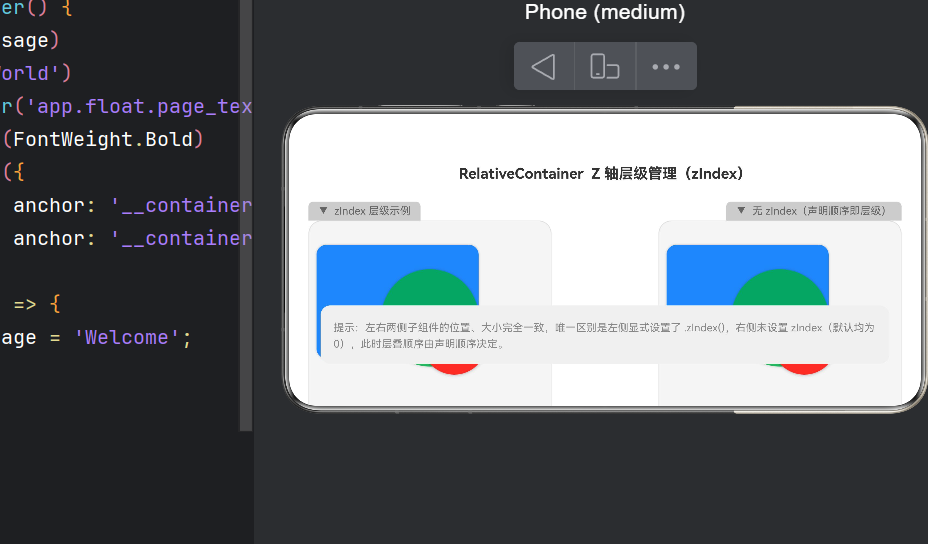
采用左右对比设计:左侧显式设置 zIndex,右侧仅靠声明顺序。
┌──────────────────────────────────────────────┐
│     RelativeContainer Z 轴层级管理(zIndex)    │
├─────────────────────┬────────────────────────┤
│  ▼ zIndex 层级示例   │  ▼ 无 zIndex(声明顺序) │
│  ┌───────────────┐   │  ┌──────────────────┐  │
│  │  蓝底 z=1      │   │  │  蓝底 (默认z=0)   │  │
│  │  ┌────────┐    │   │  │  ┌────────┐      │  │
│  │  │ 绿圆 z=2│    │   │  │  │ 绿圆 z=0│      │  │
│  │  │ ┌────┐ │    │   │  │  │ ┌────┐ │      │  │
│  │  │ │红圆 │ │    │   │  │  │ │红圆 │ │      │  │
│  │  │ │z=3  │ │    │   │  │  │ │z=0  │ │      │  │
│  │  │ └────┘ │    │   │  │  │ └────┘ │      │  │
│  │  └────────┘    │   │  │  └────────┘      │  │
│  └───────────────┘   │  └──────────────────┘  │
├─────────────────────┴────────────────────────┤
│  提示:左右唯一区别是 zIndex                     │
└──────────────────────────────────────────────┘
4.2 左侧:zIndex 控制
三个重叠组件显式设置 zIndex:
// 底层 蓝色矩形 z=1 | 中层 绿色圆形 z=2 | 顶层 红色圆形 z=3
Row().id('layer_1').backgroundColor('#FF4285F4').zIndex(1);
Row().id('layer_2').backgroundColor('#FF34A853').zIndex(2).opacity(0.85);
Row().id('layer_3').backgroundColor('#FFEA4335').zIndex(3);
红色圆形(z=3)始终在最上层,与声明顺序无关。
4.3 右侧:声明顺序决定
三个组件均未调用 .zIndex(),全为默认值 0:
- 蓝色矩形先声明 → 最下层
- 绿色圆形后声明 → 中间层
- 红色圆形最后声明 → 最上层
调整声明顺序,层叠关系随之改变。
4.4 子组件复用:LayerLabel
@Component
struct LayerLabel {
  private color: Color | string = Color.Blue;
  private label: string = '';
  private zIdx: number = 0;

  build() {
    Row() {
      Row().width(24).height(24).borderRadius(4).backgroundColor(this.color);
      Text(this.label + '  ·  zIndex = ' + this.zIdx).fontSize(14);
    }.height(32).padding({ left: 8 });
  }
}
左右图例传入不同 zIdx,复用同一组件。
五、易错点总结
5.1 alignRules 类型混淆
// ❌ 错误
center: { anchor: '__container__', align: HorizontalAlign.Center }
// ✅ 正确
center: { anchor: '__container__', align: VerticalAlign.Center }
middle: { anchor: '__container__', align: HorizontalAlign.Center }
编译器严格拦截类型不匹配。
5.2 Stack 不支持 .build()
// ❌ 错误
Stack().id('label').build() { Text('内容'); }
// ✅ 正确:子女直接放在构造器内
Stack() { Text('内容'); }.id('label').width(180).height(28);
5.3 无需 import 内置组件
Text、Row、Column、RelativeContainer 等为全局内置 API,不能从 @kit.ArkUI 导入。
六、应用场景
浮动按钮:.zIndex(100) 确保悬浮在内容之上。
弹窗遮罩:遮罩层与弹窗内容分设不同 zIndex。
拖拽元素:动态修改 zIndex,使拖拽项浮在其他项上方。
新手引导:多层叠加实现遮罩 + 高亮 + 文字提示。
七、性能建议
- zIndex 值建议控制在 0~1000 内。
- 减少重叠组件数量以降低 GPU overdraw。
- 用 offset 偏移替代多层容器嵌套。
- 装饰层设置
hitTestBehavior(HitTestMode.None)。
八、完整示例代码
/**
 * RelativeContainer Z轴层级管理 示例页面
 * alignRules: center→VerticalAlign, middle→HorizontalAlign
 */

const C1 = '#FF4285F4', C2 = '#FF34A853', C3 = '#FFEA4335';

@Component
struct LayerLabel {
  private color: Color | string = Color.Blue;
  private label: string = '';
  private zIdx: number = 0;

  build() {
    Row() {
      Row().width(24).height(24).borderRadius(4)
        .backgroundColor(this.color).margin({ right: 8 });
      Text(this.label + '  ·  zIndex = ' + this.zIdx)
        .fontSize(14).fontColor('#FF333333');
    }.height(32).padding({ left: 8 });
  }
}

@Entry
@Component
struct RelativeContainerZIndexDemo {
  build() {
    RelativeContainer() {
      Text('RelativeContainer Z 轴层级管理(zIndex)')
        .id('page_title').fontSize(18).fontWeight(FontWeight.Bold)
        .alignRules({
          center: { anchor: '__container__', align: VerticalAlign.Center },
          top: { anchor: '__container__', align: VerticalAlign.Top }
        }).margin({ top: 24 });

      // 左侧标签
      Stack() { Text('▼  zIndex 层级示例').fontSize(13); }
        .id('label_left').width(180).height(28).backgroundColor('#1A000000')
        .borderRadius({ topLeft: 6, topRight: 6 }).alignContent(Alignment.Center)
        .hitTestBehavior(HitTestMode.None)
        .alignRules({
          top: { anchor: 'page_title', align: VerticalAlign.Bottom },
          left: { anchor: '__container__', align: HorizontalAlign.Start }
        }).margin({ top: 24, left: 24 });

      // 左侧 zIndex 演示
      RelativeContainer() {
        Row().id('l1').width(200).height(140).backgroundColor(C1).borderRadius(12)
          .alignRules({
            center: { anchor: '__container__', align: VerticalAlign.Center },
            middle: { anchor: '__container__', align: HorizontalAlign.Center }
          }).offset({ x: -40, y: -30 }).zIndex(1);

        Row().id('l2').width(120).height(120).backgroundColor(C2).borderRadius(60)
          .alignRules({
            center: { anchor: '__container__', align: VerticalAlign.Center },
            middle: { anchor: '__container__', align: HorizontalAlign.Center }
          }).offset({ x: 0, y: -10 }).zIndex(2).opacity(0.85);

        Row().id('l3').width(80).height(80).backgroundColor(C3).borderRadius(40)
          .alignRules({
            center: { anchor: '__container__', align: VerticalAlign.Center },
            middle: { anchor: '__container__', align: HorizontalAlign.Center }
          }).offset({ x: 30, y: 20 }).zIndex(3);
      }.id('demo_box').width(300).height(260).backgroundColor('#FFF5F5F5').borderRadius(16)
        .alignRules({
          top: { anchor: 'label_left', align: VerticalAlign.Bottom },
          left: { anchor: '__container__', align: HorizontalAlign.Start }
        }).margin({ top: 0, left: 24 });

      // 左侧图例
      Column() {
        LayerLabel({ color: C3, label: '顶层 · 红色圆形', zIdx: 3 });
        LayerLabel({ color: C2, label: '中层 · 绿色圆形', zIdx: 2 });
        LayerLabel({ color: C1, label: '底层 · 蓝色圆角矩形', zIdx: 1 });
      }.id('legend_left').width(220).padding(12).backgroundColor('#FFF9F9F9').borderRadius(12)
        .alignRules({
          top: { anchor: 'demo_box', align: VerticalAlign.Bottom },
          left: { anchor: '__container__', align: HorizontalAlign.Start }
        }).margin({ top: 12, left: 24 });

      // 右侧标签
      Stack() { Text('▼  无 zIndex(声明顺序)').fontSize(13); }
        .id('label_right').width(200).height(28).backgroundColor('#1A000000')
        .borderRadius({ topLeft: 6, topRight: 6 }).alignContent(Alignment.Center)
        .hitTestBehavior(HitTestMode.None)
        .alignRules({
          top: { anchor: 'page_title', align: VerticalAlign.Bottom },
          right: { anchor: '__container__', align: HorizontalAlign.End }
        }).margin({ top: 24, right: 24 });

      // 右侧对比(无 zIndex)
      RelativeContainer() {
        Row().id('r1').width(200).height(140).backgroundColor(C1).borderRadius(12)
          .alignRules({
            center: { anchor: '__container__', align: VerticalAlign.Center },
            middle: { anchor: '__container__', align: HorizontalAlign.Center }
          }).offset({ x: -40, y: -30 });

        Row().id('r2').width(120).height(120).backgroundColor(C2).borderRadius(60)
          .alignRules({
            center: { anchor: '__container__', align: VerticalAlign.Center },
            middle: { anchor: '__container__', align: HorizontalAlign.Center }
          }).offset({ x: 0, y: -10 }).opacity(0.85);

        Row().id('r3').width(80).height(80).backgroundColor(C3).borderRadius(40)
          .alignRules({
            center: { anchor: '__container__', align: VerticalAlign.Center },
            middle: { anchor: '__container__', align: HorizontalAlign.Center }
          }).offset({ x: 30, y: 20 });
      }.id('cmp_box').width(300).height(260).backgroundColor('#FFF5F5F5').borderRadius(16)
        .alignRules({
          top: { anchor: 'label_right', align: VerticalAlign.Bottom },
          right: { anchor: '__container__', align: HorizontalAlign.End }
        }).margin({ top: 0, right: 24 });

      // 右侧图例
      Column() {
        LayerLabel({ color: C3, label: '后声明 · 红色圆形', zIdx: 0 });
        LayerLabel({ color: C2, label: '中间声明 · 绿色圆形', zIdx: 0 });
        LayerLabel({ color: C1, label: '先声明 · 蓝色圆角矩形', zIdx: 0 });
      }.id('legend_right').width(220).padding(12).backgroundColor('#FFF9F9F9').borderRadius(12)
        .alignRules({
          top: { anchor: 'cmp_box', align: VerticalAlign.Bottom },
          right: { anchor: '__container__', align: HorizontalAlign.End }
        }).margin({ top: 12, right: 24 });

      // 底部提示
      Text('提示:左右子组件大小位置一致,左侧设 zIndex,右侧未设(默认 0)。')
        .id('tip').fontSize(13).fontColor('#FF888888').padding(16)
        .backgroundColor('#FFF0F0F0').borderRadius(12).width('90%')
        .alignRules({
          center: { anchor: '__container__', align: VerticalAlign.Center },
          bottom: { anchor: '__container__', align: VerticalAlign.Bottom }
        }).margin({ bottom: 32 });
    }.width('100%').height('100%').backgroundColor('#FFFFFFFF');
  }
}
九、项目配置
注册路由(main_pages.json)
{ "src": ["pages/Index", "pages/RelativeContainerZIndexDemo"] }
修改启动入口(EntryAbility.ets)
windowStage.loadContent('pages/RelativeContainerZIndexDemo', (err) => {
  if (err.code) hilog.error(0x0000, 'testTag', 'Failed: %{public}s', JSON.stringify(err));
});
API 版本
确保 compileSdkVersion 为 24。
十、总结
本文深入讲解了:
- RelativeContainer 机制:alignRules 实现相对定位。
- zIndex 层级控制:值越大越靠上。
- 声明顺序 vs zIndex:无 zIndex 时声明顺序决定层级。
- 常见编译错误:类型混淆、Stack.build() 误用、import 问题。
- 应用场景:FAB、弹窗、拖拽、新手引导。
掌握这些核心概念,助你在鸿蒙生态中构建更优雅的 UI 界面。

作为“人工智能6S店”的官方数字引擎,为AI开发者与企业提供一个覆盖软硬件全栈、一站式门户。
更多推荐
 2
2 0
0- 0


 已为社区贡献36条内容

所有评论(0)