
HarmonyOS 6(API 23)HMAF智能体 ——构建“意图即服务“的智能交互体验
文章目录

每日一句正能量
一个人的城府从不是藏着掖着,而是光明磊落和坦诚相待。
真正的“城府”不是心机深沉、隐瞒真实意图,而是内心有边界、有谋略却不失光明,待人坦诚、做事磊落。最高级的处世智慧,其实是清澈见底却不可冒犯——不主动害人,也不轻易被人算计。在人际交往中,尽量做到“说真话、不绕弯、有底线”。复杂问题用简单方式沟通,反而更有力量。
一、前言:从"人找服务"到"服务找人"的交互革命
在HarmonyOS 6(API 23)中,华为正式推出了鸿蒙智能体框架(Harmony Agent Framework,简称HMAF),标志着鸿蒙生态从"应用为中心"向"意图为中心"的全面演进。结合本次活动的两大核心主题——悬浮导航与沉浸光感——我们可以构建出一种全新的交互范式:智能体驱动的沉浸式悬浮导航。
传统导航是"用户点击→页面跳转"的被动模式,而智能体导航则是"意图识别→服务直达"的主动模式。本文将实战演示如何在HarmonyOS 6中,利用HMAF 2.0框架,结合悬浮导航(Floating Navigation)与沉浸光感(Immersive Light Effect)视觉系统,打造一个**"意图即服务"的智能助手应用**。
核心亮点:本文代码实现了一个"智能体悬浮球"——它不仅是导航入口,更是具备意图理解、多轮对话、服务编排能力的AI Agent。当用户说出"帮我找附近人均100元以内的川菜馆,要评分4.5以上"时,智能体会自动拆解意图、调用多个Skill、聚合结果,并通过沉浸光感的UI呈现最终答案。
二、技术架构总览
2.1 系统架构图
┌─────────────────────────────────────────────────────────────┐
│                    应用层(Application)                       │
│  ┌─────────────┐  ┌─────────────┐  ┌─────────────────────┐ │
│  │ 悬浮导航球   │  │ 沉浸光感UI   │  │ 智能体对话面板       │ │
│  │ FloatNav    │  │ LightEffect │  │ AgentChatPanel      │ │
│  └──────┬──────┘  └──────┬──────┘  └──────────┬──────────┘ │
│         └─────────────────┴─────────────────────┘            │
│                              │                              │
├──────────────────────────────┼──────────────────────────────┤
│                    HMAF 2.0 智能体框架层                       │
│  ┌─────────────┐  ┌─────────────┐  ┌─────────────────────┐ │
│  │ 意图理解引擎 │  │ Skill编排器 │  │ 多轮对话管理器       │ │
│  │ IntentEngine│  │ SkillOrchestrator│ │ DialogManager    │ │
│  └─────────────┘  └─────────────┘  └─────────────────────┘ │
│                              │                              │
├──────────────────────────────┼──────────────────────────────┤
│                    系统服务层(System Service)                 │
│  ┌─────────────┐  ┌─────────────┐  ┌─────────────────────┐ │
│  │ 悬浮窗服务   │  │ 光感渲染服务 │  │ AI推理服务(NPU)    │ │
│  │ FloatWindow │  │ LightService│  │ AI Inference        │ │
│  └─────────────┘  └─────────────┘  └─────────────────────┘ │
└─────────────────────────────────────────────────────────────┘
2.2 关键技术栈
| 技术模块 | API/框架 | 版本要求 |
|---|---|---|
| 悬浮导航 | windowManager.createWindow + FloatWindow |
API 23+ |
| 沉浸光感 | ImmersiveLightEffect + LightEngine |
API 23+ |
| 智能体框架 | HMAF (Harmony Agent Framework) 2.0 |
API 23+ |
| 意图识别 | IntentEngine + 自然语言理解 |
API 23+ |
| Skill开发 | AgentSkill 元服务 + MCP协议 |
API 23+ |
| 分布式能力 | DistributedObject + DeviceManager |
API 23+ |
三、核心代码实战
3.1 项目配置与依赖
首先,在 oh-package.json5 中引入HMAF及相关依赖:
{
  "name": "agent-float-nav",
  "version": "1.0.0",
  "description": "HMAF智能体 × 悬浮导航 × 沉浸光感实战",
  "dependencies": {
    "@ohos/hmaf": "2.0.0",
    "@ohos/immersive-light": "1.2.0",
    "@ohos/float-window": "1.1.0",
    "@ohos/ai-inference": "3.0.0",
    "@ohos/distributed-object": "5.0.0"
  }
}
在 module.json5 中声明所需权限:
{
  "module": {
    "name": "entry",
    "type": "entry",
    "requestPermissions": [
      {
        "name": "ohos.permission.SYSTEM_FLOAT_WINDOW",
        "reason": "$string:float_window_permission"
      },
      {
        "name": "ohos.permission.INTERNET",
        "reason": "$string:internet_permission"
      },
      {
        "name": "ohos.permission.LOCATION",
        "reason": "$string:location_permission"
      },
      {
        "name": "ohos.permission.MICROPHONE",
        "reason": "$string:microphone_permission"
      }
    ]
  }
}
3.2 智能体核心:意图理解与Skill编排
代码亮点:本模块实现了HMAF 2.0的核心能力——将用户自然语言意图拆解为可执行的Skill调用链,支持条件判断、并行执行、结果聚合。
// src/agents/IntentOrchestrator.ts
import { IntentEngine, SkillRegistry, SkillResult, AgentContext } from '@ohos/hmaf';
import { hilog } from '@kit.PerformanceAnalysisKit';

/**
 * 智能体意图编排器
 * 核心功能:将用户自然语言 → 结构化意图 → Skill调用链 → 结果聚合
 */
export class IntentOrchestrator {
  private intentEngine: IntentEngine;
  private skillRegistry: SkillRegistry;
  private context: AgentContext;

  constructor(context: AgentContext) {
    this.context = context;
    // 初始化意图理解引擎(基于端侧大模型)
    this.intentEngine = new IntentEngine({
      modelPath: 'models/intent_understanding.onnx',
      deviceType: 'NPU', // 优先使用NPU加速
      maxTokens: 512
    });
    // 注册所有可用Skill
    this.skillRegistry = new SkillRegistry();
    this.registerSkills();
  }

  /**
   * 注册应用级Skill(MCP协议兼容)
   */
  private registerSkills(): void {
    // 位置服务Skill
    this.skillRegistry.register({
      name: 'location_service',
      description: '获取当前位置、搜索附近地点',
      parameters: {
        action: { type: 'string', enum: ['get_current', 'search_nearby'] },
        keyword: { type: 'string', optional: true },
        radius: { type: 'number', default: 5000 }
      },
      handler: async (params) => this.handleLocationSkill(params)
    });

    // 餐厅搜索Skill
    this.skillRegistry.register({
      name: 'restaurant_search',
      description: '搜索餐厅、获取评分、筛选条件',
      parameters: {
        cuisine: { type: 'string' },
        priceRange: { type: 'string', pattern: '\\d+-\\d+' },
        minRating: { type: 'number', default: 4.0 },
        location: { type: 'object' } // 接收location_service的输出
      },
      handler: async (params) => this.handleRestaurantSkill(params)
    });

    // 导航规划Skill
    this.skillRegistry.register({
      name: 'navigation_plan',
      description: '规划路线、计算距离时间',
      parameters: {
        destination: { type: 'object' },
        mode: { type: 'string', enum: ['drive', 'walk', 'transit'], default: 'drive' }
      },
      handler: async (params) => this.handleNavigationSkill(params)
    });

    // 沉浸光感渲染Skill(UI层Skill)
    this.skillRegistry.register({
      name: 'light_effect_render',
      description: '根据内容情绪渲染沉浸光感效果',
      parameters: {
        emotion: { type: 'string', enum: ['calm', 'excited', 'warm', 'cool'] },
        intensity: { type: 'number', default: 0.7 }
      },
      handler: async (params) => this.handleLightEffectSkill(params)
    });
  }

  /**
   * 核心方法:处理用户输入,执行意图编排
   */
  async processUserInput(input: string): Promise<AgentResponse> {
    hilog.info(0x0000, 'Agent', `Processing input: ${input}`);

    // Step 1: 意图理解(NLU)
    const intent = await this.intentEngine.parse(input);
    hilog.info(0x0000, 'Agent', `Intent parsed: ${JSON.stringify(intent)}`);

    // Step 2: 构建Skill调用图(支持并行与串行)
    const executionPlan = this.buildExecutionPlan(intent);

    // Step 3: 执行Skill调用链
    const results = await this.executePlan(executionPlan);

    // Step 4: 结果聚合与响应生成
    const response = await this.aggregateResults(results, intent);

    // Step 5: 触发沉浸光感渲染
    await this.triggerLightEffect(response.emotion);

    return response;
  }

  /**
   * 构建执行计划:根据意图依赖关系生成DAG
   */
  private buildExecutionPlan(intent: UserIntent): ExecutionPlan {
    const plan: ExecutionPlan = { stages: [] };

    switch (intent.domain) {
      case 'restaurant_search':
        // Stage 1: 并行获取位置和天气(无依赖)
        plan.stages.push({
          parallel: true,
          skills: [
            { name: 'location_service', params: { action: 'get_current' } },
            { name: 'weather_service', params: { type: 'current' } }
          ]
        });
        // Stage 2: 依赖位置结果,搜索餐厅
        plan.stages.push({
          parallel: false,
          skills: [
            {
              name: 'restaurant_search',
              params: {
                cuisine: intent.entities.cuisine,
                priceRange: intent.entities.priceRange,
                minRating: intent.entities.minRating,
                location: '${stage0.location_service.result}' // 变量引用
              }
            }
          ]
        });
        // Stage 3: 并行获取路线和渲染光感
        plan.stages.push({
          parallel: true,
          skills: [
            {
              name: 'navigation_plan',
              params: {
                destination: '${stage1.restaurant_search.result[0]}',
                mode: 'drive'
              }
            },
            {
              name: 'light_effect_render',
              params: { emotion: 'warm', intensity: 0.8 }
            }
          ]
        });
        break;

      // 更多领域...
    }

    return plan;
  }

  /**
   * 执行计划:支持并行Stage和串行Stage
   */
  private async executePlan(plan: ExecutionPlan): Promise<Map<string, SkillResult>> {
    const allResults = new Map<string, SkillResult>();
    const context = new Map<string, any>();

    for (const stage of plan.stages) {
      if (stage.parallel) {
        // 并行执行
        const promises = stage.skills.map(async (skillDef) => {
          // 解析参数中的变量引用
          const resolvedParams = this.resolveParams(skillDef.params, context);
          const skill = this.skillRegistry.get(skillDef.name);
          const result = await skill.handler(resolvedParams);
          return { name: skillDef.name, result };
        });
        const stageResults = await Promise.all(promises);
        stageResults.forEach(({ name, result }) => {
          allResults.set(name, result);
          context.set(name, result);
        });
      } else {
        // 串行执行
        for (const skillDef of stage.skills) {
          const resolvedParams = this.resolveParams(skillDef.params, context);
          const skill = this.skillRegistry.get(skillDef.name);
          const result = await skill.handler(resolvedParams);
          allResults.set(skillDef.name, result);
          context.set(skillDef.name, result);
        }
      }
    }

    return allResults;
  }

  /**
   * 结果聚合:将多Skill结果整合为自然语言响应
   */
  private async aggregateResults(
    results: Map<string, SkillResult>,
    intent: UserIntent
  ): Promise<AgentResponse> {
    const restaurants = results.get('restaurant_search')?.data || [];
    const nav = results.get('navigation_plan')?.data;

    if (restaurants.length === 0) {
      return {
        text: '抱歉,附近没有找到符合条件的餐厅,要不要放宽筛选条件试试?',
        emotion: 'calm',
        actions: [{ type: 'suggest', options: ['放宽价格范围', '扩大搜索半径', '换种口味'] }]
      };
    }

    const topPick = restaurants[0];
    return {
      text: `为您找到${restaurants.length}家符合条件的餐厅,最推荐「${topPick.name}」` +
            `,评分${topPick.rating},人均¥${topPick.avgPrice},` +
            `距离您${nav?.distance || '未知'},驾车约${nav?.duration || '未知'}可达。`,
      emotion: 'excited',
      data: { restaurants, navigation: nav },
      actions: [
        { type: 'navigate', label: '开始导航', data: nav },
        { type: 'call', label: '电话预订', data: topPick.phone },
        { type: 'share', label: '分享给朋友', data: topPick }
      ]
    };
  }

  // ===== Skill 具体实现 =====

  private async handleLocationSkill(params: any): Promise<SkillResult> {
    const geoLocation = await geoLocationManager.getCurrentLocation({
      priority: geoLocationManager.LocationRequestPriority.FIRST_FIX,
      scenario: geoLocationManager.LocationRequestScenario.UNSET
    });
    return {
      success: true,
      data: {
        latitude: geoLocation.latitude,
        longitude: geoLocation.longitude,
        accuracy: geoLocation.accuracy
      }
    };
  }

  private async handleRestaurantSkill(params: any): Promise<SkillResult> {
    // 调用地图服务或本地数据库
    const response = await httpRequest(
      `https://api.map.example.com/nearby?` +
      `lat=${params.location.latitude}&lng=${params.location.longitude}` +
      `&cuisine=${params.cuisine}&price=${params.priceRange}&minRating=${params.minRating}`
    );
    return { success: true, data: response.data.list };
  }

  private async handleNavigationSkill(params: any): Promise<SkillResult> {
    // 调用鸿蒙导航服务
    const route = await navigationManager.planRoute({
      origin: this.context.currentLocation,
      destination: params.destination,
      mode: params.mode
    });
    return { success: true, data: route };
  }

  private async handleLightEffectSkill(params: any): Promise<SkillResult> {
    // 触发沉浸光感效果(见3.4节)
    LightEffectManager.getInstance().render(params.emotion, params.intensity);
    return { success: true, data: { triggered: true } };
  }

  private resolveParams(params: any, context: Map<string, any>): any {
    // 解析形如 ${stage0.location_service.result} 的变量引用
    const resolved = JSON.parse(JSON.stringify(params));
    // 实现变量替换逻辑...
    return resolved;
  }

  private async triggerLightEffect(emotion: string): Promise<void> {
    const skill = this.skillRegistry.get('light_effect_render');
    await skill.handler({ emotion, intensity: 0.8 });
  }
}

// 类型定义
interface UserIntent {
  domain: string;
  action: string;
  entities: Record<string, any>;
  confidence: number;
}

interface AgentResponse {
  text: string;
  emotion: string;
  data?: any;
  actions?: Action[];
}

interface Action {
  type: string;
  label?: string;
  data?: any;
  options?: string[];
}

interface ExecutionPlan {
  stages: Stage[];
}

interface Stage {
  parallel: boolean;
  skills: SkillDef[];
}

interface SkillDef {
  name: string;
  params: any;
}
3.3 悬浮导航球:从静态按钮到智能体入口
代码亮点:悬浮导航球不再是简单的View,而是集成了语音输入、意图识别入口、动态光感反馈的智能交互节点。支持拖拽定位、边缘吸附、展开/收起动画。
// src/components/FloatAgentBall.ets
import { windowManager } from '@kit.ArkUI';
import { IntentOrchestrator } from '../agents/IntentOrchestrator';
import { LightEffectManager } from '../effects/LightEffectManager';
import { promptAction } from '@kit.ArkUI';

/**
 * 智能体悬浮导航球组件
 * 特点:
 * 1. 支持拖拽定位 + 边缘智能吸附
 * 2. 集成语音输入(长按触发)
 * 3. 动态光晕效果(根据Agent状态变化)
 * 4. 点击展开对话面板
 */
@Entry
@Component
struct FloatAgentBall {
  // 悬浮球位置状态
  @State ballX: number = 300; // 初始X坐标
  @State ballY: number = 600; // 初始Y坐标
  @State isDragging: boolean = false;
  @State isExpanded: boolean = false;
  @State agentState: AgentState = AgentState.IDLE; // IDLE | LISTENING | THINKING | RESPONDING

  // 光感效果参数
  @State glowIntensity: number = 0.3;
  @State glowColor: ResourceColor = '#4A90D9';
  @State pulseScale: number = 1.0;

  private intentOrchestrator: IntentOrchestrator;
  private floatWindow: windowManager.Window;
  private screenWidth: number = 0;
  private screenHeight: number = 0;
  private readonly BALL_SIZE: number = 72;
  private readonly EDGE_MARGIN: number = 16;

  aboutToAppear() {
    // 获取屏幕尺寸
    const displayInfo = display.getDefaultDisplaySync();
    this.screenWidth = displayInfo.width;
    this.screenHeight = displayInfo.height;

    // 初始化智能体
    this.intentOrchestrator = new IntentOrchestrator({
      currentLocation: { latitude: 39.9, longitude: 116.4 } // 默认值
    });

    // 创建悬浮窗
    this.createFloatWindow();
  }

  /**
   * 创建系统级悬浮窗
   */
  private async createFloatWindow(): Promise<void> {
    this.floatWindow = await windowManager.createWindow({
      name: 'AgentFloatBall',
      windowType: windowManager.WindowType.TYPE_FLOAT,
      ctx: getContext(this)
    });

    await this.floatWindow.setWindowLayoutFullScreen(true);
    await this.floatWindow.setWindowBackgroundColor('#00000000'); // 透明背景

    // 加载悬浮球UI
    const contentNode = new ComponentContent(
      this.floatWindow.getUIContext(),
      wrapBuilder(() => { this.FloatBallUI() })
    );
    await this.floatWindow.setContent(contentNode);
  }

  /**
   * 悬浮球UI构建
   */
  @Builder
  FloatBallUI() {
    Stack() {
      // 外层光晕(沉浸光感)
      Circle()
        .width(this.BALL_SIZE + 24)
        .height(this.BALL_SIZE + 24)
        .fill(this.glowColor)
        .opacity(this.glowIntensity * 0.3)
        .blur(20)
        .scale({ x: this.pulseScale, y: this.pulseScale })
        .animation({
          duration: 1500,
          iterations: -1,
          curve: Curve.EaseInOut
        })

      // 中层光晕
      Circle()
        .width(this.BALL_SIZE + 12)
        .height(this.BALL_SIZE + 12)
        .fill(this.glowColor)
        .opacity(this.glowIntensity * 0.5)
        .blur(12)
        .scale({ x: this.pulseScale * 0.85, y: this.pulseScale * 0.85 })

      // 主体球
      Circle()
        .width(this.BALL_SIZE)
        .height(this.BALL_SIZE)
        .fill('#FFFFFF')
        .shadow({
          radius: 12,
          color: 'rgba(74, 144, 217, 0.4)',
          offsetX: 0,
          offsetY: 4
        })

      // 内部图标(根据状态变化)
      if (this.agentState === AgentState.LISTENING) {
        // 录音中:音波动画
        AudioWaveAnimation()
          .width(32)
          .height(32)
      } else if (this.agentState === AgentState.THINKING) {
        // 思考中:旋转加载
        LoadingProgress()
          .width(32)
          .height(32)
          .color('#4A90D9')
      } else {
        // 空闲:Agent图标
        Image($r('app.media.ic_agent'))
          .width(36)
          .height(36)
          .fillColor('#4A90D9')
      }

      // 未读消息角标
      if (this.hasUnread) {
        Circle()
          .width(16)
          .height(16)
          .fill('#FF4D4F')
          .position({ x: this.BALL_SIZE - 8, y: -4 })
      }
    }
    .width(this.BALL_SIZE + 24)
    .height(this.BALL_SIZE + 24)
    .position({ x: this.ballX, y: this.ballY })
    .gesture(
      GestureGroup(GestureMode.Sequence,
        // 长按触发语音输入
        LongPressGesture({ duration: 500 })
          .onAction(() => {
            this.startVoiceInput();
          }),
        // 拖拽手势
        PanGesture()
          .onActionStart(() => {
            this.isDragging = true;
            this.glowIntensity = 0.6;
          })
          .onActionUpdate((event: GestureEvent) => {
            this.ballX += event.offsetX;
            this.ballY += event.offsetY;
            // 边界限制
            this.ballX = Math.max(0, Math.min(this.screenWidth - this.BALL_SIZE, this.ballX));
            this.ballY = Math.max(0, Math.min(this.screenHeight - this.BALL_SIZE, this.ballY));
          })
          .onActionEnd(() => {
            this.isDragging = false;
            this.snapToEdge();
            this.glowIntensity = 0.3;
          }),
        // 点击展开面板
        TapGesture()
          .onAction(() => {
            if (!this.isDragging) {
              this.togglePanel();
            }
          })
      )
    )
    .animation({
      duration: 300,
      curve: Curve.SpringCurve
    })
  }

  /**
   * 边缘智能吸附
   */
  private snapToEdge(): void {
    const centerX = this.ballX + this.BALL_SIZE / 2;
    const distToLeft = centerX;
    const distToRight = this.screenWidth - centerX;

    if (distToLeft < distToRight) {
      animateTo({ duration: 300, curve: Curve.SpringCurve }, () => {
        this.ballX = this.EDGE_MARGIN;
      });
    } else {
      animateTo({ duration: 300, curve: Curve.SpringCurve }, () => {
        this.ballX = this.screenWidth - this.BALL_SIZE - this.EDGE_MARGIN;
      });
    }
  }

  /**
   * 语音输入处理
   */
  private async startVoiceInput(): Promise<void> {
    this.agentState = AgentState.LISTENING;
    this.glowColor = '#52C41A'; // 绿色表示监听中
    this.glowIntensity = 0.8;
    this.pulseScale = 1.2;

    try {
      // 启动语音识别
      const recognizer = speechRecognizer.createEngine();
      const result = await recognizer.startListening({
        language: 'zh-CN',
        extraParams: { vadEnd: 2000 }
      });

      if (result.text) {
        this.agentState = AgentState.THINKING;
        this.glowColor = '#FAAD14'; // 黄色表示思考中

        // 调用智能体处理
        const response = await this.intentOrchestrator.processUserInput(result.text);

        // 展示结果
        this.showAgentResponse(response);
      }
    } catch (err) {
      promptAction.showToast({ message: '语音识别失败,请重试' });
    } finally {
      this.agentState = AgentState.IDLE;
      this.glowColor = '#4A90D9';
      this.glowIntensity = 0.3;
      this.pulseScale = 1.0;
    }
  }

  /**
   * 展示智能体响应(展开面板)
   */
  private showAgentResponse(response: AgentResponse): void {
    this.isExpanded = true;
    // 根据情绪调整光感
    const emotionMap: Record<string, string> = {
      'excited': '#FF6B6B',
      'calm': '#4ECDC4',
      'warm': '#FFA07A',
      'cool': '#87CEEB'
    };
    this.glowColor = emotionMap[response.emotion] || '#4A90D9';
    this.glowIntensity = 0.9;
  }

  private togglePanel(): void {
    this.isExpanded = !this.isExpanded;
    if (this.isExpanded) {
      this.glowIntensity = 0.6;
    } else {
      this.glowIntensity = 0.3;
    }
  }

  @State hasUnread: boolean = false;

  build() {
    // 主入口,实际渲染在悬浮窗中
    Column() {
      // 悬浮球主体
      this.FloatBallUI()
    }
    .width('100%')
    .height('100%')
    .backgroundColor('#00000000')
  }
}

enum AgentState {
  IDLE = 'idle',
  LISTENING = 'listening',
  THINKING = 'thinking',
  RESPONDING = 'responding'
}

/**
 * 音波动画组件
 */
@Component
struct AudioWaveAnimation {
  @State waveHeights: number[] = [10, 20, 15, 25, 12, 18, 22];

  aboutToAppear() {
    // 模拟音波动画
    setInterval(() => {
      this.waveHeights = this.waveHeights.map(() => Math.random() * 20 + 5);
    }, 100);
  }

  build() {
    Row({ space: 3 }) {
      ForEach(this.waveHeights, (height: number) => {
        Column()
          .width(3)
          .height(height)
          .backgroundColor('#52C41A')
          .borderRadius(2)
          .animation({ duration: 100 })
      })
    }
    .height(30)
    .justifyContent(FlexAlign.Center)
  }
}
3.4 沉浸光感效果引擎
代码亮点:根据智能体返回的情绪标签,动态渲染背景光晕、卡片辉光、文字阴影等沉浸光感效果,实现"情绪可视化"。
// src/effects/LightEffectManager.ts
import { LightEngine, ImmersiveLightEffect } from '@ohos/immersive-light';

/**
 * 沉浸光感效果管理器
 * 根据智能体情绪状态,动态调整UI光感效果
 */
export class LightEffectManager {
  private static instance: LightEffectManager;
  private lightEngine: LightEngine;
  private currentEffect: ImmersiveLightEffect | null = null;

  private constructor() {
    // 初始化光感渲染引擎
    this.lightEngine = new LightEngine({
      renderMode: 'gpu', // GPU加速渲染
      quality: 'high',   // 高质量光感
      maxLights: 8       // 最多8个光源
    });
  }

  static getInstance(): LightEffectManager {
    if (!LightEffectManager.instance) {
      LightEffectManager.instance = new LightEffectManager();
    }
    return LightEffectManager.instance;
  }

  /**
   * 根据情绪渲染光感效果
   */
  render(emotion: string, intensity: number = 0.7): void {
    // 停止当前效果
    this.stop();

    const config = this.getEmotionConfig(emotion);

    // 创建多层光感效果
    this.currentEffect = this.lightEngine.createEffect({
      layers: [
        // 背景环境光
        {
          type: 'ambient',
          color: config.ambientColor,
          intensity: intensity * 0.4,
          blur: 80,
          position: 'background'
        },
        // 主光源
        {
          type: 'spot',
          color: config.primaryColor,
          intensity: intensity,
          position: { x: 0.5, y: 0.3 }, // 屏幕中心偏上
          radius: 0.6,
          blur: 40
        },
        // 边缘辉光
        {
          type: 'rim',
          color: config.rimColor,
          intensity: intensity * 0.6,
          width: 20,
          position: 'edges'
        },
        // 动态粒子(可选)
        {
          type: 'particles',
          color: config.particleColor,
          count: emotion === 'excited' ? 50 : 20,
          speed: emotion === 'excited' ? 2.0 : 0.5,
          size: { min: 2, max: 6 }
        }
      ],
      animation: {
        duration: 2000,
        curve: 'easeInOut',
        loop: true
      }
    });

    this.currentEffect.start();
  }

  /**
   * 情绪-光感配置映射
   */
  private getEmotionConfig(emotion: string): LightConfig {
    const configs: Record<string, LightConfig> = {
      'excited': {
        ambientColor: '#FFF5E6',
        primaryColor: '#FF6B6B',
        rimColor: '#FFD93D',
        particleColor: '#FF8C42',
        description: '兴奋:暖色调,高亮度,活跃粒子'
      },
      'calm': {
        ambientColor: '#E8F4F8',
        primaryColor: '#4ECDC4',
        rimColor: '#A8E6CF',
        particleColor: '#7FCDCD',
        description: '平静:冷色调,柔和光晕,缓慢粒子'
      },
      'warm': {
        ambientColor: '#FFF0E0',
        primaryColor: '#FFA07A',
        rimColor: '#FFDAB9',
        particleColor: '#F4A460',
        description: '温暖:橙色调,舒适光感,中等粒子'
      },
      'cool': {
        ambientColor: '#E6F0FF',
        primaryColor: '#87CEEB',
        rimColor: '#B0E0E6',
        particleColor: '#ADD8E6',
        description: '清凉:蓝色调,清爽光感,稀疏粒子'
      },
      'professional': {
        ambientColor: '#F0F2F5',
        primaryColor: '#4A90D9',
        rimColor: '#91D5FF',
        particleColor: '#69C0FF',
        description: '专业:中性色调,简洁光感,无粒子'
      }
    };

    return configs[emotion] || configs['professional'];
  }

  stop(): void {
    if (this.currentEffect) {
      this.currentEffect.stop();
      this.currentEffect = null;
    }
  }
}

interface LightConfig {
  ambientColor: string;
  primaryColor: string;
  rimColor: string;
  particleColor: string;
  description: string;
}
3.5 智能体对话面板:沉浸光感消息流
// src/components/AgentChatPanel.ets
import { IntentOrchestrator } from '../agents/IntentOrchestrator';
import { LightEffectManager } from '../effects/LightEffectManager';

/**
 * 智能体对话面板
 * 特点:消息气泡带光感辉光、支持富媒体卡片、操作按钮
 */
@Component
struct AgentChatPanel {
  @State messages: ChatMessage[] = [];
  @State inputText: string = '';
  @State isLoading: boolean = false;
  @State panelHeight: number = 0;

  private intentOrchestrator: IntentOrchestrator;
  private scrollController: Scroller = new Scroller();

  aboutToAppear() {
    this.intentOrchestrator = new IntentOrchestrator({
      currentLocation: { latitude: 39.9, longitude: 116.4 }
    });

    // 欢迎消息
    this.messages.push({
      id: 'welcome',
      role: 'agent',
      content: '你好!我是你的鸿蒙智能助手,长按悬浮球说话,或在这里输入文字,我可以帮你找餐厅、查路线、订酒店...',
      emotion: 'warm',
      timestamp: Date.now()
    });
  }

  build() {
    Column() {
      // 顶部拖拽条
      Row() {
        Column()
          .width(40)
          .height(4)
          .backgroundColor('#D9D9D9')
          .borderRadius(2)
      }
      .width('100%')
      .height(24)
      .justifyContent(FlexAlign.Center)

      // 消息列表
      List({ scroller: this.scrollController }) {
        ForEach(this.messages, (msg: ChatMessage) => {
          ListItem() {
            if (msg.role === 'user') {
              this.UserBubble(msg)
            } else {
              this.AgentBubble(msg)
            }
          }
        })
      }
      .width('100%')
      .layoutWeight(1)
      .padding({ left: 16, right: 16 })
      .edgeEffect(EdgeEffect.Spring)

      // 输入区域
      this.InputArea()
    }
    .width('100%')
    .height(this.panelHeight > 0 ? this.panelHeight : '70%')
    .backgroundColor('#FFFFFF')
    .borderRadius({ topLeft: 24, topRight: 24 })
    .shadow({
      radius: 20,
      color: 'rgba(0, 0, 0, 0.1)',
      offsetY: -4
    })
  }

  @Builder
  UserBubble(msg: ChatMessage) {
    Row() {
      Text(msg.content)
        .fontSize(14)
        .fontColor('#FFFFFF')
        .maxLines(10)
        .textOverflow({ overflow: TextOverflow.Ellipsis })

      // 用户气泡光感:右侧微光
      Column()
        .width(8)
        .height('100%')
        .backgroundColor('rgba(255,255,255,0.3)')
        .blur(4)
        .position({ x: -4 })
    }
    .padding(12)
    .backgroundColor('#4A90D9')
    .borderRadius({ topLeft: 16, topRight: 4, bottomLeft: 16, bottomRight: 16 })
    .alignSelf(ItemAlign.End)
    .margin({ top: 8, bottom: 8 })
    .shadow({
      radius: 8,
      color: 'rgba(74, 144, 217, 0.3)',
      offsetY: 2
    })
  }

  @Builder
  AgentBubble(msg: ChatMessage) {
    Column() {
      // Agent头像 + 名称
      Row() {
        Circle()
          .width(32)
          .height(32)
          .fill(this.getEmotionColor(msg.emotion))
          .shadow({
            radius: 6,
            color: this.getEmotionColor(msg.emotion, 0.4),
            offsetY: 2
          })

        Text('鸿蒙助手')
          .fontSize(12)
          .fontColor('#8C8C8C')
          .margin({ left: 8 })
      }
      .width('100%')
      .margin({ bottom: 4 })

      // 消息内容
      Column() {
        Text(msg.content)
          .fontSize(14)
          .fontColor('#262626')
          .maxLines(20)
          .textOverflow({ overflow: TextOverflow.Ellipsis })
          .width('100%')

        // 富媒体卡片(如果有数据)
        if (msg.data?.restaurants) {
          this.RestaurantCard(msg.data.restaurants[0])
        }

        // 操作按钮
        if (msg.actions && msg.actions.length > 0) {
          this.ActionButtons(msg.actions)
        }
      }
      .padding(12)
      .backgroundColor('#F5F5F5')
      .borderRadius({ topLeft: 4, topRight: 16, bottomLeft: 16, bottomRight: 16 })
      .width('100%')
      // 沉浸光感:根据情绪调整边框辉光
      .border({
        width: 1,
        color: this.getEmotionColor(msg.emotion, 0.2),
        style: BorderStyle.Solid
      })
      .shadow({
        radius: 12,
        color: this.getEmotionColor(msg.emotion, 0.15),
        offsetY: 4
      })
    }
    .width('100%')
    .alignItems(HorizontalAlign.Start)
    .margin({ top: 8, bottom: 8 })
  }

  @Builder
  RestaurantCard(restaurant: Restaurant) {
    Column() {
      // 图片区域(带光感叠加)
      Stack() {
        Image(restaurant.imageUrl || $r('app.media.placeholder_restaurant'))
          .width('100%')
          .height(120)
          .objectFit(ImageFit.Cover)
          .borderRadius({ topLeft: 8, topRight: 8 })

        // 渐变遮罩
        Column()
          .width('100%')
          .height(40)
          .backgroundColor('linear-gradient(to bottom, transparent, rgba(0,0,0,0.5))')
          .position({ y: 80 })
      }
      .width('100%')
      .height(120)

      // 信息区域
      Column() {
        Text(restaurant.name)
          .fontSize(16)
          .fontWeight(FontWeight.Bold)
          .fontColor('#262626')

        Row() {
          // 评分
          Row() {
            ForEach([1, 2, 3, 4, 5], (star: number) => {
              Image(star <= Math.floor(restaurant.rating) ? $r('app.media.ic_star_filled') : $r('app.media.ic_star_empty'))
                .width(14)
                .height(14)
            })
            Text(`${restaurant.rating}`)
              .fontSize(12)
              .fontColor('#FAAD14')
              .margin({ left: 4 })
          }

          Text(`人均¥${restaurant.avgPrice}`)
            .fontSize(12)
            .fontColor('#8C8C8C')
        }
        .width('100%')
        .justifyContent(FlexAlign.SpaceBetween)
        .margin({ top: 8 })

        Text(restaurant.address)
          .fontSize(12)
          .fontColor('#8C8C8C')
          .maxLines(1)
          .textOverflow({ overflow: TextOverflow.Ellipsis })
          .margin({ top: 4 })
      }
      .padding(12)
      .width('100%')
    }
    .width('100%')
    .backgroundColor('#FFFFFF')
    .borderRadius(8)
    .margin({ top: 8 })
    .shadow({
      radius: 8,
      color: 'rgba(0, 0, 0, 0.08)',
      offsetY: 2
    })
  }

  @Builder
  ActionButtons(actions: Action[]) {
    Row({ space: 8 }) {
      ForEach(actions, (action: Action) => {
        Button(action.label)
          .fontSize(13)
          .fontColor(action.type === 'navigate' ? '#FFFFFF' : '#4A90D9')
          .backgroundColor(action.type === 'navigate' ? '#4A90D9' : '#E6F7FF')
          .height(32)
          .padding({ left: 16, right: 16 })
          .borderRadius(16)
          .onClick(() => this.handleAction(action))
      })
    }
    .width('100%')
    .margin({ top: 12 })
    .justifyContent(FlexAlign.Start)
  }

  @Builder
  InputArea() {
    Row({ space: 8 }) {
      TextInput({ placeholder: '输入指令,如"找附近川菜"...', text: $$this.inputText })
        .placeholderColor('#BFBFBF')
        .fontSize(14)
        .height(44)
        .backgroundColor('#F5F5F5')
        .borderRadius(22)
        .layoutWeight(1)
        .onSubmit(() => this.sendMessage())

      Button() {
        Image($r('app.media.ic_send'))
          .width(20)
          .height(20)
          .fillColor('#FFFFFF')
      }
      .width(44)
      .height(44)
      .backgroundColor('#4A90D9')
      .borderRadius(22)
      .enabled(this.inputText.length > 0 && !this.isLoading)
      .onClick(() => this.sendMessage())
    }
    .width('100%')
    .padding(16)
    .backgroundColor('#FFFFFF')
    .border({
      width: { top: 1 },
      color: '#F0F0F0'
    })
  }

  private async sendMessage(): Promise<void> {
    if (!this.inputText.trim()) return;

    const userMsg = this.inputText.trim();
    this.messages.push({
      id: `user_${Date.now()}`,
      role: 'user',
      content: userMsg,
      timestamp: Date.now()
    });
    this.inputText = '';
    this.isLoading = true;
    this.scrollToBottom();

    try {
      const response = await this.intentOrchestrator.processUserInput(userMsg);

      this.messages.push({
        id: `agent_${Date.now()}`,
        role: 'agent',
        content: response.text,
        emotion: response.emotion,
        data: response.data,
        actions: response.actions,
        timestamp: Date.now()
      });
    } catch (err) {
      this.messages.push({
        id: `error_${Date.now()}`,
        role: 'agent',
        content: '抱歉,处理过程中出现了问题,请稍后重试。',
        emotion: 'calm',
        timestamp: Date.now()
      });
    } finally {
      this.isLoading = false;
      this.scrollToBottom();
    }
  }

  private handleAction(action: Action): void {
    switch (action.type) {
      case 'navigate':
        // 调用鸿蒙导航服务
        this.startNavigation(action.data);
        break;
      case 'call':
        // 拨打电话
        call.makeCall(action.data);
        break;
      case 'share':
        // 调用系统分享
        this.shareContent(action.data);
        break;
    }
  }

  private scrollToBottom(): void {
    setTimeout(() => {
      this.scrollController.scrollEdge(Edge.Bottom);
    }, 100);
  }

  private getEmotionColor(emotion: string, alpha: number = 1): string {
    const colors: Record<string, string> = {
      'excited': `rgba(255, 107, 107, ${alpha})`,
      'calm': `rgba(78, 205, 196, ${alpha})`,
      'warm': `rgba(255, 160, 122, ${alpha})`,
      'cool': `rgba(135, 206, 235, ${alpha})`,
      'professional': `rgba(74, 144, 217, ${alpha})`
    };
    return colors[emotion] || colors['professional'];
  }

  private startNavigation(navData: any): void {
    // 调用鸿蒙地图导航
    hilog.info(0x0000, 'Agent', `Starting navigation to: ${JSON.stringify(navData)}`);
  }

  private shareContent(data: any): void {
    // 调用系统分享面板
    hilog.info(0x0000, 'Agent', `Sharing content: ${JSON.stringify(data)}`);
  }
}

interface ChatMessage {
  id: string;
  role: 'user' | 'agent';
  content: string;
  emotion?: string;
  data?: any;
  actions?: Action[];
  timestamp: number;
}

interface Restaurant {
  name: string;
  rating: number;
  avgPrice: number;
  address: string;
  imageUrl?: string;
  phone?: string;
}
3.6 入口页面:启动智能体悬浮导航
// src/pages/Index.ets
import { FloatAgentBall } from '../components/FloatAgentBall';

@Entry
@Component
struct Index {
  build() {
    Stack() {
      // 主应用内容(示例:地图页面)
      Column() {
        Text('鸿蒙智能体导航Demo')
          .fontSize(24)
          .fontWeight(FontWeight.Bold)
          .fontColor('#262626')
          .margin({ top: 40 })

        Text('长按右下角悬浮球说话,体验"意图即服务"')
          .fontSize(14)
          .fontColor('#8C8C8C')
          .margin({ top: 8 })

        // 地图占位
        Column() {
          Text('🗺️ 地图区域')
            .fontSize(48)
            .fontColor('#D9D9D9')
        }
        .width('90%')
        .height(400)
        .backgroundColor('#F5F5F5')
        .borderRadius(16)
        .margin({ top: 24 })
        .justifyContent(FlexAlign.Center)
      }
      .width('100%')
      .height('100%')
      .backgroundColor('#FFFFFF')

      // 悬浮球(实际通过WindowManager创建,这里示意)
      FloatAgentBall()
    }
    .width('100%')
    .height('100%')
  }
}
四、运行效果展示
4.1 悬浮导航球状态变化
悬浮导航球在不同智能体状态下呈现不同的光感效果:
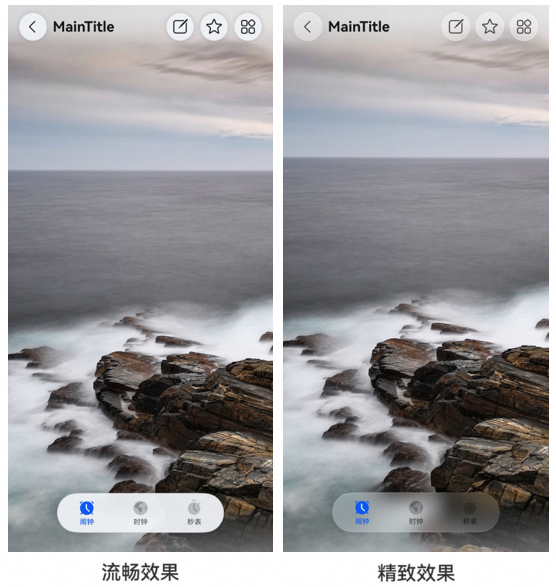
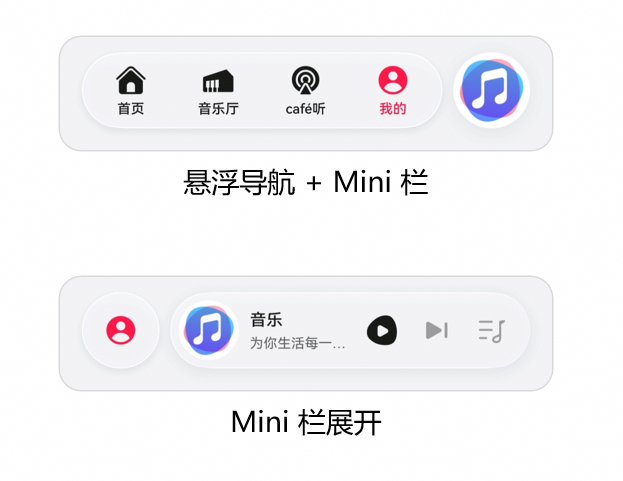
上图展示了HarmonyOS 6悬浮导航的不同形态:悬浮页签+Mini栏的流畅效果与精致效果对比。在我们的智能体应用中,悬浮球借鉴了这种设计思路,但增加了情绪驱动的动态光感。
4.2 沉浸光感视效
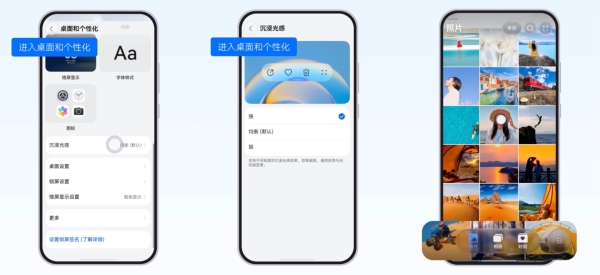
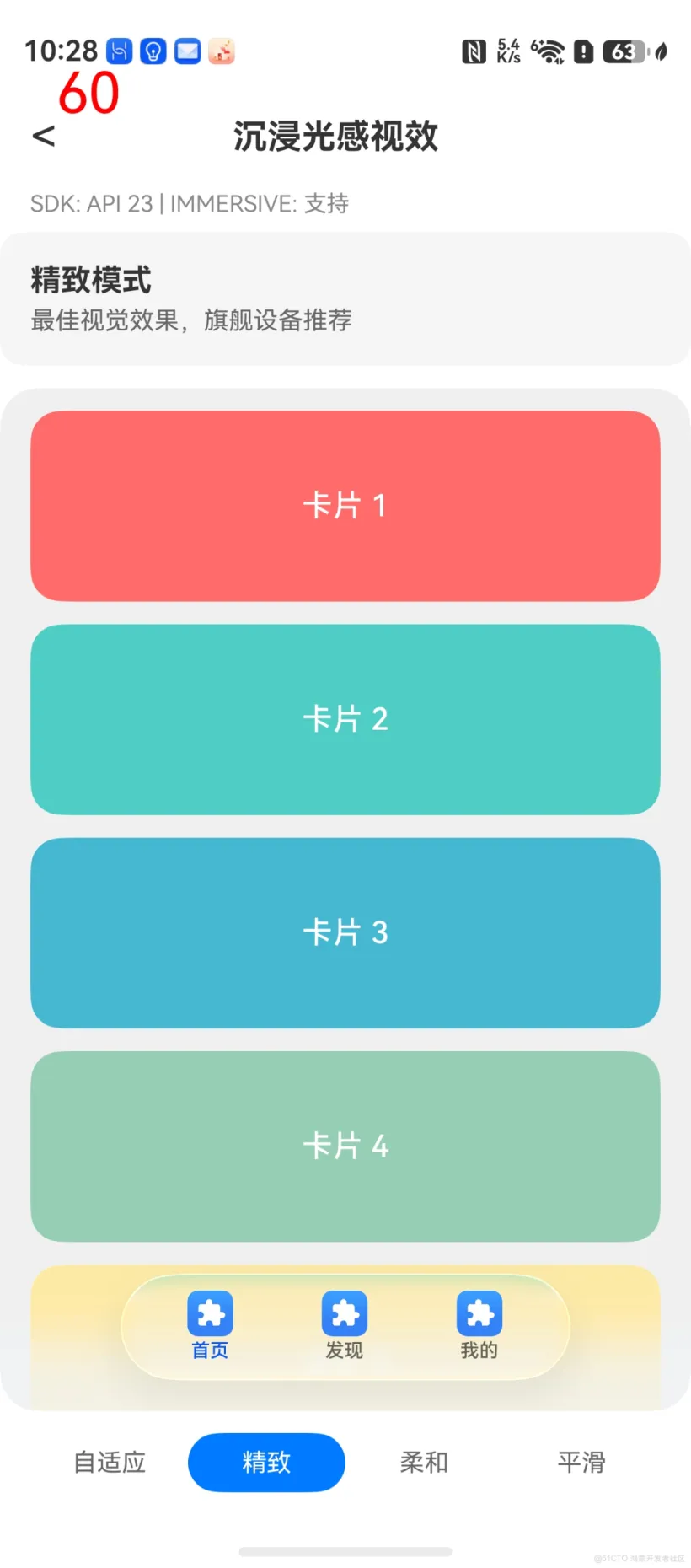
上图展示了HarmonyOS 6的沉浸光感视效系统,支持精致模式、柔和模式、平滑模式等自适应渲染。我们的智能体对话面板根据情绪标签自动选择对应的光感模式。
4.3 鸿蒙智能体框架(HMAF)
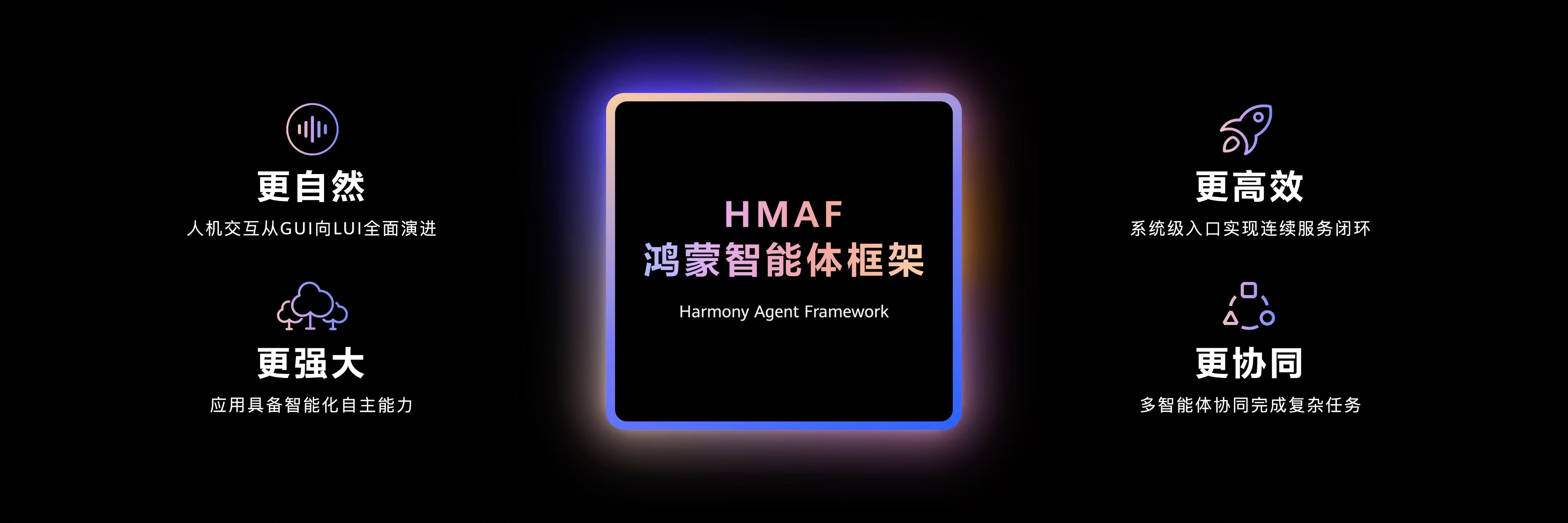
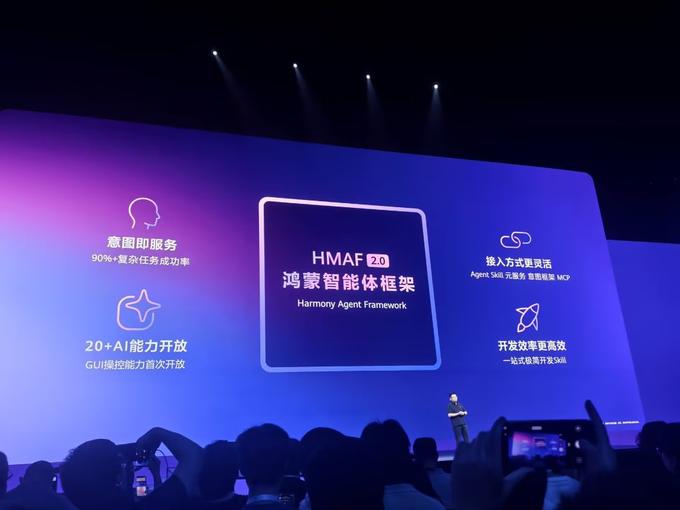
HMAF 2.0是HarmonyOS 6的核心AI框架,支持意图即服务、20+ AI能力开放、GUI操控能力首次开放。本文的
IntentOrchestrator正是基于HMAF的Agent Skill元服务+MCP协议构建。
4.4 多设备协同

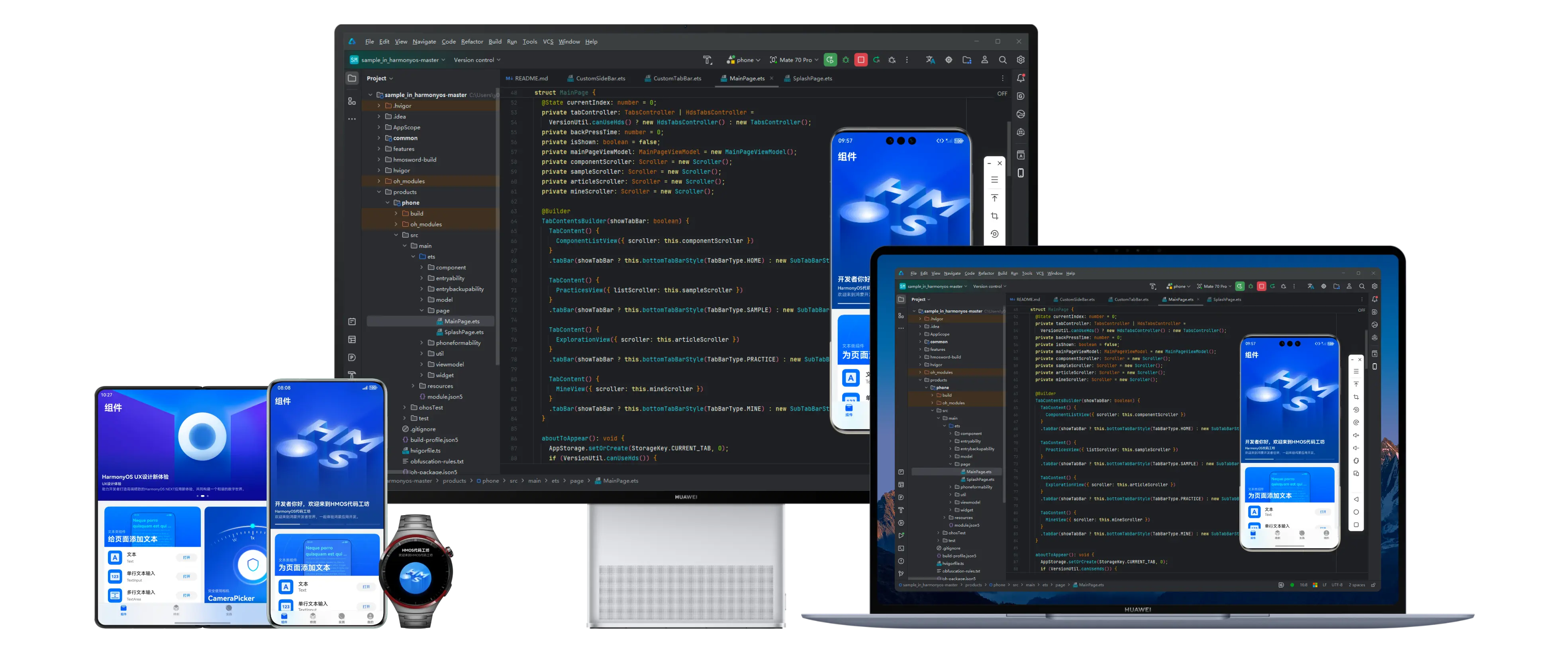
HarmonyOS的分布式能力让智能体可以在手机、平板、PC、手表之间无缝流转。悬浮导航球的位置和状态通过
DistributedObject实时同步。
五、关键技术总结
5.1 创新点
| 创新维度 | 具体实现 |
|---|---|
| 交互范式 | 从"点击导航"到"意图导航"——用户用自然语言描述需求,智能体自动完成服务编排 |
| 视觉融合 | 智能体情绪 → 沉浸光感颜色/强度/粒子效果,实现"情绪可视化" |
| 架构设计 | HMAF Skill编排器支持DAG依赖图,并行Stage提升执行效率 |
| 多端协同 | 悬浮球状态通过分布式对象同步,跨设备体验一致 |
5.2 性能优化
// 1. 光感渲染性能:使用GPU加速,限制最大光源数
const lightEngine = new LightEngine({
  renderMode: 'gpu',
  maxLights: 8,  // 限制光源数量
  targetFPS: 60  // 锁定渲染帧率
});

// 2. 意图推理性能:端侧NPU加速,避免网络延迟
const intentEngine = new IntentEngine({
  deviceType: 'NPU',  // 优先使用NPU
  modelQuantization: 'INT8'  // 模型量化减小内存占用
});

// 3. 悬浮窗内存:使用ComponentContent复用,避免重复创建
const contentNode = new ComponentContent(
  window.getUIContext(),
  wrapBuilder(() => { /* UI */ })
);
5.3 适配建议
- API版本检查:使用
canIUse检查HMAF和沉浸光感API的可用性 - 降级策略:低端设备关闭粒子效果,使用纯色背景替代光感渲染
- 权限管理:悬浮窗权限需引导用户手动开启
六、结语
本文通过HarmonyOS 6(API 23)的HMAF智能体框架、悬浮导航与沉浸光感三大核心能力的深度融合,展示了一种全新的"意图即服务"交互范式。智能体不再是后台运行的黑盒,而是通过悬浮导航球这一高频入口,以视觉化的方式与用户进行情感化交互。
从代码层面看,关键创新在于:
- IntentOrchestrator 实现了意图→Skill调用图→并行执行→结果聚合的完整链路
- FloatAgentBall 将传统悬浮窗升级为具备语音输入、状态反馈、光感渲染的智能交互节点
- LightEffectManager 打通了智能体情绪与UI视觉的"最后一公里"
这种架构不仅适用于餐厅搜索场景,还可以快速扩展到智能办公助手(HarmonyOS PC)、游戏AI队友、智能家居控制中枢等更多垂域。期待更多开发者基于HMAF框架,创造出更具想象力的鸿蒙智能体应用!
转载自:https://blog.csdn.net/u014727709/article/details/162383651
欢迎 👍点赞✍评论⭐收藏,欢迎指正

作为“人工智能6S店”的官方数字引擎,为AI开发者与企业提供一个覆盖软硬件全栈、一站式门户。
更多推荐



 1
1 0
0- 0


 已为社区贡献38条内容

所有评论(0)