
HarmonyOS7 国际化别等上线前再补:i18n、多语言、RTL 和本地化实战
前言
做鸿蒙应用出海,国际化(i18n)是绑着要搞的事情。我之前帮公司做中东市场的 App,阿拉伯语的 RTL 布局差点把我搞崩溃——所有图标都反了,滑动方向也反了,连日期格式都对不上。
后来把鸿蒙的国际化体系从头到尾摸了一遍,今天把这些经验分享出来,希望能帮你少踩几个坑。
鸿蒙国际化框架概览
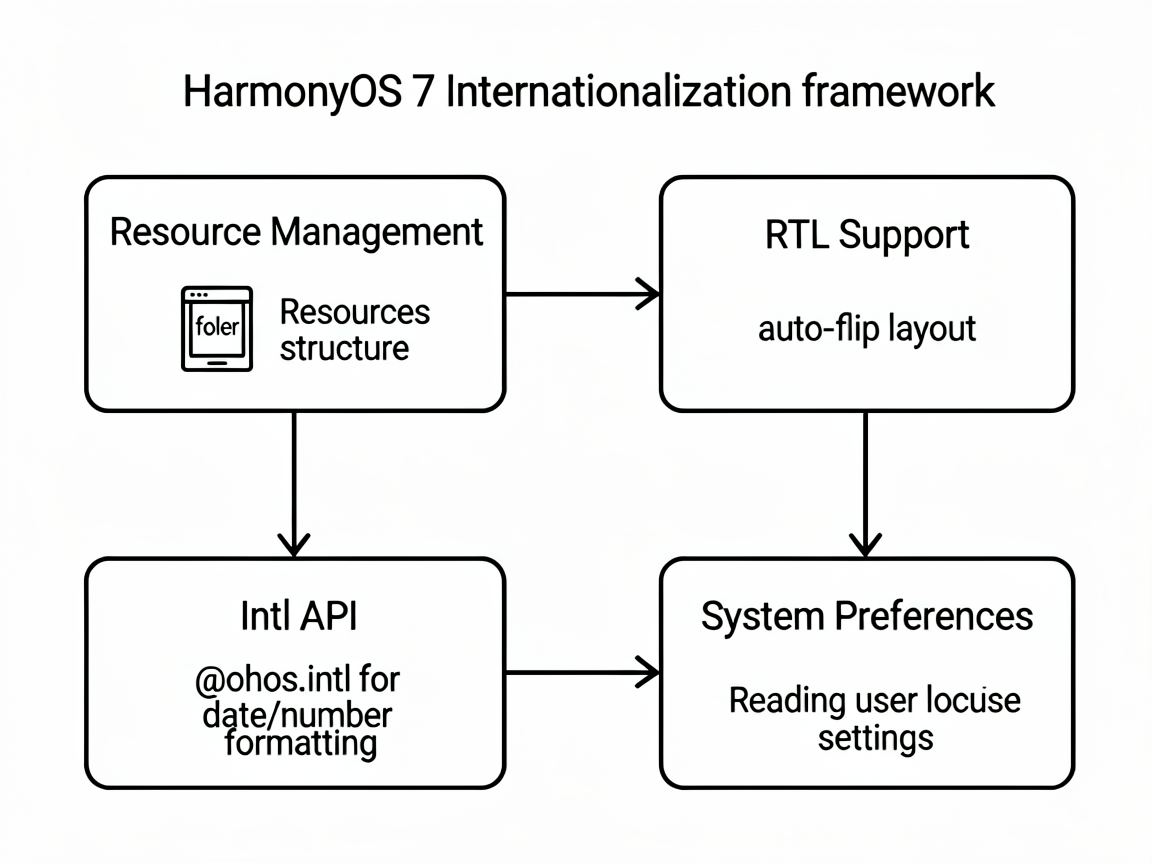
HarmonyOS 7 的国际化能力覆盖这几个层面:
- 资源管理:通过
resources目录按语言/地区组织字符串、图片、布局文件 - RTL 支持:系统级支持从右到左的布局方向自动翻转
- Intl API:
@ohos.intl提供日期、数字、货币等本地化格式化能力 - 系统偏好:可以读取用户当前的语言、时区、地区设置
这套体系的完整度还是挺高的,基本上你能想到的国际化需求都有对应的方案。
字符串资源的多语言管理
鸿蒙的资源文件按语言放在不同的子目录下:
resources/
├── base/                     # 默认资源(中文)
│   └── element/
│       └── string.json
├── en_US/                    # 英文
│   └── element/
│       └── string.json
├── ar/                       # 阿拉伯语
│   └── element/
│       └── string.json
├── ja/                       # 日语
│   └── element/
│       └── string.json
└── zh_TW/                    # 繁体中文
    └── element/
        └── string.json
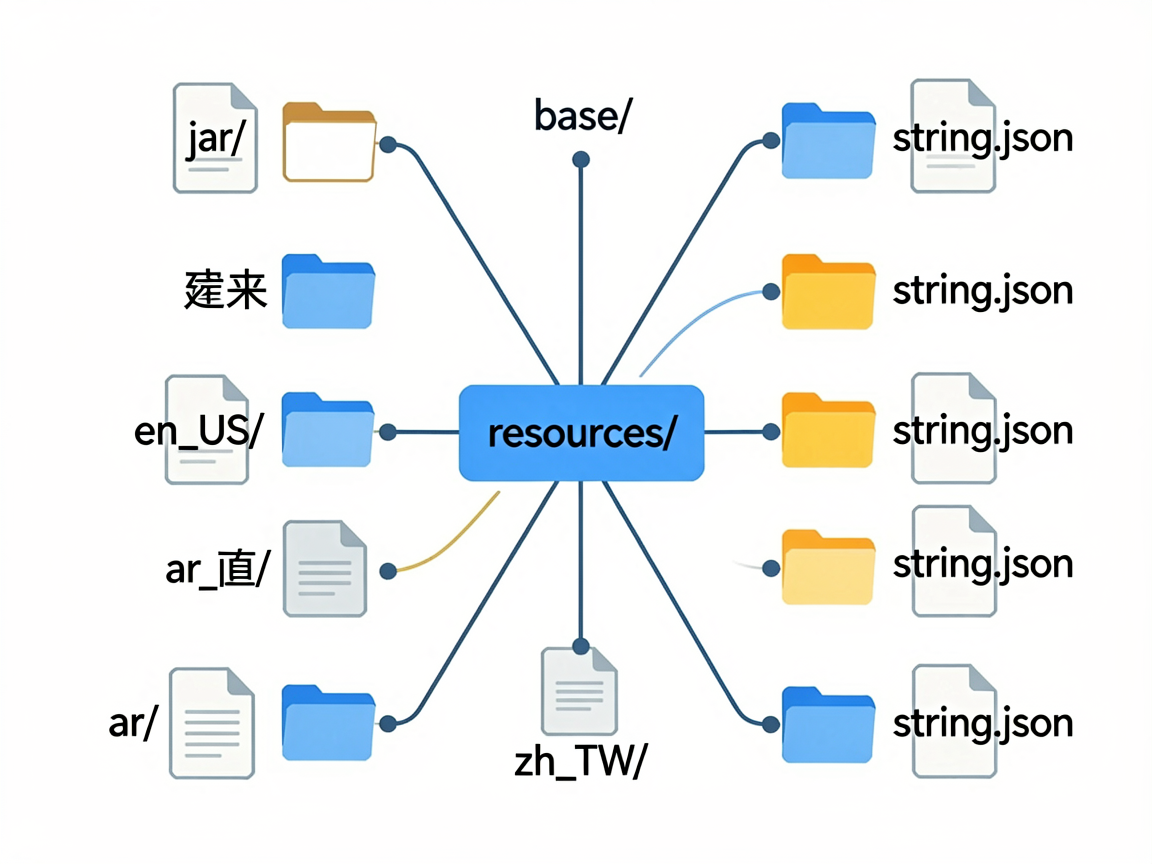
每个 string.json 的格式都一样:
// resources/base/element/string.json
{
  "string": [
    {
      "name": "app_name",
      "value": "我的新闻"
    },
    {
      "name": "welcome_msg",
      "value": "欢迎回来,%s"
    },
    {
      "name": "item_count",
      "value": "共 %d 条"
    }
  ]
}
// resources/en_US/element/string.json
{
  "string": [
    {
      "name": "app_name",
      "value": "My News"
    },
    {
      "name": "welcome_msg",
      "value": "Welcome back, %s"
    },
    {
      "name": "item_count",
      "value": "%d items"
    }
  ]
}
在代码里用 $r 引用就行:
@Component
struct HeaderBar {
  @Prop userName: string = ''

  build() {
    Row() {
      Text($r('app.string.app_name'))
        .fontSize(20)
        .fontWeight(FontWeight.Bold)

      Text($r('app.string.welcome_msg', this.userName))
        .fontSize(14)
        .fontColor('#666')

      Text($r('app.string.item_count', 42))
        .fontSize(12)
        .fontColor('#999')
    }
  }
}
注意 $r 支持参数替换,%s 是字符串,%d 是数字。这个用起来和 Android 的 getString 差不多。
一个容易犯的错误:别在代码里硬编码中文字符串。哪怕你的 App 现在只做中文市场,也建议把字符串抽到 string.json 里,以后加语言的时候能省不少事。
RTL 布局适配
RTL(Right-to-Left)是阿拉伯语、希伯来语等语言需要的布局方向。鸿蒙在系统层面支持 RTL 自动翻转,但你需要做一些配置和适配。
在 module.json5 里声明支持 RTL:
{
  "module": {
    "car": {
      "developmentLanguage": "zh_CN",
      "rtl": true
    }
  }
}
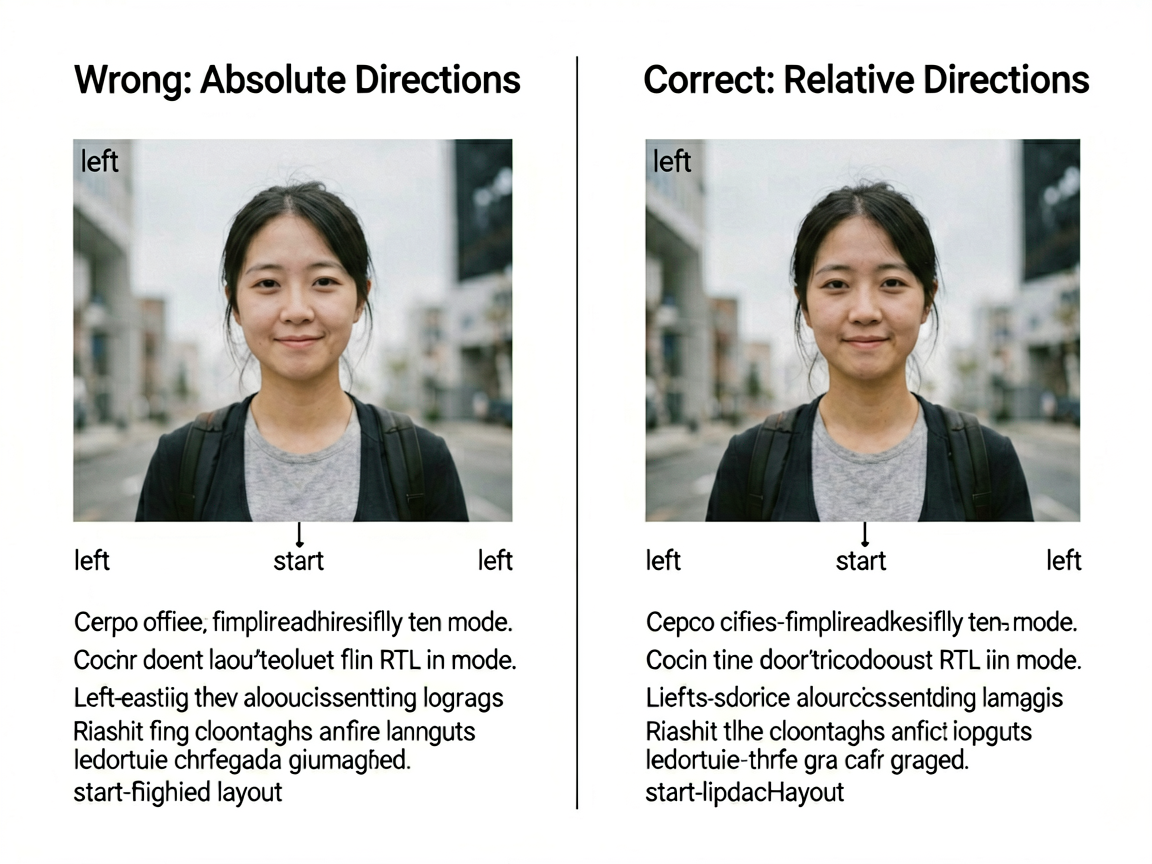
然后布局里尽量用相对方向代替绝对方向。这是最关键的一点:
// 错误写法:用绝对方向
Row() {
  Image($r('app.media.avatar'))
    .margin({ left: 12 })    // RTL 下不会翻转
  Text(userName)
    .margin({ left: 8 })     // RTL 下不会翻转
}

// 正确写法:用相对方向
Row() {
  Image($r('app.media.avatar'))
    .margin({ start: 12 })   // RTL 下自动变为 right
  Text(userName)
    .margin({ start: 8 })    // RTL 下自动变为 right
}
start / end 代替 left / right,这是 RTL 适配的核心原则。系统会根据当前语言环境自动把 start 映射到正确的方向。
对于需要手动控制方向的场景,可以用 direction 属性:
@Component
struct ChatBubble {
  @Prop isMe: boolean = false
  @Prop message: string = ''

  build() {
    Row() {
      Text(this.message)
        .padding(12)
        .backgroundColor(this.isMe ? '#E3F2FD' : '#F5F5F5')
        .borderRadius(8)
    }
    .width('100%')
    .direction(this.isMe ? Direction.LTR : Direction.RTL)
    .justifyContent(this.isMe ? FlexAlign.End : FlexAlign.Start)
  }
}
还有一个坑:图片资源也需要 RTL 适配。比如一个指向右边的箭头图标,在阿拉伯语里应该指向左边。解决办法是在 RTL 目录下放翻转后的图片:
resources/
├── base/media/
│   └── arrow_right.png
└── ar/media/
    └── arrow_right.png    # 翻转后的版本
日期、数字、货币的本地化
@ohos.intl 模块提供了完整的本地化格式化能力,别自己手动拼字符串。
import intl from '@ohos.intl'

@Component
struct LocalizedContent {
  @State formattedDate: string = ''
  @State formattedPrice: string = ''
  @State formattedNumber: string = ''

  aboutToAppear() {
    // 日期格式化
    const dateFormatter = new intl.DateTimeFormat('zh-CN', {
      year: 'numeric',
      month: 'long',
      day: 'numeric',
      weekday: 'long'
    })
    this.formattedDate = dateFormatter.format(new Date())
    // 中文:2026年6月23日星期二
    // 英文:Tuesday, June 23, 2026
    // 阿拉伯语:الثلاثاء، ٢٣ يونيو ٢٠٢٦

    // 货币格式化
    const priceFormatter = new intl.NumberFormat('en-US', {
      style: 'currency',
      currency: 'USD'
    })
    this.formattedPrice = priceFormatter.format(1299.99)
    // 输出:$1,299.99

    // 数字格式化
    const numberFormatter = new intl.NumberFormat('de-DE')
    this.formattedNumber = numberFormatter.format(1234567.89)
    // 德语输出:1.234.567,89(小数点和千位分隔符跟中文相反)
  }

  build() {
    Column({ space: 12 }) {
      Text(this.formattedDate).fontSize(16)
      Text(this.formattedPrice).fontSize(16)
      Text(this.formattedNumber).fontSize(16)
    }
  }
}
如果你需要根据系统语言自动切换 locale,可以用 intl.getSystemLocale() 获取当前系统语言:
const locale = intl.getSystemLocale()
const formatter = new intl.DateTimeFormat(locale, {
  dateStyle: 'medium'
})
实战:完整的国际化配置
来做一个面向全球用户的电商 App 的商品卡片,看看完整的国际化流程:
import intl from '@ohos.intl'

@Component
struct ProductCard {
  @Prop product: ProductData = new ProductData()
  @State locale: string = ''
  @State formattedPrice: string = ''
  @State formattedDate: string = ''

  aboutToAppear() {
    this.locale = intl.getSystemLocale()
    this.formatData()
  }

  formatData() {
    // 货币根据地区格式化
    const currencyMap: Record<string, string> = {
      'zh-CN': 'CNY',
      'en-US': 'USD',
      'ja': 'JPY',
      'ar': 'SAR',
    }
    const currency = currencyMap[this.locale] || 'USD'
    const priceFormatter = new intl.NumberFormat(this.locale, {
      style: 'currency',
      currency: currency
    })
    this.formattedPrice = priceFormatter.format(this.product.price)

    // 上架日期格式化
    const dateFormatter = new intl.DateTimeFormat(this.locale, {
      dateStyle: 'medium'
    })
    this.formattedDate = dateFormatter.format(new Date(this.product.listDate))
  }

  build() {
    Column() {
      // 商品图片
      Image($r('app.media.product_placeholder'))
        .width('100%')
        .aspectRatio(1)
        .objectFit(ImageFit.Cover)
        .borderRadius({ topLeft: 8, topRight: 8 })

      Column() {
        // 商品名称 - 自动多语言
        Text($r('app.string.product_name_' + this.product.id))
          .fontSize(16)
          .maxLines(2)
          .textOverflow({ overflow: TextOverflow.Ellipsis })

        // 价格 - 本地化格式
        Text(this.formattedPrice)
          .fontSize(18)
          .fontWeight(FontWeight.Bold)
          .fontColor('#E53935')

        // 上架日期 - 本地化格式
        Text(this.formattedDate)
          .fontSize(12)
          .fontColor('#999')

        // 购买按钮 - 用相对方向
        Button($r('app.string.buy_now'))
          .width('100%')
          .margin({ top: 8 })
          .onClick(() => {
            // 购买逻辑
          })
      }
      .padding(12)
      .width('100%')
    }
    .backgroundColor(Color.White)
    .borderRadius(8)
    .shadow({ radius: 4, color: '#1A000000', offsetY: 2 })
  }
}
配合的资源目录结构:
resources/
├── base/element/string.json          # 中文默认
├── en_US/element/string.json         # 英文
├── ar/element/string.json            # 阿拉伯语
├── ar/media/                         # RTL 图片资源
│   └── arrow_right.png
├── ja/element/string.json            # 日语
└── rawfile/
    └── fonts/
        └── NotoSansArabic.ttf        # 阿拉伯语字体
一些实用建议
语言切换不需要重启 App。鸿蒙的资源加载是动态的,用户切语言后,只要触发 UI 刷新就会加载新的资源文件。但如果你的数据是缓存在内存里的,记得重新拉取。
plural 的处理。英文里 1 item 和 2 items 有单复数之分,阿拉伯语更是有 6 种复数形式。string.json 支持 plural 类型来处理这个问题,别自己写 if-else 拼字符串。
测试的时候把手机语言切成阿拉伯语跑一遍。这是验证 RTL 适配最直接的方式,能发现很多你想不到的布局问题。
国际化不是"锦上添花",而是出海 App 的基本功。我的经验是,项目初期就把 i18n 的基础架构搭好——字符串全部走资源文件、布局全用相对方向、格式全走 Intl API。后面不管加几种语言,都是翻译的事,不用动代码。

作为“人工智能6S店”的官方数字引擎,为AI开发者与企业提供一个覆盖软硬件全栈、一站式门户。
更多推荐

 0
0 0
0- 0


 已为社区贡献39条内容

所有评论(0)