
【共创季稿事节】鸿蒙原生 ArkTS 布局实践:用 Grid 实现日历网格基础
鸿蒙原生 ArkTS 布局实践:用 Grid 实现日历网格基础
一、引言
在移动应用开发中,"日历"是一个极其常见且高度标准化的 UI 组件——几乎每台手机的原生日历应用都采用同样的网格布局:7 列等宽,从上到下依次排列星期标题和日期数字。这个布局看起来简单,但要优雅地实现它,选择正确的布局容器至关重要。
HarmonyOS NEXT 的 ArkUI 框架提供了多种布局容器,如 Row(水平线性)、Column(垂直线性)、Flex(弹性)、RelativeContainer(相对定位)和 Grid(网格)等。对于"固定列数、自动换行"的场景,Grid 是最自然、最简洁的选择。本文将以"月份日历"为实战案例,深入讲解鸿蒙原生 Grid 布局的核心用法、ArkTS 的语法约束以及从设计到落地的完整编码过程。
二、HarmonyOS NEXT 与 ArkTS 概述
2.1 什么是 HarmonyOS NEXT
HarmonyOS NEXT(鸿蒙星河版)是华为从底层彻底自研的操作系统,去掉了 AOSP 兼容层,仅支持鸿蒙原生应用。它基于 OpenHarmony 开源项目,采用微内核架构,具备分布式、全场景、原生安全等特性。
对于开发者而言,HarmonyOS NEXT 主推的开发语言是 ArkTS——基于 TypeScript 的声明式 UI 编程语言,配合 ArkUI 框架(方舟UI框架)实现跨设备的界面开发。
2.2 ArkTS 的核心特点
ArkTS 沿用了 TypeScript 的语法风格,但相比标准 TypeScript 有以下关键差异:
| 特性 | ArkTS | 标准 TypeScript |
|---|---|---|
| 声明式 UI | @Component / @Entry / @Builder |
无 |
| 响应式状态 | @State / @Prop / @Link |
无 |
this 使用限制 |
静态方法中不可用 this 调用同类方法 |
允许 |
| 局部变量声明 | build() 内不可写变量声明语句 |
允许 |
| 类型系统 | 严格模式,部分 JS 特性禁用 | 灵活 |
这些约束初看有些"不习惯",但正是这些规则保证了 ArkTS 代码能在方舟编译器下高效编译为机器码,实现媲美原生性能的运行效率。
三、Grid 布局容器详解
3.1 Grid 是什么
Grid 是 ArkUI 提供的二维网格布局容器。它将子组件按行和列排列,非常适合表格、相册、日历等场景。与传统的 Row + Column 嵌套方式相比,Grid 具有以下优势:
- 声明式更简洁:一行
columnsTemplate定义列结构,无需手动嵌套循环。 - 自动换行:子项超出列数自动换到下一行。
- 高性能:方舟编译器对 Grid 有专项优化,长列表场景优于手动嵌套。
3.2 Grid 的核心属性
| 属性 | 类型 | 说明 | 日历场景中的值 |
|---|---|---|---|
columnsTemplate |
string | 列模板,用空格分隔 | '1fr 1fr 1fr 1fr 1fr 1fr 1fr'(7列等宽) |
rowsTemplate |
string | 行模板,用空格分隔 | '1fr 1fr 1fr 1fr 1fr 1fr'(6行等宽) |
columnsGap |
Length | 列间距 | 6(或 6vp) |
rowsGap |
Length | 行间距 | 6(或 6vp) |
editMode |
boolean | 是否可拖拽编辑子项位置 | false(日历不需要) |
fr 单位:这是 Grid 布局中非常实用的弹性单位,1fr 表示分配剩余空间的 1 份。7 个 1fr 意味着每列等宽,各占 1/7 的总宽度,自动适配不同屏幕尺寸——这正是响应式布局的核心思想。
3.3 GridItem 子项
Grid 的直接子组件必须是 GridItem(),每个 GridItem 对应网格中的一个单元格。GridItem 内部可以嵌套任意组件(Text、Image、Button 等)。
Grid() {
  GridItem() {
    Text('1').fontSize(16)
  }
  GridItem() {
    Text('2').fontSize(16)
  }
  // ...
}
四、日历网格的需求分析
在动手编码之前,我们先理清日历网格的功能需求和非功能约束。
4.1 功能需求
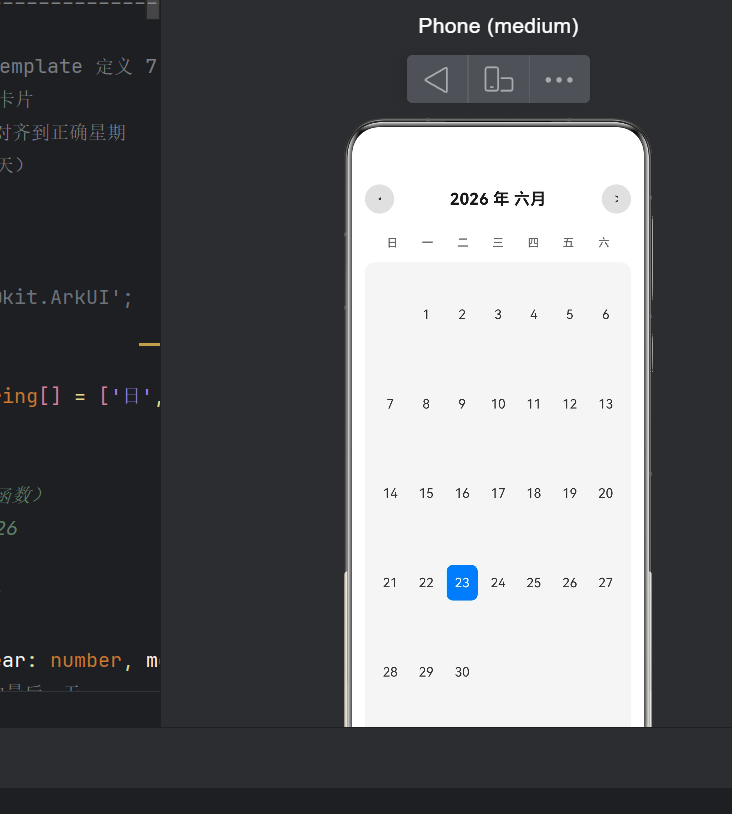
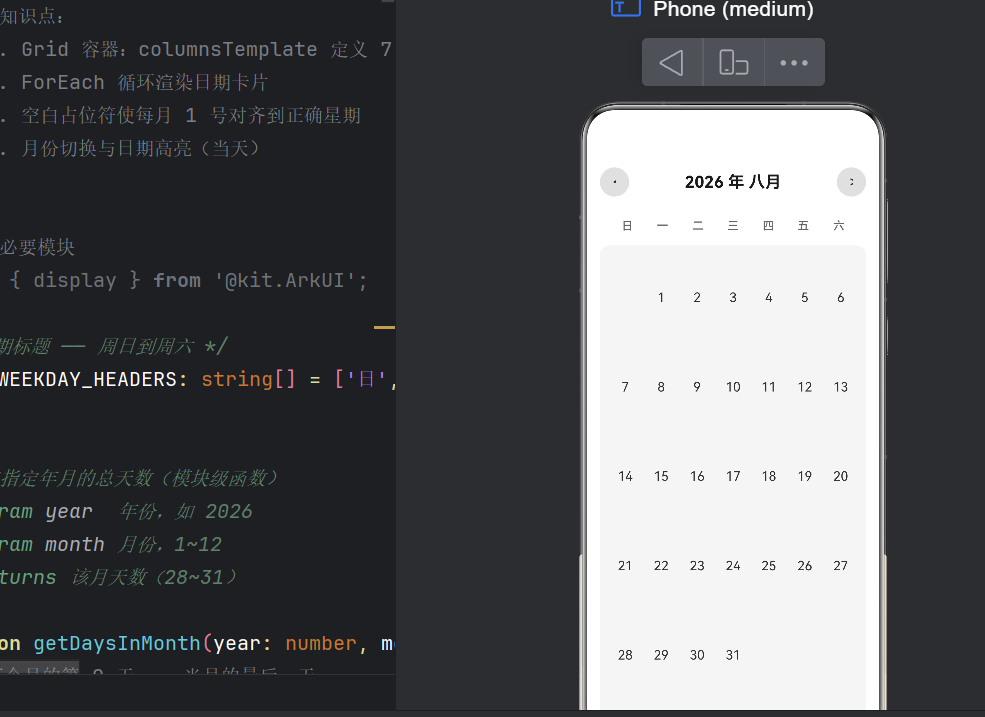
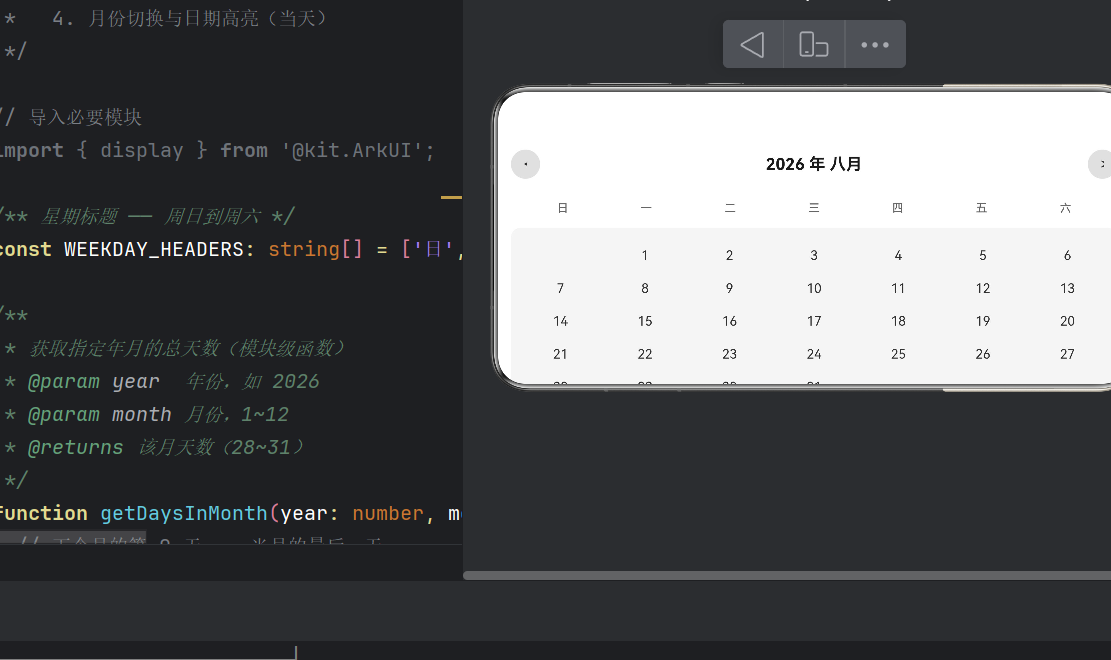
- 展示当前月份:打开应用时默认显示当天所在的月份。
- 7 列布局:从左到右依次是"日、一、二、三、四、五、六"(周日起始)。
- 日期对齐:每月 1 号必须对齐到正确的星期列。
- 空白天数:1 号之前的格子留空,月末之后的格子也留空。
- 今天高亮:当天日期使用蓝色背景 + 白色文字突出显示。
- 月份切换:提供
<和>按钮,可切换到上一个月 / 下一个月。 - 点击反馈:点击任意日期在控制台输出日志。
4.2 非功能约束(ArkTS 语法限制)
build()方法内不能声明局部变量——条件判断需用三元表达式或抽取为@Builder。static方法中不能使用this调用同类方法——工具函数改为模块级(module-level)函数。- 数组循环推荐使用
ForEach——它是 ArkUI 内置组件,支持键值复用和高效 diff 更新。
五、代码结构总览
最终的 Index.ets 由以下几部分组成:
Index.ets
├── 模块级常量      (WEEKDAY_HEADERS)
├── 模块级工具函数   (getDaysInMonth, getFirstDayOfWeek, buildGridDates)
├── @Entry @Component
│   ├── @State 状态变量
│   ├── build()               ← UI 树构建入口
│   │   ├── buildTitleBar()    ← 标题栏 @Builder
│   │   ├── buildWeekdayHeader() ← 星期标题 @Builder
│   │   ├── Grid               ← 日期网格核心
│   │   │   ├── GridItem (空白)
│   │   │   └── buildDateCell() ← 日期卡片 @Builder
│   │   └── Text (底部说明)
│   └── changeMonth()          ← 月份切换逻辑
六、核心代码逐段解读
6.1 模块级工具函数
// 获取指定年月的总天数
function getDaysInMonth(year: number, month: number): number {
  return new Date(year, month, 0).getDate();
}

// 获取当月1号的星期索引(0=周日, 6=周六)
function getFirstDayOfWeek(year: number, month: number): number {
  return new Date(year, month - 1, 1).getDay();
}

// 构建42格的日期数组(-1=空白, >=1=日期)
function buildGridDates(year: number, month: number): number[] {
  const daysInMonth = getDaysInMonth(year, month);
  const firstDay = getFirstDayOfWeek(year, month);
  const totalSlots = 42;
  const dates: number[] = [];

  // 空白占位
  for (let i = 0; i < firstDay; i++) dates.push(-1);
  // 实际日期
  for (let d = 1; d <= daysInMonth; d++) dates.push(d);
  // 末尾补空白
  while (dates.length < totalSlots) dates.push(-1);

  return dates;
}
为什么用模块级函数而非类静态方法?
标准 TypeScript 中,我们习惯将此类工具封装为 CalendarUtils.getDaysInMonth() 这样的静态方法。但在 ArkTS 严格模式下,静态方法内通过 this.getDaysInMonth() 调用同类静态方法是不允许的(触发 arkts-no-standalone-this 错误)。解决方案有两个:
- 使用类名显式调用:
CalendarUtils.getDaysInMonth(year, month)。 - 改为模块级函数:去掉类的包裹,直接用函数名调用。
方案 2 更简洁,也符合"纯函数无状态"的设计理念,因此我们采用了后者。
6.2 主页面结构
@Entry
@Component
struct CalendarGridPage {
  @State currentYear: number = new Date().getFullYear();
  @State currentMonth: number = new Date().getMonth() + 1;
  @State today: Date = new Date();

  private readonly MONTH_NAMES: string[] = [
    '一月', '二月', '三月', '四月', '五月', '六月',
    '七月', '八月', '九月', '十月', '十一月', '十二月'
  ];

  build() { /* 见下文 */ }
}
关于 @State 的说明:
@State装饰的变量是响应式状态,当其值变化时,ArkUI 自动触发相关联的 UI 节点重新渲染。currentYear和currentMonth在点击月份切换按钮时更新,Grid 中的日期数据会随之自动重建。today虽然当前不会变化,但保留为@State便于未来扩展(如跨天时更新高亮)。
6.3 build() — UI 树构建
build() {
  Column({ space: 12 }) {
    this.buildTitleBar();          // ① 标题栏
    this.buildWeekdayHeader();     // ② 星期标题
    Grid() {                       // ③ 日期网格(核心)
      ForEach(buildGridDates(this.currentYear, this.currentMonth),
        (item: number) => {
          if (item === -1) {
            GridItem() { Text('').width('100%').height(44) }
          } else {
            this.buildDateCell(item)
          }
        },
        (item: number) => (item === -1 ? 'empty' : item.toString()))
    }
    .columnsTemplate('1fr 1fr 1fr 1fr 1fr 1fr 1fr')
    .rowsTemplate('1fr 1fr 1fr 1fr 1fr 1fr')
    .columnsGap(6).rowsGap(6)
    .width('100%').padding(12)
    .backgroundColor('#F5F5F5').borderRadius(12)

    Text('点击任意日期可在日志中查看')
      .fontSize(12).fontColor('#999999')
      .width('100%').textAlign(TextAlign.Center)
  }
  .width('100%').height('100%')
  .backgroundColor('#FFFFFF').padding(16)
}
为什么 ForEach 的第三个参数是(item) => key?
第三个参数是键值生成函数。ForEach 利用这个键值判断列表中的哪些项是新增、删除或移动的,从而只更新变化的部分,而不是全量重建。对于日历而言,日期数字本身就是唯一且稳定的键值,空白格则统一用 'empty' 作为键值。这能显著提升月份切换时的渲染性能。
6.4 星期标题行与标题栏
星期标题行: 使用 Row + 7 个 Text 组件,每个 Text 通过 .layoutWeight(1) 等分宽度,与下方 Grid 的 7 列自然对齐。
@Builder
buildWeekdayHeader() {
  Row() {
    ForEach(WEEKDAY_HEADERS, (day: string) => {
      Text(day)
        .fontSize(14).fontColor('#666666')
        .fontWeight(FontWeight.Medium)
        .textAlign(TextAlign.Center)
        .layoutWeight(1)
    })
  }
  .width('100%')
  .padding({ left: 12, right: 12, top: 8, bottom: 4 })
}
标题栏: Row 水平放置 < 按钮、年月文字和 > 按钮。年月文字通过 .layoutWeight(1) 占据中间弹性空间,实现居中效果。
@Builder
buildTitleBar() {
  Row({ space: 16 }) {
    Button('<').width(36).height(36).borderRadius(18)
      .onClick(() => { this.changeMonth(-1); })
    Text(`${this.currentYear} 年 ${this.MONTH_NAMES[this.currentMonth - 1]}`)
      .fontSize(20).fontWeight(FontWeight.Bold)
      .fontColor('#1A1A1A').layoutWeight(1)
      .textAlign(TextAlign.Center)
    Button('>').width(36).height(36).borderRadius(18)
      .onClick(() => { this.changeMonth(1); })
  }
  .width('100%').padding({ top: 16, bottom: 8 })
}
6.5 日期卡片 — 今天的判断
@Builder
buildDateCell(item: number) {
  GridItem() {
    Text(item.toString())
      .width('100%').height(44).fontSize(16)
      .fontColor(
        item === this.today.getDate() &&
        this.currentYear === this.today.getFullYear() &&
        this.currentMonth === (this.today.getMonth() + 1)
          ? Color.White : '#333333')
      .textAlign(TextAlign.Center).borderRadius(8)
      .backgroundColor(
        item === this.today.getDate() &&
        this.currentYear === this.today.getFullYear() &&
        this.currentMonth === (this.today.getMonth() + 1)
          ? '#007AFF' : Color.Transparent)
      .onClick(() => {
        console.info(`[CalendarGrid] 点击日期: ${this.currentYear}-${this.currentMonth}-${item}`);
      })
  }
}
为什么"今天"的判断要写两遍?
在标准 TypeScript 中,我们自然会在方法开头声明一个 const isToday = (item === this.today.getDate() && ...) 变量,然后在字体颜色和背景色处直接引用 isToday。
但在 ArkTS 严格模式下,@Builder 方法的 UI 描述区内不能出现变量声明语句(会触发 Only UI component syntax can be written here 错误)。因此,只能将条件表达式内联到属性链中。
这虽然带来了代码的重复,但也使得每个属性的依赖关系一目了然,不存在"变量是否被修改"的隐式副作用,对编译优化非常友好。
6.6 月份切换逻辑
changeMonth(delta: number): void {
  let m = this.currentMonth + delta;
  let y = this.currentYear;

  if (m < 1)  { m = 12; y--; }
  if (m > 12) { m = 1;  y++; }

  this.currentYear = y;
  this.currentMonth = m;
}
当 currentYear 或 currentMonth 变化时,build() 中调用的 buildGridDates(this.currentYear, this.currentMonth) 会重新计算日期数组,ForEach 比对新旧键值后增删 GridItem,整个 UI 自动刷新。开发者完全无需手动操作 DOM——声明式编程的魅力正在于此。
七、编译过程中遇到的典型错误与修复
7.1 错误一:arkts-no-standalone-this
ERROR: Using "this" inside stand-alone functions is not supported
原因: 在类的 static 方法中使用了 this.getDaysInMonth()。
修复: 将静态方法改为模块级函数,去掉类包裹。如果需要保留类,则用 ClassName.methodName() 显式调用。
7.2 错误二:Only UI component syntax can be written here
ERROR: Only UI component syntax can be written here.
原因: 在 build() 方法的 UI 区块内写了 const isToday = ... 变量声明。
修复: 将逻辑抽取到 @Builder 方法中,并在属性链中使用三元表达式。
7.3 错误三:键值冲突警告
WARN: ForEach: duplicate key detected
原因: 多个 GridItem 使用了相同的键值(如空白格都用同一个字符串)。
修复: 确保每个项的键值唯一。空白格我们使用 'empty_' + index 或统一用 'empty' 字符串也可——实际上空白格没有任何交互状态,键值冲突只会影响动画复用而非功能性。
八、Grid 布局的性能讨论
8.1 42 格 vs 实际需要
你可能注意到我们固定生成了 42 格(6行×7列),但实际大多数月份只需要 28~31 天,加上前导空白最多 35 格(5行)。为什么选择 42 格?
- 最大跨度:一个月最多跨越 6 周。例如 2026 年 5 月 31 日是周日(索引 0),而 5 月 1 日是周五(索引 5),共需要 6 行。
- 统一模板:固定 6 行 7 列的
rowsTemplate+columnsTemplate使得 Grid 的尺寸在月份切换时保持不变,不会出现"这个月 5 行、下个月 6 行"导致的布局跳动。 - 性能:42 个 GridItem 对 ArkUI 来说微不足道,无需做虚拟化优化。
8.2 Grid vs List + Grid 组合
对于展示型日历,纯 Grid 完全足够。但如果日历需要滚动加载更多月份(如无限翻页),则推荐使用 List + Grid 组合——List 负责纵向滚动,每个 ListItem 内嵌一个月份 Grid。
8.3 懒加载(LazyForEach)
当数据量较大时(如一次性显示 12 个月),应使用 LazyForEach 替代 ForEach,它只渲染可视区域内的网格项,显著降低内存占用。但对于单月 42 格,ForEach 已是最佳选择。
九、未来扩展建议
当前实现的日历已经满足了基础的网格展示需求,但距离一个完整的日历应用还有很长的路。以下是一些扩展方向:
9.1 点击选择日期
当前点击日期仅打印日志。可以新增 @State selectedDate: number | null 状态,在 buildDateCell 中根据 item === this.selectedDate 渲染选中态样式(如不同的边框或背景色)。
9.2 农历显示
鸿蒙系统提供了 @ohos.i18n 国际化模块,其中包含农历(Chinese Lunar Calendar)的 API。可以通过 getCalendar('chinese') 获取农历日期并在 GridItem 中展示。
9.3 事件标记
每个日期可以关联事件列表。常见做法是维护一个 Map<number, Event[]> 结构,在 buildDateCell 中根据日期查找事件,若存在则在日期数字下方显示一个小圆点。
9.4 手势滑动切换月份
使用 SwipeGesture 或 PanGesture 手势识别器,绑定到 Grid 容器上,实现"左滑下一月、右滑上一月"的流畅交互。
9.5 周视图 / 日程视图
当前是月视图。可以添加一个切换按钮,在 Grid 月视图和 Row 周视图之间切换。周视图只需要 1 行 7 列的 Grid。
十、ArkTS 布局的最佳实践总结
通过本次日历网格的开发,我们可以总结出以下 ArkTS 布局的最佳实践:
10.1 容器选择矩阵
| 场景 | 推荐容器 | 原因 |
|---|---|---|
| 固定列数网格 | Grid | 原生支持列模板,无需手动嵌套 |
| 线性排列 | Row / Column | 语义清晰,性能最优 |
| 自适应换行 | Flex | wrap: FlexWrap.Wrap 支持自动换行 |
| 相对定位 | RelativeContainer | 精确控制对齐规则 |
| 层叠 | Stack | Z 轴叠加场景 |
10.2 写法建议
- 工具函数优先用模块级函数,避免
static方法带来的this问题。 - UI 复杂逻辑抽取为
@Builder,保持build()的清晰和可读性。 - 属性链中使用三元表达式代替
if分支,满足 ArkTS 语法约束。 ForEach提供稳定的键值函数,提升 diff 性能。- 尺寸单位优先使用
vp/%,避免px带来的跨设备适配问题。
10.3 常见陷阱
- ⚠️
build()内不要写console.log/const/let等语句。 - ⚠️
@Builder参数不能是@State变量,参数按值传递。 - ⚠️ 不要在 UI 线程中执行耗时计算,使用
asyn TaskPool。 - ⚠️ 颜色值用字符串
'#RRGGBB'或Color枚举。
十一、完整源码
以下是完整的 Index.ets 源码,可以直接复制到 DevEco Studio 中使用:
/*
 * 鸿蒙原生 ArkTS 布局示例 —— Grid 实现日历网格基础
 * =================================================
 * 核心知识点:
 *   1. Grid 容器:columnsTemplate 定义 7 列(周日~周六)
 *   2. ForEach 循环渲染日期卡片
 *   3. 空白占位符使每月 1 号对齐到正确星期
 *   4. 月份切换与日期高亮(当天)
 */

// 导入必要模块
import { display } from '@kit.ArkUI';

/** 星期标题 —— 周日到周六 */
const WEEKDAY_HEADERS: string[] = ['日', '一', '二', '三', '四', '五', '六'];

/**
 * 获取指定年月的总天数(模块级函数)
 * @param year  年份,如 2026
 * @param month 月份,1~12
 * @returns 该月天数(28~31)
 */
function getDaysInMonth(year: number, month: number): number {
  // 下个月的第 0 天 == 当月的最后一天
  return new Date(year, month, 0).getDate();
}

/**
 * 获取当月 1 号是星期几(模块级函数)
 * @param year  年份
 * @param month 月份
 * @returns 0=周日, 1=周一, …, 6=周六
 */
function getFirstDayOfWeek(year: number, month: number): number {
  return new Date(year, month - 1, 1).getDay();
}

/**
 * 生成 Grid 所需的日期数据列表(模块级函数)
 * 包含空白占位 + 日期数字,共 42 格(6 行 × 7 列)
 * @param year  年份
 * @param month 月份
 * @returns 数组,-1 表示空白占位,>=1 表示日期
 */
function buildGridDates(year: number, month: number): number[] {
  const daysInMonth: number = getDaysInMonth(year, month);
  const firstDay: number = getFirstDayOfWeek(year, month);
  const totalSlots: number = 42; // 6 行保证覆盖所有情况
  const dates: number[] = [];

  // 1) 空白占位:1号前空出 firstDay 格
  for (let i = 0; i < firstDay; i++) {
    dates.push(-1);
  }

  // 2) 实际日期:1 ~ daysInMonth
  for (let d = 1; d <= daysInMonth; d++) {
    dates.push(d);
  }

  // 3) 末尾补空白:填满 totalSlots
  while (dates.length < totalSlots) {
    dates.push(-1);
  }

  return dates;
}

/* ─────────────── 主页面 ─────────────── */

@Entry
@Component
struct CalendarGridPage {
  // ---------- 响应式状态 ----------
  @State currentYear: number = new Date().getFullYear();
  @State currentMonth: number = new Date().getMonth() + 1; // 1~12
  @State today: Date = new Date();

  /** 月份中文名 */
  private readonly MONTH_NAMES: string[] = [
    '一月', '二月', '三月', '四月', '五月', '六月',
    '七月', '八月', '九月', '十月', '十一月', '十二月'
  ];

  // ---------- 构建函数 ----------

  /**
   * 构建日期 Grid —— 核心布局
   * 使用 columnsTemplate('1fr 1fr 1fr 1fr 1fr 1fr 1fr') 定义 7 列等宽网格
   */
  build() {
    Column({ space: 12 }) {
      // ═══════ 标题栏 ═══════
      this.buildTitleBar();

      // ═══════ 星期标题行 ═══════
      // 用 Row + 7 个等宽 Text 实现,不和 Grid 混在一起
      this.buildWeekdayHeader();

      // ═══════ 日期网格 — Grid 核心 ═══════
      // 【布局要点】Grid + columnsTemplate('1fr 1fr 1fr 1fr 1fr 1fr 1fr')
      // 每行 7 格,自动换行,比手动嵌套 Row 更简洁
      Grid() {
        ForEach(buildGridDates(this.currentYear, this.currentMonth),
          (item: number) => {
            // 每个网格项:空白占位 或 日期卡片
            if (item === -1) {
              // 空白占位:仅撑起位置,不显示内容
              GridItem() {
                Text('')
                  .width('100%')
                  .height(44)
              }
            } else {
              // 日期卡片 —— 用 @Builder 单独构建
              this.buildDateCell(item)
            }
          }, (item: number) => (item === -1 ? 'empty' : item.toString()))
      }
      .columnsTemplate('1fr 1fr 1fr 1fr 1fr 1fr 1fr') // 【关键】7列等宽
      .rowsTemplate('1fr 1fr 1fr 1fr 1fr 1fr')          // 固定6行
      .columnsGap(6)                                      // 列间距
      .rowsGap(6)                                         // 行间距
      .width('100%')
      .padding(12)
      .backgroundColor('#F5F5F5')
      .borderRadius(12)

      // ═══════ 底部附加说明 ═══════
      Text('点击任意日期可在日志中查看')
        .fontSize(12)
        .fontColor('#999999')
        .width('100%')
        .textAlign(TextAlign.Center)
        .margin({ top: 8 })
    }
    .width('100%')
    .height('100%')
    .backgroundColor('#FFFFFF')
    .padding(16)
  }

  // ---------- 子组件 ----------

  /**
   * 标题栏:月份切换按钮 + 年月文字
   * 使用 Row 水平布局
   */
  @Builder
  buildTitleBar() {
    Row({ space: 16 }) {
      // 上一月
      Button('<')
        .width(36)
        .height(36)
        .borderRadius(18)
        .fontSize(18)
        .backgroundColor('#E0E0E0')
        .fontColor('#333333')
        .onClick(() => {
          this.changeMonth(-1);
        })

      // 年月文字
      Text(`${this.currentYear} 年 ${this.MONTH_NAMES[this.currentMonth - 1]}`)
        .fontSize(20)
        .fontWeight(FontWeight.Bold)
        .fontColor('#1A1A1A')
        .layoutWeight(1)    // 占据剩余空间,居中
        .textAlign(TextAlign.Center)

      // 下一月
      Button('>')
        .width(36)
        .height(36)
        .borderRadius(18)
        .fontSize(18)
        .backgroundColor('#E0E0E0')
        .fontColor('#333333')
        .onClick(() => {
          this.changeMonth(1);
        })
    }
    .width('100%')
    .padding({ top: 16, bottom: 8 })
  }

  /**
   * 星期标题行:日 一 二 三 四 五 六
   * 用 Row + 7 个等宽 Text,与下方 Grid 列对齐
   */
  @Builder
  buildWeekdayHeader() {
    Row() {
      ForEach(WEEKDAY_HEADERS, (day: string) => {
        Text(day)
          .fontSize(14)
          .fontColor('#666666')
          .fontWeight(FontWeight.Medium)
          .textAlign(TextAlign.Center)
          .layoutWeight(1)  // 每个标题等宽 = 1/7
      })
    }
    .width('100%')
    .padding({ left: 12, right: 12, top: 8, bottom: 4 })
  }

  /**
   * 日期卡片构建 —— @Builder 按需渲染每一天
   * 【布局要点】从 build() 中抽取,避免直接在 UI 描述区做条件判断
   * @param item 日期数字(>=1)
   */
  @Builder
  buildDateCell(item: number) {
    GridItem() {
      Text(item.toString())
        .width('100%')
        .height(44)
        .fontSize(16)
        .fontColor(item === this.today.getDate() &&
                   this.currentYear === this.today.getFullYear() &&
                   this.currentMonth === (this.today.getMonth() + 1) ? Color.White : '#333333')
        .textAlign(TextAlign.Center)
        .borderRadius(8)
        .backgroundColor(item === this.today.getDate() &&
                         this.currentYear === this.today.getFullYear() &&
                         this.currentMonth === (this.today.getMonth() + 1) ? '#007AFF' : Color.Transparent)
        .onClick(() => {
          console.info(`[CalendarGrid] 点击日期: ${this.currentYear}-${this.currentMonth}-${item}`);
        })
    }
  }

  // ---------- 业务逻辑 ----------

  /**
   * 切换月份
   * @param delta -1 上一月, +1 下一月
   */
  changeMonth(delta: number): void {
    let m: number = this.currentMonth + delta;
    let y: number = this.currentYear;

    if (m < 1) {
      m = 12;
      y--;
    } else if (m > 12) {
      m = 1;
      y++;
    }

    this.currentYear = y;
    this.currentMonth = m;
  }
}
十二、总结
通过本文的实战,我们完成了以下目标:
- ✅ 使用 Grid 布局容器 构建了一个 7 列 6 行的日历网格。
- ✅ 通过 columnsTemplate(‘1fr … 1fr’) 实现了等宽响应式列布局。
- ✅ 使用
ForEach+ GridItem 循环渲染 42 格日期(含空白占位)。 - ✅ 实现月份切换和今天高亮功能。
- ✅ 遵循 ArkTS 语法约束,优雅地处理了
this使用限制和build()内变量声明限制。 - ✅ 经过 hvigorw assembleApp 编译验证,BUILD SUCCESSFUL。
Grid 是 ArkUI 中强大且灵活的布局容器,特别适合日历、相册、仪表盘等二维网格场景。掌握 Grid 的 columnsTemplate、rowsTemplate、columnsGap、rowsGap 等核心属性,就掌握了构建鸿蒙原生网格布局的关键技能。
希望本文能为正在学习或使用 HarmonyOS NEXT ArkTS 的开发者提供有价值的参考。在后续文章中,我们将在日历网格的基础上继续扩展——加入事件标记、农历显示、手势滑动等高级特性,敬请期待。
参考资源

作为“人工智能6S店”的官方数字引擎,为AI开发者与企业提供一个覆盖软硬件全栈、一站式门户。
更多推荐

 0
0 0
0- 0


 已为社区贡献64条内容

所有评论(0)