
鸿蒙开发日记:做一个能换肤的天气App
前言
学鸿蒙也有一段时间了,之前做了个掷骰子的小项目,这次想挑战点更有难度的。想了想,天气App挺合适的——UI复杂、数据多、交互丰富,正好练手。
这篇文章记录了整个开发过程,有思路、有代码、有踩坑,希望能帮到同样在学习鸿蒙的小伙伴。
为什么选天气App?
理由有几个:
- 功能全面 - 数据展示、列表、弹窗,该有的都有
- UI有挑战 - 渐变背景、卡片布局、温度条,够折腾
- 实用性强 - 做完真能用(接个API就行)
- 能发挥创意 - 主题切换、动画效果,随你玩
功能规划
开干之前先想清楚要做什么:
| 功能 | 说明 |
|---|---|
| 天气展示 | 温度、天气状况、最高最低温 |
| 生活指数 | 空气质量、紫外线、湿度、风速 |
| 逐小时预报 | 8小时天气趋势 |
| 7天预报 | 一周天气概况 |
| 城市切换 | 支持8个城市 |
| 动态主题 | 根据天气换背景颜色 |
项目创建
打开DevEco Studio,选 Empty Ability 模板。
填信息:
- 项目名:WeatherApp
- 包名:com.example.weatherapp
- 位置:E:\HMproject\Project\WeatherApp
点Finish,等项目初始化。
主要代码在 entry/src/main/ets/pages/Index.ets。
数据设计
数据结构
先定义数据结构,这是整个App的基础:
// 天气信息
interface WeatherInfo {
  city: string      // 城市名
  temp: number      // 当前温度
  cond: string      // 天气状况(晴/多云/雨...)
  humid: number     // 湿度
  wind: string      // 风力
  uv: string        // 紫外线
  high: number      // 最高温
  low: number       // 最低温
  aqi: number       // 空气质量指数
  aqiDesc: string   // 空气质量描述
}

// 小时预报
interface HourlyItem {
  time: string
  temp: number
  icon: string
}

// 日预报
interface DailyItem {
  day: string
  date: string
  icon: string
  high: number
  low: number
  desc: string
}
模拟数据
这个项目先用模拟数据,以后再接真实API。我准备了8个城市的数据:
private readonly WEATHER_DATA: WeatherInfo[] = [
  { city: '北京市', temp: 26, cond: '晴', humid: 45, wind: '3级', uv: '中等', high: 30, low: 18, aqi: 72, aqiDesc: '良' },
  { city: '上海市', temp: 24, cond: '多云', humid: 62, wind: '4级', uv: '中等', high: 27, low: 20, aqi: 55, aqiDesc: '良' },
  { city: '广州市', temp: 31, cond: '雷阵雨', humid: 78, wind: '3级', uv: '强', high: 33, low: 25, aqi: 38, aqiDesc: '优' },
  // ... 其他城市
]
状态管理
ArkUI用 @State 管状态,状态变了UI自动更新。
我定义了一堆状态:
@State location: string = '北京市'           // 当前城市
@State currentTemp: number = 26              // 当前温度
@State currentCondition: string = '晴'       // 天气状况
@State currentHumidity: number = 45          // 湿度
@State currentWind: string = '3级'           // 风力
@State currentUV: string = '中等'            // 紫外线
@State currentHigh: number = 30              // 最高温
@State currentLow: number = 18               // 最低温
@State currentAQI: number = 72               // AQI
@State currentAQIDesc: string = '良'         // AQI描述
@State showCityPicker: boolean = false       // 弹窗开关
@State hourlyData: HourlyItem[] = []         // 小时预报
@State dailyData: DailyItem[] = []           // 日预报
看着多,其实每个都有用。
核心功能
动态主题切换
这是我做这个App最想实现的功能——根据天气自动换背景!
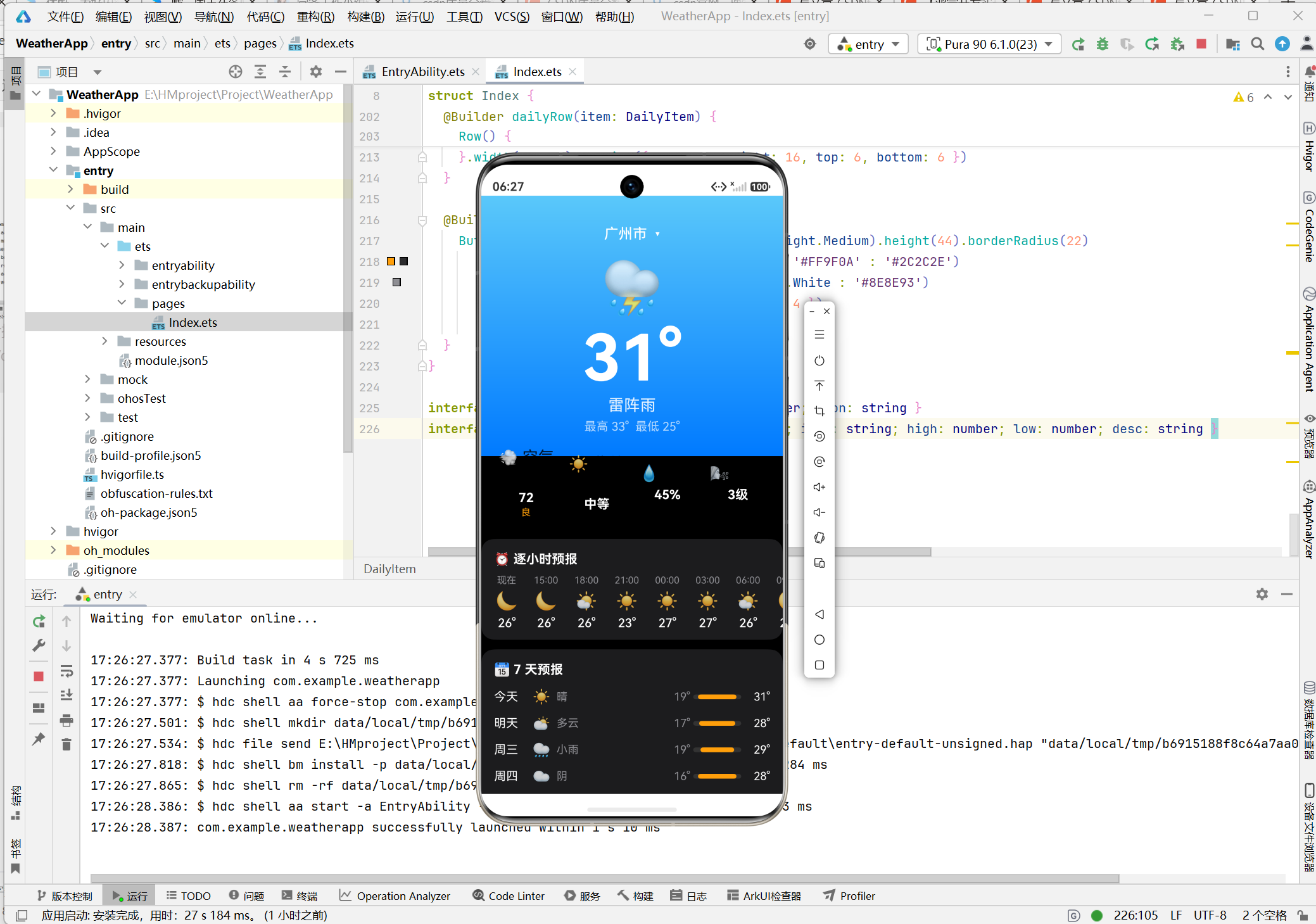
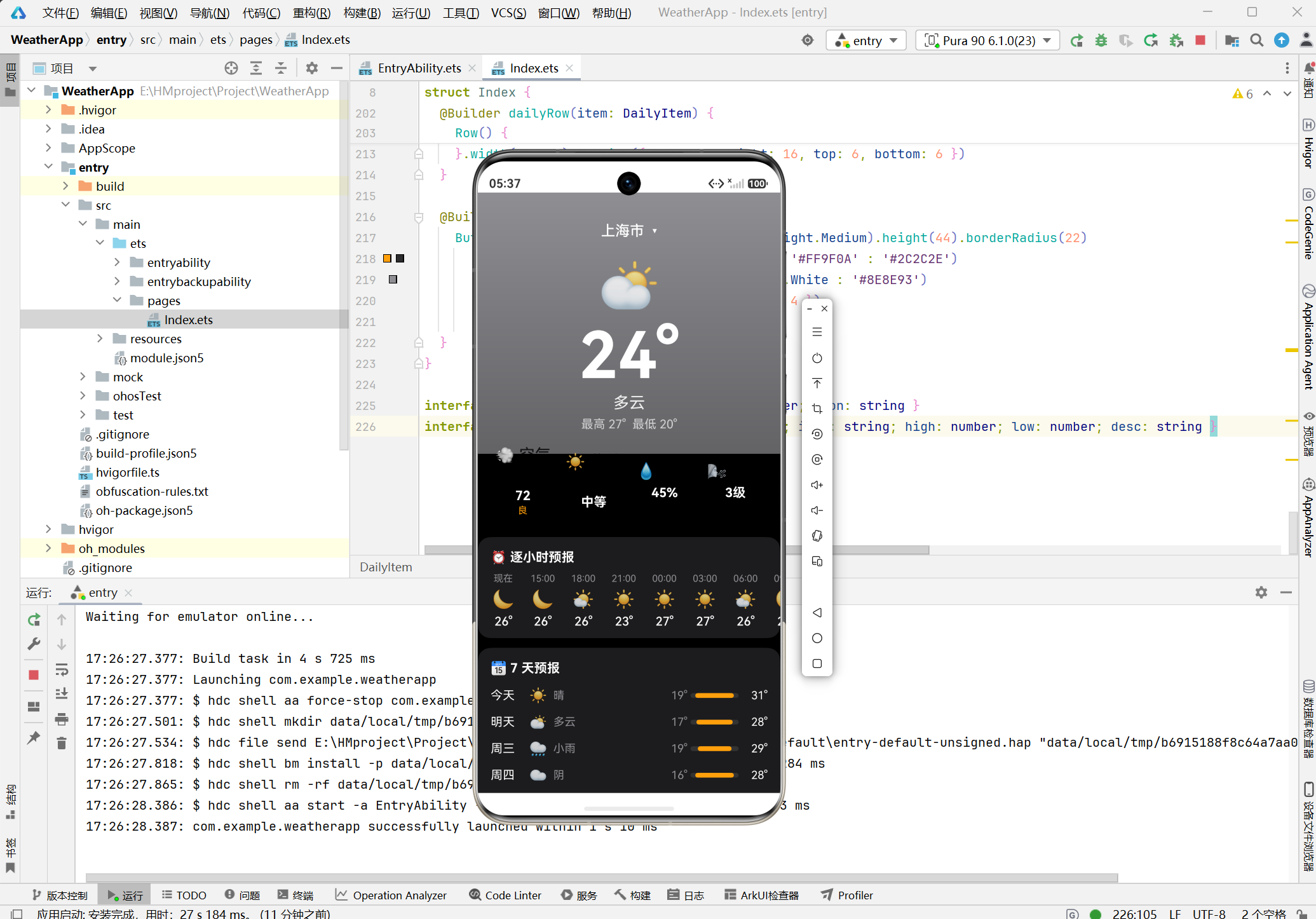
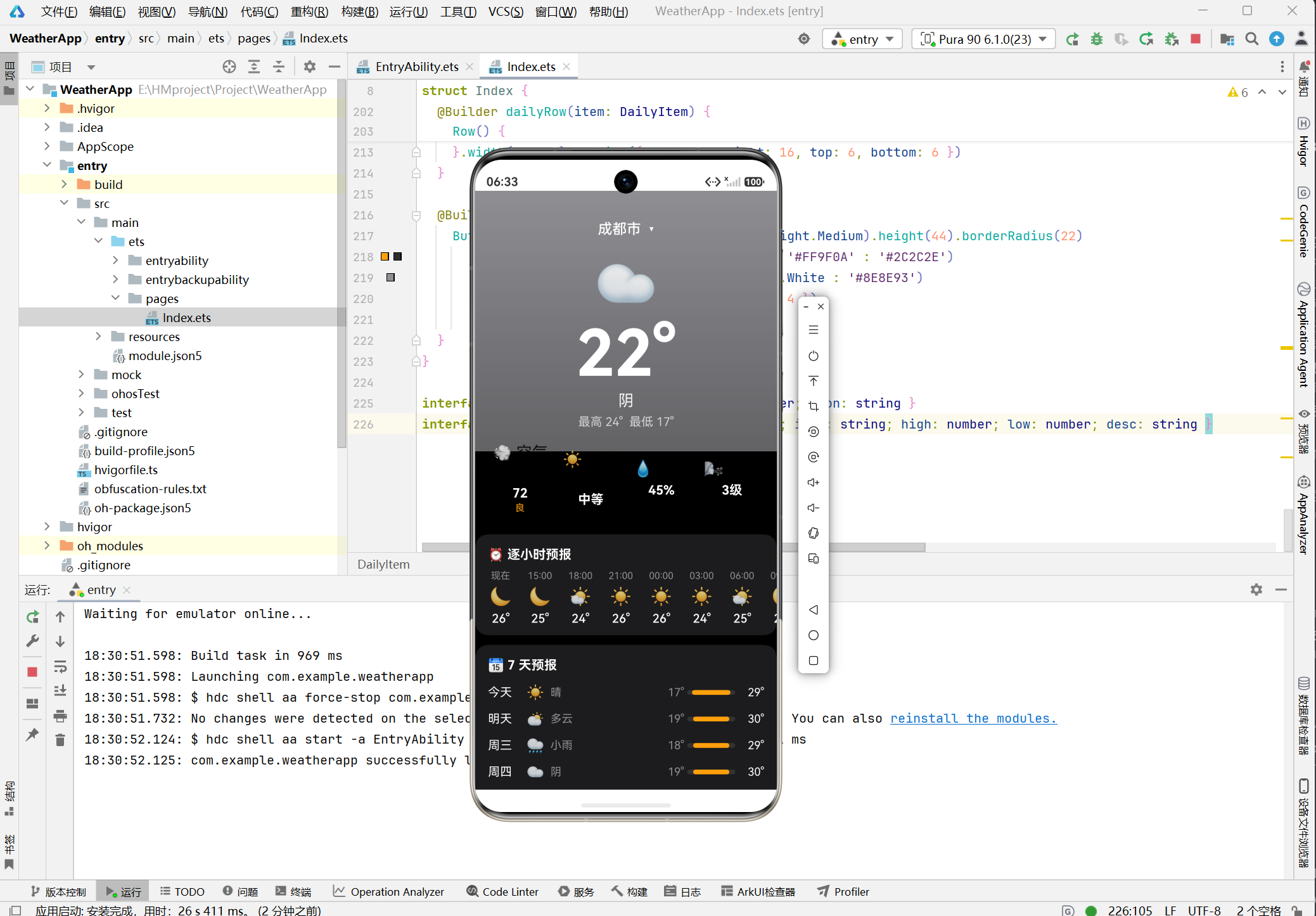
晴天用橙色,雨天用蓝色,阴天用灰色:
private getBgGradient(cond: string): string {
  if (cond === '晴') return '#FF9F0A'        // 橙色
  if (cond === '多云' || cond === '阴') return '#8E8E93'  // 灰色
  if (cond.includes('雨')) return '#5AC8FA'  // 蓝色
  return '#4A90D9'
}

private getBgEnd(cond: string): string {
  if (cond === '晴') return '#FFD60A'
  if (cond === '多云' || cond === '阴') return '#636366'
  if (cond.includes('雨')) return '#007AFF'
  return '#87CEEB'
}
然后在Column上加渐变:
Column() {
  // 内容...
}
.linearGradient({
  direction: GradientDirection.Bottom,
  colors: [
    [this.getBgGradient(this.currentCondition), 0],
    [this.getBgEnd(this.currentCondition), 1]
  ]
})
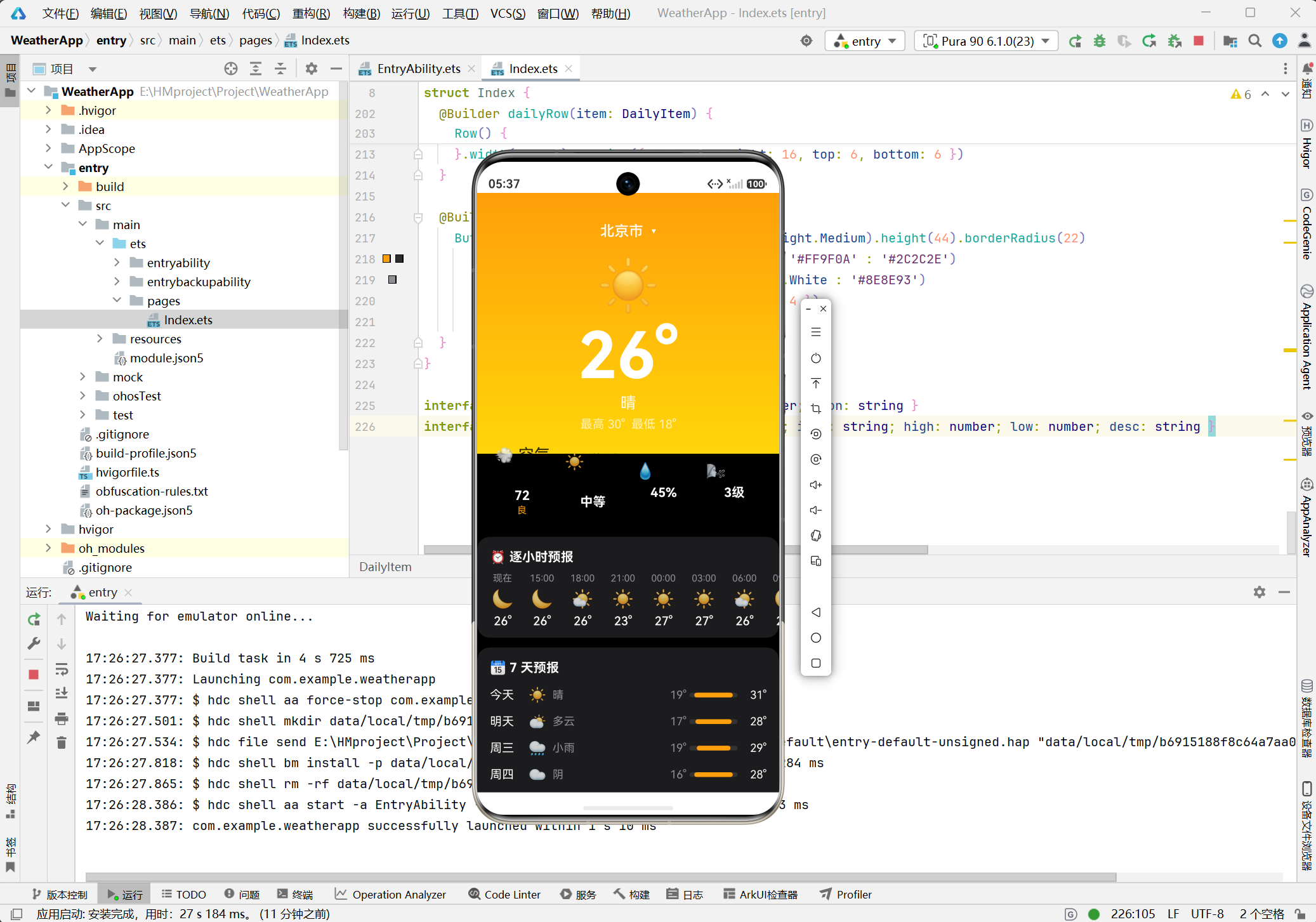
效果超棒!切到北京就是橙色的晴天,切到广州就是蓝色的雨天。
温度条可视化
7天预报里有温度条,我觉得这个挺酷的:
@Builder dailyRow(item: DailyItem) {
  Row() {
    // 左边:星期、图标、描述
    Text(item.day).width(48)
    Text(item.icon).width(30)
    Text(item.desc).width(36)

    Blank()

    // 最低温
    Text(String(item.low) + '°').width(32)

    // 温度条
    Column() {
      Column()
        .width(this.tempBarWidth(item.low, item.high))
        .height(6)
        .borderRadius(3)
        .backgroundColor(this.tempBarColor(item.low, item.high))
    }
    .width(60)
    .height(6)
    .backgroundColor('#333333')
    .borderRadius(3)

    // 最高温
    Text(String(item.high) + '°').width(32)
  }
}
温度条的宽度和颜色是动态计算的:
// 温差越大,条越宽
private tempBarWidth(low: number, high: number): string {
  return Math.floor(((high - low) / 20) * 100 + 20) + '%'
}

// 温度越高,颜色越红
private tempBarColor(low: number, high: number): string {
  const avg = (low + high) / 2
  if (avg >= 28) return '#FF3B30'  // 红色
  if (avg >= 20) return '#FF9F0A'  // 橙色
  return '#34C759'                  // 绿色
}
城市切换
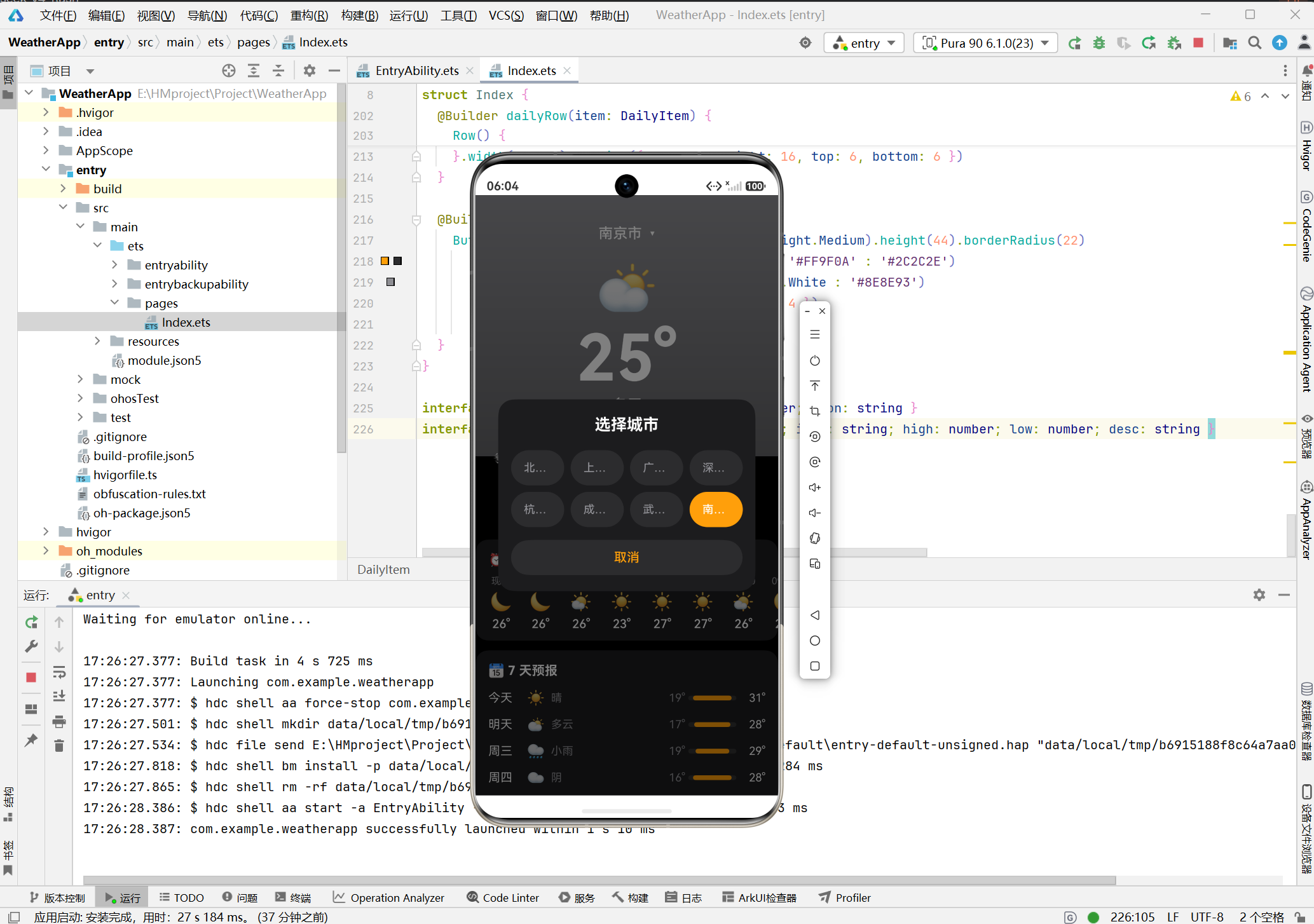
点城市名,弹出选择器,选了就切换所有数据:
private switchCity(city: string): void {
  const data = this.getWeatherByCity(city)

  // 更新所有状态
  this.location = city
  this.currentTemp = data.temp
  this.currentCondition = data.cond
  // ... 其他状态

  // 重新生成预报
  this.hourlyData = this.generateHourlyData(data.cond, data.temp)
  this.dailyData = this.generateDailyData(data.cond, data.high, data.low)

  // 关弹窗
  this.showCityPicker = false
}
组件封装
ArkUI有个 @Builder 装饰器,可以把UI封装成可复用的组件。
信息卡片
@Builder compactCard(icon: string, value: string, desc: string, color: string) {
  Column() {
    Text(icon).fontSize(20)
    Text(value).fontSize(16).fontWeight(FontWeight.Bold).fontColor(Color.White).margin({ top: 6 })
    if (desc) Text(desc).fontSize(12).fontColor(color).margin({ top: 2 })
  }
  .layoutWeight(1)
  .alignItems(HorizontalAlign.Center)
}
用起来很方便:
Row() {
  this.compactCard('💨', '72', '良', '#34C759')
  this.compactCard('☀️', '中等', '', '#FF9F0A')
  this.compactCard('💧', '45%', '', '#5AC8FA')
  this.compactCard('🌬️', '3级', '', '#8E8E93')
}
城市按钮
@Builder cityButton(city: string) {
  Button(city)
    .height(44)
    .borderRadius(22)
    .backgroundColor(this.location === city ? '#FF9F0A' : '#2C2C2E')
    .fontColor(this.location === city ? Color.White : '#8E8E93')
    .layoutWeight(1)
    .onClick(() => this.switchCity(city))
}
选中的城市高亮显示。
布局实现
整体结构
build() {
  Stack() {
    // 主内容
    Scroll() {
      Column() {
        // 1. 天气展示区(渐变背景)
        // 2. 信息卡片
        // 3. 小时预报
        // 4. 7天预报
      }
    }

    // 城市选择弹窗
    if (this.showCityPicker) {
      // 弹窗内容
    }
  }
}
用 Stack 是为了叠加弹窗。
城市选择弹窗
if (this.showCityPicker) {
  Column() {
    Column() {
      Text('选择城市').margin({ top: 20, bottom: 16 })

      Row() {
        this.cityButton('北京市')
        this.cityButton('上海市')
        this.cityButton('广州市')
        this.cityButton('深圳市')
      }

      Row() {
        this.cityButton('杭州市')
        this.cityButton('成都市')
        this.cityButton('武汉市')
        this.cityButton('南京市')
      }

      Button('取消').onClick(() => this.showCityPicker = false)
    }
    .width('85%')
    .backgroundColor('#1C1C1E')
    .borderRadius(20)
  }
  .width('100%')
  .height('100%')
  .backgroundColor('#80000000')  // 半透明遮罩
  .justifyContent(FlexAlign.Center)
}
踩坑记录
坑1:渐变背景不生效
一开始忘了加 linearGradient,背景就是纯色。检查了好几遍才发现…
解决: 在Column上正确添加 linearGradient 属性。
坑2:弹窗点内部也会关
遮罩层的 onClick 写在最外层,结果点弹窗内容也会触发。
解决: 内部弹窗容器不要加onClick,只在外层遮罩加。
坑3:温度条宽度一样
一开始用固定宽度,看起来没差别。
解决: 改成根据温差计算宽度。
坑4:切换城市背景没变
忘了 currentCondition 也要更新。
解决: 在 switchCity 里更新所有相关状态。
运行效果
在DevEco Studio里运行,效果如下:
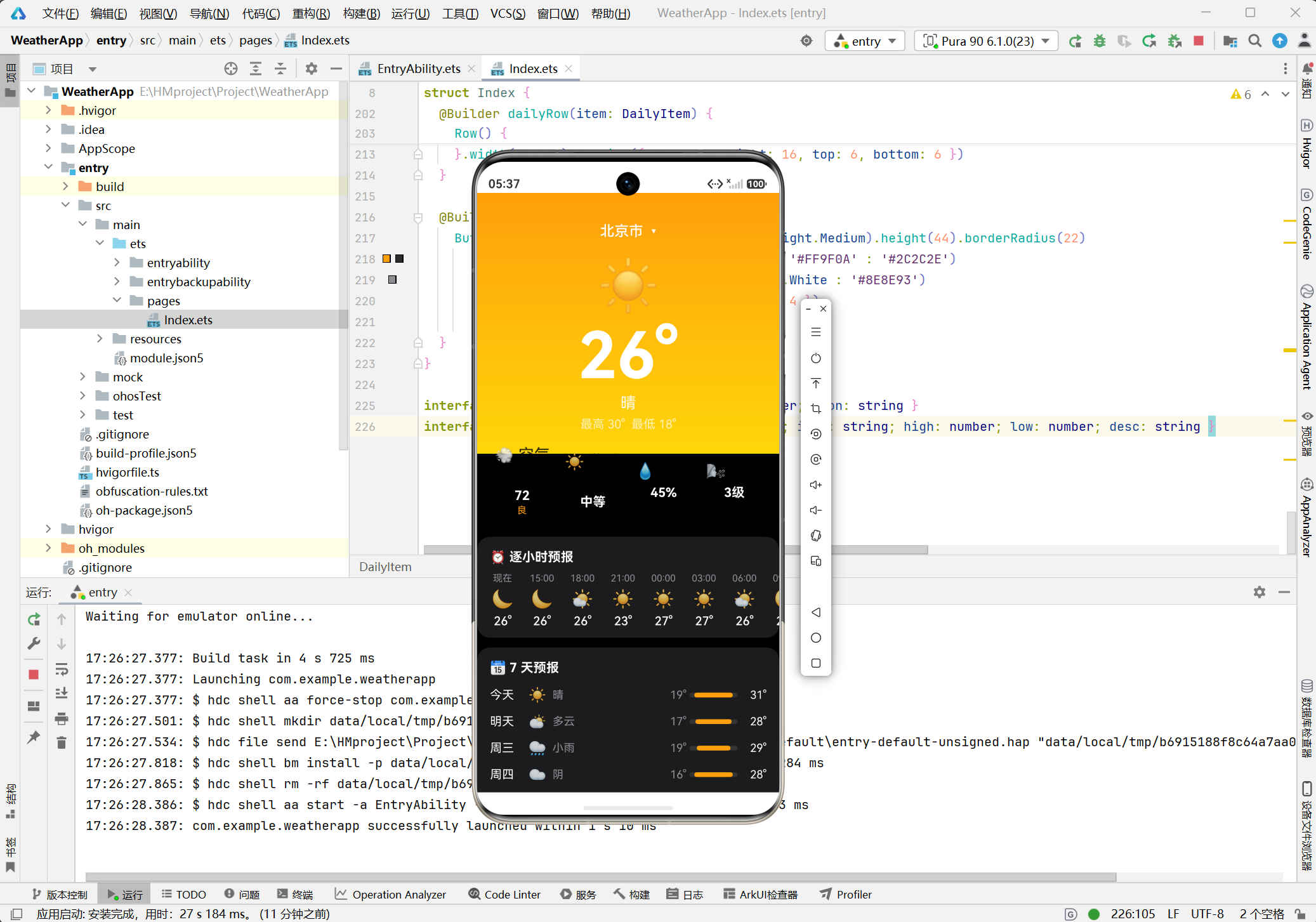
点击城市名:
不同天气的背景:
学到了啥
- 状态联动 - 一个操作更新多个状态
- 渐变背景 -
linearGradient的用法 - 条件渲染 -
if控制弹窗显示 - 组件封装 -
@Builder复用UI - 叠加布局 -
Stack实现弹窗 - 动态样式 - 方法返回颜色和宽度
后续计划
这个App还能继续完善:
- 接真实API - 和风天气、心知天气都行
- 加定位 - 自动获取当前城市
- 天气动画 - 下雨效果、飘雪效果
- 下拉刷新 - 更新天气数据
- 多日预报 - 15天天气
- 生活指数 - 穿衣、洗车、运动建议
总结
这个天气App比之前的掷骰子复杂多了,但也更有成就感。动态主题切换是我最满意的功能,切城市的时候背景跟着变,感觉很高级。
ArkUI写起来确实舒服,声明式UI真是前端开发的大趋势。有React或Flutter经验的话上手很快。
有问题欢迎留言交流~

作为“人工智能6S店”的官方数字引擎,为AI开发者与企业提供一个覆盖软硬件全栈、一站式门户。
更多推荐

 0
0 0
0- 0


 已为社区贡献1条内容

所有评论(0)