
鸿蒙原生应用开发实战(三):数据管理与多页面交互——渔获记录、装备管理与个人中心
鸿蒙原生应用开发实战(三):数据管理与多页面交互——渔获记录、装备管理与个人中心
前言
上一篇我们完成了首页的开发,本篇文章将继续构建三个重要页面:
- 渔获记录页(CatchRecordPage):展示每次出钓的鱼获信息
- 装备管理页(GearPage):管理钓鱼装备清单
- 个人中心页(ProfilePage):用户统计信息和设置
通过这三个页面,我们将深入学习 List组件的高级用法、组件复用、@Prop父子组件通信、分类筛选 等核心技巧。
一、渔获记录页:List组件的深度应用
渔获记录页是一个典型的列表页面,展示用户每次钓鱼的成果:鱼种、重量、长度、钓点和日期。
1.1 数据模型
interface CatchRecord {
  id: number;
  date: string;      // 日期
  spot: string;      // 钓点
  fishType: string;  // 鱼种
  weight: string;    // 重量
  length: string;    // 长度
}
1.2 List vs Scroll + ForEach
很多新手会问:什么时候用 List,什么时候用 Scroll + ForEach?
| 场景 | 推荐方案 | 原因 |
|---|---|---|
| 简单垂直排列,数量少 | Scroll + ForEach | 轻量,无复用 |
| 长列表,性能敏感 | List + ListItem | 列表项复用,滑动性能更好 |
| 卡片之间有特殊间距 | List + ListItem | 支持 space 属性 |
| 需要侧滑删除 | List | 内置侧滑能力 |
渔获记录页使用 List + ListItem 方案:
List() {
  ForEach(this.records, (record: CatchRecord) => {
    ListItem() {
      // 卡片内容
      Column() {
        Row() {
          Text('🐟').fontSize(28)
          Column() {
            Text(record.fishType).fontSize(18).fontWeight(FontWeight.Medium)
            Text(record.spot).fontSize($r('app.float.small_font_size'))
              .fontColor($r('app.color.text_hint')).margin({ top: 2 })
          }
          .margin({ left: 12 })

          Blank()

          Column() {
            Text(record.weight)
              .fontSize($r('app.float.body_font_size'))
              .fontWeight(FontWeight.Medium)
              .fontColor($r('app.color.primary'))
            Text(record.length)
              .fontSize($r('app.float.small_font_size'))
              .fontColor($r('app.color.text_secondary'))
          }
          .alignItems(HorizontalAlign.End)
        }

        Text(record.date)
          .fontSize(12)
          .fontColor($r('app.color.text_hint'))
          .margin({ top: 6 })
      }
      .padding($r('app.float.padding_medium'))
      .backgroundColor($r('app.color.card_bg'))
      .borderRadius($r('app.float.card_corner_radius'))
    }
    .padding({ left: 16, right: 16, top: 6, bottom: 6 })
  }, (record: CatchRecord) => record.id.toString())
}
.width('100%')
.layoutWeight(1)
ListItem 的 padding 技巧:
- ListItem 本身设置
padding控制卡片之间的间距 - 内部的 Column 设置
padding控制卡片内边距 - 通过内外两层 padding 实现精准的间距控制
1.3 空状态设计
if (this.records.length === 0) {
  Column() {
    Text('🐟').fontSize(60)
    Text('暂无渔获记录')
      .fontSize($r('app.float.body_font_size'))
      .fontColor($r('app.color.text_hint'))
      .margin({ top: 16 })
  }
  .width('100%')
  .height('80%')
  .justifyContent(FlexAlign.Center)
  .alignItems(HorizontalAlign.Center)
} else {
  List() { /* ... */ }
}
1.4 标题栏与操作按钮
Row() {
  Button('←')
    .fontSize(22)
    .fontColor($r('app.color.text_primary'))
    .backgroundColor(Color.Transparent)
    .onClick(() => { router.back(); })

  Text($r('app.string.title_catch_record'))
    .fontSize($r('app.float.page_title_font_size'))
    .fontWeight(FontWeight.Bold)
    .margin({ left: 12 })

  Blank()

  Button($r('app.string.add_record'))
    .fontSize($r('app.float.small_font_size'))
    .fontColor(Color.White)
    .backgroundColor($r('app.color.primary'))
    .borderRadius(16)
    .padding({ left: 12, right: 12, top: 4, bottom: 4 })
}
设计亮点:
- 返回按钮使用
Color.Transparent背景,点击无闪烁 - 右侧"添加记录"按钮使用主题色,吸引用户操作
BorderRadius(16)配合padding实现圆角胶囊按钮
二、装备管理页:分类渲染与状态颜色
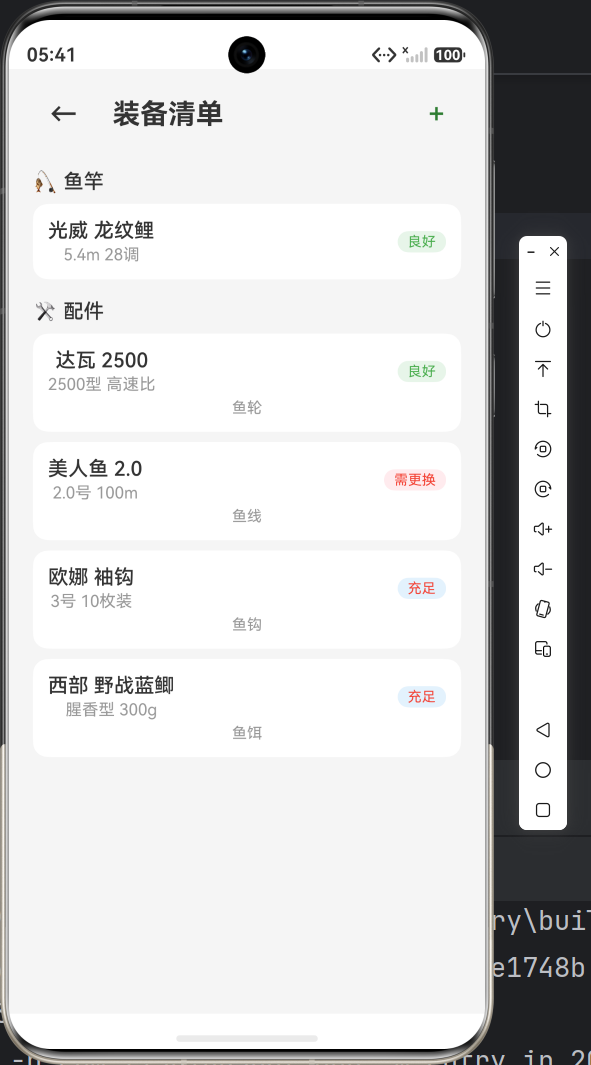
装备管理页展示用户的钓鱼装备,按类型分组显示,并标注每件装备的状态。
2.1 数据模型
interface GearItem {
  id: number;
  name: string;    // 装备名称
  type: string;    // 类型:鱼竿/鱼轮/鱼线/鱼钩/鱼饵
  spec: string;    // 规格
  status: string;  // 状态:良好/充足/需更换
}
2.2 分类展示策略
不同于渔获记录的简单列表,装备页需要按类型分组展示。我们采用 Scroll + Column + 多次 ForEach 的方案:
Column() {
  // 分类标题 - 鱼竿
  Text('🎣 鱼竿')
    .fontSize($r('app.float.body_font_size'))
    .fontWeight(FontWeight.Medium)
    .width('100%')
    .margin({ bottom: 8 })

  ForEach(this.gearList.filter((g: GearItem) => g.type === '鱼竿'), (item: GearItem) => {
    // 渲染鱼竿
  })

  // 分类标题 - 配件
  Text('🛠️ 配件')
    .fontSize($r('app.float.body_font_size'))
    .fontWeight(FontWeight.Medium)
    .width('100%')
    .margin({ top: 8, bottom: 8 })

  ForEach(this.gearList.filter((g: GearItem) => g.type !== '鱼竿'), (item: GearItem) => {
    // 渲染配件
  })
}
知识点:filter() 在ArkTS中完全可用,配合 ForEach 实现分类渲染。如果数据量很大,建议在 getter 中预处理分类数据。
2.3 状态标签颜色映射
根据不同状态显示不同颜色的标签:
Text(item.status)
  .fontSize($r('app.float.badge_font_size'))
  .fontColor(
    item.status === '良好' ? $r('app.color.status_delivered') :
    item.status === '充足' ? $r('app.color.status_normal') :
    $r('app.color.status_exception')
  )
  .backgroundColor(
    item.status === '良好' ? '#FFE8F5E9' :     // 绿色背景
    item.status === '充足' ? '#FFE3F2FD' :     // 蓝色背景
    '#FFFFEBEE'                                 // 红色背景
  )
  .padding({ left: 8, right: 8, top: 2, bottom: 2 })
  .borderRadius(10)
视觉设计原则:
- 良好/充足:正面状态用绿色/蓝色
- 需更换:警告状态用红色
- 圆角标签 + 浅色背景,视觉友好不刺眼
2.4 装备卡片布局
Row() {
  Column() {
    Text(item.name).fontSize($r('app.float.body_font_size'))
      .fontWeight(FontWeight.Medium)
    Text(item.spec).fontSize($r('app.float.small_font_size'))
      .fontColor($r('app.color.text_hint')).margin({ top: 2 })
  }
  Blank()
  Text(item.status)  // 状态标签
}
三、个人中心页:@Prop子组件通信
个人中心页包含用户信息、统计数据和设置菜单。这里我们引入子组件的概念。
3.1 页面整体结构
build() {
  Column() {
    // 标题栏
    Row() { /* 个人中心 */ }

    Scroll() {
      Column() {
        // 用户信息卡片
        Column() {
          Circle().width(72).height(72).fill($r('app.color.primary'))
          Text('钓鱼爱好者').fontSize(20).fontWeight(FontWeight.Medium)
          Text('🎣 享受每一次抛竿')
            .fontSize($r('app.float.small_font_size'))
            .fontColor($r('app.color.text_hint'))
        }
        .alignItems(HorizontalAlign.Center)

        // 统计卡片
        StatsCard()  // 封装为子组件

        // 设置菜单
        MenuCard()
      }
    }
  }
}
3.2 统计卡片:Row + layoutWeight 三等分
Row() {
  Column() {
    Text('12').fontSize(28).fontWeight(FontWeight.Bold)
      .fontColor($r('app.color.primary'))
    Text($r('app.string.total_catch'))
      .fontSize($r('app.float.small_font_size'))
  }
  .layoutWeight(1).alignItems(HorizontalAlign.Center)

  Column() {
    Text('3.2kg').fontSize(28).fontWeight(FontWeight.Bold)
      .fontColor($r('app.color.rating_star'))
    Text($r('app.string.best_record'))
  }
  .layoutWeight(1).alignItems(HorizontalAlign.Center)

  Column() {
    Text('4').fontSize(28).fontWeight(FontWeight.Bold)
      .fontColor($r('app.color.status_delivered'))
    Text('探钓点数')
  }
  .layoutWeight(1).alignItems(HorizontalAlign.Center)
}
layoutWeight(1) 实现三列等分,无需手动计算宽度。
3.3 @Prop 子组件:MenuItemRow
这是本页最重要的知识点——父子组件通信。我们先定义一个复用性高的菜单行组件:
@Component
struct MenuItemRow {
  @Prop label: string = '';
  @Prop value: string = '';

  build() {
    Row() {
      Text(this.label)
        .fontSize($r('app.float.body_font_size'))
        .fontColor($r('app.color.text_primary'))
      Blank()
      if (this.value.length > 0) {
        Text(this.value)
          .fontSize($r('app.float.small_font_size'))
          .fontColor($r('app.color.text_hint'))
          .margin({ right: 8 })
      }
      Text('>').fontSize(18).fontColor($r('app.color.text_hint'))
    }
    .width('100%')
    .height(52)
    .padding({ left: 16, right: 16 })
  }
}
在父组件中使用:
Column() {
  MenuItemRow({ label: '我的装备', value: '5件' })
  Divider().width('100%')
  MenuItemRow({ label: '个人最佳记录', value: '草鱼 3.2kg' })
  Divider().width('100%')
  MenuItemRow({ label: '通知设置', value: '' })
  Divider().width('100%')
  MenuItemRow({ label: '关于', value: 'v1.0.0' })
}
@Prop 的核心特性:
| 特性 | 说明 |
|---|---|
| 单向数据流 | 父→子,子组件不能修改父组件数据 |
| 默认值 | @Prop label: string = '' 提供默认值 |
| 必须初始化 | 使用组件时必须传递或使用默认值 |
| 触发更新 | @Prop 变化会触发子组件重新渲染 |
对比 @State vs @Prop:
@State:组件内部状态,变化触发自身渲染@Prop:从父组件接收的状态,变化触发自身渲染@Link:双向绑定(后续文章会介绍)
3.4 Divider 分割线
Divider()
  .width('100%')  // 默认横向
Divider 默认高度为 1px,颜色使用 $r('app.color.divider')。我们可以在 color.json 中统一配置:
{ "name": "divider", "value": "#FFE0E0E0" }
四、页面路由与导航架构
4.1 路由跳转方式汇总
项目中使用了两种路由跳转模式:
// 1. 返回上一页
router.back()

// 2. 跳转到新页面(不带参数)
router.pushUrl({ url: 'pages/GearPage' })

// 3. 跳转到新页面(带参数)
router.pushUrl({
  url: 'pages/SpotDetailPage',
  params: { spotData: spot }
})
4.2 导航流程设计
Index (首页)
  ├── SpotDetailPage (点击钓点卡片 → pushUrl 传参)
  ├── CatchRecordPage (底部导航 → pushUrl)
  ├── GearPage (底部导航 → pushUrl)
  └── ProfilePage (底部导航 → pushUrl)

各子页面 → back() 返回首页
4.3 返回按钮统一模式
所有子页面的返回按钮采用统一风格:
Button('←')
  .fontSize(22)
  .fontColor($r('app.color.text_primary'))
  .backgroundColor(Color.Transparent)
  .onClick(() => { router.back(); })
五、ArkTS 严格模式实战避坑
在开发这三个页面时,有几个严格模式的常见坑需要注意:
5.1 非推断数组字面量
// ❌ 错误:无法推断数组元素类型
private records = [
  { id: 1, date: '2025-01-12', spot: '清溪河下游' }
];

// ✅ 正确:显式声明类型
private records: CatchRecord[] = [
  { id: 1, date: '2025-01-12', spot: '清溪河下游', fishType: '鲫鱼', weight: '0.8kg', length: '28cm' }
];
5.2 对象字面量类型声明
// ❌ 错误:未类型化的对象字面量
let p = { spotData: spot };

// ✅ 正确:声明接口类型
let p: SpotParams = { spotData: spot };
5.3 router.getParams 的类型断言
// 使用 as 类型断言
const params = router.getParams() as SpotDetailParams;
六、性能优化小技巧
6.1 ForEach 的 key 生成
为每个列表项生成唯一且稳定的 key:
// ✅ 使用 id
ForEach(arr, fn, (item) => item.id.toString())

// ✅ 使用唯一索引(如果顺序不变)
ForEach(arr, fn, (item, index) => index.toString())
6.2 List 的复用机制
List + ListItem 拥有列表项复用能力。当列表滑动时,移出屏幕的 ListItem 会被回收,移入屏幕时复用。这与 Scroll + ForEach 每项都创建的机制不同,在长列表中性能差距显著。
6.3 条件渲染减少节点
// ✅ 空状态和列表互斥,只渲染一种
if (condition) {
  // 空状态
} else {
  // 列表
}

// ❌ 不要同时渲染再用 visible 隐藏
七、小结
本篇我们完成了三个核心页面的开发:
| 页面 | 核心技术点 | 难度 |
|---|---|---|
| 渔获记录 CatchRecordPage | List + ListItem, 空状态, 列表项复用 | ⭐⭐ |
| 装备管理 GearPage | 分类渲染, filter过滤, 状态颜色映射 | ⭐⭐⭐ |
| 个人中心 ProfilePage | @Prop子组件, 布局Weight分配, 统计卡片 | ⭐⭐⭐ |
下一篇我们将开发项目中最复杂的两个页面——鱼种百科(分类筛选+搜索)和钓点详情(动态参数接收+评分交互),敬请期待!
项目源码:基于 HarmonyOS API 23 + Stage模型 + ArkTS
系列目录:
- 第一篇:项目初始化与环境配置
- 第二篇:首页与钓点列表开发
- 第三篇:数据管理与多页面交互(本篇)
- 第四篇:复杂页面与交互体验
- 第五篇:地图可视化与性能优化

作为“人工智能6S店”的官方数字引擎,为AI开发者与企业提供一个覆盖软硬件全栈、一站式门户。
更多推荐
 0
0 0
0- 0


 已为社区贡献28条内容

所有评论(0)