
鸿蒙新特性-Search搜索组件深度解析
搜索是移动应用中最高频的功能之一。HarmonyOS NEXT 将搜索体验标准化为内置的 Search 组件,开发者只需几行代码就能获得完整的搜索交互——包括输入框样式、清除按钮、搜索图标、键盘确认等。本文将从 Search 组件的基础 API 出发,结合一个"全球城市搜索"实战案例,深入解析搜索功能的全链路实现。
Search 组件概述
为什么需要 Search 组件
在没有 Search 组件之前,开发者通常使用 TextInput 来模拟搜索框,手动添加搜索图标、清除按钮、键盘处理等:
// 旧方案:用 TextInput 模拟搜索
Row() {
  Text('🔍').fontSize(16)
  TextInput({ placeholder: '搜索...', text: this.keyword })
    .onChange((value) => { this.keyword = value; })
    .onSubmit(() => { this.doSearch(); })
  if (this.keyword.length > 0) {
    Text('✕').onClick(() => { this.keyword = ''; })
  }
}
这种方案虽然可行,但代码分散且缺乏统一性。Search 组件将这些交互封装为一个标准化组件,提供了声明式的搜索 API。
API 概览
Search 组件的构造器:
Search(options?: SearchOptions)
interface SearchOptions {
  placeholder?: ResourceStr;   // 占位提示文字
  value?: string;              // 搜索框当前内容
  icon?: string;               // 搜索图标(可选自定义)
  controller?: SearchController; // 搜索控制器
}
Search 的属性方法:
SearchAttribute
  .searchButton(value: string)          // 自定义搜索按钮文字
  .placeholderColor(value: ResourceColor) // 占位文字颜色
  .placeholderFont(value: Font)         // 占位文字字体
  .textFont(value: Font)               // 输入文字字体
  .textAlign(value: TextAlign)          // 输入文字对齐方式
  .copyOption(value: CopyOptions)       // 复制选项
  .height(value: Length)               // 高度
  .width(value: Length)                // 宽度
  .backgroundColor(value: ResourceColor) // 背景色
  .borderRadius(value: Length | BorderRadiuses) // 圆角
Search 的事件回调:
  .onChange(callback: (value: string) => void)       // 内容变化
  .onSubmit(callback: (value: string) => void)       // 提交搜索
  .onFocus(callback: () => void)                     // 获得焦点
  .onBlur(callback: () => void)                      // 失去焦点
  .onCopy(callback: (value: string) => void)         // 复制
  .onCut(callback: (value: string) => void)          // 剪切
  .onPaste(callback: (value: string) => void)        // 粘贴
最简用法:
Search({ placeholder: '搜索城市...', value: this.keyword })
  .onChange((value: string) => {
    this.keyword = value;
  })
  .onSubmit((value: string) => {
    this.doSearch(value);
  })
  .height(40)
  .backgroundColor('#FFFFFF')
  .borderRadius(9999)
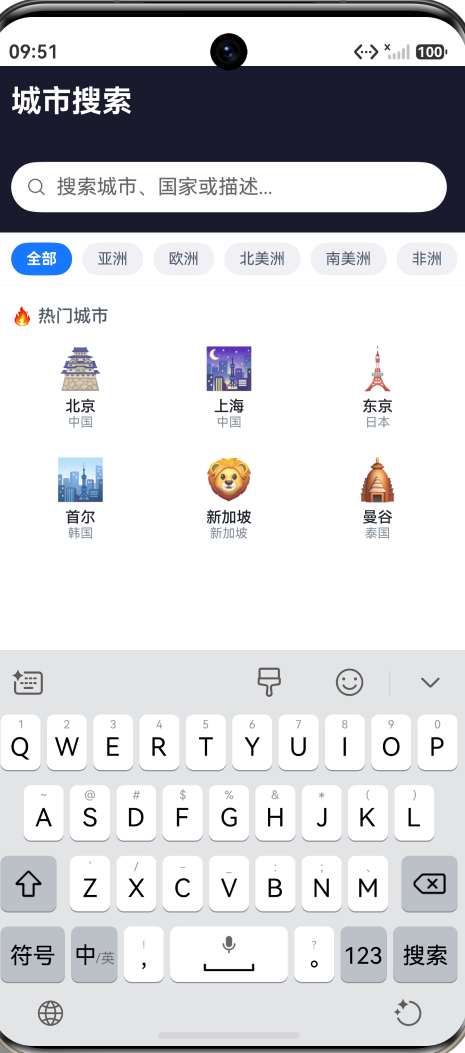
用户输入内容后,键盘上会出现"搜索"按钮,点击即可触发 onSubmit,非常符合移动端的使用习惯。
Search 与 TextInput 的对比
| 特性 | Search | TextInput |
|---|---|---|
| 搜索图标 | 内置显示 | 需要手动添加 |
| 清除按钮 | 内容非空时自动出现 | 需要手动实现 |
| 键盘确认按钮 | 自动显示"搜索" | 需配置 enterKeyType |
| 用户预期 | 明确为搜索操作 | 通用文本输入 |
| 样式一致性 | 系统统一风格 | 自由定制 |
建议在所有搜索场景下优先使用 Search 组件,它能让用户一眼识别出"这是一个搜索框",符合平台设计规范。
实战案例:全球城市搜索
让我们构建一个完整的城市搜索页面,涵盖 Search 组件、大洲分类筛选、搜索历史管理、城市详情弹窗四大功能模块。
数据结构
首先定义城市数据模型:
interface CityData {
  id: number;
  name: string;        // 城市名
  country: string;     // 所属国家
  continent: string;   // 所在大洲
  population: string;  // 人口数
  emoji: string;       // 城市图标
  description: string; // 城市简介
}
准备了 20 个全球城市作为数据源,覆盖亚洲、欧洲、北美洲、南美洲、非洲、大洋洲六大大洲:
const CITIES: CityData[] = [
  { id: 1, name: '北京', country: '中国', continent: '亚洲', population: '2154万', emoji: '🏯', description: '中国首都...' },
  { id: 2, name: '上海', country: '中国', continent: '亚洲', population: '2487万', emoji: '🌃', description: '中国最大城市...' },
  { id: 7, name: '纽约', country: '美国', continent: '北美洲', population: '841万', emoji: '🗽', description: '美国最大城市...' },
  { id: 8, name: '伦敦', country: '英国', continent: '欧洲', population: '898万', emoji: '🎡', description: '英国首都...' },
  // ... 共20个城市
];
搜索核心逻辑
搜索功能的核心是一个 doSearch() 方法,同时支持关键词搜索和大洲筛选:
doSearch(): void {
  let filtered = CITIES;

  // 大洲筛选
  if (this.selectedContinent !== '全部') {
    filtered = filtered.filter((c: CityData) =>
      c.continent === this.selectedContinent
    );
  }

  // 关键词搜索(匹配城市名、国家名、描述)
  const keyword = this.searchText.trim().toLowerCase();
  if (keyword !== '') {
    filtered = filtered.filter((c: CityData) =>
      c.name.toLowerCase().includes(keyword) ||
      c.country.toLowerCase().includes(keyword) ||
      c.description.toLowerCase().includes(keyword)
    );
  }

  this.displayCities = filtered;
}
这个搜索逻辑具有三个亮点:
- 双重筛选:先按大洲分类过滤,再按关键词过滤,两个条件可以组合使用
- 多字段匹配:不仅匹配城市名,还匹配国家名和城市描述,提升搜索命中率
- 大小写不敏感:统一转为小写比较,确保用户输入任何大小写都能匹配
搜索组件集成
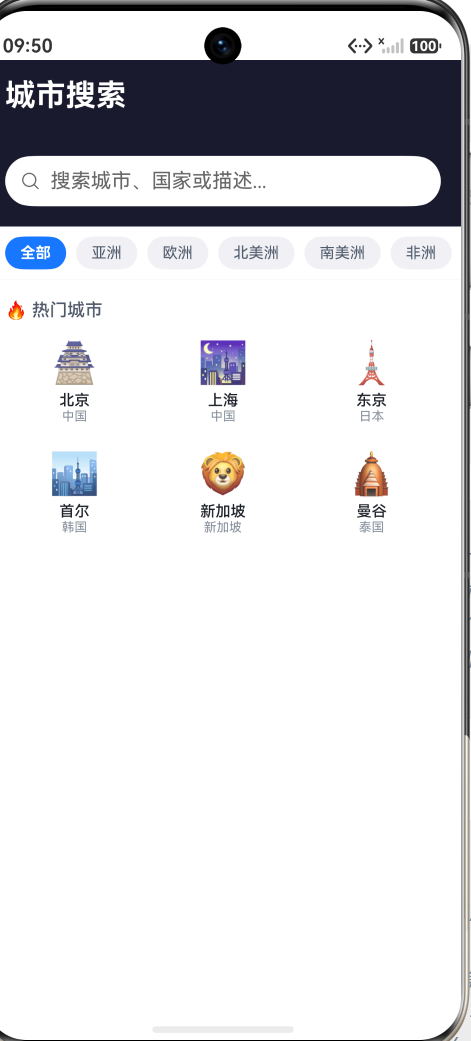
Search 组件放在页面顶部的搜索栏中:
Row() {
  Search({ placeholder: '搜索城市、国家或描述...', value: this.searchText })
    .onChange((value: string) => {
      this.onSearchChange(value);
    })
    .onSubmit((value: string) => {
      this.onSubmitSearch();
    })
    .layoutWeight(1)
    .backgroundColor('#FFFFFF')
    .borderRadius(BorderRadius.FULL)
    .height(40)
}
.width('100%')
.padding({ left: Spacing.LG, right: Spacing.LG, top: Spacing.MD, bottom: Spacing.SM })
.backgroundColor('#1a1a2e')
onChange 用于实时搜索——用户每输入一个字符,结果列表就即时更新。onSubmit 用于触发搜索记录——用户按键盘上的"搜索"键时,将当前关键词加入搜索历史。
关键处理函数:
onSearchChange(value: string): void {
  this.searchText = value;
  if (value.trim() === '') {
    this.showHistory = true;   // 搜索框为空时显示历史
  }
  this.doSearch();             // 实时筛选
}

onSubmitSearch(): void {
  const keyword = this.searchText.trim();
  if (keyword === '') return;

  // 去重 + 前置
  const newHistory: string[] = [keyword];
  for (let i = 0; i < this.searchHistory.length; i++) {
    if (this.searchHistory[i] !== keyword) {
      newHistory.push(this.searchHistory[i]);
    }
  }
  if (newHistory.length > 8) {
    newHistory.splice(8);     // 保留最近8条
  }
  this.searchHistory = newHistory;
  this.showHistory = false;
  this.doSearch();
}
搜索历史使用"去重 + 前置"策略:如果关键词已存在于历史中,先移除旧的,再把新的放到第一位。历史上限为 8 条,防止列表过长。
大洲分类筛选
在搜索栏下方提供大洲筛选按钮,使用横向滚动的 Tab 样式:
Row() {
  ForEach(['全部', '亚洲', '欧洲', '北美洲', '南美洲', '非洲', '大洋洲'],
    (continent: string) => {
      Text(continent)
        .fontSize(FontSize.CAPTION)
        .fontColor(this.selectedContinent === continent ?
          '#FFFFFF' : AppColors.TEXT_SECONDARY)
        .fontWeight(this.selectedContinent === continent ?
          FontWeight.Bold : FontWeight.Normal)
        .padding({ left: Spacing.MD, right: Spacing.MD, top: 6, bottom: 6 })
        .borderRadius(BorderRadius.FULL)
        .backgroundColor(this.selectedContinent === continent ?
          AppColors.PRIMARY : '#F0F0F5')
        .margin({ right: Spacing.SM })
        .onClick(() => { this.selectContinent(continent); })
    })
}
选中态使用蓝色填充 + 白色文字,未选中态使用灰色背景 + 深色文字,视觉区分非常清晰。点击后触发 selectContinent 重置筛选条件并重新搜索。
搜索历史与热门城市
当搜索框为空时,page 默认显示搜索历史和热门城市:
// 搜索历史列表
ForEach(this.searchHistory, (keyword: string, index: number) => {
  Row() {
    Text('🕐')
      .fontSize(FontSize.MEDIUM)
      .margin({ right: Spacing.MD })
    Text(keyword)
      .fontSize(FontSize.BODY)
      .fontColor(AppColors.TEXT_PRIMARY)
      .layoutWeight(1)
  }
  .width('100%')
  .height(44)
  .padding({ left: Spacing.LG, right: Spacing.LG })
  .backgroundColor(index === 0 ? '#F5F6FA' : '#FFFFFF')
  .onClick(() => { this.useHistory(keyword); })
})
点击历史记录会填充搜索框并立即触发搜索。清空历史只清除数据,不影响搜索结果。
// 热门城市 Grid
Grid() {
  ForEach(CITIES.slice(0, 6), (city: CityData) => {
    GridItem() {
      Column() {
        Text(city.emoji).fontSize(32).margin({ bottom: Spacing.XS })
        Text(city.name).fontSize(FontSize.CAPTION)
          .fontColor(AppColors.TEXT_PRIMARY).fontWeight(FontWeight.Medium)
        Text(city.country).fontSize(10)
          .fontColor(AppColors.TEXT_TERTIARY)
      }
      .width('100%').height(80)
      .backgroundColor('#FFFFFF').borderRadius(BorderRadius.MD)
      .justifyContent(FlexAlign.Center).alignItems(HorizontalAlign.Center)
      .onClick(() => { this.showCityDetail(city); })
    }
  })
}
.columnsTemplate('1fr 1fr 1fr')
.columnsGap(Spacing.SM).rowsGap(Spacing.SM)
热门城市使用 3 列 Grid 展示,每项显示城市 emoji、名称和国家,点击即可查看详情。
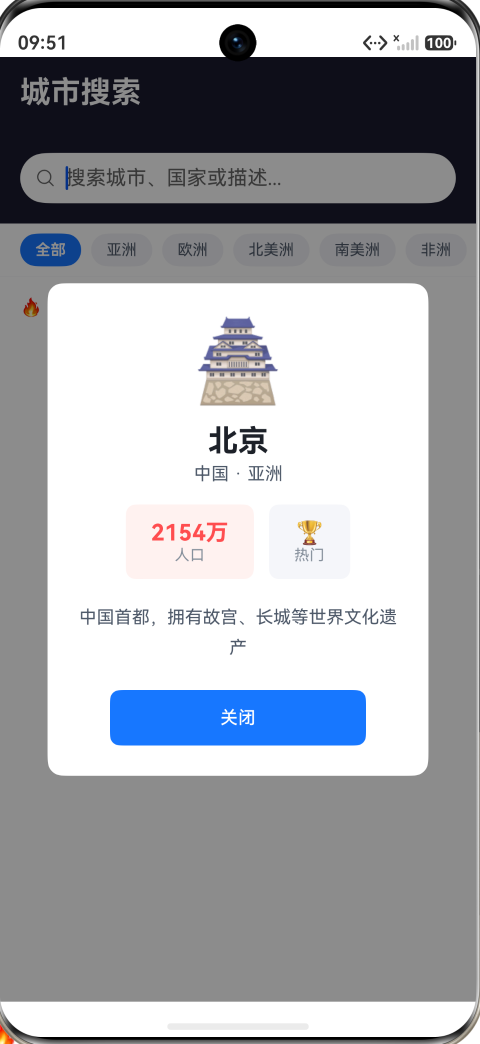
城市详情弹窗
当用户点击某个城市时,弹出居中显示的详情卡片:
if (this.showDetail) {
  Column() {
    Column() {
      Text(this.showDetail.emoji).fontSize(64)
        .margin({ bottom: Spacing.MD })
      Text(this.showDetail.name)
        .fontSize(FontSize.HEADLINE)
        .fontColor(AppColors.TEXT_PRIMARY)
        .fontWeight(FontWeight.Bold)
      Text(`${this.showDetail.country} · ${this.showDetail.continent}`)
        .fontSize(FontSize.BODY)
        .fontColor(AppColors.TEXT_SECONDARY)

      // 信息卡片
      Row() {
        Column() {
          Text(this.showDetail.population)
            .fontSize(FontSize.TITLE)
            .fontColor('#FF4D4F').fontWeight(FontWeight.Bold)
          Text('人口').fontSize(FontSize.CAPTION)
            .fontColor(AppColors.TEXT_TERTIARY)
        }
        .padding({ left: Spacing.XL, right: Spacing.XL, top: Spacing.MD, bottom: Spacing.MD })
        .backgroundColor('#FFF2F0').borderRadius(BorderRadius.MD)
        // 热门标识
        Column() {
          Text('🏆').fontSize(FontSize.TITLE)
          Text('热门').fontSize(FontSize.CAPTION)
            .fontColor(AppColors.TEXT_TERTIARY)
        }
        .padding({ left: Spacing.XL, right: Spacing.XL, top: Spacing.MD, bottom: Spacing.MD })
        .backgroundColor('#F5F6FA').borderRadius(BorderRadius.MD)
      }
      .margin({ bottom: Spacing.LG })

      Text(this.showDetail.description)
        .fontSize(FontSize.BODY)
        .fontColor(AppColors.TEXT_SECONDARY)
        .lineHeight(24).width('100%')
        .textAlign(TextAlign.Center)
        .margin({ bottom: Spacing.XXL })

      Button('关闭')
        .width('80%').height(44)
        .fontSize(FontSize.BODY).fontColor('#FFFFFF')
        .backgroundColor(AppColors.PRIMARY)
        .borderRadius(BorderRadius.MD)
        .onClick(() => { this.closeDetail(); })
    }
    .width('80%')
    .padding(Spacing.XXL)
    .backgroundColor('#FFFFFF')
    .borderRadius(BorderRadius.LG)
    .shadow({ radius: 16, color: '#00000020', offsetX: 0, offsetY: 8 })
  }
  .width('100%').height('100%')
  .justifyContent(FlexAlign.Center)
  .backgroundColor('rgba(0,0,0,0.45)')
  .onClick(() => { this.closeDetail(); })
  .hitTestBehavior(HitTestMode.Block)
}
弹窗设计采用卡片式布局,配合半透明黑色遮罩和阴影,视觉层次分明。点击遮罩区域可关闭弹窗(onClick 在遮罩层,hitTestBehavior 阻止事件穿透)。
完整代码
SearchPage 的完整代码(约 300 行):
import { AppColors, BorderRadius, FontSize, Spacing } from '../common/Constants';

interface CityData {
  id: number;
  name: string;
  country: string;
  continent: string;
  population: string;
  emoji: string;
  description: string;
}

const CITIES: CityData[] = [
  { id: 1, name: '北京', country: '中国', continent: '亚洲', population: '2154万', emoji: '🏯', description: '中国首都,拥有故宫、长城等世界文化遗产' },
  { id: 2, name: '上海', country: '中国', continent: '亚洲', population: '2487万', emoji: '🌃', description: '中国最大城市,全球金融中心之一' },
  { id: 3, name: '东京', country: '日本', continent: '亚洲', population: '1396万', emoji: '🗼', description: '日本首都,融合传统与现代的国际大都市' },
  { id: 4, name: '首尔', country: '韩国', continent: '亚洲', population: '977万', emoji: '🏙️', description: '韩国首都,K-POP文化发源地' },
  { id: 5, name: '新加坡', country: '新加坡', continent: '亚洲', population: '569万', emoji: '🦁', description: '花园城市国家,东南亚金融枢纽' },
  { id: 7, name: '纽约', country: '美国', continent: '北美洲', population: '841万', emoji: '🗽', description: '美国最大城市,全球文化与金融中心' },
  { id: 8, name: '伦敦', country: '英国', continent: '欧洲', population: '898万', emoji: '🎡', description: '英国首都,拥有大本钟和泰晤士河' },
  { id: 9, name: '巴黎', country: '法国', continent: '欧洲', population: '216万', emoji: '🗼', description: '法国首都,浪漫之都,卢浮宫所在地' },
  { id: 10, name: '柏林', country: '德国', continent: '欧洲', population: '364万', emoji: '🏛️', description: '德国首都,历史悠久的文化艺术中心' },
  { id: 11, name: '悉尼', country: '澳大利亚', continent: '大洋洲', population: '531万', emoji: '🦘', description: '澳大利亚最大城市,歌剧院闻名世界' },
  { id: 12, name: '迪拜', country: '阿联酋', continent: '亚洲', population: '333万', emoji: '🏝️', description: '中东商业中心,哈利法塔所在地' },
  { id: 13, name: '莫斯科', country: '俄罗斯', continent: '欧洲', population: '1250万', emoji: '❄️', description: '俄罗斯首都,红场与克里姆林宫所在地' },
  { id: 14, name: '罗马', country: '意大利', continent: '欧洲', population: '287万', emoji: '🏟️', description: '意大利首都,古罗马文明的发源地' },
  { id: 15, name: '开罗', country: '埃及', continent: '非洲', population: '954万', emoji: '🏺', description: '埃及首都,金字塔与尼罗河交汇处' },
  { id: 16, name: '圣保罗', country: '巴西', continent: '南美洲', population: '1233万', emoji: '🌴', description: '巴西最大城市,南半球金融中心' },
  { id: 17, name: '多伦多', country: '加拿大', continent: '北美洲', population: '293万', emoji: '🍁', description: '加拿大最大城市,CN塔所在地' },
  { id: 18, name: '香港', country: '中国', continent: '亚洲', population: '748万', emoji: '🏮', description: '东方之珠,国际金融与贸易中心' },
  { id: 19, name: '伊斯坦布尔', country: '土耳其', continent: '亚洲', population: '1546万', emoji: '🕌', description: '横跨欧亚的城市,东西方文化交汇' },
  { id: 20, name: '墨西哥城', country: '墨西哥', continent: '北美洲', population: '920万', emoji: '🌵', description: '墨西哥首都,阿兹特克文明的继承者' },
];

@Entry
@Component
struct SearchPage {
  @State searchText: string = '';
  @State displayCities: CityData[] = CITIES;
  @State selectedContinent: string = '全部';
  @State searchHistory: string[] = [];
  @State showHistory: boolean = true;
  @State showDetail: CityData | null = null;

  doSearch(): void {
    let filtered = CITIES;
    if (this.selectedContinent !== '全部') {
      filtered = filtered.filter((c: CityData) => c.continent === this.selectedContinent);
    }
    const keyword = this.searchText.trim().toLowerCase();
    if (keyword !== '') {
      filtered = filtered.filter((c: CityData) =>
        c.name.toLowerCase().includes(keyword) ||
        c.country.toLowerCase().includes(keyword) ||
        c.description.toLowerCase().includes(keyword)
      );
    }
    this.displayCities = filtered;
  }

  onSubmitSearch(): void {
    const keyword = this.searchText.trim();
    if (keyword === '') return;
    const newHistory: string[] = [keyword];
    for (let i = 0; i < this.searchHistory.length; i++) {
      if (this.searchHistory[i] !== keyword) newHistory.push(this.searchHistory[i]);
    }
    if (newHistory.length > 8) newHistory.splice(8);
    this.searchHistory = newHistory;
    this.showHistory = false;
    this.doSearch();
  }

  onSearchChange(value: string): void {
    this.searchText = value;
    if (value.trim() === '') this.showHistory = true;
    this.doSearch();
  }

  selectContinent(continent: string): void {
    this.selectedContinent = continent;
    this.doSearch();
  }

  build() {
    Stack() {
      Column() {
        Row() {
          Text('城市搜索')
            .fontSize(FontSize.HEADLINE).fontColor('#FFFFFF').fontWeight(FontWeight.Bold)
        }
        .width('100%').height(56).backgroundColor('#1a1a2e')
        .padding({ left: Spacing.LG, right: Spacing.LG })

        // 搜索栏
        Row() {
          Search({ placeholder: '搜索城市、国家或描述...', value: this.searchText })
            .onChange((value: string) => { this.onSearchChange(value); })
            .onSubmit((value: string) => { this.onSubmitSearch(); })
            .layoutWeight(1)
            .backgroundColor('#FFFFFF')
            .borderRadius(BorderRadius.FULL)
            .height(40)
        }
        .width('100%')
        .padding({ left: Spacing.LG, right: Spacing.LG, top: Spacing.MD, bottom: Spacing.SM })
        .backgroundColor('#1a1a2e')

        // 大洲筛选 Tab
        Row() {
          ForEach(['全部', '亚洲', '欧洲', '北美洲', '南美洲', '非洲', '大洋洲'],
            (continent: string) => {
              Text(continent)
                .fontSize(FontSize.CAPTION)
                .fontColor(this.selectedContinent === continent ? '#FFFFFF' : AppColors.TEXT_SECONDARY)
                .fontWeight(this.selectedContinent === continent ? FontWeight.Bold : FontWeight.Normal)
                .padding({ left: Spacing.MD, right: Spacing.MD, top: 6, bottom: 6 })
                .borderRadius(BorderRadius.FULL)
                .backgroundColor(this.selectedContinent === continent ? AppColors.PRIMARY : '#F0F0F5')
                .margin({ right: Spacing.SM })
                .onClick(() => { this.selectContinent(continent); })
            })
        }
        .width('100%')
        .padding({ left: Spacing.LG, right: Spacing.LG, top: Spacing.SM, bottom: Spacing.SM })
        .backgroundColor('#FFFFFF')

        // 结果列表
        if (this.displayCities.length === 0) {
          Column() {
            Text('🏙️').fontSize(48).margin({ bottom: Spacing.MD })
            Text('没有找到匹配的城市').fontSize(FontSize.BODY).fontColor(AppColors.TEXT_TERTIARY)
          }
          .width('100%').layoutWeight(1)
          .justifyContent(FlexAlign.Center).alignItems(HorizontalAlign.Center)
        } else {
          List() {
            ForEach(this.displayCities, (city: CityData) => {
              ListItem() {
                Row() {
                  Text(city.emoji).fontSize(36).width(52).height(52)
                    .borderRadius(BorderRadius.MD).backgroundColor('#F0F0F5')
                    .textAlign(TextAlign.Center).margin({ right: Spacing.MD })
                  Column() {
                    Text(city.name).fontSize(FontSize.MEDIUM)
                      .fontColor(AppColors.TEXT_PRIMARY).fontWeight(FontWeight.Medium)
                    Text(city.description).fontSize(FontSize.CAPTION)
                      .fontColor(AppColors.TEXT_TERTIARY).maxLines(1)
                      .textOverflow({ overflow: TextOverflow.Ellipsis })
                  }
                  .layoutWeight(1).alignItems(HorizontalAlign.Start)
                  Column() {
                    Text(city.country).fontSize(FontSize.CAPTION).fontColor(AppColors.TEXT_SECONDARY)
                    Text(`${city.population}`).fontSize(10).fontColor(AppColors.TEXT_TERTIARY)
                  }
                  .alignItems(HorizontalAlign.End)
                }
                .width('100%').height(64).padding({ left: Spacing.LG, right: Spacing.LG })
                .backgroundColor('#FFFFFF').borderRadius(BorderRadius.MD)
                .alignItems(VerticalAlign.Center)
                .onClick(() => { this.showCityDetail(city); })
              }
              .margin({ left: Spacing.LG, right: Spacing.LG, top: Spacing.SM })
            })
          }
          .scrollBar(BarState.Off).layoutWeight(1)
          .backgroundColor('#F5F6FA').edgeEffect(EdgeEffect.Spring)
        }
      }
      .width('100%').height('100%')

      // 城市详情弹窗
      if (this.showDetail) {
        Column() {
          Column() {
            Text(this.showDetail.emoji).fontSize(64).margin({ bottom: Spacing.MD })
            Text(this.showDetail.name)
              .fontSize(FontSize.HEADLINE).fontColor(AppColors.TEXT_PRIMARY)
              .fontWeight(FontWeight.Bold)
            Text(`${this.showDetail.country} · ${this.showDetail.continent}`)
              .fontSize(FontSize.BODY).fontColor(AppColors.TEXT_SECONDARY)
            Text(this.showDetail.description)
              .fontSize(FontSize.BODY).fontColor(AppColors.TEXT_SECONDARY)
              .lineHeight(24).width('100%').textAlign(TextAlign.Center)
              .margin({ top: Spacing.LG, bottom: Spacing.XXL })
            Button('关闭')
              .width('80%').height(44).fontSize(FontSize.BODY)
              .fontColor('#FFFFFF').backgroundColor(AppColors.PRIMARY)
              .borderRadius(BorderRadius.MD)
              .onClick(() => { this.closeDetail(); })
          }
          .width('80%').padding(Spacing.XXL)
          .backgroundColor('#FFFFFF').borderRadius(BorderRadius.LG)
          .shadow({ radius: 16, color: '#00000020', offsetX: 0, offsetY: 8 })
        }
        .width('100%').height('100%')
        .justifyContent(FlexAlign.Center)
        .backgroundColor('rgba(0,0,0,0.45)')
        .onClick(() => { this.closeDetail(); })
        .hitTestBehavior(HitTestMode.Block)
      }
    }
    .width('100%').height('100%')
  }
}
页面交互解析
本 Demo 包含 4 个核心交互点:
交互一:实时关键词搜索
用户在 Search 组件中输入文字,onChange 回调触发实时筛选。结果列表即时更新,无需点击按钮。支持三种匹配维度——城市名、国家名、城市描述。例如输入"日本"可以找到东京,输入"金融"可以找到上海、新加坡和纽约。
交互二:大洲分类筛选
7 个筛选按钮(全部 + 六大大洲)位于搜索栏下方。选中一个大洲后,结果列表只显示该大洲的城市。分类筛选可以与关键词搜索组合使用——例如先选"亚洲",再搜"中国",结果同时满足两个条件。
交互三:搜索历史管理
按键盘搜索键(onSubmit)触发历史记录。历史记录采用"去重 + 前置"策略,最多保留 8 条。点击历史项可快速复用之前的关键词。提供一键清空功能。
交互四:城市详情弹窗
点击任何城市弹出详情弹窗,显示城市 emoji、名称、所属国家/大洲、人口数据和城市简介。弹窗使用半透明遮罩 + 居中卡片设计,点击遮罩可关闭。
Search 组件最佳实践
1. onChange vs onSubmit
onChange 适合实时搜索场景(如城市筛选),用户每输入一个字就更新结果,体验流畅。"onSubmit"适合需要"确认"的场景(如搜索日志、提交查询),只有用户按回车/搜索键时才触发。
建议两者结合使用:onChange 提供实时反馈,onSubmit 记录搜索历史或触发网络请求。
2. 搜索性能优化
对于大量数据的搜索(本 Demo 仅 20 条无需优化),应使用以下策略:
- 防抖(debounce):使用
setTimeout+clearTimeout延迟搜索,避免每输入一个字符都执行 - 搜索缓存:对相同关键词缓存结果,避免重复过滤
- 分批渲染:使用 LazyForEach 替代 ForEach,仅渲染可见项
3. 搜索反馈
搜索无结果时应给予明确提示,而非空白页。本 Demo 在无结果时显示"没有找到匹配的城市"及建议"试试其他关键词或大洲"。
4. Search 组件样式
Search 组件不支持 .fontSize() 等文本属性,其字体由系统统一管理。可通过 .height()、.width()、.backgroundColor()、.borderRadius() 控制外观尺寸。如需完全自定义搜索框样式(如字体颜色/大小),则需回退到 TextInput 手动实现。
适用场景
| 场景 | 搜索策略 | 示例 |
|---|---|---|
| 本地列表筛选 | onChange + 实时过滤 | 城市搜索、联系筛选 |
| 远程数据搜索 | 防抖 + onSubmit | 商品搜索、词典查询 |
| 多条件组合搜索 | onChange + 分类Tab | 房源搜索(地区+户型+价格) |
| 历史记录增强 | onSubmit 记录 + 去重前置 | 天气查询、股票搜索 |
总结
本文深入解析了 HarmonyOS NEXT 的 Search 组件,从基础 API 到完整的城市搜索页面实战。核心要点:
- Search 是标准化的搜索组件,内置搜索图标、清除按钮和键盘交互,比 TextInput 更符合搜索场景
- onChange 适合实时筛选,onSubmit 适合确认搜索,两者结合使用提供最佳体验
- 多字段匹配(城市名 + 国家名 + 描述)提升了搜索的覆盖面和命中率
- 搜索历史的去重前置策略是常见模式,用户体验优于简单的追加记录
- 分类筛选与关键词搜索可以组合使用,实现多维度过滤
Search 组件是移动端搜索体验的基石。掌握它的使用模式,结合合理的状态管理和数据策略,就能在各种场景中实现流畅的搜索功能。

作为“人工智能6S店”的官方数字引擎,为AI开发者与企业提供一个覆盖软硬件全栈、一站式门户。
更多推荐


 9
9 0
0- 0


 已为社区贡献286条内容

所有评论(0)