
【flutter for open harmony】第三方库Flutter 鸿蒙版 打字机效果 实战指南(适配 1.0.0)✨
打字机效果是一种常见的文字动画效果,模拟打字机逐字打印文字的过程。这种效果广泛应用于引导页、故事展示、代码演示等场景,能够吸引用户注意力,提升用户体验。打字机效果基于Flutter的Timer定时器实现,通过周期性更新显示文字来实现逐字显示效果。本文详细介绍了Flutter鸿蒙应用中打字机效果的实现方法。通过Timer定时器和状态管理,实现了文字逐字显示的动画效果。该效果可广泛应用于引导页、故事展
【flutter for open harmony】第三方库Flutter 鸿蒙版 打字机效果 实战指南(适配 1.0.0)✨
Flutter 三方库 cached_network_image 的鸿蒙化适配与实战指南
欢迎加入开源鸿蒙跨平台社区: https://openharmonycrossplatform.csdn.net
本文详细介绍如何在Flutter鸿蒙应用中实现打字机文字效果,通过Timer定时器实现逐字显示动画。
一、前言
打字机效果是一种常见的文字动画效果,模拟打字机逐字打印文字的过程。这种效果广泛应用于引导页、故事展示、代码演示等场景,能够吸引用户注意力,提升用户体验。
二、效果展示
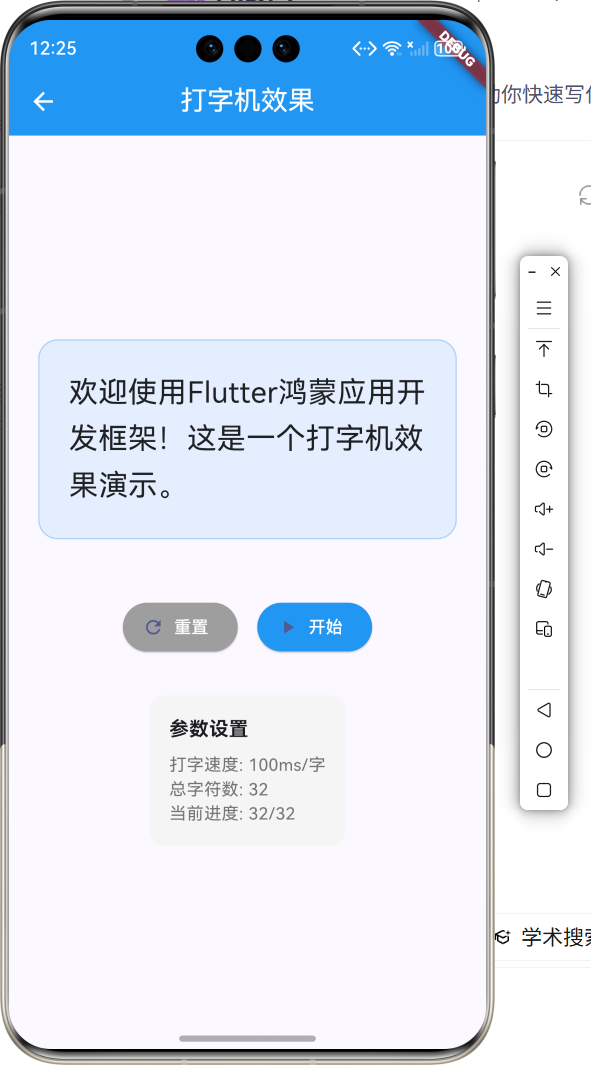
2.1 功能特性
| 功能 | 描述 |
|---|---|
| 逐字显示 | 文字按设定速度逐字显示 |
| 光标闪烁 | 打字过程中显示光标 |
| 重置功能 | 支持重置并重新开始 |
| 参数显示 | 显示打字速度和进度 |
三、项目背景与目标
3.1 项目背景
在现代移动应用中,文字动画效果越来越受到开发者的重视。打字机效果作为一种经典的文字动画,能够为应用增添趣味性和专业感。
3.2 项目目标
- 实现文字逐字显示效果
- 提供可配置的打字速度
- 支持重置和重新开始
- 显示实时进度信息
四、技术架构设计
4.1 架构概述
打字机效果基于Flutter的Timer定时器实现,通过周期性更新显示文字来实现逐字显示效果。
4.2 技术原理
Timer.periodic -> 逐字添加 -> 更新UI -> 完成检测
核心组件:
- Timer:定时器,控制打字速度
- setState:更新UI显示
- String操作:截取显示文字
五、详细实现
5.1 Flutter端实现
import 'dart:async';
import 'package:flutter/material.dart';
class TypewriterEffectPage extends StatefulWidget {
const TypewriterEffectPage({super.key});
State<TypewriterEffectPage> createState() => _TypewriterEffectPageState();
}
class _TypewriterEffectPageState extends State<TypewriterEffectPage> {
final String _fullText = '欢迎使用Flutter鸿蒙应用开发框架!这是一个打字机效果演示。';
String _displayText = '';
int _charIndex = 0;
Timer? _timer;
bool _isTyping = false;
void _startTyping() {
if (_isTyping) return;
setState(() {
_isTyping = true;
_displayText = '';
_charIndex = 0;
});
_timer = Timer.periodic(const Duration(milliseconds: 100), (timer) {
if (_charIndex < _fullText.length) {
setState(() {
_displayText += _fullText[_charIndex];
_charIndex++;
});
} else {
timer.cancel();
setState(() => _isTyping = false);
}
});
}
void _reset() {
_timer?.cancel();
setState(() {
_displayText = '';
_charIndex = 0;
_isTyping = false;
});
}
void dispose() {
_timer?.cancel();
super.dispose();
}
Widget build(BuildContext context) {
return Scaffold(
appBar: AppBar(
title: const Text('打字机效果'),
centerTitle: true,
backgroundColor: Colors.blue,
foregroundColor: Colors.white,
),
body: Padding(
padding: const EdgeInsets.all(24),
child: Column(
mainAxisAlignment: MainAxisAlignment.center,
children: [
Container(
width: double.infinity,
padding: const EdgeInsets.all(24),
decoration: BoxDecoration(
color: Colors.blue.withOpacity(0.1),
borderRadius: BorderRadius.circular(16),
border: Border.all(color: Colors.blue.withOpacity(0.3)),
),
child: Row(
children: [
Expanded(
child: Text(
_displayText,
style: const TextStyle(
fontSize: 24,
height: 1.6,
color: Colors.black87,
),
),
),
if (_isTyping)
Container(
width: 2,
height: 28,
color: Colors.blue,
),
],
),
),
const SizedBox(height: 48),
Row(
mainAxisAlignment: MainAxisAlignment.center,
children: [
ElevatedButton.icon(
onPressed: _reset,
icon: const Icon(Icons.refresh),
label: const Text('重置'),
style: ElevatedButton.styleFrom(
backgroundColor: Colors.grey,
foregroundColor: Colors.white,
),
),
const SizedBox(width: 16),
ElevatedButton.icon(
onPressed: _isTyping ? null : _startTyping,
icon: const Icon(Icons.play_arrow),
label: Text(_isTyping ? '打字中...' : '开始'),
style: ElevatedButton.styleFrom(
backgroundColor: Colors.blue,
foregroundColor: Colors.white,
),
),
],
),
const SizedBox(height: 32),
Container(
padding: const EdgeInsets.all(16),
decoration: BoxDecoration(
color: Colors.grey[100],
borderRadius: BorderRadius.circular(12),
),
child: Column(
crossAxisAlignment: CrossAxisAlignment.start,
children: [
const Text('参数设置', style: TextStyle(fontSize: 16, fontWeight: FontWeight.bold)),
const SizedBox(height: 8),
Text('打字速度: 100ms/字', style: TextStyle(color: Colors.grey[600])),
Text('总字符数: ${_fullText.length}', style: TextStyle(color: Colors.grey[600])),
Text('当前进度: $_charIndex/${_fullText.length}', style: TextStyle(color: Colors.grey[600])),
],
),
),
],
),
),
);
}
}
5.2 核心功能解析
Timer定时器
_timer = Timer.periodic(const Duration(milliseconds: 100), (timer) {
  // 每100毫秒执行一次
});
Timer.periodic创建周期性定时器,Duration设置间隔时间。
逐字添加
_displayText += _fullText[_charIndex];
_charIndex++;
通过索引逐个添加字符到显示文本。
状态管理
bool _isTyping = false;
使用布尔值控制打字状态,防止重复触发。
六、实际应用场景
6.1 引导页
应用首次启动时,使用打字机效果展示欢迎语和功能介绍。
6.2 故事展示
在阅读类应用中,使用打字机效果展示故事内容,增加沉浸感。
6.3 代码演示
在技术教程应用中,使用打字机效果展示代码,帮助用户理解代码结构。
七、优化建议
7.1 性能优化
- 使用ListView.builder处理长文本
- 添加文字缓存机制
- 优化setState调用频率
7.2 功能扩展
- 添加打字速度调节
- 支持暂停和继续
- 添加音效支持
- 支持多段文字连续播放
八、常见问题与解决方案
8.1 问题1:打字速度不均匀
问题: 在某些设备上打字速度不稳定。
解决方案: 使用Stopwatch精确计时,或使用AnimationController替代Timer。
8.2 问题2:内存泄漏
问题: 页面退出后Timer仍在运行。
解决方案: 在dispose方法中取消Timer。
void dispose() {
_timer?.cancel();
super.dispose();
}
九、总结
本文详细介绍了Flutter鸿蒙应用中打字机效果的实现方法。通过Timer定时器和状态管理,实现了文字逐字显示的动画效果。该效果可广泛应用于引导页、故事展示等场景,提升用户体验。
十、参考资料
- Flutter官方文档:https://flutter.dev
- HarmonyOS开发者文档:https://developer.harmonyos.com
- Dart异步编程:https://dart.dev/tutorials/language/futures

作为“人工智能6S店”的官方数字引擎,为AI开发者与企业提供一个覆盖软硬件全栈、一站式门户。
更多推荐
 1
1 0
0- 0


 已为社区贡献1条内容

所有评论(0)