
【flutter for open harmony】第三方库Flutter 鸿蒙版 阅读计时 实战指南(适配 1.0.0)✨
阅读计时可以帮助用户追踪阅读时间,培养良好的阅读习惯。本文将介绍如何在Flutter鸿蒙应用中实现阅读计时功能。阅读计时应用使用Timer累计时间,通过List保存阅读记录,支持按日期统计。本文详细介绍了Flutter鸿蒙阅读计时功能的实现过程,包括时间累计、记录保存和统计显示。通过本实例,开发者可以掌握Flutter Timer使用、数据处理、列表展示等关键技术点。
【flutter for open harmony】第三方库Flutter 鸿蒙版 阅读计时 实战指南(适配 1.0.0)✨
Flutter 三方库 cached_network_image 的鸿蒙化适配与实战指南
欢迎加入开源鸿蒙跨平台社区: https://openharmonycrossplatform.csdn.net
本文详细介绍如何在Flutter鸿蒙应用中实现阅读计时功能,包括时间累计、记录保存和统计显示。
一、前言
阅读计时可以帮助用户追踪阅读时间,培养良好的阅读习惯。本文将介绍如何在Flutter鸿蒙应用中实现阅读计时功能。
二、效果展示
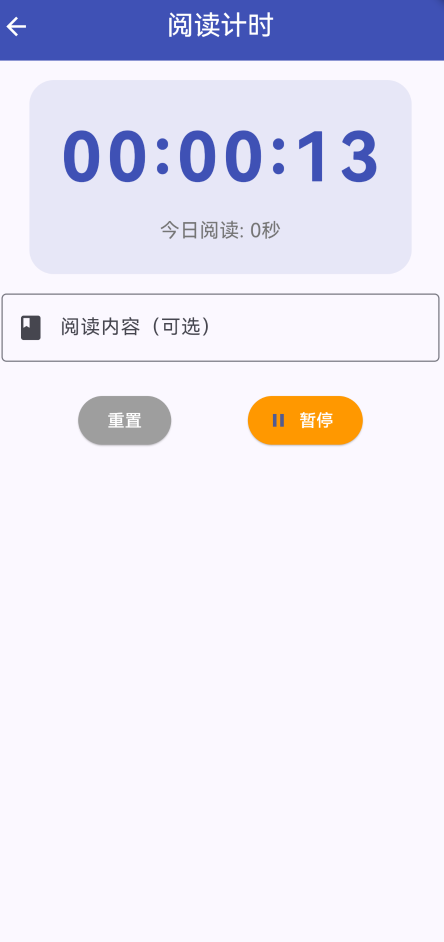
2.1 功能特性
| 功能 | 描述 |
|---|---|
| 时间累计 | 实时累计阅读时间 |
| 今日统计 | 统计今日总阅读时间 |
| 记录保存 | 保存阅读记录 |
| 内容标注 | 支持标注阅读内容 |
三、项目背景与目标
3.1 项目背景
阅读是重要的学习方式,记录阅读时间可以帮助用户了解自己的阅读习惯。
3.2 项目目标
- 实现时间累计功能
- 实现今日统计功能
- 实现记录保存功能
- 实现内容标注功能
四、技术架构设计
4.1 架构概述
阅读计时应用使用Timer累计时间,通过List保存阅读记录,支持按日期统计。
4.2 数据模型
class ReadingSession {
  final String title;
  final int duration;
  final DateTime date;
}
五、详细实现
5.1 Flutter端实现
import 'dart:async';
import 'package:flutter/material.dart';
class ReadingTimerPage extends StatefulWidget {
const ReadingTimerPage({super.key});
State<ReadingTimerPage> createState() => _ReadingTimerPageState();
}
class _ReadingTimerPageState extends State<ReadingTimerPage> {
Timer? _timer;
int _totalSeconds = 0;
bool _isRunning = false;
String _bookTitle = '';
final TextEditingController _bookController = TextEditingController();
final List<ReadingSession> _sessions = [];
void _start() {
setState(() => _isRunning = true);
_timer = Timer.periodic(const Duration(seconds: 1), (timer) {
setState(() => _totalSeconds++);
});
}
void _stop() {
_timer?.cancel();
setState(() => _isRunning = false);
}
void _saveSession() {
if (_totalSeconds > 0) {
setState(() {
_sessions.insert(0, ReadingSession(
title: _bookController.text.isEmpty ? '阅读' : _bookController.text,
duration: _totalSeconds,
));
_totalSeconds = 0;
_bookController.clear();
});
}
}
void _reset() {
_timer?.cancel();
setState(() {
_totalSeconds = 0;
_isRunning = false;
});
}
String _formatDuration(int totalSeconds) {
final hours = totalSeconds ~/ 3600;
final minutes = (totalSeconds % 3600) ~/ 60;
final seconds = totalSeconds % 60;
if (hours > 0) {
return '$hours小时${minutes}分钟';
} else if (minutes > 0) {
return '$minutes分钟${seconds}秒';
} else {
return '$seconds秒';
}
}
String _formatTime(int totalSeconds) {
final hours = (totalSeconds ~/ 3600).toString().padLeft(2, '0');
final minutes = ((totalSeconds % 3600) ~/ 60).toString().padLeft(2, '0');
final seconds = (totalSeconds % 60).toString().padLeft(2, '0');
return '$hours:$minutes:$seconds';
}
int get _todayTotal {
final today = DateTime.now();
return _sessions
.where((s) =>
s.date.year == today.year &&
s.date.month == today.month &&
s.date.day == today.day)
.fold(0, (sum, s) => sum + s.duration);
}
void dispose() {
_timer?.cancel();
_bookController.dispose();
super.dispose();
}
Widget build(BuildContext context) {
return Scaffold(
appBar: AppBar(
title: const Text('阅读计时'),
centerTitle: true,
backgroundColor: Colors.indigo,
foregroundColor: Colors.white,
),
body: SingleChildScrollView(
padding: const EdgeInsets.all(16),
child: Column(
children: [
Container(
padding: const EdgeInsets.all(24),
decoration: BoxDecoration(
color: Colors.indigo.withOpacity(0.1),
borderRadius: BorderRadius.circular(20),
),
child: Column(
children: [
Text(
_formatTime(_totalSeconds),
style: const TextStyle(
fontSize: 56,
fontWeight: FontWeight.bold,
color: Colors.indigo,
letterSpacing: 4,
),
),
const SizedBox(height: 8),
Text(
'今日阅读: ${_formatDuration(_todayTotal)}',
style: TextStyle(fontSize: 16, color: Colors.grey[600]),
),
],
),
),
const SizedBox(height: 16),
TextField(
controller: _bookController,
decoration: const InputDecoration(
labelText: '阅读内容(可选)',
border: OutlineInputBorder(),
prefixIcon: Icon(Icons.book),
),
),
const SizedBox(height: 24),
Row(
mainAxisAlignment: MainAxisAlignment.spaceEvenly,
children: [
ElevatedButton(
onPressed: _reset,
style: ElevatedButton.styleFrom(
backgroundColor: Colors.grey,
foregroundColor: Colors.white,
),
child: const Text('重置'),
),
ElevatedButton.icon(
onPressed: _isRunning ? _stop : _start,
icon: Icon(_isRunning ? Icons.pause : Icons.play_arrow),
label: Text(_isRunning ? '暂停' : '开始'),
style: ElevatedButton.styleFrom(
backgroundColor: _isRunning ? Colors.orange : Colors.indigo,
foregroundColor: Colors.white,
),
),
if (_totalSeconds > 0 && !_isRunning)
ElevatedButton(
onPressed: _saveSession,
style: ElevatedButton.styleFrom(
backgroundColor: Colors.green,
foregroundColor: Colors.white,
),
child: const Text('保存'),
),
],
),
if (_sessions.isNotEmpty) ...[
const SizedBox(height: 24),
const Text('阅读记录', style: TextStyle(fontSize: 18, fontWeight: FontWeight.bold)),
const SizedBox(height: 8),
...List.generate(_sessions.length > 5 ? 5 : _sessions.length, (index) {
final session = _sessions[index];
return Card(
child: ListTile(
leading: const Icon(Icons.book, color: Colors.indigo),
title: Text(session.title),
subtitle: Text(
'${session.date.month}/${session.date.day} ${session.date.hour}:${session.date.minute.toString().padLeft(2, '0')}',
),
trailing: Text(
_formatDuration(session.duration),
style: const TextStyle(fontWeight: FontWeight.bold, color: Colors.indigo),
),
),
);
}),
],
],
),
),
);
}
}
class ReadingSession {
final String title;
final int duration;
final DateTime date;
ReadingSession({required this.title, required this.duration}) : date = DateTime.now();
}
5.2 核心功能解析
时间累计
使用Timer.periodic每秒更新累计时间。
今日统计
通过日期过滤计算今日总阅读时间。
记录保存
保存阅读记录到列表,包含标题、时长和日期。
六、实际应用场景
6.1 学习记录
记录学习阅读时间。
6.2 习惯养成
培养每日阅读习惯。
6.3 时间管理
了解自己的阅读时间分配。
七、优化建议
7.1 数据持久化
使用本地数据库保存记录。
7.2 图表统计
添加阅读时间图表。
7.3 目标设定
设定每日阅读目标。
八、常见问题与解决方案
8.1 计时不准确
使用更精确的计时方式。
8.2 数据丢失
实现数据持久化存储。
8.3 内存泄漏
确保在dispose中取消Timer。
九、总结
本文详细介绍了Flutter鸿蒙阅读计时功能的实现过程,包括时间累计、记录保存和统计显示。通过本实例,开发者可以掌握Flutter Timer使用、数据处理、列表展示等关键技术点。
十、参考资料
- Flutter官方文档:https://flutter.dev
- HarmonyOS开发者文档:https://developer.harmonyos.com
- Flutter中国社区:https://flutter-io.cn

作为“人工智能6S店”的官方数字引擎,为AI开发者与企业提供一个覆盖软硬件全栈、一站式门户。
更多推荐
 1
1 0
0- 0


 已为社区贡献2条内容

所有评论(0)