
Flutter 三方库 photo_view + cached_network_image + video_player 的鸿蒙化适配与实战指南
Flutter 三方库 photo_view + cached_network_image + video_player 的鸿蒙化适配与实战指南 本文介绍了Flutter聊天应用中三个核心UI增强库的集成与使用:photo_view(支持图片缩放预览)、cached_network_image(实现图片缓存加载)和video_player(提供视频播放功能)。文章详细说明了这些库在鸿蒙设备上的适配
Flutter 三方库 photo_view + cached_network_image + video_player 的鸿蒙化适配与实战指南
欢迎加入开源鸿蒙跨平台社区:https://openharmonycrossplatform.csdn.net
Hey 大家好!,上海某高校计算机专业大一学生 📱!今天来聊聊聊天 App 里三个非常重要的 UI 增强库!
聊天 App 最核心的是什么?当然是看消息!看文字、看图片、看视频……如果这些体验做不好,用户早就跑了!
今天介绍三个让聊天体验 up up 的库:
photo_view:图片预览 + 缩放cached_network_image:图片缓存video_player:视频播放
一、为什么需要这些库?
原始方案的痛点 😣
| 功能 | 原始方案的问题 | 解决方案 |
|---|---|---|
| 图片预览 | 只能用 AlertDialog 显示,无法缩放,体验很差 | photo_view |
| 图片加载 | 每次都从网络下载,浪费流量,加载慢 | cached_network_image |
| 视频播放 | 要么跳转到其他 App,要么根本播不了 | video_player |
这些问题,交给这三个库来解决!
二、依赖配置
dependencies:
  # 图片预览缩放
  photo_view: ^0.15.0

  # 图片缓存
  cached_network_image: ^3.3.1

  # 视频播放
  video_player: ^2.9.2
AtomGit 适配说明:这三个库都有专门的鸿蒙支持,在鸿蒙设备上运行良好!
三、photo_view - 图片预览缩放
功能特点
- 双指缩放
- 单指拖动
- 可设置最大/最小缩放比例
- 加载指示器
- 支持多图滑动(PhotoViewGallery)
基础用法
import 'package:photo_view/photo_view.dart';

PhotoView(
  imageProvider: NetworkImage('https://example.com/image.jpg'),
  minScale: PhotoViewComputedScale.contained,
  maxScale: PhotoViewComputedScale.covered * 3,
  backgroundDecoration: const BoxDecoration(color: Colors.black),
)
在聊天页面中实现图片预览
/// 聊天详情页中的图片预览功能
class ChatDetailPage extends StatelessWidget {
  // ...

  /// 打开图片预览
  void _openImagePreview(BuildContext context, List<String> imageUrls, int initialIndex) {
    Navigator.push(
      context,
      MaterialPageRoute(
        builder: (context) => Scaffold(
          backgroundColor: Colors.black,
          appBar: AppBar(
            backgroundColor: Colors.black,
            leading: IconButton(
              icon: const Icon(Icons.close, color: Colors.white),
              onPressed: () => Navigator.pop(context),
            ),
            // 显示当前页码
            title: Text(
              '${initialIndex + 1} / ${imageUrls.length}',
              style: const TextStyle(color: Colors.white),
            ),
          ),
          body: PhotoViewGallery.builder(
            scrollPhysics: const BouncingScrollPhysics(),
            builder: (context, index) {
              return PhotoViewGalleryPageOptions(
                // 图片源
                imageProvider: CachedNetworkImageProvider(imageUrls[index]),
                // 初始缩放
                initialScale: PhotoViewComputedScale.contained,
                // 最小缩放
                minScale: PhotoViewComputedScale.contained,
                // 最大缩放
                maxScale: PhotoViewComputedScale.covered * 3,
                // 长按保存
                onScaleEnd: (context, details, controllerValue) {
                  // 可以在这里实现保存图片功能
                },
              );
            },
            itemCount: imageUrls.length,
            loadingBuilder: (context, event) => const Center(
              child: CircularProgressIndicator(color: Colors.white),
            ),
            pageController: PageController(initialPage: initialIndex),
            onPageChanged: (index) {
              // 页码变化回调
              debugPrint('当前页面: $index');
            },
          ),
        ),
      ),
    );
  }
}
预览组件封装
为了复用,我们可以把可点击预览的图片封装成组件:
/// 可点击预览的图片组件
class PreviewableImage extends StatelessWidget {
final String imageUrl;
final double? width;
final double? height;
final BoxFit fit;
final BorderRadius? borderRadius;
const PreviewableImage({
super.key,
required this.imageUrl,
this.width,
this.height,
this.fit = BoxFit.cover,
this.borderRadius,
});
Widget build(BuildContext context) {
return GestureDetector(
onTap: () => _openPreview(context),
child: ClipRRect(
borderRadius: borderRadius ?? BorderRadius.zero,
child: CachedNetworkImage(
imageUrl: imageUrl,
width: width,
height: height,
fit: fit,
placeholder: (context, url) => Container(
width: width,
height: height,
color: Colors.grey[200],
child: const Center(
child: CircularProgressIndicator(strokeWidth: 2),
),
),
errorWidget: (context, url, error) => Container(
width: width,
height: height,
color: Colors.grey[200],
child: const Icon(Icons.error, color: Colors.grey),
),
),
),
);
}
void _openPreview(BuildContext context) {
Navigator.push(
context,
MaterialPageRoute(
builder: (context) => Scaffold(
backgroundColor: Colors.black,
appBar: AppBar(
backgroundColor: Colors.black,
leading: IconButton(
icon: const Icon(Icons.close, color: Colors.white),
onPressed: () => Navigator.pop(context),
),
),
body: PhotoView(
imageProvider: CachedNetworkImageProvider(imageUrl),
minScale: PhotoViewComputedScale.contained,
maxScale: PhotoViewComputedScale.covered * 3,
backgroundDecoration: const BoxDecoration(color: Colors.black),
loadingBuilder: (context, event) => const Center(
child: CircularProgressIndicator(color: Colors.white),
),
),
),
),
);
}
}
四、cached_network_image - 图片缓存
功能特点
- 自动缓存网络图片到本地
- 支持内存缓存 + 磁盘缓存
- 渐进式加载(模糊到清晰)
- 可自定义占位图
- 支持淡入动画
基础用法
import 'package:cached_network_image/cached_network_image.dart';

CachedNetworkImage(
  imageUrl: 'https://example.com/image.jpg',
  imageBuilder: (context, imageProvider) => Container(
    decoration: BoxDecoration(
      image: DecorationImage(image: imageProvider),
    ),
  ),
  placeholder: (context, url) => const CircularProgressIndicator(),
  errorWidget: (context, url, error) => const Icon(Icons.error),
)
在聊天消息中使用
/// 聊天图片消息组件
class ChatImageMessage extends StatelessWidget {
final String imageUrl;
final bool isMe;
final VoidCallback? onTap;
const ChatImageMessage({
super.key,
required this.imageUrl,
required this.isMe,
this.onTap,
});
Widget build(BuildContext context) {
return GestureDetector(
onTap: onTap ?? () => _openPreview(context),
child: Container(
constraints: BoxConstraints(
maxWidth: MediaQuery.of(context).size.width * 0.65,
maxHeight: 200,
),
decoration: BoxDecoration(
borderRadius: BorderRadius.circular(12),
),
child: ClipRRect(
borderRadius: BorderRadius.circular(12),
child: CachedNetworkImage(
imageUrl: imageUrl,
// 渐进式加载
fadeInDuration: const Duration(milliseconds: 200),
fadeOutDuration: const Duration(milliseconds: 200),
// 占位图
placeholder: (context, url) => Container(
width: 200,
height: 150,
color: Colors.grey[200],
child: const Center(
child: SizedBox(
width: 30,
height: 30,
child: CircularProgressIndicator(strokeWidth: 2),
),
),
),
// 错误图
errorWidget: (context, url, error) => Container(
width: 200,
height: 150,
color: Colors.grey[200],
child: const Column(
mainAxisAlignment: MainAxisAlignment.center,
children: [
Icon(Icons.broken_image, color: Colors.grey),
SizedBox(height: 4),
Text(
'图片加载失败',
style: TextStyle(fontSize: 12, color: Colors.grey),
),
],
),
),
// 圆角
imageRoundedCorners: 12,
),
),
),
);
}
void _openPreview(BuildContext context) {
Navigator.push(
context,
MaterialPageRoute(
builder: (context) => Scaffold(
backgroundColor: Colors.black,
appBar: AppBar(backgroundColor: Colors.black),
body: PhotoView(
imageProvider: CachedNetworkImageProvider(imageUrl),
),
),
),
);
}
}
自定义缓存策略
// 在 main.dart 中配置全局缓存策略
CachedNetworkImage(
  // ...
  cacheManager: CacheManager(
    Config(
      'chat_images_cache',  // 缓存目录名
      maxStale: const Duration(days: 7),  // 缓存有效期
      // 自定义缓存策略
      cacheKey: (String url) => url,  // 缓存 key 生成方式
    ),
  ),
)
五、video_player - 视频播放
功能特点
- 支持多种视频格式(MP4、WebM、AV1)
- 支持本地/网络视频
- 播放控制(播放/暂停/跳转)
- 全屏播放
- 直播流支持
基础用法
import 'package:video_player/video_player.dart';
class VideoPlayerWidget extends StatefulWidget {
final String videoUrl;
const VideoPlayerWidget({super.key, required this.videoUrl});
State<VideoPlayerWidget> createState() => _VideoPlayerWidgetState();
}
class _VideoPlayerWidgetState extends State<VideoPlayerWidget> {
late VideoPlayerController _controller;
bool _isInitialized = false;
void initState() {
super.initState();
_initializeVideo();
}
Future<void> _initializeVideo() async {
_controller = VideoPlayerController.networkUrl(
Uri.parse(widget.videoUrl),
);
await _controller.initialize();
setState(() {
_isInitialized = true;
});
}
void dispose() {
_controller.dispose();
super.dispose();
}
Widget build(BuildContext context) {
if (!_isInitialized) {
return Container(
height: 200,
color: Colors.black,
child: const Center(
child: CircularProgressIndicator(color: Colors.white),
),
);
}
return AspectRatio(
aspectRatio: _controller.value.aspectRatio,
child: Stack(
alignment: Alignment.bottomCenter,
children: [
VideoPlayer(_controller),
// 播放按钮覆盖层
_VideoOverlay(controller: _controller),
// 进度条
VideoProgressIndicator(_controller, allowScrubbing: true),
],
),
);
}
}
/// 视频播放控制覆盖层
class _VideoOverlay extends StatelessWidget {
final VideoPlayerController controller;
const _VideoOverlay({required this.controller});
Widget build(BuildContext context) {
return GestureDetector(
onTap: () {
setState(() {
if (controller.value.isPlaying) {
controller.pause();
} else {
controller.play();
}
});
},
child: Container(
color: Colors.transparent,
child: Center(
child: AnimatedOpacity(
opacity: controller.value.isPlaying ? 0 : 1,
duration: const Duration(milliseconds: 300),
child: Container(
padding: const EdgeInsets.all(12),
decoration: const BoxDecoration(
color: Colors.black54,
shape: BoxShape.circle,
),
child: Icon(
controller.value.isPlaying ? Icons.pause : Icons.play_arrow,
color: Colors.white,
size: 48,
),
),
),
),
),
);
}
}
聊天视频消息组件
/// 聊天视频消息组件
class ChatVideoMessage extends StatefulWidget {
final String videoUrl;
final String? thumbnailUrl;
final bool isMe;
const ChatVideoMessage({
super.key,
required this.videoUrl,
this.thumbnailUrl,
required this.isMe,
});
State<ChatVideoMessage> createState() => _ChatVideoMessageState();
}
class _ChatVideoMessageState extends State<ChatVideoMessage> {
VideoPlayerController? _controller;
bool _isInitialized = false;
bool _isPlaying = false;
void initState() {
super.initState();
_initializeVideo();
}
Future<void> _initializeVideo() async {
_controller = VideoPlayerController.networkUrl(
Uri.parse(widget.videoUrl),
);
await _controller!.initialize();
_controller!.addListener(() {
if (mounted) {
setState(() {
_isPlaying = _controller!.value.isPlaying;
});
}
});
setState(() {
_isInitialized = true;
});
}
void dispose() {
_controller?.dispose();
super.dispose();
}
Widget build(BuildContext context) {
return Container(
width: 240,
height: 180,
decoration: BoxDecoration(
borderRadius: BorderRadius.circular(12),
color: Colors.black,
),
child: ClipRRect(
borderRadius: BorderRadius.circular(12),
child: _isInitialized
? _buildVideoPlayer()
: _buildThumbnail(),
),
);
}
Widget _buildThumbnail() {
return Stack(
alignment: Alignment.center,
children: [
if (widget.thumbnailUrl != null)
CachedNetworkImage(
imageUrl: widget.thumbnailUrl!,
fit: BoxFit.cover,
width: double.infinity,
height: double.infinity,
)
else
Container(color: Colors.grey[800]),
const CircularProgressIndicator(color: Colors.white),
],
);
}
Widget _buildVideoPlayer() {
return GestureDetector(
onTap: _togglePlay,
child: Stack(
alignment: Alignment.center,
children: [
AspectRatio(
aspectRatio: _controller!.value.aspectRatio,
child: VideoPlayer(_controller!),
),
if (!_isPlaying)
Container(
padding: const EdgeInsets.all(12),
decoration: const BoxDecoration(
color: Colors.black54,
shape: BoxShape.circle,
),
child: const Icon(
Icons.play_arrow,
color: Colors.white,
size: 36,
),
),
// 进度条
Positioned(
bottom: 0,
left: 0,
right: 0,
child: VideoProgressIndicator(
_controller!,
allowScrubbing: true,
colors: const VideoProgressColors(
playedColor: Color(0xFF6366F1),
bufferedColor: Colors.white30,
backgroundColor: Colors.white10,
),
),
),
],
),
);
}
void _togglePlay() {
setState(() {
if (_isPlaying) {
_controller!.pause();
} else {
_controller!.play();
}
});
}
}
六、完整集成示例
让我们把三个组件整合到一个聊天消息气泡中:
/// 聊天消息气泡
class ChatBubble extends StatelessWidget {
final ChatMessage message;
const ChatBubble({super.key, required this.message});
Widget build(BuildContext context) {
switch (message.type) {
case MessageType.image:
return ChatImageMessage(
imageUrl: message.imagePath!,
isMe: message.isMe,
onTap: () => _openImagePreview(context, [message.imagePath!], 0),
);
case MessageType.video:
return ChatVideoMessage(
videoUrl: message.videoPath!,
thumbnailUrl: message.thumbnailPath,
isMe: message.isMe,
);
default:
return _buildTextBubble();
}
}
void _openImagePreview(BuildContext context, List<String> urls, int index) {
Navigator.push(
context,
MaterialPageRoute(
builder: (context) => Scaffold(
backgroundColor: Colors.black,
appBar: AppBar(backgroundColor: Colors.black),
body: PhotoViewGallery.builder(
itemCount: urls.length,
pageController: PageController(initialPage: index),
builder: (context, i) => PhotoViewGalleryPageOptions(
imageProvider: CachedNetworkImageProvider(urls[i]),
minScale: PhotoViewComputedScale.contained,
maxScale: PhotoViewComputedScale.covered * 3,
),
),
),
),
);
}
Widget _buildTextBubble() {
// 文字消息气泡实现
return Container(
margin: const EdgeInsets.symmetric(horizontal: 16, vertical: 4),
padding: const EdgeInsets.symmetric(horizontal: 16, vertical: 10),
decoration: BoxDecoration(
color: message.isMe ? const Color(0xFF6366F1) : Colors.grey[200],
borderRadius: BorderRadius.circular(16),
),
child: Text(
message.content,
style: TextStyle(
color: message.isMe ? Colors.white : Colors.black87,
),
),
);
}
}
七、鸿蒙化实现
虽然 Flutter 版本的这些库可以在鸿蒙上运行,但 OpenHarmony 原生也有对应的实现方案:
图片预览 - ArkUI 原生实现
// ArkUI 原生图片预览
@Component
struct ImagePreviewPage {
  @State imageUrl: string = ''

  build() {
    NavDestination() {
      Stack() {
        Image(this.imageUrl)
          .width('100%')
          .height('100%')
          .objectFit(ImageFit.Contain)
          .gesture(
            PinchGesture()
              .onActionUpdate((event) => {
                // 处理缩放
              })
          )
          .gesture(
            PanGesture()
              .onActionUpdate((event) => {
                // 处理拖动
              })
          )
      }
      .width('100%')
      .height('100%')
      .backgroundColor(Color.Black)
    }
  }
}
图片缓存 - 原生实现
// 简单的图片缓存管理器
class ImageCacheManager {
  private cache: Map<string, PixelMap> = new Map()

  async getImage(url: string): Promise<PixelMap | null> {
    // 先检查内存缓存
    if (this.cache.has(url)) {
      return this.cache.get(url)
    }

    // 下载并缓存
    const response = await fetch(url)
    const pixelMap = await image.createImagePacker().packing(response)
    this.cache.set(url, pixelMap)

    return pixelMap
  }

  clearCache() {
    this.cache.clear()
  }
}
八、踩坑纪实
踩坑1:PhotoView 在列表中滑动冲突 🔄
在 ListView 里面使用 PhotoView,手指滑动预览图片时会和列表滚动冲突。解决方案是用 PageView 包裹:
// 错误 ❌ - 在 ListView 中嵌套 PhotoView
ListView(
  children: [
    PhotoView(...),  // 会和 ListView 的滚动冲突
    PhotoView(...),
  ]
)

// 正确 ✅ - 用 PageView 包裹
PageView.builder(
  itemCount: images.length,
  itemBuilder: (context, index) => PhotoView(
    imageProvider: CachedNetworkImageProvider(images[index]),
  ),
)
踩坑2:视频初始化慢 ⏱️
聊天页面加载视频特别慢。解决方案是先加载缩略图,用户点击播放时再初始化视频:
// 先显示缩略图 - 用户体验更好
Stack(
  children: [
    CachedNetworkImage(
      imageUrl: thumbnailUrl,
      fit: BoxFit.cover,
    ),
    // 加载指示器
    if (!_isInitialized)
      CircularProgressIndicator(),
  ]
)

// 用户点击后,再初始化 VideoPlayerController
VideoPlayerController.networkUrl(Uri.parse(videoUrl))
踩坑3:图片缓存清理不及时 🗑️
缓存的图片越来越多,占用大量存储空间。需要在合适的时候清理缓存:
// 清理指定缓存
await DefaultCacheManager().removeFile(cacheKey);

// 清理所有缓存
await DefaultCacheManager().emptyCache();

// 或者限制缓存大小
CachedNetworkImage(
  cacheManager: CacheManager(
    Config(
      'chat_images_cache',
      maxStale: const Duration(days: 7),
      // 限制缓存总大小为 100MB
      maxSize: 100 * 1024 * 1024,
    ),
  ),
)
踩坑4:视频播放时横竖屏切换 📱
视频播放器在全屏切换时容易出问题,需要正确处理:
class VideoPlayerWidget extends StatefulWidget {
// ...
void didChangeAppLifecycleState(AppLifecycleState state) {
if (state == AppLifecycleState.paused) {
_controller.pause();
}
}
}
九、效果展示
模拟数据示例
// 模拟聊天消息数据
final mockMessages = [
  ChatMessage(
    id: '1',
    content: '看看这张图片',
    type: MessageType.image,
    imagePath: 'https://picsum.photos/800/600',
    isMe: false,
    senderName: '小美',
    timestamp: DateTime.now(),
  ),
  ChatMessage(
    id: '2',
    content: '好的',
    type: MessageType.text,
    isMe: true,
    senderName: '我',
    timestamp: DateTime.now(),
  ),
  ChatMessage(
    id: '3',
    content: '这个视频很有意思',
    type: MessageType.video,
    videoPath: 'https://sample-videos.com/video123/mp4/720/big_buck_bunny_720p_1mb.mp4',
    thumbnailPath: 'https://picsum.photos/400/300',
    isMe: false,
    senderName: '小美',
    timestamp: DateTime.now(),
  ),
];
运行效果
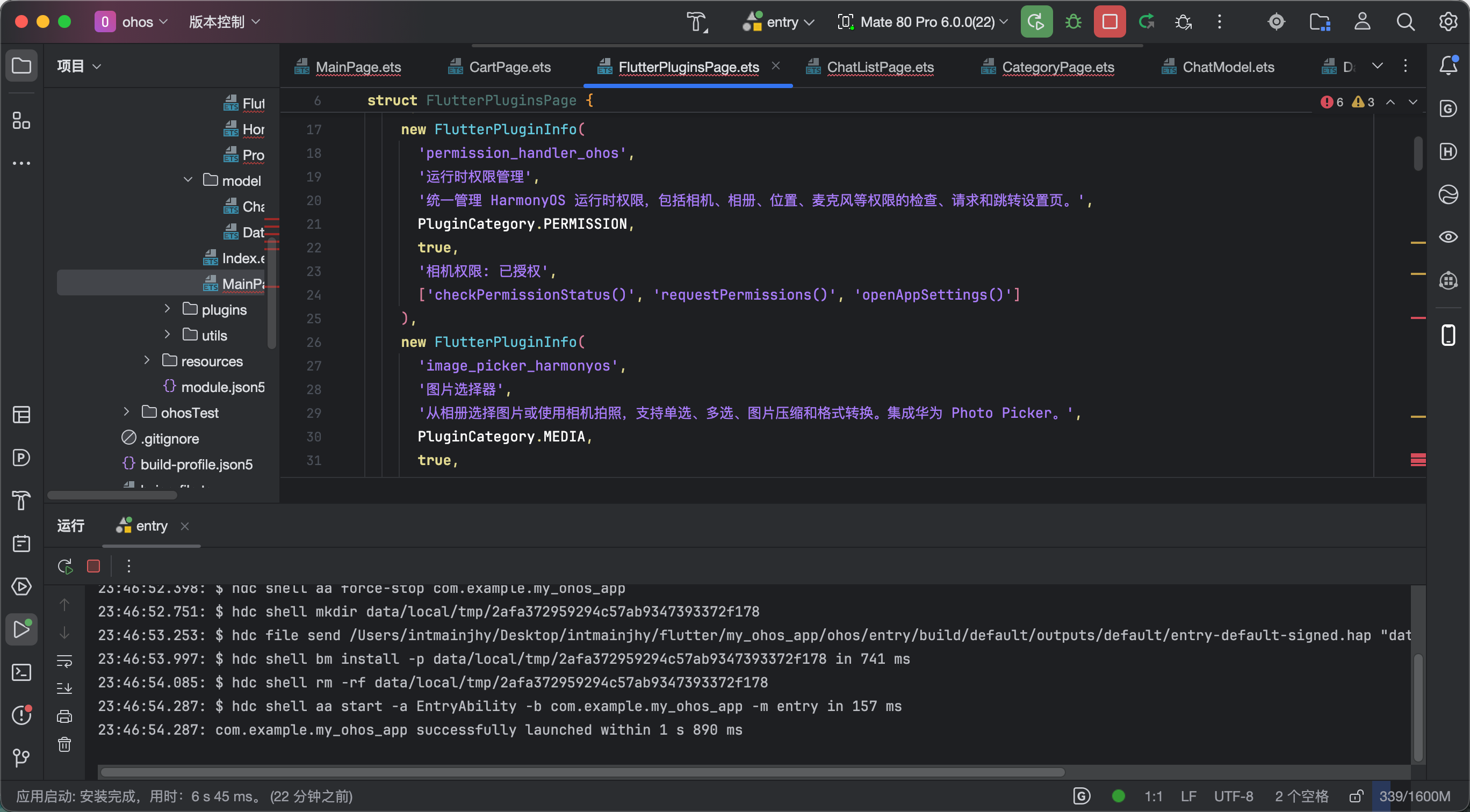
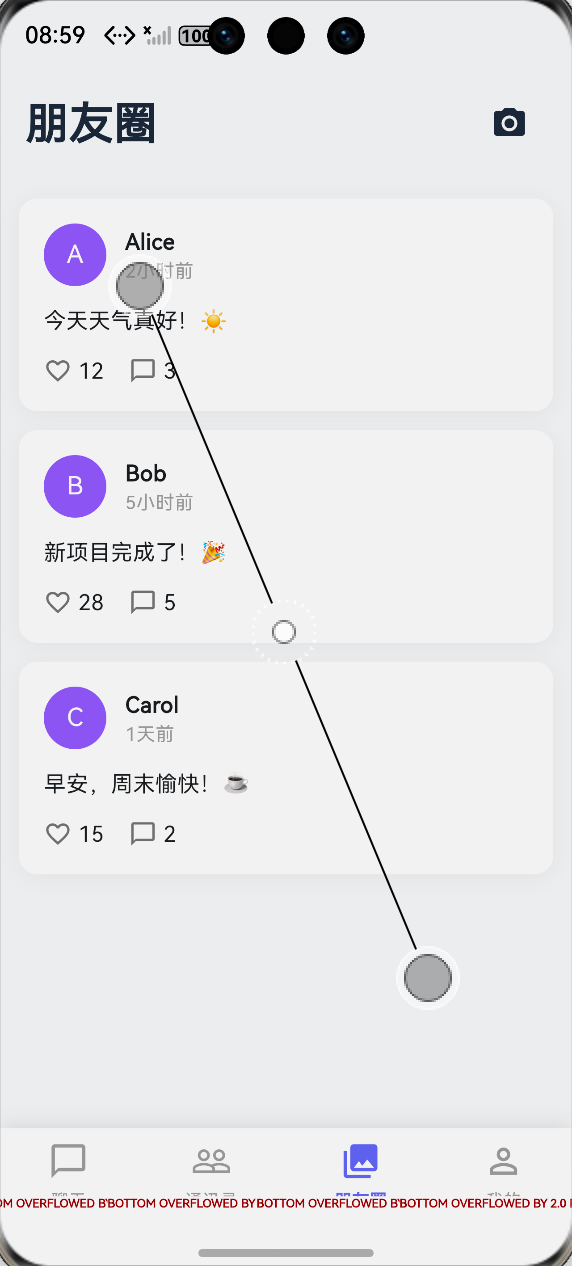
##########无真机测试,不好展示!!!!!!###########
十、总结心得
这三个库组合在一起,聊天 App 的媒体体验直接拉满!
核心要点:
- PhotoView + CachedNetworkImage:这对黄金搭档要配合使用,PhotoView 负责预览缩放,CachedNetworkImage 负责加载缓存
- 视频播放器:要处理好初始化状态,先显示缩略图再加载视频
- 错误处理:一定要做好错误处理,给用户友好的提示
- 性能优化:注意缓存策略,避免占用过多存储空间
学习心得:
MediaPlayer 的学习让我了解了多媒体播放的底层原理。虽然 Flutter 封装得很好,但理解底层逻辑对排查问题很有帮助!建议大家学习一下 Android/iOS 的多媒体框架,对理解 Flutter 插件的工作原理很有帮助。
今天的分享就到这里!有问题评论区见!

作为“人工智能6S店”的官方数字引擎,为AI开发者与企业提供一个覆盖软硬件全栈、一站式门户。
更多推荐

 0
0 0
0- 0


 已为社区贡献51条内容

所有评论(0)