
Flutter 跨平台开发实战:基于三方库的鸿蒙 6.0 图片压缩工具开发
本文介绍了基于Flutter开发鸿蒙6.0图片压缩工具的实战过程。该项目利用Flutter 3.27.5-ohos-1.0.0鸿蒙定制版框架,结合image_picker、flutter_image_compress等三方库,实现了本地图片选择、参数配置、压缩处理和效果对比等功能。文章详细讲解了环境配置(Flutter SDK+DevEco Studio)、项目结构、依赖管理以及核心代码实现,包括
Flutter 跨平台开发实战:基于三方库的鸿蒙 6.0 图片压缩工具开发
欢迎加入开源鸿蒙跨平台社区: https://openharmonycrossplatform.csdn.net
Flutter 已正式支持鸿蒙系统,本文带你用 Flutter 搭配成熟三方库,开发一款可选择图片、调整压缩参数、预览对比效果的图片压缩工具,快速掌握 Flutter 鸿蒙开发的核心流程。
项目基础信息
项目名称:鸿蒙图片压缩工具
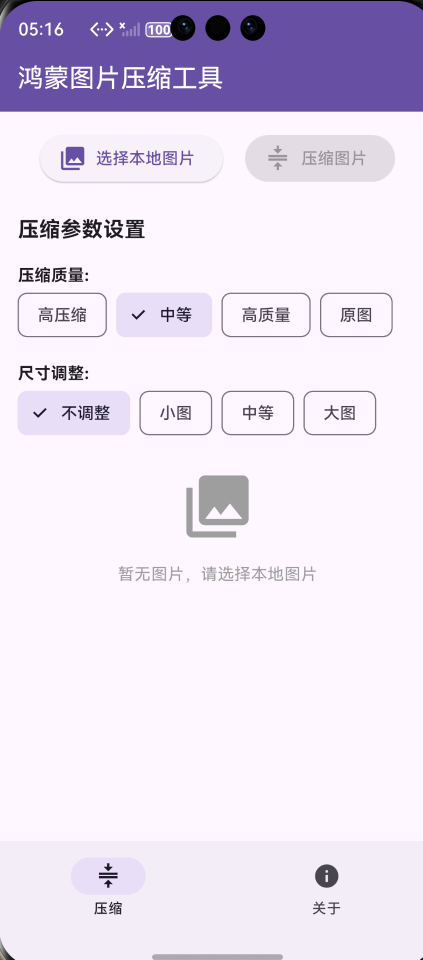
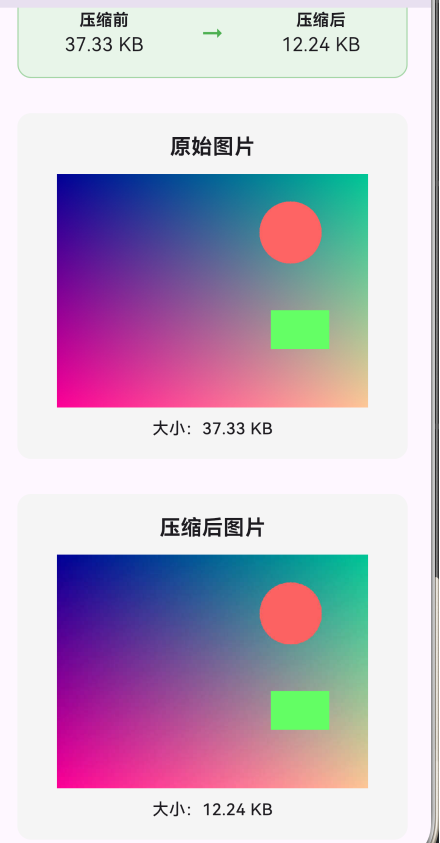
核心功能:本地图片选择、压缩参数配置、图片压缩、预览对比、压缩率展示
开发框架:Flutter 3.27.5-ohos-1.0.0(鸿蒙定制版,原生支持鸿蒙)
目标系统:鸿蒙 6.0
开发工具:DevEco Studio(内置鸿蒙 6.0 本地模拟器)
核心三方库:
image_picker:鸿蒙端本地相册 / 文件选择图片
flutter_image_compress:图片无损压缩,减小体积
photo_view:图片手势缩放预览(鸿蒙端适配)
path_provider:文件路径与大小计算工具
环境配置
-
安装 Flutter SDK 并配置系统环境变量,通过
flutter doctor验证安装状态 -
安装 DevEco Studio 并配置 Flutter、Dart 插件
-
执行命令开启 Flutter 鸿蒙支持,并用
flutter doctor \-v校验配置
flutter config --enable-ohos
项目创建与结构
- 执行命令创建 Flutter 项目并添加鸿蒙平台支持
flutter create flutter_harmony_image_tool
cd flutter_harmony_image_tool
flutter create --platforms=ohos .
- 项目核心结构
- lib/:存放 Flutter 业务代码,main.dart 为应用入口
- ohos/:鸿蒙平台原生代码目录
- pubspec.yaml:项目依赖配置文件
项目依赖配置
打开 pubspec.yaml 添加图片处理、压缩、预览相关依赖,配置完成后执行 flutter pub get 安装依赖
name: flutter_harmony_image_tool
description: 鸿蒙图片压缩工具
publish_to: 'none'
version: 1.0.0+1
environment:
  sdk: '>=3.4.0 <4.0.0'
dependencies:
  flutter:
    sdk: flutter
  image: ^4.1.7
  flutter_image_compress: ^2.3.0
  photo_view: ^0.15.0
dev_dependencies:
  flutter_test:
    sdk: flutter
  flutter_lints: ^3.0.0
flutter:
  uses-material-design: true
Flutter 核心代码实现
数据模型定义
定义压缩质量、尺寸调整枚举,以及存储图片信息的 ImageItem 类,包含文件、大小、宽高、压缩率等属性和格式化方法
import 'dart:io';
import 'package:flutter/material.dart';
import 'package:flutter/services.dart';
import 'package:flutter_image_compress/flutter_image_compress.dart';
import 'package:photo_view/photo_view.dart';
import 'package:image/image.dart' as img;

// 压缩质量枚举
enum CompressionQuality {
  low(label: '高压缩', quality: 30, description: '最小体积,适合分享'),
  medium(label: '中等', quality: 60, description: '平衡质量与体积'),
  high(label: '高质量', quality: 85, description: '较好质量,适度压缩'),
  original(label: '原图', quality: 100, description: '保持原始质量');
  final String label;
  final int quality;
  final String description;
  const CompressionQuality({required this.label, required this.quality, required this.description});
}

// 尺寸调整枚举
enum ResizeMode {
  none(label: '不调整', scale: 1.0, description: '保持原始尺寸'),
  small(label: '小图', scale: 0.5, description: '缩小50%'),
  medium(label: '中等', scale: 0.75, description: '缩小25%'),
  large(label: '大图', scale: 0.9, description: '缩小10%');
  final String label;
  final double scale;
  final String description;
  const ResizeMode({required this.label, required this.scale, required this.description});
}

// 图片信息模型
class ImageItem {
  final String id;
  final File file;
  final String name;
  final int originalSize;
  final int? compressedSize;
  final int width;
  final int height;
  final DateTime addedAt;
  final bool isCompressed;
  final String? compressedPath;

  ImageItem({required this.id, required this.file, required this.name, required this.originalSize,
    this.compressedSize, required this.width, required this.height, required this.addedAt,
    this.isCompressed = false, this.compressedPath});

  double get compressionRatio {
    if (compressedSize == null || compressedSize == 0) return 0;
    return ((originalSize - compressedSize!) / originalSize * 100);
  }

  String get formattedOriginalSize => _formatFileSize(originalSize);
  String get formattedCompressedSize => compressedSize != null ? _formatFileSize(compressedSize!) : '';

  String _formatFileSize(int bytes) {
    if (bytes < 1024) return "$bytes B";
    if (bytes < 1024 * 1024) return "${(bytes / 1024).toStringAsFixed(2)} KB";
    return "${(bytes / 1024 / 1024).toStringAsFixed(2)} MB";
  }

  ImageItem copyWith({String? id, File? file, String? name, int? originalSize, int? compressedSize,
    int? width, int? height, DateTime? addedAt, bool? isCompressed, String? compressedPath}) {
    return ImageItem(
      id: id ?? this.id, file: file ?? this.file, name: name ?? this.name,
      originalSize: originalSize ?? this.originalSize, compressedSize: compressedSize ?? this.compressedSize,
      width: width ?? this.width, height: height ?? this.height, addedAt: addedAt ?? this.addedAt,
      isCompressed: isCompressed ?? this.isCompressed, compressedPath: compressedPath ?? this.compressedPath,
    );
  }
}
应用入口与主页面
// 应用入口
void main() {
  runApp(const ImageCompressorApp());
}

class ImageCompressorApp extends StatelessWidget {
  const ImageCompressorApp({super.key});
  @override
  Widget build(BuildContext context) {
    return MaterialApp(
      title: '鸿蒙图片压缩工具',
      theme: ThemeData(primarySwatch: Colors.blue, useMaterial3: true),
      debugShowCheckedModeBanner: false,
      home: const ImageCompressorHomePage(),
    );
  }
}

// 主页面
class ImageCompressorHomePage extends StatefulWidget {
  const ImageCompressorHomePage({super.key});
  @override
  State<ImageCompressorHomePage> createState() => _ImageCompressorHomePageState();
}

class _ImageCompressorHomePageState extends State<ImageCompressorHomePage> {
  int _currentIndex = 0;
  List<ImageItem> _selectedImages = [];
  CompressionQuality _compressionQuality = CompressionQuality.medium;
  ResizeMode _resizeMode = ResizeMode.none;
  bool _isProcessing = false;
核心功能实现
常用文件选择库暂不支持鸿蒙,通过 MethodChannel 调用鸿蒙原生 API 实现图片选择,依托 flutter_image_compress 完成压缩,用 photo_view 实现手势缩放预览
// 图片选择
Future<void> selectImage() async {
  try {
    setState(() => _isProcessing = true);
    const methodChannel = MethodChannel('image_picker_plugin');
    final result = await methodChannel.invokeMethod<Map>('pickImage');
    if (result != null && result['path'] != null) {
      final path = result['path'] as String;
      final name = result['name'] as String;
      final file = File(path);
      final bytes = await file.readAsBytes();
      final image = img.decodeImage(bytes);
      if (image != null) {
        final imageItem = ImageItem(
          id: DateTime.now().millisecondsSinceEpoch.toString(),
          file: file, name: name, originalSize: bytes.length,
          width: image.width, height: image.height, addedAt: DateTime.now(),
        );
        setState(() {
          _selectedImages = [imageItem];
          _isProcessing = false;
        });
        ScaffoldMessenger.of(context).showSnackBar(const SnackBar(content: Text('图片选择成功!')));
      }
    } else {
      setState(() => _isProcessing = false);
    }
  } catch (e) {
    setState(() => _isProcessing = false);
    ScaffoldMessenger.of(context).showSnackBar(SnackBar(content: Text('选择图片失败: $e')));
  }
}

// 图片压缩
Future<void> compressImages() async {
  if (_selectedImages.isEmpty) {
    ScaffoldMessenger.of(context).showSnackBar(const SnackBar(content: Text('请先选择本地图片!')));
    return;
  }
  try {
    setState(() => _isProcessing = true);
    final List<ImageItem> compressedImages = [];
    for (final imageItem in _selectedImages) {
      final compressPath = '${imageItem.file.path}_compressed.jpg';
      final XFile? compressedFile = await FlutterImageCompress.compressAndGetFile(
        imageItem.file.path, compressPath, quality: _compressionQuality.quality,
      );
      if (compressedFile != null) {
        final compressed = File(compressedFile.path);
        final compressedSize = await compressed.length();
        final compressedImage = imageItem.copyWith(
          compressedSize: compressedSize, isCompressed: true, compressedPath: compressPath,
        );
        compressedImages.add(compressedImage);
      }
    }
    setState(() {
      _selectedImages = compressedImages;
      _isProcessing = false;
    });
    ScaffoldMessenger.of(context).showSnackBar(SnackBar(content: Text('压缩完成!共处理 ${compressedImages.length} 张图片')));
  } catch (e) {
    setState(() => _isProcessing = false);
    ScaffoldMessenger.of(context).showSnackBar(SnackBar(content: Text('压缩失败: $e')));
  }
}

// 图片预览
void previewImage(File image) {
  showDialog(
    context: context,
    builder: (context) => Dialog(
      insetPadding: const EdgeInsets.all(20),
      child: SizedBox(
        width: double.infinity, height: 400,
        child: PhotoView(
          imageProvider: FileImage(image),
          minScale: PhotoViewComputedScale.contained,
          maxScale: PhotoViewComputedScale.covered * 2,
          backgroundDecoration: const BoxDecoration(color: Colors.black),
        ),
      ),
    ),
  );
}
UI 界面搭建
搭建包含图片选择、压缩、参数配置、预览的主界面,以及关于页面,通过底部导航完成页面切换
// 图片预览卡片
Widget _buildImagePreviewCard(ImageItem imageItem) {
  return Card(
    margin: const EdgeInsets.symmetric(vertical: 8, horizontal: 16),
    child: Padding(
      padding: const EdgeInsets.all(16),
      child: Column(
        crossAxisAlignment: CrossAxisAlignment.start,
        children: [
          Row(
            children: [
              Expanded(child: Text(imageItem.name, style: const TextStyle(fontSize: 16, fontWeight: FontWeight.bold))),
              if (imageItem.isCompressed)
                Container(
                  padding: const EdgeInsets.symmetric(horizontal: 8, vertical: 4),
                  decoration: BoxDecoration(color: Colors.green.withOpacity(0.2), borderRadius: BorderRadius.circular(12)),
                  child: Text('已压缩', style: TextStyle(color: Colors.green[800], fontSize: 12, fontWeight: FontWeight.bold)),
                ),
            ],
          ),
          const SizedBox(height: 8),
          GestureDetector(
            onTap: () => previewImage(imageItem.file),
            child: Image.file(imageItem.file, height: 120, width: double.infinity, fit: BoxFit.contain),
          ),
          const SizedBox(height: 8),
          Text('原始大小: ${imageItem.formattedOriginalSize}'),
          if (imageItem.isCompressed)
            Column(
              crossAxisAlignment: CrossAxisAlignment.start,
              children: [
                Text('压缩后: ${imageItem.formattedCompressedSize}'),
                Text('压缩率: ${imageItem.compressionRatio.toStringAsFixed(1)}%'),
              ],
            ),
        ],
      ),
    ),
  );
}

// 压缩页面
Widget _buildCompressPage() {
  return SingleChildScrollView(
    padding: const EdgeInsets.all(16),
    child: Column(
      crossAxisAlignment: CrossAxisAlignment.start,
      children: [
        Row(
          mainAxisAlignment: MainAxisAlignment.spaceEvenly,
          children: [
            ElevatedButton.icon(
              onPressed: _isProcessing ? null : selectImage,
              icon: const Icon(Icons.photo_library), label: const Text('选择本地图片'),
            ),
            ElevatedButton.icon(
              onPressed: _isProcessing || _selectedImages.isEmpty ? null : compressImages,
              icon: const Icon(Icons.compress), label: const Text('压缩图片'),
            ),
          ],
        ),
        const SizedBox(height: 24),
        const Text('压缩参数设置', style: TextStyle(fontSize: 18, fontWeight: FontWeight.bold)),
        const SizedBox(height: 16),
        const Text('压缩质量:', style: TextStyle(fontWeight: FontWeight.bold)),
        Wrap(
          spacing: 8,
          children: CompressionQuality.values.map((quality) {
            return FilterChip(
              selected: _compressionQuality == quality,
              label: Text(quality.label),
              onSelected: (selected) => setState(() => _compressionQuality = quality),
            );
          }).toList(),
        ),
        const SizedBox(height: 16),
        const Text('尺寸调整:', style: TextStyle(fontWeight: FontWeight.bold)),
        Wrap(
          spacing: 8,
          children: ResizeMode.values.map((mode) {
            return FilterChip(
              selected: _resizeMode == mode,
              label: Text(mode.label),
              onSelected: (selected) => setState(() => _resizeMode = mode),
            );
          }).toList(),
        ),
        const SizedBox(height: 24),
        if (_selectedImages.isNotEmpty)
          Column(
            crossAxisAlignment: CrossAxisAlignment.start,
            children: [
              const Text('图片预览', style: TextStyle(fontSize: 18, fontWeight: FontWeight.bold)),
              const SizedBox(height: 16),
              ..._selectedImages.map(_buildImagePreviewCard).toList(),
            ],
          )
        else
          const Center(
            child: Column(
              children: [
                Icon(Icons.photo_library, size: 64, color: Colors.grey),
                SizedBox(height: 16),
                Text('暂无图片,请选择本地图片', style: TextStyle(color: Colors.grey)),
              ],
            ),
          ),
        if (_isProcessing)
          const Center(
            child: Column(
              children: [CircularProgressIndicator(), SizedBox(height: 16), Text('处理中...')],
            ),
          ),
      ],
    ),
  );
}

// 关于页面
Widget _buildAboutPage() {
  return SingleChildScrollView(
    padding: const EdgeInsets.all(16),
    child: Column(
      crossAxisAlignment: CrossAxisAlignment.start,
      children: [
        const Text('关于鸿蒙图片压缩工具', style: TextStyle(fontSize: 20, fontWeight: FontWeight.bold)),
        const SizedBox(height: 16),
        Card(
          child: Padding(
            padding: const EdgeInsets.all(16),
            child: Column(
              crossAxisAlignment: CrossAxisAlignment.start,
              children: const [
                Text('核心功能', style: TextStyle(fontSize: 16, fontWeight: FontWeight.bold)),
                SizedBox(height: 8),
                Text('• 图片压缩:支持多种压缩质量设置'),
                Text('• 尺寸调整:支持多种尺寸缩放模式'),
                Text('• 批量处理:支持多张图片批量压缩'),
                Text('• 预览功能:支持图片预览和对比'),
              ],
            ),
          ),
        ),
        const SizedBox(height: 16),
        Card(
          child: Padding(
            padding: const EdgeInsets.all(16),
            child: Column(
              crossAxisAlignment: CrossAxisAlignment.start,
              children: const [
                Text('技术栈', style: TextStyle(fontSize: 16, fontWeight: FontWeight.bold)),
                SizedBox(height: 8),
                Text('• Flutter 跨平台框架'),
                Text('• image 图片处理库'),
                Text('• flutter_image_compress 压缩库'),
                Text('• photo_view 预览组件'),
              ],
            ),
          ),
        ),
      ],
    ),
  );
}

@override
Widget build(BuildContext context) {
  return Scaffold(
    appBar: AppBar(title: const Text('鸿蒙图片压缩工具'), backgroundColor: Theme.of(context).colorScheme.primary, foregroundColor: Colors.white),
    body: IndexedStack(index: _currentIndex, children: [_buildCompressPage(), _buildAboutPage()]),
    bottomNavigationBar: NavigationBar(
      selectedIndex: _currentIndex,
      onDestinationSelected: (index) => setState(() => _currentIndex = index),
      destinations: const [
        NavigationDestination(icon: Icon(Icons.compress), label: '压缩'),
        NavigationDestination(icon: Icon(Icons.info), label: '关于'),
      ],
    ),
  );
}
}
鸿蒙原生插件开发
在 ohos/entry/src/main/ets/plugins/ 目录下创建 ImagePickerPlugin.ets,通过鸿蒙 PhotoViewPicker 实现图片选择,完成后在 GeneratedPluginRegistrant.ets 中注册自定义插件与压缩插件
// ImagePickerPlugin.ets
import { FlutterPlugin, FlutterPluginBinding, MethodCall, MethodChannel, Result } from '@ohos/flutter_ohos';
import { common } from '@kit.AbilityKit';
import { picker } from '@kit.CoreFileKit';
import { BusinessError } from '@kit.BasicServicesKit';

export default class ImagePickerPlugin implements FlutterPlugin {
  private methodChannel?: MethodChannel;
  private context?: common.UIAbilityContext;

  onAttachedToEngine(binding: FlutterPluginBinding): void {
    this.methodChannel = new MethodChannel(binding.getBinaryMessenger(), "image_picker_plugin");
    this.context = binding.getContext() as common.UIAbilityContext;
    this.methodChannel.setMethodCallHandler(this.handleMethodCall.bind(this));
  }

  onDetachedFromEngine(binding: FlutterPluginBinding): void {
    this.methodChannel?.setMethodCallHandler(null);
    this.methodChannel = undefined;
  }

  private async handleMethodCall(call: MethodCall, result: Result): Promise<void> {
    try {
      call.method == 'pickImage' ? await this.pickImage(result) : result.notImplemented();
    } catch (error) {
      const err = error as BusinessError;
      result.error(err.code?.toString() ?? 'UNKNOWN', err.message, null);
    }
  }

  private async pickImage(result: Result): Promise<void> {
    if (!this.context) {
      result.error('NO_CONTEXT', 'Context is not available', null);
      return;
    }
    const photoSelectOptions = new picker.PhotoSelectOptions();
    photoSelectOptions.MIMEType = picker.PhotoViewMIMETypes.IMAGE_TYPE;
    photoSelectOptions.maxSelectNumber = 1;
    const photoPicker = new picker.PhotoViewPicker();
    const photoSelectResult = await photoPicker.select(photoSelectOptions);
    if (photoSelectResult?.photoUris?.length > 0) {
      const uri = photoSelectResult.photoUris[0];
      result.success({'path': uri, 'name': uri.split('/').pop() ?? 'image.jpg'});
    } else {
      result.success(null);
    }
  }
}

// GeneratedPluginRegistrant.ets
import { FlutterEngine, Log } from '@ohos/flutter_ohos';
import FlutterImageCompressOhosPlugin from 'flutter_image_compress_ohos';
import ImagePickerPlugin from './ImagePickerPlugin';

export class GeneratedPluginRegistrant {
  static registerWith(flutterEngine: FlutterEngine) {
    try {
      flutterEngine.getPlugins()?.add(new FlutterImageCompressOhosPlugin());
      flutterEngine.getPlugins()?.add(new ImagePickerPlugin());
      Log.i("Plugin", "Plugins registered successfully");
    } catch (e) {
      Log.e("Plugin", "Plugin register failed", e);
    }
  }
}
鸿蒙权限配置
在 ohos/entry/src/main/module\.json5 中添加图片读写权限,并在 string\.json 中配置权限说明,确保应用可正常访问本地媒体文件
// module.json5
{
  "module": {
    "name": "entry", "type": "entry", "mainElement": "EntryAbility",
    "requestPermissions": [
      {
        "name": "ohos.permission.READ_IMAGEVIDEO",
        "reason": "$string:read_media_reason",
        "usedScene": {"abilities": ["EntryAbility"], "when": "inuse"}
      },
      {
        "name": "ohos.permission.WRITE_IMAGEVIDEO",
        "reason": "$string:write_media_reason",
        "usedScene": {"abilities": ["EntryAbility"], "when": "inuse"}
      }
    ]
  }
}

// string.json
{
  "string": [
    {"name": "module_desc", "value": "鸿蒙图片压缩工具"},
    {"name": "EntryAbility_desc", "value": "图片压缩应用入口"},
    {"name": "EntryAbility_label", "value": "图片压缩工具"},
    {"name": "read_media_reason", "value": "需要读取图片和视频以进行预览和压缩处理"},
    {"name": "write_media_reason", "value": "需要保存压缩后的图片文件"}
  ]
}
运行与测试
-
用
flutter devices查看已连接的鸿蒙设备/模拟器 -
执行命令运行应用
flutter run -d 设备ID
- 测试流程:选择图片→配置压缩参数→执行压缩→查看大小与压缩率→点击图片预览
核心技术与问题解决
核心技术
-
Flutter 与鸿蒙原生通过 MethodChannel 完成通信
-
选用鸿蒙适配的三方库实现核心功能
-
用 setState 完成轻量级状态管理
常见问题
-
构建报错:执行
flutter clean \&\& flutter pub get后重新运行 -
图片选择无响应:检查插件注册是否正常
-
权限失效:核对权限配置与路径是否正确
项目扩展
可新增批量图片选择、图片裁剪、格式转换、压缩历史记录、鸿蒙分享等功能,进一步完善工具实用性
总结
本项目完整覆盖 Flutter 鸿蒙开发全流程,从环境配置、项目创建、三方库集成、原生插件开发到权限配置、运行测试,借助成熟三方库快速实现图片压缩工具,能帮助开发者快速上手 Flutter 鸿蒙跨平台开发,理解 Flutter 与鸿蒙的交互逻辑。

作为“人工智能6S店”的官方数字引擎,为AI开发者与企业提供一个覆盖软硬件全栈、一站式门户。
更多推荐

 0
0 0
0- 0


 已为社区贡献4条内容

所有评论(0)