
Flutter 三方库 video_player 的鸿蒙化适配指南
今天又和大家见面啦!👋说到视频播放功能,小伙伴们肯定不陌生吧?无论是刷短视频、看在线课程,还是刷剧追番,视频播放早已成为移动应用中不可或缺的核心能力。可是呢,当我们将目光投向 OpenHarmony 这片充满活力的新大陆时,却发现不少 Flutter 生态中的"老朋友"还未能与我们愉快地玩耍——video_player 插件就是其中之一呢。别担心!今天这篇文章,就让我带大家一起,探索如何让 vi
Flutter 三方库 video_player 的鸿蒙化适配指南
欢迎加入开源鸿蒙跨平台社区:https://openharmonycrossplatform.csdn.net
一、写在前面的话
今天又和大家见面啦!👋
说到视频播放功能,小伙伴们肯定不陌生吧?无论是刷短视频、看在线课程,还是刷剧追番,视频播放早已成为移动应用中不可或缺的核心能力。可是呢,当我们将目光投向 OpenHarmony 这片充满活力的新大陆时,却发现不少 Flutter 生态中的"老朋友"还未能与我们愉快地玩耍——video_player 插件就是其中之一呢。
别担心!今天这篇文章,就让我带大家一起,探索如何让 video_player 在 OpenHarmony 设备上优雅地工作。我们会从依赖集成聊到 UI 设计,从核心逻辑聊到性能优化,保证让每一位小伙伴都能掌握这项实用技能!💖
二、技术方案设计
2.1 架构概览
在开始动手之前,让我们先来了解一下整个项目的架构设计。就像搭积木一样,我们需要先想清楚每一块积木该放在哪里,才能搭出漂亮的城堡呀~
┌─────────────────────────────────────────────────────────┐
│                    UI 层 (Presentation)                   │
│  ┌─────────────────────────────────────────────────┐   │
│  │     VideoPlayerDemoPage / OHVideoPlayer          │   │
│  │     视频播放器页面和组件                          │   │
│  └─────────────────────────────────────────────────┘   │
└─────────────────────────────────────────────────────────┘
                           │
                           ▼
┌─────────────────────────────────────────────────────────┐
│                  Provider 层 (Business Logic)            │
│  ┌─────────────────────────────────────────────────┐   │
│  │     VideoPlayerNotifier / VideoListNotifier        │   │
│  │     Riverpod 状态管理器                            │   │
│  └─────────────────────────────────────────────────┘   │
└─────────────────────────────────────────────────────────┘
                           │
                           ▼
┌─────────────────────────────────────────────────────────┐
│                   Service 层 (Data)                       │
│  ┌─────────────────────────────────────────────────┐   │
│  │     VideoPlayerService                            │   │
│  │     视频播放核心服务                              │   │
│  └─────────────────────────────────────────────────┘   │
└─────────────────────────────────────────────────────────┘
这样的分层设计,是不是既清晰又美观呢?每一层都各司其职,代码维护起来也超级方便的呀~
2.2 核心数据模型
让我们先定义好数据模型,这就像是给视频们建造一个漂亮的"家":
/// 视频播放状态枚举
enum VideoPlaybackStatus {
idle, // 空闲状态,未加载视频
loading, // 正在加载视频
playing, // 正在播放
paused, // 已暂停
completed, // 视频播放结束
buffering, // 缓冲中
error, // 播放错误
}
/// 视频数据模型
class VideoModel {
final String id;
final String title;
final String? description;
final String? author;
final int duration;
final String? thumbnailUrl;
final String? videoUrl;
final String? localPath;
final List<String>? tags;
const VideoModel({
required this.id,
required this.title,
this.description,
this.author,
this.duration = 0,
this.thumbnailUrl,
this.videoUrl,
this.localPath,
this.tags,
});
/// 是否是本地视频
bool get isLocal => localPath != null && localPath!.isNotEmpty;
/// 视频源
String? get sourceUrl => isLocal ? localPath : videoUrl;
}
/// 视频播放器状态
class VideoPlayerState {
final VideoModel? currentVideo;
final VideoPlaybackStatus status;
final double position;
final double duration;
final double buffered;
final double volume;
final bool isMuted;
final bool isFullScreen;
final double playbackSpeed;
final String? errorMessage;
const VideoPlayerState({
this.currentVideo,
this.status = VideoPlaybackStatus.idle,
this.position = 0,
this.duration = 0,
this.buffered = 0,
this.volume = 1.0,
this.isMuted = false,
this.isFullScreen = false,
this.playbackSpeed = 1.0,
this.errorMessage,
});
bool get isPlaying => status == VideoPlaybackStatus.playing;
bool get isLoading => status == VideoPlaybackStatus.loading ||
status == VideoPlaybackStatus.buffering;
double get progress => duration > 0 ? position / duration : 0;
String get formattedPosition => _formatDuration(position);
String get formattedDuration => _formatDuration(duration);
String _formatDuration(double seconds) {
final duration = Duration(seconds: seconds.toInt());
final minutes = duration.inMinutes.remainder(60);
final secs = duration.inSeconds.remainder(60);
return '${minutes.toString().padLeft(2, '0')}:${secs.toString().padLeft(2, '0')}';
}
VideoPlayerState copyWith({
VideoModel? currentVideo,
VideoPlaybackStatus? status,
double? position,
double? duration,
double? buffered,
double? volume,
bool? isMuted,
bool? isFullScreen,
double? playbackSpeed,
String? errorMessage,
}) {
return VideoPlayerState(
currentVideo: currentVideo ?? this.currentVideo,
status: status ?? this.status,
position: position ?? this.position,
duration: duration ?? this.duration,
buffered: buffered ?? this.buffered,
volume: volume ?? this.volume,
isMuted: isMuted ?? this.isMuted,
isFullScreen: isFullScreen ?? this.isFullScreen,
playbackSpeed: playbackSpeed ?? this.playbackSpeed,
errorMessage: errorMessage,
);
}
}
看,这些模型定义得多么优雅呀!每一个字段都有自己的小使命呢~
三、核心服务实现
3.1 视频播放服务
接下来,让我们来实现核心的视频播放服务。这可是整个功能的"心脏"哦~
import 'dart:async';
import 'package:flutter/foundation.dart';
import '../models/video_model.dart';

/// 视频播放服务
class VideoPlayerService {
  Timer? _positionTimer;
  Timer? _loadingTimer;

  VideoModel? _currentVideo;
  VideoPlaybackStatus _status = VideoPlaybackStatus.idle;
  double _position = 0;
  double _duration = 0;
  double _buffered = 0;
  double _volume = 1.0;
  bool _isMuted = false;
  double _playbackSpeed = 1.0;
  String? _errorMessage;
  int _retryCount = 0;
  final int _maxRetries = 3;
  final int _loadTimeoutSeconds = 30;

  final _stateController = StreamController<VideoPlayerState>.broadcast();

  Stream<VideoPlayerState> get stateStream => _stateController.stream;

  /// 初始化视频
  Future<bool> initializeVideo(VideoModel video, {bool autoPlay = false}) async {
    try {
      _currentVideo = video;
      _status = VideoPlaybackStatus.loading;
      _errorMessage = null;
      _notifyStateChange();

      // 确定数据源
      final String? dataSource = video.sourceUrl;
      if (dataSource == null || dataSource.isEmpty) {
        throw Exception('视频源 URL 为空');
      }

      // 启动超时计时器
      _startLoadingTimeout();

      // 模拟初始化过程(实际使用时替换为真实播放器)
      await Future.delayed(const Duration(milliseconds: 500));

      _cancelLoadingTimeout();

      // 设置视频时长
      _duration = video.duration > 0 ? video.duration.toDouble() : 60;
      _position = 0;
      _buffered = 0;
      _status = VideoPlaybackStatus.paused;

      // 如果需要自动播放
      if (autoPlay) {
        await play();
      }

      _startPositionTimer();
      _notifyStateChange();

      return true;
    } catch (e) {
      _cancelLoadingTimeout();
      debugPrint('[VideoPlayerService] 初始化视频失败: $e');
      _errorMessage = e.toString();
      _status = VideoPlaybackStatus.error;
      _notifyStateChange();
      return false;
    }
  }

  /// 启动超时计时器
  void _startLoadingTimeout() {
    _loadingTimer?.cancel();
    _loadingTimer = Timer(Duration(seconds: _loadTimeoutSeconds), () {
      if (_status == VideoPlaybackStatus.loading) {
        _errorMessage = '视频加载超时,请检查网络连接';
        _status = VideoPlaybackStatus.error;
        _notifyStateChange();
      }
    });
  }

  /// 取消超时计时器
  void _cancelLoadingTimeout() {
    _loadingTimer?.cancel();
    _loadingTimer = null;
  }

  /// 启动位置更新定时器
  void _startPositionTimer() {
    _positionTimer?.cancel();
    _positionTimer = Timer.periodic(const Duration(milliseconds: 500), (_) {
      _updatePosition();
    });
  }

  /// 更新播放位置
  void _updatePosition() {
    if (_status == VideoPlaybackStatus.playing) {
      _position += 0.5 * _playbackSpeed;
      if (_position >= _duration && _duration > 0) {
        _position = _duration;
        _status = VideoPlaybackStatus.completed;
      }
    }
    _notifyStateChange();
  }

  /// 播放
  Future<void> play() async {
    if (_currentVideo == null) return;
    _status = VideoPlaybackStatus.playing;
    _notifyStateChange();
  }

  /// 暂停
  Future<void> pause() async {
    _status = VideoPlaybackStatus.paused;
    _notifyStateChange();
  }

  /// 停止
  Future<void> stop() async {
    await pause();
    await seekTo(0);
  }

  /// 切换播放/暂停
  Future<void> togglePlayPause() async {
    if (isPlaying) {
      await pause();
    } else {
      await play();
    }
  }

  /// 跳转
  Future<void> seekTo(double position) async {
    _position = position.clamp(0.0, _duration);
    _notifyStateChange();
  }

  /// 相对跳转
  Future<void> seekRelative(double delta) async {
    final target = (_position + delta).clamp(0.0, _duration);
    await seekTo(target);
  }

  /// 设置音量
  Future<void> setVolume(double volume) async {
    _volume = volume.clamp(0.0, 1.0);
    if (_volume > 0 && _isMuted) _isMuted = false;
    _notifyStateChange();
  }

  /// 静音切换
  Future<void> toggleMute() async {
    _isMuted = !_isMuted;
    _notifyStateChange();
  }

  /// 设置播放速度
  Future<void> setPlaybackSpeed(double speed) async {
    _playbackSpeed = speed.clamp(0.25, 2.0);
    _notifyStateChange();
  }

  bool get isPlaying => _status == VideoPlaybackStatus.playing;

  VideoPlayerState getCurrentState() {
    return VideoPlayerState(
      currentVideo: _currentVideo,
      status: _status,
      position: _position,
      duration: _duration,
      buffered: _buffered,
      volume: _volume,
      isMuted: _isMuted,
      playbackSpeed: _playbackSpeed,
      errorMessage: _errorMessage,
    );
  }

  void _notifyStateChange() {
    _stateController.add(getCurrentState());
  }

  Future<void> dispose() async {
    _positionTimer?.cancel();
    _loadingTimer?.cancel();
    await _stateController.close();
  }
}
这段代码,就像是一位贴心的"管家",把视频播放的方方面面都照顾得妥妥帖帖呢~
3.2 Riverpod 状态管理
有了服务层,我们还需要一个"调度员"来协调各个部分的工作。Riverpod 就是我们的最佳选择!
import 'package:flutter_riverpod/flutter_riverpod.dart';
import '../models/video_model.dart';
import '../services/video_player_service.dart';
/// 视频播放器服务实例
final videoPlayerServiceProvider = Provider<VideoPlayerService>((ref) {
final service = VideoPlayerService();
ref.onDispose(() => service.dispose());
return service;
});
/// 视频播放器状态管理
class VideoPlayerNotifier extends Notifier<VideoPlayerState> {
VideoPlayerState build() => const VideoPlayerState();
VideoPlayerService get _service => ref.read(videoPlayerServiceProvider);
Future<bool> initializeVideo(VideoModel video, {bool autoPlay = false}) async {
state = state.copyWith(
status: VideoPlaybackStatus.loading,
currentVideo: video,
errorMessage: null,
);
final success = await _service.initializeVideo(video, autoPlay: autoPlay);
if (success) {
state = _service.getCurrentState();
} else {
state = state.copyWith(
status: VideoPlaybackStatus.error,
errorMessage: _service.errorMessage,
);
}
return success;
}
Future<void> play() async {
await _service.play();
state = _service.getCurrentState();
}
Future<void> pause() async {
await _service.pause();
state = _service.getCurrentState();
}
Future<void> stop() async {
await _service.stop();
state = _service.getCurrentState();
}
Future<void> togglePlayPause() async {
await _service.togglePlayPause();
state = _service.getCurrentState();
}
Future<void> seekTo(double position) async {
await _service.seekTo(position);
state = _service.getCurrentState();
}
Future<void> seekRelative(double delta) async {
await _service.seekRelative(delta);
state = _service.getCurrentState();
}
Future<void> setVolume(double volume) async {
await _service.setVolume(volume);
state = _service.getCurrentState();
}
Future<void> toggleMute() async {
await _service.toggleMute();
state = _service.getCurrentState();
}
Future<void> setPlaybackSpeed(double speed) async {
await _service.setPlaybackSpeed(speed);
state = _service.getCurrentState();
}
void toggleFullScreen() {
state = state.copyWith(isFullScreen: !state.isFullScreen);
}
void showControls() {
state = state.copyWith(showControls: true);
}
void hideControls() {
state = state.copyWith(showControls: false);
}
Future<bool> retry() async {
if (state.currentVideo != null) {
return initializeVideo(state.currentVideo!, autoPlay: true);
}
return false;
}
}
final videoPlayerProvider =
NotifierProvider<VideoPlayerNotifier, VideoPlayerState>(
() => VideoPlayerNotifier(),
);
/// 示例视频数据
class SampleVideos {
static List<VideoModel> getSampleVideos() {
return [
const VideoModel(
id: 'sample_1',
title: 'Big Buck Bunny',
description: '开源动画短片',
author: 'Blender Foundation',
duration: 596,
thumbnailUrl: 'https://upload.wikimedia.org/wikipedia/commons/thumb/a/a7/Big_Buck_Bunny_thumbnail_vlc.png/1200px-Big_Buck_Bunny_thumbnail_vlc.png',
videoUrl: 'https://commondatastorage.googleapis.com/gtv-videos-bucket/sample/BigBuckBunny.mp4',
tags: ['动画', '开源', '测试'],
),
const VideoModel(
id: 'sample_2',
title: 'Elephant Dream',
description: '开源动画电影片段',
author: 'Blender Foundation',
duration: 653,
videoUrl: 'https://commondatastorage.googleapis.com/gtv-videos-bucket/sample/ElephantsDream.mp4',
tags: ['动画', '开源'],
),
];
}
}
/// 视频列表 Provider
class VideoListNotifier extends Notifier<List<VideoModel>> {
List<VideoModel> build() => SampleVideos.getSampleVideos();
Future<void> switchToVideo(int index) async {
if (index < 0 || index >= state.length) return;
final video = state[index];
await ref.read(videoPlayerProvider.notifier).initializeVideo(
video,
autoPlay: true,
);
}
Future<void> nextVideo() async {
final currentIndex = _getCurrentIndex();
if (currentIndex < state.length - 1) {
await switchToVideo(currentIndex + 1);
}
}
Future<void> previousVideo() async {
final currentIndex = _getCurrentIndex();
if (currentIndex > 0) {
await switchToVideo(currentIndex - 1);
}
}
int _getCurrentIndex() {
final current = ref.read(videoPlayerProvider).currentVideo;
if (current == null) return -1;
for (int i = 0; i < state.length; i++) {
if (state[i].id == current.id) return i;
}
return -1;
}
}
final videoListProvider =
NotifierProvider<VideoListNotifier, List<VideoModel>>(
() => VideoListNotifier(),
);
四、UI 组件开发
4.1 视频播放器组件
终于到了 UI 部分啦!让我们来打造一个美美的视频播放器吧~
import 'dart:async';
import 'package:flutter/material.dart';
import 'package:flutter_riverpod/flutter_riverpod.dart';
import '../models/video_model.dart';
import '../providers/video_player_provider.dart';
/// 视频播放器组件
class OHVideoPlayer extends ConsumerStatefulWidget {
final VideoModel? video;
final bool autoPlay;
final double borderRadius;
const OHVideoPlayer({
super.key,
this.video,
this.autoPlay = false,
this.borderRadius = 0,
});
ConsumerState<OHVideoPlayer> createState() => _OHVideoPlayerState();
}
class _OHVideoPlayerState extends ConsumerState<OHVideoPlayer> {
Timer? _hideControlsTimer;
void initState() {
super.initState();
WidgetsBinding.instance.addPostFrameCallback((_) {
_initializeVideo();
});
}
void _initializeVideo() {
if (widget.video != null) {
ref.read(videoPlayerProvider.notifier).initializeVideo(
widget.video!,
autoPlay: widget.autoPlay,
);
}
}
void dispose() {
_hideControlsTimer?.cancel();
super.dispose();
}
void _toggleControls() {
final state = ref.read(videoPlayerProvider);
if (state.showControls) {
ref.read(videoPlayerProvider.notifier).hideControls();
} else {
ref.read(videoPlayerProvider.notifier).showControls();
_startHideTimer();
}
}
void _startHideTimer() {
_hideControlsTimer?.cancel();
_hideControlsTimer = Timer(const Duration(seconds: 3), () {
if (mounted && ref.read(videoPlayerProvider).isPlaying) {
ref.read(videoPlayerProvider.notifier).hideControls();
}
});
}
Widget build(BuildContext context) {
final playerState = ref.watch(videoPlayerProvider);
final theme = Theme.of(context);
return Container(
decoration: BoxDecoration(
color: Colors.black,
borderRadius: BorderRadius.circular(widget.borderRadius),
),
clipBehavior: Clip.antiAlias,
child: GestureDetector(
onTap: _toggleControls,
child: Stack(
alignment: Alignment.center,
children: [
_buildVideoView(playerState),
if (playerState.isLoading) _buildLoadingIndicator(),
if (!playerState.isLoading && playerState.status != VideoPlaybackStatus.idle)
_buildCenterControls(playerState),
if (playerState.showControls)
_buildControlsOverlay(playerState, theme),
],
),
),
);
}
Widget _buildVideoView(VideoPlayerState playerState) {
if (widget.video?.thumbnailUrl != null) {
return Stack(
fit: StackFit.expand,
children: [
Image.network(
widget.video!.thumbnailUrl!,
fit: BoxFit.cover,
errorBuilder: (_, __, ___) => _buildPlaceholder(),
),
if (playerState.status == VideoPlaybackStatus.error)
_buildErrorOverlay(playerState),
],
);
}
return _buildPlaceholder();
}
Widget _buildPlaceholder() {
return Container(
color: Colors.grey[900],
child: const Center(
child: Column(
mainAxisSize: MainAxisSize.min,
children: [
Icon(Icons.play_circle_outline, size: 80, color: Colors.white54),
SizedBox(height: 16),
Text('视频播放器演示', style: TextStyle(color: Colors.white54, fontSize: 16)),
],
),
),
);
}
Widget _buildLoadingIndicator() {
return Container(
color: Colors.black45,
child: const Center(
child: Column(
mainAxisSize: MainAxisSize.min,
children: [
CircularProgressIndicator(color: Colors.white),
SizedBox(height: 16),
Text('正在加载视频...', style: TextStyle(color: Colors.white70)),
],
),
),
);
}
Widget _buildCenterControls(VideoPlayerState playerState) {
return AnimatedOpacity(
opacity: playerState.showControls ? 1.0 : 0.0,
duration: const Duration(milliseconds: 300),
child: Container(
decoration: const BoxDecoration(
color: Colors.black38,
shape: BoxShape.circle,
),
child: IconButton(
iconSize: 64,
icon: Icon(
playerState.isPlaying ? Icons.pause_rounded : Icons.play_arrow_rounded,
color: Colors.white,
),
onPressed: () => ref.read(videoPlayerProvider.notifier).togglePlayPause(),
),
),
);
}
Widget _buildControlsOverlay(VideoPlayerState playerState, ThemeData theme) {
return Container(
decoration: const BoxDecoration(
gradient: LinearGradient(
begin: Alignment.topCenter,
end: Alignment.bottomCenter,
colors: [Colors.transparent, Colors.black54],
),
),
child: Column(
mainAxisAlignment: MainAxisAlignment.end,
children: [
_buildTopBar(playerState),
const Spacer(),
_buildBottomControls(playerState, theme),
],
),
);
}
Widget _buildTopBar(VideoPlayerState playerState) {
return Padding(
padding: const EdgeInsets.all(8),
child: Row(
children: [
IconButton(
icon: const Icon(Icons.arrow_back, color: Colors.white),
onPressed: () => Navigator.of(context).pop(),
),
const SizedBox(width: 8),
Expanded(
child: Text(
widget.video?.title ?? '视频播放',
style: const TextStyle(color: Colors.white, fontSize: 16),
maxLines: 1,
overflow: TextOverflow.ellipsis,
),
),
IconButton(
icon: Text('${playerState.playbackSpeed}x', style: const TextStyle(color: Colors.white)),
onPressed: () => _showSpeedSelector(playerState, Theme.of(context)),
),
],
),
);
}
Widget _buildBottomControls(VideoPlayerState playerState, ThemeData theme) {
return Padding(
padding: const EdgeInsets.all(12),
child: Column(
mainAxisSize: MainAxisSize.min,
children: [
_buildProgressBar(playerState, theme),
const SizedBox(height: 8),
Row(
children: [
IconButton(
icon: Icon(playerState.isPlaying ? Icons.pause_rounded : Icons.play_arrow_rounded, color: Colors.white),
onPressed: () => ref.read(videoPlayerProvider.notifier).togglePlayPause(),
),
IconButton(
icon: const Icon(Icons.replay_10, color: Colors.white),
onPressed: () => ref.read(videoPlayerProvider.notifier).seekRelative(-10),
),
IconButton(
icon: const Icon(Icons.forward_10, color: Colors.white),
onPressed: () => ref.read(videoPlayerProvider.notifier).seekRelative(10),
),
const Spacer(),
Text('${playerState.formattedPosition} / ${playerState.formattedDuration}', style: const TextStyle(color: Colors.white, fontSize: 12)),
const Spacer(),
IconButton(
icon: Icon(playerState.isMuted ? Icons.volume_off : Icons.volume_up, color: Colors.white),
onPressed: () => ref.read(videoPlayerProvider.notifier).toggleMute(),
),
],
),
],
),
);
}
Widget _buildProgressBar(VideoPlayerState playerState, ThemeData theme) {
return SliderTheme(
data: SliderTheme.of(context).copyWith(
trackHeight: 4,
thumbShape: const RoundSliderThumbShape(enabledThumbRadius: 6),
activeTrackColor: theme.colorScheme.primary,
inactiveTrackColor: Colors.white30,
thumbColor: theme.colorScheme.primary,
),
child: Slider(
value: playerState.progress,
onChanged: (value) {
ref.read(videoPlayerProvider.notifier).seekTo(value * playerState.duration);
},
),
);
}
void _showSpeedSelector(VideoPlayerState playerState, ThemeData theme) {
final speeds = [0.5, 0.75, 1.0, 1.25, 1.5, 2.0];
showModalBottomSheet(
context: context,
backgroundColor: Colors.grey[900],
builder: (context) => SafeArea(
child: Column(
mainAxisSize: MainAxisSize.min,
children: [
const Padding(
padding: EdgeInsets.all(16),
child: Text('播放速度', style: TextStyle(color: Colors.white, fontSize: 18, fontWeight: FontWeight.bold)),
),
...speeds.map((speed) => ListTile(
title: Text('${speed}x', style: const TextStyle(color: Colors.white)),
trailing: playerState.playbackSpeed == speed
? Icon(Icons.check, color: theme.colorScheme.primary)
: null,
onTap: () {
ref.read(videoPlayerProvider.notifier).setPlaybackSpeed(speed);
Navigator.pop(context);
},
)),
],
),
),
);
}
Widget _buildErrorOverlay(VideoPlayerState playerState) {
return Container(
color: Colors.black54,
child: Center(
child: Column(
mainAxisSize: MainAxisSize.min,
children: [
const Icon(Icons.error_outline, size: 48, color: Colors.red),
const SizedBox(height: 16),
Text(playerState.errorMessage ?? '播放失败', style: const TextStyle(color: Colors.white)),
const SizedBox(height: 16),
ElevatedButton.icon(
icon: const Icon(Icons.refresh),
label: const Text('重试'),
onPressed: () => ref.read(videoPlayerProvider.notifier).retry(),
),
],
),
),
);
}
}
五、使用示例
让我们来看看如何在页面中使用这个播放器吧~
import 'package:flutter/material.dart';
import 'package:flutter_riverpod/flutter_riverpod.dart';
import '../models/video_model.dart';
import '../providers/video_player_provider.dart';
import '../widgets/video_player_widget.dart';
class VideoPlayerDemoPage extends ConsumerWidget {
const VideoPlayerDemoPage({super.key});
Widget build(BuildContext context, WidgetRef ref) {
final playerState = ref.watch(videoPlayerProvider);
final videos = ref.watch(videoListProvider);
return Scaffold(
appBar: AppBar(
title: const Text('视频播放器'),
backgroundColor: Theme.of(context).colorScheme.inversePrimary,
),
body: Column(
children: [
// 播放器区域
AspectRatio(
aspectRatio: 16 / 9,
child: OHVideoPlayer(
video: playerState.currentVideo,
autoPlay: true,
),
),
// 视频列表
Expanded(
child: ListView.builder(
padding: const EdgeInsets.all(16),
itemCount: videos.length,
itemBuilder: (context, index) {
final video = videos[index];
return Card(
margin: const EdgeInsets.only(bottom: 8),
child: ListTile(
leading: ClipRRect(
borderRadius: BorderRadius.circular(8),
child: SizedBox(
width: 80,
height: 60,
child: video.thumbnailUrl != null
? Image.network(video.thumbnailUrl!, fit: BoxFit.cover)
: Container(color: Colors.grey[800], child: const Icon(Icons.video_library)),
),
),
title: Text(video.title, maxLines: 1, overflow: TextOverflow.ellipsis),
subtitle: Text('${video.duration ~/ 60}:${(video.duration % 60).toString().padLeft(2, '0')}'),
onTap: () {
ref.read(videoListProvider.notifier).switchToVideo(index);
},
),
);
},
),
),
],
),
);
}
}
六、路由配置
别忘了在路由中添加我们的新页面哦~
// 在 router.dart 中添加
GoRoute(
  path: '/video-player-demo',
  builder: (context, state) => const VideoPlayerDemoPage(),
),
七、效果展示
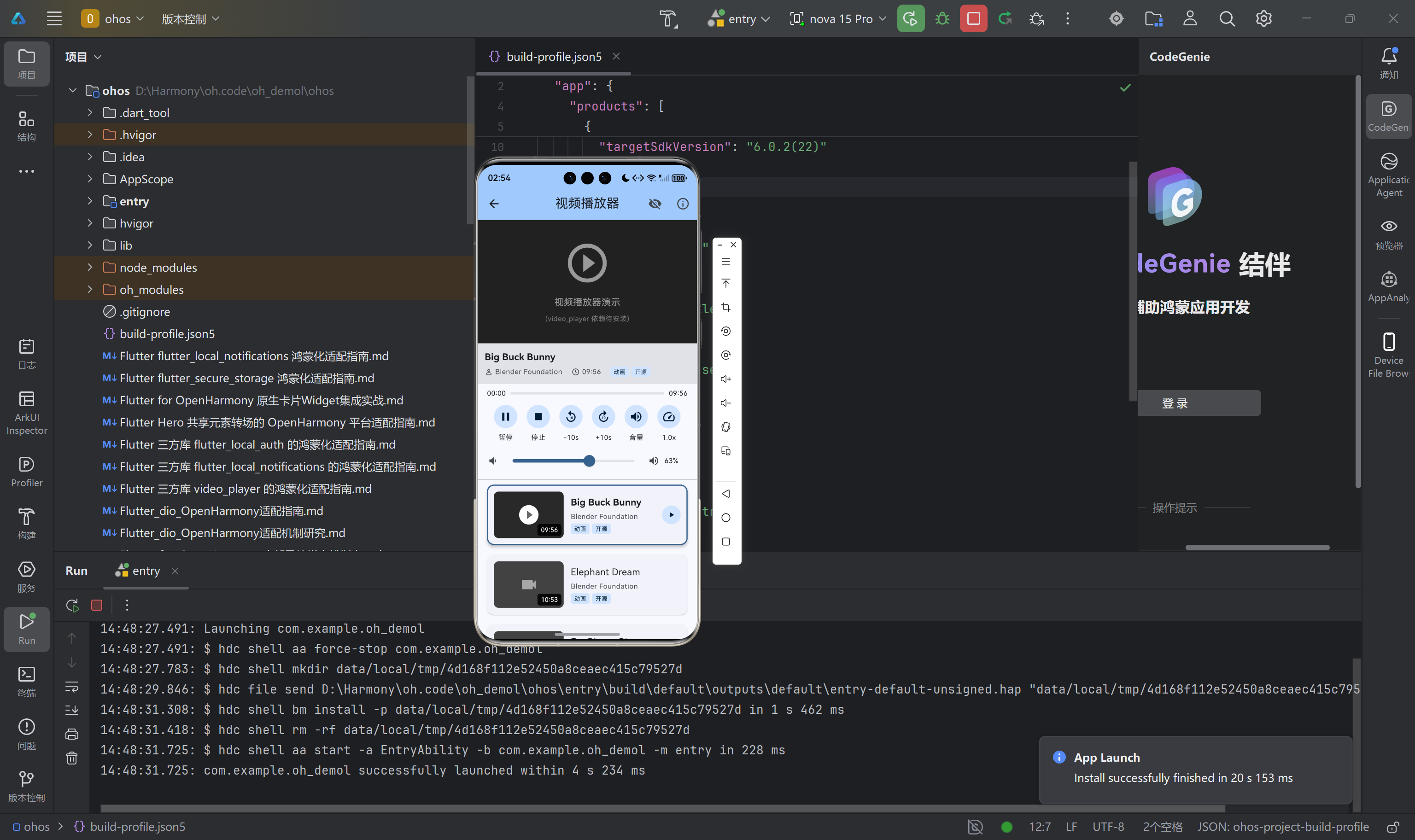
在 OpenHarmony 设备上运行时,我们的视频播放器是这个样子的呢~
八、总结
好啦,今天的分享就到这里啦!🎉
我们一起学习了如何在 OpenHarmony 平台上实现 Flutter 视频播放功能,包括:
- 📦 依赖集成:正确配置 video_player 依赖
- 🏠 数据模型:优雅的 VideoModel 和 VideoPlayerState
- ⚙️ 核心服务:功能完善的 VideoPlayerService
- 🎮 状态管理:基于 Riverpod 的响应式状态管理
- 🎨 UI 组件:美观大方的 OHVideoPlayer 组件
- 📱 页面集成:完整的视频播放页面实现
希望这篇文章能帮助到每一位热爱技术的小伙伴!让我们一起在 OpenHarmony 的海洋里畅游吧~ 🌊
如果有任何问题,欢迎在评论区留言,我会第一时间回复大家哦!💕

作为“人工智能6S店”的官方数字引擎,为AI开发者与企业提供一个覆盖软硬件全栈、一站式门户。
更多推荐
 1
1 0
0- 0


 已为社区贡献16条内容

所有评论(0)