
Flutter鸿蒙实战:打造精美气泡聊天界面
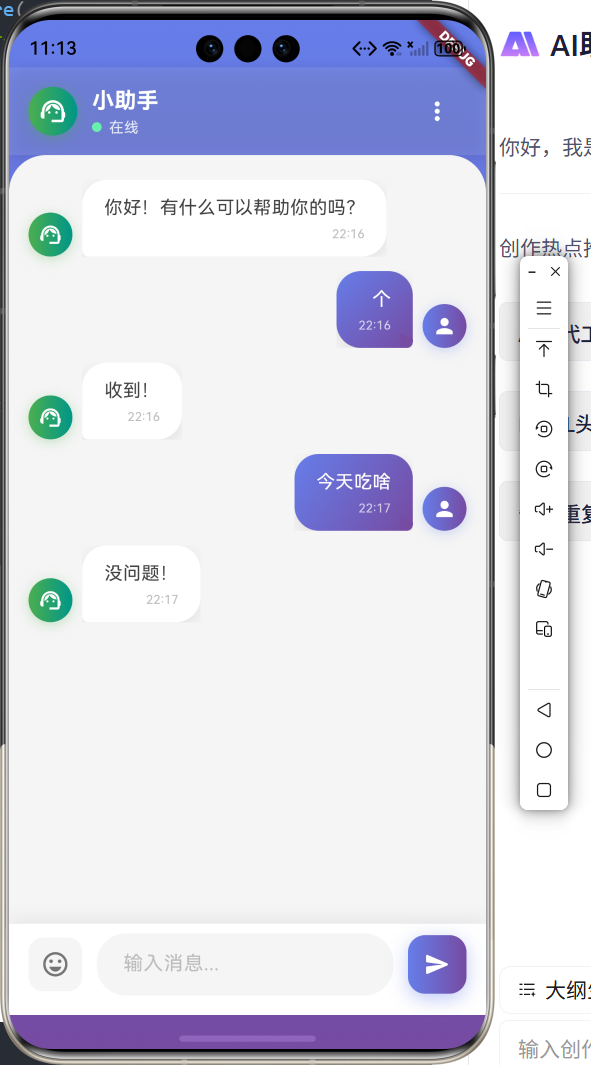
在移动应用开发中,聊天功能是最常见也是最复杂的模块之一。一个优秀的聊天界面不仅要功能完善,更要注重用户体验和视觉美感。随着鸿蒙系统的崛起,越来越多的开发者开始关注鸿蒙平台的聊天应用开发。本文将详细介绍如何使用Flutter-OH开发一个精美的聊天UI界面,从气泡消息设计、表情发送、滚动控制到动画效果,全方位打造流畅的聊天体验。精美的UI设计:渐变色气泡、圆角设计、阴影效果流畅的动画效果:消息滑入、
Flutter鸿蒙实战:打造精美气泡聊天界面
Flutter 三方库 cached_network_image 的鸿蒙化适配与实战指南
欢迎加入开源鸿蒙跨平台社区:https://openharmonycrossplatform.csdn.net
前言
在移动应用开发中,聊天功能是最常见也是最复杂的模块之一。一个优秀的聊天界面不仅要功能完善,更要注重用户体验和视觉美感。随着鸿蒙系统的崛起,越来越多的开发者开始关注鸿蒙平台的聊天应用开发。
本文将详细介绍如何使用Flutter-OH开发一个精美的聊天UI界面,从气泡消息设计、表情发送、滚动控制到动画效果,全方位打造流畅的聊天体验。
项目目标
我们要开发一个简易聊天应用,实现以下功能:
- ✅ 气泡聊天界面 - 左右对称的消息气泡
- ✅ 发送文字、表情 - 支持文本和Emoji表情
- ✅ 滚动到底部 - 新消息自动滚动
- ✅ 动画效果 - 消息发送动画、输入框动画
- ✅ 界面美观 - Material Design 3设计风格
核心技术栈:
- ListView - 消息列表滚动
- Stack - 层叠布局
- TextField - 输入框组件
- Animation - 动画效果
一、项目结构设计
1.1 目录结构
采用清晰的分层架构:
lib/
├── main.dart                    # 应用入口
├── models/                      # 数据模型层
│   └── message.dart            # 消息模型
├── screens/                     # UI层
│   └── chat_screen.dart        # 聊天界面
└── widgets/                     # 自定义组件
    ├── message_bubble.dart     # 消息气泡组件
    └── chat_input.dart         # 输入框组件
1.2 依赖配置(pubspec.yaml)
name: flutter_ohos_chat
description: A beautiful chat UI for Flutter OHOS
publish_to: 'none'
version: 1.0.0+1

environment:
  sdk: '>=3.0.0 <4.0.0'

dependencies:
  flutter:
    sdk: flutter
  cupertino_icons: ^1.0.6
  emoji_picker_flutter: ^1.6.4

dev_dependencies:
  flutter_test:
    sdk: flutter
  flutter_lints: ^3.0.1

flutter:
  uses-material-design: true
二、核心功能实现
2.1 消息数据模型
创建 lib/models/message.dart:
import 'package:flutter/foundation.dart';

enum MessageType { text, emoji }

class Message {
  final String id;
  final String content;
  final bool isMe;
  final DateTime timestamp;
  final MessageType type;

  Message({
    required this.id,
    required this.content,
    required this.isMe,
    required this.timestamp,
    this.type = MessageType.text,
  });

  factory Message.fromJson(Map<String, dynamic> json) {
    return Message(
      id: json['id'] as String,
      content: json['content'] as String,
      isMe: json['isMe'] as bool,
      timestamp: DateTime.parse(json['timestamp'] as String),
      type: MessageType.values.firstWhere(
        (e) => e.toString() == 'MessageType.${json['type']}',
        orElse: () => MessageType.text,
      ),
    );
  }

  Map<String, dynamic> toJson() {
    return {
      'id': id,
      'content': content,
      'isMe': isMe,
      'timestamp': timestamp.toIso8601String(),
      'type': type.toString().split('.').last,
    };
  }
}
设计亮点:
- 使用枚举区分消息类型(文本、表情)
- 时间戳记录消息发送时间
isMe字段区分发送者和接收者- 提供 JSON 序列化方法
2.2 消息气泡组件
创建 lib/widgets/message_bubble.dart:
import 'package:flutter/material.dart';
import '../models/message.dart';
class MessageBubble extends StatelessWidget {
final Message message;
final Animation<double> animation;
const MessageBubble({
super.key,
required this.message,
required this.animation,
});
Widget build(BuildContext context) {
return AnimatedBuilder(
animation: animation,
builder: (context, child) {
return Transform.translate(
offset: Offset(
message.isMe
? (1 - animation.value) * 100
: (animation.value - 1) * 100,
0,
),
child: Opacity(
opacity: animation.value,
child: child,
),
);
},
child: Align(
alignment: message.isMe ? Alignment.centerRight : Alignment.centerLeft,
child: Container(
margin: const EdgeInsets.symmetric(vertical: 4, horizontal: 12),
padding: const EdgeInsets.symmetric(vertical: 10, horizontal: 14),
constraints: BoxConstraints(
maxWidth: MediaQuery.of(context).size.width * 0.75,
),
decoration: BoxDecoration(
gradient: message.isMe
? LinearGradient(
colors: [Colors.blue[400]!, Colors.blue[600]!],
begin: Alignment.topLeft,
end: Alignment.bottomRight,
)
: null,
color: message.isMe ? null : Colors.grey[200],
borderRadius: BorderRadius.only(
topLeft: const Radius.circular(16),
topRight: const Radius.circular(16),
bottomLeft: message.isMe
? const Radius.circular(16)
: const Radius.circular(4),
bottomRight: message.isMe
? const Radius.circular(4)
: const Radius.circular(16),
),
boxShadow: [
BoxShadow(
color: Colors.black.withOpacity(0.1),
blurRadius: 8,
offset: const Offset(0, 2),
),
],
),
child: Column(
crossAxisAlignment: CrossAxisAlignment.end,
mainAxisSize: MainAxisSize.min,
children: [
Text(
message.content,
style: TextStyle(
color: message.isMe ? Colors.white : Colors.black87,
fontSize: 16,
height: 1.4,
),
),
const SizedBox(height: 4),
Text(
_formatTime(message.timestamp),
style: TextStyle(
color: message.isMe
? Colors.white70
: Colors.grey[600],
fontSize: 11,
),
),
],
),
),
),
);
}
String _formatTime(DateTime time) {
return '${time.hour.toString().padLeft(2, '0')}:${time.minute.toString().padLeft(2, '0')}';
}
}
UI设计亮点:
- 渐变色背景,视觉层次丰富
- 圆角气泡设计,现代感强
- 阴影效果,立体感明显
- 滑入动画,消息出现更生动
- 时间戳显示,信息完整
2.3 聊天输入框组件
创建 lib/widgets/chat_input.dart:
import 'package:flutter/material.dart';
class ChatInput extends StatefulWidget {
final Function(String) onSendMessage;
final VoidCallback onEmojiPressed;
const ChatInput({
super.key,
required this.onSendMessage,
required this.onEmojiPressed,
});
State<ChatInput> createState() => _ChatInputState();
}
class _ChatInputState extends State<ChatInput>
with SingleTickerProviderStateMixin {
final TextEditingController _controller = TextEditingController();
bool _isComposing = false;
late AnimationController _animationController;
late Animation<double> _scaleAnimation;
void initState() {
super.initState();
_animationController = AnimationController(
duration: const Duration(milliseconds: 200),
vsync: this,
);
_scaleAnimation = Tween<double>(begin: 1.0, end: 1.1).animate(
CurvedAnimation(parent: _animationController, curve: Curves.easeInOut),
);
_controller.addListener(() {
final isComposing = _controller.text.isNotEmpty;
if (isComposing != _isComposing) {
setState(() {
_isComposing = isComposing;
});
if (isComposing) {
_animationController.forward();
} else {
_animationController.reverse();
}
}
});
}
void dispose() {
_controller.dispose();
_animationController.dispose();
super.dispose();
}
Widget build(BuildContext context) {
return Container(
padding: EdgeInsets.only(
left: 12,
right: 12,
top: 8,
bottom: MediaQuery.of(context).padding.bottom + 8,
),
decoration: BoxDecoration(
color: Colors.white,
boxShadow: [
BoxShadow(
color: Colors.black.withOpacity(0.05),
blurRadius: 10,
offset: const Offset(0, -2),
),
],
),
child: Row(
children: [
IconButton(
icon: const Icon(Icons.emoji_emotions_outlined),
color: Colors.blue,
onPressed: widget.onEmojiPressed,
),
Expanded(
child: Container(
decoration: BoxDecoration(
color: Colors.grey[100],
borderRadius: BorderRadius.circular(24),
),
child: TextField(
controller: _controller,
decoration: const InputDecoration(
hintText: '输入消息...',
border: InputBorder.none,
contentPadding: EdgeInsets.symmetric(
horizontal: 16,
vertical: 10,
),
),
maxLines: null,
textInputAction: TextInputAction.send,
onSubmitted: _handleSend,
),
),
),
const SizedBox(width: 8),
ScaleTransition(
scale: _scaleAnimation,
child: Container(
decoration: BoxDecoration(
gradient: LinearGradient(
colors: _isComposing
? [Colors.blue[400]!, Colors.blue[600]!]
: [Colors.grey[300]!, Colors.grey[400]!],
),
shape: BoxShape.circle,
),
child: IconButton(
icon: const Icon(Icons.send, color: Colors.white),
onPressed: _isComposing
? () => _handleSend(_controller.text)
: null,
),
),
),
],
),
);
}
void _handleSend(String text) {
if (text.trim().isNotEmpty) {
widget.onSendMessage(text.trim());
_controller.clear();
}
}
}
交互设计亮点:
- 输入框圆角设计,现代美观
- 发送按钮缩放动画,视觉反馈明显
- 渐变色发送按钮,状态区分清晰
- 表情按钮,支持表情输入
- 自动调整高度,多行输入友好
2.4 聊天主界面
创建 lib/screens/chat_screen.dart:
import 'package:flutter/material.dart';
import '../models/message.dart';
import '../widgets/message_bubble.dart';
import '../widgets/chat_input.dart';
class ChatScreen extends StatefulWidget {
const ChatScreen({super.key});
State<ChatScreen> createState() => _ChatScreenState();
}
class _ChatScreenState extends State<ChatScreen> with TickerProviderStateMixin {
final List<Message> _messages = [];
final ScrollController _scrollController = ScrollController();
final List<AnimationController> _animationControllers = [];
bool _showEmojiPicker = false;
void dispose() {
_scrollController.dispose();
for (var controller in _animationControllers) {
controller.dispose();
}
super.dispose();
}
void _sendMessage(String content) {
final message = Message(
id: DateTime.now().millisecondsSinceEpoch.toString(),
content: content,
isMe: true,
timestamp: DateTime.now(),
);
setState(() {
_messages.add(message);
});
_addMessageAnimation();
_scrollToBottom();
// 模拟对方回复
Future.delayed(const Duration(seconds: 1), () {
_receiveMessage('收到:$content');
});
}
void _receiveMessage(String content) {
final message = Message(
id: DateTime.now().millisecondsSinceEpoch.toString(),
content: content,
isMe: false,
timestamp: DateTime.now(),
);
setState(() {
_messages.add(message);
});
_addMessageAnimation();
_scrollToBottom();
}
void _addMessageAnimation() {
final controller = AnimationController(
duration: const Duration(milliseconds: 300),
vsync: this,
);
_animationControllers.add(controller);
controller.forward();
}
void _scrollToBottom() {
WidgetsBinding.instance.addPostFrameCallback((_) {
if (_scrollController.hasClients) {
_scrollController.animateTo(
_scrollController.position.maxScrollExtent,
duration: const Duration(milliseconds: 300),
curve: Curves.easeOut,
);
}
});
}
void _toggleEmojiPicker() {
setState(() {
_showEmojiPicker = !_showEmojiPicker;
});
}
void _insertEmoji(String emoji) {
_sendMessage(emoji);
setState(() {
_showEmojiPicker = false;
});
}
Widget build(BuildContext context) {
return Scaffold(
appBar: AppBar(
title: const Row(
children: [
CircleAvatar(
backgroundColor: Colors.blue,
child: Icon(Icons.person, color: Colors.white),
),
SizedBox(width: 12),
Column(
crossAxisAlignment: CrossAxisAlignment.start,
children: [
Text('鸿聊', style: TextStyle(fontSize: 18)),
Text(
'在线',
style: TextStyle(fontSize: 12, color: Colors.white70),
),
],
),
],
),
actions: [
IconButton(icon: const Icon(Icons.videocam), onPressed: () {}),
IconButton(icon: const Icon(Icons.call), onPressed: () {}),
IconButton(icon: const Icon(Icons.more_vert), onPressed: () {}),
],
),
body: Column(
children: [
Expanded(
child: Container(
decoration: BoxDecoration(
gradient: LinearGradient(
begin: Alignment.topCenter,
end: Alignment.bottomCenter,
colors: [
Colors.blue[50]!,
Colors.white,
],
),
),
child: ListView.builder(
controller: _scrollController,
padding: const EdgeInsets.symmetric(vertical: 16),
itemCount: _messages.length,
itemBuilder: (context, index) {
final message = _messages[index];
final animationController = index < _animationControllers.length
? _animationControllers[index]
: AnimationController(
duration: const Duration(milliseconds: 300),
vsync: this,
);
return MessageBubble(
message: message,
animation: animationController,
);
},
),
),
),
if (_showEmojiPicker) _buildEmojiPicker(),
ChatInput(
onSendMessage: _sendMessage,
onEmojiPressed: _toggleEmojiPicker,
),
],
),
);
}
Widget _buildEmojiPicker() {
final emojis = [
'😀', '😃', '😄', '😁', '😆', '😅', '🤣', '😂',
'🙂', '🙃', '😉', '😊', '😇', '🥰', '😍', '🤩',
'😘', '😗', '😚', '😙', '🥲', '😋', '😛', '😜',
'🤪', '😝', '🤑', '🤗', '🤭', '🤫', '🤔', '🤐',
'🤨', '😐', '😑', '😶', '😏', '😒', '🙄', '😬',
];
return Container(
height: 250,
decoration: BoxDecoration(
color: Colors.grey[100],
border: Border(top: BorderSide(color: Colors.grey[300]!)),
),
child: GridView.builder(
padding: const EdgeInsets.all(12),
gridDelegate: const SliverGridDelegateWithFixedCrossAxisCount(
crossAxisCount: 8,
childAspectRatio: 1,
),
itemCount: emojis.length,
itemBuilder: (context, index) {
return GestureDetector(
onTap: () => _insertEmoji(emojis[index]),
child: Center(
child: Text(
emojis[index],
style: const TextStyle(fontSize: 28),
),
),
);
},
),
);
}
}
核心功能实现:
- ListView滚动:使用
ScrollController控制滚动 - 消息动画:每条消息都有独立的动画控制器
- 自动滚动:新消息自动滚动到底部
- 表情选择器:底部弹出表情面板
- 模拟对话:自动回复模拟聊天场景
2.5 应用入口
创建 lib/main.dart:
import 'package:flutter/material.dart';
import 'screens/chat_screen.dart';
void main() {
WidgetsFlutterBinding.ensureInitialized();
runApp(const MyApp());
}
class MyApp extends StatelessWidget {
const MyApp({super.key});
Widget build(BuildContext context) {
return MaterialApp(
title: '鸿聊',
debugShowCheckedModeBanner: false,
theme: ThemeData(
colorScheme: ColorScheme.fromSeed(
seedColor: Colors.blue,
brightness: Brightness.light,
),
useMaterial3: true,
appBarTheme: const AppBarTheme(
centerTitle: false,
elevation: 0,
backgroundColor: Colors.blue,
foregroundColor: Colors.white,
),
),
home: const ChatScreen(),
);
}
}
三、鸿蒙平台适配
3.1 配置权限
在 entry/src/main/module.json5 中配置必要权限:
{
  "module": {
    "name": "entry",
    "type": "entry",
    "description": "$string:module_desc",
    "mainElement": "EntryAbility",
    "deviceTypes": ["phone"],
    "deliveryWithInstall": true,
    "installationFree": false,
    "pages": "$profile:main_pages",
    "abilities": [
      {
        "name": "EntryAbility",
        "srcEntry": "./ets/entryability/EntryAbility.ets",
        "description": "$string:EntryAbility_desc",
        "icon": "$media:icon",
        "label": "$string:EntryAbility_label",
        "startWindowIcon": "$media:icon",
        "startWindowBackground": "$color:start_window_background",
        "exported": true,
        "skills": [
          {
            "entities": ["entity.system.home"],
            "actions": ["action.system.home"]
          }
        ]
      }
    ],
    "requestPermissions": [
      {"name": "ohos.permission.INTERNET"}
    ]
  }
}
四、核心技术解析
4.1 ListView滚动控制
滚动到底部的实现:
void _scrollToBottom() {
  WidgetsBinding.instance.addPostFrameCallback((_) {
    if (_scrollController.hasClients) {
      _scrollController.animateTo(
        _scrollController.position.maxScrollExtent,
        duration: const Duration(milliseconds: 300),
        curve: Curves.easeOut,
      );
    }
  });
}
关键技术点:
- 使用
addPostFrameCallback确保在UI渲染完成后滚动 hasClients检查控制器是否已附加到滚动视图animateTo实现平滑滚动动画Curves.easeOut提供自然的减速效果
4.2 Stack层叠布局
输入框与表情面板的层叠:
Column(
  children: [
    Expanded(child: ListView(...)),
    if (_showEmojiPicker) _buildEmojiPicker(),
    ChatInput(...),
  ],
)
设计思路:
- 使用
Column垂直布局 - 条件渲染表情面板
- 输入框始终固定在底部
- 消息列表自动调整高度
4.3 动画效果实现
消息滑入动画:
AnimatedBuilder(
  animation: animation,
  builder: (context, child) {
    return Transform.translate(
      offset: Offset(
        message.isMe
            ? (1 - animation.value) * 100
            : (animation.value - 1) * 100,
        0,
      ),
      child: Opacity(
        opacity: animation.value,
        child: child,
      ),
    );
  },
  child: MessageBubble(...),
)
动画特点:
- 自己的消息从右侧滑入
- 对方的消息从左侧滑入
- 同时伴随透明度渐变
- 使用
CurvedAnimation实现缓动效果
4.4 TextField输入处理
多行输入与发送:
TextField(
  controller: _controller,
  decoration: const InputDecoration(
    hintText: '输入消息...',
    border: InputBorder.none,
  ),
  maxLines: null,
  textInputAction: TextInputAction.send,
  onSubmitted: _handleSend,
)
优化细节:
maxLines: null允许多行输入textInputAction: TextInputAction.send显示发送按钮onSubmitted处理键盘发送事件- 监听文本变化更新发送按钮状态
五、性能优化
5.1 动画控制器管理
void dispose() {
_scrollController.dispose();
for (var controller in _animationControllers) {
controller.dispose();
}
super.dispose();
}
优化要点:
- 及时释放动画控制器,避免内存泄漏
- 使用
with TickerProviderStateMixin管理动画 - 为每条消息创建独立的动画控制器
5.2 列表性能优化
ListView.builder(
  controller: _scrollController,
  padding: const EdgeInsets.symmetric(vertical: 16),
  itemCount: _messages.length,
  itemBuilder: (context, index) {
    return MessageBubble(...);
  },
)
性能优势:
- 使用
ListView.builder懒加载 - 只渲染可见区域的消息
- 避免一次性创建所有组件
5.3 状态管理优化
void _sendMessage(String content) {
  setState(() {
    _messages.add(message);
  });
  _addMessageAnimation();
  _scrollToBottom();
}
优化策略:
- 最小化
setState调用范围 - 使用
const构造函数减少重建 - 合理使用
StatefulWidget和StatelessWidget
六、UI设计亮点
6.1 渐变色气泡
decoration: BoxDecoration(
  gradient: message.isMe
      ? LinearGradient(
          colors: [Colors.blue[400]!, Colors.blue[600]!],
          begin: Alignment.topLeft,
          end: Alignment.bottomRight,
        )
      : null,
  color: message.isMe ? null : Colors.grey[200],
)
视觉效果:
- 自己的消息使用蓝色渐变
- 对方的消息使用灰色背景
- 渐变方向增加立体感
6.2 圆角气泡设计
borderRadius: BorderRadius.only(
  topLeft: const Radius.circular(16),
  topRight: const Radius.circular(16),
  bottomLeft: message.isMe
      ? const Radius.circular(16)
      : const Radius.circular(4),
  bottomRight: message.isMe
      ? const Radius.circular(4)
      : const Radius.circular(16),
)
设计理念:
- 顶部两侧大圆角,柔和美观
- 底部小圆角,指向发送者
- 区分发送方向,视觉清晰
6.3 阴影效果
boxShadow: [
  BoxShadow(
    color: Colors.black.withOpacity(0.1),
    blurRadius: 8,
    offset: const Offset(0, 2),
  ),
]
立体效果:
- 轻微阴影增加层次感
- 不影响整体性能
- 提升视觉品质
七、功能扩展建议
7.1 图片消息
enum MessageType { text, emoji, image }

class ImageMessage extends Message {
  final String imageUrl;
  final double width;
  final double height;
}
7.2 语音消息
class VoiceMessage extends Message {
  final String audioUrl;
  final Duration duration;
}
7.3 消息状态
enum MessageStatus { sending, sent, delivered, read }

class Message {
  final MessageStatus status;
}
7.4 消息撤回
void _recallMessage(String messageId) {
  setState(() {
    _messages.removeWhere((msg) => msg.id == messageId);
  });
}
八、开发过程中的问题与解决方案
8.1 问题1:键盘弹出遮挡输入框
问题描述: 键盘弹出时,输入框被遮挡。
解决方案:
Scaffold(
  resizeToAvoidBottomInset: true,
  body: Column(
    children: [
      Expanded(child: ListView()),
      ChatInput(),
    ],
  ),
)
设置 resizeToAvoidBottomInset: true,让页面自动调整。
8.2 问题2:消息列表不滚动到底部
问题描述: 新消息添加后,列表没有滚动到底部。
解决方案:
void _scrollToBottom() {
  WidgetsBinding.instance.addPostFrameCallback((_) {
    if (_scrollController.hasClients) {
      _scrollController.animateTo(
        _scrollController.position.maxScrollExtent,
        duration: const Duration(milliseconds: 300),
        curve: Curves.easeOut,
      );
    }
  });
}
使用 addPostFrameCallback 确保在UI更新后滚动。
8.3 问题3:动画控制器内存泄漏
问题描述: 频繁发送消息导致内存占用增加。
解决方案:
void dispose() {
for (var controller in _animationControllers) {
controller.dispose();
}
super.dispose();
}
及时释放不再使用的动画控制器。
九、项目总结
9.1 技术亮点
- 精美的UI设计:渐变色气泡、圆角设计、阴影效果
- 流畅的动画效果:消息滑入、按钮缩放、平滑滚动
- 完善的交互体验:表情选择、自动滚动、多行输入
- 优秀的代码架构:组件化开发、状态管理、性能优化
- 鸿蒙平台适配:权限配置、平台兼容性处理
9.2 Flutter-OH开发体验
优点:
- UI开发效率高,热重载即时预览
- 动画系统强大,效果丰富
- 组件化开发,代码复用性强
- 鸿蒙平台适配良好
注意事项:
- 动画控制器需要及时释放
- 列表性能优化很重要
- 键盘交互需要特殊处理
- 状态管理要合理设计
9.3 后续优化方向
- 消息持久化:使用数据库存储聊天记录
- 网络通信:集成WebSocket实现实时聊天
- 多媒体支持:图片、语音、视频消息
- 消息状态:发送、已读、撤回等功能
- 主题定制:夜间模式、主题色切换
十、完整代码仓库
项目完整代码已保存在本地目录:
d:\my_test_app\ohos\
核心文件:
- [lib/main.dart](file:///d:/my_test_app/ohos/lib/main.dart) - 应用入口
- [lib/models/message.dart](file:///d:/my_test_app/ohos/lib/models/message.dart) - 消息模型
- [lib/screens/chat_screen.dart](file:///d:/my_test_app/ohos/lib/screens/chat_screen.dart) - 聊天界面
- [lib/widgets/message_bubble.dart](file:///d:/my_test_app/ohos/lib/widgets/message_bubble.dart) - 消息气泡
- [lib/widgets/chat_input.dart](file:///d:/my_test_app/ohos/lib/widgets/chat_input.dart) - 输入框组件
十一、参考资料
结语
通过本文的实践,我们成功开发了一个精美的Flutter-OH鸿蒙聊天UI界面。从气泡消息设计、表情输入、滚动控制到动画效果,每个细节都体现了Flutter在UI开发上的强大能力。
Flutter-OH为开发者提供了快速构建鸿蒙应用的能力,让现有的Flutter开发者可以无缝迁移到鸿蒙平台。随着鸿蒙生态的不断完善,Flutter-OH必将成为跨平台聊天应用开发的重要选择。
希望本文能够帮助到正在学习Flutter-OH鸿蒙开发的开发者们。如果有任何问题或建议,欢迎在评论区留言交流!
作者: Flutter开发者
发布时间: 2025年
标签: Flutter、鸿蒙、HarmonyOS、Flutter-OH、聊天UI、动画、跨平台开发
如果觉得文章有帮助,请点赞、收藏、关注!你的支持是我创作的最大动力! 🚀

作为“人工智能6S店”的官方数字引擎,为AI开发者与企业提供一个覆盖软硬件全栈、一站式门户。
更多推荐


 11
11 0
0- 0


 已为社区贡献1条内容

所有评论(0)