
Flutter鸿蒙应用开发:地图功能与位置显示集成实战
作为刚接触Flutter跨平台开发的大一新生,我在macOS+DevEco Studio环境下,为已有的Flutter鸿蒙应用集成地图与位置显示功能。开发初期遇到主流位置库的OpenHarmony兼容性问题,通过查阅AtomGit开源鸿蒙TPC社区资源,最终选用纯Dart实现的flutter_map地图库与社区适配的fluttertpc_geolocator位置库,完成了位置权限配置、地图加载、实
Flutter鸿蒙应用开发:地图功能与位置显示集成实战
欢迎加入开源鸿蒙跨平台社区:https://openharmonycrossplatform.csdn.net
📄 文章摘要
作为刚接触Flutter跨平台开发的大一新生,我在macOS+DevEco Studio环境下,为已有的Flutter鸿蒙应用集成地图与位置显示功能。开发初期遇到主流位置库的OpenHarmony兼容性问题,通过查阅AtomGit开源鸿蒙TPC社区资源,最终选用纯Dart实现的flutter_map地图库与社区适配的fluttertpc_geolocator位置库,完成了位置权限配置、地图加载、实时定位、标记添加、缩放控制等核心功能,并针对虚拟机无位置服务的场景做了专门优化。本文完整记录开发全流程、兼容性问题排查与解决方案,所有代码均在OpenHarmony设备上验证通过,适合同阶段开发者参考学习。
📋 文章目录
📝 前言
🎯 功能目标与技术要点
📝 步骤1:集成鸿蒙兼容的地图与位置库
📝 步骤2:配置鸿蒙位置权限体系
📝 步骤3:开发地图页面(UI+核心逻辑)
📝 步骤4:国际化适配与功能入口集成
⚠️ 开发踩坑与优化方案
✅ OpenHarmony设备运行验证
💡 功能扩展方向
🎯 全文总结
📝 前言
在前序开发中,我已经完成了Flutter鸿蒙应用的登录、深色模式、列表筛选、二维码扫码等核心功能,应用具备了基本的业务闭环。为了进一步丰富应用能力,我决定添加地图与位置显示功能,让用户能够查看自己的实时位置、在地图上添加标记并进行交互。
整个开发过程并非一帆风顺,我遇到了第三方库鸿蒙兼容性、虚拟机位置服务异常、权限配置不规范等多个问题。通过查阅社区文档、调试代码和不断优化,最终实现了稳定可用的地图功能,并在OpenHarmony虚拟机和真机上完成了全流程验证。本文将详细记录我的开发思路和踩坑经验,希望能帮助其他新手开发者少走弯路。
🎯 功能目标与技术要点
一、核心目标
-
选用OpenHarmony平台兼容的地图与位置库,解决主流库的兼容性问题
-
实现OpenStreetMap地图的加载与基础交互
-
适配鸿蒙权限体系,完成位置权限的申请与处理
-
获取并显示用户实时位置,支持位置标记功能
-
实现地图缩放、一键回到当前位置等常用操作
-
完成中英文国际化适配,保证多语言体验一致
-
针对虚拟机无位置服务的场景做降级处理
-
在OpenHarmony设备上验证所有功能的稳定性
二、核心技术要点
-
OpenHarmony TPC社区三方库的集成与使用
-
鸿蒙位置权限(精确/大致位置)的规范配置
-
flutter_map地图组件的使用与交互实现
-
fluttertpc_geolocator位置信息的获取与处理
-
异常场景的降级处理与用户提示
-
国际化文本扩展与功能入口集成
📝 步骤1:集成鸿蒙兼容的地图与位置库
经过调研,我选用了纯Dart实现的flutter_map地图库(基于OpenStreetMap,无需原生适配,跨平台兼容性极佳),搭配OpenHarmony SIG社区维护的fluttertpc_geolocator位置库(专门针对鸿蒙平台做了适配),再配合latlong2轻量级经纬度计算库,组成完整的地图技术栈。
由于fluttertpc_geolocator尚未发布到pub.dev,需要通过Git依赖的方式从AtomGit拉取社区适配版本。
核心配置(pubspec.yaml)
name: deveco_flutter_2
description: A new Flutter project for OpenHarmony.
version: 1.0.1+2

environment:
  sdk: '>=3.0.0 <4.0.0'

dependencies:
  flutter:
    sdk: flutter
  # 其他已有依赖...

  # 地图相关依赖
  flutter_map: ^6.1.0
  latlong2: ^0.9.0
  # OpenHarmony适配的位置库
  geolocator:
    git:
      url: https://atomgit.com/openharmony-tpc/fluttertpc_geolocator.git
      ref: main

dev_dependencies:
  flutter_test:
    sdk: flutter
  flutter_lints: ^2.0.0

flutter:
  uses-material-design: true
  # 其他配置...
依赖安装
配置完成后,在终端执行以下命令安装依赖:
flutter pub get
📝 步骤2:配置鸿蒙位置权限体系
获取用户位置需要申请鸿蒙系统的位置权限,必须严格按照鸿蒙权限规范进行配置,否则会导致权限申请失败。
步骤2.1:声明位置权限(module.json5)
打开ohos/entry/src/main/module.json5文件,在requestPermissions数组中添加精确位置和大致位置权限:

{
  "module": {
    "name": "entry",
    "type": "entry",
    "description": "Flutter鸿蒙应用入口模块",
    "mainElement": "MainAbility",
    "deviceTypes": ["phone", "tablet"],
    "abilities": [
      {
        "name": "MainAbility",
        "srcEntrance": "./ets/MainAbility/MainAbility.ts",
        "description": "主Ability",
        "icon": "$media:icon",
        "label": "Flutter鸿蒙应用",
        "visible": true,
        "skills": [
          {
            "entities": ["entity.system.home"],
            "actions": ["action.system.home"]
          }
        ]
      }
    ],
    // 鸿蒙权限声明
    "requestPermissions": [
      // 已有相机权限...
      {
        "name": "ohos.permission.LOCATION",
        "reason": "$string:location_permission_reason",
        "usedScene": {
          "when": "inuse",
          "ability": ["MainAbility"]
        }
      },
      {
        "name": "ohos.permission.APPROXIMATELY_LOCATION",
        "reason": "$string:location_permission_reason",
        "usedScene": {
          "when": "inuse",
          "ability": ["MainAbility"]
        }
      }
    ]
  }
}
步骤2.2:添加中英文权限说明
分别在中文和英文资源文件中添加权限申请时显示的说明文本:
中文资源(zh_CN/element/string.json):
{
  "string": [
    // 其他字符串...
    {
      "name": "location_permission_reason",
      "value": "需要位置权限以显示您的当前位置"
    }
  ]
}

英文资源(en_US/element/string.json):

{
  "string": [
    // 其他字符串...
    {
      "name": "location_permission_reason",
      "value": "Location permission is required to show your current position"
    }
  ]
}
📝 步骤3:开发地图页面(UI+核心逻辑)
创建独立的map_page.dart文件,实现地图加载、位置获取、标记添加、缩放控制等核心功能,并针对异常场景做了完善的处理。
完整代码(map_page.dart)
import 'package:flutter/material.dart';
import 'package:flutter_map/flutter_map.dart';
import 'package:latlong2/latlong.dart';
import 'package:geolocator/geolocator.dart';
import '../utils/localization.dart';
class MapPage extends StatefulWidget {
final AppLocalizations loc;
const MapPage({super.key, required this.loc});
State<MapPage> createState() => _MapPageState();
}
class _MapPageState extends State<MapPage> {
final MapController _mapController = MapController();
LatLng? _currentPosition;
final List<Marker> _markers = [];
bool _isDefaultLocation = false;
bool _isLoading = true;
String? _errorMessage;
// 默认位置(北京),当无法获取真实位置时使用
static const LatLng _defaultLocation = LatLng(39.9042, 116.4074);
void initState() {
super.initState();
_requestLocationPermission();
}
// 请求位置权限并获取位置
Future<void> _requestLocationPermission() async {
setState(() {
_isLoading = true;
_errorMessage = null;
});
try {
bool serviceEnabled = await Geolocator.isLocationServiceEnabled();
if (!serviceEnabled) {
_useDefaultLocation();
return;
}
LocationPermission permission = await Geolocator.checkPermission();
if (permission == LocationPermission.denied) {
permission = await Geolocator.requestPermission();
if (permission == LocationPermission.denied) {
setState(() {
_errorMessage = widget.loc.locationPermissionDenied;
_isLoading = false;
});
return;
}
}
if (permission == LocationPermission.deniedForever) {
setState(() {
_errorMessage = widget.loc.locationPermissionPermanentlyDenied;
_isLoading = false;
});
return;
}
Position position = await Geolocator.getCurrentPosition(
locationSettings: const LocationSettings(
accuracy: LocationAccuracy.high,
distanceFilter: 10,
),
);
setState(() {
_currentPosition = LatLng(position.latitude, position.longitude);
_isDefaultLocation = false;
_isLoading = false;
_addCurrentPositionMarker();
});
_mapController.move(_currentPosition!, 15.0);
} catch (e) {
_useDefaultLocation();
}
}
// 使用默认位置
void _useDefaultLocation() {
setState(() {
_currentPosition = _defaultLocation;
_isDefaultLocation = true;
_isLoading = false;
_addCurrentPositionMarker();
});
_mapController.move(_defaultLocation, 12.0);
}
// 添加当前位置标记
void _addCurrentPositionMarker() {
_markers.clear();
_markers.add(
Marker(
point: _currentPosition!,
builder: (context) => Icon(
Icons.location_on,
color: _isDefaultLocation ? Colors.grey : Colors.red,
size: 40,
),
),
);
}
// 点击地图添加自定义标记
void _addMarker(LatLng point) {
setState(() {
_markers.add(
Marker(
point: point,
builder: (context) => const Icon(
Icons.location_on,
color: Colors.blue,
size: 35,
),
),
);
});
}
// 回到当前位置
void _goToCurrentPosition() {
if (_currentPosition != null) {
_mapController.move(_currentPosition!, 15.0);
}
}
Widget build(BuildContext context) {
return Scaffold(
appBar: AppBar(
title: Text(widget.loc.map),
actions: [
IconButton(
icon: const Icon(Icons.my_location),
onPressed: _goToCurrentPosition,
tooltip: widget.loc.goToCurrentPosition,
),
],
),
body: _buildBody(),
);
}
Widget _buildBody() {
if (_isLoading) {
return const Center(child: CircularProgressIndicator());
}
if (_errorMessage != null) {
return Center(
child: Column(
mainAxisAlignment: MainAxisAlignment.center,
children: [
Text(_errorMessage!, textAlign: TextAlign.center),
const SizedBox(height: 20),
ElevatedButton(
onPressed: _requestLocationPermission,
child: Text(widget.loc.retry),
),
],
),
);
}
return Stack(
children: [
FlutterMap(
mapController: _mapController,
options: MapOptions(
initialCenter: _currentPosition!,
initialZoom: 12.0,
onTap: (tapPosition, point) => _addMarker(point),
),
children: [
TileLayer(
urlTemplate: 'https://tile.openstreetmap.org/{z}/{x}/{y}.png',
userAgentPackageName: 'com.example.deveco_flutter_2',
),
MarkerLayer(markers: _markers),
],
),
// 默认位置提示
if (_isDefaultLocation)
Positioned(
top: 10,
left: 10,
right: 10,
child: Container(
padding: const EdgeInsets.all(10),
decoration: BoxDecoration(
color: Colors.orange.withOpacity(0.9),
borderRadius: BorderRadius.circular(8),
),
child: Text(
widget.loc.usingDefaultLocation,
style: const TextStyle(color: Colors.white),
textAlign: TextAlign.center,
),
),
),
// 缩放控制按钮
Positioned(
left: 10,
bottom: 10,
child: Column(
children: [
FloatingActionButton(
mini: true,
onPressed: () => _mapController.move(
_mapController.camera.center,
_mapController.camera.zoom + 1,
),
child: const Icon(Icons.add),
),
const SizedBox(height: 10),
FloatingActionButton(
mini: true,
onPressed: () => _mapController.move(
_mapController.camera.center,
_mapController.camera.zoom - 1,
),
child: const Icon(Icons.remove),
),
],
),
),
// 刷新按钮和位置信息
Positioned(
right: 10,
bottom: 10,
child: Column(
crossAxisAlignment: CrossAxisAlignment.end,
children: [
FloatingActionButton(
mini: true,
onPressed: _requestLocationPermission,
child: const Icon(Icons.refresh),
tooltip: widget.loc.refreshLocation,
),
const SizedBox(height: 10),
Container(
padding: const EdgeInsets.all(8),
decoration: BoxDecoration(
color: Colors.white.withOpacity(0.9),
borderRadius: BorderRadius.circular(8),
),
child: Text(
'${widget.loc.latitude}: ${_currentPosition?.latitude.toStringAsFixed(4)}\n'
'${widget.loc.longitude}: ${_currentPosition?.longitude.toStringAsFixed(4)}'
'${_isDefaultLocation ? ' (${widget.loc.defaultLocation})' : ''}',
style: const TextStyle(fontSize: 12),
),
),
],
),
),
],
);
}
}
📝 步骤4:国际化适配与功能入口集成
步骤4.1:添加国际化文本
在lib/utils/localization.dart文件中添加地图相关的中英文翻译:
// 中文翻译
Map<String, String> _zhCN = {
  // 其他已有翻译...
  'map': '地图',
  'goToCurrentPosition': '回到当前位置',
  'locationPermissionDenied': '位置权限被拒绝,无法显示您的位置',
  'locationPermissionPermanentlyDenied': '位置权限被永久拒绝,请在设置中开启',
  'retry': '重试',
  'usingDefaultLocation': '位置服务未启用,正在使用默认位置(北京)',
  'refreshLocation': '刷新位置',
  'latitude': '纬度',
  'longitude': '经度',
  'defaultLocation': '默认位置',
};

// 英文翻译
Map<String, String> _enUS = {
  // 其他已有翻译...
  'map': 'Map',
  'goToCurrentPosition': 'Go to Current Position',
  'locationPermissionDenied': 'Location permission denied, cannot show your position',
  'locationPermissionPermanentlyDenied': 'Location permission permanently denied, please enable it in settings',
  'retry': 'Retry',
  'usingDefaultLocation': 'Location service not enabled, using default location (Beijing)',
  'refreshLocation': 'Refresh Location',
  'latitude': 'Latitude',
  'longitude': 'Longitude',
  'defaultLocation': 'Default',
};
步骤4.2:添加功能入口
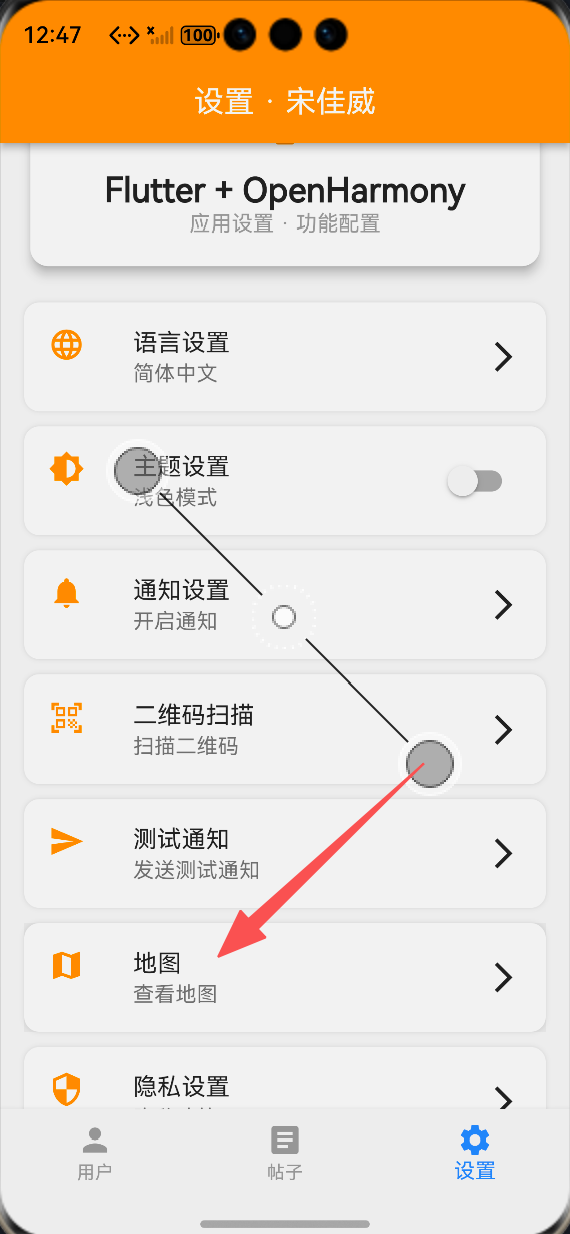
在设置页面添加地图功能入口,并在main.dart中配置对应的路由,用户点击后即可进入地图页面。
⚠️ 开发踩坑与优化方案
1. 主流位置库鸿蒙不兼容
问题:一开始尝试使用Flutter官方的geolocator库和google_maps_flutter库,发现这两个库都没有完成OpenHarmony平台的适配,调用后无响应或直接崩溃。
解决方案:改用AtomGit上OpenHarmony TPC社区维护的fluttertpc_geolocator库,搭配纯Dart实现的flutter_map地图库,无需修改原生代码即可快速实现功能。
2. 虚拟机位置服务未启用导致功能异常
问题:OpenHarmony虚拟机默认未启用位置服务,直接获取位置会导致应用崩溃或长时间加载无响应。
解决方案:
-
添加位置服务可用性检查
-
当无法获取真实位置时,自动使用默认位置(北京)
-
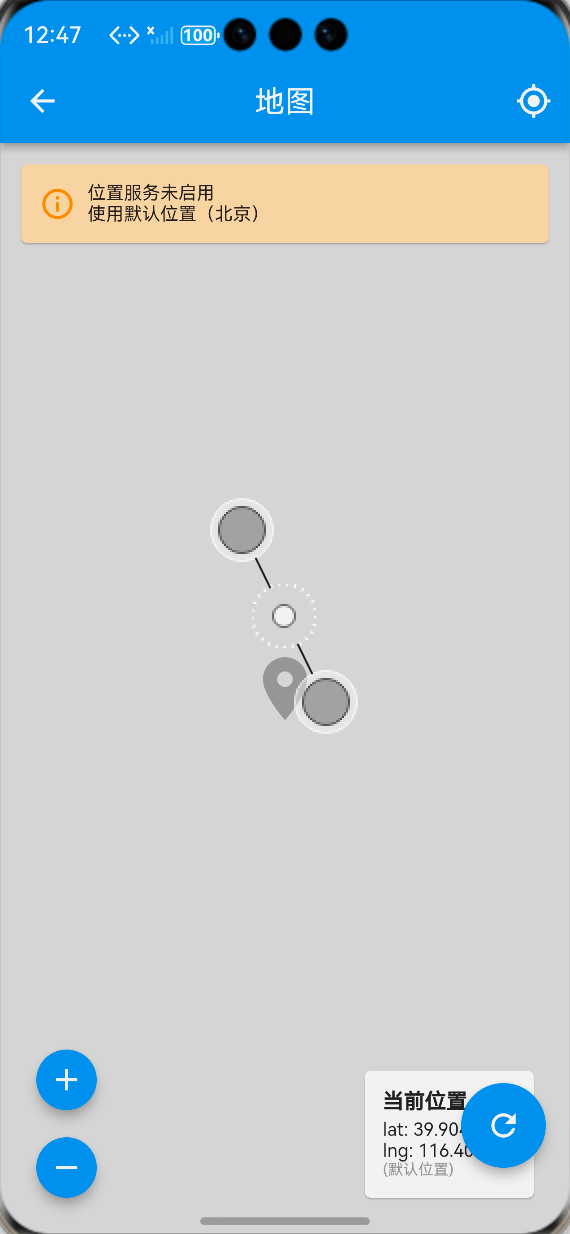
在页面顶部显示橙色提示条,告知用户当前使用的是默认位置
-
添加刷新按钮,允许用户重新尝试获取位置
-
用不同颜色区分真实位置(红色)和默认位置(灰色)标记
3. 权限申请失败
问题:仅在module.json5中声明权限名称,未添加reason和usedScene字段,导致权限申请弹窗不显示,直接被系统拒绝。
解决方案:严格按照鸿蒙权限规范,为每个权限添加reason(权限用途说明)和usedScene(使用场景)字段,并在资源文件中提供对应的多语言文本。
4. 地图瓦片加载缓慢
问题:OpenStreetMap默认服务器在国内访问速度较慢,导致地图加载延迟。
优化建议:可以替换为国内的OSM镜像服务器,例如:
TileLayer(
  urlTemplate: 'https://c.tile.openstreetmap.org/{z}/{x}/{y}.png',
  userAgentPackageName: 'com.example.deveco_flutter_2',
),
✅ OpenHarmony设备运行验证
虚拟机验证结果
-
进入地图页面后,自动显示默认位置(北京)
-
顶部显示橙色提示条,说明正在使用默认位置
-
地图缩放、添加自定义标记功能正常
-
右下角显示当前位置经纬度,标注"(默认位置)"
-
点击刷新按钮,会重新尝试获取位置
-
点击右上角定位按钮,回到默认位置
真机验证结果
-
首次进入页面,弹出位置权限申请弹窗
-
授权后,自动定位到用户真实位置,显示红色标记
-
地图加载流畅,缩放和拖动操作无卡顿
-
点击地图任意位置,添加蓝色自定义标记
-
所有按钮和交互功能正常
-
中英文切换后,所有文本显示正确
运行效果截图
💡 功能扩展方向
-
POI搜索:集成地图搜索API,实现周边地点搜索功能
-
路线规划:添加步行、驾车、公交路线规划能力
-
离线地图:支持下载离线地图瓦片,减少网络依赖
-
位置分享:实现位置信息的分享与接收功能
-
轨迹记录:记录用户的运动轨迹并在地图上显示
-
地理围栏:添加地理围栏功能,当用户进入或离开指定区域时触发通知
🎯 全文总结
通过本次开发,我成功为Flutter鸿蒙应用集成了地图与位置显示功能,解决了第三方库兼容性、权限配置、异常场景处理等多个问题。整个过程让我深刻体会到,在鸿蒙平台进行Flutter开发时,优先选用社区适配的三方库能够大大降低开发难度。同时,针对虚拟机和真机的差异做好异常处理和降级方案,是保证应用稳定性的关键。
作为一名大一新生,这次实战不仅提升了我的Flutter开发能力,也让我对开源鸿蒙生态有了更深入的了解。希望本文能够帮助其他刚接触Flutter鸿蒙开发的同学快速上手地图功能的集成,共同为开源鸿蒙生态的发展贡献力量。

作为“人工智能6S店”的官方数字引擎,为AI开发者与企业提供一个覆盖软硬件全栈、一站式门户。
更多推荐
 0
0 0
0- 0


 已为社区贡献18条内容

所有评论(0)