
鸿蒙6.0应用开发——切换主题
【高心星出品】
鸿蒙6.0应用开发——主题换肤
概述
对于采用ArkTS开发的应用,提供了应用内组件的主题换肤功能,支持局部的深浅色切换及动态换肤。目前,该功能只支持设置应用内主题换肤,暂不支持在UIAbility或窗口层面进行主题设置,同时也不支持C-API和Node-API。
自定义主题色
当应用需要使用换肤功能时,应自定义主题颜色。CustomTheme用于自定义主题色的内容,其属性可选,仅需对需要修改的token字段赋值,其余token将继承系统默认颜色值,可参考系统默认的token颜色值。请参照以下示例自定义主题色:
import { CustomColors, CustomTheme } from '@kit.ArkUI';

export class AppColors implements CustomColors {
  // 自定义主题色
  public brand: ResourceColor = '#FF75D9';
  // 使用$r,让一级警示色在深色和浅色模式下,设置为不同的颜色
  public warning: ResourceColor = $r('sys.color.ohos_id_color_warning');
}

export class AppTheme implements CustomTheme {
  public colors: AppColors = new AppColors();
}

export let gAppTheme: CustomTheme = new AppTheme();
代码逻辑走读:
- 导入
CustomColors和CustomTheme接口,这些接口可能定义了颜色和主题的结构和行为。 - 定义
AppColors类,该类实现了CustomColors接口,并定义了品牌色brand和警示色warning。品牌色直接设置为十六进制颜色值'#FF75D9',而警示色使用了系统资源$r('sys.color.ohos_id_color_warning'),这表明在不同颜色模式下,警示色会有不同的显示效果。 - 定义
AppTheme类,该类实现了CustomTheme接口,并实例化了AppColors类,将其赋值给colors属性。 - 定义了一个全局变量
gAppTheme,该变量是一个CustomTheme类型的实例,使用了AppTheme类来初始化。
设置应用内组件自定义主题色
-
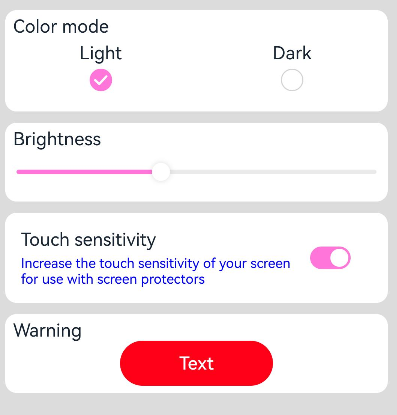
若在页面入口处设置应用内组件自定义主题色,需确保在页面build前执行ThemeControl.setDefaultTheme。
示例代码中,onWillApplyTheme回调函数用于使自定义组件获取当前生效的Theme对象。
// Index.ets
import { Theme, ThemeControl } from '@kit.ArkUI';
import { gAppTheme } from './AppTheme';

//在页面build前执行ThemeControl
ThemeControl.setDefaultTheme(gAppTheme);

@Entry
@Component
struct DisplayPage {
  @State menuItemColor: ResourceColor = $r('sys.color.background_primary');

  onWillApplyTheme(theme: Theme) {
    this.menuItemColor = theme.colors.backgroundPrimary;
  }

  build() {
    Column() {
      List({ space: 10 }) {
        ListItem() {
          Column({ space: '5vp' }) {
            Text('Color mode')
              .margin({ top: '5vp', left: '14fp' })
              .width('100%')
            Row() {
              Column() {
                Text('Light')
                  .fontSize('16fp')
                  .textAlign(TextAlign.Start)
                  .alignSelf(ItemAlign.Center)
                Radio({ group: 'light or dark', value: 'light' })
                  .checked(true)
              }
              .width('50%')

              Column() {
                Text('Dark')
                  .fontSize('16fp')
                  .textAlign(TextAlign.Start)
                  .alignSelf(ItemAlign.Center)
                Radio({ group: 'light or dark', value: 'dark' })
              }
              .width('50%')
            }
          }
          .width('100%')
          .height('90vp')
          .borderRadius('10vp')
          .backgroundColor(this.menuItemColor)
        }

        ListItem() {
          Column() {
            Text('Brightness')
              .width('100%')
              .margin({ top: '5vp', left: '14fp' })
            Slider({ value: 40, max: 100 })
          }
          .width('100%')
          .height('70vp')
          .borderRadius('10vp')
          .backgroundColor(this.menuItemColor)
        }

        ListItem() {
          Column() {
            Row() {
              Column({ space: '5vp' }) {
                Text('Touch sensitivity')
                  .fontSize('16fp')
                  .textAlign(TextAlign.Start)
                  .width('100%')
                Text('Increase the touch sensitivity of your screen' +
                  ' for use with screen protectors')
                  .fontSize('12fp')
                  .fontColor(Color.Blue)
                  .textAlign(TextAlign.Start)
                  .width('100%')
              }
              .alignSelf(ItemAlign.Center)
              .margin({ left: '14fp' })
              .width('75%')

              Toggle({ type: ToggleType.Switch, isOn: true })
                .margin({ right: '14fp' })
                .alignSelf(ItemAlign.Center)
            }
            .width('100%')
            .height('80vp')
          }
          .width('100%')
          .borderRadius('10vp')
          .backgroundColor(this.menuItemColor)
        }
        ListItem() {
          Column() {
            Text('Warning')
              .width('100%')
              .margin({ top: '5vp', left: '14fp' })
            Button('Text')
              .type(ButtonType.Capsule)
              .role(ButtonRole.ERROR)
              .width('40%')
          }
          .width('100%')
          .height('70vp')
          .borderRadius('10vp')
          .backgroundColor(this.menuItemColor)
        }
      }
    }
    .padding('10vp')
    .backgroundColor('#dcdcdc')
    .width('100%')
    .height('100%')
  }
}
代码逻辑走读:
- 导入模块:
- 导入了
Theme和ThemeControl模块,用于管理应用的主题。 - 导入了
gAppTheme,这是一个应用主题的全局变量。
- 导入了
- 设置默认主题:
- 在页面构建前,通过
ThemeControl.setDefaultTheme(gAppTheme)设置默认主题。
- 在页面构建前,通过
- 定义组件
DisplayPage:- 使用
@Entry和@Component装饰器定义了一个名为DisplayPage的组件。
- 使用
- 状态管理:
- 使用
@State装饰器定义了一个状态变量menuItemColor,用于存储菜单项的颜色。
- 使用
- 主题响应:
- 定义了
onWillApplyTheme方法,当主题变化时,更新menuItemColor以反映新的主题颜色。
- 定义了
- 页面构建:
- 使用
Column和List组件构建页面布局。 - 每个
ListItem包含不同的设置项,如Text、Radio、Slider、Toggle和Button。 - 每个设置项的样式和行为通过
width、height、backgroundColor等属性进行设置。
- 使用
- 布局和样式:
- 使用
Row和Column进行布局,确保设置项在页面中的排列和样式符合设计要求。 - 通过
margin、padding、borderRadius等属性调整组件的间距和外观。
- 使用
- 交互逻辑:
Radio和Toggle组件允许用户进行选择和开关操作,影响页面显示和行为。Slider组件用于调整亮度的设置,响应用户的滑动操作。
- 导入模块:
-
若在UIAbility中设置应用内组件自定义主题色,需在onWindowStageCreate()方法的windowStage.loadContent的完成时回调中调用ThemeControl.setDefaultTheme,设置应用内组件的自定义主题色。
// EntryAbility.ets
import {AbilityConstant, UIAbility, Want } from '@kit.AbilityKit';
import { hilog } from '@kit.PerformanceAnalysisKit';
import { window, CustomColors, ThemeControl } from '@kit.ArkUI';

class AppColors implements CustomColors {
  fontPrimary = 0xFFD53032;
  iconOnPrimary = 0xFFD53032;
  iconFourth = 0xFFD53032;
}

const abilityThemeColors = new AppColors();

export default class EntryAbility extends UIAbility {
  onCreate(want: Want, launchParam: AbilityConstant.LaunchParam) {
    hilog.info(0x0000, 'testTag', '%{public}s', 'Ability onCreate');
  }

  onDestroy() {
    hilog.info(0x0000, 'testTag', '%{public}s', 'Ability onDestroy');
  }

  onWindowStageCreate(windowStage: window.WindowStage) {
    // Main window is created, set main page for this ability
    hilog.info(0x0000, 'testTag', '%{public}s', 'Ability onWindowStageCreate');

    windowStage.loadContent('pages/Index', (err, data) => {
      if (err.code) {
        hilog.error(0x0000, 'testTag', 'Failed to load the content. Cause: %{public}s', JSON.stringify(err) ?? '');
        return;
      }
      hilog.info(0x0000, 'testTag', 'Succeeded in loading the content. Data: %{public}s', JSON.stringify(data) ?? '');
      // 在onWindowStageCreate()方法中setDefaultTheme
      ThemeControl.setDefaultTheme({ colors: abilityThemeColors });
      hilog.info(0x0000, 'testTag', '%{public}s', 'ThemeControl.setDefaultTheme done');
    });
  }
}
代码逻辑走读:
- 导入模块:代码首先导入了
AbilityConstant,UIAbility,Want等模块,这些模块提供了应用程序能力的基础功能和常量。 - 定义自定义颜色:
AppColors类实现了CustomColors接口,并定义了应用程序的主色调。 - 初始化颜色主题:创建了
abilityThemeColors实例,用于应用程序的主题颜色。 - 定义
EntryAbility类:该类继承自UIAbility,用于管理应用程序的生命周期。 - 生命周期方法
onCreate:在能力创建时调用,记录日志信息。 - 生命周期方法
onDestroy:在能力销毁时调用,记录日志信息。 - 生命周期方法
onWindowStageCreate:在窗口阶段创建时调用,加载主页面内容,并设置默认主题颜色。 - 日志记录:使用
hilog模块记录信息和错误日志,以便于调试和监控应用程序的运行状态。
说明
- 当setDefaultTheme的参数为undefined时,会清除先前设置的自定义主题,默认token值对应的色值参考系统缺省token色值。
- setDefaultTheme需要在ArkUI初始化后即windowStage.loadContent的完成时回调中使用。
- 导入模块:代码首先导入了
设置应用局部页面自定义主题风格
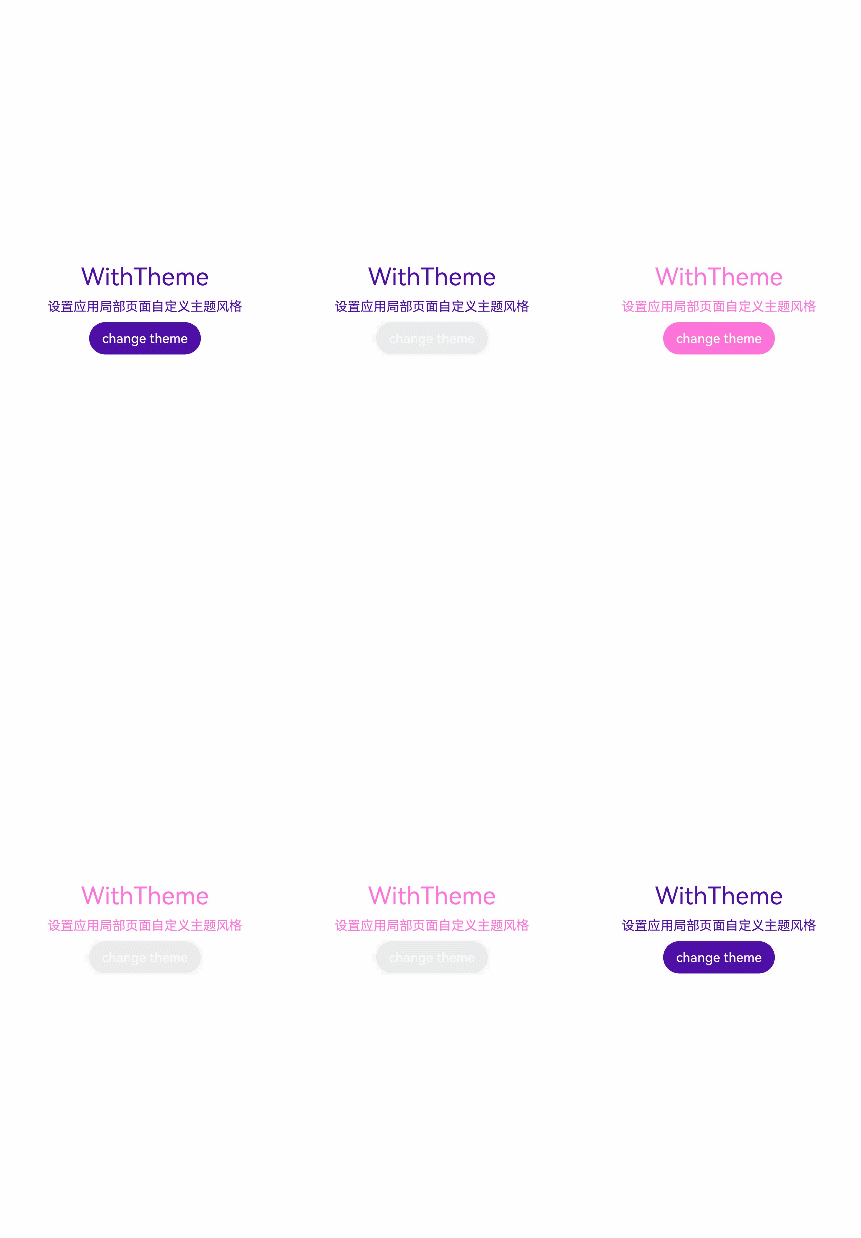
通过设置WithTheme,将自定义主题Theme的配色应用于内部组件的默认样式。在WithTheme的作用范围内,组件的配色会根据Theme的配色进行调整。
说明
在自定义节点BuilderNode中使用WithTheme,为了确保显示效果正确,需手动传递系统环境变化事件,触发节点的全量更新,详细请参考BuilderNode系统环境变化更新。
如示例所示,使用WithTheme({ theme: this.CustomTheme })可将作用域内组件的配色设置为自定义主题风格。后续可以通过更新this.CustomTheme来更换主题风格。onWillApplyTheme回调函数用于使自定义组件能够获取当前生效的Theme对象。
import { CustomColors, CustomTheme, Theme } from '@kit.ArkUI';
import { common } from '@kit.AbilityKit';
//请将$r('app.color.xxx')替换为实际资源文件
class AppColors implements CustomColors {
  public fontPrimary: ResourceColor = $r('app.color.brand_purple');
  public backgroundEmphasize: ResourceColor = $r('app.color.brand_purple');
}

class AppColorsSec implements CustomColors {
  public fontPrimary: ResourceColor = $r('app.color.brand');
  public backgroundEmphasize: ResourceColor = $r('app.color.brand');
}

class AppTheme implements CustomTheme {
  public colors: AppColors = new AppColors();
}

class AppThemeSec implements CustomTheme {
  public colors: AppColors = new AppColorsSec();
}

@Entry
@Component
struct DisplayPage1 {
  @State customTheme: CustomTheme = new AppTheme();
  // 请将$r('app.string.SetCustomThemeStyle')替换为实际资源文件,在本示例中该资源文件的value值为"设置应用局部页面自定义主题风格"
  @State message: ResourceStr = $r('app.string.SetCustomThemeStyle');
  count = 0;

  build() {
    WithTheme({ theme: this.customTheme }) {
      Row(){
        Column() {
          Text('WithTheme')
            .fontSize(30)
            .margin({bottom: 10})
          Text(this.message)
            .margin({bottom: 10})
          Button('change theme').onClick(() => {
            this.count++;
            if (this.count > 1) {
              this.count = 0;
            }
            switch (this.count) {
              case 0:
                this.customTheme = new AppTheme();
                break;
              case 1:
                this.customTheme = new AppThemeSec();
                break;
              default:
                break;
            }
          })
        }
        .width('100%')
      }
      .height('100%')
      .width('100%')
    }
  }
}
代码逻辑走读:
- 导入模块:
- 从
@kit.ArkUI导入CustomColors,CustomTheme,Theme。 - 从
@kit.AbilityKit导入common。
- 从
- 定义颜色类:
- 创建
AppColors类,实现CustomColors接口,定义fontPrimary和backgroundEmphasize颜色。 - 创建
AppColorsSec类,实现CustomColors接口,定义不同的fontPrimary和backgroundEmphasize颜色。
- 创建
- 定义主题类:
- 创建
AppTheme类,实现CustomTheme接口,使用AppColors实例作为颜色。 - 创建
AppThemeSec类,实现CustomTheme接口,使用AppColorsSec实例作为颜色。
- 创建
- 定义组件:
- 使用
@Entry和@Component装饰器定义DisplayPage1组件。 - 使用
@State装饰器定义customTheme和message状态,以及count变量。
- 使用
- 构建UI:
- 在
build方法中,使用WithTheme包裹Row组件。 Row组件内包含一个Column,其中有两个Text组件和一个Button组件。Button组件的点击事件用于切换主题,通过this.count的值来决定切换到AppTheme还是AppThemeSec。
- 在
- 主题切换逻辑:
- 当按钮被点击时,
this.count递增,根据this.count的值在AppTheme和AppThemeSec之间切换。 - 如果
this.count超过1,则重置为0,以避免无限循环。
- 当按钮被点击时,
设置应用页面局部深浅色
通过WithTheme可以设置三种颜色模式,跟随系统模式,浅色模式和深色模式。
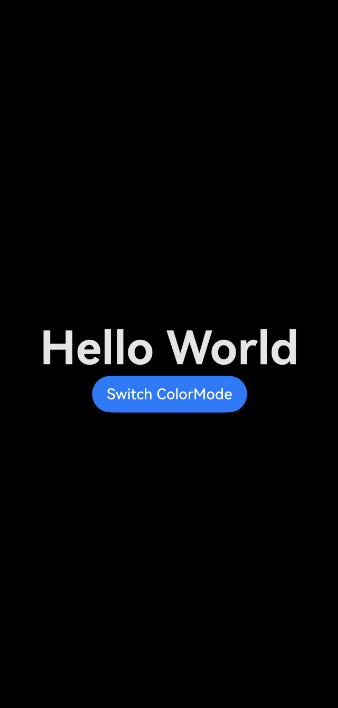
在WithTheme的作用范围内,组件的样式资源值会根据指定的模式,读取对应的深浅色模式系统和应用资源值。这意味着,在WithTheme作用范围内,组件的配色会根据所指定的深浅模式进行调整。
如下面的示例所示,通过WithTheme({ colorMode: ThemeColorMode.DARK }),可以将作用范围内的组件设置为深色模式。
设置局部深浅色时,需要添加dark.json资源文件,深浅色模式才会生效。
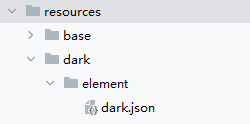
dark.json数据示例:
  {
    "color": [
      {
        "name": "start_window_background",
        "value": "#000000"
      }
    ]
  }
import { ThemeControl } from '@kit.ArkUI';
ThemeControl.setDefaultTheme(undefined);

@Entry
@Component
struct DisplayPage3 {
  @State message: string = 'Hello World';
  @State colorMode: ThemeColorMode = ThemeColorMode.DARK;

  build() {
    WithTheme({ colorMode: this.colorMode }) {
      Row() {
        Column() {
          Text(this.message)
            .fontSize(50)
            .fontWeight(FontWeight.Bold)
          Button('Switch ColorMode').onClick(() => {
            if (this.colorMode === ThemeColorMode.LIGHT) {
              this.colorMode = ThemeColorMode.DARK;
            } else if (this.colorMode === ThemeColorMode.DARK) {
              this.colorMode = ThemeColorMode.LIGHT;
            }
          })
        }
        .width('100%')
      }
      .backgroundColor($r('sys.color.background_primary'))
      .height('100%')
      .expandSafeArea(
        [SafeAreaType.SYSTEM], [SafeAreaEdge.TOP, SafeAreaEdge.END, SafeAreaEdge.BOTTOM, SafeAreaEdge.START])
    }
  }
}
代码逻辑走读:
-
导入模块:代码首先从
@kit.ArkUI库中导入了ThemeControl模块,用于主题控制。 -
设置默认主题:调用
ThemeControl.setDefaultTheme(undefined)设置默认主题。 -
组件定义:使用
@Entry和@Component装饰器定义了一个名为DisplayPage3的组件。 -
状态声明:在组件中声明了两个状态变量,
message为字符串类型,初始值为"Hello World";colorMode为ThemeColorMode枚举类型,初始值为亮色模式(ThemeColorMode.LIGHT)。 -
界面构建 :
- 使用
WithTheme上下文管理颜色模式。 - 创建一个水平布局
Row,其中包含一个垂直布局Column。 - 在
Column中,首先显示文本this.message,字体大小为50,字体加粗。 - 然后显示一个按钮,文本为"Switch ColorMode",点击按钮时,根据当前的
colorMode切换到相反的模式。 - 设置布局的背景颜色、高度和安全区域。
- 使用

作为“人工智能6S店”的官方数字引擎,为AI开发者与企业提供一个覆盖软硬件全栈、一站式门户。
更多推荐

 57
57 0
0- 0


 已为社区贡献68条内容

所有评论(0)