
ReactNative for OpenHarmony项目鸿蒙化三方库:react-native-video — 视频播放组件
本文详细介绍了在 HarmonyOS 平台的使用方法。通过 Video 组件,你可以轻松实现专业的视频播放功能,支持播放控制、画中画、全屏播放等特性。核心要点✅ 支持网络视频播放✅ 支持播放控制(播放、暂停、跳转)✅ 支持画中画和全屏模式✅ 支持音量、速率、缩放模式调节✅ 支持原生播放控件适用场景视频点播应用直播观看应用短视频应用教育视频应用希望本文能帮助你在 HarmonyOS 项目中顺利集成视
欢迎加入开源鸿蒙跨平台社区:https://openharmonycrossplatform.csdn.net
📌 开发环境声明:本文基于 React Native 0.72.90 版本进行开发适配
🚀 一、开篇引言
视频播放是现代移动应用中不可或缺的功能之一。react-native-video 是一个功能强大的视频播放组件,支持网络视频、本地视频、直播流等多种播放场景。本文将带你深入了解如何在 HarmonyOS 平台上集成和使用 react-native-video,实现专业的视频播放功能。
1.1 你将学到什么?
- ✅ react-native-video 的核心概念与工作原理
- ✅ HarmonyOS 平台的完整集成流程
- ✅ 视频播放控制与状态管理
- ✅ Video API 的深度解析
- ✅ 实际应用场景的最佳实践
1.2 适用人群
- 正在进行 React Native 鸿蒙化迁移的开发者
- 需要实现视频播放功能的应用开发者
- 对多媒体应用开发感兴趣的技术爱好者
1.3 为什么选择 react-native-video?
| 特点 | 说明 |
|---|---|
| 功能强大 | 支持多种视频格式、直播流、画中画等 |
| 跨平台一致 | 在 iOS、Android、HarmonyOS 上表现一致 |
| 高度可定制 | 支持自定义控件、样式、事件回调等 |
| 社区活跃 | 大量使用案例和社区支持 |
📦 二、库概览
2.1 基本信息
| 项目 | 内容 |
|---|---|
| 库名称 | react-native-video |
| 版本信息 | 6.13.2 / 6.14.0 |
| 官方仓库 | https://github.com/react-native-video/react-native-video |
| 鸿蒙仓库 | https://gitcode.com/openharmony-sig/rntpc_react-native-video |
| 开源协议 | MIT |
2.2 版本兼容性
| 三方库版本 | 支持RN版本 | 是否支持Autolink |
|---|---|---|
| 6.14.0 | 0.77 | No |
| 6.13.2 | 0.72 | Yes |
| <= 6.13.1@deprecated | 0.72 | No |
2.3 核心能力矩阵
| 能力项 | 描述 | HarmonyOS 支持 |
|---|---|---|
| 网络视频播放 | 在线视频流播放 | ✅ 完全支持 |
| 播放控制 | 播放、暂停、跳转 | ✅ 完全支持 |
| 音量控制 | 静音、音量调节 | ✅ 完全支持 |
| 画中画 | PiP 模式 | ✅ 完全支持 |
| 全屏播放 | 全屏模式 | ✅ 完全支持 |
| 播放控件 | 原生控件 | ✅ 完全支持 |
| 缩放模式 | contain/cover/stretch | ✅ 完全支持 |
| 海报图 | 视频封面 | ✅ 完全支持 |
| 字幕支持 | 外挂字幕 | ❌ 不支持 |
| 后台播放 | 应用后台继续播放 | ❌ 不支持 |
2.4 典型应用场景
| 场景 | 描述 | 示例 |
|---|---|---|
| 视频点播 | 在线视频播放 | 🎬 电影播放器 |
| 直播观看 | 直播流播放 | 📺 直播应用 |
| 短视频 | 社交媒体短视频 | 📱 抖音类应用 |
| 教育视频 | 在线课程播放 | 📚 学习应用 |
| 广告视频 | 视频广告播放 | 💰 广告投放 |
⚡ 三、快速开始
3.1 环境要求
| 依赖项 | 版本要求 |
|---|---|
| React Native | 0.72.x / 0.77.x |
| RNOH (鸿蒙框架) | 0.72.90 / 0.77.18 |
| HarmonyOS SDK | 6.0.0.47+ (API 20) |
| DevEco Studio | 5.0.3+ / 6.0+ |
| Node.js | 16.18.0+ / 18.x |
3.2 一键安装
创建鸿蒙项目的过程不再进行描述,不懂得看这篇:https://blog.csdn.net/u011178696/article/details/151932277
npm install @react-native-ohos/react-native-video@6.13.2-rc.1
3.3 验证安装
# 检查 package.json
type package.json | findstr video

# 预期输出
# "@react-native-ohos/react-native-video": "6.13.2-rc.1"
3.4 基础使用
import Video from 'react-native-video';

<Video
  source={{ uri: 'https://example.com/video.mp4' }}
  style={{ width: 300, height: 200 }}
  controls={true}
/>
🔧 四、HarmonyOS 原生配置
4.1 添加依赖
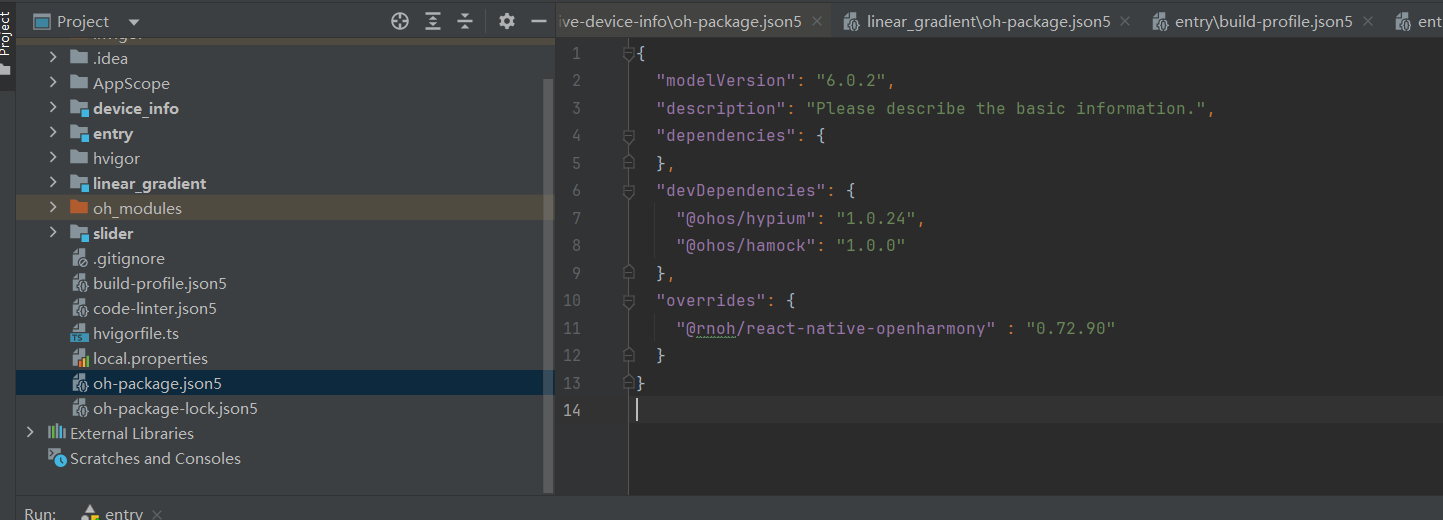
打开 harmony/entry/oh-package.json5,添加依赖:
"dependencies": {
  "@rnoh/react-native-openharmony": "0.72.90",
  "@react-native-ohos/react-native-video": "file:../../node_modules/@react-native-ohos/react-native-video/harmony/rn_video.har"
}
4.2 同步依赖
点击 DevEco Studio 右上角的 sync 按钮,或者在终端执行:
cd harmony/entry
ohpm install
4.3 配置 CMakeLists.txt
打开 entry/src/main/cpp/CMakeLists.txt,添加:
set(OH_MODULES "${CMAKE_CURRENT_SOURCE_DIR}/../../../oh_modules")

add_subdirectory("${OH_MODULES}/@react-native-ohos/react-native-video/src/main/cpp" ./video)

target_link_libraries(rnoh_app PUBLIC rnoh_video)
4.4 配置 PackageProvider.cpp
打开 entry/src/main/cpp/PackageProvider.cpp,添加:
#include "RNCVideoPackage.h"

std::vector<std::shared_ptr<Package>> PackageProvider::getPackages(Package::Context ctx) {
    return {
        std::make_shared<RNCVideoPackage>(ctx)
    };
}
4.5 配置 ArkTS 组件
打开 entry/src/main/ets/pages/index.ets 或 entry/src/main/ets/rn/LoadBundle.ets,添加:
import { RNCVideo, RNC_VIDEO_TYPE } from "@react-native-ohos/react-native-video"

@Builder
function buildCustomRNComponent(ctx: ComponentBuilderContext) {
  if (ctx.componentName === RNC_VIDEO_TYPE) {
    RNCVideo({
      ctx: ctx.rnComponentContext,
      tag: ctx.tag
    })
  }
}

const arkTsComponentNames: Array<string> = [
  RNC_VIDEO_TYPE
];
4.6 配置 RNPackagesFactory.ts
打开 entry/src/main/ets/RNPackagesFactory.ts,添加:
import { RNCVideoPackage } from '@react-native-ohos/react-native-video/ts';

export function createRNPackages(ctx: RNPackageContext): RNPackage[] {
  return [
    new RNCVideoPackage(ctx)
  ];
}
📖 五、API 详解
5.1 核心属性
| 属性名 | 说明 | 类型 | 默认值 | HarmonyOS 支持 |
|---|---|---|---|---|
source |
视频源 | object | - | ✅ |
paused |
是否暂停 | boolean | false | ✅ |
muted |
是否静音 | boolean | false | ✅ |
volume |
音量 (0.0-1.0) | number | 1.0 | ✅ |
rate |
播放速率 | number | 1.0 | ✅ |
repeat |
是否循环播放 | boolean | false | ✅ |
controls |
是否显示原生控件 | boolean | false | ✅ |
resizeMode |
缩放模式 | string | ‘none’ | ✅ |
调用示例:
// 网络视频源
<Video
  source={{ uri: 'https://example.com/video.mp4', isNetwork: true }}
  style={{ width: '100%', height: 200 }}
/>

// 播放控制
const [paused, setPaused] = useState(false);
<Video
  source={{ uri: videoUrl }}
  paused={paused}
  onPress={() => setPaused(!paused)}
/>

// 音量和速率控制
<Video
  source={{ uri: videoUrl }}
  volume={0.5}
  rate={1.5}
  muted={false}
/>

// 循环播放
<Video
  source={{ uri: videoUrl }}
  repeat={true}
/>

// 显示原生控件
<Video
  source={{ uri: videoUrl }}
  controls={true}
/>
5.2 视频源配置
| 属性名 | 说明 | 类型 | 默认值 |
|---|---|---|---|
uri |
视频 URL | string | - |
isNetwork |
是否为网络资源 | boolean | false |
headers |
HTTP 请求头 | object | - |
调用示例:
// 网络视频
<Video source={{ uri: 'https://example.com/video.mp4', isNetwork: true }} />

// 带请求头的视频
<Video
  source={{
    uri: 'https://example.com/protected.mp4',
    headers: { Authorization: 'Bearer token' }
  }}
/>

// HLS 直播流
<Video source={{ uri: 'https://example.com/live.m3u8', isNetwork: true }} />
5.3 缩放模式
| 模式值 | 说明 |
|---|---|
none |
不缩放,保持原始尺寸 |
contain |
等比缩放,完整显示在容器内 |
stretch |
拉伸填充容器,可能变形 |
cover |
等比缩放,填满容器可能裁剪 |
调用示例:
<Video
  source={{ uri: videoUrl }}
  resizeMode="contain"
/>
5.4 海报图属性
| 属性名 | 说明 | 类型 | 默认值 |
|---|---|---|---|
poster |
海报图 URL | string | - |
posterResizeMode |
海报图缩放模式 | string | ‘contain’ |
调用示例:
<Video
  source={{ uri: videoUrl }}
  poster="https://example.com/poster.jpg"
  posterResizeMode="cover"
/>
5.5 画中画属性
| 属性名 | 说明 | 类型 | 默认值 |
|---|---|---|---|
pictureInPicture |
是否启用画中画 | boolean | false |
enterPictureInPictureOnLeave |
离开应用时自动进入画中画 | boolean | false |
调用示例:
const [pipMode, setPipMode] = useState(false);

<Video
  source={{ uri: videoUrl }}
  pictureInPicture={pipMode}
  enterPictureInPictureOnLeave={true}
  onPictureInPictureStatusChanged={(e) => {
    console.log('PiP status:', e.isActive);
    setPipMode(e.isActive);
  }}
/>
📞 六、事件回调
6.1 播放状态事件
| 事件名 | 说明 | HarmonyOS 支持 |
|---|---|---|
onLoad |
视频加载完成 | ✅ |
onLoadStart |
开始加载 | ✅ |
onProgress |
播放进度更新 | ✅ |
onEnd |
播放结束 | ✅ |
onError |
播放错误 | ✅ |
onBuffer |
缓冲状态变化 | ✅ |
onPlaybackStateChanged |
播放状态变化 | ✅ |
onReadyForDisplay |
首帧准备好显示 | ✅ |
调用示例:
<Video
  source={{ uri: videoUrl }}
  onLoad={(e) => {
    console.log('视频时长:', e.duration);
    console.log('视频尺寸:', e.naturalSize);
  }}
  onProgress={(e) => {
    console.log('当前时间:', e.currentTime);
    console.log('可播放时长:', e.playableDuration);
  }}
  onEnd={() => {
    console.log('播放结束');
  }}
  onError={(e) => {
    console.log('播放错误:', e.error);
  }}
  onBuffer={(e) => {
    console.log('缓冲中:', e.isBuffering);
  }}
  onPlaybackStateChanged={(state) => {
    console.log('播放状态:', state);
  }}
/>
6.2 全屏事件
| 事件名 | 说明 | HarmonyOS 支持 |
|---|---|---|
onFullscreenPlayerWillPresent |
即将进入全屏 | ✅ |
onFullscreenPlayerDidPresent |
已进入全屏 | ✅ |
onFullscreenPlayerWillDismiss |
即将退出全屏 | ✅ |
onFullscreenPlayerDidDismiss |
已退出全屏 | ✅ |
调用示例:
<Video
  source={{ uri: videoUrl }}
  onFullscreenPlayerDidPresent={() => {
    console.log('已进入全屏');
  }}
  onFullscreenPlayerDidDismiss={() => {
    console.log('已退出全屏');
  }}
/>
🎮 七、静态方法
7.1 播放控制方法
| 方法名 | 说明 | HarmonyOS 支持 |
|---|---|---|
seek(seconds) |
跳转到指定位置 | ✅ |
pause() |
暂停播放 | ✅ |
resume() |
恢复播放 | ✅ |
setVolume(value) |
设置音量 | ✅ |
getCurrentPosition() |
获取当前播放位置 | ✅ |
调用示例:
import Video, { VideoRef } from 'react-native-video';

const videoRef = useRef<VideoRef>(null);

// 跳转到指定位置
videoRef.current?.seek(30);

// 暂停播放
videoRef.current?.pause();

// 恢复播放
videoRef.current?.resume();

// 设置音量
videoRef.current?.setVolume(0.5);

// 获取当前播放位置
const position = await videoRef.current?.getCurrentPosition();

<Video
  ref={videoRef}
  source={{ uri: videoUrl }}
/>
7.2 全屏控制方法
| 方法名 | 说明 | HarmonyOS 支持 |
|---|---|---|
presentFullscreenPlayer() |
进入全屏 | ✅ |
dismissFullscreenPlayer() |
退出全屏 | ✅ |
setFullScreen(fullscreen) |
切换全屏状态 | ✅ |
调用示例:
const videoRef = useRef<VideoRef>(null);

// 进入全屏
videoRef.current?.presentFullscreenPlayer();

// 退出全屏
videoRef.current?.dismissFullscreenPlayer();

// 切换全屏状态
videoRef.current?.setFullScreen(true);
7.3 画中画方法
| 方法名 | 说明 | HarmonyOS 支持 |
|---|---|---|
enterPictureInPicture() |
进入画中画 | ✅ |
exitPictureInPicture() |
退出画中画 | ✅ |
调用示例:
const videoRef = useRef<VideoRef>(null);

// 进入画中画
videoRef.current?.enterPictureInPicture();

// 退出画中画
videoRef.current?.exitPictureInPicture();
⚠️ 八、注意事项
8.1 HarmonyOS 限制
| 限制项 | 说明 |
|---|---|
| 本地视频 | 暂时只支持在线 URL 资源 |
| 字幕支持 | 不支持外挂字幕 |
| 后台播放 | 不支持应用后台继续播放 |
| 音频轨道 | 部分音频轨道功能未实现 |
8.2 常见问题
问题1:视频无法播放
// ❌ 错误:未设置 isNetwork
<Video source={{ uri: 'https://example.com/video.mp4' }} />

// ✅ 正确:网络视频需要设置 isNetwork
<Video source={{ uri: 'https://example.com/video.mp4', isNetwork: true }} />
问题2:视频加载后黑屏
// ❌ 错误:未设置视频尺寸
<Video source={{ uri: videoUrl }} />

// ✅ 正确:设置视频尺寸
<Video
  source={{ uri: videoUrl }}
  style={{ width: '100%', height: 200 }}
/>
问题3:全屏功能不生效
// ❌ 错误:未配置原生组件
<Video source={{ uri: videoUrl }} />

// ✅ 正确:需要在 ArkTS 侧注册 RNC_VIDEO_TYPE
// 参考 4.3 配置 ArkTS 组件
8.3 最佳实践
- 视频源配置:网络视频务必设置
isNetwork: true - 错误处理:始终添加
onError回调处理播放错误 - 内存管理:组件卸载时暂停播放释放资源
- 加载状态:使用
onLoad和onBuffer显示加载状态
const [isLoading, setIsLoading] = useState(true);
const [error, setError] = useState<string | null>(null);

<Video
  source={{ uri: videoUrl, isNetwork: true }}
  onLoad={() => setIsLoading(false)}
  onError={(e) => setError(e.error)}
  onBuffer={(e) => setIsLoading(e.isBuffering)}
/>

useEffect(() => {
  return () => {
    videoRef.current?.pause();
  };
}, []);
💻 九、完整示例代码
精美视频播放器示例
import React, { useState, useRef } from 'react';
import {
View,
Text,
StyleSheet,
ScrollView,
SafeAreaView,
TouchableOpacity,
StatusBar,
} from 'react-native';
import Video, { VideoRef } from 'react-native-video';
export default function App() {
const videoRef = useRef<VideoRef>(null);
const [paused, setPaused] = useState(false);
const [muted, setMuted] = useState(true);
const [repeat, setRepeat] = useState(true);
const [controls, setControls] = useState(false);
const [resizeMode, setResizeMode] = useState<'none' | 'contain' | 'stretch' | 'cover'>('none');
const [videoInfo, setVideoInfo] = useState({
duration: 0,
currentTime: 0,
isBuffering: false,
});
const handleLoad = (data: any) => {
setVideoInfo((prev) => ({ ...prev, duration: data.duration }));
};
const handleProgress = (data: any) => {
setVideoInfo((prev) => ({ ...prev, currentTime: data.currentTime }));
};
const handleBuffer = (data: any) => {
setVideoInfo((prev) => ({ ...prev, isBuffering: data.isBuffering }));
};
const handleSeek = (seconds: number) => {
videoRef.current?.seek(seconds);
};
const formatTime = (seconds: number) => {
const mins = Math.floor(seconds / 60);
const secs = Math.floor(seconds % 60);
return `${mins.toString().padStart(2, '0')}:${secs.toString().padStart(2, '0')}`;
};
const progress = videoInfo.duration > 0 ? (videoInfo.currentTime / videoInfo.duration) * 100 : 0;
return (
<SafeAreaView style={styles.container}>
<StatusBar barStyle="light-content" />
<View style={styles.header}>
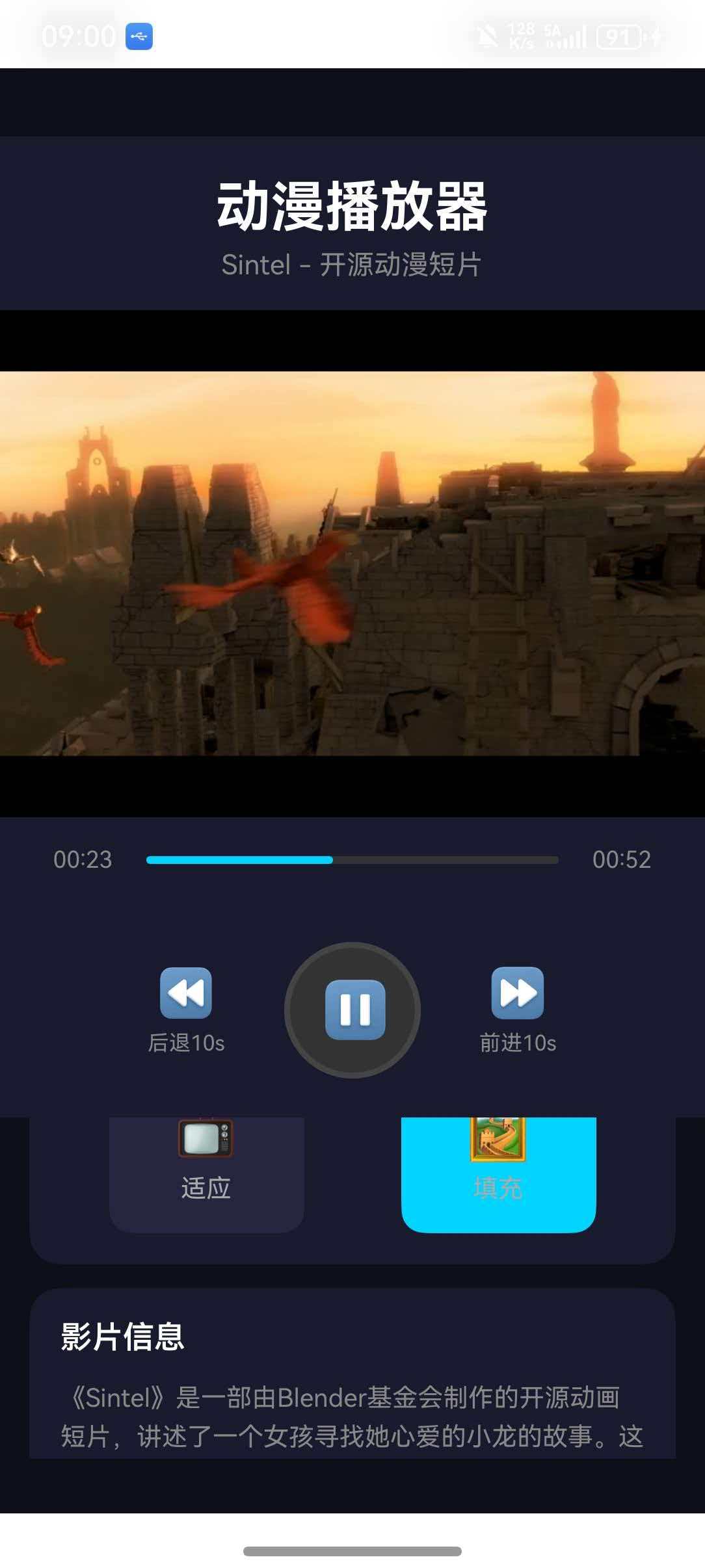
<Text style={styles.headerTitle}>动漫播放器</Text>
<Text style={styles.headerSubtitle}>Sintel - 开源动漫短片</Text>
</View>
<View style={styles.videoWrapper}>
<Video
ref={videoRef}
source={{ uri: 'https://media.w3.org/2010/05/sintel/trailer.mp4', isNetwork: true }}
style={styles.video}
paused={paused}
muted={muted}
repeat={repeat}
controls={controls}
resizeMode={resizeMode}
poster="https://media.w3.org/2010/05/sintel/poster.png"
posterResizeMode="cover"
onLoad={handleLoad}
onProgress={handleProgress}
onBuffer={handleBuffer}
onEnd={() => setPaused(true)}
onError={(e) => console.log('视频播放错误:', e)}
/>
{videoInfo.isBuffering && (
<View style={styles.loadingOverlay}>
<View style={styles.loadingSpinner} />
<Text style={styles.loadingText}>加载中...</Text>
</View>
)}
</View>
<View style={styles.progressSection}>
<Text style={styles.timeText}>{formatTime(videoInfo.currentTime)}</Text>
<View style={styles.progressBar}>
<View style={[styles.progressFill, { width: `${progress}%` }]} />
</View>
<Text style={styles.timeText}>{formatTime(videoInfo.duration)}</Text>
</View>
<View style={styles.controlsSection}>
<TouchableOpacity
style={styles.controlButton}
onPress={() => handleSeek(Math.max(0, videoInfo.currentTime - 10))}
>
<Text style={styles.controlIcon}>⏪</Text>
<Text style={styles.controlLabel}>后退10s</Text>
</TouchableOpacity>
<TouchableOpacity
style={[styles.playButton, paused && styles.playButtonActive]}
onPress={() => setPaused(!paused)}
>
<Text style={styles.playIcon}>{paused ? '▶' : '⏸'}</Text>
</TouchableOpacity>
<TouchableOpacity
style={styles.controlButton}
onPress={() => handleSeek(Math.min(videoInfo.duration, videoInfo.currentTime + 10))}
>
<Text style={styles.controlIcon}>⏩</Text>
<Text style={styles.controlLabel}>前进10s</Text>
</TouchableOpacity>
</View>
<ScrollView style={styles.settingsSection} showsVerticalScrollIndicator={false}>
<View style={styles.settingCard}>
<Text style={styles.settingTitle}>播放设置</Text>
<View style={styles.settingRow}>
<TouchableOpacity
style={[styles.settingButton, muted && styles.settingButtonActive]}
onPress={() => setMuted(!muted)}
>
<Text style={styles.settingIcon}>{muted ? '🔇' : '🔊'}</Text>
<Text style={styles.settingText}>{muted ? '已静音' : '声音'}</Text>
</TouchableOpacity>
<TouchableOpacity
style={[styles.settingButton, repeat && styles.settingButtonActive]}
onPress={() => setRepeat(!repeat)}
>
<Text style={styles.settingIcon}>{repeat ? '🔁' : '🔂'}</Text>
<Text style={styles.settingText}>{repeat ? '循环中' : '单次'}</Text>
</TouchableOpacity>
<TouchableOpacity
style={[styles.settingButton, !controls && styles.settingButtonActive]}
onPress={() => setControls(!controls)}
>
<Text style={styles.settingIcon}>{controls ? '👁' : '👁🗨'}</Text>
<Text style={styles.settingText}>{controls ? '控件开' : '控件关'}</Text>
</TouchableOpacity>
</View>
</View>
<View style={styles.settingCard}>
<Text style={styles.settingTitle}>画面模式</Text>
<View style={styles.settingRow}>
<TouchableOpacity
style={[styles.modeButton, resizeMode === 'contain' && styles.modeButtonActive]}
onPress={() => setResizeMode('contain')}
>
<Text style={styles.modeIcon}>📺</Text>
<Text style={styles.modeText}>适应</Text>
</TouchableOpacity>
<TouchableOpacity
style={[styles.modeButton, resizeMode === 'cover' && styles.modeButtonActive]}
onPress={() => setResizeMode('cover')}
>
<Text style={styles.modeIcon}>🖼</Text>
<Text style={styles.modeText}>填充</Text>
</TouchableOpacity>
</View>
</View>
<View style={styles.infoCard}>
<Text style={styles.infoTitle}>影片信息</Text>
<Text style={styles.infoContent}>
《Sintel》是一部由Blender基金会制作的开源动画短片,讲述了一个女孩寻找她心爱的小龙的故事。这部影片采用Blender软件制作,画面精美,情节感人。
</Text>
<View style={styles.infoTags}>
<View style={styles.tag}>
<Text style={styles.tagText}>动漫</Text>
</View>
<View style={styles.tag}>
<Text style={styles.tagText}>开源</Text>
</View>
<View style={styles.tag}>
<Text style={styles.tagText}>短片</Text>
</View>
</View>
</View>
</ScrollView>
</SafeAreaView>
);
}
const styles = StyleSheet.create({
container: {
flex: 1,
backgroundColor: '#0f0f1a',
},
header: {
padding: 20,
paddingBottom: 15,
backgroundColor: '#1a1a2e',
},
headerTitle: {
fontSize: 28,
fontWeight: 'bold',
color: '#fff',
textAlign: 'center',
},
headerSubtitle: {
fontSize: 14,
color: '#888',
textAlign: 'center',
marginTop: 5,
},
videoWrapper: {
width: '100%',
height: 260,
backgroundColor: '#000',
position: 'relative',
},
video: {
width: '100%',
height: 260,
},
loadingOverlay: {
position: 'absolute',
top: 0,
left: 0,
right: 0,
bottom: 0,
justifyContent: 'center',
alignItems: 'center',
backgroundColor: 'rgba(0, 0, 0, 0.7)',
},
loadingSpinner: {
width: 40,
height: 40,
borderRadius: 20,
borderWidth: 3,
borderColor: '#666',
borderTopColor: '#00d4ff',
marginBottom: 15,
},
loadingText: {
color: '#fff',
fontSize: 14,
},
progressSection: {
flexDirection: 'row',
alignItems: 'center',
paddingHorizontal: 20,
paddingVertical: 15,
backgroundColor: '#1a1a2e',
},
timeText: {
color: '#888',
fontSize: 12,
width: 45,
textAlign: 'center',
},
progressBar: {
flex: 1,
height: 4,
backgroundColor: '#333',
borderRadius: 2,
marginHorizontal: 10,
overflow: 'hidden',
},
progressFill: {
height: '100%',
backgroundColor: '#00d4ff',
borderRadius: 2,
},
controlsSection: {
flexDirection: 'row',
alignItems: 'center',
justifyContent: 'center',
paddingVertical: 20,
backgroundColor: '#1a1a2e',
gap: 30,
},
controlButton: {
alignItems: 'center',
},
controlIcon: {
fontSize: 24,
marginBottom: 5,
},
controlLabel: {
color: '#888',
fontSize: 11,
},
playButton: {
width: 70,
height: 70,
borderRadius: 35,
backgroundColor: '#333',
justifyContent: 'center',
alignItems: 'center',
borderWidth: 3,
borderColor: '#444',
},
playButtonActive: {
backgroundColor: '#00d4ff',
borderColor: '#00a8cc',
},
playIcon: {
fontSize: 28,
color: '#fff',
marginLeft: 4,
},
settingsSection: {
flex: 1,
padding: 15,
},
settingCard: {
backgroundColor: '#1a1a2e',
borderRadius: 16,
padding: 16,
marginBottom: 12,
},
settingTitle: {
color: '#fff',
fontSize: 16,
fontWeight: '600',
marginBottom: 15,
},
settingRow: {
flexDirection: 'row',
justifyContent: 'space-around',
},
settingButton: {
alignItems: 'center',
padding: 12,
borderRadius: 12,
backgroundColor: '#252540',
minWidth: 80,
},
settingButtonActive: {
backgroundColor: '#00d4ff',
},
settingIcon: {
fontSize: 22,
marginBottom: 5,
},
settingText: {
color: '#aaa',
fontSize: 12,
},
modeButton: {
alignItems: 'center',
padding: 15,
borderRadius: 12,
backgroundColor: '#252540',
minWidth: 100,
},
modeButtonActive: {
backgroundColor: '#00d4ff',
},
modeIcon: {
fontSize: 26,
marginBottom: 5,
},
modeText: {
color: '#aaa',
fontSize: 13,
},
infoCard: {
backgroundColor: '#1a1a2e',
borderRadius: 16,
padding: 16,
marginBottom: 20,
},
infoTitle: {
color: '#fff',
fontSize: 16,
fontWeight: '600',
marginBottom: 12,
},
infoContent: {
color: '#888',
fontSize: 13,
lineHeight: 20,
marginBottom: 15,
},
infoTags: {
flexDirection: 'row',
gap: 8,
},
tag: {
backgroundColor: '#252540',
paddingHorizontal: 12,
paddingVertical: 6,
borderRadius: 20,
},
tagText: {
color: '#00d4ff',
fontSize: 12,
},
});
🔗 十、相关资源
📝 十一、总结
本文详细介绍了 react-native-video 在 HarmonyOS 平台的使用方法。通过 Video 组件,你可以轻松实现专业的视频播放功能,支持播放控制、画中画、全屏播放等特性。
核心要点:
- ✅ 支持网络视频播放
- ✅ 支持播放控制(播放、暂停、跳转)
- ✅ 支持画中画和全屏模式
- ✅ 支持音量、速率、缩放模式调节
- ✅ 支持原生播放控件
适用场景:
- 视频点播应用
- 直播观看应用
- 短视频应用
- 教育视频应用
希望本文能帮助你在 HarmonyOS 项目中顺利集成视频播放组件!

作为“人工智能6S店”的官方数字引擎,为AI开发者与企业提供一个覆盖软硬件全栈、一站式门户。
更多推荐


 1
1 0
0- 0


 已为社区贡献40条内容

所有评论(0)