
高级进阶 ReactNative for Harmony 项目鸿蒙化三方库集成实战:react-native-drag-sort
是 React Native 生态中最流行的拖拽排序库,提供了三种不同特性的拖拽排序组件,支持固定尺寸和任意尺寸的拖拽排序,具备流畅的动画效果和灵活的配置选项。该库性能优异,渲染流畅,完全兼容 Android、iOS 和 HarmonyOS 多平台,是实现拖拽排序功能的标准选择。库名称版本信息RN 0.72:(2.4.4)RN 0.77:(2.5.0)官方仓库主要功能。
欢迎加入开源鸿蒙跨平台社区:https://openharmonycrossplatform.csdn.net
📋 前言
react-native-drag-sort 是 React Native 生态中最流行的拖拽排序库,提供了三种不同特性的拖拽排序组件,支持固定尺寸和任意尺寸的拖拽排序,具备流畅的动画效果和灵活的配置选项。该库性能优异,渲染流畅,完全兼容 Android、iOS 和 HarmonyOS 多平台,是实现拖拽排序功能的标准选择。
🎯 库简介
基本信息
- 库名称: react-native-drag-sort
- 版本信息:
- RN 0.72:
@react-native-oh-tpl/react-native-drag-sort(2.4.4) - RN 0.77:
@react-native-ohos/react-native-drag-sort(2.5.0)
- RN 0.72:
- 官方仓库: https://github.com/react-native-oh-library/react-native-drag-sort
- 主要功能:
- 支持三种拖拽排序组件(DragSortableView、AutoDragSortableView、AnySizeDragSortableView)
- 支持固定尺寸和任意尺寸的拖拽
- 支持长按拖拽、点击回调
- 支持固定项(不可拖拽)
- 支持自定义头部和底部视图
- 支持滚动和自动滑动
- 流畅的动画效果(缩放、透明度)
- 兼容性验证:
- RNOH: 0.72.96; SDK: HarmonyOS 6.0.0 Release SDK; IDE: DevEco Studio 6.0.0.858; ROM: 6.0.0.112;
- RNOH: 0.72.33; SDK: HarmonyOS NEXT B1; IDE: DevEco Studio 5.0.3.900; ROM: Next.0.0.71;
- RNOH: 0.77.18; SDK: HarmonyOS 6.0.0 Release SDK; IDE: DevEco Studio 6.0.0.858; ROM: 6.0.0.112;
为什么需要这个库?
- 功能完整: 提供三种不同特性的拖拽排序组件
- 性能优异: 纯 JavaScript 实现,流畅的动画效果
- 跨平台: Android、iOS、HarmonyOS 完全兼容
- 易于使用: API 简洁,集成方便
- 灵活配置: 支持固定项、自定义视图等多种配置
组件选择指南
使用优先级: DragSortableView > AutoDragSortableView > AnySizeDragSortableView
- 1. DragSortableView: 如果宽度和高度是固定的,不需要滑动,请使用 DragSortableView
- 2. AutoDragSortableView: 如果宽度和高度是固定的,需要滑动,请使用 AutoDragSortableView
- 3. AnySizeDragSortableView: 如果宽度和高度是任意的,需要滑动,请使用 AnySizeDragSortableView
📦 安装步骤
1. 使用 npm 安装
# RN 0.72
npm install @react-native-oh-tpl/react-native-drag-sort@2.4.4

# RN 0.77
npm install @react-native-ohos/react-native-drag-sort@2.5.0
2. 使用 yarn 安装
# RN 0.72
yarn add @react-native-oh-tpl/react-native-drag-sort@2.4.4

# RN 0.77
yarn add @react-native-ohos/react-native-drag-sort@2.5.0
3. 验证安装
安装完成后,检查 package.json 文件,应该能看到新增的依赖:
{
  "dependencies": {
    "@react-native-oh-tpl/react-native-drag-sort": "^2.4.4",
    // 或者
    "@react-native-ohos/react-native-drag-sort": "^2.5.0",
    // ... 其他依赖
  }
}
🔧 HarmonyOS 平台配置
重要说明
- 纯 JavaScript 库:
react-native-drag-sort是纯 JavaScript 实现的库,无需任何原生配置 - 无需 Autolink: 无需 Autolink 配置
- 无需 Codegen: 无需 Codegen 配置
- 无需 Manual Link: 无需手动链接原生代码
- 即装即用: 安装后即可直接使用
💻 完整代码示例
下面展示了 react-native-drag-sort 的三种组件使用场景的完整代码,直接来自官方适配文档:
1. DragSortableView 组件使用(固定尺寸,不需要滚动)
import React, { useState } from "react";
import { View, Text, StyleSheet, SafeAreaView } from "react-native";
import { DragSortableView } from "react-native-drag-sort";
//此案例id1、id2不支持拖拽
const Dragsort = () => {
  const [data, setData] = useState([
    {
      id: 1,
      title: "固定任务 1",
    },
    {
      id: 2,
      title: "固定任务 2",
    },
    {
      id: 3,
      title: "任务 3",
    },
    {
      id: 4,
      title: "任务 4",
    },
    {
      id: 5,
      title: "任务 5",
    },
    {
      id: 6,
      title: "任务 6",
    },
    {
      id: 7,
      title: "任务 7",
    },
    {
      id: 8,
      title: "任务 8",
    },
  ]);

  return (
    <SafeAreaView style={{ flex: 1 }}>
      <View style={styles.header}>
        <Text style={styles.header_title}>DragSortableView</Text>
      </View>
      <DragSortableView
        dataSource={data}
        parentWidth={400}
        childrenWidth={100}
        childrenHeight={50}
        marginChildrenTop={5}
        marginChildrenBottom={5}
        marginChildrenLeft={5}
        marginChildrenRight={5}
        // onDataChange={setData}
        keyExtractor={(item, index) => item.id}
        onClickItem={(data, item, index) => {
          console.log("点击了第", index, "个元素");
        }}
        onDragStart={() => console.log("Drag started")}
        onDragEnd={() => console.log("Drag end")}
        onDataChange={() => {
          console.log("数据发生变化");
        }}
        fixedItems={[0, 1]}
        delayLongPress={100}
        isDragFreely={true}
        maxScale={1.2}
        minOpacity={0.7}
        renderItem={(item, index) => {
          return (
            <View key={item.id} style={styles.box}>
              <Text style={styles.text}>{item.title}</Text>
            </View>
          );
        }}
        sortable={true}
      />
    </SafeAreaView>
  );
};

const styles = StyleSheet.create({
  box: {
    justifyContent: "center",
    alignContent: "center",
    borderRadius: 5,
    margin: 20,
    backgroundColor: "#4e71f2",
    height: 50,
    width: 100,
  },
  text: {
    fontSize: 18,
    color: "#fff",
    textAlign: "center",
  },
  header: {
    height: 48,
    justifyContent: "center",
    alignItems: "center",
    borderBottomColor: "#2ecc71",
    borderBottomWidth: 2,
  },
  header_title: {
    color: "#333",
    fontSize: 24,
    fontWeight: "bold",
  },
});
export default Dragsort;
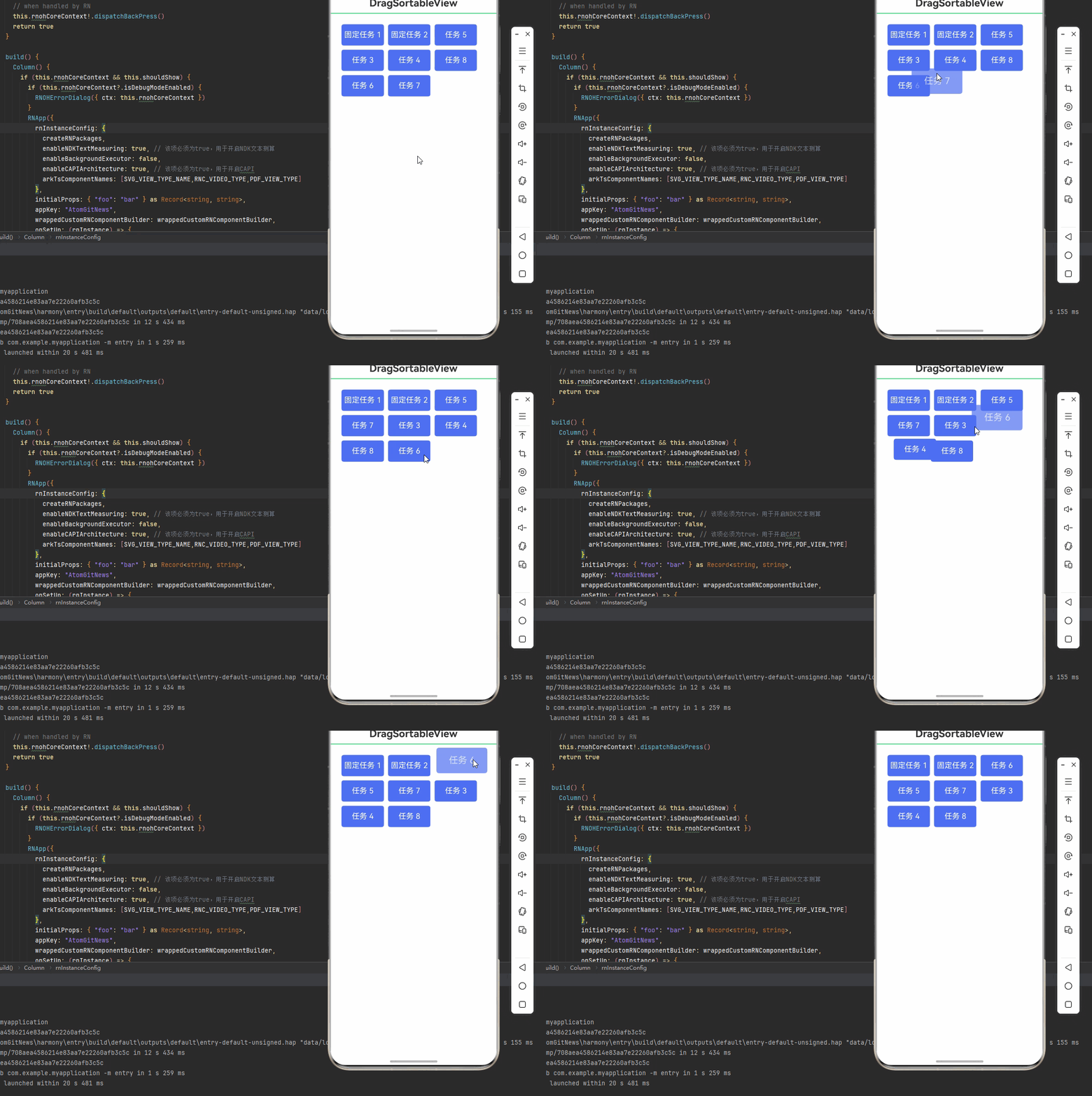
2. AutoDragSortableView 组件使用(固定尺寸,需要滚动)
//此案例Item1、Item2不支持拖拽
import React, { useState } from "react";
import { View, Text } from "react-native";
import { AutoDragSortableView } from "react-native-drag-sort";

const AutoDragSortDemo = () => {
  const [data, setData] = useState([
    { id: "1", text: "Item 1" },
    { id: "2", text: "Item 2" },
    { id: "3", text: "Item 3" },
    { id: "4", text: "Item 4" },
    { id: "5", text: "Item 5" },
    { id: "6", text: "Item 6" },
    { id: "7", text: "Item 7" },
    { id: "8", text: "Item 8" },
    { id: "9", text: "Item 9" },
    { id: "10", text: "Item 10" },
    { id: "11", text: "Item 11" },
    { id: "12", text: "Item 12" },
    { id: "13", text: "Item 13" },
    { id: "14", text: "Item 14" },
    { id: "15", text: "Item 15" },
    { id: "16", text: "Item 16" },
    { id: "17", text: "Item 17" },
    { id: "18", text: "Item 18" },
    { id: "19", text: "Item 19" },
    { id: "20", text: "Item 20" },
    { id: "21", text: "Item 21" },
    { id: "22", text: "Item 22" },
    { id: "23", text: "Item 23" },
    { id: "24", text: "Item 24" },
    { id: "25", text: "Item 25" },
    { id: "26", text: "Item 26" },
    { id: "27", text: "Item 27" },
    { id: "28", text: "Item 28" },
  ]);
  const renderHeaderView = (
    <View style={{ height: 50, backgroundColor: "#ff4d4d" }}>
      <Text style={{ fontSize: 18, color: "#fff", textAlign: "center" }}>
        标题
      </Text>
    </View>
  );
  const renderBottomView = (
    <View style={{ height: 50, backgroundColor: "#ff4d4d" }}>
      <Text style={{ fontSize: 18, color: "#fff", textAlign: "center" }}>
        底部
      </Text>
    </View>
  );

  return (
    <AutoDragSortableView
      dataSource={data}
      parentWidth={500}
      childrenWidth={100}
      childrenHeight={100}
      marginChildrenTop={20}
      marginChildrenBottom={20}
      marginChildrenLeft={20}
      marginChildrenRight={20}
      onDataChange={(data) => {
        console.log("数据发生变化");
      }}
      keyExtractor={(item, index) => item.id}
      onClickItem={(data, item, index) => {
        console.log("点击了第", index, "个元素");
      }}
      renderItem={(item, index) => {
        return (
          <View
            key={item.id}
            style={{
              width: 100,
              height: 50,
              borderRadius: 5,
              margin: 5,
              backgroundColor: "#4e71f2",
            }}
          >
            <Text style={{ fontSize: 18, color: "#fff" }}>{item.text}</Text>
          </View>
        );
      }}
      scaleDuration={500} //拖拽项缩放效果的持续时间
      slideDuration={200} //拖拽项滑动效果的持续时间
      autoThrottle={100} //自动滑动到目的地的间隔时间
      autoThrottleDuration={500} //自动滑动到目的地的持续时间
      sortable={true}
      isDragFreely={false}
      fixedItems={[0, 1]}
      delayLongPress={100}
      onDragStart={() => console.log("Drag started")}
      onDragEnd={() => console.log("Drag end")}
      renderHeaderView={renderHeaderView}
      headerViewHeight={50}
      scrollIndicatorInsets={{ top: 0, left: 0, bottom: 0, right: 0 }}
      renderBottomView={renderBottomView}
      bottomViewHeight={50}
      onScrollListener={(event) => {
        console.log("滚动事件", event);
      }}
      onScrollRef={(ref) => {
        console.log("滚动容器", ref);
      }}
    />
  );
};

export default AutoDragSortDemo;
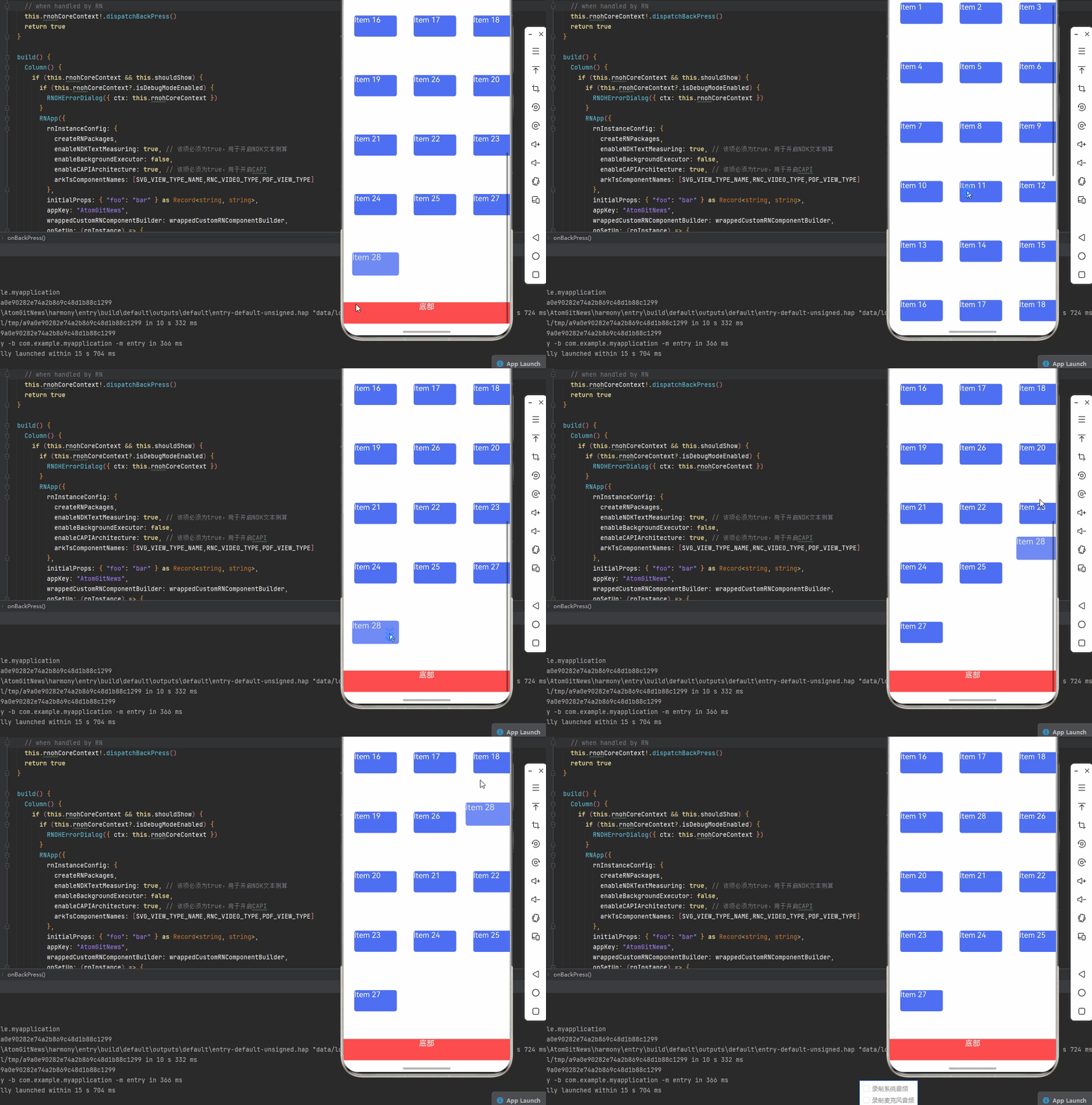
3. AnySizeDragSortableView 组件使用(任意尺寸,需要滚动)
import React, { createRef } from "react";
import {
  Text,
  TouchableOpacity,
  StyleSheet,
  View,
  Image,
  Dimensions,
  SafeAreaView,
} from "react-native";
import { AnySizeDragSortableView } from "react-native-drag-sort";

const { width } = Dimensions.get("window");
const headerViewHeight = 160;
const bottomViewHeight = 40;

const getW = (index, isWidth) =>
  isWidth ? (index % 3 === 0 ? width - 40 : (width - 60) / 2) : 80;

type State = {
  items: { text: string, width: number, height: number }[];
  movedKey: any
}

export default class AnySizeDragSortDemo extends React.Component<any, State> {
  sortableViewRef: React.RefObject<any>;
  constructor(props) {
    super(props);
    const items:State["items"] = [];
    for (let i = 0; i < 26; i++) {
      items.push({
        text: String.fromCharCode(65 + i),
        width: getW(i, true),
        height: getW(i, false),
      });
    }
    this.state = {
      items,
      movedKey: null,
    };

    this.sortableViewRef = createRef();
  }

  onDeleteItem = (item, index) => {
    const items = [...this.state.items];
    items.splice(index, 1);
    this.setState({ items });
  };

  _renderItem = (item, index, isMoved) => {
    const { movedKey } = this.state;
    return (
      <TouchableOpacity
        onLongPress={() => {
          this.setState({ movedKey: item.text });
          this.sortableViewRef.current.startTouch(item, index);
        }}
        onPressOut={() => this.sortableViewRef.current.onPressOut()}
      >
        <View
          style={[
            styles.item_wrap,
            { opacity: movedKey === item.text && !isMoved ? 1 : 1 },
          ]}
        >
          {
            <View style={styles.item_clear_wrap}>
              <TouchableOpacity onPress={() => this.onDeleteItem(item, index)}>
                <Image
                  source={require("../SourceLibraryDemo/data/img/clear.png")}
                  style={styles.item_clear}
                />
              </TouchableOpacity>
            </View>
          }
          <View
            style={[
              styles.item,
              {
                width: item.width,
                height: item.height,
                backgroundColor: isMoved ? "red" : "#f39c12",
              },
            ]}
          >
            {isMoved ? (
              <View style={styles.item_icon_swipe}>
                <Image
                  source={{
                    uri: "https://img0.baidu.com/it/u=4232278629,1470839503&fm=253&fmt=auto&app=138&f=JPEG?w=500&h=746",
                  }}
                  style={styles.item_icon}
                />
              </View>
            ) : null}
            <View style={styles.item_text_swipe}>
              <Text style={styles.item_text}>{item.text}</Text>
            </View>
          </View>
        </View>
      </TouchableOpacity>
    );
  };

  render() {
    const { items } = this.state;
    const renderHeaderView = (
      <View style={styles.aheader}>
        <Image
          source={{
            uri: "https://p7.itc.cn/mpbp/pro/20200929/650b94a7b8a542fda242a6575f51d74f.jpeg",
          }}
          style={styles.aheader_img}
        />
        <View style={styles.aheader_context}>
          <Text style={styles.aheader_title}>mochixuan</Text>
          <Text style={styles.aheader_desc}>
            Android, React-Native, Flutter, React, Web。Learn new knowledge and
            share new knowledge.
          </Text>
        </View>
      </View>
    );
    const renderBottomView = (
      <View style={styles.abottom}>
        <Text style={styles.abottom_desc}>yarn add react-native-drag-sort</Text>
      </View>
    );
    return (
      <>
        <View style={styles.header}>
          <Text style={styles.header_title}>AnySize</Text>
        </View>
        <AnySizeDragSortableView
          ref={this.sortableViewRef}
          dataSource={items}
          keyExtractor={(item) => item.text}
          renderItem={this._renderItem}
          onDataChange={(data, callback) => {
            this.setState({ items: data }, () => {
              callback();
              console.log("移动了");
            });
          }}
          renderHeaderView={renderHeaderView}
          headerViewHeight={headerViewHeight}
          renderBottomView={renderBottomView}
          bottomViewHeight={bottomViewHeight}
          movedWrapStyle={styles.item_moved}
          onDragEnd={() => console.log("Drag end")}
          scrollIndicatorInsets={{ top: 1, left: 1, bottom: 1, right: 1 }}
          autoThrottle={100}
          autoThrottleDuration={500}
          areaOverlapRatio={0.5}
          childMarginTop={10}
          childMarginBottom={10}
          childMarginLeft={10}
          childMarginRight={10}
        />
      </>
    );
  }
}

const styles = StyleSheet.create({
  item_wrap: {
    position: "relative",
    paddingLeft: 20,
    paddingTop: 20,
  },
  item: {
    justifyContent: "space-around",
    alignItems: "center",
    backgroundColor: "#f39c12",
    borderRadius: 4,
  },
  item_clear_wrap: {
    position: "absolute",
    left: 10,
    top: 10,
    width: 20,
    height: 20,
    zIndex: 999,
  },
  item_clear: {
    width: 20,
    height: 20,
  },
  item_moved: {
    opacity: 0.95,
    borderRadius: 4,
  },
  item_icon_swipe: {
    width: 50,
    height: 50,
    backgroundColor: "#fff",
    borderRadius: 50 * 0.5,
    justifyContent: "center",
    alignItems: "center",
  },
  item_icon: {
    width: 30,
    height: 30,
  },
  item_text_swipe: {
    position: "absolute",
  },
  item_text: {
    fontSize: 18,
    color: "#fff",
  },
  header: {
    height: 48,
    justifyContent: "center",
    alignItems: "center",
    borderBottomColor: "#2ecc71",
    borderBottomWidth: 2,
  },
  header_title: {
    color: "#333",
    fontSize: 24,
    fontWeight: "bold",
  },
  aheader: {
    height: 160,
    backgroundColor: "#fff",
    padding: 10,
    flexDirection: "row",
  },
  aheader_img: {
    width: 100,
    height: 100,
    borderRadius: 50,
  },
  aheader_context: {
    marginLeft: 10,
    justifyContent: "center",
  },
  aheader_title: {
    fontSize: 18,
    color: "#333",
    fontWeight: "bold",
  },
  aheader_desc: {
    fontSize: 14,
    color: "#666",
    marginTop: 5,
  },
  abottom: {
    height: 40,
    backgroundColor: "#ff4d4d",
    justifyContent: "center",
    alignItems: "center",
  },
  abottom_desc: {
    fontSize: 14,
    color: "#fff",
  },
});
🎨 实际应用场景
react-native-drag-sort 可以应用于以下实际场景:
- 任务列表: 拖拽调整任务优先级
- 图片排序: 相册中拖拽调整图片顺序
- 播放列表: 音乐/视频播放列表排序
- 选项排序: 设置项顺序调整
- 仪表板布局: 自定义仪表板布局
- 购物车: 商品顺序调整
⚠️ 注意事项与最佳实践
1. 组件选择
// ✅ 推荐: 根据场景选择合适的组件
// 固定尺寸,不需要滚动 → DragSortableView
// 固定尺寸,需要滚动 → AutoDragSortableView
// 任意尺寸,需要滚动 → AnySizeDragSortableView
2. 拖拽配置
// ✅ 推荐: 配置拖拽参数
<DragSortableView
  delayLongPress={100}      // 长按延迟(毫秒)
  maxScale={1.2}            // 最大缩放比例
  minOpacity={0.7}          // 最小透明度
  isDragFreely={true}       // 自由拖拽
/>
3. 固定项设置
// ✅ 推荐: 设置固定项(不可拖拽)
<DragSortableView
  fixedItems={[0, 1]}  // 前两项不可拖拽
/>
4. 数据回调
// ✅ 推荐: 监听数据变化
<DragSortableView
  onDataChange={(data) => {
    setData(data);  // 更新数据状态
    console.log("数据发生变化");
  }}
/>
5. HarmonyOS 特殊处理
在 HarmonyOS 上使用时,需要注意:
- 纯 JavaScript 实现: 无需任何原生配置
- 无需 Autolink: 不需要 Autolink 配置
- 无需 Codegen: 不需要 Codegen 配置
- 无需 Manual Link: 不需要手动链接原生代码
- 即装即用: 安装后即可直接使用
6. 最佳实践
// ✅ 推荐: 封装拖拽排序组件
class DragSortViewer {
  render() {
    return (
      <SafeAreaView style={styles.container}>
        <View style={styles.header}>
          <Text style={styles.header_title}>拖拽排序</Text>
        </View>
        <DragSortableView
          dataSource={this.state.data}
          parentWidth={400}
          childrenWidth={100}
          childrenHeight={50}
          keyExtractor={this.keyExtractor}
          renderItem={this.renderItem}
          fixedItems={[0, 1]}
          delayLongPress={100}
          onDataChange={this.handleDataChange}
          onDragStart={this.handleDragStart}
          onDragEnd={this.handleDragEnd}
        />
      </SafeAreaView>
    );
  }
}
🧪 测试验证
1. Android 平台测试
npm run android
测试要点:
- 测试拖拽功能
- 验证动画效果
- 测试固定项
- 检查滚动功能
2. iOS 平台测试
npm run ios
测试要点:
- 测试基本功能
- 验证流畅度
- 检查触摸响应
3. HarmonyOS 平台测试
npm run harmony
测试要点:
- 验证拖拽功能
- 检查动画效果
- 测试三种组件
- 验证固定项
4. 常见问题排查
问题 1: 无法拖拽
- 检查是否设置了
sortable={true} - 确认
delayLongPress是否过短 - 检查
renderItem是否正确返回 View
问题 2: 动画不流畅
- 调整
maxScale和minOpacity - 检查设备性能
- 减少 renderItem 中的计算
问题 3: 滚动不正常
- 检查
parentWidth是否正确 - 确认
autoThrottle配置 - 验证
headerViewHeight和bottomViewHeight
📊 API 参考
DragSortableView 核心属性
| 属性 | 类型 | 必填 | 描述 |
|---|---|---|---|
| dataSource | Array | 是 | 数据源 |
| parentWidth | Number | 是 | 父容器宽度 |
| childrenWidth | Number | 是 | 子项宽度 |
| childrenHeight | Number | 是 | 子项高度 |
| keyExtractor | Function | 是 | 提取 key 的函数 |
| renderItem | Function | 是 | 渲染子项的函数 |
| fixedItems | Array | 否 | 固定项索引数组 |
| delayLongPress | Number | 否 | 长按延迟(毫秒) |
| maxScale | Number | 否 | 最大缩放比例 |
| minOpacity | Number | 否 | 最小透明度 |
| isDragFreely | Boolean | 否 | 是否自由拖拽 |
| sortable | Boolean | 否 | 是否可排序 |
| onClickItem | Function | 否 | 点击回调 |
| onDragStart | Function | 否 | 拖拽开始回调 |
| onDragEnd | Function | 否 | 拖拽结束回调 |
| onDataChange | Function | 否 | 数据变化回调 |
AutoDragSortableView 额外属性
| 属性 | 类型 | 必填 | 描述 |
|---|---|---|---|
| renderHeaderView | Function | 否 | 渲染头部视图 |
| headerViewHeight | Number | 否 | 头部视图高度 |
| renderBottomView | Function | 否 | 渲染底部视图 |
| bottomViewHeight | Number | 否 | 底部视图高度 |
| scaleDuration | Number | 否 | 缩放动画持续时间 |
| slideDuration | Number | 否 | 滑动动画持续时间 |
| autoThrottle | Number | 否 | 自动滑动间隔时间 |
| autoThrottleDuration | Number | 否 | 自动滑动持续时间 |
AnySizeDragSortableView 额外属性
| 属性 | 类型 | 必填 | 描述 |
|---|---|---|---|
| movedWrapStyle | Object | 是 | 拖拽项样式 |
| areaOverlapRatio | Number | 否 | 重叠区域比例 |
| childMarginTop | Number | 否 | 子项上边距 |
| childMarginBottom | Number | 否 | 子项下边距 |
| childMarginLeft | Number | 否 | 子项左边距 |
| childMarginRight | Number | 否 | 子项右边距 |
📝 总结
通过集成 react-native-drag-sort,我们为项目添加了完整的拖拽排序功能。这个库提供了三种不同特性的拖拽排序组件,支持固定尺寸和任意尺寸的拖拽,具备流畅的动画效果和灵活的配置选项,完全跨平台兼容,纯 JavaScript 实现,无需任何原生配置,是实现拖拽排序功能的标准选择。
关键要点回顾
- ✅ 安装依赖:
npm install @react-native-oh-tpl/react-native-drag-sort或npm install @react-native-ohos/react-native-drag-sort - ✅ 无需配置: 纯 JavaScript 实现,无需任何原生配置
- ✅ 三种组件: DragSortableView(固定尺寸,不滚动)、AutoDragSortableView(固定尺寸,可滚动)、AnySizeDragSortableView(任意尺寸,可滚动)
- ✅ 组件选择: 根据场景选择合适的组件
- ✅ 固定项: 支持设置固定项(不可拖拽)
- ✅ 动画效果: 流畅的缩放和透明度动画
- ✅ 自定义视图: 支持自定义头部和底部视图
- ✅ 跨平台: Android、iOS、HarmonyOS 完全兼容
实际效果
- Android: 完整支持,功能丰富
- iOS: 完整支持,功能丰富
- HarmonyOS: 完整支持,功能丰富

作为“人工智能6S店”的官方数字引擎,为AI开发者与企业提供一个覆盖软硬件全栈、一站式门户。
更多推荐


 7
7 0
0- 0


 已为社区贡献19条内容

所有评论(0)