
Flutter for OpenHarmony 实战:打造功能完整的云笔记应用
本文介绍了使用Flutter for OpenHarmony开发云笔记应用的完整过程。主要内容包括:1)需求分析与技术选型,阐述了Flutter框架的优势;2)应用架构设计,采用多页面结构和数据流方案;3)核心数据模型Note类的设计与实现;4)笔记列表页面的功能实现,包括数据加载、统计显示和卡片布局。通过本文,读者可以掌握在鸿蒙平台上使用Flutter开发实用工具类应用的关键技术和方法。
Flutter for OpenHarmony 实战:打造功能完整的云笔记应用
文章目录
摘要
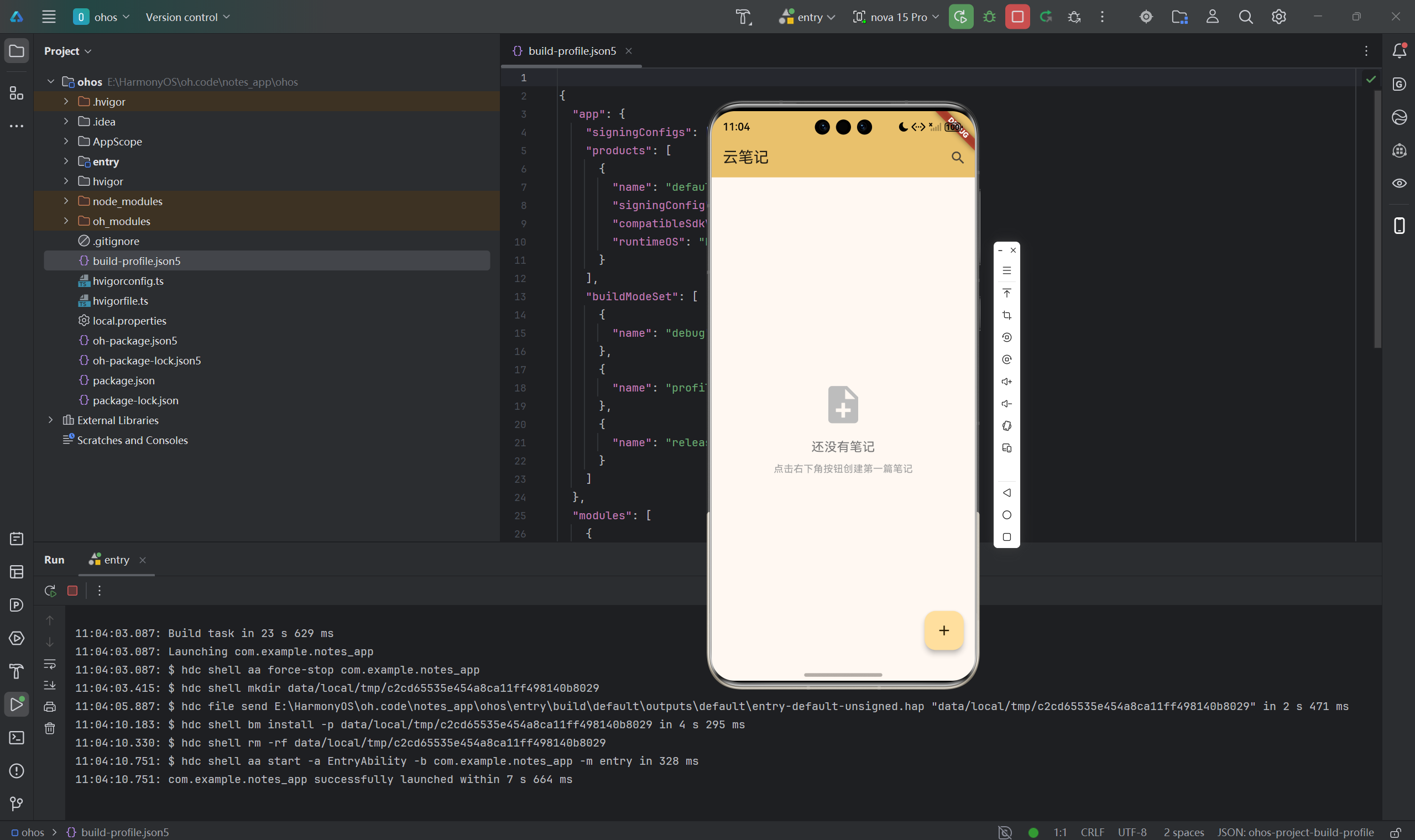
云笔记应用是移动应用中最实用的工具类应用之一。本文将详细介绍如何使用Flutter for OpenHarmony框架开发一款功能完整的云笔记应用。文章涵盖了数据模型设计、CRUD操作实现、搜索功能、页面导航等核心技术点。通过本文学习,读者将掌握Flutter在鸿蒙平台上开发笔记类应用的完整流程,了解多页面应用的设计模式。
一、项目背景与功能概述
1.1 笔记应用的需求分析
在数字化时代,笔记应用是记录灵感、待办事项、学习笔记的重要工具。一款优秀的笔记应用应该满足以下核心需求:
基础功能模块
- 创建新笔记
- 编辑已有笔记
- 删除笔记
- 查看笔记列表
- 搜索笔记内容
用户体验要求
- 简洁清晰的界面
- 快速创建和编辑
- 实时搜索功能
- 数据安全保障
1.2 为什么选择Flutter for OpenHarmony
Flutter在开发笔记应用时具有明显优势:
丰富的UI组件
- TextField支持多行文本输入
- SearchDelegate提供搜索功能
- MaterialPageRoute页面导航
跨平台一致性
- 一套代码多端运行
- 统一的用户体验
- 降低维护成本
性能优异
- 流畅的页面切换
- 高效的列表渲染
- 快速的搜索响应
1.3 核心功能规划
| 功能模块 | 具体功能 |
|---|---|
| 笔记管理 | 创建、编辑、删除笔记 |
| 笔记展示 | 列表视图、卡片布局 |
| 搜索功能 | 标题和内容搜索 |
| 数据存储 | 本地持久化存储 |
| 统计信息 | 笔记数量、总字数 |
二、技术选型与架构设计
2.1 技术栈选择
数据持久化方案
- shared_preferences:轻量级键值对存储
- 适合笔记数据存储
- 支持JSON字符串存储
日期格式化
- intl包:国际化日期格式化
- 支持多种日期格式
2.2 应用架构设计
采用多页面架构设计:
主页面 (NotesListPage)
├── AppBar(导航栏)
│   ├── 标题
│   └── 搜索按钮
├── 统计头部
├── 笔记列表
└── FloatingActionButton(添加按钮)

编辑页面 (NoteEditPage)
├── AppBar
│   ├── 标题(编辑/新建)
│   └── 保存按钮
└── 编辑表单
    ├── 标题输入框
    └── 内容输入框

搜索页面 (NoteSearchDelegate)
├── 搜索输入框
├── 搜索建议
└── 搜索结果
2.3 数据流设计
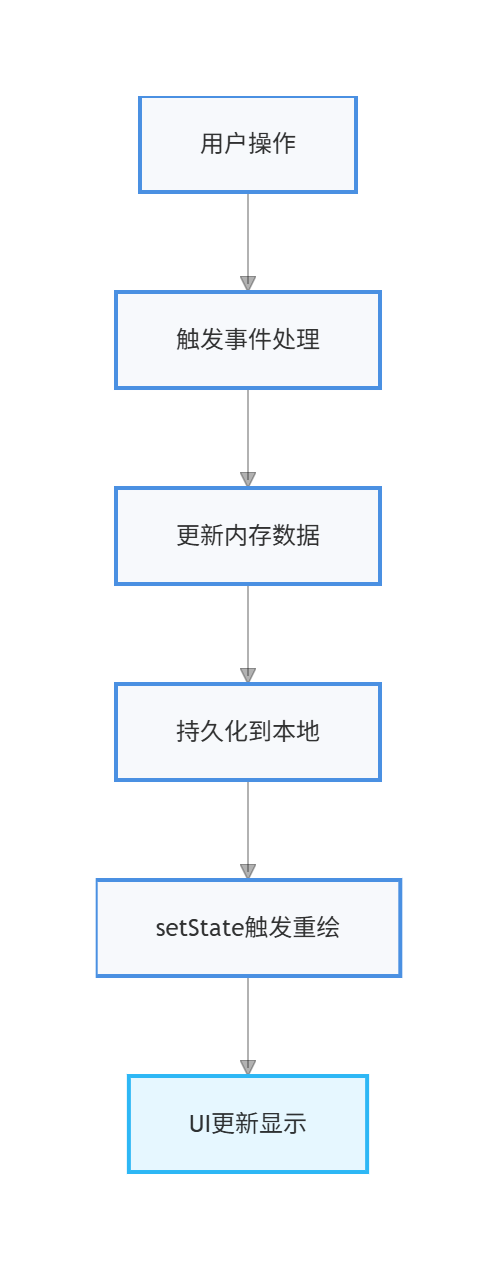
三、数据模型设计
3.1 Note模型类设计
笔记记录是应用的核心数据模型:
class Note {
  final String id;           // 唯一标识
  final String title;        // 标题
  final String content;      // 内容
  final DateTime createdAt; // 创建时间
  final DateTime updatedAt; // 更新时间

  Note({
    required this.id,
    required this.title,
    required this.content,
    required this.createdAt,
    required this.updatedAt,
  });
}
3.2 JSON序列化实现
Map<String, dynamic> toJson() {
  return {
    'id': id,
    'title': title,
    'content': content,
    'createdAt': createdAt.millisecondsSinceEpoch,
    'updatedAt': updatedAt.millisecondsSinceEpoch,
  };
}

factory Note.fromJson(Map<String, dynamic> json) {
  return Note(
    id: json['id'] as String,
    title: json['title'] as String,
    content: json['content'] as String,
    createdAt: DateTime.fromMillisecondsSinceEpoch(json['createdAt'] as int),
    updatedAt: DateTime.fromMillisecondsSinceEpoch(json['updatedAt'] as int),
  );
}
3.3 对象副本方法
实现copyWith方法便于更新操作:
Note copyWith({
  String? title,
  String? content,
  DateTime? updatedAt,
}) {
  return Note(
    id: id,
    title: title ?? this.title,
    content: content ?? this.content,
    createdAt: createdAt,
    updatedAt: updatedAt ?? this.updatedAt,
  );
}
四、笔记列表页面实现
4.1 状态管理
管理笔记列表和加载状态:
class _NotesListPageState extends State<NotesListPage> {
List<Note> _notes = [];
final String _searchQuery = '';
bool _isLoading = true;
void initState() {
super.initState();
_loadNotes();
}
}
4.2 数据加载
Future<void> _loadNotes() async {
  setState(() {
    _isLoading = true;
  });

  try {
    final prefs = await SharedPreferences.getInstance();
    final notesJson = prefs.getStringList('notes') ?? [];

    setState(() {
      _notes = notesJson.map((json) {
        return Note.fromJson(
          jsonDecode(json) as Map<String, dynamic>
        );
      }).toList();

      // 按更新时间降序排序
      _notes.sort((a, b) => b.updatedAt.compareTo(a.updatedAt));

      _isLoading = false;
    });
  } catch (e) {
    setState(() {
      _notes = [];
      _isLoading = false;
    });
  }
}
4.3 统计头部
显示笔记数量和总字数:
Widget _buildStatsHeader() {
  return Container(
    padding: const EdgeInsets.all(16),
    decoration: BoxDecoration(
      color: Theme.of(context).colorScheme.primaryContainer,
      border: Border(
        bottom: BorderSide(
          color: Theme.of(context).colorScheme.outlineVariant,
        ),
      ),
    ),
    child: Row(
      mainAxisAlignment: MainAxisAlignment.spaceAround,
      children: [
        _buildStatItem('笔记数量', '${_notes.length}'),
        _buildStatItem('总字数', '${_getTotalWordCount()}'),
      ],
    ),
  );
}

int _getTotalWordCount() {
  return _notes.fold(0, (sum, note) => sum + note.content.length);
}
4.4 笔记卡片
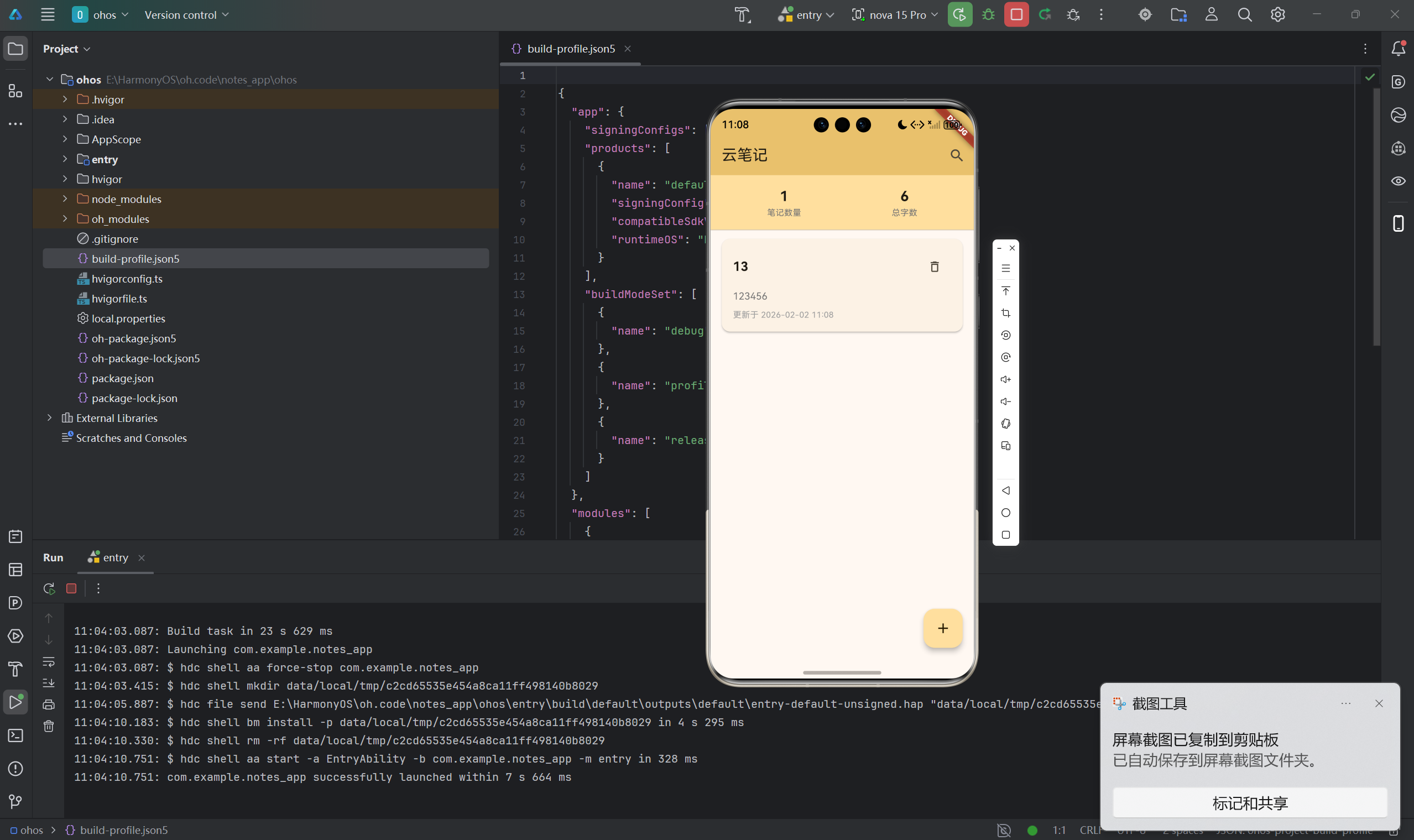
Widget _buildNoteCard(Note note) {
  return Card(
    margin: const EdgeInsets.symmetric(vertical: 4, horizontal: 8),
    elevation: 2,
    child: InkWell(
      onTap: () async {
        final result = await Navigator.push(
          context,
          MaterialPageRoute(
            builder: (context) => NoteEditPage(
              note: note,
              onSave: _updateNote,
            ),
          ),
        );

        if (result == true) {
          _loadNotes();
        }
      },
      child: Padding(
        padding: const EdgeInsets.all(16),
        child: Column(
          crossAxisAlignment: CrossAxisAlignment.start,
          children: [
            // 标题和删除按钮
            Row(
              children: [
                Expanded(
                  child: Text(
                    note.title.isEmpty ? '无标题' : note.title,
                    style: const TextStyle(
                      fontSize: 18,
                      fontWeight: FontWeight.bold,
                    ),
                    maxLines: 1,
                    overflow: TextOverflow.ellipsis,
                  ),
                ),
                IconButton(
                  icon: const Icon(Icons.delete_outline),
                  onPressed: () => _showDeleteDialog(note),
                ),
              ],
            ),
            const SizedBox(height: 8),

            // 内容预览
            Text(
              note.content.isEmpty ? '无内容' : note.content,
              style: TextStyle(fontSize: 14, color: Colors.grey[600]),
              maxLines: 3,
              overflow: TextOverflow.ellipsis,
            ),
            const SizedBox(height: 8),

            // 时间信息
            Text(
              '更新于 ${DateFormat('yyyy-MM-dd HH:mm').format(note.updatedAt)}',
              style: TextStyle(fontSize: 12, color: Colors.grey[500]),
            ),
          ],
        ),
      ),
    ),
  );
}
五、笔记编辑功能实现
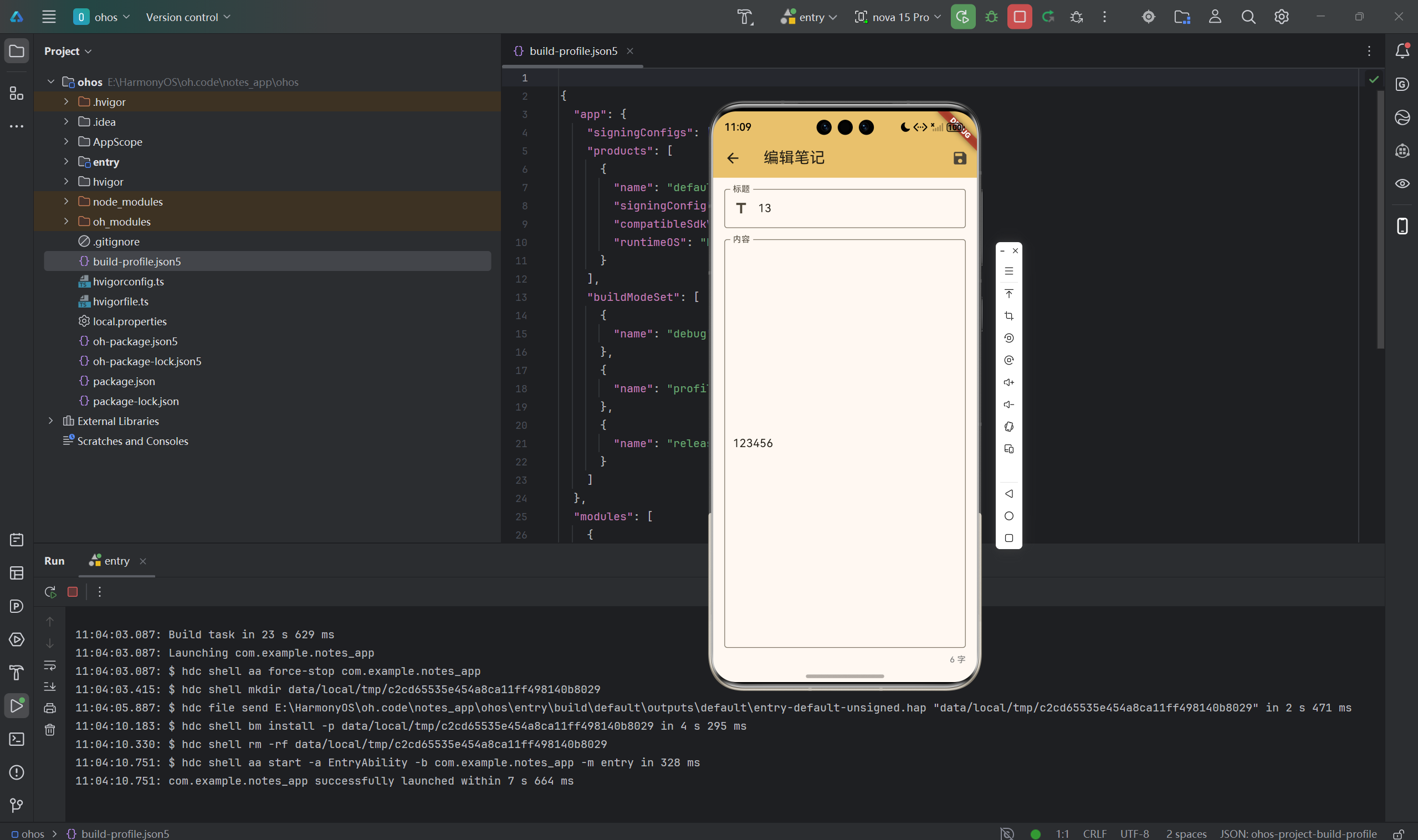
5.1 编辑页面设计
支持新建和编辑两种模式:
class NoteEditPage extends StatefulWidget {
final Note? note;
final Function(Note) onSave;
const NoteEditPage({
super.key,
this.note,
required this.onSave,
});
State<NoteEditPage> createState() => _NoteEditPageState();
}
5.2 初始化控制器
class _NoteEditPageState extends State<NoteEditPage> {
late TextEditingController _titleController;
late TextEditingController _contentController;
void initState() {
super.initState();
_titleController = TextEditingController(text: widget.note?.title ?? '');
_contentController = TextEditingController(text: widget.note?.content ?? '');
}
void dispose() {
_titleController.dispose();
_contentController.dispose();
super.dispose();
}
5.3 保存逻辑
void _saveNote() {
  final title = _titleController.text.trim();
  final content = _contentController.text.trim();

  if (title.isEmpty && content.isEmpty) {
    ScaffoldMessenger.of(context).showSnackBar(
      const SnackBar(content: Text('标题或内容不能为空')),
    );
    return;
  }

  final note = Note(
    id: widget.note?.id ?? DateTime.now().millisecondsSinceEpoch.toString(),
    title: title.isEmpty ? '无标题' : title,
    content: content,
    createdAt: widget.note?.createdAt ?? DateTime.now(),
    updatedAt: DateTime.now(),
  );

  widget.onSave(note);
  Navigator.pop(context, true);
}
5.4 多行文本输入
Expanded(
  child: TextField(
    controller: _contentController,
    decoration: const InputDecoration(
      labelText: '内容',
      hintText: '请输入内容',
      border: OutlineInputBorder(),
      alignLabelWithHint: true,
    ),
    maxLines: null,
    expands: true,
    keyboardType: TextInputType.multiline,
  ),
),
六、搜索功能实现
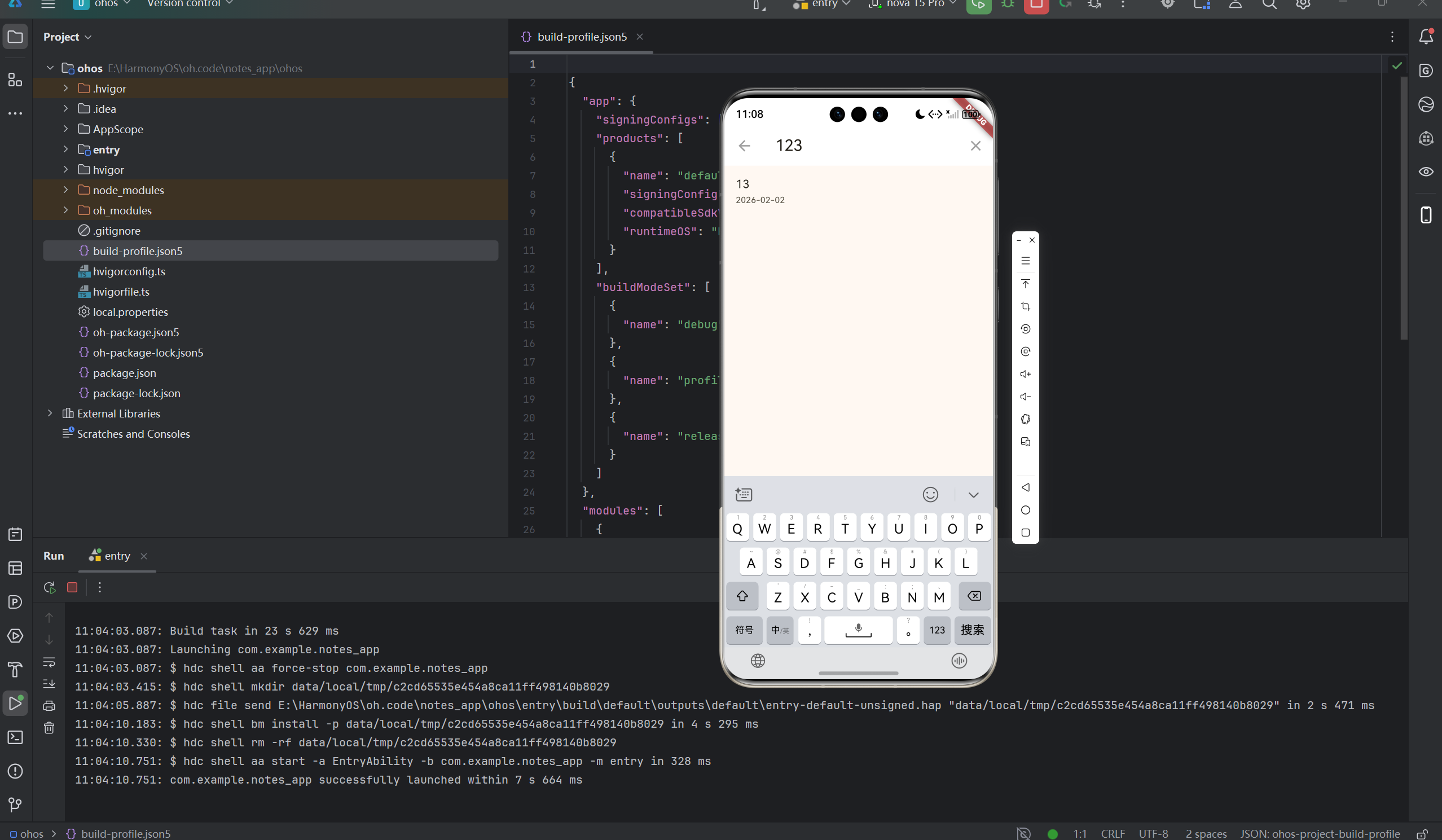
6.1 SearchDelegate简介
Flutter提供了SearchDelegate类用于实现搜索功能:
核心方法
- buildActions:构建操作按钮(如清空按钮)
- buildLeading:构建返回按钮
- buildResults:构建搜索结果页面
- buildSuggestions:构建搜索建议页面
6.2 搜索委托实现
class NoteSearchDelegate extends SearchDelegate<String> {
final List<Note> notes;
NoteSearchDelegate(this.notes);
List<Widget> buildActions(BuildContext context) {
return [
IconButton(
icon: const Icon(Icons.clear),
onPressed: () {
query = '';
},
),
];
}
Widget buildLeading(BuildContext context) {
return IconButton(
icon: const Icon(Icons.arrow_back),
onPressed: () {
close(context, '');
},
);
}
6.3 搜索结果
Widget buildResults(BuildContext context) {
final results = notes.where((note) {
return note.title.toLowerCase().contains(query.toLowerCase()) ||
note.content.toLowerCase().contains(query.toLowerCase());
}).toList();
if (results.isEmpty) {
return Center(
child: Text('未找到匹配"$query"的笔记'),
);
}
return ListView.builder(
itemCount: results.length,
itemBuilder: (context, index) {
final note = results[index];
return ListTile(
title: Text(note.title.isEmpty ? '无标题' : note.title),
subtitle: Text(
note.content.isEmpty ? '无内容' : note.content,
maxLines: 2,
overflow: TextOverflow.ellipsis,
),
onTap: () {
close(context, note.title);
},
);
},
);
}
6.4 搜索建议
Widget buildSuggestions(BuildContext context) {
final suggestions = query.isEmpty
? <Note>[]
: notes.where((note) {
return note.title.toLowerCase().contains(query.toLowerCase()) ||
note.content.toLowerCase().contains(query.toLowerCase());
}).toList();
return ListView.builder(
itemCount: suggestions.length,
itemBuilder: (context, index) {
final note = suggestions[index];
return ListTile(
title: Text(note.title.isEmpty ? '无标题' : note.title),
subtitle: Text(
DateFormat('yyyy-MM-dd').format(note.updatedAt),
style: const TextStyle(fontSize: 12),
),
onTap: () {
query = note.title;
},
);
},
);
}
七、完整代码实现
7.1 添加笔记
void _addNote(Note note) {
  setState(() {
    _notes.insert(0, note);
  });
  _saveNotes();
}
7.2 更新笔记
void _updateNote(Note updatedNote) {
  setState(() {
    final index = _notes.indexWhere((n) => n.id == updatedNote.id);
    if (index != -1) {
      _notes[index] = updatedNote;
      _notes.sort((a, b) => b.updatedAt.compareTo(a.updatedAt));
    }
  });
  _saveNotes();
}
7.3 删除笔记
void _deleteNote(String id) {
  setState(() {
    _notes.removeWhere((n) => n.id == id);
  });
  _saveNotes();
}
7.4 删除确认对话框
void _showDeleteDialog(Note note) {
  showDialog(
    context: context,
    builder: (context) {
      return AlertDialog(
        title: const Text('确认删除'),
        content: Text('确定要删除笔记"${note.title.isEmpty ? '无标题' : note.title}"吗?'),
        actions: [
          TextButton(
            onPressed: () => Navigator.pop(context),
            child: const Text('取消'),
          ),
          ElevatedButton(
            onPressed: () {
              _deleteNote(note.id);
              Navigator.pop(context);
              ScaffoldMessenger.of(context).showSnackBar(
                const SnackBar(content: Text('笔记已删除')),
              );
            },
            style: ElevatedButton.styleFrom(
              backgroundColor: Colors.red,
            ),
            child: const Text('删除'),
          ),
        ],
      );
    },
  );
}
[此处插入图片:笔记列表界面截图]
八、运行效果与测试
8.1 项目运行命令
cd E:\HarmonyOS\oh.code\notes_app
flutter run -d ohos
8.2 功能测试清单
基础功能测试
- 创建新笔记是否正常
- 编辑已有笔记是否正常
- 删除笔记功能是否正常
- 数据是否正确保存
搜索功能测试
- 按标题搜索是否正常
- 按内容搜索是否正常
- 搜索建议是否显示
UI交互测试
- 空状态提示是否显示
- 页面导航是否流畅
- 表单验证是否生效
8.3 性能考虑
ListView优化
- 使用ListView.builder懒加载
- 避免不必要的widget重建
搜索优化
- 使用where进行高效过滤
- 限制搜索结果数量
[此处插入图片:鸿蒙设备上的运行效果截图]
九、总结
本文详细介绍了使用Flutter for OpenHarmony开发云笔记应用的完整过程,涵盖了以下核心技术点:
- 数据模型设计:定义Note类,实现JSON序列化
- 多页面架构:列表页和编辑页的导航
- CRUD操作:完整的增删改查功能
- 搜索功能:使用SearchDelegate实现搜索
- 数据持久化:SharedPreferences本地存储
这个项目展示了Flutter在多页面应用开发中的完整流程,代码结构清晰,功能完整。读者可以基于此项目添加更多功能,如:
- 笔记分类功能
- 标签系统
- 富文本编辑
- 云同步功能
- 笔记导出功能
通过本文的学习,读者应该能够独立开发类似的工具类应用,掌握Flutter在鸿蒙平台上的多页面应用开发技巧。
欢迎加入开源鸿蒙跨平台社区: 开源鸿蒙跨平台开发者社区

作为“人工智能6S店”的官方数字引擎,为AI开发者与企业提供一个覆盖软硬件全栈、一站式门户。
更多推荐
 9
9 0
0- 0


 已为社区贡献6条内容

所有评论(0)