
ReactNative for Harmony 项目鸿蒙化三方库集成实战:react-native-safe-area-context
对于跨平台应用程序,处理设备的安全区域(Safe Area)是一个重要且常见的需求。不同设备(如 iPhone X 系列的刘海屏、Android 的异形屏、HarmonyOS 设备等)都有各自的安全区域限制。是一个专为 React Native 跨平台应用(包括 HarmonyOS)设计的安全区域处理库,它提供了更强大和灵活的安全区域管理能力,支持获取具体的安全区域数值、边缘特定处理等功能。库名称
📋 前言
对于跨平台应用程序,处理设备的安全区域(Safe Area)是一个重要且常见的需求。不同设备(如 iPhone X 系列的刘海屏、Android 的异形屏、HarmonyOS 设备等)都有各自的安全区域限制。react-native-safe-area-context 是一个专为 React Native 跨平台应用(包括 HarmonyOS)设计的安全区域处理库,它提供了更强大和灵活的安全区域管理能力,支持获取具体的安全区域数值、边缘特定处理等功能。
🎯 库简介
基本信息
-
库名称:
react-native-safe-area-context -
版本信息:
4.7.5: 支持 RN 0.72 版本(@react-native-ohos/react-native-safe-area-context)5.1.1: 支持 RN 0.77 版本(@react-native-ohos/react-native-safe-area-context)
-
官方仓库: https://github.com/react-native-oh-library/react-native-safe-area-context
-
主要功能:
- 提供
SafeAreaProvider和SafeAreaView组件 - 支持获取设备安全区域边距信息
- 兼容 Android、iOS 和 HarmonyOS 三端
- 提供
-
兼容性验证:
- RNOH: 0.72.26; SDK: HarmonyOS NEXT Developer Beta1; IDE: DevEco Studio 5.0.3.300; ROM: 3.0.0.22
- RNOH: 0.72.29; SDK: HarmonyOS NEXT Developer Beta6; IDE: DevEco Studio 5.0.3.700; ROM: 3.0.0.60
- RNOH: 0.72.33; SDK: OpenHarmony 5.0.0.71(API Version 12 Release); IDE: DevEco Studio: 5.0.3.900; ROM: NEXT.0.0.71
- RNOH: 0.77.18; SDK: HarmonyOS 6.0.0.47 (API Version 20); IDE: DevEco Studio 6.0.0.858; ROM: 6.0.0.107
为什么需要这个库?
虽然 React Native 内置了 SafeAreaView 组件,但它存在以下局限性:
- 功能单一: 只能提供基本的顶部和底部安全区域处理
- 灵活性不足: 无法获取具体的安全区域数值
- HarmonyOS 支持: 原生
SafeAreaView在 HarmonyOS 上可能表现不一致 - 高级特性缺失: 不支持边缘特定的安全区域处理
react-native-safe-area-context 解决了这些问题,提供了更强大的 API。
📦 安装步骤
1. 使用 npm 安装
在项目根目录执行以下命令:
npm install @react-native-ohos/react-native-safe-area-context
2. 验证安装
安装完成后,检查 package.json 文件,应该能看到新增的依赖。根据您的 RN 版本选择对应的库版本:
{
  "dependencies": {
    "@react-native-ohos/react-native-safe-area-context": "5.1.1", // RN 0.77 版本
    // 或
    "@react-native-ohos/react-native-safe-area-context": "4.7.5", // RN 0.72 版本
    // ... 其他依赖
  }
}
🔧 HarmonyOS 平台配置 ⭐
由于 HarmonyOS 暂不支持 AutoLink,需要手动配置原生端代码。本文采用方法二:直接链接源码的方式。
1 引入原生端代码
方法二:直接链接源码
目前 DevEco Studio 不支持通过源码引入外部 module,我们推荐使用直接链接源码的方式,将源码通过操作改成 harmony 工程的内部模块。
步骤 1: 把 <RN工程>/node_modules/@react-native-ohos/react-native-safe-area-context/harmony 目录下的源码 safe_area 复制到 harmony(鸿蒙壳工程)工程根目录下。
步骤 2: 在 harmony 工程根目录的 build-profile.template.json5(若存在)和 build-profile.json5 添加以下模块:
modules: [
  ...
  {
    name: '<xxx>',
    srcPath: './<xxx>',
  },
  {
    name: 'safe_area',
    srcPath: './safe_area',
  }
]
步骤 3: 打开 safe_area/oh-package.json5,修改 react-native-openharmony 和项目的版本一致。
步骤 4: 打开 entry/oh-package.json5,添加以下依赖:
"dependencies": {
  "@rnoh/react-native-openharmony": "0.72.90",
  "@react-native-ohos/react-native-safe-area-context": "file:../safe_area"
}
步骤 5: 点击 DevEco Studio 右上角的 sync 按钮
2 配置CMakeLists和引入SafeAreaViewPackage
若使用的是 4.7.5 及以下版本,请跳过本章
打开 entry/src/main/cpp/CMakeLists.txt,添加:
project(rnapp)
cmake_minimum_required(VERSION 3.4.1)
set(CMAKE_SKIP_BUILD_RPATH TRUE)
set(RNOH_APP_DIR "${CMAKE_CURRENT_SOURCE_DIR}")
set(NODE_MODULES "${CMAKE_CURRENT_SOURCE_DIR}/../../../../../node_modules")
set(RNOH_CPP_DIR "${CMAKE_CURRENT_SOURCE_DIR}/../../../../../../react-native-harmony/harmony/cpp")
set(LOG_VERBOSITY_LEVEL 1)
set(CMAKE_ASM_FLAGS "-Wno-error=unused-command-line-argument -Qunused-arguments")
set(CMAKE_CXX_FLAGS "-fstack-protector-strong -Wl,-z,relro,-z,now,-z,noexecstack -s -fPIE -pie")
set(WITH_HITRACE_SYSTRACE 1) # for other CMakeLists.txt files to use
add_compile_definitions(WITH_HITRACE_SYSTRACE)

add_subdirectory("${RNOH_CPP_DIR}" ./rn)

# RNOH_BEGIN: manual_package_linking_1
add_subdirectory("../../../../sample_package/src/main/cpp" ./sample-package)
+ add_subdirectory("../../../../safe_area/src/main/cpp" ./safe-area)
# RNOH_END: manual_package_linking_1

file(GLOB GENERATED_CPP_FILES "./generated/*.cpp")

add_library(rnoh_app SHARED
    ${GENERATED_CPP_FILES}
    "./PackageProvider.cpp"
    "${RNOH_CPP_DIR}/RNOHAppNapiBridge.cpp"
)
target_link_libraries(rnoh_app PUBLIC rnoh)

# RNOH_BEGIN: manual_package_linking_2
target_link_libraries(rnoh_app PUBLIC rnoh_sample_package)
+ target_link_libraries(rnoh_app PUBLIC rnoh_safe_area)
# RNOH_END: manual_package_linking_2
打开 entry/src/main/cpp/PackageProvider.cpp,添加:
#include "RNOH/PackageProvider.h"
#include "generated/RNOHGeneratedPackage.h"
#include "SamplePackage.h"
+ #include "SafeAreaViewPackage.h"

using namespace rnoh;

std::vector<std::shared_ptr<Package>> PackageProvider::getPackages(Package::Context ctx) {
    return {
        std::make_shared<RNOHGeneratedPackage>(ctx),
        std::make_shared<SamplePackage>(ctx),
+       std::make_shared<SafeAreaViewPackage>(ctx),
    };
}
3 在ArkTs侧引入SafeAreaViewPackage
修改 entry/src/main/ets/RNPackagesFactory.ts
import { SafeAreaViewPackage } from '@react-native-ohos/react-native-safe-area-context/ts';

export function createRNPackages(ctx: RNPackageContext): RNPackage[] {
  return [
    // ... 其他包
    new SafeAreaViewPackage(ctx),
  ];
}
💻 完整代码示例
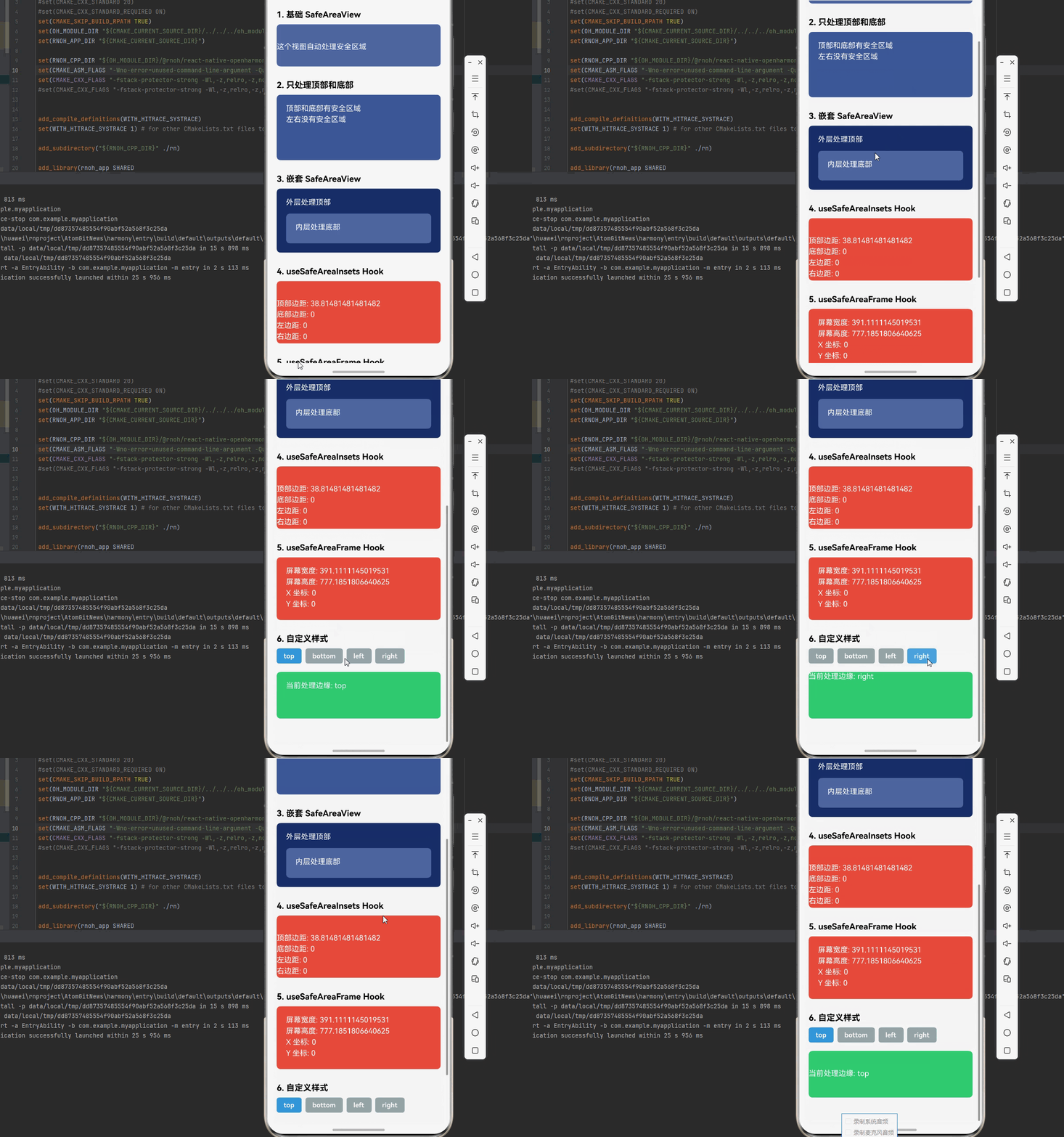
下面是一个完整的示例,展示了 react-native-safe-area-context 的各种使用场景:
import React from 'react';
import { View, Text, StyleSheet, ScrollView, TouchableOpacity, StatusBar } from 'react-native';
import {
  SafeAreaProvider,
  SafeAreaView,
  useSafeAreaInsets,
  useSafeAreaFrame,
  initialWindowMetrics,
} from 'react-native-safe-area-context';

function SafeAreaDemo() {
  return (
    <SafeAreaProvider initialMetrics={initialWindowMetrics}>
      <MainApp />
    </SafeAreaProvider>
  );
}

function MainApp() {
  const isDarkMode = false;
  const backgroundStyle = {
    backgroundColor: isDarkMode ? '#121212' : '#f5f5f5',
  };

  return (
    <View style={[backgroundStyle, { flex: 1 }]}>
      <StatusBar barStyle={isDarkMode ? 'light-content' : 'dark-content'} />
      <ScrollView contentContainerStyle={styles.scrollContent}>

        {/* 示例 1: 基础使用 */}
        <View style={styles.section}>
          <Text style={styles.sectionTitle}>1. 基础 SafeAreaView</Text>
          <SafeAreaView style={styles.basicSafeArea}>
            <Text style={styles.text}>这个视图自动处理安全区域</Text>
          </SafeAreaView>
        </View>

        {/* 示例 2: 指定边缘 */}
        <View style={styles.section}>
          <Text style={styles.sectionTitle}>2. 只处理顶部和底部</Text>
          <SafeAreaView style={styles.edgeSafeArea} edges={['top', 'bottom']}>
            <View style={styles.content}>
              <Text style={styles.text}>顶部和底部有安全区域</Text>
              <Text style={styles.text}>左右没有安全区域</Text>
            </View>
          </SafeAreaView>
        </View>

        {/* 示例 3: 嵌套使用 */}
        <View style={styles.section}>
          <Text style={styles.sectionTitle}>3. 嵌套 SafeAreaView</Text>
          <SafeAreaView style={styles.outerSafeArea} edges={['top']}>
            <Text style={styles.text}>外层处理顶部</Text>
            <SafeAreaView style={styles.innerSafeArea} edges={['bottom']}>
              <Text style={styles.text}>内层处理底部</Text>
            </SafeAreaView>
          </SafeAreaView>
        </View>

        {/* 示例 4: 使用 useSafeAreaInsets Hook */}
        <View style={styles.section}>
          <Text style={styles.sectionTitle}>4. useSafeAreaInsets Hook</Text>
          <InsetsExample />
        </View>

        {/* 示例 5: 使用 useSafeAreaFrame Hook */}
        <View style={styles.section}>
          <Text style={styles.sectionTitle}>5. useSafeAreaFrame Hook</Text>
          <FrameExample />
        </View>

        {/* 示例 6: 自定义样式 */}
        <View style={styles.section}>
          <Text style={styles.sectionTitle}>6. 自定义样式</Text>
          <CustomStyledExample />
        </View>

      </ScrollView>
    </View>
  );
}

// Hook 示例:使用 useSafeAreaInsets
function InsetsExample() {
  const insets = useSafeAreaInsets();

  return (
    <View
      style={[
        styles.insetsContainer,
        {
          paddingTop: insets.top,
          paddingBottom: insets.bottom,
          paddingLeft: insets.left,
          paddingRight: insets.right,
        },
      ]}
    >
      <Text style={styles.text}>顶部边距: {insets.top}</Text>
      <Text style={styles.text}>底部边距: {insets.bottom}</Text>
      <Text style={styles.text}>左边距: {insets.left}</Text>
      <Text style={styles.text}>右边距: {insets.right}</Text>
    </View>
  );
}

// Hook 示例:使用 useSafeAreaFrame
function FrameExample() {
  const frame = useSafeAreaFrame();

  return (
    <View style={styles.insetsContainer}>
      <Text style={styles.text}>屏幕宽度: {frame.width}</Text>
      <Text style={styles.text}>屏幕高度: {frame.height}</Text>
      <Text style={styles.text}>X 坐标: {frame.x}</Text>
      <Text style={styles.text}>Y 坐标: {frame.y}</Text>
    </View>
  );
}

// 自定义样式示例
function CustomStyledExample() {
  const [selectedEdge, setSelectedEdge] = React.useState('top');

  const edges = ['top', 'bottom', 'left', 'right'];

  return (
    <View>
      <View style={styles.edgeButtons}>
        {edges.map((edge) => (
          <TouchableOpacity
            key={edge}
            style={[
              styles.edgeButton,
              selectedEdge === edge && styles.selectedEdgeButton,
            ]}
            onPress={() => setSelectedEdge(edge)}
          >
            <Text style={styles.edgeButtonText}>{edge}</Text>
          </TouchableOpacity>
        ))}
      </View>
      <SafeAreaView
        style={styles.customSafeArea}
        edges={[selectedEdge as any]}
      >
        <Text style={styles.text}>
          当前处理边缘: {selectedEdge}
        </Text>
      </SafeAreaView>
    </View>
  );
}

const styles = StyleSheet.create({
  scrollContent: {
    padding: 20,
  },
  section: {
    marginBottom: 30,
  },
  sectionTitle: {
    fontSize: 18,
    fontWeight: 'bold',
    marginBottom: 10,
  },
  basicSafeArea: {
    backgroundColor: '#4c669f',
    padding: 20,
    borderRadius: 8,
  },
  edgeSafeArea: {
    backgroundColor: '#3b5998',
    padding: 20,
    borderRadius: 8,
    minHeight: 100,
  },
  outerSafeArea: {
    backgroundColor: '#192f6a',
    padding: 20,
    borderRadius: 8,
  },
  innerSafeArea: {
    backgroundColor: '#4c669f',
    padding: 20,
    borderRadius: 8,
    marginTop: 10,
  },
  content: {
    minHeight: 100,
  },
  insetsContainer: {
    backgroundColor: '#e74c3c',
    padding: 20,
    borderRadius: 8,
  },
  customSafeArea: {
    backgroundColor: '#2ecc71',
    padding: 20,
    borderRadius: 8,
    minHeight: 100,
  },
  edgeButtons: {
    flexDirection: 'row',
    flexWrap: 'wrap',
    marginBottom: 10,
  },
  edgeButton: {
    backgroundColor: '#95a5a6',
    paddingHorizontal: 15,
    paddingVertical: 8,
    borderRadius: 5,
    marginRight: 8,
    marginBottom: 8,
  },
  selectedEdgeButton: {
    backgroundColor: '#3498db',
  },
  edgeButtonText: {
    color: 'white',
    fontWeight: 'bold',
  },
  text: {
    color: 'white',
    fontSize: 16,
    marginBottom: 5,
  },
});

export default SafeAreaDemo;
5. 执行 npm run harmony 命令
执行 npm run harmony 命令,构建适用于鸿蒙的 bundle 文件,并拷贝到鸿蒙工程 rawfile 目录下。
🎨 实际应用场景
完整示例代码已展示了以下实际应用场景:
- 基础使用: 使用
SafeAreaView自动处理安全区域 - 边缘指定: 使用
edges属性指定需要处理的边缘 - 嵌套使用: 多个
SafeAreaView嵌套使用,处理不同区域 - 获取安全区域数值: 使用
useSafeAreaInsetsHook 获取具体的边距数值 - 获取屏幕信息: 使用
useSafeAreaFrameHook 获取屏幕尺寸信息 - 动态切换: 通过状态动态切换处理的边缘
⚠️ 注意事项与最佳实践
1. SafeAreaProvider 的位置
SafeAreaProvider 应该放在应用的最外层 ,通常包裹整个 App 组件:
// ✅ 正确
<SafeAreaProvider>
  <App />
</SafeAreaProvider>

// ❌ 错误 - 放在组件内部
function App() {
  return (
    <View>
      <SafeAreaProvider>
        {/* 内容 */}
      </SafeAreaProvider>
    </View>
  );
}
2. initialWindowMetrics 的使用
initialWindowMetrics 用于提供初始的安全区域度量,有助于避免首次渲染时的布局闪烁:
<SafeAreaProvider initialMetrics={initialWindowMetrics}>
  {/* 内容 */}
</SafeAreaProvider>
3. 性能考虑
SafeAreaView会在每次安全区域变化时重新渲染,如果内容复杂,考虑使用React.memo优化- 避免在
SafeAreaView内部使用过多的嵌套组件 - 对于不需要处理安全区域的 View,不要使用
SafeAreaView
4. HarmonyOS 特殊处理
在 HarmonyOS 平台上,确保:
- 已正确配置原生端代码(参考上述 HarmonyOS 配置步骤)
- 测试不同设备的安全区域表现
- 注意 HarmonyOS 设备可能的安全区域差异
5. 与 StatusBar 的配合
SafeAreaView 会自动处理状态栏区域,通常不需要额外设置 StatusBar 的 translucent 属性:
// ✅ 推荐
<SafeAreaView style={{ flex: 1 }}>
  <StatusBar barStyle="dark-content" />
  {/* 内容 */}
</SafeAreaView>

// ⚠️ 如果使用 translucent,需要额外处理
<StatusBar translucent />
<SafeAreaView style={{ flex: 1, paddingTop: StatusBar.currentHeight }}>
  {/* 内容 */}
</SafeAreaView>
6. 样式继承
SafeAreaView 本质上是一个 View,支持所有 View 的样式属性:
<SafeAreaView
  style={{
    flex: 1,
    backgroundColor: '#ffffff',
    // 其他样式...
  }}
>
  {/* 内容 */}
</SafeAreaView>
📝 总结
通过集成 react-native-safe-area-context,我们为项目添加了强大的安全区域处理能力。这个库不仅解决了跨平台安全区域处理的痛点,还提供了灵活的 API 来满足各种复杂的布局需求。
欢迎加入开源鸿蒙跨平台社区:https://openharmonycrossplatform.csdn.net

作为“人工智能6S店”的官方数字引擎,为AI开发者与企业提供一个覆盖软硬件全栈、一站式门户。
更多推荐
 6
6 0
0- 0


 已为社区贡献29条内容

所有评论(0)