
Flutter框架跨平台鸿蒙开发——Image Widget占位符设计
精心设计的占位符不仅能够提供视觉反馈,还能在加载失败时维持应用的整体视觉风格。通过合理选择占位符类型、保持布局稳定、提供进度反馈,可以显著提升用户体验。记住要根据应用的设计风格和内容类型选择合适的占位符方案,在功能和性能之间找到最佳平衡。精心设计的占位符不仅能够提供视觉反馈,还能在加载失败时维持应用的整体视觉风格。通过合理选择占位符类型、保持布局稳定、提供进度反馈,可以显著提升用户体验。记住要根据
Image Widget占位符设计
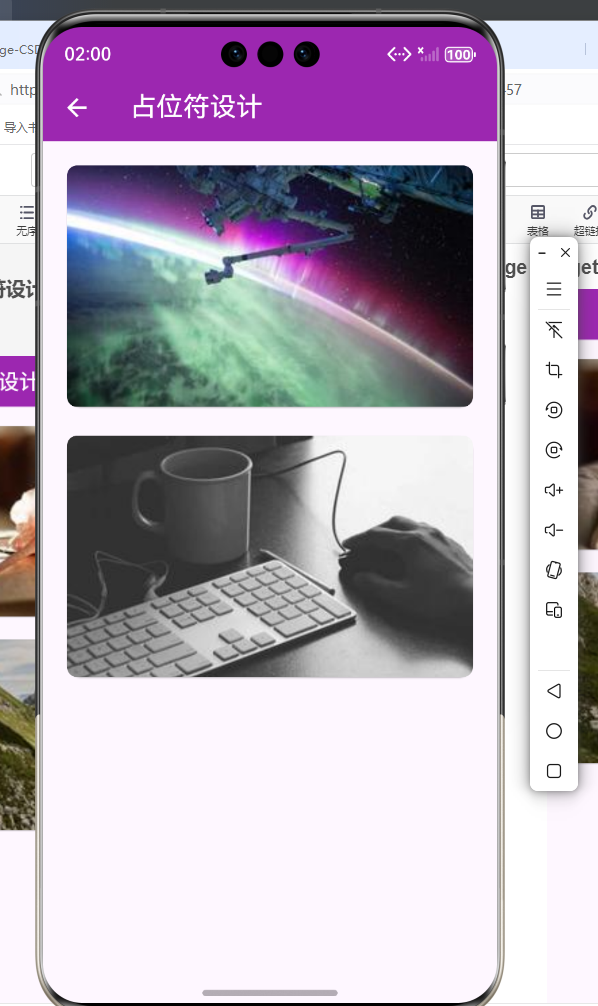
概述
占位符在图片加载前和加载失败时起到重要的视觉作用。精心设计的占位符能够提升应用的整体视觉质量,保持布局稳定,并给用户良好的等待体验。在现代移动应用中,用户对流畅的视觉体验有着越来越高的期望。当图片还在加载时,如果只是简单地显示一个空白区域或者一个单调的加载图标,会让用户感到等待时间被拉长,甚至怀疑应用是否正常运行。而设计精良的占位符不仅可以缓解用户的等待焦虑,还能在视觉上保持应用的连贯性,让整个界面看起来更加专业和精致。
占位符设计原则
占位符的作用分析
| 作用 | 说明 | 实现方式 | 技术要点 | 用户体验影响 |
|---|---|---|---|---|
| 保持布局稳定 | 防止加载后布局抖动 | 固定高度的占位容器 | 使用 SizedBox 或 Container 减少重新布局 | 避免UI闪烁,提升视觉舒适度 |
| 视觉引导 | 告知用户此处将显示内容 | 使用图标、文字提示 | 结合语义化图标和简短文字描述 | 降低用户困惑,明确等待目的 |
| 进度反馈 | 显示加载进度 | 进度条、百分比显示 | 使用 CircularProgressIndicator 实时更新 | 缓解等待焦虑,提供完成预期 |
| 降级展示 | 加载失败时显示替代内容 | 默认图片、错误提示 | errorBuilder 返回降级Widget | 避免空白,提供备选内容 |
| 美化等待 | 让等待过程更愉快 | 渐变色、动画效果 | 使用 AnimatedBuilder 实现平滑动画 | 提升等待体验,增加趣味性 |
占位符类型体系
占位符设计原则
- 视觉一致性:占位符风格与应用整体设计保持一致
- 布局稳定性:占位符尺寸与最终图片尺寸匹配
- 信息传递:清晰告知用户当前状态和预期内容
- 加载进度:实时显示加载进度,缓解等待焦虑
- 优雅降级:加载失败时提供友好的替代内容
占位符类型
1. 颜色占位符
使用主题色或渐变色作为背景:
class ColorPlaceholder extends StatelessWidget {
final String imageUrl;
final Color? backgroundColor;
const ColorPlaceholder({
super.key,
required this.imageUrl,
this.backgroundColor,
});
Widget build(BuildContext context) {
return Image.network(
imageUrl,
loadingBuilder: (context, child, loadingProgress) {
if (loadingProgress == null) return child;
return Container(
color: backgroundColor ?? Colors.grey.shade200,
child: const Center(
child: CircularProgressIndicator(),
),
);
},
);
}
}
2. 渐变色占位符
使用渐变色增加视觉层次:
class GradientPlaceholder extends StatelessWidget {
final String imageUrl;
final List<Color>? colors;
const GradientPlaceholder({
super.key,
required this.imageUrl,
this.colors,
});
Widget build(BuildContext context) {
return Image.network(
imageUrl,
loadingBuilder: (context, child, loadingProgress) {
if (loadingProgress == null) return child;
return Container(
decoration: BoxDecoration(
gradient: LinearGradient(
colors: colors ??
[
Colors.primaries[Random().nextInt(Colors.primaries.length)]
.shade100,
Colors.primaries[Random().nextInt(Colors.primaries.length)]
.shade200,
],
begin: Alignment.topLeft,
end: Alignment.bottomRight,
),
),
);
},
);
}
}
3. 图标占位符
使用相关图标表示内容类型:
class IconPlaceholder extends StatelessWidget {
final String imageUrl;
final String? category;
const IconPlaceholder({
super.key,
required this.imageUrl,
this.category,
});
Widget build(BuildContext context) {
return Image.network(
imageUrl,
loadingBuilder: (context, child, loadingProgress) {
if (loadingProgress == null) return child;
final progress = loadingProgress.expectedTotalBytes != null
? loadingProgress.cumulativeBytesLoaded /
loadingProgress.expectedTotalBytes!
: 0.0;
return Container(
decoration: BoxDecoration(
gradient: LinearGradient(
colors: [
Colors.primaries[Random().nextInt(Colors.primaries.length)]
.shade100,
Colors.primaries[Random().nextInt(Colors.primaries.length)]
.shade200,
],
begin: Alignment.topLeft,
end: Alignment.bottomRight,
),
),
child: Center(
child: Column(
mainAxisAlignment: MainAxisAlignment.center,
children: [
if (category != null) ...[
Icon(
_getCategoryIcon(category!),
size: 48,
color: Colors.white54,
),
const SizedBox(height: 12),
Text(
category!,
style: const TextStyle(
color: Colors.white54,
fontSize: 16,
),
),
const SizedBox(height: 16),
],
SizedBox(
width: 60,
height: 60,
child: CircularProgressIndicator(
value: progress,
strokeWidth: 4,
backgroundColor: Colors.white24,
),
),
const SizedBox(height: 8),
Text(
'${(progress * 100).toInt()}%',
style: const TextStyle(color: Colors.white54),
),
],
),
),
);
},
);
}
IconData _getCategoryIcon(String category) {
switch (category.toLowerCase()) {
case '美食':
case 'food':
return Icons.restaurant;
case '风景':
case 'nature':
return Icons.landscape;
case '人物':
case 'people':
return Icons.people;
case '城市':
case 'city':
return Icons.location_city;
default:
return Icons.image;
}
}
}
4. 骨架屏占位符
使用灰色块模拟页面结构:
class SkeletonPlaceholder extends StatelessWidget {
final String imageUrl;
final double height;
final double width;
const SkeletonPlaceholder({
super.key,
required this.imageUrl,
this.height = 200,
this.width = double.infinity,
});
Widget build(BuildContext context) {
return Image.network(
imageUrl,
loadingBuilder: (context, child, loadingProgress) {
if (loadingProgress == null) return child;
return SizedBox(
height: height,
width: width,
child: Column(
crossAxisAlignment: CrossAxisAlignment.start,
children: [
Expanded(
child: Container(
decoration: BoxDecoration(
color: Colors.grey.shade200,
borderRadius: BorderRadius.circular(8),
),
),
),
const SizedBox(height: 8),
Container(
height: 16,
width: width * 0.6,
decoration: BoxDecoration(
color: Colors.grey.shade200,
borderRadius: BorderRadius.circular(4),
),
),
const SizedBox(height: 4),
Container(
height: 16,
width: width * 0.4,
decoration: BoxDecoration(
color: Colors.grey.shade200,
borderRadius: BorderRadius.circular(4),
),
),
],
),
);
},
);
}
}
5. 模糊占位符
显示模糊的低分辨率预览:
class BlurPlaceholder extends StatelessWidget {
final String imageUrl;
final String? thumbnailUrl;
const BlurPlaceholder({
super.key,
required this.imageUrl,
this.thumbnailUrl,
});
Widget build(BuildContext context) {
return Stack(
children: [
// 缩略图作为背景
if (thumbnailUrl != null)
SizedBox(
height: 200,
child: Image.network(
thumbnailUrl!,
fit: BoxFit.cover,
colorBlendMode: BlendMode.saturation,
color: Colors.grey.withOpacity(0.5),
),
),
// 高清图
Image.network(
imageUrl,
loadingBuilder: (context, child, loadingProgress) {
if (loadingProgress == null) return child;
return Center(
child: Column(
mainAxisAlignment: MainAxisAlignment.center,
children: [
const CircularProgressIndicator(),
const SizedBox(height: 8),
Text(
'加载中...',
style: TextStyle(
color: Colors.white,
shadows: [
Shadow(
color: Colors.black.withOpacity(0.5),
offset: const Offset(0, 1),
),
],
),
),
],
),
);
},
),
],
);
}
}
综合占位符组件
class ImageWithPlaceholder extends StatelessWidget {
final String imageUrl;
final PlaceholderType type;
final String? category;
final double height;
final double? width;
const ImageWithPlaceholder({
super.key,
required this.imageUrl,
this.type = PlaceholderType.gradient,
this.category,
this.height = 200,
this.width,
});
Widget build(BuildContext context) {
return Container(
height: height,
width: width,
child: Image.network(
imageUrl,
loadingBuilder: (context, child, loadingProgress) {
if (loadingProgress == null) {
return ClipRRect(
borderRadius: BorderRadius.circular(8),
child: child,
);
}
final progress = loadingProgress.expectedTotalBytes != null
? loadingProgress.cumulativeBytesLoaded /
loadingProgress.expectedTotalBytes!
: 0.0;
return _buildPlaceholder(progress);
},
errorBuilder: (context, error, stackTrace) {
return _buildErrorPlaceholder();
},
fit: BoxFit.cover,
),
);
}
Widget _buildPlaceholder(double progress) {
switch (type) {
case PlaceholderType.color:
return _buildColorPlaceholder(progress);
case PlaceholderType.gradient:
return _buildGradientPlaceholder(progress);
case PlaceholderType.icon:
return _buildIconPlaceholder(progress);
case PlaceholderType.skeleton:
return _buildSkeletonPlaceholder();
case PlaceholderType.blur:
return _buildBlurPlaceholder(progress);
}
}
Widget _buildColorPlaceholder(double progress) {
return Container(
color: Colors.grey.shade200,
child: Center(
child: CircularProgressIndicator(value: progress),
),
);
}
Widget _buildGradientPlaceholder(double progress) {
return Container(
decoration: BoxDecoration(
gradient: LinearGradient(
colors: [
Colors.primaries[Random().nextInt(Colors.primaries.length)].shade100,
Colors.primaries[Random().nextInt(Colors.primaries.length)].shade200,
],
begin: Alignment.topLeft,
end: Alignment.bottomRight,
),
),
child: Center(
child: CircularProgressIndicator(value: progress),
),
);
}
Widget _buildIconPlaceholder(double progress) {
return Container(
decoration: BoxDecoration(
gradient: LinearGradient(
colors: [
Colors.primaries[Random().nextInt(Colors.primaries.length)].shade100,
Colors.primaries[Random().nextInt(Colors.primaries.length)].shade200,
],
),
),
child: Center(
child: Column(
mainAxisAlignment: MainAxisAlignment.center,
children: [
if (category != null)
Icon(
_getCategoryIcon(category!),
size: 48,
color: Colors.white54,
),
const SizedBox(height: 16),
CircularProgressIndicator(value: progress),
],
),
),
);
}
Widget _buildSkeletonPlaceholder() {
return Container(
color: Colors.grey.shade100,
padding: const EdgeInsets.all(16),
child: Column(
crossAxisAlignment: CrossAxisAlignment.start,
children: [
Expanded(
child: Container(
decoration: BoxDecoration(
color: Colors.grey.shade200,
borderRadius: BorderRadius.circular(8),
),
),
),
const SizedBox(height: 12),
Container(
height: 16,
width: double.infinity,
decoration: BoxDecoration(
color: Colors.grey.shade200,
borderRadius: BorderRadius.circular(4),
),
),
],
),
);
}
Widget _buildBlurPlaceholder(double progress) {
return Container(
color: Colors.grey.shade200,
child: Stack(
children: [
Center(
child: Container(
width: 100,
height: 100,
decoration: BoxDecoration(
color: Colors.grey.shade300,
borderRadius: BorderRadius.circular(8),
),
child: BackdropFilter(
filter: ImageFilter.blur(sigmaX: 10, sigmaY: 10),
child: Center(
child: CircularProgressIndicator(value: progress),
),
),
),
),
],
),
);
}
Widget _buildErrorPlaceholder() {
return Container(
color: Colors.grey.shade300,
child: const Center(
child: Column(
mainAxisAlignment: MainAxisAlignment.center,
children: [
Icon(Icons.broken_image, size: 48, color: Colors.grey),
SizedBox(height: 8),
Text('加载失败', style: TextStyle(color: Colors.grey)),
],
),
),
);
}
IconData _getCategoryIcon(String category) {
switch (category.toLowerCase()) {
case '美食':
case 'food':
return Icons.restaurant;
case '风景':
case 'nature':
return Icons.landscape;
case '人物':
case 'people':
return Icons.people;
default:
return Icons.image;
}
}
}
enum PlaceholderType {
color,
gradient,
icon,
skeleton,
blur,
}
使用示例
class MyPage extends StatelessWidget {
Widget build(BuildContext context) {
return Scaffold(
appBar: AppBar(
title: const Text('占位符设计示例'),
backgroundColor: Colors.indigo,
foregroundColor: Colors.white,
),
body: ListView(
padding: const EdgeInsets.all(16),
children: [
const Text('品牌色占位符', style: TextStyle(fontSize: 18)),
const SizedBox(height: 8),
SizedBox(
height: 200,
child: BrandColorPlaceholder(
imageUrl: 'https://picsum.photos/400/300',
brand: 'google',
),
),
const SizedBox(height: 24),
const Text('哈希颜色占位符', style: TextStyle(fontSize: 18)),
const SizedBox(height: 8),
SizedBox(
height: 200,
child: HashColorPlaceholder(
imageUrl: 'https://picsum.photos/400/300',
),
),
const SizedBox(height: 24),
const Text('分类图标占位符', style: TextStyle(fontSize: 18)),
const SizedBox(height: 8),
SizedBox(
height: 200,
child: CategoryIconPlaceholder(
imageUrl: 'https://picsum.photos/400/300',
category: 'food',
),
),
const SizedBox(height: 24),
const Text('骨架屏占位符', style: TextStyle(fontSize: 18)),
const SizedBox(height: 8),
SizedBox(
height: 200,
child: SkeletonPlaceholder(
imageUrl: 'https://picsum.photos/400/300',
),
),
],
),
);
}
}
最佳实践
- 保持尺寸一致:占位符尺寸应与最终图片尺寸匹配,避免布局跳动
- 视觉层次清晰:使用适当的颜色、图标和文字传递清晰的信息
- 加载进度可见:显示加载进度,缓解等待焦虑
- 错误处理完善:为加载失败提供友好的错误占位符
- 性能优化:避免复杂的动画和计算,确保流畅性
- 品牌一致性:使用品牌色和设计语言,提升品牌识别度
- 可访问性:考虑色盲用户,提供足够的对比度和辅助信息
- 渐进增强:基础功能优先,再添加高级特性
总结
精心设计的占位符不仅能够提供视觉反馈,还能在加载失败时维持应用的整体视觉风格。通过合理选择占位符类型、保持布局稳定、提供进度反馈,可以显著提升用户体验。记住要根据应用的设计风格和内容类型选择合适的占位符方案,在功能和性能之间找到最佳平衡。
欢迎加入开源鸿蒙跨平台社区:https://openharmonycrossplatform.csdn.net
最佳实践
- 保持尺寸一致:占位符尺寸应与最终图片尺寸匹配
- 视觉层次清晰:使用适当的颜色、图标和文字
- 加载进度可见:显示加载进度,缓解等待焦虑
- 错误处理完善:为加载失败提供友好的错误占位符
- 性能优化:避免复杂的动画和计算,确保流畅性
- 品牌一致性:使用品牌色和设计语言
- 可访问性:考虑色盲用户,提供足够的对比度
总结
精心设计的占位符不仅能够提供视觉反馈,还能在加载失败时维持应用的整体视觉风格。通过合理选择占位符类型、保持布局稳定、提供进度反馈,可以显著提升用户体验。记住要根据应用的设计风格和内容类型选择合适的占位符方案。
欢迎加入开源鸿蒙跨平台社区:https://openharmonycrossplatform.csdn.net

作为“人工智能6S店”的官方数字引擎,为AI开发者与企业提供一个覆盖软硬件全栈、一站式门户。
更多推荐

 8
8 0
0- 0



 已为社区贡献22条内容

所有评论(0)