
Flutter 框架跨平台鸿蒙开发 - 照片水印添加器开发教程
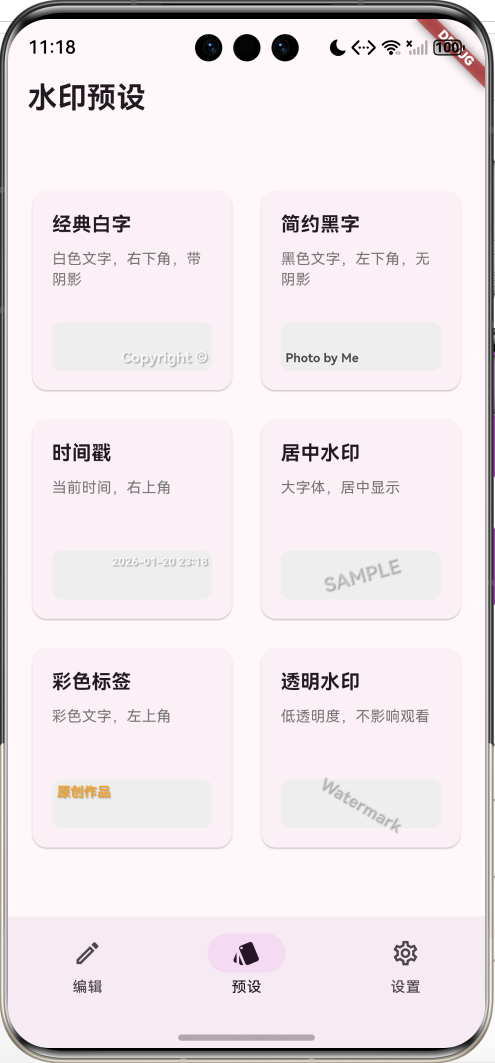
/ 经典白字预设// 简约黑字预设// 时间戳预设。
·
Flutter照片水印添加器开发教程
项目简介
照片水印添加器是一个基于Flutter开发的移动应用,专门用于为照片添加各种样式的水印。应用支持文字水印和时间戳水印,提供丰富的自定义选项,包括字体大小、颜色、透明度、位置、旋转角度和阴影效果等。
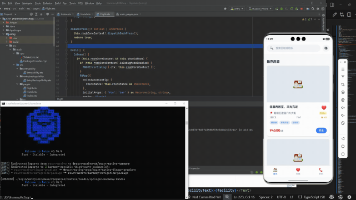
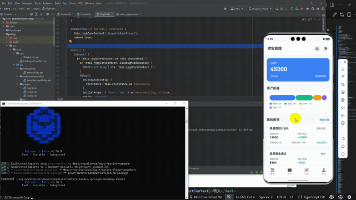
运行效果图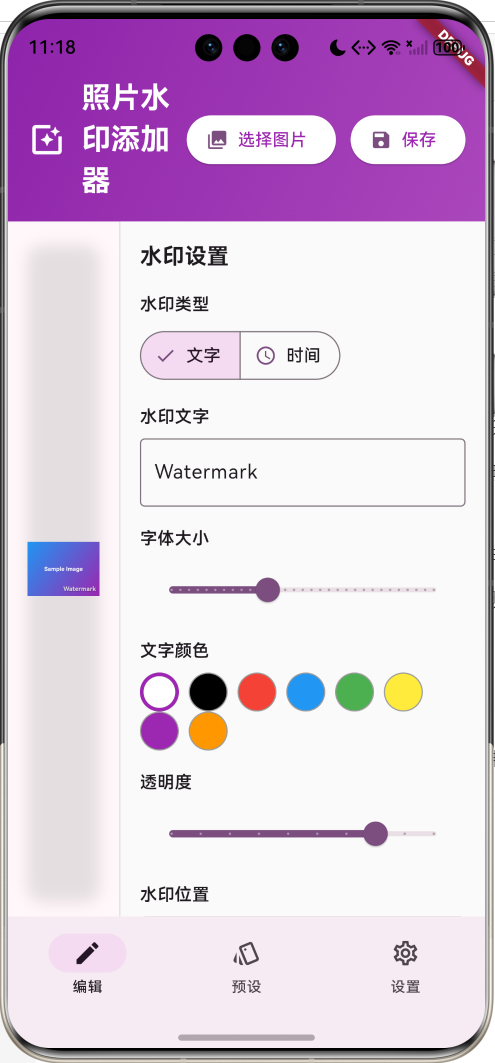
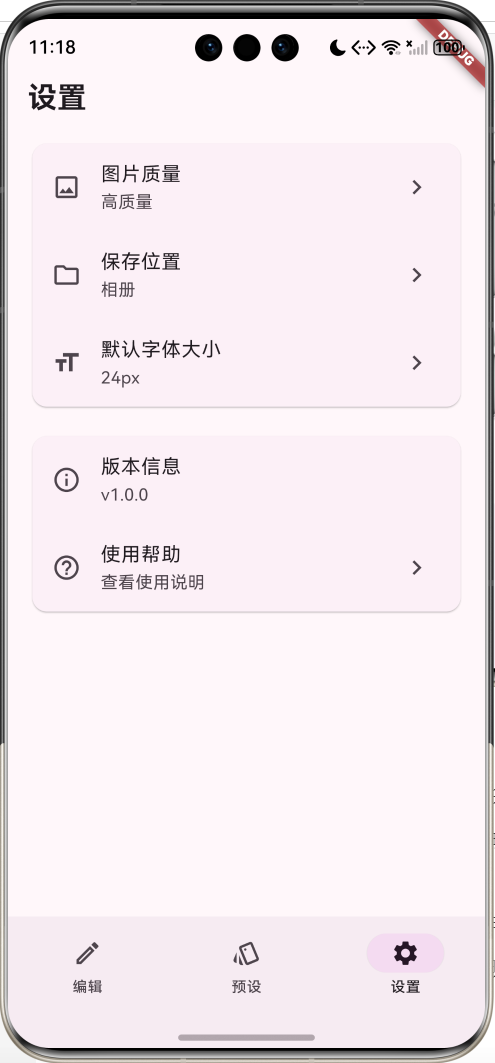
核心功能
- 多种水印类型:支持文字水印和时间戳水印
- 丰富的自定义选项:字体大小、颜色、透明度、位置等
- 实时预览:所见即所得的水印效果预览
- 预设样式:提供多种预设水印样式快速应用
- Canvas绘制:使用Flutter Canvas API实现高质量水印渲染
技术特点
- 单文件架构,代码结构清晰
- 使用Canvas和CustomPainter实现水印绘制
- Material Design 3设计风格
- 响应式布局适配不同屏幕尺寸
架构设计
整体架构
核心组件
| 组件 | 功能 | 说明 |
|---|---|---|
| WatermarkApp | 应用入口 | 配置主题和路由 |
| WatermarkHomePage | 主页面 | 管理页面状态和导航 |
| WatermarkPreviewPainter | 水印预览画笔 | 使用Canvas绘制水印预览 |
| WatermarkConfig | 水印配置类 | 封装所有水印参数 |
数据模型设计
枚举类型
WatermarkType - 水印类型
enum WatermarkType {
  text,      // 文字水印
  timestamp, // 时间戳水印
}
WatermarkPosition - 水印位置
enum WatermarkPosition {
  topLeft,     // 左上角
  topRight,    // 右上角
  bottomLeft,  // 左下角
  bottomRight, // 右下角
  center,      // 居中
}
核心数据类
WatermarkConfig - 水印配置
class WatermarkConfig {
  final WatermarkType type;        // 水印类型
  final String text;               // 水印文字
  final double fontSize;           // 字体大小
  final Color textColor;           // 文字颜色
  final double opacity;            // 透明度
  final WatermarkPosition position; // 水印位置
  final double offsetX;            // X轴偏移
  final double offsetY;            // Y轴偏移
  final double rotation;           // 旋转角度
  final bool hasShadow;           // 是否有阴影
}
配置参数说明:
type: 水印类型,支持文字和时间戳两种text: 水印显示的文字内容fontSize: 字体大小,范围12-72pxtextColor: 文字颜色,支持8种预设颜色opacity: 透明度,范围0.1-1.0position: 水印在图片中的位置offsetX/Y: 相对于位置的偏移量rotation: 旋转角度,范围-45°到45°hasShadow: 是否添加阴影效果
核心功能实现
1. 图片预览与水印渲染
图片预览组件
Widget _buildImagePreview() {
  if (_selectedImage == null) {
    return _buildEmptyImagePlaceholder();
  }

  return Container(
    margin: const EdgeInsets.all(16),
    child: ClipRRect(
      borderRadius: BorderRadius.circular(12),
      child: Stack(
        children: [
          // 原图或水印图
          Image.memory(
            _watermarkedImage ?? _selectedImage!,
            fit: BoxFit.contain,
          ),
          // 水印预览层
          if (_watermarkedImage == null)
            Positioned.fill(
              child: CustomPaint(
                painter: WatermarkPreviewPainter(_watermarkConfig),
              ),
            ),
        ],
      ),
    ),
  );
}
水印预览画笔实现
class WatermarkPreviewPainter extends CustomPainter {
final WatermarkConfig config;
void paint(Canvas canvas, Size size) {
if (config.text.isEmpty) return;
// 创建文字画笔
final textPainter = TextPainter(
text: TextSpan(
text: config.text,
style: TextStyle(
fontSize: math.min(config.fontSize * 0.5, 16),
color: config.textColor.withValues(alpha: config.opacity),
fontWeight: FontWeight.bold,
shadows: config.hasShadow ? [
Shadow(
color: Colors.black.withValues(alpha: 0.3),
offset: const Offset(1, 1),
blurRadius: 2,
),
] : null,
),
),
textDirection: TextDirection.ltr,
);
textPainter.layout();
// 计算位置并绘制
Offset position = _calculatePosition(size, textPainter.size);
_drawRotatedText(canvas, textPainter, position);
}
}
2. 水印生成算法
核心生成流程
Future<Uint8List> _addWatermarkToImage(
    Uint8List imageBytes, WatermarkConfig config) async {

  // 1. 解码原图
  final ui.Codec codec = await ui.instantiateImageCodec(imageBytes);
  final ui.FrameInfo frameInfo = await codec.getNextFrame();
  final ui.Image originalImage = frameInfo.image;

  // 2. 创建画布
  final recorder = ui.PictureRecorder();
  final canvas = Canvas(recorder);
  final size = Size(
    originalImage.width.toDouble(),
    originalImage.height.toDouble()
  );

  // 3. 绘制原图
  canvas.drawImage(originalImage, Offset.zero, Paint());

  // 4. 绘制水印
  _drawWatermark(canvas, size, config);

  // 5. 生成最终图片
  final picture = recorder.endRecording();
  final img = await picture.toImage(
    originalImage.width,
    originalImage.height
  );
  final byteData = await img.toByteData(
    format: ui.ImageByteFormat.png
  );

  return byteData!.buffer.asUint8List();
}
水印绘制实现
void _drawWatermark(Canvas canvas, Size imageSize, WatermarkConfig config) {
  // 创建文字样式
  final textPainter = TextPainter(
    text: TextSpan(
      text: config.text,
      style: TextStyle(
        fontSize: config.fontSize,
        color: config.textColor.withValues(alpha: config.opacity),
        fontWeight: FontWeight.bold,
        shadows: config.hasShadow ? [
          Shadow(
            color: Colors.black.withValues(alpha: 0.5),
            offset: const Offset(2, 2),
            blurRadius: 4,
          ),
        ] : null,
      ),
    ),
    textDirection: TextDirection.ltr,
  );

  textPainter.layout();

  // 计算水印位置
  Offset position = _calculateWatermarkPosition(
    imageSize,
    textPainter.size,
    config.position,
    config.offsetX,
    config.offsetY,
  );

  // 应用变换并绘制
  canvas.save();
  canvas.translate(
    position.dx + textPainter.width / 2,
    position.dy + textPainter.height / 2
  );

  if (config.rotation != 0) {
    canvas.rotate(config.rotation * math.pi / 180);
  }

  textPainter.paint(
    canvas,
    Offset(-textPainter.width / 2, -textPainter.height / 2)
  );

  canvas.restore();
}
3. 位置计算算法
Offset _calculateWatermarkPosition(
  Size imageSize,
  Size textSize,
  WatermarkPosition position,
  double offsetX,
  double offsetY,
) {
  switch (position) {
    case WatermarkPosition.topLeft:
      return Offset(offsetX, offsetY);

    case WatermarkPosition.topRight:
      return Offset(
        imageSize.width - textSize.width - offsetX,
        offsetY
      );

    case WatermarkPosition.bottomLeft:
      return Offset(
        offsetX,
        imageSize.height - textSize.height - offsetY
      );

    case WatermarkPosition.bottomRight:
      return Offset(
        imageSize.width - textSize.width - offsetX,
        imageSize.height - textSize.height - offsetY,
      );

    case WatermarkPosition.center:
      return Offset(
        (imageSize.width - textSize.width) / 2,
        (imageSize.height - textSize.height) / 2,
      );
  }
}
UI组件设计
1. 编辑页面布局
编辑页面采用左右分栏布局:
Widget _buildEditorPage() {
  return Column(
    children: [
      _buildEditorHeader(),  // 顶部工具栏
      Expanded(
        child: Row(
          children: [
            // 左侧:图片预览区域 (2/3宽度)
            Expanded(
              flex: 2,
              child: _buildImagePreview(),
            ),
            // 右侧:控制面板 (固定300px宽度)
            Container(
              width: 300,
              child: _buildControlPanel(),
            ),
          ],
        ),
      ),
    ],
  );
}
2. 控制面板组件
水印类型选择器
SegmentedButton<WatermarkType>(
  segments: const [
    ButtonSegment(
      value: WatermarkType.text,
      label: Text('文字'),
      icon: Icon(Icons.text_fields),
    ),
    ButtonSegment(
      value: WatermarkType.timestamp,
      label: Text('时间'),
      icon: Icon(Icons.access_time),
    ),
  ],
  selected: {_watermarkConfig.type},
  onSelectionChanged: (Set<WatermarkType> selection) {
    _updateWatermarkType(selection.first);
  },
)
颜色选择器
Wrap(
  spacing: 8,
  children: [
    Colors.white, Colors.black, Colors.red, Colors.blue,
    Colors.green, Colors.yellow, Colors.purple, Colors.orange,
  ].map((color) {
    final isSelected = _watermarkConfig.textColor == color;
    return GestureDetector(
      onTap: () => _updateTextColor(color),
      child: Container(
        width: 32,
        height: 32,
        decoration: BoxDecoration(
          color: color,
          shape: BoxShape.circle,
          border: Border.all(
            color: isSelected ? Colors.purple : Colors.grey,
            width: isSelected ? 3 : 1,
          ),
        ),
      ),
    );
  }).toList(),
)
滑块控件
// 字体大小滑块
Slider(
  value: _watermarkConfig.fontSize,
  min: 12,
  max: 72,
  divisions: 30,
  label: _watermarkConfig.fontSize.round().toString(),
  onChanged: (value) => _updateFontSize(value),
)

// 透明度滑块
Slider(
  value: _watermarkConfig.opacity,
  min: 0.1,
  max: 1.0,
  divisions: 9,
  label: '${(_watermarkConfig.opacity * 100).round()}%',
  onChanged: (value) => _updateOpacity(value),
)

// 旋转角度滑块
Slider(
  value: _watermarkConfig.rotation,
  min: -45,
  max: 45,
  divisions: 18,
  label: '${_watermarkConfig.rotation.round()}°',
  onChanged: (value) => _updateRotation(value),
)
3. 预设页面设计
预设页面使用网格布局展示多种预设样式:
GridView.count(
  crossAxisCount: 2,
  crossAxisSpacing: 16,
  mainAxisSpacing: 16,
  children: [
    _buildPresetCard('经典白字', '白色文字,右下角,带阴影', classicWhiteConfig),
    _buildPresetCard('简约黑字', '黑色文字,左下角,无阴影', simpleBlackConfig),
    _buildPresetCard('时间戳', '当前时间,右上角', timestampConfig),
    _buildPresetCard('居中水印', '大字体,居中显示', centerConfig),
    _buildPresetCard('彩色标签', '彩色文字,左上角', colorfulConfig),
    _buildPresetCard('透明水印', '低透明度,不影响观看', transparentConfig),
  ],
)
预设卡片组件
Widget _buildPresetCard(String title, String description, WatermarkConfig config) {
  return Card(
    child: InkWell(
      onTap: () => _applyPreset(config),
      child: Padding(
        padding: const EdgeInsets.all(16),
        child: Column(
          crossAxisAlignment: CrossAxisAlignment.start,
          children: [
            Text(title, style: const TextStyle(
              fontSize: 16,
              fontWeight: FontWeight.bold
            )),
            const SizedBox(height: 8),
            Text(description, style: TextStyle(
              fontSize: 12,
              color: Colors.grey.shade600
            )),
            const Spacer(),
            // 预览区域
            Container(
              width: double.infinity,
              height: 40,
              decoration: BoxDecoration(
                color: Colors.grey.shade200,
                borderRadius: BorderRadius.circular(8),
              ),
              child: CustomPaint(
                painter: WatermarkPreviewPainter(config),
              ),
            ),
          ],
        ),
      ),
    ),
  );
}
Canvas绘制技术实现
1. Canvas基础概念
Flutter的Canvas提供了强大的2D绘制能力,主要包括:
- 坐标系统:左上角为原点(0,0),x轴向右,y轴向下
- 变换操作:平移(translate)、旋转(rotate)、缩放(scale)
- 绘制状态:save()保存状态,restore()恢复状态
2. 文字绘制实现
TextPainter使用
final textPainter = TextPainter(
  text: TextSpan(
    text: config.text,
    style: TextStyle(
      fontSize: config.fontSize,
      color: config.textColor.withValues(alpha: config.opacity),
      fontWeight: FontWeight.bold,
      shadows: config.hasShadow ? [
        Shadow(
          color: Colors.black.withValues(alpha: 0.5),
          offset: const Offset(2, 2),
          blurRadius: 4,
        ),
      ] : null,
    ),
  ),
  textDirection: TextDirection.ltr,
);

// 布局计算
textPainter.layout();

// 获取文字尺寸
Size textSize = textPainter.size;
变换矩阵应用
// 保存当前画布状态
canvas.save();

// 移动到旋转中心点
canvas.translate(
  position.dx + textSize.width / 2,
  position.dy + textSize.height / 2
);

// 应用旋转
if (config.rotation != 0) {
  canvas.rotate(config.rotation * math.pi / 180);
}

// 绘制文字(相对于旋转中心)
textPainter.paint(
  canvas,
  Offset(-textSize.width / 2, -textSize.height / 2)
);

// 恢复画布状态
canvas.restore();
3. 阴影效果实现
阴影效果通过TextStyle的shadows属性实现:
shadows: config.hasShadow ? [
  Shadow(
    color: Colors.black.withValues(alpha: 0.5),  // 阴影颜色和透明度
    offset: const Offset(2, 2),                   // 阴影偏移
    blurRadius: 4,                                // 模糊半径
  ),
] : null,
4. 透明度处理
透明度通过Color的alpha通道控制:
color: config.textColor.withValues(alpha: config.opacity)
这里使用withValues(alpha: opacity)方法设置颜色的透明度,opacity值范围为0.0-1.0。
状态管理
1. 状态变量设计
class _WatermarkHomePageState extends State<WatermarkHomePage> {
  int _selectedIndex = 0;              // 当前选中的页面索引
  Uint8List? _selectedImage;           // 选中的原始图片
  Uint8List? _watermarkedImage;        // 生成的水印图片
  WatermarkConfig _watermarkConfig = const WatermarkConfig(); // 水印配置
}
2. 配置更新机制
所有配置更新都通过copyWith方法实现不可变更新:
void _updateFontSize(double fontSize) {
  setState(() {
    _watermarkConfig = _watermarkConfig.copyWith(fontSize: fontSize);
  });
  _generateWatermark(); // 实时生成水印
}

void _updateTextColor(Color color) {
  setState(() {
    _watermarkConfig = _watermarkConfig.copyWith(textColor: color);
  });
  _generateWatermark();
}
3. 实时预览机制
工具方法实现
1. 时间戳生成
String _getCurrentTimestamp() {
  final now = DateTime.now();
  return '${now.year}-${now.month.toString().padLeft(2, '0')}-${now.day.toString().padLeft(2, '0')} '
      '${now.hour.toString().padLeft(2, '0')}:${now.minute.toString().padLeft(2, '0')}';
}
2. 示例图片生成
void _loadSampleImage() async {
  final recorder = ui.PictureRecorder();
  final canvas = Canvas(recorder);
  const size = Size(400, 300);

  // 绘制渐变背景
  final paint = Paint()
    ..shader = const LinearGradient(
      colors: [Colors.blue, Colors.purple],
      begin: Alignment.topLeft,
      end: Alignment.bottomRight,
    ).createShader(Rect.fromLTWH(0, 0, size.width, size.height));

  canvas.drawRect(Rect.fromLTWH(0, 0, size.width, size.height), paint);

  // 绘制示例文字
  final textPainter = TextPainter(
    text: const TextSpan(
      text: 'Sample Image',
      style: TextStyle(
        fontSize: 32,
        color: Colors.white,
        fontWeight: FontWeight.bold,
      ),
    ),
    textDirection: TextDirection.ltr,
  );

  textPainter.layout();
  textPainter.paint(
    canvas,
    Offset(
      (size.width - textPainter.width) / 2,
      (size.height - textPainter.height) / 2,
    ),
  );

  // 转换为图片数据
  final picture = recorder.endRecording();
  final img = await picture.toImage(size.width.toInt(), size.height.toInt());
  final byteData = await img.toByteData(format: ui.ImageByteFormat.png);

  setState(() {
    _selectedImage = byteData!.buffer.asUint8List();
    _watermarkedImage = null;
  });
}
3. 预设配置定义
// 经典白字预设
const classicWhiteConfig = WatermarkConfig(
  text: 'Copyright ©',
  textColor: Colors.white,
  fontSize: 24,
  position: WatermarkPosition.bottomRight,
  hasShadow: true,
);

// 简约黑字预设
const simpleBlackConfig = WatermarkConfig(
  text: 'Photo by Me',
  textColor: Colors.black,
  fontSize: 20,
  position: WatermarkPosition.bottomLeft,
  hasShadow: false,
  opacity: 0.7,
);

// 时间戳预设
WatermarkConfig get timestampConfig => WatermarkConfig(
  type: WatermarkType.timestamp,
  text: _getCurrentTimestamp(),
  textColor: Colors.white,
  fontSize: 18,
  position: WatermarkPosition.topRight,
  hasShadow: true,
);
功能扩展建议
1. 图片处理增强
// 图片选择功能
Future<void> _pickImageFromGallery() async {
  final ImagePicker picker = ImagePicker();
  final XFile? image = await picker.pickImage(source: ImageSource.gallery);

  if (image != null) {
    final bytes = await image.readAsBytes();
    setState(() {
      _selectedImage = bytes;
      _watermarkedImage = null;
    });
  }
}

// 图片保存功能
Future<void> _saveImageToGallery() async {
  if (_watermarkedImage != null) {
    final result = await ImageGallerySaver.saveImage(_watermarkedImage!);
    if (result['isSuccess']) {
      ScaffoldMessenger.of(context).showSnackBar(
        const SnackBar(content: Text('图片已保存到相册')),
      );
    }
  }
}
2. 更多水印类型
enum WatermarkType {
  text,           // 文字水印
  timestamp,      // 时间戳水印
  logo,           // 图片水印
  qrcode,         // 二维码水印
  signature,      // 手写签名
}

// 图片水印实现
void _drawImageWatermark(Canvas canvas, Size imageSize, ui.Image watermarkImage) {
  final paint = Paint()..colorFilter = ColorFilter.mode(
    Colors.white.withValues(alpha: _watermarkConfig.opacity),
    BlendMode.modulate,
  );

  final position = _calculateWatermarkPosition(
    imageSize,
    Size(watermarkImage.width.toDouble(), watermarkImage.height.toDouble()),
    _watermarkConfig.position,
    _watermarkConfig.offsetX,
    _watermarkConfig.offsetY,
  );

  canvas.drawImage(watermarkImage, position, paint);
}
3. 批量处理功能
class BatchWatermarkProcessor {
  static Future<List<Uint8List>> processBatch(
    List<Uint8List> images,
    WatermarkConfig config,
    Function(int, int) onProgress,
  ) async {
    final results = <Uint8List>[];

    for (int i = 0; i < images.length; i++) {
      final watermarkedImage = await _addWatermarkToImage(images[i], config);
      results.add(watermarkedImage);
      onProgress(i + 1, images.length);
    }

    return results;
  }
}
4. 水印模板系统
class WatermarkTemplate {
  final String id;
  final String name;
  final String description;
  final WatermarkConfig config;
  final String? previewImage;

  const WatermarkTemplate({
    required this.id,
    required this.name,
    required this.description,
    required this.config,
    this.previewImage,
  });
}

class TemplateManager {
  static const List<WatermarkTemplate> defaultTemplates = [
    WatermarkTemplate(
      id: 'photographer',
      name: '摄影师签名',
      description: '适合摄影作品的专业水印',
      config: WatermarkConfig(
        text: 'Photo by {name}',
        fontSize: 16,
        textColor: Colors.white,
        position: WatermarkPosition.bottomRight,
        hasShadow: true,
        opacity: 0.8,
      ),
    ),
    // 更多模板...
  ];
}
5. 高级样式效果
// 渐变文字效果
Paint createGradientTextPaint(List<Color> colors) {
  return Paint()
    ..shader = LinearGradient(
      colors: colors,
      begin: Alignment.topLeft,
      end: Alignment.bottomRight,
    ).createShader(Rect.fromLTWH(0, 0, 100, 50));
}

// 描边效果
void _drawStrokedText(Canvas canvas, TextPainter textPainter, Offset position) {
  // 绘制描边
  final strokePainter = TextPainter(
    text: TextSpan(
      text: textPainter.text?.toPlainText(),
      style: textPainter.text?.style?.copyWith(
        foreground: Paint()
          ..style = PaintingStyle.stroke
          ..strokeWidth = 2
          ..color = Colors.black,
      ),
    ),
    textDirection: TextDirection.ltr,
  );

  strokePainter.layout();
  strokePainter.paint(canvas, position);

  // 绘制填充
  textPainter.paint(canvas, position);
}
性能优化策略
1. 图片处理优化
// 图片尺寸限制
Future<Uint8List> _resizeImageIfNeeded(Uint8List imageBytes) async {
  final ui.Codec codec = await ui.instantiateImageCodec(imageBytes);
  final ui.FrameInfo frameInfo = await codec.getNextFrame();
  final originalImage = frameInfo.image;

  const maxSize = 2048;
  if (originalImage.width <= maxSize && originalImage.height <= maxSize) {
    return imageBytes;
  }

  // 计算缩放比例
  final scale = maxSize / math.max(originalImage.width, originalImage.height);
  final newWidth = (originalImage.width * scale).round();
  final newHeight = (originalImage.height * scale).round();

  // 重新编码
  final recorder = ui.PictureRecorder();
  final canvas = Canvas(recorder);
  canvas.scale(scale);
  canvas.drawImage(originalImage, Offset.zero, Paint());

  final picture = recorder.endRecording();
  final resizedImage = await picture.toImage(newWidth, newHeight);
  final byteData = await resizedImage.toByteData(format: ui.ImageByteFormat.png);

  return byteData!.buffer.asUint8List();
}
2. 预览优化
// 防抖动更新
Timer? _debounceTimer;

void _updateConfigWithDebounce(WatermarkConfig newConfig) {
  _debounceTimer?.cancel();
  _debounceTimer = Timer(const Duration(milliseconds: 300), () {
    setState(() {
      _watermarkConfig = newConfig;
    });
    _generateWatermark();
  });
}
3. 内存管理
void dispose() {
_debounceTimer?.cancel();
_selectedImage = null;
_watermarkedImage = null;
super.dispose();
}
// 图片缓存清理
void _clearImageCache() {
setState(() {
_watermarkedImage = null;
});
// 触发垃圾回收
Future.delayed(Duration.zero, () {
// 强制垃圾回收
});
}
测试指南
1. 单元测试
import 'package:flutter_test/flutter_test.dart';

void main() {
  group('WatermarkConfig Tests', () {
    test('copyWith should update specific fields', () {
      const original = WatermarkConfig();
      final updated = original.copyWith(fontSize: 32.0);

      expect(updated.fontSize, 32.0);
      expect(updated.textColor, original.textColor);
    });

    test('position calculation should be correct', () {
      const imageSize = Size(400, 300);
      const textSize = Size(100, 50);

      final position = _calculateWatermarkPosition(
        imageSize,
        textSize,
        WatermarkPosition.bottomRight,
        20.0,
        20.0,
      );

      expect(position.dx, 280.0); // 400 - 100 - 20
      expect(position.dy, 230.0); // 300 - 50 - 20
    });
  });

  group('Watermark Generation Tests', () {
    testWidgets('should generate watermark correctly', (tester) async {
      // 测试水印生成逻辑
    });
  });
}
2. 集成测试
import 'package:flutter/services.dart';
import 'package:flutter_test/flutter_test.dart';
import 'package:integration_test/integration_test.dart';

void main() {
  IntegrationTestWidgetsFlutterBinding.ensureInitialized();

  group('Watermark App Integration Tests', () {
    testWidgets('complete watermark workflow', (tester) async {
      await tester.pumpWidget(const WatermarkApp());

      // 1. 验证初始状态
      expect(find.text('照片水印添加器'), findsOneWidget);

      // 2. 测试配置更新
      await tester.tap(find.byType(Slider).first);
      await tester.pump();

      // 3. 测试预设应用
      await tester.tap(find.text('预设'));
      await tester.pump();

      await tester.tap(find.text('经典白字'));
      await tester.pump();

      // 4. 验证配置已应用
      expect(find.text('编辑'), findsOneWidget);
    });
  });
}
3. 性能测试
void main() {
  group('Performance Tests', () {
    test('watermark generation performance', () async {
      final stopwatch = Stopwatch()..start();

      // 生成测试图片
      final testImage = await _generateTestImage();
      const config = WatermarkConfig(text: 'Test Watermark');

      // 执行水印生成
      await _addWatermarkToImage(testImage, config);

      stopwatch.stop();

      // 验证性能指标
      expect(stopwatch.elapsedMilliseconds, lessThan(1000));
    });
  });
}
部署指南
1. Android部署
权限配置 (android/app/src/main/AndroidManifest.xml)
<uses-permission android:name="android.permission.READ_EXTERNAL_STORAGE" />
<uses-permission android:name="android.permission.WRITE_EXTERNAL_STORAGE" />
<uses-permission android:name="android.permission.CAMERA" />
构建配置 (android/app/build.gradle)
android {
    compileSdkVersion 34

    defaultConfig {
        minSdkVersion 21
        targetSdkVersion 34
    }

    buildTypes {
        release {
            signingConfig signingConfigs.release
            minifyEnabled true
            proguardFiles getDefaultProguardFile('proguard-android.txt')
        }
    }
}
2. iOS部署
权限配置 (ios/Runner/Info.plist)
<key>NSPhotoLibraryUsageDescription</key>
<string>需要访问相册来选择和保存照片</string>
<key>NSCameraUsageDescription</key>
<string>需要访问相机来拍摄照片</string>
3. 构建命令
# Android APK
flutter build apk --release

# Android App Bundle
flutter build appbundle --release

# iOS
flutter build ios --release
项目总结
照片水印添加器是一个功能完整的Flutter应用,展示了以下技术要点:
技术亮点
- Canvas绘制技术:深入使用Flutter的Canvas API实现复杂的图形绘制
- 图像处理:掌握图片编解码、像素操作等底层技术
- 自定义绘制:通过CustomPainter实现自定义UI组件
- 状态管理:合理的状态设计和更新机制
- 响应式设计:适配不同屏幕尺寸的布局方案
学习价值
- Canvas绘制:学习2D图形绘制的基本概念和高级技巧
- 图像处理:了解移动端图像处理的实现方法
- UI设计:掌握复杂界面的组件化设计思路
- 性能优化:学习图像应用的性能优化策略
扩展方向
- 功能扩展:添加更多水印类型和效果
- 性能优化:优化大图片处理性能
- 用户体验:改进交互设计和视觉效果
- 平台特性:利用平台特有功能增强应用
这个项目为学习Flutter图像处理和Canvas绘制提供了完整的实践案例,同时也是一个实用的工具应用。
欢迎加入开源鸿蒙跨平台社区:https://openharmonycrossplatform.csdn.net

作为“人工智能6S店”的官方数字引擎,为AI开发者与企业提供一个覆盖软硬件全栈、一站式门户。
更多推荐
 2
2 0
0- 0


 已为社区贡献5条内容

所有评论(0)