
Flutter 框架跨平台鸿蒙开发 ——StatefulWidget基础
核心优势支持动态状态更新完整的生命周期管理灵活的状态控制适用场景需要交互的界面动态数据展示表单输入处理最佳实践使用setState更新状态封装状态管理逻辑减少不必要的setState调用检查mounted避免错误示例项目展示了StatefulWidget在实际应用中的完整实现,可以作为学习和参考的范例。
·
一、示例项目说明
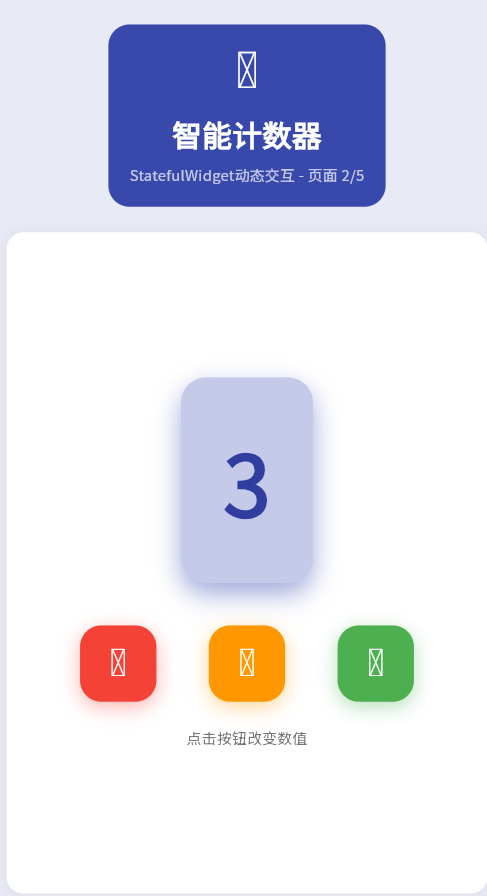
本文配套的示例项目是一个智能计数器应用,位于main.dart文件中的_Page02CounterApp类。该页面展示了如何使用StatefulWidget构建动态交互界面,实现了计数器的增减和重置功能。
二、StatefulWidget核心概念
StatefulWidget是Flutter中包含可变状态的Widget,通过setState方法更新状态并触发重建。在示例项目中,计数器的数值变化、按钮的交互反馈都是通过StatefulWidget实现的。
三、StatefulWidget架构
| 组件 | 示例项目体现 | 职责 |
|---|---|---|
| StatefulWidget | _Page02CounterApp |
Widget配置,不可变 |
| State | _Page02CounterAppState |
状态管理,维护计数器值 |
| build方法 | build() |
返回计数器UI |
| setState | _increment(), _decrement(), _reset() |
触发状态更新 |
四、示例代码分析
1. 完整的StatefulWidget实现
class _Page02CounterApp extends StatefulWidget {
const _Page02CounterApp();
State<_Page02CounterApp> createState() => _Page02CounterAppState();
}
class _Page02CounterAppState extends State<_Page02CounterApp> {
// 状态变量:计数器值
int _counter = 0;
// 增加计数
void _increment() {
setState(() {
_counter++;
});
}
// 减少计数
void _decrement() {
setState(() {
if (_counter > 0) _counter--;
});
}
// 重置计数
void _reset() {
setState(() {
_counter = 0;
});
}
Widget build(BuildContext context) {
return Container(
color: Colors.indigo.shade50,
child: SafeArea(
child: Padding(
padding: const EdgeInsets.all(24),
child: Column(
children: [
// 标题区域
Container(
padding: const EdgeInsets.all(20),
decoration: BoxDecoration(
color: Colors.indigo.shade600,
borderRadius: BorderRadius.circular(20),
),
child: const Column(
children: [
Icon(Icons.calculate, size: 48, color: Colors.white),
SizedBox(height: 16),
Text(
'智能计数器',
style: TextStyle(
fontSize: 28,
fontWeight: FontWeight.bold,
color: Colors.white,
),
),
SizedBox(height: 8),
Text(
'StatefulWidget动态交互 - 页面 2/5',
style: TextStyle(
fontSize: 14,
color: Colors.white70,
),
),
],
),
),
const SizedBox(height: 24),
// 计数器显示和控制区域
Expanded(
child: Container(
padding: const EdgeInsets.all(20),
decoration: BoxDecoration(
color: Colors.white,
borderRadius: BorderRadius.circular(16),
boxShadow: [
BoxShadow(
color: Colors.black.withOpacity(0.05),
blurRadius: 10,
),
],
),
child: Column(
mainAxisAlignment: MainAxisAlignment.center,
children: [
// 计数器显示
Container(
padding: const EdgeInsets.all(40),
decoration: BoxDecoration(
color: Colors.indigo.shade100,
borderRadius: BorderRadius.circular(24),
boxShadow: [
BoxShadow(
color: Colors.indigo.shade200,
blurRadius: 20,
offset: const Offset(0, 10),
),
],
),
child: Text(
'$_counter',
style: TextStyle(
fontSize: 80,
fontWeight: FontWeight.bold,
color: Colors.indigo.shade700,
),
),
),
const SizedBox(height: 40),
// 控制按钮
Row(
mainAxisAlignment: MainAxisAlignment.spaceEvenly,
children: [
_buildControlButton(Icons.remove, _decrement, Colors.red),
_buildControlButton(Icons.refresh, _reset, Colors.orange),
_buildControlButton(Icons.add, _increment, Colors.green),
],
),
const SizedBox(height: 24),
Text(
'点击按钮改变数值',
style: TextStyle(
fontSize: 14,
color: Colors.grey.shade600,
),
),
],
),
),
),
],
),
),
),
);
}
// 控制按钮组件
Widget _buildControlButton(IconData icon, VoidCallback onPressed, Color color) {
return Container(
width: 72,
height: 72,
decoration: BoxDecoration(
color: color,
borderRadius: BorderRadius.circular(20),
boxShadow: [
BoxShadow(
color: color.withOpacity(0.4),
blurRadius: 15,
offset: const Offset(0, 5),
),
],
),
child: IconButton(
onPressed: onPressed,
icon: Icon(icon, color: Colors.white, size: 36),
),
);
}
}
2. 代码特点解析
状态管理:
- 使用
int _counter = 0存储计数器状态 - 通过
setState()更新状态并触发UI重建 - 三个操作方法:
_increment(),_decrement(),_reset()
交互逻辑:
void _increment() {
  setState(() {
    _counter++;  // 状态更新
  });
  // setState后自动调用build方法
}
UI响应:
- 每次点击按钮,
setState触发状态变化 build方法重新执行,显示新的计数器值- 用户可以实时看到数值变化
五、State生命周期详解
1. 示例项目的生命周期流程
| 阶段 | 方法 | 示例项目体现 | 调用时机 |
|---|---|---|---|
| 创建 | initState | 初始化_counter = 0 |
Widget首次插入树时 |
| 构建 | build | 返回计数器UI | 每次setState后 |
| 销毁 | dispose | (示例中无额外资源) | Widget从树移除时 |
2. 生命周期代码示例
class _Page02CounterAppState extends State<_Page02CounterApp> {
int _counter = 0;
void initState() {
super.initState();
// 初始化计数器
_counter = 0;
print('1. 初始化计数器为0');
}
Widget build(BuildContext context) {
print('2. 构建UI,显示计数器:$_counter');
return Text('$_counter');
}
void dispose() {
print('3. 销毁计数器组件');
super.dispose();
}
}
六、setState使用指南
1. 示例项目中的setState使用
// ✅ 正确1:单一状态更新
void _increment() {
  setState(() {
    _counter++;
  });
}

// ✅ 正确2:条件判断后更新
void _decrement() {
  setState(() {
    if (_counter > 0) _counter--;
  });
}

// ✅ 正确3:重置状态
void _reset() {
  setState(() {
    _counter = 0;
  });
}
2. setState工作原理
3. 常见错误与正确用法
// ❌ 错误1:在build中调用setState(死循环)
Widget build(BuildContext context) {
setState(() {
_counter = _calculateCounter(); // 死循环!
});
return Text('$_counter');
}
// ✅ 正确1:在事件回调中调用setState
ElevatedButton(
onPressed: () {
setState(() {
_counter++;
});
},
child: Text('Add'),
)
// ❌ 错误2:异步操作后不检查mounted
Future<void> loadData() async {
await Future.delayed(Duration(seconds: 2));
setState(() {
_counter = await fetchCounter(); // Widget可能已销毁
});
}
// ✅ 正确2:使用mounted检查
Future<void> loadData() async {
await Future.delayed(Duration(seconds: 2));
if (mounted) {
setState(() {
_counter = await fetchCounter();
});
}
}
七、状态管理最佳实践
1. 状态封装
示例项目展示了良好的状态封装:
class _Page02CounterAppState extends State<_Page02CounterApp> {
  // 私有状态变量
  int _counter = 0;

  // 公开的方法供UI调用
  void _increment() {
    setState(() {
      _counter++;
    });
  }

  void _decrement() {
    setState(() {
      if (_counter > 0) _counter--;
    });
  }

  void _reset() {
    setState(() {
      _counter = 0;
    });
  }
}
2. UI与逻辑分离
// 逻辑方法
void _increment() {
  setState(() {
    _counter++;
  });
}

// UI组件
Widget _buildControlButton(IconData icon, VoidCallback onPressed, Color color) {
  return Container(
    child: IconButton(
      onPressed: onPressed,  // 接收逻辑方法
      icon: Icon(icon),
    ),
  );
}
3. 状态更新优化
// ✅ 推荐:只更新需要的状态
void _increment() {
  setState(() {
    _counter++;  // 只更新一个变量
  });
}

// ✅ 推荐:批量更新
void _updateAll() {
  setState(() {
    _count++;
    _name = 'New';
    _enabled = true;
  });
}
八、性能优化
1. 减少setState调用
// ❌ 不推荐:频繁setState
for (int i = 0; i < 10; i++) {
  setState(() {
    _counter++;
  });  // 触发10次重建
}

// ✅ 推荐:批量更新
setState(() {
  _counter += 10;  // 只触发1次重建
});
2. 使用const构造函数
// 示例项目中的const使用
const SizedBox(height: 16)
const SizedBox(height: 8)
const Text('智能计数器', ...)
const Text('StatefulWidget动态交互 - 页面 2/5', ...)
九、与StatelessWidget对比
| 对比项 | StatefulWidget示例 | StatelessWidget对比 |
|---|---|---|
| 状态管理 | _counter = 0 |
无状态 |
| 交互能力 | 支持增减重置 | 不支持交互 |
| 内存占用 | ~500-800字节 | ~100字节 |
| 渲染速度 | 4-30ms | 1-3ms |
| 适用场景 | 需要交互的计数器 | 静态显示 |
十、实际应用场景
基于示例项目的经验,StatefulWidget适合以下场景:
-
计数器类应用
- 购物车数量
- 点赞数量
- 下载进度
-
表单输入
- 文本输入
- 选项选择
- 表单验证
-
数据展示
- 列表刷新
- 数据更新
- 状态切换
-
交互组件
- 按钮点击
- 手势识别
- 动画效果
十一、总结
StatefulWidget是Flutter中处理动态交互的核心组件,通过智能计数器示例项目,可以看到:
核心优势:
- 支持动态状态更新
- 完整的生命周期管理
- 灵活的状态控制
适用场景:
- 需要交互的界面
- 动态数据展示
- 表单输入处理
最佳实践:
- 使用setState更新状态
- 封装状态管理逻辑
- 减少不必要的setState调用
- 检查mounted避免错误
示例项目展示了StatefulWidget在实际应用中的完整实现,可以作为学习和参考的范例。
欢迎加入开源鸿蒙跨平台社区:https://openharmonycrossplatform.csdn.net

作为“人工智能6S店”的官方数字引擎,为AI开发者与企业提供一个覆盖软硬件全栈、一站式门户。
更多推荐
 9
9 0
0- 0



 已为社区贡献8条内容

所有评论(0)