
React Native鸿蒙跨平台实现handleTextChange 在每次输入变更时同步更新 message、charCount、wordCount、lineCount,词数以正则分割空白
消息板字数统计应用分析 该React Native应用实现了一个具有实时统计功能的留言板系统,主要包含以下核心功能: 实时文本分析: 动态计算字符数、单词数和行数 采用正则表达式处理单词分割(基于空格/换行符) 换行符分割计算行数 可视化反馈系统: 三色进度条显示使用率(蓝/黄/红) 80%和95%阈值触发警告提示 百分比计算确保显示准确 消息管理: 支持消息发送、编辑和删除 历史消息列表展示 输
组件概览
- 页面以三个核心模块组成:实时统计条 WordCounter、消息卡片 MessageCard、输入与历史消息的组合视图。状态集中在主组件 MessageBoardWordCounterApp 中,负责派生字符数、词数与行数,以及消息的增删改。
- UI 组织采用顶部统计概览、进度条、输入控件和历史列表区块化布局;操作与系统提示以 Alert 占位,便于原型快速验证。
实时统计逻辑
- handleTextChange 在每次输入变更时同步更新 message、charCount、wordCount、lineCount,词数以正则分割空白(空格/换行/制表)得到,行数以分隔符 \n 计数。
- 字数上限通过 maxLength 控制,发送时做长度校验与空值校验,避免空消息或超限入列;清空操作统一重置字符、词与行数到初始态,保持统计与展示一致。
输入法与跨端差异
- TextInput 的多行模式(multiline + numberOfLines)在三端存在差异:iOS/Android 对键盘弹出和滚动调整策略不同,鸿蒙 ArkUI 的输入法合成(composition)事件映射到 RN 的 onChangeText 需要适配层稳定转发,否则容易出现中间态文本被误判的现象。
- 词数统计依赖空白分隔,中文场景下不以空格断词,统计口径需明确(例如“词数”在中文可理解为段落或句子,或仅展示字符/行数);生产建议对国际化语言做条件分支或关闭词数统计。
进度条与阈值
- WordCounter 通过 count/max 的百分比填充进度条,阈值设定在 80% 和 95%,分别以黄色与红色做警告与危险提示;对超过上限的提示保持温和,但发送流程仍以 maxLength 截断为准。
- 进度条颜色切换无需复杂动画,若要增强体验可将宽度变化改为 transform 的原生驱动动画(useNativeDriver:true),鸿蒙端映射 ArkUI 动画能力,避免布局/颜色动画的性能抖动。
消息管理与编辑
- 消息列表以字符串数组 messages 管理;发送时将新消息尾插并清空输入,编辑时把目标消息回填到输入框并从列表中移除,形成“取出-编辑-再发送”的简单流程。
- 列表渲染以 map 直接输出 MessageCard,key 使用 index,适合小数据原型;若后续允许重排或删除中间项,建议用稳定 id 作为 key 防止重渲染造成卡片状态错乱。
复制/粘贴与系统能力
- copyToClipboard/pasteFromClipboard 以 Alert 占位,真实实现需要桥接系统剪贴板(iOS UIPasteboard、Android ClipboardManager、鸿蒙端 ArkUI/Ability 对应能力),并处理权限与前后台切换一致性。
- 中文输入法下复制/粘贴可能涉及合成文本与富文本拷贝,建议在 UI 层保持纯文本处理,防止异常字符导致统计口径偏差。
布局与性能
- 历史消息区采用 ScrollView + map 渲染小列表,数量扩大时应改用 FlatList 获得虚拟化性能与稳定滚动事件;renderItem 使用 useCallback,MessageCard 使用 React.memo 减少重渲染。
- 页面使用 Dimensions 的初始宽度参与卡片尺寸,横竖屏与分屏场景建议改用 useWindowDimensions 并监听窗口变化,鸿蒙端确保窗口事件正确传递到 RN 层,避免旋转后布局失衡。
状态与派生
- 字符/词/行三项统计在输入事件派生,提升直观性;若输入频繁(例如长文本快速粘贴)可引入节流或去抖(throttle/debounce)降低更新频率,避免在低端设备上出现掉帧。
- 设置项的最大字符数以加减步进变更,并立即影响进度条与发送校验;生产建议在变更后提示用户当前上限已更新,避免“上限变化但未即时感知”。
可访问性与体验
- 操作按钮(清空、复制、粘贴、发送)建议添加 accessibilityLabel,提升读屏与键盘导航体验;输入区在多行模式下应配合 KeyboardAvoidingView 或滚动到可视区域,防止键盘遮挡。
- 触觉与涟漪反馈建议用 Pressable 替代 TouchableOpacity 并统一点击反馈体验,鸿蒙端通过 ArkUI 的交互能力实现一致触感。
鸿蒙适配要点
- 输入法合成事件:确保 ArkUI → RN 的 composition 正确映射,避免统计在中文输入中间态出现误差(例如多次回调导致词数跳动)。
- Alert 与弹窗:系统弹窗外观与按钮布局由平台控制;需要统一视觉时改用 RN Modal/Portal 并在适配层桥接 ArkUI 弹窗能力(层级、返回/手势关闭与焦点管理)。
- 滚动与虚拟化:历史消息列表在数据规模增大时必须改为 FlatList;鸿蒙端的滚动物理(回弹/阻尼/惯性)需要适配层统一,保证触发窗口一致。
- 字体与图标:emoji 图标在不同系统字体下存在对齐差异,生产环境迁移至统一图标栈并在鸿蒙端用 ArkUI 渲染,保证像素与基线一致。
概述
本文分析的是一个基于React Native构建的留言板字数统计应用,集成了实时字数统计、多维度文本分析、历史记录管理等核心功能。该应用采用了实时文本处理算法、动态可视化反馈和历史数据管理机制,展现了文本处理类应用的典型技术架构。在鸿蒙OS的跨端适配场景中,这种涉及实时数据处理和交互式文本分析的应用具有重要的技术参考价值。
核心架构设计深度解析
实时文本分析引擎
应用实现了多维度的实时文本分析系统:
const handleTextChange = (text: string) => {
  setMessage(text);
  setCharCount(text.length);

  // 计算单词数(基于空格和换行符)
  const words = text.trim() === '' ? 0 : text.trim().split(/\s+/).filter(word => word !== '').length;
  setWordCount(words);

  // 计算行数
  const lines = text.split('\n').length;
  setLineCount(lines);
};
这种分析引擎采用了分层计算策略:字符数通过length属性直接获取,单词数通过正则表达式分割过滤,行数通过换行符分割计算。trim()和filter()的链式操作确保了计算的准确性,避免了空字符串和多余空格的影响。
在鸿蒙ArkUI体系中,文本分析逻辑需要适配其响应式系统:
@State message: string = '';
@State charCount: number = 0;
@State wordCount: number = 0;
@State lineCount: number = 1;

handleTextChange(text: string) {
  this.message = text;
  this.charCount = text.length;

  // 单词数计算
  const trimmed = text.trim();
  this.wordCount = trimmed === '' ? 0 : trimmed.split(/\s+/).filter(word => word !== '').length;

  // 行数计算
  this.lineCount = text.split('\n').length;
}
动态可视化反馈系统
WordCounter组件实现了基于阈值的可视化反馈:
const WordCounter = ({ count, max, label }: { count: number; max: number; label: string }) => {
  const percentage = Math.min((count / max) * 100, 100);
  const isWarning = percentage > 80;
  const isDanger = percentage > 95;

  return (
    <View style={styles.counterContainer}>
      <View style={styles.counterHeader}>
        <Text style={styles.counterLabel}>{label}</Text>
        <Text style={styles.counterValue}>{count}/{max}</Text>
      </View>
      <View style={styles.counterBar}>
        <View
          style={[
            styles.counterFill,
            {
              width: `${percentage}%`,
              backgroundColor: isDanger ? '#ef4444' : isWarning ? '#f59e0b' : '#3b82f6'
            }
          ]}
        />
      </View>
      {isWarning && !isDanger && (
        <Text style={styles.warningText}>接近上限,请注意字数</Text>
      )}
      {isDanger && (
        <Text style={styles.dangerText}>已超过建议长度</Text>
      )}
    </View>
  );
};
这种可视化系统采用了三级反馈机制:正常状态(蓝色)、警告状态(黄色)、危险状态(红色)。百分比计算确保了进度显示的准确性,条件渲染提供了针对性的文本提示。
鸿蒙的实现需要将样式逻辑转换为声明式结构:
@Component
struct WordCounter {
  @Prop count: number;
  @Prop max: number;
  @Prop label: string;

  get percentage(): number {
    return Math.min((this.count / this.max) * 100, 100);
  }

  get isWarning(): boolean {
    return this.percentage > 80;
  }

  get isDanger(): boolean {
    return this.percentage > 95;
  }

  get barColor(): Color {
    return this.isDanger ? Color.Red : this.isWarning ? Color.Yellow : Color.Blue;
  }

  build() {
    Column() {
      // 标题和数值
      Row() {
        Text(this.label)
        Text(`${this.count}/${this.max}`)
      }

      // 进度条
      Stack() {
        Column()
          .width('100%')
          .height(8)
          .backgroundColor('#e2e8f0')

        Column()
          .width(`${this.percentage}%`)
          .height(8)
          .backgroundColor(this.barColor)
      }

      // 警告文本
      if (this.isWarning && !this.isDanger) {
        Text('接近上限,请注意字数')
          .fontColor(Color.Yellow)
      }
      if (this.isDanger) {
        Text('已超过建议长度')
          .fontColor(Color.Red)
      }
    }
  }
}
历史记录管理系统
应用实现了完整的历史记录CRUD操作:
// 创建 - 发送新消息
const sendMessage = () => {
  if (message.trim() === '') return;
  if (message.length > maxLength) return;

  setMessages([...messages, message]);
  // 重置输入
};

// 读取 - 显示历史消息
{messages.map((msg, index) => (
  <MessageCard
    key={index}
    message={msg}
    onEdit={() => editMessage(index)}
    onDelete={() => deleteMessage(index)}
  />
))}

// 更新 - 编辑消息
const editMessage = (index: number) => {
  const messageToEdit = messages[index];
  setMessage(messageToEdit);
  // 删除原消息
  const newMessages = [...messages];
  newMessages.splice(index, 1);
  setMessages(newMessages);
};

// 删除 - 移除消息
const deleteMessage = (index: number) => {
  const newMessages = [...messages];
  newMessages.splice(index, 1);
  setMessages(newMessages);
};
这种基于数组操作的状态管理体现了React的核心原则。展开运算符确保不可变性,splice方法处理删除操作,索引定位实现精确操作。
鸿蒙的历史记录管理采用类似模式:
@State messages: string[] = [];

// 发送消息
sendMessage() {
  this.messages = [...this.messages, this.message];
  this.message = '';
}

// 编辑消息
editMessage(index: number) {
  this.message = this.messages[index];
  this.messages.splice(index, 1);
}

// 删除消息
deleteMessage(index: number) {
  this.messages.splice(index, 1);
}
跨端适配技术方案
组件映射策略
| React Native组件 | 鸿蒙ArkUI组件 | 关键适配点 |
|---|---|---|
| TextInput | TextInput | 多行文本属性 |
| ScrollView | Scroll | 滚动行为一致 |
| TouchableOpacity | Button | 交互反馈差异 |
| View | Column/Row | 布局系统转换 |
文本输入适配
多行文本输入的属性映射:
// React Native
<TextInput
  multiline
  numberOfLines={6}
  style={{ height: 120 }}
/>

// 鸿蒙
TextInput({ type: InputType.MultiLine })
  .height(120)
  .maxLines(6)
状态管理迁移
// React Native
const [message, setMessage] = useState('');
const [messages, setMessages] = useState<string[]>([]);

// 鸿蒙
@State message: string = '';
@State messages: string[] = [];
性能优化与最佳实践
列表渲染优化
使用keyExtractor提升历史列表性能:
<FlatList
  data={messages}
  keyExtractor={(item, index) => index.toString()}
  renderItem={({ item, index }) => (
    <MessageCard
      message={item}
      onEdit={() => editMessage(index)}
      onDelete={() => deleteMessage(index)}
    />
  )}
/>
计算缓存优化
对于频繁调用的计算使用useMemo:
const percentage = useMemo(() => {
  return Math.min((charCount / maxLength) * 100, 100);
}, [charCount, maxLength]);
完整代码演示:
// app.tsx
import React, { useState } from 'react';
import { SafeAreaView, View, Text, StyleSheet, TouchableOpacity, ScrollView, Dimensions, Alert, TextInput } from 'react-native';

// 图标库
const ICONS = {
  message: '💬',
  send: '🚀',
  clear: '🗑️',
  save: '💾',
  edit: '✏️',
  copy: '📋',
  paste: '📋',
  info: 'ℹ️',
};

const { width } = Dimensions.get('window');

// 字数统计组件
const WordCounter = ({ count, max, label }: { count: number; max: number; label: string }) => {
  const percentage = Math.min((count / max) * 100, 100);
  const isWarning = percentage > 80;
  const isDanger = percentage > 95;

  return (
    <View style={styles.counterContainer}>
      <View style={styles.counterHeader}>
        <Text style={styles.counterLabel}>{label}</Text>
        <Text style={styles.counterValue}>
          {count}/{max}
        </Text>
      </View>
      <View style={styles.counterBar}>
        <View
          style={[
            styles.counterFill,
            {
              width: `${percentage}%`,
              backgroundColor: isDanger ? '#ef4444' : isWarning ? '#f59e0b' : '#3b82f6'
            }
          ]}
        />
      </View>
      {isWarning && !isDanger && (
        <Text style={styles.warningText}>接近上限,请注意字数</Text>
      )}
      {isDanger && (
        <Text style={styles.dangerText}>已超过建议长度</Text>
      )}
    </View>
  );
};

// 消息卡片组件
const MessageCard = ({
  message,
  onEdit,
  onDelete
}: {
  message: string;
  onEdit: () => void;
  onDelete: () => void
}) => {
  return (
    <View style={styles.messageCard}>
      <Text style={styles.messageText}>{message}</Text>
      <View style={styles.messageActions}>
        <TouchableOpacity style={styles.messageAction} onPress={onEdit}>
          <Text style={styles.actionText}>{ICONS.edit}</Text>
        </TouchableOpacity>
        <TouchableOpacity style={styles.messageAction} onPress={onDelete}>
          <Text style={styles.actionText}>{ICONS.clear}</Text>
        </TouchableOpacity>
      </View>
    </View>
  );
};

// 主页面组件
const MessageBoardWordCounterApp: React.FC = () => {
  const [message, setMessage] = useState('');
  const [messages, setMessages] = useState<string[]>([]);
  const [maxLength, setMaxLength] = useState(200);
  const [charCount, setCharCount] = useState(0);
  const [wordCount, setWordCount] = useState(0);
  const [lineCount, setLineCount] = useState(0);

  const handleTextChange = (text: string) => {
    setMessage(text);
    setCharCount(text.length);

    // 计算单词数(基于空格和换行符)
    const words = text.trim() === '' ? 0 : text.trim().split(/\s+/).filter(word => word !== '').length;
    setWordCount(words);

    // 计算行数
    const lines = text.split('\n').length;
    setLineCount(lines);
  };

  const sendMessage = () => {
    if (message.trim() === '') {
      Alert.alert('提示', '请输入留言内容');
      return;
    }

    if (message.length > maxLength) {
      Alert.alert('提示', `留言超出限制,最多${maxLength}字符`);
      return;
    }

    setMessages([...messages, message]);
    setMessage('');
    setCharCount(0);
    setWordCount(0);
    setLineCount(1);
  };

  const clearMessage = () => {
    setMessage('');
    setCharCount(0);
    setWordCount(0);
    setLineCount(1);
  };

  const deleteMessage = (index: number) => {
    const newMessages = [...messages];
    newMessages.splice(index, 1);
    setMessages(newMessages);
  };

  const editMessage = (index: number) => {
    const messageToEdit = messages[index];
    setMessage(messageToEdit);
    setCharCount(messageToEdit.length);

    const words = messageToEdit.trim() === '' ? 0 : messageToEdit.trim().split(/\s+/).filter(word => word !== '').length;
    setWordCount(words);

    const lines = messageToEdit.split('\n').length;
    setLineCount(lines);

    // 删除原消息
    const newMessages = [...messages];
    newMessages.splice(index, 1);
    setMessages(newMessages);
  };

  const copyToClipboard = () => {
    if (message.trim() === '') {
      Alert.alert('提示', '没有内容可以复制');
      return;
    }
    Alert.alert('复制成功', '内容已复制到剪贴板');
  };

  const pasteFromClipboard = () => {
    Alert.alert('粘贴', '此功能需要权限配置,当前为演示效果');
  };

  return (
    <SafeAreaView style={styles.container}>
      {/* 头部 */}
      <View style={styles.header}>
        <Text style={styles.title}>留言板字数统计</Text>
        <TouchableOpacity style={styles.infoButton} onPress={() => Alert.alert('帮助', '输入文字查看实时字数统计')}>
          <Text style={styles.infoText}>{ICONS.info}</Text>
        </TouchableOpacity>
      </View>

      {/* 统计概览 */}
      <View style={styles.overviewContainer}>
        <View style={styles.overviewItem}>
          <Text style={styles.overviewValue}>{charCount}</Text>
          <Text style={styles.overviewLabel}>字符数</Text>
        </View>
        <View style={styles.overviewItem}>
          <Text style={styles.overviewValue}>{wordCount}</Text>
          <Text style={styles.overviewLabel}>词数</Text>
        </View>
        <View style={styles.overviewItem}>
          <Text style={styles.overviewValue}>{lineCount}</Text>
          <Text style={styles.overviewLabel}>行数</Text>
        </View>
      </View>

      {/* 字数统计条 */}
      <View style={styles.countersContainer}>
        <WordCounter
          count={charCount}
          max={maxLength}
          label="字符数"
        />
      </View>

      {/* 输入区域 */}
      <View style={styles.inputContainer}>
        <TextInput
          style={styles.textInput}
          value={message}
          onChangeText={handleTextChange}
          placeholder="在这里输入您的留言..."
          multiline
          numberOfLines={6}
        />

        <View style={styles.inputActions}>
          <TouchableOpacity style={styles.actionButton} onPress={clearMessage}>
            <Text style={styles.actionButtonText}>{ICONS.clear} 清空</Text>
          </TouchableOpacity>
          <TouchableOpacity style={styles.actionButton} onPress={copyToClipboard}>
            <Text style={styles.actionButtonText}>{ICONS.copy} 复制</Text>
          </TouchableOpacity>
          <TouchableOpacity style={styles.actionButton} onPress={pasteFromClipboard}>
            <Text style={styles.actionButtonText}>{ICONS.paste} 粘贴</Text>
          </TouchableOpacity>
        </View>

        <TouchableOpacity style={styles.sendButton} onPress={sendMessage}>
          <Text style={styles.sendButtonText}>{ICONS.send} 发送</Text>
        </TouchableOpacity>
      </View>

      {/* 历史留言 */}
      <ScrollView style={styles.content}>
        <Text style={styles.sectionTitle}>历史留言 ({messages.length})</Text>

        {messages.length === 0 ? (
          <View style={styles.emptyState}>
            <Text style={styles.emptyIcon}>{ICONS.message}</Text>
            <Text style={styles.emptyTitle}>暂无留言</Text>
            <Text style={styles.emptyDescription}>发送第一条留言吧</Text>
          </View>
        ) : (
          messages.map((msg, index) => (
            <MessageCard
              key={index}
              message={msg}
              onEdit={() => editMessage(index)}
              onDelete={() => deleteMessage(index)}
            />
          ))
        )}

        {/* 设置选项 */}
        <Text style={styles.sectionTitle}>设置选项</Text>
        <View style={styles.settingsContainer}>
          <View style={styles.settingItem}>
            <Text style={styles.settingLabel}>最大字符数</Text>
            <View style={styles.settingValue}>
              <Text style={styles.settingText}>{maxLength}</Text>
              <View style={styles.settingButtons}>
                <TouchableOpacity
                  style={styles.settingButton}
                  onPress={() => setMaxLength(prev => Math.max(50, prev - 50))}
                >
                  <Text style={styles.settingButtonText}>-</Text>
                </TouchableOpacity>
                <TouchableOpacity
                  style={styles.settingButton}
                  onPress={() => setMaxLength(prev => Math.min(1000, prev + 50))}
                >
                  <Text style={styles.settingButtonText}>+</Text>
                </TouchableOpacity>
              </View>
            </View>
          </View>

          <View style={styles.settingItem}>
            <Text style={styles.settingLabel}>当前模式</Text>
            <Text style={styles.settingText}>实时统计</Text>
          </View>
        </View>

        {/* 使用说明 */}
        <Text style={styles.sectionTitle}>使用说明</Text>
        <View style={styles.instructionCard}>
          <Text style={styles.instructionText}>• 实时显示字符数、词数和行数统计</Text>
          <Text style={styles.instructionText}>• 绿色表示正常范围,黄色表示警告,红色表示超出限制</Text>
          <Text style={styles.instructionText}>• 点击编辑按钮可以修改已发送的消息</Text>
          <Text style={styles.instructionText}>• 点击删除按钮可以移除消息</Text>
        </View>
      </ScrollView>

      {/* 底部导航 */}
      <View style={styles.bottomNav}>
        <TouchableOpacity style={styles.navItem}>
          <Text style={styles.navIcon}>{ICONS.message}</Text>
          <Text style={styles.navText}>留言</Text>
        </TouchableOpacity>
        <TouchableOpacity style={styles.navItem}>
          <Text style={styles.navIcon}>{ICONS.edit}</Text>
          <Text style={styles.navText}>编辑</Text>
        </TouchableOpacity>
        <TouchableOpacity style={[styles.navItem, styles.activeNavItem]}>
          <Text style={styles.navIcon}>{ICONS.info}</Text>
          <Text style={styles.navText}>统计</Text>
        </TouchableOpacity>
        <TouchableOpacity style={styles.navItem}>
          <Text style={styles.navIcon}>{ICONS.save}</Text>
          <Text style={styles.navText}>保存</Text>
        </TouchableOpacity>
      </View>
    </SafeAreaView>
  );
};

const styles = StyleSheet.create({
  container: {
    flex: 1,
    backgroundColor: '#f8fafc',
  },
  header: {
    flexDirection: 'row',
    alignItems: 'center',
    justifyContent: 'space-between',
    padding: 20,
    backgroundColor: '#ffffff',
    borderBottomWidth: 1,
    borderBottomColor: '#e2e8f0',
  },
  title: {
    fontSize: 20,
    fontWeight: 'bold',
    color: '#1e293b',
  },
  infoButton: {
    width: 36,
    height: 36,
    borderRadius: 18,
    backgroundColor: '#f1f5f9',
    alignItems: 'center',
    justifyContent: 'center',
  },
  infoText: {
    fontSize: 18,
    color: '#64748b',
  },
  overviewContainer: {
    flexDirection: 'row',
    justifyContent: 'space-around',
    padding: 16,
    backgroundColor: '#ffffff',
    marginBottom: 16,
  },
  overviewItem: {
    alignItems: 'center',
  },
  overviewValue: {
    fontSize: 24,
    fontWeight: 'bold',
    color: '#1e293b',
  },
  overviewLabel: {
    fontSize: 12,
    color: '#64748b',
    marginTop: 4,
  },
  countersContainer: {
    backgroundColor: '#ffffff',
    padding: 16,
    marginHorizontal: 16,
    borderRadius: 12,
    marginBottom: 16,
  },
  counterContainer: {
    marginBottom: 16,
  },
  counterHeader: {
    flexDirection: 'row',
    justifyContent: 'space-between',
    alignItems: 'center',
    marginBottom: 8,
  },
  counterLabel: {
    fontSize: 14,
    color: '#64748b',
  },
  counterValue: {
    fontSize: 14,
    fontWeight: 'bold',
    color: '#1e293b',
  },
  counterBar: {
    height: 8,
    backgroundColor: '#e2e8f0',
    borderRadius: 4,
    overflow: 'hidden',
  },
  counterFill: {
    height: '100%',
    borderRadius: 4,
  },
  warningText: {
    fontSize: 12,
    color: '#f59e0b',
    marginTop: 4,
  },
  dangerText: {
    fontSize: 12,
    color: '#ef4444',
    marginTop: 4,
  },
  inputContainer: {
    backgroundColor: '#ffffff',
    marginHorizontal: 16,
    borderRadius: 12,
    padding: 16,
    marginBottom: 16,
  },
  textInput: {
    borderWidth: 1,
    borderColor: '#cbd5e1',
    borderRadius: 8,
    padding: 12,
    fontSize: 16,
    color: '#1e293b',
    height: 120,
    textAlignVertical: 'top',
  },
  inputActions: {
    flexDirection: 'row',
    justifyContent: 'space-between',
    marginVertical: 12,
  },
  actionButton: {
    flexDirection: 'row',
    alignItems: 'center',
    backgroundColor: '#f1f5f9',
    paddingHorizontal: 12,
    paddingVertical: 6,
    borderRadius: 20,
  },
  actionButtonText: {
    fontSize: 12,
    color: '#64748b',
  },
  sendButton: {
    backgroundColor: '#3b82f6',
    padding: 12,
    borderRadius: 8,
    alignItems: 'center',
  },
  sendButtonText: {
    color: '#ffffff',
    fontSize: 16,
    fontWeight: '500',
  },
  content: {
    flex: 1,
    padding: 16,
  },
  sectionTitle: {
    fontSize: 18,
    fontWeight: 'bold',
    color: '#1e293b',
    marginVertical: 12,
  },
  emptyState: {
    alignItems: 'center',
    padding: 40,
  },
  emptyIcon: {
    fontSize: 48,
    color: '#cbd5e1',
    marginBottom: 16,
  },
  emptyTitle: {
    fontSize: 18,
    fontWeight: 'bold',
    color: '#1e293b',
    marginBottom: 8,
  },
  emptyDescription: {
    fontSize: 14,
    color: '#64748b',
    textAlign: 'center',
  },
  messageCard: {
    backgroundColor: '#ffffff',
    borderRadius: 12,
    padding: 16,
    marginBottom: 12,
    elevation: 1,
    shadowColor: '#000',
    shadowOffset: { width: 0, height: 1 },
    shadowOpacity: 0.1,
    shadowRadius: 2,
  },
  messageText: {
    fontSize: 16,
    color: '#1e293b',
    lineHeight: 22,
  },
  messageActions: {
    flexDirection: 'row',
    justifyContent: 'flex-end',
    marginTop: 12,
  },
  messageAction: {
    marginLeft: 16,
  },
  actionText: {
    fontSize: 16,
    color: '#64748b',
  },
  settingsContainer: {
    backgroundColor: '#ffffff',
    borderRadius: 12,
    padding: 16,
    marginBottom: 16,
  },
  settingItem: {
    flexDirection: 'row',
    justifyContent: 'space-between',
    alignItems: 'center',
    paddingVertical: 12,
    borderBottomWidth: 1,
    borderBottomColor: '#e2e8f0',
  },
  settingItemLast: {
    borderBottomWidth: 0,
  },
  settingLabel: {
    fontSize: 14,
    color: '#64748b',
  },
  settingValue: {
    flexDirection: 'row',
    alignItems: 'center',
  },
  settingText: {
    fontSize: 14,
    fontWeight: 'bold',
    color: '#1e293b',
    marginRight: 8,
  },
  settingButtons: {
    flexDirection: 'row',
  },
  settingButton: {
    width: 24,
    height: 24,
    borderRadius: 12,
    backgroundColor: '#f1f5f9',
    alignItems: 'center',
    justifyContent: 'center',
    marginHorizontal: 2,
  },
  settingButtonText: {
    fontSize: 14,
    color: '#64748b',
  },
  instructionCard: {
    backgroundColor: '#ffffff',
    borderRadius: 12,
    padding: 16,
  },
  instructionText: {
    fontSize: 14,
    color: '#64748b',
    lineHeight: 22,
    marginBottom: 8,
  },
  bottomNav: {
    flexDirection: 'row',
    justifyContent: 'space-around',
    backgroundColor: '#ffffff',
    borderTopWidth: 1,
    borderTopColor: '#e2e8f0',
    paddingVertical: 12,
  },
  navItem: {
    alignItems: 'center',
    flex: 1,
  },
  activeNavItem: {
    paddingBottom: 2,
    borderBottomWidth: 2,
    borderBottomColor: '#3b82f6',
  },
  navIcon: {
    fontSize: 20,
    color: '#94a3b8',
    marginBottom: 4,
  },
  activeNavIcon: {
    color: '#3b82f6',
  },
  navText: {
    fontSize: 12,
    color: '#94a3b8',
  },
  activeNavText: {
    color: '#3b82f6',
    fontWeight: '500',
  },
});

export default MessageBoardWordCounterApp;
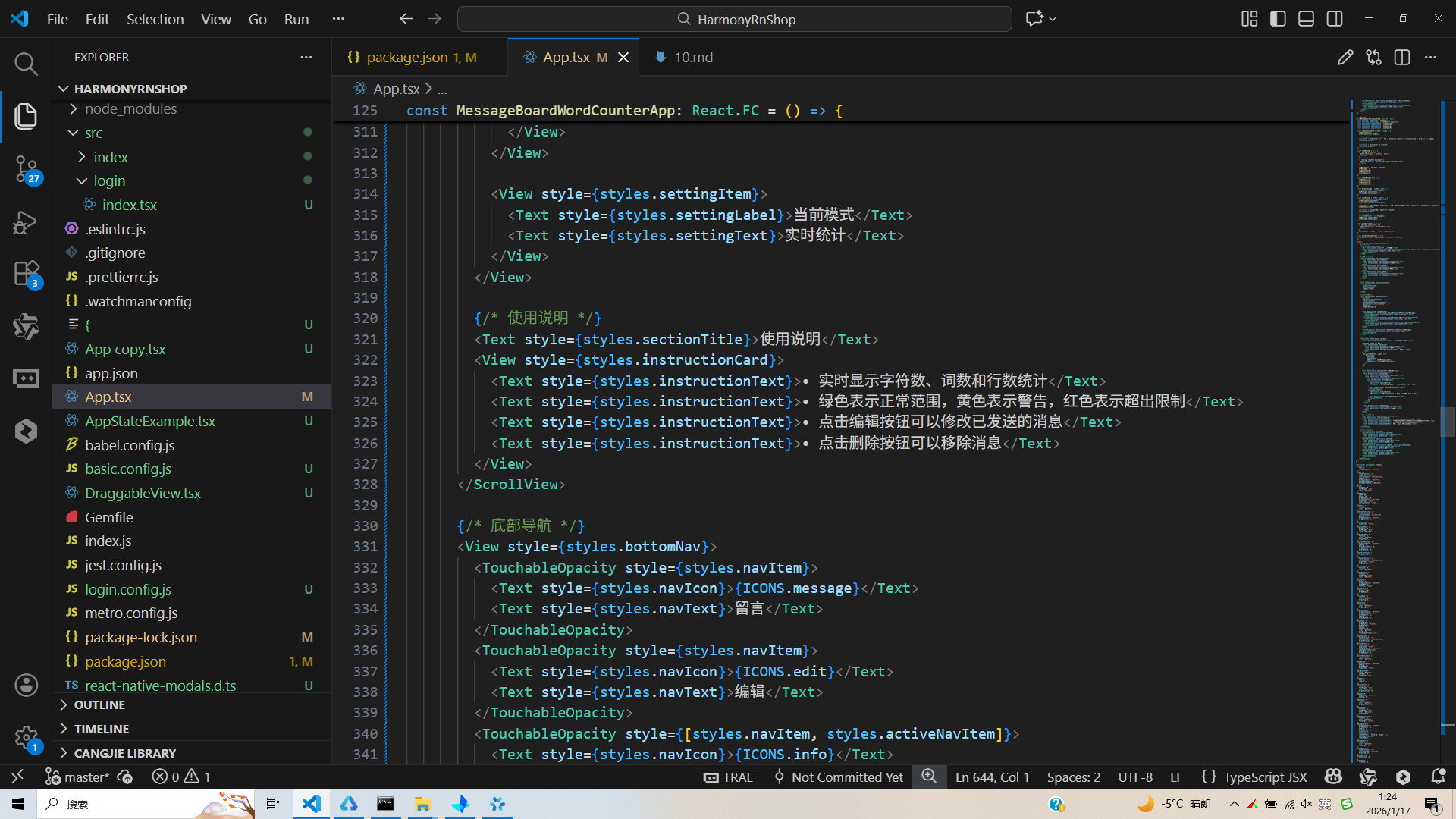
打包
接下来通过打包命令npn run harmony将reactNative的代码打包成为bundle,这样可以进行在开源鸿蒙OpenHarmony中进行使用。

打包之后再将打包后的鸿蒙OpenHarmony文件拷贝到鸿蒙的DevEco-Studio工程目录去:

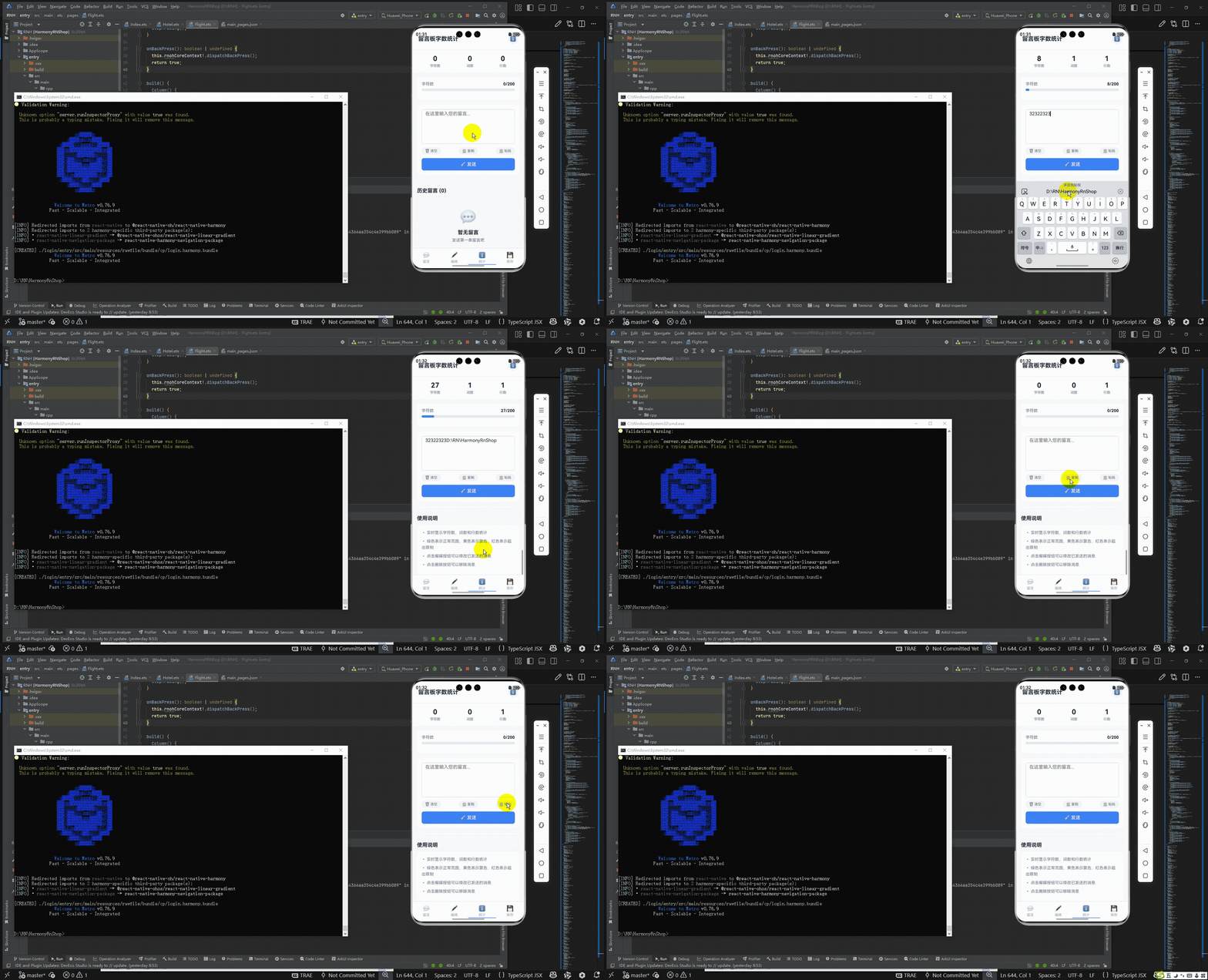
最后运行效果图如下显示:
欢迎大家加入开源鸿蒙跨平台开发者社区,一起共建开源鸿蒙跨平台生态。

作为“人工智能6S店”的官方数字引擎,为AI开发者与企业提供一个覆盖软硬件全栈、一站式门户。
更多推荐


 28
28 0
0- 0


 已为社区贡献5条内容

所有评论(0)