
基础入门 React Native 鸿蒙跨平台开发:Pressable 可按压组件
Pressable 是 React Native 0.63 版本引入的现代化可按压组件,它是传统 TouchableOpacity 的高性能替代方案。Pressable 提供了更精细的状态控制和更好的性能,支持多种按压状态和自定义样式,完全支持鸿蒙系统。核心优势:性能优化:使用原生事件处理,避免 JavaScript 桥接开销状态精细:支持 pressed、hovered、focused 等多种状
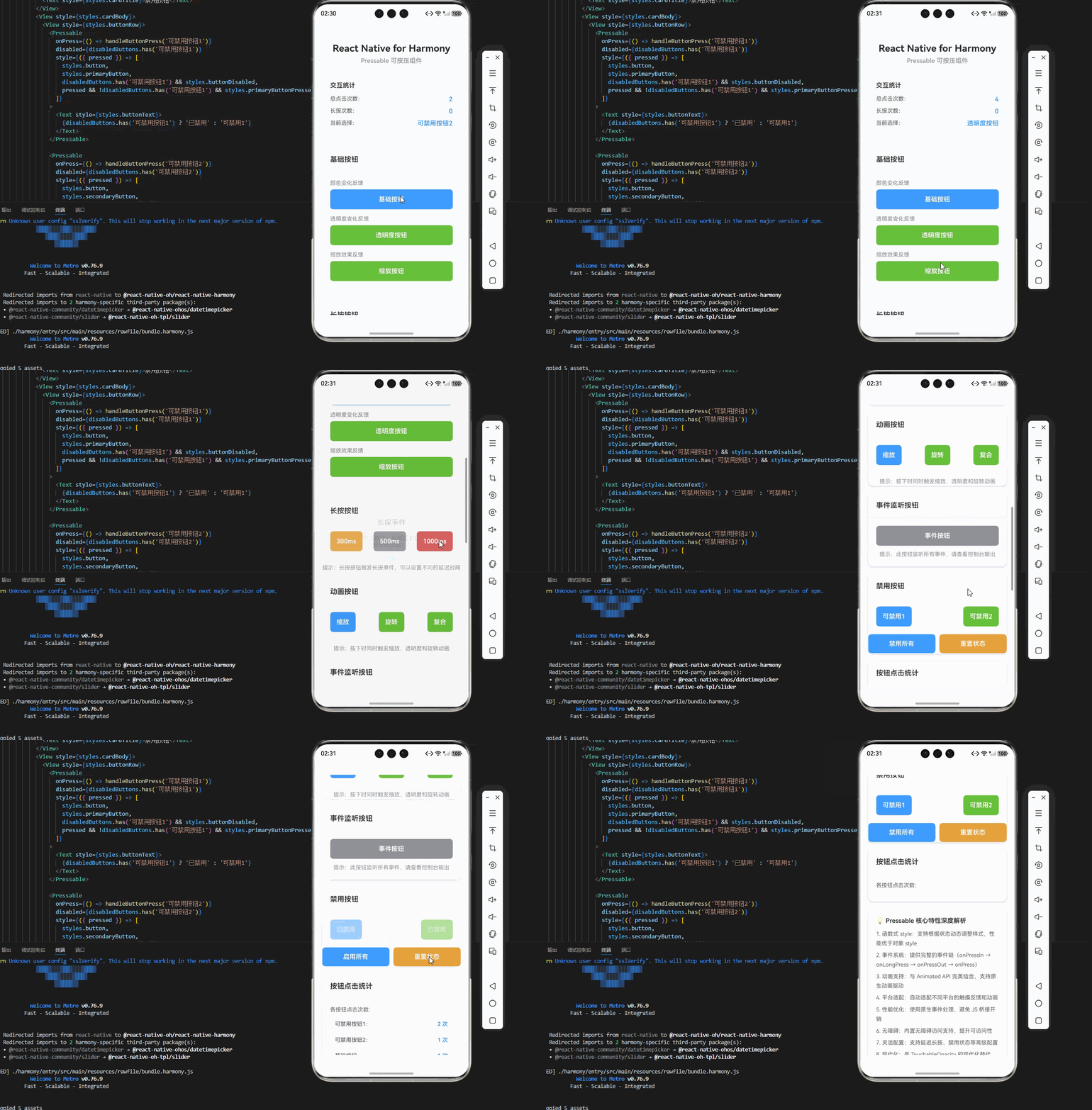
一、核心知识点:Pressable 可按压组件 完整核心用法
1. Pressable 组件概述
Pressable 是 React Native 0.63 版本引入的现代化可按压组件,它是传统 TouchableOpacity 的高性能替代方案。Pressable 提供了更精细的状态控制和更好的性能,支持多种按压状态和自定义样式,完全支持鸿蒙系统。
核心优势:
- 性能优化:使用原生事件处理,避免 JavaScript 桥接开销
- 状态精细:支持 pressed、hovered、focused 等多种状态
- 灵活配置:支持延迟长按、自定义动画等高级功能
- 平台适配:自动适配不同平台的最佳用户体验
- 无障碍支持:内置无障碍访问支持
2. Pressable 与传统组件的对比
在实际开发中,选择合适的可按压组件非常重要:
| 组件 | 适用场景 | 性能 | 状态控制 | 鸿蒙端支持 |
|---|---|---|---|---|
| Pressable | 复杂交互、自定义反馈 | ⭐⭐⭐⭐⭐ | ⭐⭐⭐⭐⭐ | ✅ 完美支持 |
| TouchableOpacity | 简单按钮、基础交互 | ⭐⭐⭐⭐ | ⭐⭐⭐ | ✅ 宯美支持 |
| TouchableHighlight | 需要视觉反馈的场景 | ⭐⭐⭐⭐ | ⭐⭐⭐ | ✅ 完美支持 |
| TouchableWithoutFeedback | 需要自定义反馈 | ⭐⭐⭐⭐ | ⭐⭐⭐ | ✅ 完美支持 |
选择建议:
- 简单按钮:使用 TouchableOpacity(代码简洁)
- 复杂交互:使用 Pressable(功能强大)
- 需要视觉反馈:使用 TouchableHighlight
- 完全自定义:使用 TouchableWithoutFeedback
3. Pressable 状态系统
Pressable 提供了丰富的状态信息,通过函数式 style 可以根据不同的状态动态调整样式:
<Pressable
  style={({ pressed, hovered, focused }) => ({
    backgroundColor: pressed ? '#409EFF' : hovered ? '#67C23A' : '#FFFFFF',
    opacity: focused ? 0.8 : 1,
    transform: [{ scale: pressed ? 0.95 : 1 }],
  })}
>
  {/* 子元素 */}
</Pressable>
状态说明:
pressed:用户正在按下组件hovered:鼠标悬停在组件上(Web端)focused:组件获得焦点(无障碍访问)disabled:组件被禁用
4. Pressable 事件系统
Pressable 提供了完整的事件系统,可以精确控制交互行为:
<Pressable
  onPress={() => console.log('点击事件')}
  onLongPress={() => console.log('长按事件')}
  onPressIn={() => console.log('按下事件')}
  onPressOut={() => console.log('抬起事件')}
  delayLongPress={500}
>
  {/* 子元素 */}
</Pressable>
事件触发顺序:
onPressIn:手指按下时立即触发onLongPress:按下超过 delayLongPress 时间后触发(可选)onPressOut:手指抬起时触发onPress:完整的点击事件,在 onPressOut 后触发
5. Pressable 动画支持
Pressable 可以与 Animated API 结合,创建流畅的按压动画:
import { Animated } from 'react-native';

const scaleAnim = useRef(new Animated.Value(1)).current;

<Animated.View
  style={{
    transform: [{ scale: scaleAnim }],
  }}
>
  <Pressable
    onPress={() => console.log('点击')}
    onPressIn={() => {
      Animated.spring(scaleAnim, {
        toValue: 0.95,
        useNativeDriver: true,
      }).start();
    }}
    onPressOut={() => {
      Animated.spring(scaleAnim, {
        toValue: 1,
        useNativeDriver: true,
      }).start();
  }}
  style={{ transform: [{ scale: scaleAnim }] }}
>
  <View style={styles.button}>
    <Text style={styles.buttonText}>动画按钮</Text>
  </View>
</Pressable>
</Animated.View>
动画类型:
- 缩放动画:按下时缩小,抬起时恢复
- 透明度动画:按下时变半透明
- 颜色动画:按下时改变颜色
- 旋转动画:按下时轻微旋转
二、Pressable 深度解析
1. Pressable 内部实现原理
Pressable 通过以下机制实现高性能的交互:
事件处理流程:
用户触摸 → 原生事件系统 → Pressable 事件处理器 → 状态更新 → 样式应用
性能优化技术:
- 使用原生事件处理,避免 JS 桥接
- 状态更新使用批量处理,减少重渲染
- 支持使用
useNativeDriver的动画 - 事件节流,避免频繁触发
2. 函数式 style 的优势
Pressable 推荐使用函数式 style,而不是对象 style:
函数式 style 优势:
// ✅ 推荐:函数式 style
<Pressable
  style={({ pressed }) => ({
    backgroundColor: pressed ? '#409EFF' : '#FFFFFF',
  })}
>

// ❌ 不推荐:对象 style
<Pressable
  style={styles.button}
>
原因:
- 函数式 style 可以根据状态动态调整样式
- 避免创建新的对象,减少内存分配
- 支持细粒度的状态控制
3. Platform.OS 平台适配
不同平台可能有不同的交互习惯,Pressable 可以根据平台调整行为:
import { Platform } from 'react-native';

<Pressable
  android_ripple={{ color: 'rgba(255, 255, 255, 0.32)', borderless: false }}
  style={({ pressed }) => ({
    backgroundColor: Platform.OS === 'android' && pressed ? '#337ECC' : '#409EFF',
  })}
>
  <Text style={styles.buttonText}>平台适配按钮</Text>
</Pressable>
平台差异:
- iOS:支持触摸反馈动画
- Android:支持波纹效果(通过
android_ripple) - HarmonyOS:支持原生触摸反馈
- Web:支持鼠标悬停效果
4. Pressable 与 Animated 的结合
Pressable 可以与 Animated API 结合,创建复杂交互效果:
import { Animated } from 'react-native';

// 创建多个动画值
const scaleAnim = useRef(new Animated.Value(1)).current;
const opacityAnim = useRef(new Animated.Value(1)).current;
const rotateAnim = useRef(new Animated.Value(0)).current;

// 同时触发多个动画
const handlePressIn = () => {
  Animated.parallel([
    Animated.spring(scaleAnim, {
      toValue: 0.95,
      useNativeDriver: true,
    }),
    Animated.timing(opacityAnim, {
      toValue: 0.8,
      duration: 100,
      useNativeDriver: true,
    }),
    Animated.timing(rotateAnim, {
      toValue: 5,
      duration: 100,
      useNativeDriver: true,
    }),
  ]).start();
};

const handlePressOut = () => {
  Animated.parallel([
    Animated.spring(scaleAnim, {
      toValue: 1,
      useNativeDriver: true,
    }),
    Animated.timing(opacityAnim, {
      toValue: 1,
      duration: 100,
      useNativeDriver: true,
    }),
    Animated.timing(rotateAnim, {
      toValue: 0,
      duration: 100,
      useNativeDriver: true,
    }),
  ]).start();
};

<Animated.View
  style={{
    transform: [
      { scale: scaleAnim },
      { rotate: rotateAnim.interpolate({
        inputRange: [0, 1],
        outputRange: ['0deg', '5deg'],
      })},
    ],
  }}
>
  <Pressable
    onPress={() => console.log('点击')}
    onPressIn={handlePressIn}
    onPressOut={handlePressOut}
  >
    <View style={styles.button}>
      <Text style={styles.buttonText}>复合动画按钮</Text>
    </View>
  </Pressable>
</Animated.View>
动画组合技巧:
- 使用
Animated.parallel并行执行多个动画 - 使用
Animated.sequence顺序执行多个动画 - 使用
useNativeDriver: true提升性能 - 合理设置动画时长,避免过快或过慢
5. Pressable 无障碍访问
Pressable 内置了无障碍访问支持,需要正确配置:
<Pressable
  accessibilityLabel="提交按钮"
  accessibilityRole="button"
  accessibilityHint="点击提交表单"
  accessibilityState={{ disabled: false }}
  onPress={handleSubmit}
  style={({ pressed }) => ({
    backgroundColor: pressed ? '#337ECC' : '#409EFF',
  })}
>
  <Text style={styles.buttonText}>提交</Text>
</Pressable>
无障碍配置要点:
accessibilityLabel:组件的语义化标签accessibilityRole:组件的角色(button、link 等)accessibilityHint:组件的提示信息accessibilityState:组件的状态(disabled、selected 等)
三、实战完整版:企业级通用 Pressable 可按压组件
import React, { useState, useRef, useCallback } from 'react';
import {
View,
Text,
StyleSheet,
SafeAreaView,
ScrollView,
Alert,
Pressable,
Animated,
Platform,
StatusBar,
} from 'react-native';
const PressableScreen = () => {
const [selectedButton, setSelectedButton] = useState<string>('');
const [pressCount, setPressCount] = useState<number>(0);
const [longPressCount, setLongPressCount] = useState<number>(0);
const [disabledButtons, setDisabledButtons] = useState<Set<string>>(new Set());
const [buttonStates, setButtonStates] = useState<Record<string, { pressCount: number }>>({});
// 动画值
const scaleAnim1 = useRef(new Animated.Value(1)).current;
const scaleAnim2 = useRef(new Animated.Value(1)).current;
const scaleAnim3 = useRef(new Animated.Value(1)).current;
const opacityAnim = useRef(new Animated.Value(1)).current;
const rotateAnim = useRef(new Animated.Value(0)).current;
// 处理按钮点击
const handleButtonPress = useCallback((buttonName: string) => {
setSelectedButton(buttonName);
setPressCount(prev => prev + 1);
setButtonStates(prev => ({
...prev,
[buttonName]: {
pressCount: (prev[buttonName]?.pressCount || 0) + 1,
},
}));
Alert.alert('按钮点击', `您点击了:${buttonName}\n总点击次数:${pressCount + 1}`);
}, [pressCount, buttonStates]);
// 处理长按
const handleLongPress = useCallback((buttonName: string) => {
setLongPressCount(prev => prev + 1);
Alert.alert('长按事件', `您长按了:${buttonName}\n总长按次数:${longPressCount + 1}`);
}, [longPressCount]);
// 处理按下事件
const handlePressIn = useCallback((buttonName: string) => {
console.log(`${buttonName} 按下`);
}, []);
// 处理抬起事件
const handlePressOut = useCallback((buttonName: string) => {
console.log(`${buttonName} 抬起`);
}, []);
// 处理动画按钮按下
const handleAnimatedPressIn = useCallback((anim: Animated.Value, opacityAnim: Animated.Value, rotateAnim: Animated.Value) => {
Animated.parallel([
Animated.spring(anim, {
toValue: 0.95,
useNativeDriver: true,
friction: 8,
tension: 40,
}),
Animated.timing(opacityAnim, {
toValue: 0.8,
duration: 100,
useNativeDriver: true,
}),
Animated.timing(rotateAnim, {
toValue: 5,
duration: 100,
useNativeDriver: true,
}),
]).start();
}, []);
// 处理动画按钮抬起
const handleAnimatedPressOut = useCallback((anim: Animated.Value, opacityAnim: Animated.Value, rotateAnim: Animated.Value) => {
Animated.parallel([
Animated.spring(anim, {
toValue: 1,
useNativeDriver: true,
friction: 8,
tension: 40,
}),
Animated.timing(opacityAnim, {
toValue: 1,
duration: 100,
useNativeDriver: true,
}),
Animated.timing(rotateAnim, {
toValue: 0,
duration: 100,
useNativeDriver: true,
}),
]).start();
}, []);
// 切换禁用状态
const toggleDisabled = useCallback((buttonName: string) => {
setDisabledButtons(prev => {
const newDisabled = new Set(prev);
if (newDisabled.has(buttonName)) {
newDisabled.delete(buttonName);
} else {
newDisabled.add(buttonName);
}
return newDisabled;
});
}, []);
// 重置所有状态
const handleReset = useCallback(() => {
setSelectedButton('');
setPressCount(0);
setLongPressCount(0);
setDisabledButtons(new Set());
setButtonStates({});
Alert.alert('重置', '所有状态已重置');
}, []);
return (
<SafeAreaView style={styles.container}>
<StatusBar barStyle="dark-content" />
<ScrollView contentContainerStyle={styles.scrollContent}>
{/* 标题区域 */}
<View style={styles.header}>
<Text style={styles.title}>React Native for Harmony</Text>
<Text style={styles.subtitle}>Pressable 可按压组件</Text>
</View>
{/* 统计信息 */}
<View style={styles.statsCard}>
<Text style={styles.statsTitle}>交互统计</Text>
<View style={styles.statsRow}>
<Text style={styles.statsLabel}>总点击次数:</Text>
<Text style={styles.statsValue}>{pressCount}</Text>
</View>
<View style={styles.statsRow}>
<Text style={styles.statsLabel}>长按次数:</Text>
<Text style={styles.statsValue}>{longPressCount}</Text>
</View>
<View style={styles.statsRow}>
<Text style={styles.statsLabel}>当前选择:</Text>
<Text style={styles.statsValue}>{selectedButton || '(未选择)'}</Text>
</View>
</View>
{/* 基础按钮 */}
<View style={styles.card}>
<View style={styles.cardHeader}>
<Text style={styles.cardTitle}>基础按钮</Text>
</View>
<View style={styles.cardBody}>
<View style={styles.demoSection}>
<Text style={styles.demoTitle}>颜色变化反馈</Text>
<Pressable
onPress={() => handleButtonPress('基础按钮')}
style={({ pressed }) => [
styles.button,
styles.primaryButton,
pressed && styles.primaryButtonPressed,
]}
>
<Text style={styles.buttonText}>基础按钮</Text>
</Pressable>
</View>
<View style={styles.demoSection}>
<Text style={styles.demoTitle}>透明度变化反馈</Text>
<Pressable
onPress={() => handleButtonPress('透明度按钮')}
style={({ pressed }) => [
styles.button,
styles.secondaryButton,
{ opacity: pressed ? 0.6 : 1 },
]}
>
<Text style={styles.buttonText}>透明度按钮</Text>
</Pressable>
</View>
<View style={styles.demoSection}>
<Text style={styles.demoTitle}>缩放效果反馈</Text>
<Pressable
onPress={() => handleButtonPress('缩放按钮')}
style={({ pressed }) => [
styles.button,
styles.successButton,
{
transform: [{ scale: pressed ? 0.95 : 1 }],
},
]}
>
<Text style={styles.buttonText}>缩放按钮</Text>
</Pressable>
</View>
</View>
</View>
{/* 长按按钮 */}
<View style={styles.card}>
<View style={styles.cardHeader}>
<Text style={styles.cardTitle}>长按按钮</Text>
</View>
<View style={styles.cardBody}>
<View style={styles.buttonRow}>
<Pressable
onPress={() => handleButtonPress('短延迟长按')}
onLongPress={() => handleLongPress('短延迟长按')}
delayLongPress={300}
style={({ pressed }) => [
styles.button,
styles.warningButton,
pressed && styles.warningButtonPressed,
]}
>
<Text style={styles.buttonText}>300ms</Text>
</Pressable>
<Pressable
onPress={() => handleButtonPress('中延迟长按')}
onLongPress={() => handleLongPress('中延迟长按')}
delayLongPress={500}
style={({ pressed }) => [
styles.button,
styles.infoButton,
pressed && styles.infoButtonPressed,
]}
>
<Text style={styles.buttonText}>500ms</Text>
</Pressable>
<Pressable
onPress={() => handleButtonPress('长延迟长按')}
onLongPress={() => handleLongPress('长延迟长按')}
delayLongPress={1000}
style={({ pressed }) => [
styles.button,
styles.dangerButton,
pressed && styles.dangerButtonPressed,
]}
>
<Text style={styles.buttonText}>1000ms</Text>
</Pressable>
</View>
</View>
<Text style={styles.hintText}>提示:长按按钮触发长按事件,可以设置不同的延迟时间</Text>
</View>
{/* 动画按钮 */}
<View style={styles.card}>
<View style={styles.cardHeader}>
<Text style={styles.cardTitle}>动画按钮</Text>
</View>
<View style={styles.cardBody}>
<View style={styles.buttonRow}>
<Animated.View
style={{
transform: [
{ scale: scaleAnim1 },
{ rotate: rotateAnim.interpolate({
inputRange: [0, 1],
outputRange: ['0deg', '5deg'],
})},
],
}}
>
<Pressable
onPress={() => handleButtonPress('缩放动画按钮')}
onPressIn={() => handleAnimatedPressIn(scaleAnim1, opacityAnim, rotateAnim)}
onPressOut={() => handleAnimatedPressOut(scaleAnim1, opacityAnim, rotateAnim)}
>
<View style={[styles.button, styles.primaryButton]}>
<Text style={styles.buttonText}>缩放</Text>
</View>
</Pressable>
</Animated.View>
<Animated.View
style={{
transform: [
{ scale: scaleAnim2 },
{ rotate: rotateAnim.interpolate({
inputRange: [0, 1],
outputRange: ['0deg', '-5deg'],
})},
],
}}
>
<Pressable
onPress={() => handleButtonPress('旋转动画按钮')}
onPressIn={() => handleAnimatedPressIn(scaleAnim2, opacityAnim, rotateAnim)}
onPressOut={() => handleAnimatedPressOut(scaleAnim2, opacityAnim, rotateAnim)}
>
<View style={[styles.button, styles.secondaryButton]}>
<Text style={styles.buttonText}>旋转</Text>
</View>
</Pressable>
</Animated.View>
<Animated.View
style={{
transform: [
{ scale: scaleAnim3 },
{ rotate: rotateAnim.interpolate({
inputRange: [0, 1],
outputRange: ['0deg', '5deg'],
})},
],
}}
>
<Pressable
onPress={() => handleButtonPress('复合动画按钮')}
onPressIn={() => handleAnimatedPressIn(scaleAnim3, opacityAnim, rotateAnim)}
onPressOut={() => handleAnimatedPressOut(scaleAnim3, opacityAnim, rotateAnim)}
>
<View style={[styles.button, styles.successButton]}>
<Text style={styles.buttonText}>复合</Text>
</View>
</Pressable>
</Animated.View>
</View>
</View>
<Text style={styles.hintText}>提示:按下时同时触发缩放、透明度和旋转动画</Text>
</View>
{/* 事件监听按钮 */}
<View style={styles.card}>
<View style={styles.cardHeader}>
<Text style={styles.cardTitle}>事件监听按钮</Text>
</View>
<View style={styles.cardBody}>
<Pressable
onPress={() => handleButtonPress('事件按钮')}
onLongPress={() => handleLongPress('事件按钮')}
onPressIn={() => handlePressIn('事件按钮')}
onPressOut={() => handlePressOut('事件按钮')}
style={({ pressed }) => [
styles.button,
styles.infoButton,
pressed && styles.infoButtonPressed,
]}
>
<Text style={styles.buttonText}>事件按钮</Text>
</Pressable>
<Text style={styles.hintText}>提示:此按钮监听所有事件,请查看控制台输出</Text>
</View>
</View>
{/* 禁用按钮 */}
<View style={styles.card}>
<View style={styles.cardHeader}>
<Text style={styles.cardTitle}>禁用按钮</Text>
</View>
<View style={styles.cardBody}>
<View style={styles.buttonRow}>
<Pressable
onPress={() => handleButtonPress('可禁用按钮1')}
disabled={disabledButtons.has('可禁用按钮1')}
style={({ pressed }) => [
styles.button,
styles.primaryButton,
disabledButtons.has('可禁用按钮1') && styles.buttonDisabled,
pressed && !disabledButtons.has('可禁用按钮1') && styles.primaryButtonPressed,
]}
>
<Text style={styles.buttonText}>
{disabledButtons.has('可禁用按钮1') ? '已禁用' : '可禁用1'}
</Text>
</Pressable>
<Pressable
onPress={() => handleButtonPress('可禁用按钮2')}
disabled={disabledButtons.has('可禁用按钮2')}
style={({ pressed }) => [
styles.button,
styles.secondaryButton,
disabledButtons.has('可禁用按钮2') && styles.buttonDisabled,
pressed && !disabledButtons.has('可禁用按钮2') && styles.secondaryButtonPressed,
]}
>
<Text style={styles.buttonText}>
{disabledButtons.has('可禁用按钮2') ? '已禁用' : '可禁用2'}
</Text>
</Pressable>
</View>
</View>
<View style={styles.buttonRow}>
<TouchableOpacity
style={styles.toggleBtn}
onPress={() => {
toggleDisabled('可禁用按钮1');
toggleDisabled('可禁用按钮2');
}}
>
<Text style={styles.toggleBtnText}>
{disabledButtons.size === 2 ? '启用所有' : '禁用所有'}
</Text>
</TouchableOpacity>
<TouchableOpacity
style={[styles.toggleBtn, styles.resetBtn]}
onPress={handleReset}
>
<Text style={styles.resetBtnText}>重置状态</Text>
</TouchableOpacity>
</View>
</View>
{/* 按钮点击统计 */}
<View style={styles.card}>
<View style={styles.cardHeader}>
<Text style={styles.cardTitle}>按钮点击统计</Text>
</View>
<View style={styles.cardBody}>
<Text style={styles.statsText}>各按钮点击次数:</Text>
{Object.entries(buttonStates).map(([name, state]) => (
<View key={name} style={styles.statRow}>
<Text style={styles.statName}>{name}:</Text>
<Text style={styles.statCount}>{state.pressCount} 次</Text>
</View>
))}
</View>
</View>
{/* 说明区域 */}
<View style={styles.infoCard}>
<Text style={styles.infoTitle}>💡 Pressable 核心特性深度解析</Text>
<Text style={styles.infoText}>1. 函数式 style:支持根据状态动态调整样式,性能优于对象 style</Text>
<Text style={styles.infoText}>2. 事件系统:提供完整的事件链(onPressIn → onLongPress → onPressOut → onPress)</Text>
<Text style={styles.infoText}>3. 动画支持:与 Animated API 完美结合,支持原生动画驱动</Text>
<Text style={styles.infoText}>4. 平台适配:自动适配不同平台的触摸反馈和动画</Text>
<Text style={styles.infoText}>5. 性能优化:使用原生事件处理,避免 JS 桥接开销</Text>
<Text style={styles.infoText}>6. 无障碍:内置无障碍访问支持,提升可访问性</Text>
<Text style={styles.infoText}>7. 灵活配置:支持延迟长按、禁用状态等高级配置</Text>
<Text style={styles.infoText}>8. 现代化:是 TouchableOpacity 的现代化替代,推荐优先使用</Text>
</View>
</ScrollView>
</SafeAreaView>
);
};
const RNHarmonyPressablePerfectAdapt = () => {
return <PressableScreen />;
};
const styles = StyleSheet.create({
container: {
flex: 1,
backgroundColor: '#F5F7FA',
},
scrollContent: {
padding: 20,
paddingBottom: 40,
},
// ======== 标题区域 ========
header: {
marginBottom: 24,
},
title: {
fontSize: 24,
fontWeight: '700',
color: '#303133',
textAlign: 'center',
marginBottom: 8,
},
subtitle: {
fontSize: 16,
fontWeight: '500',
color: '#909399',
textAlign: 'center',
},
// ======== 统计卡片 ========
statsCard: {
backgroundColor: '#FFFFFF',
borderRadius: 12,
marginBottom: 20,
padding: 20,
shadowColor: '#000000',
shadowOffset: { width: 0, height: 2 },
shadowOpacity: 0.08,
shadowRadius: 8,
elevation: 4,
},
statsTitle: {
fontSize: 16,
fontWeight: '600',
color: '#303133',
marginBottom: 16,
},
statsRow: {
flexDirection: 'row',
justifyContent: 'space-between',
marginBottom: 12,
},
statsLabel: {
fontSize: 14,
color: '#606266',
fontWeight: '500',
},
statsValue: {
fontSize: 16,
color: '#409EFF',
fontWeight: '600',
},
// ======== 卡片样式 ========
card: {
backgroundColor: '#FFFFFF',
borderRadius: 12,
marginBottom: 20,
shadowColor: '#000000',
shadowOffset: { width: 0, height: 2 },
shadowOpacity: 0.08,
shadowRadius: 8,
elevation: 4,
},
cardHeader: {
padding: 20,
borderBottomWidth: 1,
borderBottomColor: '#EBEEF5',
},
cardTitle: {
fontSize: 18,
fontWeight: '600',
color: '#303133',
},
cardBody: {
padding: 20,
},
// ======== 演示区域 ========
demoSection: {
marginBottom: 16,
},
demoTitle: {
fontSize: 14,
color: '#909399',
fontWeight: '500',
marginBottom: 8,
},
// ======== 按钮样式 ========
button: {
padding: 16,
borderRadius: 8,
alignItems: 'center',
justifyContent: 'center',
minHeight: 48,
},
buttonDisabled: {
opacity: 0.5,
},
buttonText: {
fontSize: 16,
color: '#FFFFFF',
fontWeight: '600',
},
// ======== 颜色按钮 ========
primaryButton: {
backgroundColor: '#409EFF',
},
primaryButtonPressed: {
backgroundColor: '#337ECC',
},
secondaryButton: {
backgroundColor: '#67C23A',
},
secondaryButtonPressed: {
backgroundColor: '#5DAE2B',
},
successButton: {
backgroundColor: '#67C23A',
},
successButtonPressed: {
backgroundColor: '#5DAE2B',
},
warningButton: {
backgroundColor: '#E6A23C',
},
warningButtonPressed: {
backgroundColor: '#CF8E2F',
},
infoButton: {
backgroundColor: '#909399',
},
infoButtonPressed: {
backgroundColor: '#7D7F7F',
},
dangerButton: {
backgroundColor: '#F56C6C',
},
dangerButtonPressed: {
backgroundColor: '#D64D4D',
},
// ======== 按钮行 ========
buttonRow: {
flexDirection: 'row',
justifyContent: 'space-between',
gap: 10,
},
// ======== 提示文本 ========
hintText: {
fontSize: 14,
color: '#909399',
textAlign: 'center',
marginTop: 12,
lineHeight: 20,
},
// ======== 切换按钮 ========
toggleBtn: {
backgroundColor: '#409EFF',
borderRadius: 8,
padding: 12,
alignItems: 'center',
flex: 1,
minHeight: 48,
justifyContent: 'center',
},
toggleBtnText: {
fontSize: 16,
color: '#FFFFFF',
fontWeight: '600',
},
resetBtn: {
backgroundColor: '#E6A23C',
},
resetBtnText: {
fontSize: 16,
color: '#FFFFFF',
fontWeight: '600',
},
// ======== 统计文本 ========
statsText: {
fontSize: 14,
color: '#606266',
marginBottom: 12,
},
statRow: {
flexDirection: 'row',
justifyContent: 'space-between',
marginBottom: 8,
paddingVertical: 8,
backgroundColor: '#F8F9FA',
borderRadius: 8,
paddingHorizontal: 12,
},
statName: {
fontSize: 14,
color: '#606266',
fontWeight: '500',
},
statCount: {
fontSize: 14,
color: '#409EFF',
fontWeight: '600',
},
// ======== 说明卡片 ========
infoCard: {
backgroundColor: '#FFFFFF',
borderRadius: 12,
padding: 20,
shadowColor: '#000000',
shadowOffset: { width: 0, height: 2 },
shadowOpacity: 0.08,
shadowRadius: 8,
elevation: 4,
},
infoTitle: {
fontSize: 16,
fontWeight: '600',
color: '#303133',
marginBottom: 12,
},
infoText: {
fontSize: 14,
color: '#606266',
lineHeight: 24,
marginBottom: 6,
},
});
export default RNHarmonyPressablePerfectAdapt;
四、Pressable 最佳实践与性能优化
1. 性能优化建议
优化技巧:
- 使用函数式 style,避免不必要的重渲染
- 避免在 Pressable 内部创建新的函数或对象
- 使用
useCallback缓存事件处理函数 - 对于简单按钮,优先使用 TouchableOpacity
- 对于复杂交互,使用 Pressable 获得更好的控制
2. 无障碍访问
无障碍支持:
- 添加
accessibilityLabel属性 - 使用
accessibilityRole定义组件角色 - 为按钮添加语义化的标签
- 支持屏幕阅读器
3. 平台特定优化
平台差异处理:
<Pressable
  android_ripple={{ color: 'rgba(255, 255, 255, 0.32)' }}
  style={({ pressed }) => ({
    backgroundColor: pressed ? '#409EFF' : '#67C23A',
  })}
>
  {/* 子元素 */}
</Pressable>
4. 常见问题与解决方案
问题1:Pressable 样式不生效
- 原因:使用了对象 style 而不是函数式 style
- 解决:改为函数式 style:
style={({ pressed }) => ({ backgroundColor: pressed ? '#409EFF' : '#FFFFFF' })
问题2:动画不流畅
- 原因:未使用
useNativeDriver: true - 解决:在动画配置中添加
useNativeDriver: true
问题3:Android 波纹效果不显示
- 原因:未设置
android_ripple属性 - 解决:添加
android_ripple={{ color: 'rgba(255, 255, 255, 0.32)' }
问题4:长按事件不触发
- 原因:
delayLongPress设置过大 - 解决:合理设置延迟时间,通常 300-500ms 比较合适
问题5:禁用状态样式不正确
- 原因:未在函数式 style 中处理 disabled 状态
- 解决:在 style 函数中添加 disabled 状态判断
欢迎加入开源鸿蒙跨平台社区:https://openharmonycrossplatform.csdn.net

作为“人工智能6S店”的官方数字引擎,为AI开发者与企业提供一个覆盖软硬件全栈、一站式门户。
更多推荐


 8
8 0
0- 0


 已为社区贡献10条内容

所有评论(0)