
React Native鸿蒙跨平台使用FoodDetailModal/ AddFoodModal 采用条件渲染的覆盖层(absolute + 半透明背景)来模拟弹窗
本文介绍了一个基于React Native开发的食物收藏管理应用,重点分析了其核心架构设计与交互体验。应用采用多维营养数据结构(包含热量、蛋白质等关键指标)和组件化设计(卡片展示、详情模态框和添加表单分离)。实现了响应式筛选统计系统,通过分类标签交互和表单验证提升用户体验。文章还对比了React Native与鸿蒙ArkUI在组件实现上的差异,展示了该应用在跨平台开发中的技术参考价值。
概述
本文分析的是一个基于React Native构建的食物收藏管理应用,集成了多维度营养数据、分类筛选、收藏管理等核心功能。该应用采用了复杂的数据结构设计、模态框交互和响应式筛选机制,展现了健康饮食类应用的典型技术架构。在鸿蒙OS的跨端适配场景中,这种涉及复杂数据展示和个性化交互的应用具有重要的技术参考价值。
核心架构设计深度解析
多维营养数据结构设计
应用定义了丰富的食物数据结构,支持多维度的营养信息:
type FoodItem = {
  id: string;
  name: string;
  calories: number;
  protein: number;
  carbs: number;
  fat: number;
  category: string;
  isFavorite: boolean;
};
这种数据设计体现了营养学的基本维度:热量(卡路里)、蛋白质、碳水化合物、脂肪。每个维度都有明确的业务含义和计量单位,为营养计算和展示提供了完整的数据基础。
在鸿蒙ArkUI体系中,类型定义采用接口形式:
interface FoodItem {
  id: string;
  name: string;
  calories: number;
  protein: number;
  carbs: number;
  fat: number;
  category: string;
  isFavorite: boolean;
}
组件化卡片与模态框体系
应用采用了清晰的组件分层设计:
// 收藏卡片组件 - 展示层
const FavoriteFoodCard = ({ food, onToggleFavorite, onDelete, onPress }) => {
  return (
    <View style={styles.foodCard}>
      <TouchableOpacity onPress={() => onPress(food)}>
        {/* 食物信息展示 */}
      </TouchableOpacity>
      <View style={styles.cardActions}>
        <TouchableOpacity onPress={() => onToggleFavorite(food.id)}>
          <Text>{food.isFavorite ? '❤️' : '🤍'}</Text>
        </TouchableOpacity>
        <TouchableOpacity onPress={() => onDelete(food.id)}>
          <Text>🗑️</Text>
        </TouchableOpacity>
      </View>
    </View>
  );
};

// 详情模态框 - 详情层
const FoodDetailModal = ({ food, visible, onClose }) => {
  if (!visible || !food) return null;
  return (
    <View style={styles.modalOverlay}>
      <View style={styles.modalContent}>
        {/* 营养详情展示 */}
      </View>
    </View>
  );
};

// 添加模态框 - 表单层
const AddFoodModal = ({ visible, onClose, onAdd }) => {
  const [name, setName] = useState('');
  // 更多表单状态...
  return (
    <View style={styles.modalOverlay}>
      <View style={styles.modalContent}>
        {/* 表单输入控件 */}
      </View>
    </View>
  );
};
这种分层设计将展示、详情、表单三个关注点分离,每个组件职责单一。FavoriteFoodCard负责基础展示和操作触发,FoodDetailModal负责详细信息展示,AddFoodModal负责数据录入。
鸿蒙平台的组件实现需要适配其声明式语法:
@Component
struct FavoriteFoodCard {
  @Prop food: FoodItem;
  @Event onToggleFavorite: (id: string) => void;
  @Event onDelete: (id: string) => void;
  @Event onPress: (food: FoodItem) => void;

  build() {
    Row() {
      // 食物信息
      Column() {
        Text(this.food.name)
        Text(`${this.food.calories} 卡路里`)
      }
      .onClick(() => this.onPress(this.food))

      // 操作按钮
      Row() {
        Button('', { type: ButtonType.Normal })
          .onClick(() => this.onToggleFavorite(this.food.id))

        Button('', { type: ButtonType.Normal })
          .onClick(() => this.onDelete(this.food.id))
      }
    }
  }
}
响应式筛选与统计系统
应用实现了实时的分类筛选和统计计算:
const [selectedCategory, setSelectedCategory] = useState('全部');
const categories = ['全部', '主食', '肉类', '蔬菜', '水果', '零食', '饮品'];

const filteredFavorites = selectedCategory === '全部'
  ? favorites
  : favorites.filter(f => f.category === selectedCategory);

const categoryCounts = categories.map(cat => {
  if (cat === '全部') return favorites.length;
  return favorites.filter(f => f.category === cat).length;
});

// 统计计算
const totalCalories = favorites.reduce((sum, food) => sum + food.calories, 0);
const totalProtein = favorites.reduce((sum, food) => sum + food.protein, 0);
这种响应式设计确保了界面状态与数据的实时同步。当selectedCategory或favorites变化时,相关计算会自动更新,为用户提供准确的筛选结果和统计数据。
鸿蒙的响应式实现采用计算属性:
@State selectedCategory: string = '全部';
@State favorites: FoodItem[] = [];

get filteredFavorites(): FoodItem[] {
  return this.selectedCategory === '全部'
    ? this.favorites
    : this.favorites.filter(f => f.category === this.selectedCategory);
}

get categoryCounts(): number[] {
  return this.categories.map(cat => {
    if (cat === '全部') return this.favorites.length;
    return this.favorites.filter(f => f.category === cat).length;
  });
}

get totalCalories(): number {
  return this.favorites.reduce((sum, food) => sum + food.calories, 0);
}
交互设计与用户体验
分类标签交互系统
CategoryTag组件实现了可视化的分类筛选:
const CategoryTag = ({ name, count, isActive, onPress }) => {
  return (
    <TouchableOpacity
      style={[
        styles.categoryTag,
        isActive && styles.categoryTagActive
      ]}
      onPress={onPress}
    >
      <Text style={[
        styles.categoryText,
        isActive && styles.categoryTextActive
      ]}>
        {name} ({count})
      </Text>
    </TouchableOpacity>
  );
};
这种设计将分类名称和项目数量直观展示,通过颜色变化提供明确的选中反馈。水平滚动的ScrollView布局适应了多分类场景。
鸿蒙的实现需要适配其布局系统:
@Component
struct CategoryTag {
  @Prop name: string;
  @Prop count: number;
  @Prop isActive: boolean;
  @Event onPress: () => void;

  build() {
    Button(`${this.name} (${this.count})`, { type: ButtonType.Normal })
      .backgroundColor(this.isActive ? '#3b82f6' : '#f1f5f9')
      .fontColor(this.isActive ? Color.White : '#64748b')
      .borderRadius(20)
      .onClick(() => this.onPress())
  }
}
表单验证与数据处理
AddFoodModal实现了完整的表单验证逻辑:
const handleSubmit = () => {
  if (!name.trim()) {
    Alert.alert('错误', '请输入食物名称');
    return;
  }

  onAdd({
    name: name.trim(),
    calories: parseInt(calories) || 0,
    protein: parseInt(protein) || 0,
    carbs: parseInt(carbs) || 0,
    fat: parseInt(fat) || 0,
    category: category,
  });

  // 重置表单
  setName('');
  setCalories('');
  setProtein('');
  setCarbs('');
  setFat('');
  onClose();
};
这种前端验证确保了数据的完整性,parseInt的默认值处理避免了NaN问题,表单重置提供了良好的用户体验。
跨端适配技术方案
组件映射策略
| React Native组件 | 鸿蒙ArkUI组件 | 适配说明 |
|---|---|---|
| TouchableOpacity | Button | 交互反馈机制不同 |
| Modal | CustomDialog | 弹窗系统完全重构 |
| TextInput | TextInput | 输入属性基本一致 |
| FlatList | List | 列表实现方式差异 |
样式系统转换
// React Native
foodCard: {
  backgroundColor: '#ffffff',
  borderRadius: 12,
  padding: 16,
  elevation: 1,
  shadowColor: '#000',
  shadowOffset: { width: 0, height: 1 },
}

// 鸿蒙
Column()
  .backgroundColor(Color.White)
  .borderRadius(12)
  .padding(16)
  .shadow({ radius: 2, color: '#000000', offsetX: 0, offsetY: 1 })
状态管理迁移
// React Native
const [favorites, setFavorites] = useState<FoodItem[]>([]);
const [selectedCategory, setSelectedCategory] = useState('全部');

// 鸿蒙
@State favorites: FoodItem[] = [];
@State selectedCategory: string = '全部';
性能优化与最佳实践
列表渲染优化
使用keyExtractor提升列表性能:
<FlatList
  data={filteredFavorites}
  keyExtractor={item => item.id}
  renderItem={({ item }) => <FavoriteFoodCard food={item} />}
/>
计算缓存优化
使用useMemo避免重复计算:
const categoryCounts = useMemo(() => {
  return categories.map(cat => {
    if (cat === '全部') return favorites.length;
    return favorites.filter(f => f.category === cat).length;
  });
}, [favorites]);
React Native × 鸿蒙跨端技术解读:食物收藏、分类筛选与弹窗表单
这段页面实现一个“食物收藏夹”,以收藏卡片、分类筛选、统计与自定义弹窗(详情、添加)组成。架构上用函数式组件与本地状态驱动,列表采用 FlatList 虚拟化渲染,分类条用横向 ScrollView,模态用条件渲染叠层视图。跨端落地到鸿蒙(OpenHarmony)时,重点在弹窗层级与返回手势、输入法与数字校验、滚动/虚拟化一致性,以及图标表现的统一。
组件与职责边界
- FavoriteFoodCard:展示收藏项与“收藏/取消、删除”操作,点击卡片上抛当前食物对象并打开详情。事件上抛维持组件的展示职责纯净、便于复用。
- FoodDetailModal:在可见时展示营养详情(卡路里/蛋白/碳水/脂肪)与分类,并提供关闭按钮。采用条件渲染的覆盖层实现“自定义弹窗”。
- AddFoodModal:从零添加食物,包含名称、数值输入(卡路里、蛋白、碳水、脂肪)与分类选择,提交后重置表单并通过回调上抛。
- CategoryTag:分类筛选标签,包含计数与选中态,点击变更当前分类。
- DietFavoritesApp:页面状态与数据流的中枢,承载 favorites、selectedCategory、selectedFood 与模态的可见状态,负责筛选、统计与增删改收藏。
这种切分清晰地把“展示组件”和“状态/行为控制”分离,有利于跨端行为一致性的治理(相同的 UI 组件在不同设备上保持同样的数据契约和事件语义)。
状态与数据流
- favorites 初始化为 FoodItem 数组(包含营养字段与分类),selectedCategory 控制过滤,selectedFood 控制详情弹窗对象。
- filteredFavorites 通过当前分类派生;categoryCounts 统计每类数量,用于标签计数展示。
- 事件处理:
- handleToggleFavorite:不可变更新 isFavorite 切换。
- handleDelete:通过 Alert 二次确认后过滤删除。
- handleAddFood:接收去除 id/isFavorite 的对象,补足 id(时间戳)与 isFavorite=true 后追加。
- handleFoodPress:设置 selectedFood 并打开详情弹窗。
为提升一致性与性能,建议将 filteredFavorites 和 categoryCounts 用 useMemo(favorites, selectedCategory) 派生,避免每次渲染都进行 O(n) 计算,特别在收藏较多时效果明显。
列表与虚拟化
- ScrollView + FlatList 嵌套:当前在 ScrollView 内部渲染 FlatList,这在 RN 上不推荐(会让 FlatList 的虚拟化优势受限)。更稳妥的方式是只使用 FlatList,并通过 ListHeaderComponent/ ListEmptyComponent 承载空态与“使用说明”区块。
- keyExtractor 使用稳定 id,满足虚拟化 diff 的基本条件;搭配 React.memo 包裹 FavoriteFoodCard 与 useCallback 缓存 renderItem,可减少重渲染和提升滚动帧率。
跨端滚动物理(回弹、阻尼、惯性)与事件触发窗口在不同平台略有差异;鸿蒙端需在适配层映射到 ArkUI 的滚动容器,确保手感与触发时机一致。
模态与叠层行为
FoodDetailModal/ AddFoodModal 采用条件渲染的覆盖层(absolute + 半透明背景)来模拟弹窗。原型阶段足够;生产建议:
- 改用 RN Modal 或 Portal 提供系统级叠层与返回键关闭、焦点导航与可访问性(屏幕阅读器)一致性。鸿蒙端需确保 ArkUI 的弹窗能力(层级、返回/手势关闭)与适配层正确桥接。
- 关闭逻辑统一:打开详情时设置 selectedFood 与 showDetailModal=true;关闭时设 showDetailModal=false,同时根据需要清理 selectedFood,保证状态明确。
表单与输入法(AddFoodModal)
- 数值解析使用 parseInt,会截断小数位;而初始 favorites 的蛋白、碳水、脂肪包含小数。建议改用 parseFloat,并在提交前统一 clamp/校验:
- 输入容忍中间态(空、单个“.”),在 onEndEditing 做强校验;
- 数值范围与精度(例如保留一位小数)由统一的格式器/校验函数处理。
- 键盘类型 keyboardType=“numeric” 在 iOS/Android/鸿蒙的映射差异较大(负号/小数点可用性不同);在鸿蒙端需确保 ArkUI 输入法的合成事件(composition)正确映射到 RN 的 onChangeText,避免输入过程中出现“闪烁/回退”。
图标与视觉一致性
当前使用 emoji 作为图标(❤️、🗑️ 等),跨端在不同系统字体下会产生渲染与对齐差异。生产建议迁移到统一的矢量/字体图标栈,并在鸿蒙端通过 ArkUI 渲染能力映射,保证像素与基线一致。
维度与旋转
页面使用 Dimensions.get(‘window’) 的初始宽度参与卡片布局;横竖屏与分屏场景建议改用 useWindowDimensions() 并监听窗口变化,确保在旋转或多窗口模式下布局自适应。鸿蒙端需保证窗口事件能正确传递到 RN 层。
代码健壮性与正确性提示
- TextInput 的导入位置:该文件末尾存在“由于React Native中TextInput未导入,这里添加导入”并追加了 import { TextInput } from ‘react-native’。JS/TS 的 import 语句必须在模块顶层且不能出现在逻辑语句之后。应将 TextInput 一并在文件顶部统一导入,避免运行时错误。
- 过滤与计数:categoryCounts 通过 map 每次从头过滤,随着数据增多会产生冗余计算。建议用一次 reduce 出所有分类计数或 memo 化,提升性能。
完整示例代码:
// app.tsx
import React, { useState } from 'react';
import { SafeAreaView, View, Text, StyleSheet, TouchableOpacity, ScrollView, Dimensions, Alert, FlatList } from 'react-native';

// 图标库
const ICONS = {
  food: '🍎',
  favorite: '❤️',
  unfavorite: '🤍',
  delete: '🗑️',
  add: '➕',
  search: '🔍',
  save: '💾',
  category: '📋',
};

const { width } = Dimensions.get('window');

// 食物类型
type FoodItem = {
  id: string;
  name: string;
  calories: number;
  protein: number;
  carbs: number;
  fat: number;
  category: string;
  isFavorite: boolean;
};

// 食物收藏卡片组件
const FavoriteFoodCard = ({
  food,
  onToggleFavorite,
  onDelete,
  onPress
}: {
  food: FoodItem;
  onToggleFavorite: (id: string) => void;
  onDelete: (id: string) => void;
  onPress: (food: FoodItem) => void;
}) => {
  return (
    <View style={styles.foodCard}>
      <TouchableOpacity style={styles.cardContent} onPress={() => onPress(food)}>
        <View style={styles.foodIcon}>
          <Text style={styles.foodIconText}>{ICONS.food}</Text>
        </View>
        <View style={styles.foodInfo}>
          <Text style={styles.foodName}>{food.name}</Text>
          <Text style={styles.foodCalories}>{food.calories} 卡路里</Text>
          <Text style={styles.foodCategory}>{food.category}</Text>
        </View>
      </TouchableOpacity>

      <View style={styles.cardActions}>
        <TouchableOpacity
          style={styles.favoriteButton}
          onPress={() => onToggleFavorite(food.id)}
        >
          <Text style={styles.favoriteIcon}>
            {food.isFavorite ? ICONS.favorite : ICONS.unfavorite}
          </Text>
        </TouchableOpacity>
        <TouchableOpacity
          style={styles.deleteButton}
          onPress={() => onDelete(food.id)}
        >
          <Text style={styles.deleteIcon}>{ICONS.delete}</Text>
        </TouchableOpacity>
      </View>
    </View>
  );
};

// 食物详情模态框
const FoodDetailModal = ({
  food,
  visible,
  onClose
}: {
  food: FoodItem | null;
  visible: boolean;
  onClose: () => void
}) => {
  if (!visible || !food) return null;

  return (
    <View style={styles.modalOverlay}>
      <View style={styles.modalContent}>
        <Text style={styles.modalTitle}>{food.name}</Text>

        <View style={styles.nutritionGrid}>
          <View style={styles.nutritionItem}>
            <Text style={styles.nutritionValue}>{food.calories}</Text>
            <Text style={styles.nutritionLabel}>卡路里</Text>
          </View>
          <View style={styles.nutritionItem}>
            <Text style={styles.nutritionValue}>{food.protein}g</Text>
            <Text style={styles.nutritionLabel}>蛋白质</Text>
          </View>
          <View style={styles.nutritionItem}>
            <Text style={styles.nutritionValue}>{food.carbs}g</Text>
            <Text style={styles.nutritionLabel}>碳水</Text>
          </View>
          <View style={styles.nutritionItem}>
            <Text style={styles.nutritionValue}>{food.fat}g</Text>
            <Text style={styles.nutritionLabel}>脂肪</Text>
          </View>
        </View>

        <Text style={styles.categoryLabel}>分类: {food.category}</Text>

        <TouchableOpacity style={styles.closeButton} onPress={onClose}>
          <Text style={styles.closeButtonText}>关闭</Text>
        </TouchableOpacity>
      </View>
    </View>
  );
};

// 添加食物模态框
const AddFoodModal = ({
  visible,
  onClose,
  onAdd
}: {
  visible: boolean;
  onClose: () => void;
  onAdd: (food: Omit<FoodItem, 'id' | 'isFavorite'>) => void
}) => {
  const [name, setName] = useState('');
  const [calories, setCalories] = useState('');
  const [protein, setProtein] = useState('');
  const [carbs, setCarbs] = useState('');
  const [fat, setFat] = useState('');
  const [category, setCategory] = useState('主食');

  const handleSubmit = () => {
    if (!name.trim()) {
      Alert.alert('错误', '请输入食物名称');
      return;
    }

    onAdd({
      name: name.trim(),
      calories: parseInt(calories) || 0,
      protein: parseInt(protein) || 0,
      carbs: parseInt(carbs) || 0,
      fat: parseInt(fat) || 0,
      category: category,
    });

    // 重置表单
    setName('');
    setCalories('');
    setProtein('');
    setCarbs('');
    setFat('');
    onClose();
  };

  if (!visible) return null;

  return (
    <View style={styles.modalOverlay}>
      <View style={styles.modalContent}>
        <Text style={styles.modalTitle}>添加食物</Text>

        <View style={styles.inputGroup}>
          <Text style={styles.inputLabel}>食物名称</Text>
          <TextInput
            style={styles.input}
            value={name}
            onChangeText={setName}
            placeholder="例如:苹果"
          />
        </View>

        <View style={styles.inputRow}>
          <View style={styles.inputCol}>
            <Text style={styles.inputLabel}>卡路里</Text>
            <TextInput
              style={styles.input}
              value={calories}
              onChangeText={setCalories}
              placeholder="0"
              keyboardType="numeric"
            />
          </View>
          <View style={styles.inputCol}>
            <Text style={styles.inputLabel}>蛋白质(g)</Text>
            <TextInput
              style={styles.input}
              value={protein}
              onChangeText={setProtein}
              placeholder="0"
              keyboardType="numeric"
            />
          </View>
        </View>

        <View style={styles.inputRow}>
          <View style={styles.inputCol}>
            <Text style={styles.inputLabel}>碳水(g)</Text>
            <TextInput
              style={styles.input}
              value={carbs}
              onChangeText={setCarbs}
              placeholder="0"
              keyboardType="numeric"
            />
          </View>
          <View style={styles.inputCol}>
            <Text style={styles.inputLabel}>脂肪(g)</Text>
            <TextInput
              style={styles.input}
              value={fat}
              onChangeText={setFat}
              placeholder="0"
              keyboardType="numeric"
            />
          </View>
        </View>

        <View style={styles.inputGroup}>
          <Text style={styles.inputLabel}>分类</Text>
          <View style={styles.categoryPicker}>
            {['主食', '肉类', '蔬菜', '水果', '零食', '饮品'].map(cat => (
              <TouchableOpacity
                key={cat}
                style={[
                  styles.categoryOption,
                  category === cat && styles.categoryOptionSelected
                ]}
                onPress={() => setCategory(cat)}
              >
                <Text style={[
                  styles.categoryText,
                  category === cat && styles.categoryTextSelected
                ]}>
                  {cat}
                </Text>
              </TouchableOpacity>
            ))}
          </View>
        </View>

        <View style={styles.modalActions}>
          <TouchableOpacity style={styles.cancelButton} onPress={onClose}>
            <Text style={styles.cancelButtonText}>取消</Text>
          </TouchableOpacity>
          <TouchableOpacity style={styles.addButton} onPress={handleSubmit}>
            <Text style={styles.addButtonText}>{ICONS.add} 添加</Text>
          </TouchableOpacity>
        </View>
      </View>
    </View>
  );
};

// 分类标签组件
const CategoryTag = ({ name, count, isActive, onPress }: {
  name: string;
  count: number;
  isActive: boolean;
  onPress: () => void
}) => {
  return (
    <TouchableOpacity
      style={[
        styles.categoryTag,
        isActive && styles.categoryTagActive
      ]}
      onPress={onPress}
    >
      <Text style={[
        styles.categoryText,
        isActive && styles.categoryTextActive
      ]}>
        {name} ({count})
      </Text>
    </TouchableOpacity>
  );
};

// 主页面组件
const DietFavoritesApp: React.FC = () => {
  const [favorites, setFavorites] = useState<FoodItem[]>([
    { id: '1', name: '苹果', calories: 52, protein: 0.3, carbs: 13.8, fat: 0.2, category: '水果', isFavorite: true },
    { id: '2', name: '鸡胸肉', calories: 165, protein: 31, carbs: 0, fat: 3.6, category: '肉类', isFavorite: true },
    { id: '3', name: '燕麦片', calories: 389, protein: 16.9, carbs: 66.3, fat: 6.9, category: '主食', isFavorite: true },
    { id: '4', name: '西兰花', calories: 34, protein: 2.8, carbs: 6.6, fat: 0.4, category: '蔬菜', isFavorite: true },
    { id: '5', name: '牛油果', calories: 160, protein: 2, carbs: 9, fat: 15, category: '水果', isFavorite: true },
  ]);

  const [selectedCategory, setSelectedCategory] = useState('全部');
  const [selectedFood, setSelectedFood] = useState<FoodItem | null>(null);
  const [showAddModal, setShowAddModal] = useState(false);
  const [showDetailModal, setShowDetailModal] = useState(false);

  const categories = ['全部', '主食', '肉类', '蔬菜', '水果', '零食', '饮品'];

  const filteredFavorites = selectedCategory === '全部'
    ? favorites
    : favorites.filter(f => f.category === selectedCategory);

  const categoryCounts = categories.map(cat => {
    if (cat === '全部') return favorites.length;
    return favorites.filter(f => f.category === cat).length;
  });

  const handleToggleFavorite = (id: string) => {
    setFavorites(prev =>
      prev.map(food =>
        food.id === id ? { ...food, isFavorite: !food.isFavorite } : food
      )
    );
  };

  const handleDelete = (id: string) => {
    Alert.alert(
      '删除食物',
      '确定要从收藏中删除这个食物吗?',
      [
        { text: '取消', style: 'cancel' },
        {
          text: '删除',
          style: 'destructive',
          onPress: () => setFavorites(prev => prev.filter(food => food.id !== id))
        }
      ]
    );
  };

  const handleAddFood = (food: Omit<FoodItem, 'id' | 'isFavorite'>) => {
    const newFood: FoodItem = {
      ...food,
      id: Date.now().toString(),
      isFavorite: true,
    };
    setFavorites(prev => [...prev, newFood]);
  };

  const handleFoodPress = (food: FoodItem) => {
    setSelectedFood(food);
    setShowDetailModal(true);
  };

  return (
    <SafeAreaView style={styles.container}>
      {/* 头部 */}
      <View style={styles.header}>
        <Text style={styles.title}>食物收藏夹</Text>
        <TouchableOpacity style={styles.addButton} onPress={() => setShowAddModal(true)}>
          <Text style={styles.addButtonText}>{ICONS.add} 添加</Text>
        </TouchableOpacity>
      </View>

      {/* 分类筛选 */}
      <View style={styles.categoryContainer}>
        <ScrollView horizontal showsHorizontalScrollIndicator={false}>
          {categories.map((cat, index) => (
            <CategoryTag
              key={cat}
              name={cat}
              count={categoryCounts[index]}
              isActive={selectedCategory === cat}
              onPress={() => setSelectedCategory(cat)}
            />
          ))}
        </ScrollView>
      </View>

      {/* 统计信息 */}
      <View style={styles.statsContainer}>
        <View style={styles.statItem}>
          <Text style={styles.statValue}>{favorites.length}</Text>
          <Text style={styles.statLabel}>收藏食物</Text>
        </View>
        <View style={styles.statItem}>
          <Text style={styles.statValue}>
            {favorites.reduce((sum, food) => sum + food.calories, 0)}
          </Text>
          <Text style={styles.statLabel}>总卡路里</Text>
        </View>
        <View style={styles.statItem}>
          <Text style={styles.statValue}>
            {favorites.reduce((sum, food) => sum + food.protein, 0).toFixed(1)}
          </Text>
          <Text style={styles.statLabel}>总蛋白(g)</Text>
        </View>
      </View>

      {/* 收藏列表 */}
      <ScrollView style={styles.content}>
        {filteredFavorites.length === 0 ? (
          <View style={styles.emptyState}>
            <Text style={styles.emptyIcon}>{ICONS.favorite}</Text>
            <Text style={styles.emptyTitle}>暂无收藏</Text>
            <Text style={styles.emptyDescription}>点击上方按钮添加喜爱的食物</Text>
          </View>
        ) : (
          <FlatList
            data={filteredFavorites}
            keyExtractor={item => item.id}
            renderItem={({ item }) => (
              <FavoriteFoodCard
                food={item}
                onToggleFavorite={handleToggleFavorite}
                onDelete={handleDelete}
                onPress={handleFoodPress}
              />
            )}
            showsVerticalScrollIndicator={false}
          />
        )}

        {/* 使用说明 */}
        <Text style={styles.sectionTitle}>使用说明</Text>
        <View style={styles.instructionCard}>
          <Text style={styles.instructionText}>• 点击 ❤️ 图标取消收藏</Text>
          <Text style={styles.instructionText}>• 点击 🗑️ 图标删除食物</Text>
          <Text style={styles.instructionText}>• 点击食物卡片查看详细信息</Text>
          <Text style={styles.instructionText}>• 按分类筛选收藏的食物</Text>
        </View>
      </ScrollView>

      {/* 底部导航 */}
      <View style={styles.bottomNav}>
        <TouchableOpacity style={styles.navItem}>
          <Text style={styles.navIcon}>{ICONS.food}</Text>
          <Text style={styles.navText}>食物</Text>
        </TouchableOpacity>
        <TouchableOpacity style={styles.navItem}>
          <Text style={styles.navIcon}>{ICONS.category}</Text>
          <Text style={styles.navText}>分类</Text>
        </TouchableOpacity>
        <TouchableOpacity style={[styles.navItem, styles.activeNavItem]}>
          <Text style={styles.navIcon}>{ICONS.favorite}</Text>
          <Text style={styles.navText}>收藏</Text>
        </TouchableOpacity>
        <TouchableOpacity style={styles.navItem}>
          <Text style={styles.navIcon}>{ICONS.search}</Text>
          <Text style={styles.navText}>搜索</Text>
        </TouchableOpacity>
      </View>

      {/* 添加食物模态框 */}
      <AddFoodModal
        visible={showAddModal}
        onClose={() => setShowAddModal(false)}
        onAdd={handleAddFood}
      />

      {/* 食物详情模态框 */}
      <FoodDetailModal
        food={selectedFood}
        visible={showDetailModal}
        onClose={() => setShowDetailModal(false)}
      />
    </SafeAreaView>
  );
};

// 由于React Native中TextInput未导入,这里添加导入
import { TextInput } from 'react-native';

const styles = StyleSheet.create({
  container: {
    flex: 1,
    backgroundColor: '#f8fafc',
  },
  header: {
    flexDirection: 'row',
    alignItems: 'center',
    justifyContent: 'space-between',
    padding: 20,
    backgroundColor: '#ffffff',
    borderBottomWidth: 1,
    borderBottomColor: '#e2e8f0',
  },
  title: {
    fontSize: 20,
    fontWeight: 'bold',
    color: '#1e293b',
  },
  addButton: {
    backgroundColor: '#3b82f6',
    paddingHorizontal: 16,
    paddingVertical: 8,
    borderRadius: 20,
  },
  addButtonText: {
    color: '#ffffff',
    fontSize: 14,
    fontWeight: '500',
  },
  categoryContainer: {
    backgroundColor: '#ffffff',
    padding: 12,
    borderBottomWidth: 1,
    borderBottomColor: '#e2e8f0',
  },
  categoryTag: {
    paddingHorizontal: 16,
    paddingVertical: 8,
    borderRadius: 20,
    backgroundColor: '#f1f5f9',
    marginRight: 8,
  },
  categoryTagActive: {
    backgroundColor: '#3b82f6',
  },
  categoryText: {
    fontSize: 14,
    color: '#64748b',
  },
  categoryTextActive: {
    color: '#ffffff',
  },
  statsContainer: {
    flexDirection: 'row',
    justifyContent: 'space-around',
    padding: 16,
    backgroundColor: '#ffffff',
    marginBottom: 16,
  },
  statItem: {
    alignItems: 'center',
  },
  statValue: {
    fontSize: 18,
    fontWeight: 'bold',
    color: '#1e293b',
  },
  statLabel: {
    fontSize: 12,
    color: '#64748b',
    marginTop: 4,
  },
  content: {
    flex: 1,
    padding: 16,
  },
  foodCard: {
    backgroundColor: '#ffffff',
    borderRadius: 12,
    padding: 16,
    marginBottom: 12,
    flexDirection: 'row',
    alignItems: 'center',
    elevation: 1,
    shadowColor: '#000',
    shadowOffset: { width: 0, height: 1 },
    shadowOpacity: 0.1,
    shadowRadius: 2,
  },
  cardContent: {
    flex: 1,
    flexDirection: 'row',
    alignItems: 'center',
  },
  foodIcon: {
    width: 48,
    height: 48,
    borderRadius: 24,
    backgroundColor: '#f1f5f9',
    alignItems: 'center',
    justifyContent: 'center',
    marginRight: 12,
  },
  foodIconText: {
    fontSize: 24,
  },
  foodInfo: {
    flex: 1,
  },
  foodName: {
    fontSize: 16,
    fontWeight: 'bold',
    color: '#1e293b',
  },
  foodCalories: {
    fontSize: 14,
    color: '#64748b',
    marginTop: 2,
  },
  foodCategory: {
    fontSize: 12,
    color: '#94a3b8',
    marginTop: 2,
  },
  cardActions: {
    flexDirection: 'row',
    alignItems: 'center',
  },
  favoriteButton: {
    padding: 8,
    marginRight: 8,
  },
  favoriteIcon: {
    fontSize: 20,
  },
  deleteButton: {
    padding: 8,
  },
  deleteIcon: {
    fontSize: 20,
    color: '#ef4444',
  },
  emptyState: {
    alignItems: 'center',
    padding: 40,
  },
  emptyIcon: {
    fontSize: 48,
    color: '#cbd5e1',
    marginBottom: 16,
  },
  emptyTitle: {
    fontSize: 18,
    fontWeight: 'bold',
    color: '#1e293b',
    marginBottom: 8,
  },
  emptyDescription: {
    fontSize: 14,
    color: '#64748b',
    textAlign: 'center',
  },
  sectionTitle: {
    fontSize: 18,
    fontWeight: 'bold',
    color: '#1e293b',
    marginVertical: 12,
  },
  instructionCard: {
    backgroundColor: '#ffffff',
    borderRadius: 12,
    padding: 16,
  },
  instructionText: {
    fontSize: 14,
    color: '#64748b',
    lineHeight: 22,
    marginBottom: 8,
  },
  modalOverlay: {
    position: 'absolute',
    top: 0,
    left: 0,
    right: 0,
    bottom: 0,
    backgroundColor: 'rgba(0,0,0,0.5)',
    justifyContent: 'center',
    alignItems: 'center',
    zIndex: 100,
  },
  modalContent: {
    backgroundColor: '#ffffff',
    borderRadius: 12,
    padding: 20,
    width: width * 0.8,
  },
  modalTitle: {
    fontSize: 18,
    fontWeight: 'bold',
    color: '#1e293b',
    marginBottom: 16,
    textAlign: 'center',
  },
  nutritionGrid: {
    flexDirection: 'row',
    justifyContent: 'space-between',
    marginBottom: 16,
  },
  nutritionItem: {
    alignItems: 'center',
  },
  nutritionValue: {
    fontSize: 18,
    fontWeight: 'bold',
    color: '#1e293b',
  },
  nutritionLabel: {
    fontSize: 12,
    color: '#64748b',
    marginTop: 4,
  },
  categoryLabel: {
    fontSize: 14,
    color: '#64748b',
    marginBottom: 16,
    textAlign: 'center',
  },
  closeButton: {
    backgroundColor: '#3b82f6',
    padding: 12,
    borderRadius: 8,
    alignItems: 'center',
  },
  closeButtonText: {
    color: '#ffffff',
    fontWeight: '500',
  },
  inputGroup: {
    marginBottom: 16,
  },
  inputLabel: {
    fontSize: 14,
    color: '#1e293b',
    marginBottom: 8,
  },
  input: {
    borderWidth: 1,
    borderColor: '#cbd5e1',
    borderRadius: 8,
    padding: 12,
    fontSize: 16,
    color: '#1e293b',
  },
  inputRow: {
    flexDirection: 'row',
    justifyContent: 'space-between',
    marginBottom: 16,
  },
  inputCol: {
    width: '48%',
  },
  categoryPicker: {
    flexDirection: 'row',
    flexWrap: 'wrap',
  },
  categoryOption: {
    paddingVertical: 8,
    paddingHorizontal: 12,
    borderRadius: 20,
    backgroundColor: '#f1f5f9',
    marginRight: 8,
    marginBottom: 8,
  },
  categoryOptionSelected: {
    backgroundColor: '#3b82f6',
  },
  categoryTextSelected: {
    color: '#ffffff',
  },
  modalActions: {
    flexDirection: 'row',
    justifyContent: 'space-between',
    marginTop: 16,
  },
  cancelButton: {
    flex: 1,
    padding: 12,
    borderWidth: 1,
    borderColor: '#cbd5e1',
    borderRadius: 8,
    alignItems: 'center',
    marginRight: 8,
  },
  cancelButtonText: {
    color: '#64748b',
    fontWeight: '500',
  },
  addButton: {
    flex: 1,
    padding: 12,
    backgroundColor: '#3b82f6',
    borderRadius: 8,
    alignItems: 'center',
    marginLeft: 8,
  },
  addButtonText: {
    color: '#ffffff',
    fontWeight: '500',
  },
  bottomNav: {
    flexDirection: 'row',
    justifyContent: 'space-around',
    backgroundColor: '#ffffff',
    borderTopWidth: 1,
    borderTopColor: '#e2e8f0',
    paddingVertical: 12,
  },
  navItem: {
    alignItems: 'center',
    flex: 1,
  },
  activeNavItem: {
    paddingBottom: 2,
    borderBottomWidth: 2,
    borderBottomColor: '#3b82f6',
  },
  navIcon: {
    fontSize: 20,
    color: '#94a3b8',
    marginBottom: 4,
  },
  activeNavIcon: {
    color: '#3b82f6',
  },
  navText: {
    fontSize: 12,
    color: '#94a3b8',
  },
  activeNavText: {
    color: '#3b82f6',
    fontWeight: '500',
  },
});

export default DietFavoritesApp;
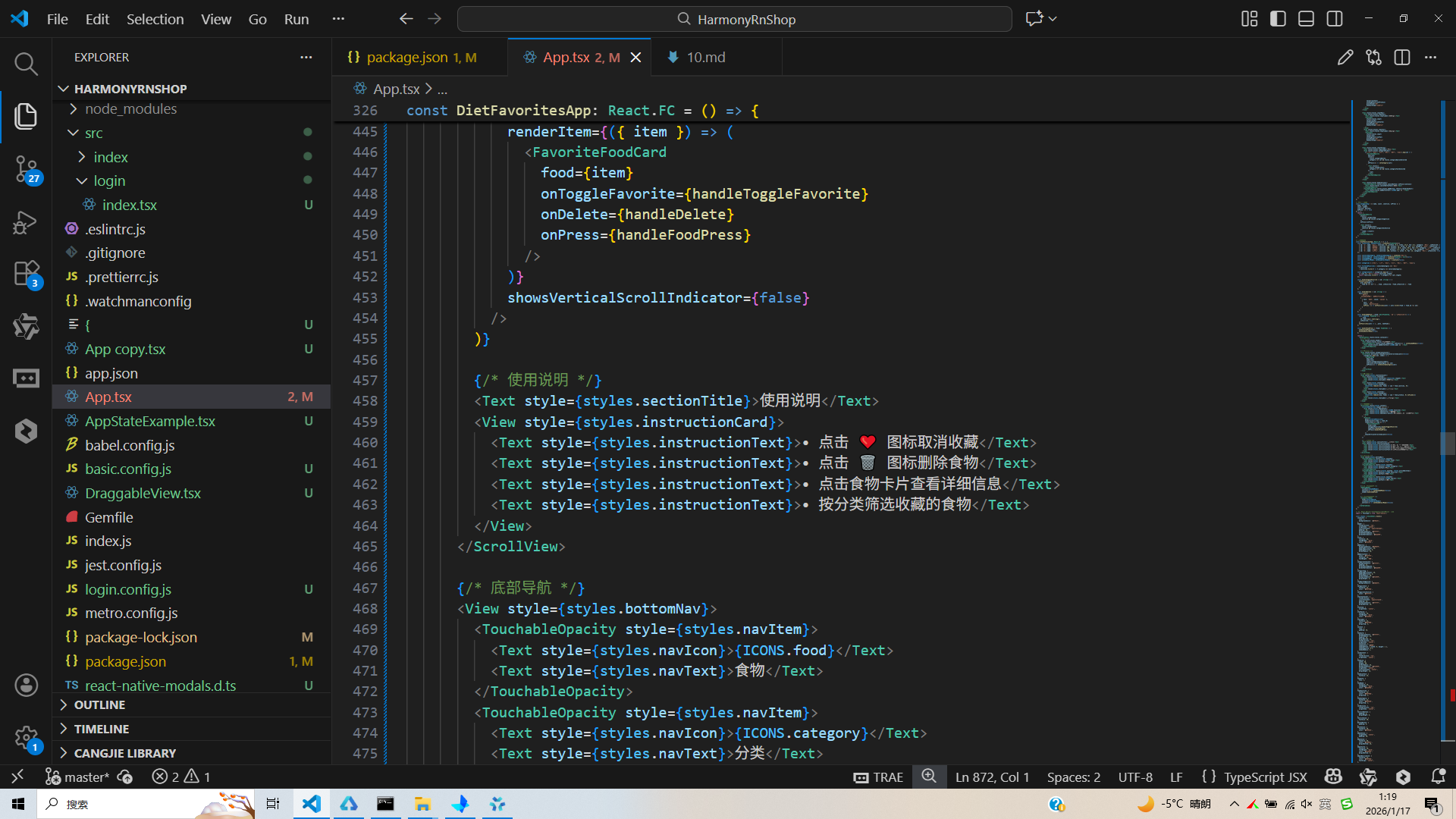
打包
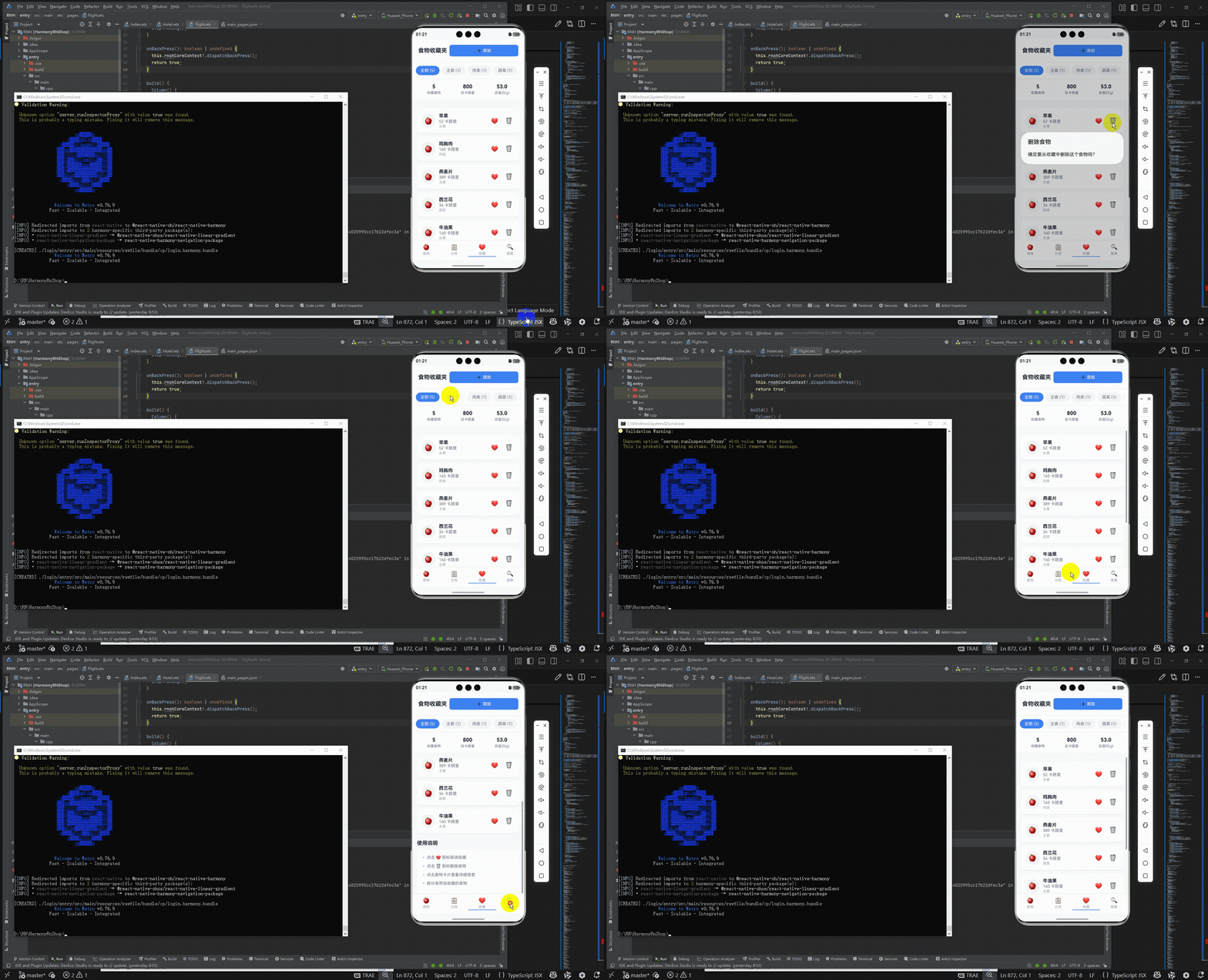
接下来通过打包命令npn run harmony将reactNative的代码打包成为bundle,这样可以进行在开源鸿蒙OpenHarmony中进行使用。

打包之后再将打包后的鸿蒙OpenHarmony文件拷贝到鸿蒙的DevEco-Studio工程目录去:

最后运行效果图如下显示:
欢迎大家加入开源鸿蒙跨平台开发者社区,一起共建开源鸿蒙跨平台生态。

作为“人工智能6S店”的官方数字引擎,为AI开发者与企业提供一个覆盖软硬件全栈、一站式门户。
更多推荐


 8
8 0
0- 0


 已为社区贡献5条内容

所有评论(0)