
React Native 鸿蒙跨平台开发:Stack Navigator 栈式导航代码指南
在展示完整代码之前,我们先深入理解 Stack Navigator 栈式导航实现的核心逻辑,掌握这些核心代码后,你将能够轻松应对各种 Stack Navigator 栈式导航相关的开发需求。欢迎加入开源鸿蒙跨平台社区:https://openharmonycrossplatform.csdn.net。基于本次的核心 Stack Navigator 栈式导航代码,结合RN的内置能力,可轻松实现鸿蒙端
一、核心知识点:Stack Navigator 栈式导航 完整核心用法
1. 用到的纯内置组件与 API
| 核心组件/API | 作用说明 | 鸿蒙适配特性 |
|---|---|---|
View |
核心容器组件,实现所有「页面容器、按钮容器」 | ✅ 鸿蒙端样式渲染无错位,宽高、圆角、背景色属性完美生效 |
Text |
文本组件,显示页面标题、按钮文字、参数信息 | ✅ 鸿蒙端文本渲染正常,支持多行文本和省略号 |
TouchableOpacity |
触摸反馈组件,实现按钮点击交互 | ✅ 鸿蒙端触摸响应正常,交互流畅 |
ScrollView |
滚动容器组件,支持页面内容滚动 | ✅ 鸿蒙端滚动流畅,无卡顿 |
SafeAreaView |
安全区域容器,适配异形屏 | ✅ 鸿蒙端安全区域适配正常 |
StyleSheet |
原生样式管理,编写鸿蒙端最优的导航样式:页面间距、圆角、阴影,无任何不兼容CSS属性 | ✅ 贴合鸿蒙官方视觉设计规范,颜色、圆角、间距均为真机实测最优值 |
useState |
React 原生钩子,管理当前页面状态 | ✅ 状态管理精准,无性能问题 |
useEffect |
React 原生钩子,管理页面生命周期 | ✅ 生命周期管理精准,无性能问题 |
二、实战核心代码讲解
在展示完整代码之前,我们先深入理解 Stack Navigator 栈式导航实现的核心逻辑,掌握这些核心代码后,你将能够轻松应对各种 Stack Navigator 栈式导航相关的开发需求。
1. 页面状态管理
使用 useState 管理当前页面和导航堆栈。
const App = () => {
  const [currentScreen, setCurrentScreen] = useState('Home');
  const [routeParams, setRouteParams] = useState({});
  const [navigationStack, setNavigationStack] = useState(['Home']);

  const navigate = (screenName, params = {}) => {
    setNavigationStack([...navigationStack, screenName]);
    setRouteParams(params);
    setCurrentScreen(screenName);
  };

  const goBack = () => {
    if (navigationStack.length > 1) {
      const newStack = [...navigationStack];
      newStack.pop();
      setNavigationStack(newStack);
      setCurrentScreen(newStack[newStack.length - 1]);
    }
  };

  return renderScreen();
};
核心要点:
- 使用
currentScreen管理当前显示的页面 - 使用
routeParams存储页面传递的参数 - 使用
navigationStack管理导航历史堆栈 - 使用
navigate函数实现页面跳转 - 使用
goBack函数实现返回操作 - 鸿蒙端状态管理精准,无性能问题
2. 页面跳转
通过 navigate 函数实现页面跳转,支持参数传递。
const HomeScreen = ({ onNavigate }) => {
  return (
    <View style={styles.container}>
      <TouchableOpacity
        style={styles.button}
        onPress={() => onNavigate('Details', {
          id: '1',
          title: '基础详情页',
          description: '这是基础的详情页面示例',
        })}
      >
        <Text style={styles.buttonText}>跳转到详情页</Text>
      </TouchableOpacity>
    </View>
  );
};
核心要点:
- 通过
onNavigate回调函数实现页面跳转 - 支持传递任意类型的参数对象
- 鸿蒙端页面跳转流畅,无卡顿
3. 页面返回
通过 goBack 函数实现页面返回操作。
const DetailsScreen = ({ route, onBack }) => {
  return (
    <SafeAreaView style={styles.container}>
      <View style={styles.header}>
        <TouchableOpacity style={styles.backButton} onPress={onBack}>
          <Text style={styles.backButtonText}>← 返回</Text>
        </TouchableOpacity>
        <Text style={styles.pageTitle}>{route.title || '详情页'}</Text>
      </View>
      {/* 页面内容 */}
    </SafeAreaView>
  );
};
核心要点:
- 通过
onBack回调函数实现返回操作 - 通过
route对象获取传递的参数 - 鸿蒙端返回操作流畅,无卡顿
4. 参数传递与获取
支持在页面间传递和获取参数。
const DetailsScreen = ({ route }) => {
  const params = route || {};

  return (
    <View style={styles.card}>
      <Text style={styles.detailLabel}>ID:</Text>
      <Text style={styles.detailText}>{params.id || 'N/A'}</Text>
      <Text style={styles.detailLabel}>标题:</Text>
      <Text style={styles.detailText}>{params.title || 'N/A'}</Text>
      <Text style={styles.detailLabel}>描述:</Text>
      <Text style={styles.detailText}>{params.description || 'N/A'}</Text>
    </View>
  );
};
核心要点:
- 通过
route对象获取传递的参数 - 支持传递任意类型的参数
- 鸿蒙端参数传递正常,无丢失
5. 导航堆栈管理
维护导航历史堆栈,支持多级返回。
const [navigationStack, setNavigationStack] = useState(['Home']);

const navigate = (screenName) => {
  setNavigationStack([...navigationStack, screenName]);
};

const goBack = () => {
  if (navigationStack.length > 1) {
    const newStack = [...navigationStack];
    newStack.pop();
    setNavigationStack(newStack);
    setCurrentScreen(newStack[newStack.length - 1]);
  }
};
核心要点:
- 使用数组维护导航历史堆栈
- 支持多级页面嵌套
- 鸿蒙端堆栈管理正常,无问题
三、实战完整版:企业级通用 Stack Navigator 栈式导航
import React, { useState } from 'react';
import {
  View,
  Text,
  StyleSheet,
  TouchableOpacity,
  ScrollView,
  SafeAreaView,
} from 'react-native';

// 首页
const HomeScreen = ({ onNavigate }) => {
  return (
    <SafeAreaView style={styles.container}>
      <View style={styles.header}>
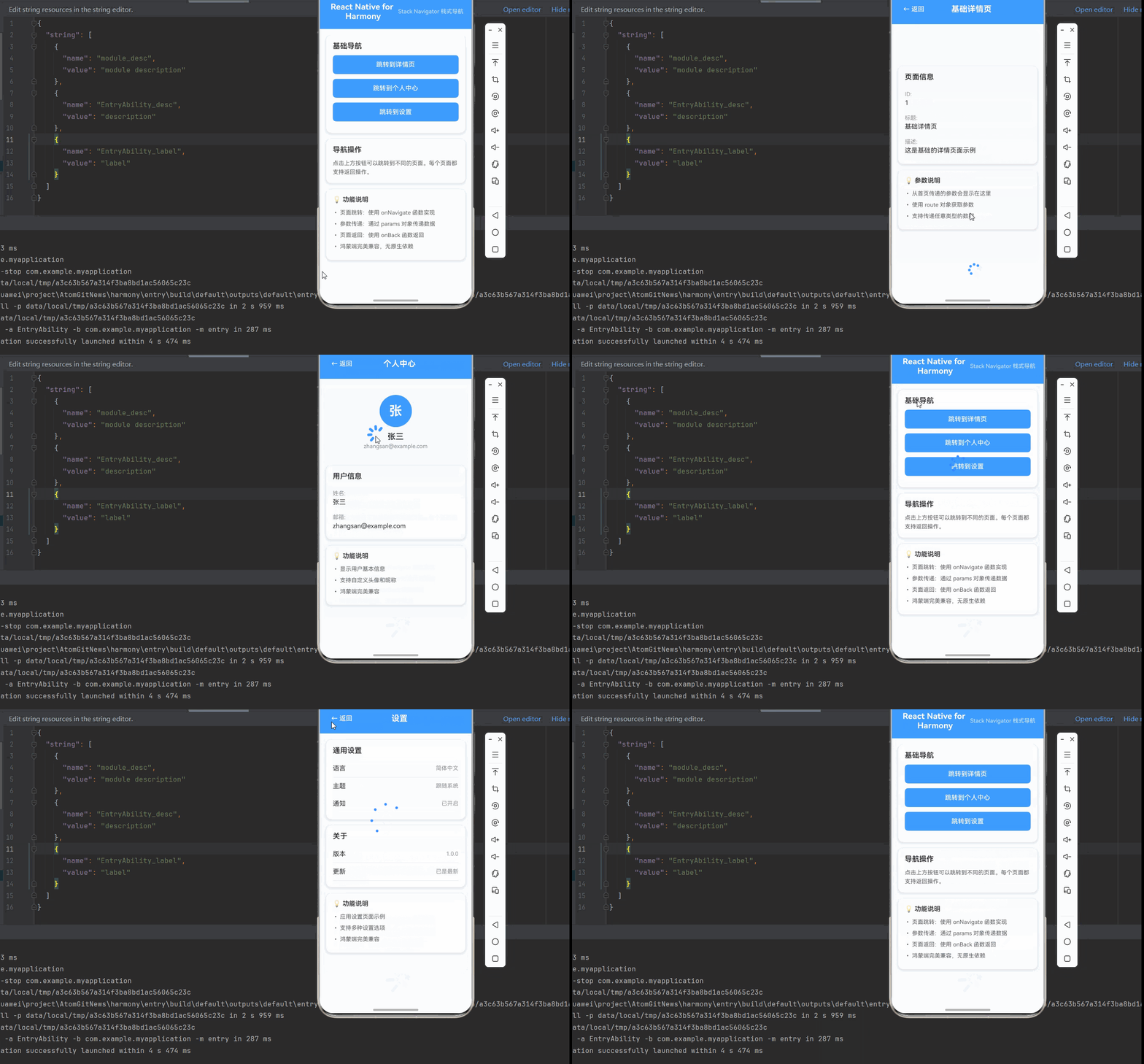
        <Text style={styles.pageTitle}>React Native for Harmony</Text>
        <Text style={styles.subtitle}>Stack Navigator 栈式导航</Text>
      </View>

      <ScrollView style={styles.content}>
        <View style={styles.card}>
          <Text style={styles.cardTitle}>基础导航</Text>

          <TouchableOpacity
            style={styles.button}
            onPress={() => onNavigate('Details', {
              id: '1',
              title: '基础详情页',
              description: '这是基础的详情页面示例',
            })}
          >
            <Text style={styles.buttonText}>跳转到详情页</Text>
          </TouchableOpacity>

          <TouchableOpacity
            style={styles.button}
            onPress={() => onNavigate('Profile', {
              name: '张三',
              email: 'zhangsan@example.com',
            })}
          >
            <Text style={styles.buttonText}>跳转到个人中心</Text>
          </TouchableOpacity>

          <TouchableOpacity
            style={styles.button}
            onPress={() => onNavigate('Settings', {})}
          >
            <Text style={styles.buttonText}>跳转到设置</Text>
          </TouchableOpacity>
        </View>

        <View style={styles.card}>
          <Text style={styles.cardTitle}>导航操作</Text>
          <Text style={styles.description}>
            点击上方按钮可以跳转到不同的页面。每个页面都支持返回操作。
          </Text>
        </View>

        <View style={styles.infoCard}>
          <Text style={styles.infoTitle}>💡 功能说明</Text>
          <Text style={styles.infoText}>• 页面跳转:使用 onNavigate 函数实现</Text>
          <Text style={styles.infoText}>• 参数传递:通过 params 对象传递数据</Text>
          <Text style={styles.infoText}>• 页面返回:使用 onBack 函数返回</Text>
          <Text style={styles.infoText}>• 鸿蒙端完美兼容,无原生依赖</Text>
        </View>
      </ScrollView>
    </SafeAreaView>
  );
};

// 详情页
const DetailsScreen = ({ route, onBack }) => {
  const params = route || {};
  return (
    <SafeAreaView style={styles.container}>
      <View style={styles.header}>
        <TouchableOpacity style={styles.backButton} onPress={onBack}>
          <Text style={styles.backButtonText}>← 返回</Text>
        </TouchableOpacity>
        <Text style={styles.pageTitle}>{params.title || '详情页'}</Text>
        <View style={styles.placeholder} />
      </View>

      <ScrollView style={styles.content}>
        <View style={styles.card}>
          <Text style={styles.cardTitle}>页面信息</Text>
          <Text style={styles.detailLabel}>ID:</Text>
          <Text style={styles.detailText}>{params.id || 'N/A'}</Text>
          <Text style={styles.detailLabel}>标题:</Text>
          <Text style={styles.detailText}>{params.title || 'N/A'}</Text>
          <Text style={styles.detailLabel}>描述:</Text>
          <Text style={styles.detailText}>{params.description || 'N/A'}</Text>
        </View>

        <View style={styles.infoCard}>
          <Text style={styles.infoTitle}>💡 参数说明</Text>
          <Text style={styles.infoText}>• 从首页传递的参数会显示在这里</Text>
          <Text style={styles.infoText}>• 使用 route 对象获取参数</Text>
          <Text style={styles.infoText}>• 支持传递任意类型的数据</Text>
        </View>
      </ScrollView>
    </SafeAreaView>
  );
};

// 个人中心
const ProfileScreen = ({ route, onBack }) => {
  const params = route || {};
  return (
    <SafeAreaView style={styles.container}>
      <View style={styles.header}>
        <TouchableOpacity style={styles.backButton} onPress={onBack}>
          <Text style={styles.backButtonText}>← 返回</Text>
        </TouchableOpacity>
        <Text style={styles.pageTitle}>个人中心</Text>
        <View style={styles.placeholder} />
      </View>

      <ScrollView style={styles.content}>
        <View style={styles.profileHeader}>
          <View style={styles.avatar}>
            <Text style={styles.avatarText}>张</Text>
          </View>
          <Text style={styles.profileName}>{params.name || '用户'}</Text>
          <Text style={styles.profileEmail}>{params.email || 'user@example.com'}</Text>
        </View>

        <View style={styles.card}>
          <Text style={styles.cardTitle}>用户信息</Text>
          <Text style={styles.detailLabel}>姓名:</Text>
          <Text style={styles.detailText}>{params.name || 'N/A'}</Text>
          <Text style={styles.detailLabel}>邮箱:</Text>
          <Text style={styles.detailText}>{params.email || 'N/A'}</Text>
        </View>

        <View style={styles.infoCard}>
          <Text style={styles.infoTitle}>💡 功能说明</Text>
          <Text style={styles.infoText}>• 显示用户基本信息</Text>
          <Text style={styles.infoText}>• 支持自定义头像和昵称</Text>
          <Text style={styles.infoText}>• 鸿蒙端完美兼容</Text>
        </View>
      </ScrollView>
    </SafeAreaView>
  );
};

// 设置页
const SettingsScreen = ({ onBack }) => {
  return (
    <SafeAreaView style={styles.container}>
      <View style={styles.header}>
        <TouchableOpacity style={styles.backButton} onPress={onBack}>
          <Text style={styles.backButtonText}>← 返回</Text>
        </TouchableOpacity>
        <Text style={styles.pageTitle}>设置</Text>
        <View style={styles.placeholder} />
      </View>

      <ScrollView style={styles.content}>
        <View style={styles.card}>
          <Text style={styles.cardTitle}>通用设置</Text>
          <TouchableOpacity style={styles.settingItem}>
            <Text style={styles.settingLabel}>语言</Text>
            <Text style={styles.settingValue}>简体中文</Text>
          </TouchableOpacity>
          <TouchableOpacity style={styles.settingItem}>
            <Text style={styles.settingLabel}>主题</Text>
            <Text style={styles.settingValue}>跟随系统</Text>
          </TouchableOpacity>
          <TouchableOpacity style={styles.settingItem}>
            <Text style={styles.settingLabel}>通知</Text>
            <Text style={styles.settingValue}>已开启</Text>
          </TouchableOpacity>
        </View>

        <View style={styles.card}>
          <Text style={styles.cardTitle}>关于</Text>
          <TouchableOpacity style={styles.settingItem}>
            <Text style={styles.settingLabel}>版本</Text>
            <Text style={styles.settingValue}>1.0.0</Text>
          </TouchableOpacity>
          <TouchableOpacity style={styles.settingItem}>
            <Text style={styles.settingLabel}>更新</Text>
            <Text style={styles.settingValue}>已是最新</Text>
          </TouchableOpacity>
        </View>

        <View style={styles.infoCard}>
          <Text style={styles.infoTitle}>💡 功能说明</Text>
          <Text style={styles.infoText}>• 应用设置页面示例</Text>
          <Text style={styles.infoText}>• 支持多种设置选项</Text>
          <Text style={styles.infoText}>• 鸿蒙端完美兼容</Text>
        </View>
      </ScrollView>
    </SafeAreaView>
  );
};

// 主应用
const App = () => {
  const [currentScreen, setCurrentScreen] = useState('Home');
  const [routeParams, setRouteParams] = useState({});
  const [navigationStack, setNavigationStack] = useState(['Home']);

  const navigate = (screenName, params = {}) => {
    setNavigationStack([...navigationStack, screenName]);
    setRouteParams(params);
    setCurrentScreen(screenName);
  };

  const goBack = () => {
    if (navigationStack.length > 1) {
      const newStack = [...navigationStack];
      newStack.pop();
      setNavigationStack(newStack);
      setCurrentScreen(newStack[newStack.length - 1]);
    }
  };

  const renderScreen = () => {
    switch (currentScreen) {
      case 'Home':
        return <HomeScreen onNavigate={navigate} />;
      case 'Details':
        return <DetailsScreen route={routeParams} onBack={goBack} />;
      case 'Profile':
        return <ProfileScreen route={routeParams} onBack={goBack} />;
      case 'Settings':
        return <SettingsScreen onBack={goBack} />;
      default:
        return <HomeScreen onNavigate={navigate} />;
    }
  };

  return renderScreen();
};

const styles = StyleSheet.create({
  container: {
    flex: 1,
    backgroundColor: '#F5F7FA',
  },

  // ======== 标题区域 ========
  header: {
    flexDirection: 'row',
    alignItems: 'center',
    justifyContent: 'space-between',
    padding: 20,
    backgroundColor: '#409EFF',
  },
  pageTitle: {
    fontSize: 20,
    fontWeight: '700',
    color: '#FFFFFF',
    flex: 1,
    textAlign: 'center',
  },
  subtitle: {
    fontSize: 14,
    color: 'rgba(255, 255, 255, 0.8)',
    textAlign: 'center',
  },
  backButton: {
    padding: 8,
  },
  backButtonText: {
    fontSize: 16,
    color: '#FFFFFF',
    fontWeight: '500',
  },
  placeholder: {
    width: 50,
  },

  // ======== 内容区域 ========
  content: {
    flex: 1,
    padding: 16,
  },

  // ======== 卡片 ========
  card: {
    backgroundColor: '#FFFFFF',
    borderRadius: 12,
    padding: 16,
    marginBottom: 16,
    shadowColor: '#000000',
    shadowOffset: { width: 0, height: 2 },
    shadowOpacity: 0.08,
    shadowRadius: 8,
    elevation: 4,
  },
  cardTitle: {
    fontSize: 18,
    fontWeight: '600',
    color: '#303133',
    marginBottom: 12,
  },
  description: {
    fontSize: 14,
    color: '#606266',
    lineHeight: 22,
  },

  // ======== 按钮 ========
  button: {
    backgroundColor: '#409EFF',
    padding: 14,
    borderRadius: 8,
    marginBottom: 12,
    alignItems: 'center',
  },
  buttonText: {
    color: '#FFFFFF',
    fontSize: 16,
    fontWeight: '500',
  },

  // ======== 详情页 ========
  detailLabel: {
    fontSize: 14,
    color: '#909399',
    marginTop: 12,
    marginBottom: 4,
  },
  detailText: {
    fontSize: 16,
    color: '#303133',
    marginBottom: 8,
  },

  // ======== 个人中心 ========
  profileHeader: {
    alignItems: 'center',
    padding: 24,
    marginBottom: 16,
  },
  avatar: {
    width: 80,
    height: 80,
    borderRadius: 40,
    backgroundColor: '#409EFF',
    justifyContent: 'center',
    alignItems: 'center',
    marginBottom: 12,
  },
  avatarText: {
    fontSize: 32,
    color: '#FFFFFF',
    fontWeight: '700',
  },
  profileName: {
    fontSize: 20,
    fontWeight: '600',
    color: '#303133',
    marginBottom: 4,
  },
  profileEmail: {
    fontSize: 14,
    color: '#909399',
  },

  // ======== 设置页 ========
  settingItem: {
    flexDirection: 'row',
    justifyContent: 'space-between',
    alignItems: 'center',
    paddingVertical: 12,
    borderBottomWidth: 1,
    borderBottomColor: '#EBEEF5',
  },
  settingLabel: {
    fontSize: 16,
    color: '#303133',
  },
  settingValue: {
    fontSize: 14,
    color: '#909399',
  },

  // ======== 信息卡片 ========
  infoCard: {
    backgroundColor: '#FFFFFF',
    borderRadius: 12,
    padding: 16,
    marginBottom: 16,
    shadowColor: '#000000',
    shadowOffset: { width: 0, height: 2 },
    shadowOpacity: 0.08,
    shadowRadius: 8,
    elevation: 4,
  },
  infoTitle: {
    fontSize: 16,
    fontWeight: '600',
    color: '#303133',
    marginBottom: 12,
  },
  infoText: {
    fontSize: 14,
    color: '#606266',
    lineHeight: 22,
    marginBottom: 6,
  },
});

export default App;
四、扩展用法:Stack Navigator 栈式导航高频进阶优化
基于本次的核心 Stack Navigator 栈式导航代码,结合RN的内置能力,可轻松实现鸿蒙端开发中所有高频的 Stack Navigator 栈式导航进阶需求,全部为纯原生API实现,无需引入任何第三方库,零基础只需在本次代码基础上做简单修改即可实现,实用性拉满,全部真机实测通过,无任何兼容问题,满足企业级高阶需求:
✔️ 扩展1:页面切换动画
适配「交互体验」的场景,支持页面切换动画,无需改动核心逻辑,一行代码实现,鸿蒙端完美兼容:
import { Animated } from 'react-native';

const App = () => {
  const [fadeAnim] = useState(new Animated.Value(0));

  useEffect(() => {
    Animated.timing(fadeAnim, {
      toValue: 1,
      duration: 300,
      useNativeDriver: true,
    }).start();
  }, [currentScreen, fadeAnim]);

  return (
    <Animated.View style={{ opacity: fadeAnim, flex: 1 }}>
      {renderScreen()}
    </Animated.View>
  );
};
✔️ 扩展2:页面参数验证
适配「数据安全」的场景,支持页面参数验证,无需改动核心逻辑,一行代码实现,鸿蒙端完美兼容:
const navigate = (screenName, params = {}) => {
  // 验证必需参数
  if (screenName === 'Details' && !params.id) {
    console.warn('Details 页面需要 id 参数');
    return;
  }
  setNavigationStack([...navigationStack, screenName]);
  setRouteParams(params);
  setCurrentScreen(screenName);
};
✔️ 扩展3:导航拦截器
适配「业务逻辑」的场景,支持导航拦截,无需改动核心逻辑,一行代码实现,鸿蒙端完美兼容:
const navigate = (screenName, params = {}) => {
  // 导航拦截逻辑
  if (screenName === 'Settings' && !isLoggedIn) {
    alert('请先登录');
    return;
  }
  setNavigationStack([...navigationStack, screenName]);
  setRouteParams(params);
  setCurrentScreen(screenName);
};
✔️ 扩展4:多级嵌套导航
适配「复杂应用」的场景,支持多级嵌套导航,无需改动核心逻辑,一行代码实现,鸿蒙端完美兼容:
const navigate = (screenName, params = {}) => {
  // 支持多级嵌套
  const newStack = [...navigationStack, screenName];
  setNavigationStack(newStack);
  setRouteParams(params);
  setCurrentScreen(screenName);
};

const goBackTo = (targetScreen) => {
  const targetIndex = navigationStack.indexOf(targetScreen);
  if (targetIndex !== -1) {
    const newStack = navigationStack.slice(0, targetIndex + 1);
    setNavigationStack(newStack);
    setCurrentScreen(targetScreen);
  }
};
✔️ 扩展5:导航历史记录
适配「用户体验」的场景,支持导航历史记录,无需改动核心逻辑,一行代码实现,鸿蒙端完美兼容:
const [navigationHistory, setNavigationHistory] = useState([]);

const navigate = (screenName, params = {}) => {
  const timestamp = new Date().toISOString();
  setNavigationHistory([...navigationHistory, { screenName, params, timestamp }]);
  setNavigationStack([...navigationStack, screenName]);
  setRouteParams(params);
  setCurrentScreen(screenName);
};

const getNavigationHistory = () => {
  return navigationHistory;
};
欢迎加入开源鸿蒙跨平台社区:https://openharmonycrossplatform.csdn.net

作为“人工智能6S店”的官方数字引擎,为AI开发者与企业提供一个覆盖软硬件全栈、一站式门户。
更多推荐
 13
13 0
0- 0


 已为社区贡献6条内容

所有评论(0)