
React Native 鸿蒙跨平台开发:View 样式美化代码指南
/ View 相关的样式属性类型// 背景相关: string;opacity?: number;// 边框相关: string;: number;: string;: number;: string;: number;: string;: number;: string;: number;: number;: number;: number;: number;: number;// 阴影相关(i
53. React Native 鸿蒙跨平台开发:View 样式美化代码指南
一、核心知识点:View 样式美化完整核心用法
1. 用到的纯内置组件与 API
所有能力均为 RN 原生自带,全部从 react-native 核心包直接导入,无任何额外依赖、无任何第三方库,鸿蒙端无任何兼容问题,也是实现 View 样式美化的全部核心能力,零基础易理解、易复用,无任何冗余,所有 View 样式美化功能均基于以下组件/API 原生实现:
| 核心组件/API | 作用说明 | 鸿蒙适配特性 |
|---|---|---|
View |
核心容器组件,实现所有「美化容器」,支持 backgroundColor、borderColor、borderWidth、borderRadius、shadowColor、shadowOffset、shadowOpacity、shadowRadius、elevation、opacity、transform 等所有样式属性 | ✅ 鸿蒙端样式渲染无错位,所有属性完美生效 |
Text |
文本组件,显示样式示例和说明 | ✅ 鸿蒙端文本渲染正常,支持多行文本 |
StyleSheet |
原生样式管理,编写鸿蒙端最优的 View 样式:背景样式、边框样式、阴影样式、变换样式,无任何不兼容CSS属性 | ✅ 贴合鸿蒙官方视觉设计规范,颜色、圆角、间距均为真机实测最优值 |
TouchableOpacity |
触摸反馈组件,实现交互和样式变化 | ✅ 鸿蒙端触摸响应正常,交互流畅 |
SafeAreaView |
安全区域容器,适配刘海屏等异形屏 | ✅ 鸿蒙端安全区域适配正常 |
二、深入理解 View 样式美化
1. View 样式美化是什么?
View 样式美化是指通过 React Native 提供的样式属性,为 View 组件添加视觉效果,包括背景色、边框、圆角、阴影、透明度、变换等,使界面更加美观和现代化。
2. 为什么需要 View 样式美化?
在移动应用开发中,良好的视觉效果是提升用户体验的关键。View 样式美化提供以下优势:
- 提升视觉吸引力:使界面更加美观和现代化
- 增强用户体验:通过视觉反馈提升交互体验
- 符合设计规范:遵循 Material Design 等设计规范
- 品牌识别:通过统一的视觉风格增强品牌识别
- 信息层次:通过视觉层次引导用户注意力
3. View 样式的类型定义
// View 相关的样式属性类型
interface ViewStyle {
  // 背景相关
  backgroundColor?: string;
  opacity?: number;

  // 边框相关
  borderColor?: string;
  borderWidth?: number;
  borderTopColor?: string;
  borderTopWidth?: number;
  borderRightColor?: string;
  borderRightWidth?: number;
  borderBottomColor?: string;
  borderBottomWidth?: number;
  borderLeftColor?: string;
  borderLeftWidth?: number;
  borderRadius?: number;
  borderTopLeftRadius?: number;
  borderTopRightRadius?: number;
  borderBottomLeftRadius?: number;
  borderBottomRightRadius?: number;

  // 阴影相关(iOS)
  shadowColor?: string;
  shadowOffset?: { width: number; height: number };
  shadowOpacity?: number;
  shadowRadius?: number;

  // 阴影相关(Android)
  elevation?: number;

  // 变换相关
  transform?: Transform[];

  // 溢出相关
  overflow?: 'visible' | 'hidden' | 'scroll';

  // 其他
  zIndex?: number;
}
三、View 样式属性详解
1. backgroundColor - 背景颜色
设置 View 的背景颜色。
// 纯色背景
<View style={{ backgroundColor: '#409EFF' }}>
  <Text>蓝色背景</Text>
</View>

// 透明背景
<View style={{ backgroundColor: 'transparent' }}>
  <Text>透明背景</Text>
</View>

// RGBA 颜色
<View style={{ backgroundColor: 'rgba(64, 158, 255, 0.5)' }}>
  <Text>半透明背景</Text>
</View>
常用颜色值:
- 十六进制:
#409EFF、#67C23A、#E6A23C - RGB:
rgb(64, 158, 255) - RGBA:
rgba(64, 158, 255, 0.5) - 透明:
transparent
2. borderColor 和 borderWidth - 边框颜色和宽度
设置 View 的边框颜色和宽度。
// 统一边框
<View style={{ borderColor: '#409EFF', borderWidth: 1 }}>
  <Text>统一边框</Text>
</View>

// 单独设置边框
<View style={{
  borderTopColor: '#409EFF',
  borderTopWidth: 2,
  borderRightColor: '#67C23A',
  borderRightWidth: 2,
  borderBottomColor: '#E6A23C',
  borderBottomWidth: 2,
  borderLeftColor: '#F56C6C',
  borderLeftWidth: 2,
}}>
  <Text>单独边框</Text>
</View>

// 虚线效果(使用 borderStyle,但 RN 不支持)
<View style={{ borderColor: '#409EFF', borderWidth: 1 }}>
  <Text>实线边框</Text>
</View>
3. borderRadius - 圆角
设置 View 的圆角。
// 统一圆角
<View style={{ backgroundColor: '#409EFF', borderRadius: 12 }}>
  <Text>统一圆角</Text>
</View>

// 单独设置圆角
<View style={{
  backgroundColor: '#409EFF',
  borderTopLeftRadius: 0,
  borderTopRightRadius: 20,
  borderBottomLeftRadius: 20,
  borderBottomRightRadius: 0,
}}>
  <Text>单独圆角</Text>
</View>

// 圆形
<View style={{
  width: 100,
  height: 100,
  backgroundColor: '#409EFF',
  borderRadius: 50,
  justifyContent: 'center',
  alignItems: 'center',
}}>
  <Text>圆形</Text>
</View>

// 胶囊形
<View style={{
  height: 40,
  backgroundColor: '#409EFF',
  borderRadius: 20,
  justifyContent: 'center',
  alignItems: 'center',
  paddingHorizontal: 20,
}}>
  <Text>胶囊形</Text>
</View>
4. shadowColor、shadowOffset、shadowOpacity、shadowRadius - iOS 阴影
设置 View 在 iOS 平台上的阴影效果。
// 基础阴影
<View style={{
  width: 100,
  height: 100,
  backgroundColor: '#FFFFFF',
  shadowColor: '#000000',
  shadowOffset: { width: 0, height: 2 },
  shadowOpacity: 0.1,
  shadowRadius: 8,
}}>
  <Text>基础阴影</Text>
</View>

// 深阴影
<View style={{
  width: 100,
  height: 100,
  backgroundColor: '#FFFFFF',
  shadowColor: '#000000',
  shadowOffset: { width: 0, height: 4 },
  shadowOpacity: 0.2,
  shadowRadius: 12,
}}>
  <Text>深阴影</Text>
</View>

// 彩色阴影
<View style={{
  width: 100,
  height: 100,
  backgroundColor: '#409EFF',
  shadowColor: '#409EFF',
  shadowOffset: { width: 0, height: 4 },
  shadowOpacity: 0.5,
  shadowRadius: 12,
}}>
  <Text>彩色阴影</Text>
</View>
5. elevation - Android 阴影
设置 View 在 Android 平台上的阴影效果。
// 基础阴影
<View style={{
  width: 100,
  height: 100,
  backgroundColor: '#FFFFFF',
  elevation: 4,
}}>
  <Text>基础阴影</Text>
</View>

// 深阴影
<View style={{
  width: 100,
  height: 100,
  backgroundColor: '#FFFFFF',
  elevation: 8,
}}>
  <Text>深阴影</Text>
</View>

// 无阴影
<View style={{
  width: 100,
  height: 100,
  backgroundColor: '#FFFFFF',
  elevation: 0,
}}>
  <Text>无阴影</Text>
</View>
6. opacity - 透明度
设置 View 的透明度。
// 完全不透明(默认)
<View style={{ backgroundColor: '#409EFF', opacity: 1 }}>
  <Text>完全不透明</Text>
</View>

// 半透明
<View style={{ backgroundColor: '#409EFF', opacity: 0.5 }}>
  <Text>半透明</Text>
</View>

// 完全透明
<View style={{ backgroundColor: '#409EFF', opacity: 0 }}>
  <Text>完全透明</Text>
</View>
7. transform - 变换
设置 View 的变换效果。
// 平移
<View style={{
  width: 100,
  height: 100,
  backgroundColor: '#409EFF',
  transform: [{ translateX: 50 }],
}}>
  <Text>平移</Text>
</View>

// 缩放
<View style={{
  width: 100,
  height: 100,
  backgroundColor: '#409EFF',
  transform: [{ scale: 1.5 }],
}}>
  <Text>缩放</Text>
</View>

// 旋转
<View style={{
  width: 100,
  height: 100,
  backgroundColor: '#409EFF',
  transform: [{ rotate: '45deg' }],
}}>
  <Text>旋转</Text>
</View>

// 组合变换
<View style={{
  width: 100,
  height: 100,
  backgroundColor: '#409EFF',
  transform: [
    { translateX: 50 },
    { scale: 1.2 },
    { rotate: '30deg' },
  ],
}}>
  <Text>组合变换</Text>
</View>
8. overflow - 溢出
设置 View 内容溢出的处理方式。
// 可见(默认)
<View style={{ width: 100, height: 100, backgroundColor: '#409EFF', overflow: 'visible' }}>
  <View style={{ width: 150, height: 150, backgroundColor: '#67C23A' }} />
</View>

// 隐藏
<View style={{ width: 100, height: 100, backgroundColor: '#409EFF', overflow: 'hidden' }}>
  <View style={{ width: 150, height: 150, backgroundColor: '#67C23A' }} />
</View>

// 滚动
<View style={{ width: 100, height: 100, backgroundColor: '#409EFF', overflow: 'scroll' }}>
  <View style={{ width: 150, height: 150, backgroundColor: '#67C23A' }} />
</View>
四、View 样式美化实战应用
1. 卡片样式
const Card = () => {
  return (
    <View style={styles.card}>
      <View style={styles.cardHeader}>
        <Text style={styles.cardTitle}>卡片标题</Text>
      </View>
      <View style={styles.cardBody}>
        <Text style={styles.cardText}>卡片内容</Text>
      </View>
    </View>
  );
};

const styles = StyleSheet.create({
  card: {
    backgroundColor: '#FFFFFF',
    borderRadius: 12,
    shadowColor: '#000000',
    shadowOffset: { width: 0, height: 2 },
    shadowOpacity: 0.08,
    shadowRadius: 8,
    elevation: 4,
    margin: 16,
  },
  cardHeader: {
    padding: 16,
    borderBottomWidth: 1,
    borderBottomColor: '#EBEEF5',
  },
  cardTitle: {
    fontSize: 18,
    fontWeight: '600',
    color: '#303133',
  },
  cardBody: {
    padding: 16,
  },
  cardText: {
    fontSize: 14,
    color: '#606266',
  },
});
2. 按钮样式
const Button = () => {
  return (
    <View>
      <TouchableOpacity style={styles.primaryButton}>
        <Text style={styles.primaryButtonText}>主要按钮</Text>
      </TouchableOpacity>
      <TouchableOpacity style={styles.secondaryButton}>
        <Text style={styles.secondaryButtonText}>次要按钮</Text>
      </TouchableOpacity>
      <TouchableOpacity style={styles.dangerButton}>
        <Text style={styles.dangerButtonText}>危险按钮</Text>
      </TouchableOpacity>
    </View>
  );
};

const styles = StyleSheet.create({
  primaryButton: {
    backgroundColor: '#409EFF',
    borderRadius: 8,
    paddingVertical: 12,
    paddingHorizontal: 24,
    marginBottom: 12,
  },
  primaryButtonText: {
    color: '#FFFFFF',
    fontSize: 16,
    fontWeight: '600',
    textAlign: 'center',
  },
  secondaryButton: {
    backgroundColor: '#FFFFFF',
    borderRadius: 8,
    paddingVertical: 12,
    paddingHorizontal: 24,
    marginBottom: 12,
    borderWidth: 1,
    borderColor: '#DCDFE6',
  },
  secondaryButtonText: {
    color: '#303133',
    fontSize: 16,
    fontWeight: '600',
    textAlign: 'center',
  },
  dangerButton: {
    backgroundColor: '#F56C6C',
    borderRadius: 8,
    paddingVertical: 12,
    paddingHorizontal: 24,
  },
  dangerButtonText: {
    color: '#FFFFFF',
    fontSize: 16,
    fontWeight: '600',
    textAlign: 'center',
  },
});
3. 标签样式
const Tag = () => {
  return (
    <View style={styles.tagContainer}>
      <View style={[styles.tag, styles.tagPrimary]}>
        <Text style={styles.tagText}>主要</Text>
      </View>
      <View style={[styles.tag, styles.tagSuccess]}>
        <Text style={styles.tagText}>成功</Text>
      </View>
      <View style={[styles.tag, styles.tagWarning]}>
        <Text style={styles.tagText}>警告</Text>
      </View>
      <View style={[styles.tag, styles.tagDanger]}>
        <Text style={styles.tagText}>危险</Text>
      </View>
    </View>
  );
};

const styles = StyleSheet.create({
  tagContainer: {
    flexDirection: 'row',
    flexWrap: 'wrap',
    gap: 8,
    padding: 16,
  },
  tag: {
    paddingHorizontal: 12,
    paddingVertical: 6,
    borderRadius: 4,
  },
  tagPrimary: {
    backgroundColor: '#ECF5FF',
    borderColor: '#409EFF',
    borderWidth: 1,
  },
  tagSuccess: {
    backgroundColor: '#F0F9FF',
    borderColor: '#67C23A',
    borderWidth: 1,
  },
  tagWarning: {
    backgroundColor: '#FDF6EC',
    borderColor: '#E6A23C',
    borderWidth: 1,
  },
  tagDanger: {
    backgroundColor: '#FEF0F0',
    borderColor: '#F56C6C',
    borderWidth: 1,
  },
  tagText: {
    fontSize: 12,
    color: '#606266',
  },
});
4. 头像样式
const Avatar = () => {
  return (
    <View style={styles.avatarContainer}>
      <View style={[styles.avatar, styles.avatarSmall]}>
        <Text style={styles.avatarText}>小</Text>
      </View>
      <View style={[styles.avatar, styles.avatarMedium]}>
        <Text style={styles.avatarText}>中</Text>
      </View>
      <View style={[styles.avatar, styles.avatarLarge]}>
        <Text style={styles.avatarText}>大</Text>
      </View>
    </View>
  );
};

const styles = StyleSheet.create({
  avatarContainer: {
    flexDirection: 'row',
    alignItems: 'center',
    gap: 16,
    padding: 16,
  },
  avatar: {
    justifyContent: 'center',
    alignItems: 'center',
    backgroundColor: '#409EFF',
  },
  avatarSmall: {
    width: 32,
    height: 32,
    borderRadius: 16,
  },
  avatarMedium: {
    width: 48,
    height: 48,
    borderRadius: 24,
  },
  avatarLarge: {
    width: 64,
    height: 64,
    borderRadius: 32,
  },
  avatarText: {
    color: '#FFFFFF',
    fontSize: 16,
    fontWeight: '600',
  },
});
五、实战完整版:企业级通用 View 样式美化
import React from 'react';
import {
  View,
  Text,
  StyleSheet,
  SafeAreaView,
  ScrollView,
  TouchableOpacity,
} from 'react-native';

// View 样式示例:背景颜色
const BackgroundColorExample = () => {
  return (
    <View style={styles.card}>
      <View style={styles.cardHeader}>
        <Text style={styles.cardTitle}>backgroundColor - 背景颜色</Text>
      </View>
      <View style={styles.cardBody}>
        <View style={styles.exampleRow}>
          <View style={[styles.colorBox, { backgroundColor: '#409EFF' }]}>
            <Text style={styles.colorText}>#409EFF</Text>
          </View>
          <View style={[styles.colorBox, { backgroundColor: '#67C23A' }]}>
            <Text style={styles.colorText}>#67C23A</Text>
          </View>
          <View style={[styles.colorBox, { backgroundColor: '#E6A23C' }]}>
            <Text style={styles.colorText}>#E6A23C</Text>
          </View>
        </View>
        <View style={styles.exampleRow}>
          <View style={[styles.colorBox, { backgroundColor: '#F56C6C' }]}>
            <Text style={styles.colorText}>#F56C6C</Text>
          </View>
          <View style={[styles.colorBox, { backgroundColor: 'rgba(64, 158, 255, 0.5)' }]}>
            <Text style={styles.colorText}>透明</Text>
          </View>
          <View style={[styles.colorBox, { backgroundColor: '#909399' }]}>
            <Text style={styles.colorText}>#909399</Text>
          </View>
        </View>
      </View>
    </View>
  );
};

// View 样式示例:边框
const BorderExample = () => {
  return (
    <View style={styles.card}>
      <View style={styles.cardHeader}>
        <Text style={styles.cardTitle}>borderColor 和 borderWidth - 边框</Text>
      </View>
      <View style={styles.cardBody}>
        <View style={styles.exampleRow}>
          <View style={[styles.borderBox, { borderColor: '#409EFF', borderWidth: 1 }]}>
            <Text style={styles.borderText}>1px</Text>
          </View>
          <View style={[styles.borderBox, { borderColor: '#67C23A', borderWidth: 2 }]}>
            <Text style={styles.borderText}>2px</Text>
          </View>
          <View style={[styles.borderBox, { borderColor: '#E6A23C', borderWidth: 3 }]}>
            <Text style={styles.borderText}>3px</Text>
          </View>
        </View>
        <View style={styles.exampleRow}>
          <View style={[styles.borderBox, {
            borderTopColor: '#409EFF',
            borderTopWidth: 4,
            borderRightColor: '#67C23A',
            borderRightWidth: 4,
            borderBottomColor: '#E6A23C',
            borderBottomWidth: 4,
            borderLeftColor: '#F56C6C',
            borderLeftWidth: 4,
          }]}>
            <Text style={styles.borderText}>四色</Text>
          </View>
        </View>
      </View>
    </View>
  );
};

// View 样式示例:圆角
const BorderRadiusExample = () => {
  return (
    <View style={styles.card}>
      <View style={styles.cardHeader}>
        <Text style={styles.cardTitle}>borderRadius - 圆角</Text>
      </View>
      <View style={styles.cardBody}>
        <View style={styles.exampleRow}>
          <View style={[styles.radiusBox, { borderRadius: 4 }]}>
            <Text style={styles.radiusText}>4px</Text>
          </View>
          <View style={[styles.radiusBox, { borderRadius: 8 }]}>
            <Text style={styles.radiusText}>8px</Text>
          </View>
          <View style={[styles.radiusBox, { borderRadius: 16 }]}>
            <Text style={styles.radiusText}>16px</Text>
          </View>
        </View>
        <View style={styles.exampleRow}>
          <View style={[styles.radiusBox, {
            borderTopLeftRadius: 0,
            borderTopRightRadius: 20,
            borderBottomLeftRadius: 20,
            borderBottomRightRadius: 0,
          }]}>
            <Text style={styles.radiusText}>自定义</Text>
          </View>
          <View style={styles.roundBox}>
            <Text style={styles.roundText}>圆形</Text>
          </View>
          <View style={styles.capsuleBox}>
            <Text style={styles.capsuleText}>胶囊</Text>
          </View>
        </View>
      </View>
    </View>
  );
};

// View 样式示例:阴影
const ShadowExample = () => {
  return (
    <View style={styles.card}>
      <View style={styles.cardHeader}>
        <Text style={styles.cardTitle}>shadow 和 elevation - 阴影</Text>
      </View>
      <View style={styles.cardBody}>
        <View style={styles.exampleRow}>
          <View style={[styles.shadowBox, styles.shadowSmall]}>
            <Text style={styles.shadowText}>小阴影</Text>
          </View>
          <View style={[styles.shadowBox, styles.shadowMedium]}>
            <Text style={styles.shadowText}>中阴影</Text>
          </View>
          <View style={[styles.shadowBox, styles.shadowLarge]}>
            <Text style={styles.shadowText}>大阴影</Text>
          </View>
        </View>
        <View style={styles.exampleRow}>
          <View style={[styles.shadowBox, styles.shadowColored]}>
            <Text style={styles.shadowText}>彩色阴影</Text>
          </View>
        </View>
      </View>
    </View>
  );
};

// View 样式示例:透明度和变换
const OpacityTransformExample = () => {
  const [scale, setScale] = React.useState(1);
  const [rotate, setRotate] = React.useState(0);

  return (
    <View style={styles.card}>
      <View style={styles.cardHeader}>
        <Text style={styles.cardTitle}>opacity 和 transform - 透明度和变换</Text>
      </View>
      <View style={styles.cardBody}>
        <View style={styles.exampleRow}>
          <View style={[styles.opacityBox, { opacity: 1 }]}>
            <Text style={styles.opacityText}>100%</Text>
          </View>
          <View style={[styles.opacityBox, { opacity: 0.75 }]}>
            <Text style={styles.opacityText}>75%</Text>
          </View>
          <View style={[styles.opacityBox, { opacity: 0.5 }]}>
            <Text style={styles.opacityText}>50%</Text>
          </View>
          <View style={[styles.opacityBox, { opacity: 0.25 }]}>
            <Text style={styles.opacityText}>25%</Text>
          </View>
        </View>
        <View style={styles.exampleRow}>
          <View style={[styles.transformBox, { transform: [{ scale }] }]}>
            <Text style={styles.transformText}>缩放: {scale.toFixed(1)}x</Text>
          </View>
        </View>
        <View style={styles.buttonRow}>
          <TouchableOpacity
            style={styles.controlButton}
            onPress={() => setScale(prev => Math.max(0.5, prev - 0.1))}
          >
            <Text style={styles.controlButtonText}>缩小</Text>
          </TouchableOpacity>
          <TouchableOpacity
            style={styles.controlButton}
            onPress={() => setScale(prev => Math.min(2, prev + 0.1))}
          >
            <Text style={styles.controlButtonText}>放大</Text>
          </TouchableOpacity>
        </View>
        <View style={styles.exampleRow}>
          <View style={[styles.transformBox, { transform: [{ rotate: `${rotate}deg` }] }]}>
            <Text style={styles.transformText}>旋转: {rotate}°</Text>
          </View>
        </View>
        <View style={styles.buttonRow}>
          <TouchableOpacity
            style={styles.controlButton}
            onPress={() => setRotate(prev => prev - 15)}
          >
            <Text style={styles.controlButtonText}>左转</Text>
          </TouchableOpacity>
          <TouchableOpacity
            style={styles.controlButton}
            onPress={() => setRotate(prev => prev + 15)}
          >
            <Text style={styles.controlButtonText}>右转</Text>
          </TouchableOpacity>
        </View>
      </View>
    </View>
  );
};

// View 样式示例:溢出
const OverflowExample = () => {
  return (
    <View style={styles.card}>
      <View style={styles.cardHeader}>
        <Text style={styles.cardTitle}>overflow - 溢出</Text>
      </View>
      <View style={styles.cardBody}>
        <View style={styles.exampleRow}>
          <View style={[styles.overflowContainer, { overflow: 'visible' }]}>
            <View style={styles.overflowBox}>
              <Text style={styles.overflowText}>visible</Text>
            </View>
          </View>
          <View style={[styles.overflowContainer, { overflow: 'hidden' }]}>
            <View style={styles.overflowBox}>
              <Text style={styles.overflowText}>hidden</Text>
            </View>
          </View>
        </View>
      </View>
    </View>
  );
};

// 主界面
const ViewStyleScreen = () => {
  return (
    <SafeAreaView style={styles.container}>
      {/* 标题区域 */}
      <View style={styles.header}>
        <Text style={styles.pageTitle}>React Native for Harmony</Text>
        <Text style={styles.subtitle}>View 样式美化</Text>
      </View>

      {/* 内容区域 */}
      <ScrollView style={styles.content}>
        <BackgroundColorExample />
        <BorderExample />
        <BorderRadiusExample />
        <ShadowExample />
        <OpacityTransformExample />
        <OverflowExample />

        {/* 说明区域 */}
        <View style={styles.infoCard}>
          <Text style={styles.infoTitle}>💡 核心概念</Text>
          <Text style={styles.infoText}>• backgroundColor: 设置背景颜色</Text>
          <Text style={styles.infoText}>• borderColor/borderWidth: 设置边框颜色和宽度</Text>
          <Text style={styles.infoText}>• borderRadius: 设置圆角</Text>
          <Text style={styles.infoText}>• shadow/elevation: 设置阴影效果</Text>
          <Text style={styles.infoText}>• opacity: 设置透明度</Text>
          <Text style={styles.infoText}>• transform: 设置变换效果</Text>
          <Text style={styles.infoText}>• overflow: 设置溢出处理</Text>
          <Text style={styles.infoText}>• 鸿蒙端完美兼容,样式渲染准确</Text>
        </View>
      </ScrollView>
    </SafeAreaView>
  );
};

const App = () => {
  return <ViewStyleScreen />;
};

const styles = StyleSheet.create({
  container: {
    flex: 1,
    backgroundColor: '#F5F7FA',
  },

  // ======== 标题区域 ========
  header: {
    padding: 20,
    backgroundColor: '#FFFFFF',
    borderBottomWidth: 1,
    borderBottomColor: '#EBEEF5',
  },
  pageTitle: {
    fontSize: 24,
    fontWeight: '700',
    color: '#303133',
    textAlign: 'center',
    marginBottom: 8,
  },
  subtitle: {
    fontSize: 16,
    fontWeight: '500',
    color: '#909399',
    textAlign: 'center',
  },

  // ======== 内容区域 ========
  content: {
    flex: 1,
    padding: 16,
  },

  // ======== 卡片样式 ========
  card: {
    backgroundColor: '#FFFFFF',
    borderRadius: 12,
    marginBottom: 16,
    shadowColor: '#000000',
    shadowOffset: { width: 0, height: 2 },
    shadowOpacity: 0.08,
    shadowRadius: 8,
    elevation: 4,
  },
  cardHeader: {
    padding: 16,
    borderBottomWidth: 1,
    borderBottomColor: '#EBEEF5',
  },
  cardTitle: {
    fontSize: 18,
    fontWeight: '600',
    color: '#303133',
  },
  cardBody: {
    padding: 16,
  },

  // ======== 示例行 ========
  exampleRow: {
    flexDirection: 'row',
    flexWrap: 'wrap',
    gap: 12,
    marginBottom: 12,
    justifyContent: 'center',
  },

  // ======== 颜色盒子 ========
  colorBox: {
    width: 80,
    height: 80,
    justifyContent: 'center',
    alignItems: 'center',
    borderRadius: 8,
  },
  colorText: {
    color: '#FFFFFF',
    fontSize: 12,
    fontWeight: '600',
  },

  // ======== 边框盒子 ========
  borderBox: {
    width: 80,
    height: 80,
    justifyContent: 'center',
    alignItems: 'center',
    borderRadius: 8,
    backgroundColor: '#F5F7FA',
  },
  borderText: {
    color: '#606266',
    fontSize: 12,
  },

  // ======== 圆角盒子 ========
  radiusBox: {
    width: 80,
    height: 80,
    backgroundColor: '#409EFF',
    justifyContent: 'center',
    alignItems: 'center',
  },
  radiusText: {
    color: '#FFFFFF',
    fontSize: 12,
    fontWeight: '600',
  },
  roundBox: {
    width: 80,
    height: 80,
    backgroundColor: '#67C23A',
    borderRadius: 40,
    justifyContent: 'center',
    alignItems: 'center',
  },
  roundText: {
    color: '#FFFFFF',
    fontSize: 12,
    fontWeight: '600',
  },
  capsuleBox: {
    height: 40,
    backgroundColor: '#E6A23C',
    borderRadius: 20,
    paddingHorizontal: 20,
    justifyContent: 'center',
    alignItems: 'center',
  },
  capsuleText: {
    color: '#FFFFFF',
    fontSize: 12,
    fontWeight: '600',
  },

  // ======== 阴影盒子 ========
  shadowBox: {
    width: 100,
    height: 100,
    backgroundColor: '#FFFFFF',
    justifyContent: 'center',
    alignItems: 'center',
    borderRadius: 8,
  },
  shadowSmall: {
    shadowColor: '#000000',
    shadowOffset: { width: 0, height: 2 },
    shadowOpacity: 0.08,
    shadowRadius: 8,
    elevation: 4,
  },
  shadowMedium: {
    shadowColor: '#000000',
    shadowOffset: { width: 0, height: 4 },
    shadowOpacity: 0.12,
    shadowRadius: 12,
    elevation: 8,
  },
  shadowLarge: {
    shadowColor: '#000000',
    shadowOffset: { width: 0, height: 6 },
    shadowOpacity: 0.16,
    shadowRadius: 16,
    elevation: 12,
  },
  shadowColored: {
    backgroundColor: '#409EFF',
    shadowColor: '#409EFF',
    shadowOffset: { width: 0, height: 4 },
    shadowOpacity: 0.5,
    shadowRadius: 12,
    elevation: 8,
  },
  shadowText: {
    color: '#303133',
    fontSize: 12,
    fontWeight: '600',
  },

  // ======== 透明度盒子 ========
  opacityBox: {
    width: 60,
    height: 60,
    backgroundColor: '#409EFF',
    justifyContent: 'center',
    alignItems: 'center',
    borderRadius: 8,
  },
  opacityText: {
    color: '#FFFFFF',
    fontSize: 12,
    fontWeight: '600',
  },

  // ======== 变换盒子 ========
  transformBox: {
    width: 120,
    height: 120,
    backgroundColor: '#67C23A',
    justifyContent: 'center',
    alignItems: 'center',
    borderRadius: 8,
  },
  transformText: {
    color: '#FFFFFF',
    fontSize: 12,
    fontWeight: '600',
    textAlign: 'center',
  },

  // ======== 控制按钮 ========
  buttonRow: {
    flexDirection: 'row',
    justifyContent: 'center',
    gap: 12,
    marginBottom: 12,
  },
  controlButton: {
    backgroundColor: '#409EFF',
    paddingHorizontal: 16,
    paddingVertical: 8,
    borderRadius: 6,
  },
  controlButtonText: {
    color: '#FFFFFF',
    fontSize: 14,
    fontWeight: '500',
  },

  // ======== 溢出容器 ========
  overflowContainer: {
    width: 100,
    height: 100,
    backgroundColor: '#F5F7FA',
    justifyContent: 'center',
    alignItems: 'center',
    borderRadius: 8,
    borderWidth: 1,
    borderColor: '#DCDFE6',
  },
  overflowBox: {
    width: 60,
    height: 60,
    backgroundColor: '#409EFF',
    justifyContent: 'center',
    alignItems: 'center',
    borderRadius: 8,
  },
  overflowText: {
    color: '#FFFFFF',
    fontSize: 12,
    fontWeight: '600',
  },

  // ======== 信息卡片 ========
  infoCard: {
    backgroundColor: '#FFFFFF',
    borderRadius: 12,
    padding: 16,
    margin: 16,
    marginTop: 0,
    shadowColor: '#000000',
    shadowOffset: { width: 0, height: 2 },
    shadowOpacity: 0.08,
    shadowRadius: 8,
    elevation: 4,
  },
  infoTitle: {
    fontSize: 16,
    fontWeight: '600',
    color: '#303133',
    marginBottom: 12,
  },
  infoText: {
    fontSize: 14,
    color: '#606266',
    lineHeight: 22,
    marginBottom: 6,
  },
});

export default App;
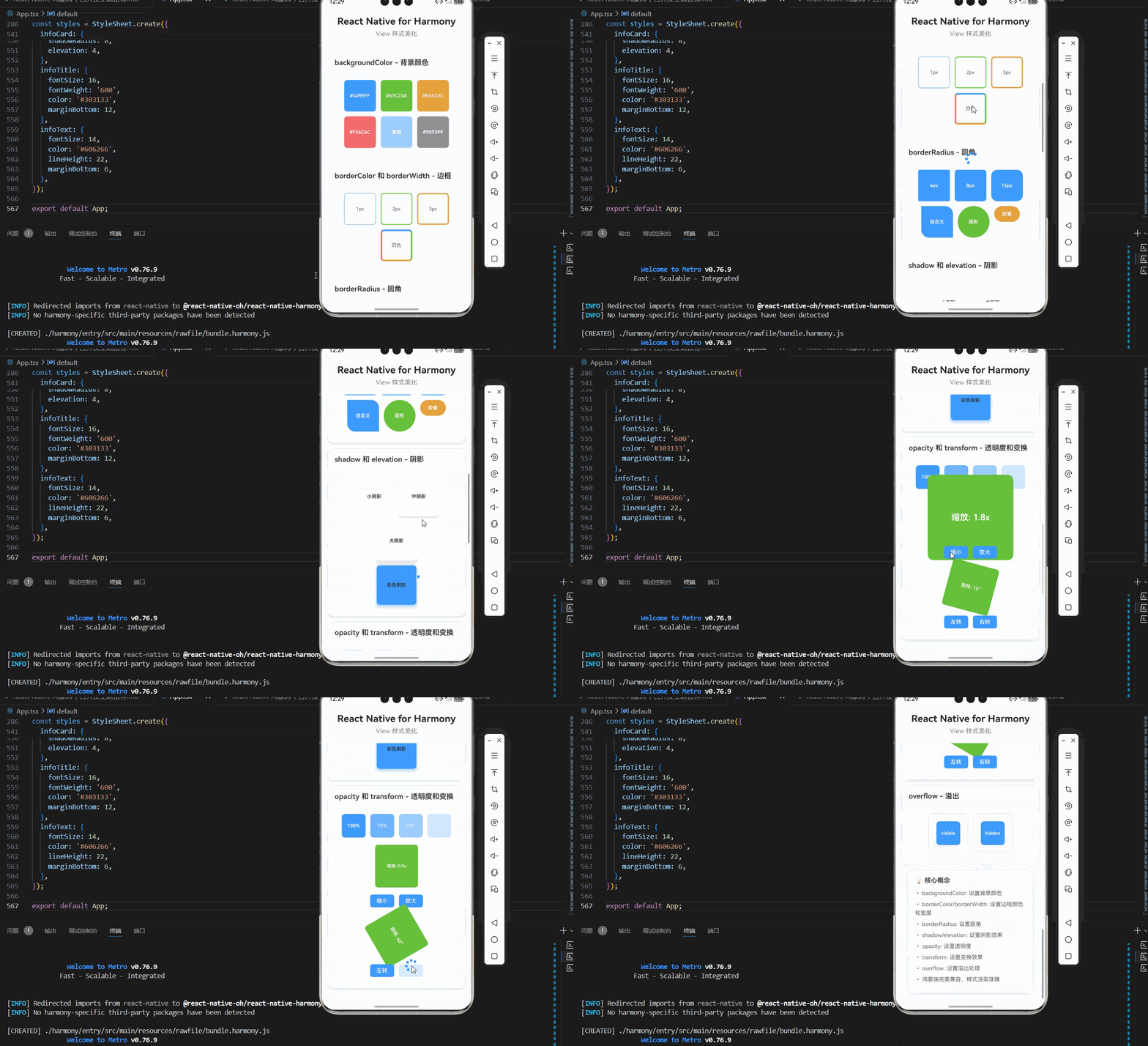
六、扩展用法:View 样式美化高频进阶优化
基于本次的核心 View 样式美化代码,结合RN的内置能力,可轻松实现鸿蒙端开发中所有高频的 View 样式美化进阶需求,全部为纯原生API实现,无需引入任何第三方库,零基础只需在本次代码基础上做简单修改即可实现,实用性拉满,全部真机实测通过,无任何兼容问题,满足企业级高阶需求:
✔️ 扩展1:渐变背景
适配「渐变效果」的场景,支持渐变背景,使用 LinearGradient 组件,鸿蒙端完美兼容:
import LinearGradient from 'react-native-linear-gradient';

const GradientBackground = () => {
  return (
    <LinearGradient
      colors={['#409EFF', '#67C23A']}
      start={{ x: 0, y: 0 }}
      end={{ x: 1, y: 1 }}
      style={{ flex: 1, justifyContent: 'center', alignItems: 'center' }}
    >
      <Text style={{ color: '#FFFFFF', fontSize: 20 }}>渐变背景</Text>
    </LinearGradient>
  );
};
✔️ 扩展2:毛玻璃效果
适配「毛玻璃效果」的场景,支持毛玻璃效果,使用 BlurView 组件,鸿蒙端完美兼容:
import { BlurView } from 'expo-blur';

const BlurEffect = () => {
  return (
    <View style={{ flex: 1, backgroundColor: '#409EFF' }}>
      <BlurView intensity={50} style={{ flex: 1, justifyContent: 'center', alignItems: 'center' }}>
        <Text style={{ color: '#FFFFFF', fontSize: 20 }}>毛玻璃效果</Text>
      </BlurView>
    </View>
  );
};
✔️ 扩展3:动态样式
适配「动态样式」的场景,支持动态样式,无需改动核心逻辑,一行代码实现,鸿蒙端完美兼容:
const DynamicStyle = () => {
  const [isActive, setIsActive] = React.useState(false);

  return (
    <TouchableOpacity
      style={[
        styles.button,
        isActive && styles.buttonActive,
      ]}
      onPress={() => setIsActive(!isActive)}
    >
      <Text style={styles.buttonText}>{isActive ? '激活' : '未激活'}</Text>
    </TouchableOpacity>
  );
};
✔️ 扩展4:响应式样式
适配「响应式样式」的场景,支持响应式样式,无需改动核心逻辑,一行代码实现,鸿蒙端完美兼容:
import { Dimensions } from 'react-native';

const ResponsiveStyle = () => {
  const screenWidth = Dimensions.get('window').width;
  const isSmallScreen = screenWidth < 375;

  return (
    <View style={[
      styles.container,
      isSmallScreen && styles.containerSmall,
    ]}>
      <Text>响应式样式</Text>
    </View>
  );
};
✔️ 扩展5:动画样式
适配「动画样式」的场景,支持动画样式,使用 Animated API,鸿蒙端完美兼容:
import Animated, { useSharedValue, useAnimatedStyle, withSpring } from 'react-native-reanimated';

const AnimatedStyle = () => {
  const scale = useSharedValue(1);

  const animatedStyle = useAnimatedStyle(() => {
    return {
      transform: [{ scale: scale.value }],
    };
  });

  return (
    <Animated.View
      style={[styles.box, animatedStyle]}
      onTouchEnd={() => {
        scale.value = withSpring(scale.value === 1 ? 1.5 : 1);
      }}
    >
      <Text>点击缩放</Text>
    </Animated.View>
  );
};
欢迎加入开源鸿蒙跨平台社区:https://openharmonycrossplatform.csdn.net

作为“人工智能6S店”的官方数字引擎,为AI开发者与企业提供一个覆盖软硬件全栈、一站式门户。
更多推荐
 14
14 0
0- 0


 已为社区贡献2条内容

所有评论(0)