
旅行记录应用安全隐私 - Cordova & OpenHarmony 混合开发实战
本文介绍了开源鸿蒙跨平台开发中的安全隐私功能实现方案。文章首先概述了安全隐私功能的重要性,包括密码管理、生物识别认证和数据权限控制。随后详细介绍了完整的实现流程:密码加密存储、生物识别集成和原生层安全认证。在代码实现部分,展示了Web端的HTML页面结构、密码设置与验证逻辑,以及调用原生层生物识别的接口。同时提供了OpenHarmony原生层的安全插件实现方案,涵盖密码存储和生物识别认证功能。该方
·
欢迎大家加入开源鸿蒙跨平台开发者社区,一起共建开源鸿蒙跨平台生态。
📌 概述
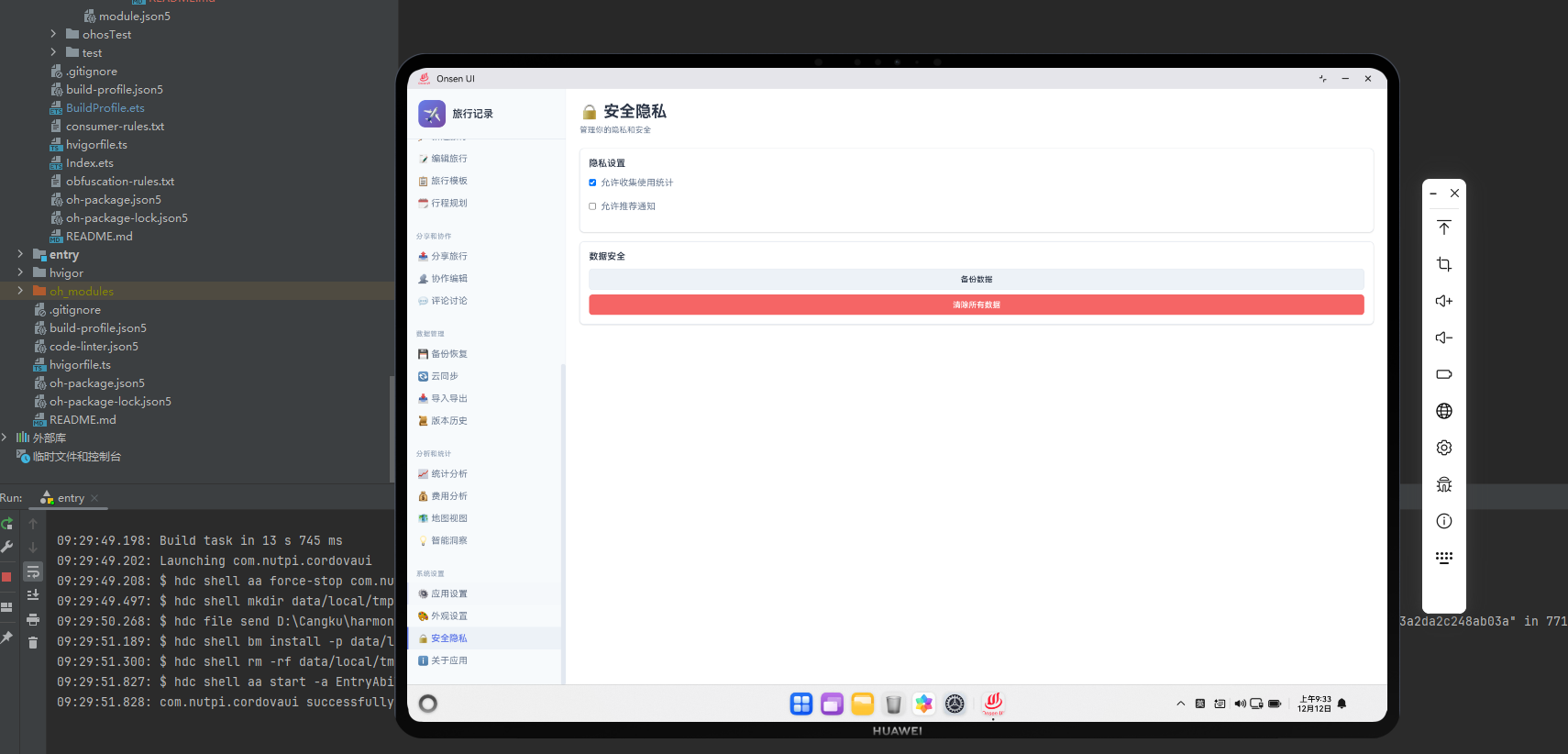
安全隐私功能保护用户的数据安全和隐私。用户可以设置应用密码、启用生物识别认证、管理数据权限等。安全隐私功能是应用的重要组成部分。在 Cordova 与 OpenHarmony 的混合开发框架中,安全隐私需要实现密码管理和生物识别集成。
🔗 完整流程
第一步:密码管理与加密
安全隐私需要实现密码的设置和验证。密码需要进行加密存储,防止泄露。
第二步:生物识别认证
安全隐私可以集成生物识别认证,如指纹识别、人脸识别等。生物识别提供了更便捷的认证方式。
第三步:原生层安全认证与加密
OpenHarmony 原生层可以实现安全的密码存储和生物识别认证。
🔧 Web 代码实现
安全隐私页面 HTML 结构
<div id="privacy-page" class="page">
    <div class="page-header">
        <h1>安全隐私</h1>
    </div>

    <div class="privacy-container">
        <div class="privacy-group">
            <h3>密码保护</h3>
            <div class="privacy-item">
                <label>启用密码</label>
                <input type="checkbox" id="enablePassword" onchange="togglePassword()">
            </div>
            <div class="privacy-item" id="passwordSection" style="display: none;">
                <label>设置密码</label>
                <input type="password" id="newPassword" placeholder="输入新密码...">
                <input type="password" id="confirmPassword" placeholder="确认密码...">
                <button class="btn btn-primary" onclick="setPassword()">设置</button>
            </div>
        </div>

        <div class="privacy-group">
            <h3>生物识别</h3>
            <div class="privacy-item">
                <label>启用指纹识别</label>
                <input type="checkbox" id="enableFingerprint">
            </div>
            <div class="privacy-item">
                <label>启用人脸识别</label>
                <input type="checkbox" id="enableFaceRecognition">
            </div>
        </div>

        <div class="privacy-group">
            <h3>数据权限</h3>
            <div class="privacy-item">
                <label>允许位置访问</label>
                <input type="checkbox" id="allowLocation">
            </div>
            <div class="privacy-item">
                <label>允许相机访问</label>
                <input type="checkbox" id="allowCamera">
            </div>
        </div>
    </div>
</div>
HTML 结构包含密码设置、生物识别和权限管理。
切换密码函数
function togglePassword() {
    const enabled = document.getElementById('enablePassword').checked;
    const section = document.getElementById('passwordSection');
    section.style.display = enabled ? 'block' : 'none';
}
切换密码函数显示或隐藏密码设置区域。
设置密码函数
async function setPassword() {
    const newPassword = document.getElementById('newPassword').value;
    const confirmPassword = document.getElementById('confirmPassword').value;

    // 验证密码
    if (!newPassword || newPassword.length < 6) {
        showToast('密码长度至少为6位');
        return;
    }

    if (newPassword !== confirmPassword) {
        showToast('两次输入的密码不一致');
        return;
    }

    try {
        // 加密密码
        const hashedPassword = hashPassword(newPassword);

        // 保存到数据库
        const settings = await db.getSettings();
        settings.password = hashedPassword;
        await db.updateSettings(settings);

        showToast('密码已设置');

        // 清空输入框
        document.getElementById('newPassword').value = '';
        document.getElementById('confirmPassword').value = '';

        // 通知原生层
        if (window.cordova) {
            cordova.exec(
                (result) => console.log('Password set:', result),
                (error) => console.error('Set error:', error),
                'SecurityPlugin',
                'setPassword',
                [{ timestamp: Date.now() }]
            );
        }
    } catch (error) {
        console.error('Error setting password:', error);
        showToast('设置密码失败');
    }
}
设置密码函数验证并保存密码。
密码哈希函数
function hashPassword(password) {
    // 简单的哈希函数(实际应用中应使用更安全的算法)
    let hash = 0;
    for (let i = 0; i < password.length; i++) {
        const char = password.charCodeAt(i);
        hash = ((hash << 5) - hash) + char;
        hash = hash & hash;
    }
    return hash.toString();
}
密码哈希函数对密码进行简单加密。
启用生物识别函数
async function enableBiometric(type) {
    try {
        // 通知原生层启用生物识别
        if (window.cordova) {
            cordova.exec(
                (result) => {
                    if (result.success) {
                        showToast(`${type}识别已启用`);
                    } else {
                        showToast(`${type}识别启用失败`);
                    }
                },
                (error) => console.error('Enable error:', error),
                'SecurityPlugin',
                'enableBiometric',
                [{ type: type, timestamp: Date.now() }]
            );
        }
    } catch (error) {
        console.error('Error enabling biometric:', error);
        showToast('启用生物识别失败');
    }
}
启用生物识别函数调用原生层启用生物识别。
🔌 OpenHarmony 原生代码实现
安全隐私插件
// SecurityPlugin.ets
import { BusinessError } from '@ohos.base';

export class SecurityPlugin {
    // 设置密码
    setPassword(args: any, callback: Function): void {
        try {
            console.log('[Security] Password set');

            callback({ success: true, message: '密码已设置' });
        } catch (error) {
            callback({ success: false, error: error.message });
        }
    }

    // 启用生物识别
    enableBiometric(args: any, callback: Function): void {
        try {
            const type = args[0].type;

            console.log(`[Security] Biometric enabled: ${type}`);

            callback({ success: true, message: '生物识别已启用' });
        } catch (error) {
            callback({ success: false, error: error.message });
        }
    }
}
安全隐私插件处理密码设置和生物识别。
📝 总结
安全隐私功能展示了如何在 Cordova 与OpenHarmony 框架中实现一个安全认证系统。Web 层负责安全 UI 和密码管理,原生层负责生物识别集成。通过安全隐私,用户可以保护应用数据。

作为“人工智能6S店”的官方数字引擎,为AI开发者与企业提供一个覆盖软硬件全栈、一站式门户。
更多推荐


 21
21 0
0- 0


 已为社区贡献12条内容

所有评论(0)